Office
PDF Expert 3.13.4
OfficeUpdated
| Requirement | On file |
|---|---|
| macOS | macOS 12 or later |
| CPU | Apple Silicon, Intel 64-bit |
| Download | 128 MB |
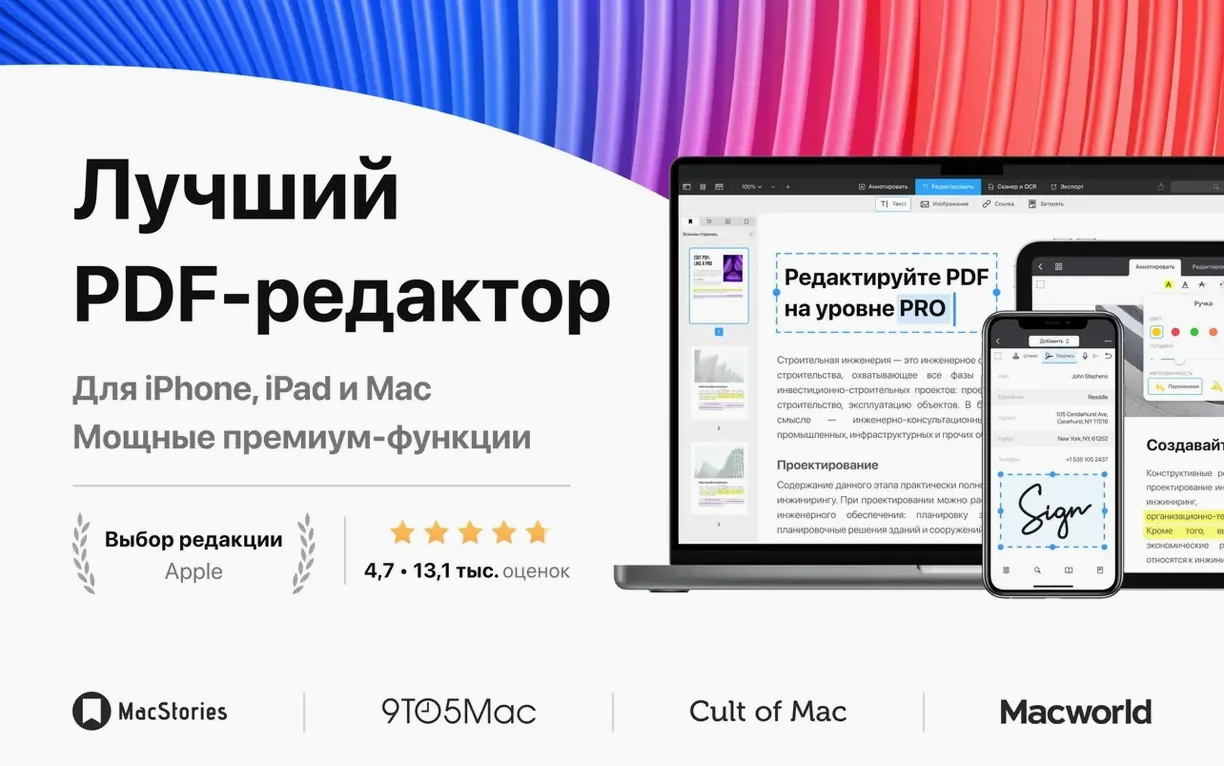
PDF Expert 3.11.1 is a PDF editor and reader that runs natively on Intel and Apple Silicon Macs.
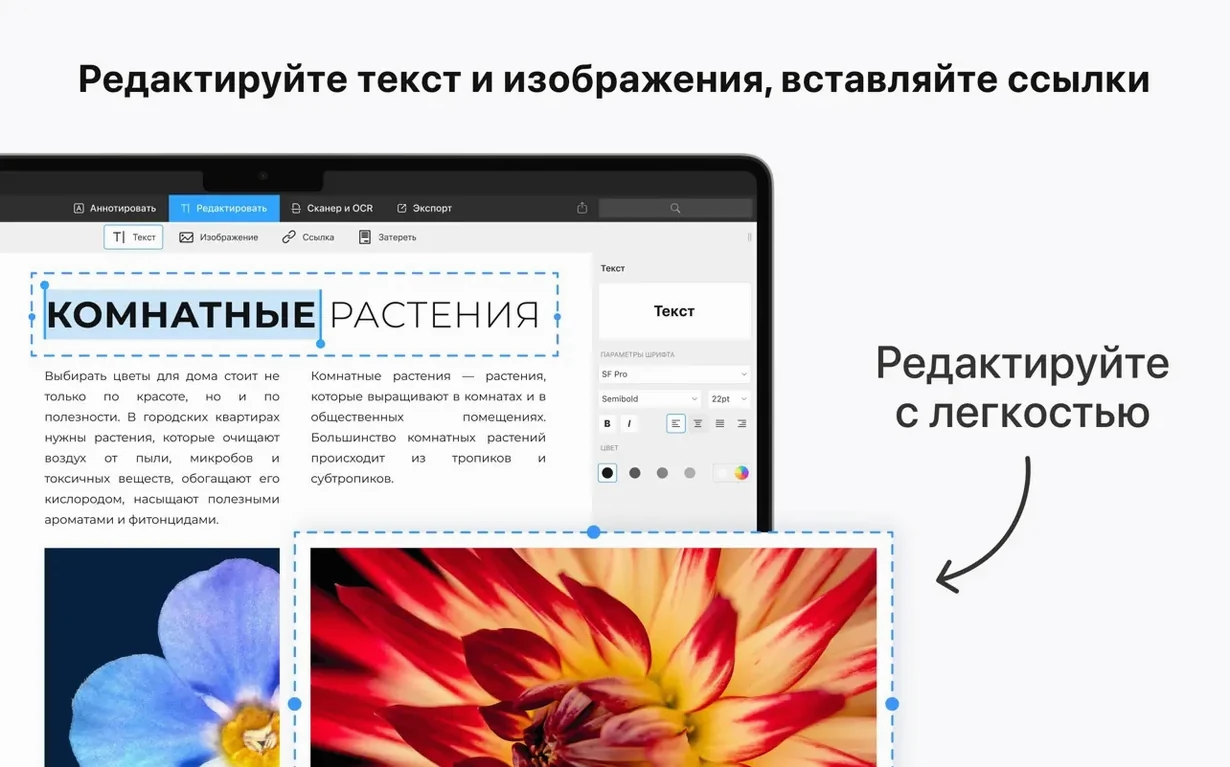
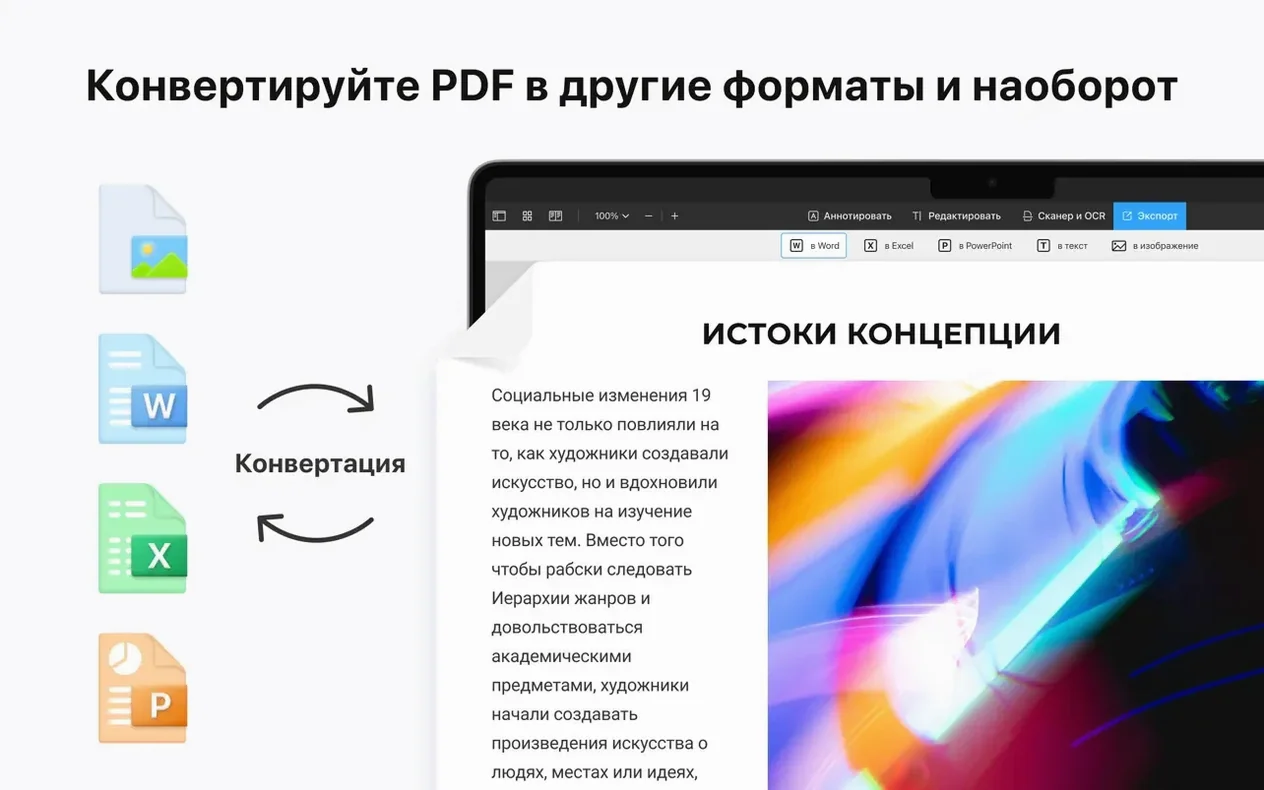
PDF text editing — tap any text block and type; the app reflows surrounding paragraphs. Image editing — crop, resize or replace pictures inside a PDF without external tools. Document merging — drag pages from one file into another via the page sidebar. Password protection — set an owner password to restrict printing or copying, or a document-open password. File conversion — export Word, Pages and Google Docs files to PDF format directly. Link creation — highlight any text or area and assign a URL, internal page link or email action. Table of contents — auto-generate a TOC from document headings or build one manually from selected pages.
Gesture Shortcuts That Skip the Toolbar
A handful of PDF Expert features are tucked into gestures and modifier keys rather than toolbar buttons. They are easy to overlook, but they save a surprising amount of time across a working week.
- Quick look editing without opening the file. Select a PDF in Finder, tap Space for Quick Look, then click the Markup icon. If PDF Expert is installed, macOS hands the file to it. Make a fast annotation — an arrow, a highlight, a text note — then close the window. The edit is saved straight back to the original file. No launching, no File > Open, no Save As dialogue.
- Option-drag to duplicate pages. In the page thumbnail sidebar, hold Option and drag a page; PDF Expert creates an identical copy at the drop point. Useful when you need two versions of the same form page with different data filled in, or when building a multi-page invoice from a single template.
- Right-click a page number in the sidebar to set it as the start of a custom page range. The numbering in the main viewer can differ from the physical page count — handy when a document has a cover and a table of contents before page 1 actually begins.
- Tab between form fields. In form-filling mode, pressing Tab jumps from one fillable field to the next in the order the form creator defined. Shift-Tab moves backward. Far faster than clicking each field individually, especially on dense tax or insurance forms.
- Hold Shift while resizing an image to constrain proportions. Without Shift, the resize is freeform and can squash a logo or a scanned signature. The constraint behaviour matches what most Mac users expect from Preview and image editors.
- Drag-and-drop PDF stitching from the desktop. Drop a PDF onto the open document's page sidebar, and its pages insert at that exact position. Drop it onto a blank area of the main window, and PDF Expert opens it as a new document. Both actions skip the File > Merge dialogue entirely.
- Scroll through search results with Command-G and Command-Shift-G. After opening the search bar with Command-F and typing a term, these shortcuts cycle through matches forward and backward. The highlight colour is a bright, hard-to-miss amber on both light and dark backgrounds.
- Three-finger swipe left or right on a trackpad to flip through pages in single-page view. In continuous scroll mode, a two-finger scroll does the same job, but the three-finger swipe feels more like turning a physical page.
From Email to Signed Contract in One Flow
It is late morning, and a contract has arrived by email. It needs reading, a few corrections, two signatures and a password before it goes back. Here is how a typical session flows inside PDF Expert 3.11.1 on a MacBook Air.
Step 1 — open the attachment straight from Mail. A double-click on the PDF attachment opens it in PDF Expert, which is set as the default PDF handler in System Settings. The document appears in single-page view, sized to fit the window.
Step 2 — scan for the clauses that need attention. A quick skim with the scroll gesture reveals a section headed "Payment Terms." The buyer has entered a net-60 clause where net-30 was agreed. Tapping the text block makes the editor outline appear. The number "60" is selected and retyped as "30". The surrounding paragraph reflows without disturbing the page layout. No text box, no manual repositioning — just tap, type, click elsewhere.
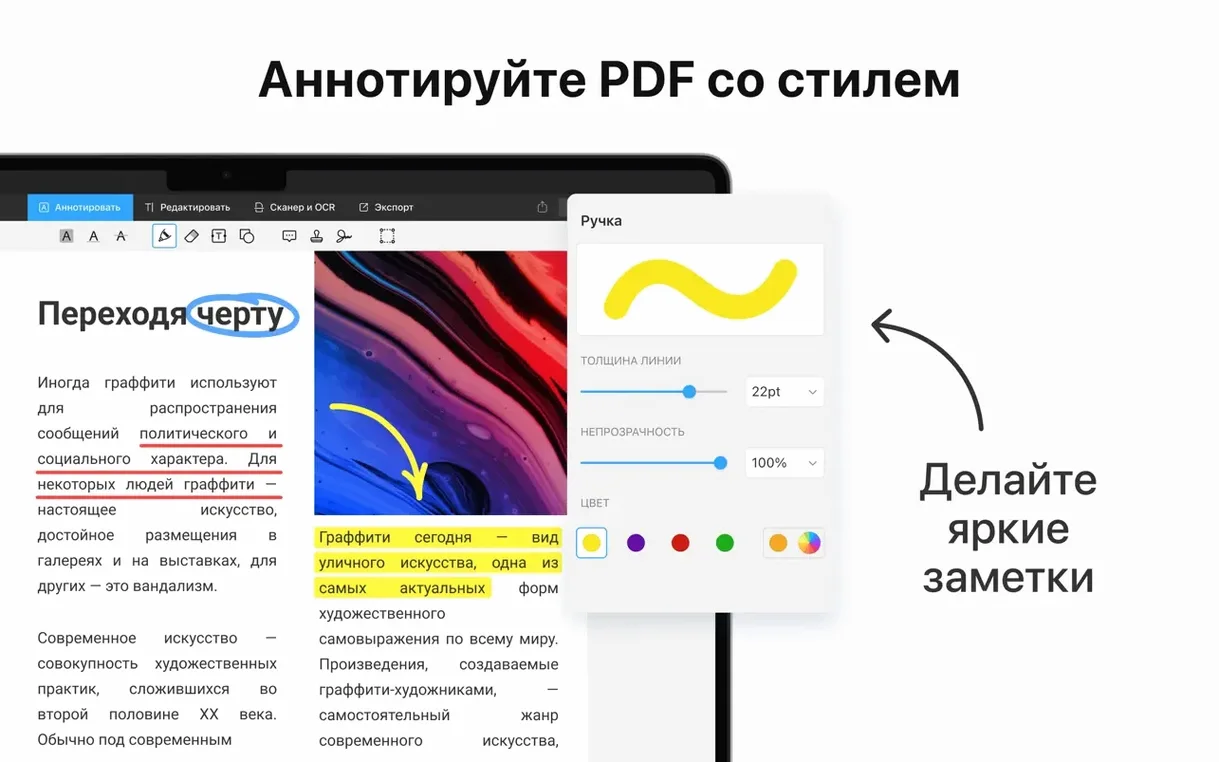
Step 3 — annotate the change for the counterparty. With the corrected text still highlighted, a yellow highlighter is applied from the annotation toolbar. Then a sticky note is placed in the margin: "Changed to net-30 per discussion 12 Feb — please check." The note is coloured orange so it stands out from the yellow highlight.
Step 4 — add the signatures. The contract has two signature blocks. Tapping the first one opens the fill-and-sign toolbar. A saved signature is selected from the drop-down — one drawn on the trackpad and stored weeks ago — and placed with a click. The second signature block gets the same treatment. Both sit tight to the lines, and the background is transparent so they do not obscure the printed name and date fields underneath.
Step 5 — lock the document. Before sending it back, a password is set. File > Set Password calls up a dialogue with two fields: one for the open password, one for the owner password. Both are filled, and the option to restrict printing is ticked. The file is saved and the window title now reads "[filename] — Encrypted".
Step 6 — export a flattened copy for the records. A quick File > Export chooses the "Flatten annotations" option, which bakes the highlights, notes and signatures into the PDF so they cannot be moved or deleted by the recipient. The original annotated version stays on the Mac for future reference. The flattened copy goes back via Mail as a reply to the original thread.
The whole sequence — open, edit, highlight, sign, password-protect, export — takes under four minutes. No other app was opened, no file was converted to an intermediate format, and the document never left the desktop.
Where Freelancers and Sole Traders Feel the Lift
PDF Expert is not a one-size-fits-all tool, nor does it pretend to be. Its feature set skews toward specific workflows, and three groups of Mac users tend to feel the biggest day-to-day impact.
Freelancers and sole traders who handle their own admin — contracts, invoices, tax forms, supplier agreements — find the edit-and-sign loop especially tight. They are not managing document libraries; they are receiving a PDF, changing a line or two, signing it and sending it back. PDF Expert strips that process down to a handful of clicks and keystrokes. The ability to store multiple signatures — one for formal contracts, one for less formal approvals — removes friction that accumulates fast when you sign five or six documents a week.
Academics and postgraduate researchers benefit from the annotation depth. Highlighting a passage, attaching a note, then navigating to another page with a custom TOC entry mirrors how they work with physical papers and sticky tabs. The auto-generated table of contents from headings is a quiet time-saver when reviewing a 200-page thesis or a dense journal issue. And because the app remembers the last-viewed page per document, a researcher can bounce between three open papers and pick up exactly where they left off.
Mac users who live in the Apple ecosystem — iPhone in the pocket, iPad on the desk, MacBook on the go — get Handoff and iCloud continuity with no extra setup. Start reading a PDF on the iPad in the morning, annotate it on the Mac at lunch, sign it on the iPhone before the meeting. The file stays in sync, and the interface on each device feels native, not like a ported afterthought. For people who use a pdf expert free mac download to try the ecosystem before committing, the Mac version reveals the full editing depth that the viewer-only mode on iOS hints at.
Mistakes Beginners Tend to Make
New users who come from Preview or from a browser-based PDF viewer often trip over the same handful of habits. None of them are irreversible, but they cause a few minutes of confusion each time.
Forgetting to switch out of annotation mode before trying to scroll. If a tool — highlighter, underline, pencil — is actively selected, a click or drag on the page applies that annotation instead of panning or selecting text. The fix is simple: tap the arrow cursor in the toolbar, or press Escape. After a day or two, the reflex sets in.
Editing text without first checking the font. PDF Expert matches the font automatically when it can, but if the original document uses an embedded proprietary font that is not installed on the Mac, the replacement can look slightly off — weight differences, kerning shifts, or a serif where a sans-serif was expected. The workaround is to select the text block and check the font name in the formatting panel. If it reads "Unknown" or a generic fallback, consider leaving a sticky note instead of changing the text inline, or accept the minor visual mismatch.
Assuming that adding a password encrypts the file immediately. The password is not applied until the file is saved. Closing the document without saving discards the password setting. This catches people who set a password, close the window and assume the file on disk is now locked. The menu bar shows "Encrypted" only after a save action.
Dragging pages between documents without holding the right modifier. A simple drag moves pages; holding Option copies them. Beginners often copy when they meant to move, ending up with duplicate pages in the source document. Undo (Command-Z) fixes it, but the extra step stings when you are assembling a 40-page tender document from six source files.
Overlooking that signatures are stored locally. The saved signature list is device-specific. A signature drawn on the Mac does not automatically appear on the iPhone unless iCloud sync is enabled and working. Someone who sets up three signatures on a desktop, then opens the iPad version expecting to find them, will see an empty signature panel. The remedy is to enable iCloud for PDF Expert in System Settings > Apple ID > iCloud and confirm sync is active inside the app preferences.
Sluggish Text Editing and Other Fixable Friction Points
Every PDF tool has edge cases. Below are the recurring friction points that turn up in forums, support threads and the occasional pdf expert mac crack reddit discussion, along with the fastest known fixes.
Snag: text editing feels sluggish on a scanned document.
PDF Expert treats scanned pages as images by default, so no text block is editable. The app does not have built-in OCR. The workaround is to run the scan through an OCR tool (Adobe Scan on iOS, or a desktop OCR utility) to produce a searchable PDF, then open the resulting file in PDF Expert for editing. The difference in editing speed is night and day — a 40-page OCR-processed document edits as fluidly as a born-digital PDF.
Snag: the app will not save changes to a password-protected file.
If a PDF has an owner password that restricts editing, PDF Expert respects those permissions. Trying to edit text or add annotations on a restricted file results in a greyed-out toolbar or a permission-denied message. The solution is to unlock the file first: File > Remove Password, enter the owner password, then edit and reapply a new password if needed. Without the password, the document is read-only by design.
Snag: merged documents have inconsistent page sizes.
When combining an A4 contract with a US Letter appendix, the resulting PDF can show pages at different physical dimensions, which causes some pages to display with white bars or at a different zoom level. PDF Expert does not automatically normalise page sizes during a merge. The fix is to use File > Print > Save as PDF (via macOS print dialogue) on the merged document, selecting a uniform paper size. This rasterises the pages to a consistent format, though it flattens annotations.
Snag: Handoff stops working after a macOS update.
A point release of macOS sometimes resets Handoff permissions. The cure is to disable and re-enable Handoff on both the Mac and the iOS device, sign out and back into the same Apple ID if necessary, and confirm that Bluetooth and Wi-Fi are active on both devices. PDF Expert itself needs no reinstallation — the issue sits at the system level.
Snag: the app window goes blank when opening a very large PDF.
Files above roughly 500 MB — heavy with high-resolution raster images — can cause a brief white window while the renderer catches up. Waiting ten to fifteen seconds usually resolves it. If it persists, reducing the file size before opening helps: a quick pass through macOS Preview's Quartz filter (Reduce File Size) or a dedicated compressor trims the bloat. The resulting file opens instantly in PDF Expert, and for most office documents the visual quality loss is imperceptible.
Snag: the Table of Contents generator skips sections.
Auto-TOC generation scans for text styled as headings inside the PDF's internal structure. If the original document was exported from a word processor without heading styles — just bold, 14 pt text made to look like a heading — the generator sees ordinary body text and skips it. The workaround is to build the TOC manually: select the desired pages in the sidebar, right-click, choose "Add to Table of Contents", and type the entry name. It takes a few minutes on a long document but produces a reliable navigation tree.
- macOS 12 or later
- Apple Silicon or Intel 64-bit
Questions on file
Which document formats can PDF Expert convert to PDF?
It converts Microsoft Word, Apple Pages, and Google Docs files directly to PDF.
Does PDF Expert run on older Macs with Intel processors?
Yes, version 3.11.1 supports both Intel and Apple Silicon Macs running macOS 12 or later.
Sign in · Create an account to add a field note.
No field notes yet. A measurement, a version, a machine — they appear after moderation.