Office
OmniPlan Pro 4.11.0
OfficeUpdated
| Requirement | On file |
|---|---|
| macOS | macOS 11 or later |
| CPU | Apple Silicon, Intel 64-bit |
| Download | 100 MB |
OmniPlan 4.11 ships with 11 interface languages, including Russian, Japanese and Dutch. The Pro tier extends the standard app with a multi-project dashboard that combines available time and resources across several files, plus full AppleScript support for automating repetitive scheduling tasks.
Shared Resource Pools and Critical-Path Visibility
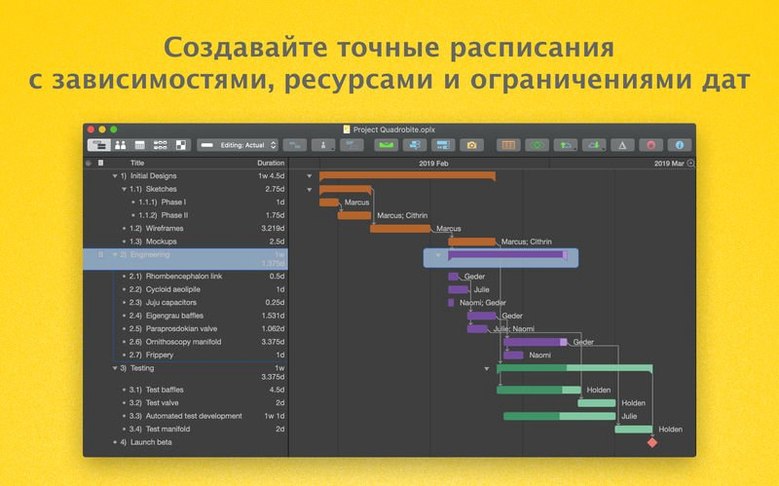
- Projects that depend on visible critical paths and milestone tracking.
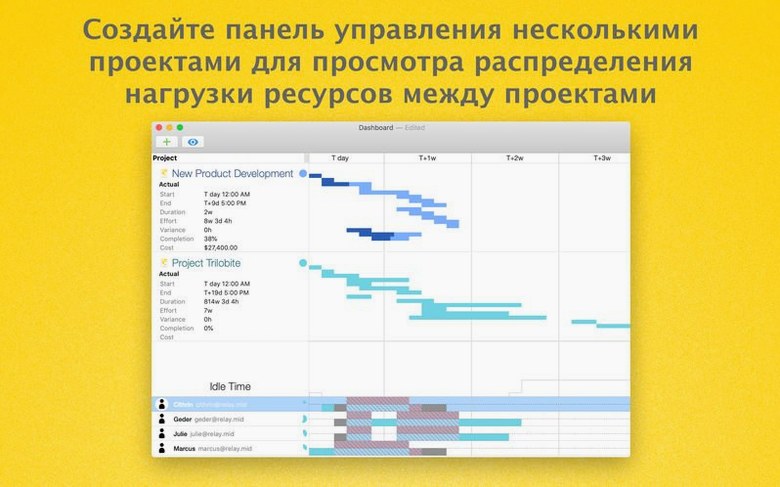
- Managers who need to pool resources from multiple project files and see them in a single dashboard.
- Teams exchanging outlines via OmniOutliner or diagrams via OmniGraffle.
- Workflows that benefit from AppleScript automation of task creation or report generation.
Pro-Only Dashboard and Absence of Live Collaboration
- The Pro features, such as the multi-project dashboard and AppleScript support, are not part of the standard edition.
- Gantt chart summaries and collaboration features are available, but real-time simultaneous editing is not the main model; project data is shared rather than co-authored live.
- The current performance fix targets one specific case: editing a task that has a large number of assigned resources.
Swap Fixed Duration for Effort-Based Scheduling First
A fresh install of OmniPlan Pro 4.11 starts with sensible defaults, but three adjustments make the first project feel less like guesswork. Head to OmniPlan → Settings → General and switch the default task type from "Fixed Duration" to "Fixed Work" if your team bills by effort rather than calendar days. The scheduling engine recalculates finish dates accordingly when you add or remove resources later.
Next, open the Project → Calendar pane and populate it with public holidays and team absences before a single task exists. OmniPlan respects calendar exceptions when plotting the critical path, and retrofitting days off after tasks are already linked creates unnecessary rescheduling noise. The app accepts ICS imports here, so pulling in a standard holiday calendar takes under a minute.
In the View menu, enable "Show Violations" and "Show Critical Path" as a pair. Violations flag resource overallocations in red on the Gantt chart, and the critical path highlights the chain of tasks that directly determines the project end date. Together they surface the two things most likely to derail a schedule early on.
Master a Single Project Baseline Before Merging Plans
Start with a single-project file before attempting the multi-project dashboard. A single file forces you to learn OmniPlan's resource pool, cost tracking, and baseline mechanics without the abstraction layer of merging several projects. Once that single plan has a baseline set, the dashboard view becomes genuinely useful rather than visually overwhelming.
For teams sharing data through Omni Sync Server or WebDAV, assign one person as the merge gatekeeper during the first week. OmniPlan Pro's change tracking lets that person accept or reject task updates individually, and reviewing a handful of edits each morning builds familiarity with what the scheduling engine does when durations shift or resources are reassigned. Letting every contributor publish freely from day one tends to produce conflicting updates that take longer to untangle than they saved.
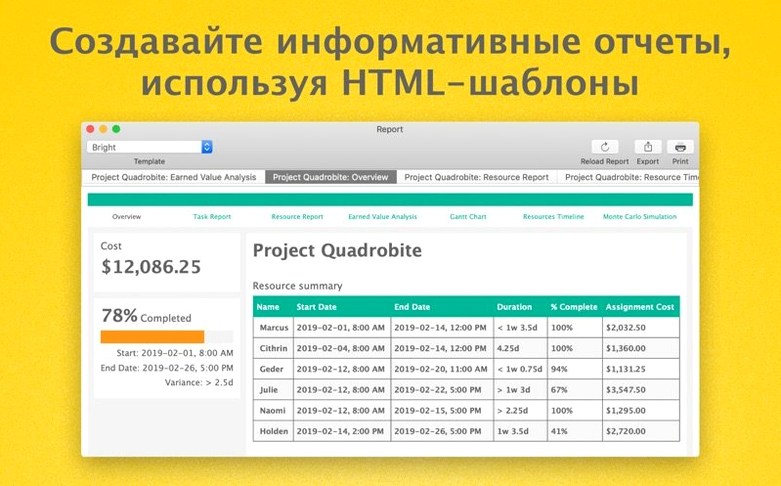
If AppleScript is part of your workflow, test the automation on a duplicate file. A script that generates weekly HTML reports by iterating through tasks, milestones, and earned-value fields can save hours later, but a malformed script that modifies the active document is harder to undo. AppleScript support in the Pro tier is deep enough to manipulate assignments, calendars, and custom data columns — worth exploring in a sandbox first.
MPP Imports That Preserve Dependencies and Calendars
Does OmniPlan Pro handle large Microsoft Project files without mangling the schedule logic? Import and export for MPP files is a Pro-only feature, and in version 4.11 the translation layer preserves task dependencies, resource assignments, and calendar constraints with reasonable fidelity. Edge cases like custom field formulas do not always survive the round trip, so expect to verify critical-path calculations after import rather than trusting them blind.
Is the multi-project dashboard a live view or a static report? It is a live, editable workspace, not a snapshot. Resources shared across project files appear with their aggregated load, and dragging a task in the dashboard updates the underlying project file. The dashboard is most useful when all linked files reside in the same sync location, whether that is a local folder, Omni Sync Server, or a WebDAV endpoint.
What does the Monte Carlo simulation actually simulate, and how long does it take? The simulation runs on a single project and varies task durations within ranges you specify to produce a probability curve for the project end date. On an M-series Mac, a plan with 200 tasks finishes simulation in under thirty seconds. The output is a graph showing the likelihood of hitting specific completion dates, which feeds directly into milestone estimates. This is a Pro-tier feature not present in the standard edition.
Can the app open files from earlier OmniPlan versions? Yes. OmniPlan 4.11 reads files created in version 3 and later, converting them on open. The conversion preserves tasks, resources, and dependencies, though some formatting attributes from very old files may require manual adjustment.
Cross-Project Overallocation and Earned-Value Analysis
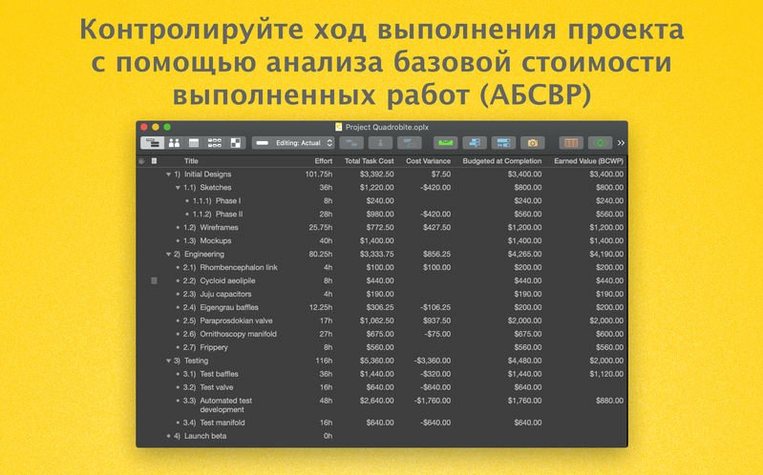
Project managers who run multiple concurrent workstreams with a shared resource pool gain the most from the Pro tier. The multi-project dashboard makes overallocation visible across project boundaries, and earned-value analysis in version 4.11 provides cost and schedule variance figures that single-project views cannot calculate. Someone managing three engineering projects with overlapping contractor availability will use the dashboard daily; someone tracking a single event timeline will not.
Mac users who already own OmniOutliner or OmniGraffle benefit from the export pathways built into OmniPlan Pro. Sending a work breakdown structure to OmniOutliner for stakeholder review, or piping project logic into OmniGraffle for a presentation-ready network diagram, shortens the reporting cycle. The export formats — CSV, OmniOutliner, OmniGraffle, ICS, and HTML — mean reports can land in spreadsheet tools, calendar apps, or a browser without intermediate conversion steps.
Teams that need programmatic control over project data find the AppleScript support in the Pro edition a genuine differentiator. Automating repetitive tasks — generating weekly status reports as HTML, extracting resource loading data for external analysis, or batch-creating task templates from a CSV source — shifts OmniPlan from a manual planning tool into part of an automated reporting pipeline. The investment in scripting pays off fastest in environments where project structures repeat across quarters or where compliance requires consistent, timestamped output that manual export cannot reliably produce.
- macOS compatibility — Improved behaviour with newer versions of macOS.
- Performance — Editing a task with many assigned resources is now faster.
- macOS 12 or later
- Apple Silicon and Intel Macs
Sign in · Create an account to add a field note.
No field notes yet. A measurement, a version, a machine — they appear after moderation.