Office
Nitro PDF Pro 13.3.1
OfficeUpdated
| Requirement | On file |
|---|---|
| macOS | macOS 10.14 or later |
| CPU | Apple Silicon, Intel 64-bit |
| Download | 272 MB |
Nitro PDF Pro 13.3.1 requires a Mac running macOS 10.14 Mojave or later, with at least 1 GB of RAM and up to 2 GB of free disk space. It runs natively on both Intel and Apple Silicon machines, and the interface expects a display resolution of 1280×800 or higher.
Direct text editing and formatting fidelity
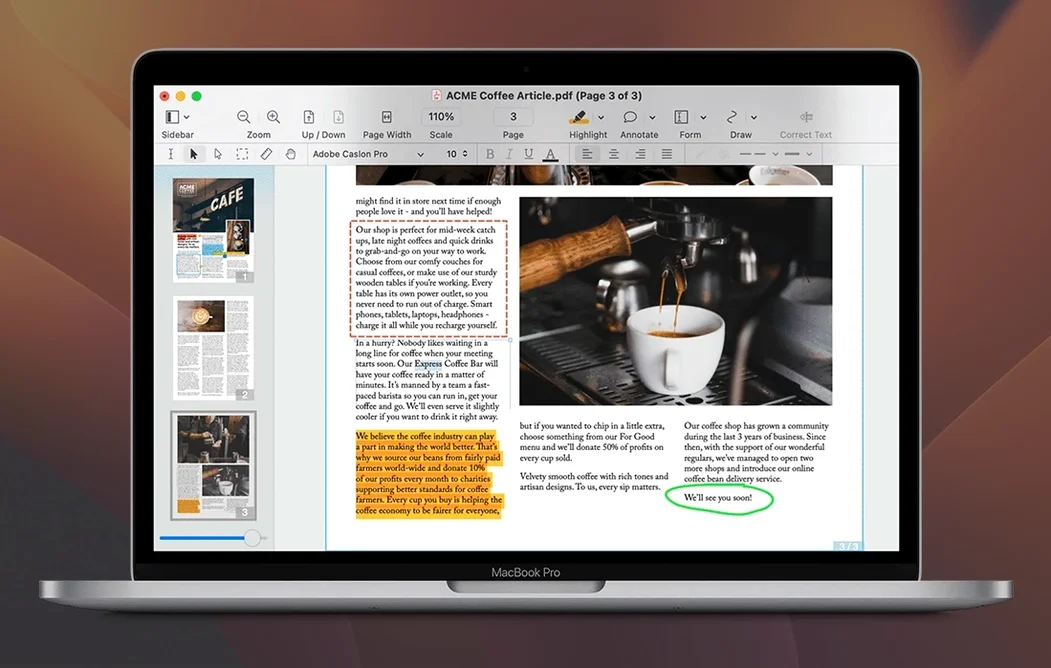
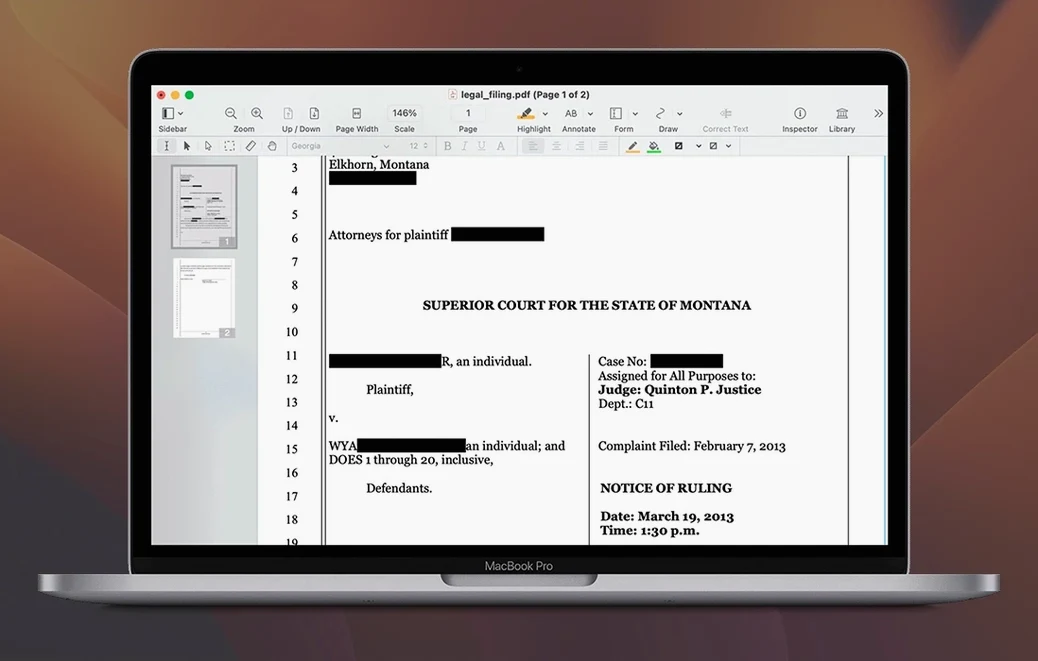
- Does it actually edit text or just annotate? You can edit body text directly, plus move, resize, copy or delete images inside the original PDF without bouncing to another app.
- What happens to formatting when I copy text out? Fonts and layout — including multi-column flows — are preserved when you copy rich text from a document.
- Can I build fillable forms that work outside the Apple ecosystem? Yes. It creates cross-platform PDF forms, and it can both record and play back audio annotations.
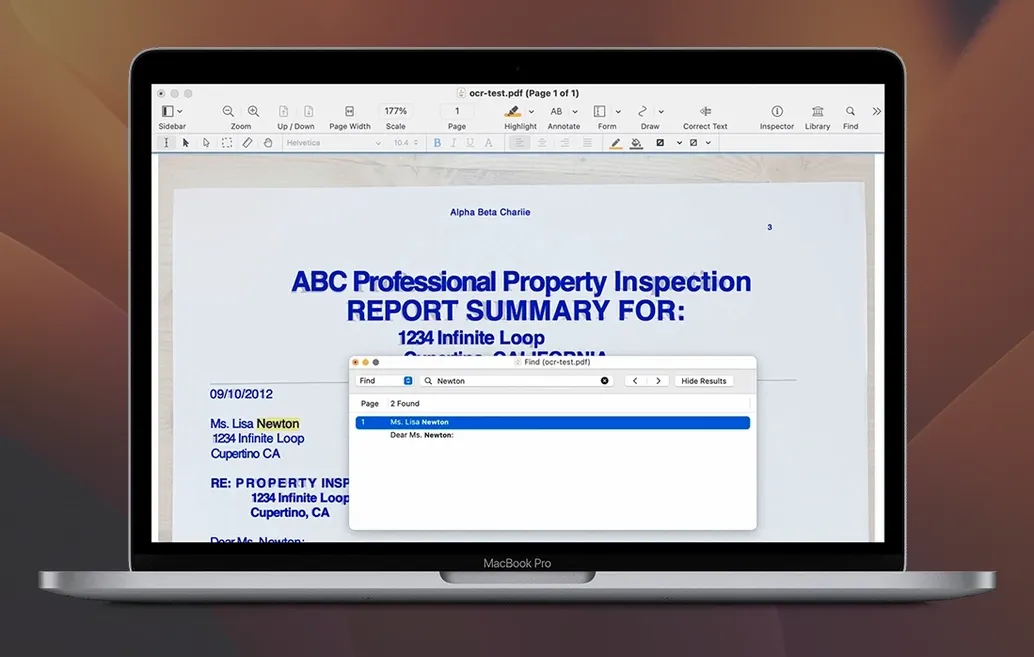
- Does it handle scanned paper documents? The built-in OCR engine recognises text in scanned pages and makes them searchable.
- What export formats are there? PDFs can be converted to Microsoft Word, Excel and PowerPoint. You can also build editable tables of contents and combine files into document portfolios.
What the tool actually covers
Nitro positions this as a full PDF editor for Mac. That means text and image editing, signature placement, document security and form creation all live inside one application. The OCR is there for paper-heavy workflows, and the Office export paths cover the most common sharing requests. It doesn't try to be a lightweight reader — it loads the editing and assembly features up front, which explains the disk footprint and the minimum display requirement.
Snags you’ll probably run into — and what to do
A few friction points show up regularly in the first week, especially if you’re coming from Preview or a browser-based PDF tool. They aren’t bugs, but the behaviour can feel off until you know what’s happening.
- Text boxes jump when you click away. Nitro reflows text blocks to honour the original layout grid. If a paragraph shifts after editing, check whether the block is set to Auto-size. Switch it to Fixed in the inspector panel to lock position and dimensions.
- OCR produces garbled characters on low-DPI scans. The engine expects at least 200 dpi for reliable recognition. Rescan the page at 300 dpi if you control the source. For existing files, open the OCR dialogue, set the language explicitly rather than relying on auto-detect, and bump the output to Searchable Image rather than ClearScan — it’s slower but more accurate on poor originals.
- Exported Word documents lose table borders. This happens when the PDF table was built with graphic lines instead of actual table objects. Before exporting, use the Recognise Table tool on the suspect area. If the table wasn’t tagged in the source, you’ll need to redraw the cell grid manually once, then the export honours it.
- Audio annotations won’t play on a collaborator’s machine. The recording is stored as an embedded file attachment. The recipient needs a PDF viewer that supports embedded audio playback — Adobe Acrobat Reader handles it, but many lightweight viewers don’t. Share the file with a note that playback requires a full-featured reader.
- Merged portfolios show blank thumbnails. Nitro builds the portfolio wrapper before generating previews for large files. Give it a few seconds after the merge completes, then click Refresh Previews in the portfolio toolbar. If that fails, the source PDFs likely contain unsupported compression; re-save each one through Nitro’s Optimise PDF filter first.
Hidden right-click and keyboard accelerators
Several features sit in right-click menus or keyboard shortcuts that aren’t advertised on the toolbar. Once you know them, they cut out repetitive steps.
- Hold Option while dragging a page thumbnail in the sidebar to duplicate it instantly — useful when you need multiple copies of a form page for batch filling.
- Double-click any annotation in the comments list to jump directly to its location on the page. The list is searchable, so typing a keyword filters comments across the entire document.
- Right-click a highlighted passage and choose “Create Bookmark from Selection.” The bookmark adopts the highlighted text as its label, so you can build a navigation tree without typing anything.
- The redaction tool works on patterns, not just areas. Use Find and Redact to strip every occurrence of a phrase, phone number pattern or credit-card format across hundreds of pages in one pass. The search supports regex if you enable it in preferences.
- Batch processing lives under File > Automate. You can apply the same watermark, header/footer, or page-numbering scheme to a folder of PDFs without scripting. Set up one template, point it at the folder, and walk away.
- Export to PowerPoint preserves slide-sized pages. If you set the PDF page dimensions to 25.4 × 19.05 cm before exporting, each page lands as a properly sized slide — no manual resizing in PowerPoint afterwards.
Processing six scanned supplier contracts in one batch
Mira works in procurement for a mid-size construction firm. Her morning starts with six supplier contracts that arrived as scanned PDFs — some 40 pages each, some a single image per page, no text layer. She drops all six into Nitro, runs batch OCR with language set to English and output mode Searchable Image, and lets it churn while she answers emails.
Once the files are searchable, she opens the first contract and uses Find and Redact with a regex pattern to strip every instance of bank account numbers and personal phone numbers from the body text. That takes seconds per document. She then creates a portfolio, drags all six cleaned contracts in, and adds a table-of-contents page that links to each supplier’s section.
The finance team needs the payment terms extracted into an Excel sheet. Mira highlights the relevant clauses across all six files, exports the highlighted text as a summary, and pastes it into a spreadsheet — Nitro preserves the tabular layout from the original PDF tables. Before lunch, she records a short audio annotation on the portfolio cover page explaining which contract takes precedence in case of conflicting clauses, then shares the single portfolio file with the legal team. No printing, no scanning, no chasing missing pages.
First days: what’s worth setting up early
A few minutes spent on configuration right after installing saves friction later. These aren’t buried in advanced menus, but they’re easy to skip when you’re eager to open a file.
- Set your measurement units and grid. Go to Preferences > General and switch units to millimetres or points depending on your industry. Enable the grid and set spacing to 5 mm — it makes aligning form fields and images far less fiddly.
- Turn on auto-save versioning. Under Preferences > Documents, tick Automatically save document changes and set the interval to 5 minutes. Nitro doesn’t use macOS’s native version system, so this is your undo net if the app quits unexpectedly.
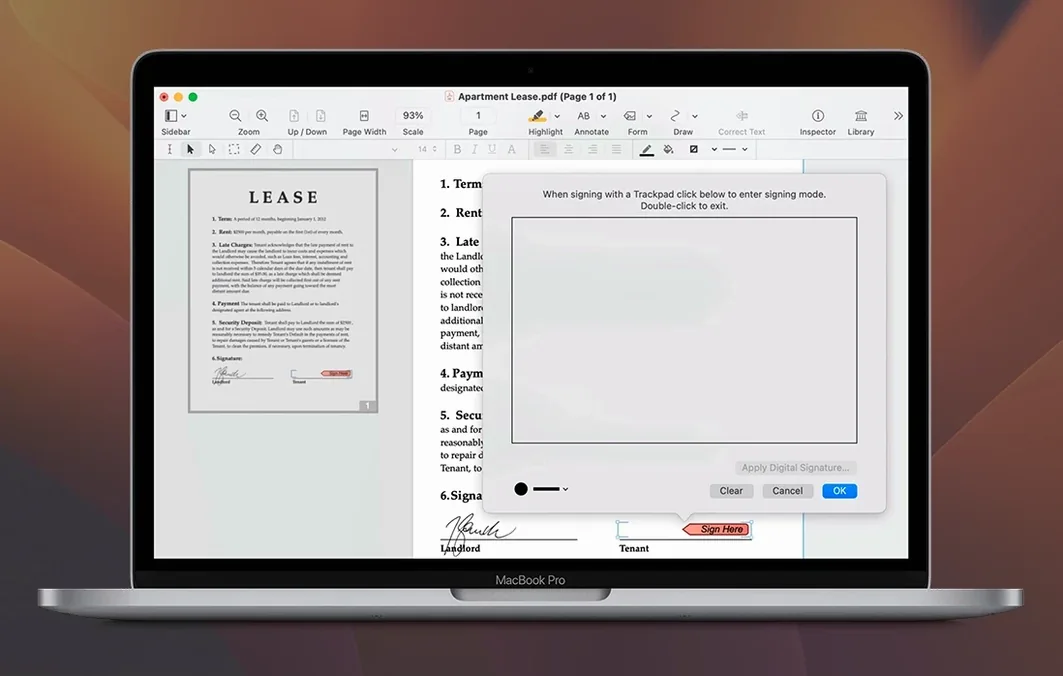
- Load your signature once, store it securely. Create a signature via Tools > Signatures, using either a scanned image or the trackpad. Tick Password protect this signature so nobody can apply it without the passphrase. Nitro stores it encrypted in the local keychain.
- Customise the toolbar for your workflow. Right-click the toolbar and add the Recognise Table, Find and Redact, and Optimise PDF buttons if you handle scanned documents regularly. Drag off anything you don’t use — the default set includes several annotation tools many people never touch.
- Test the export path you’ll use most. Convert a sample PDF to Word and check whether tables, fonts and images survive the round trip the way you expect. If not, adjust the export settings under File > Export > Options before you rely on it for a deadline.
Some users grab a
- macOS 10.14 Mojave or later
- Intel or Apple Silicon Mac
- 1 GB RAM
- Up to 2 GB disk space
- Display resolution 1280×800 or higher
Sign in · Create an account to add a field note.
No field notes yet. A measurement, a version, a machine — they appear after moderation.