Office
PDFelement Pro 12.1.28
OfficeUpdated
| Requirement | On file |
|---|---|
| macOS | macOS 11 or later |
| CPU | Intel 64-bit |
| Download | 807 MB |
You receive a long contract, but it is an old flatbed scan. The text is a single image layer—no search, no copy, no highlight. You open the file in PDFelement Pro 12.1.28, run OCR, and the document becomes selectable text with the original layout intact. That recognition engine is now included in this build rather than locked behind a separate add-on.
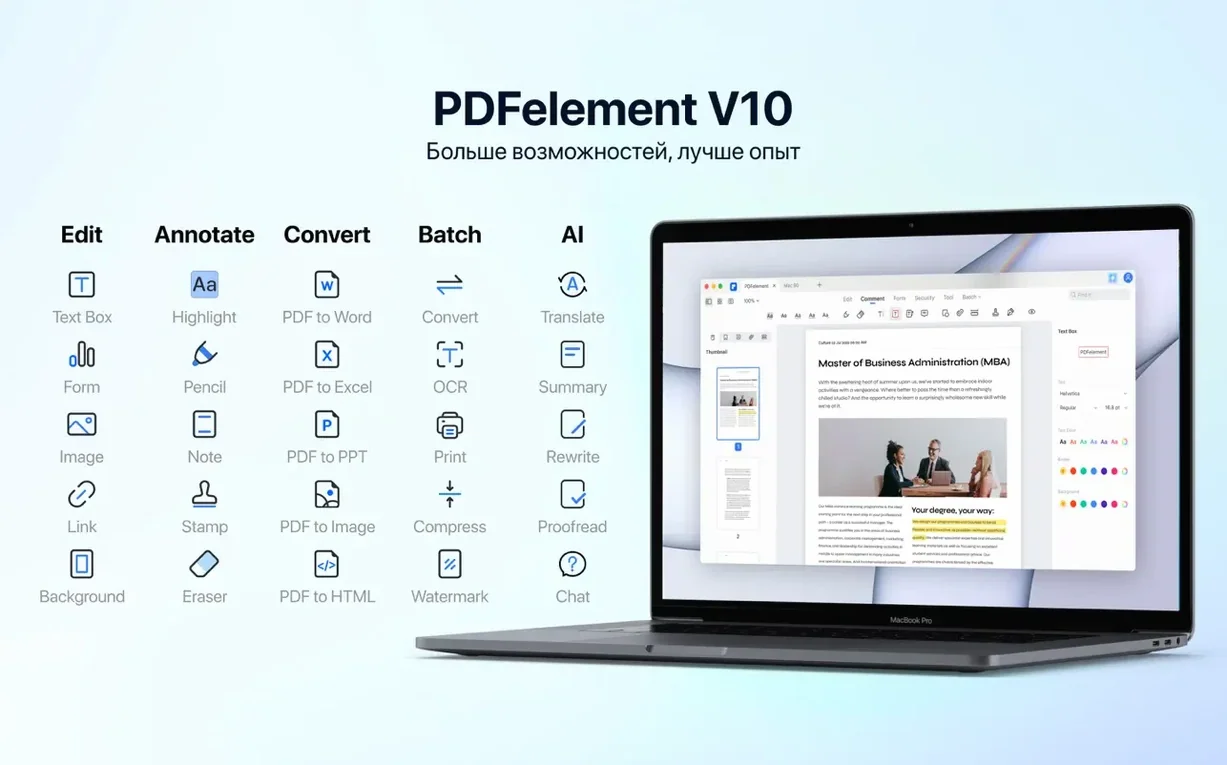
Beyond OCR, the Pro tier holds the full conversion stack. A table-heavy financial report exports to .xlsx with cell structure preserved. A marketing deck converts to a multi-slide PowerPoint file. Batch processing lets you queue a stack of contracts for simultaneous text recognition or format conversion, which saves repeated manual runs. Output formats cover Word, Excel, PPT, EPUB, HTML, RTF, and several image types.
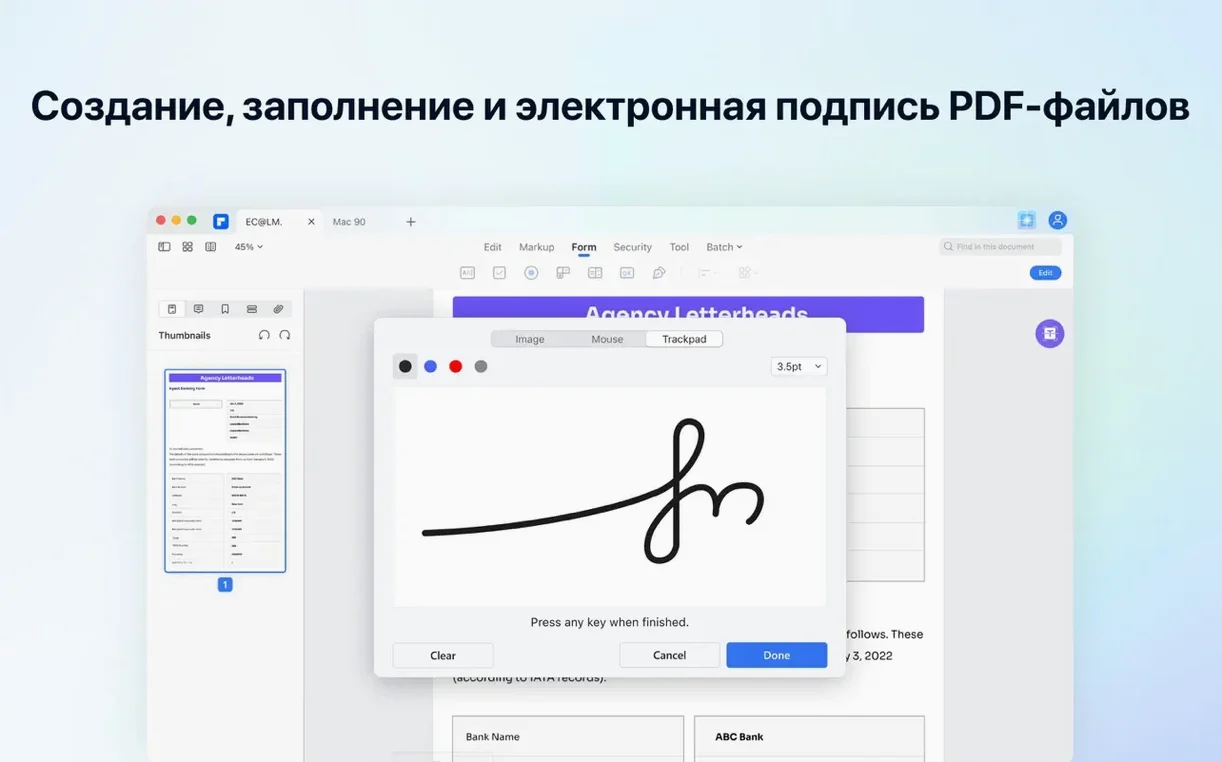
Annotation and review tools sit in a toolbar set that will feel familiar to anyone who has used a desktop word processor. Highlight, strikethrough, sticky notes, shape callouts, and freehand drawing all apply directly to the PDF layer. For shared documents, a redaction tool permanently removes selected text and images, not just masks them. Digital signature placement works with existing certificate-based IDs, and Bates numbering stamps sequential identifiers across page ranges for legal discovery sets.
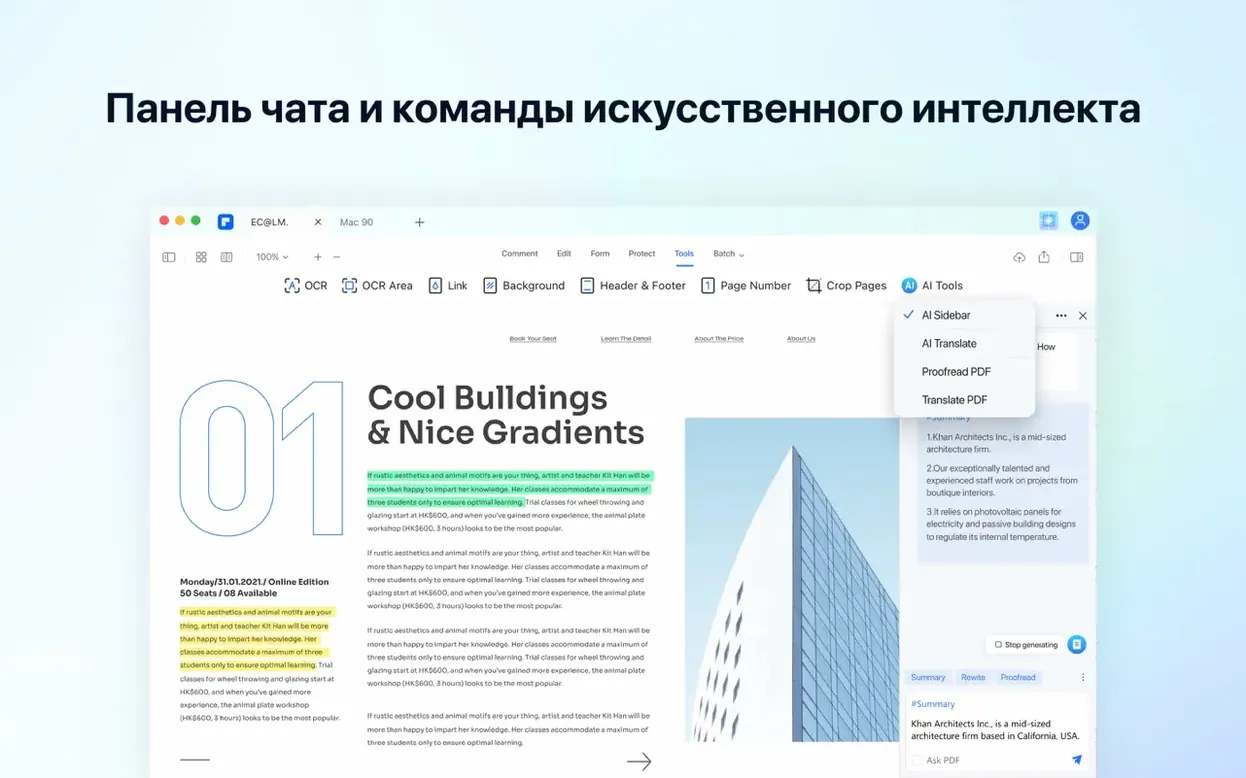
On the AI side, a sidebar assistant can shorten a passage, summarise a section, translate selected paragraphs between languages, or answer questions against the document content. The interface supports Russian, English, German, Arabic, Spanish, Italian, Simplified Chinese, Dutch, Portuguese, French, and Japanese. The app runs under macOS 11 and later; this particular build is Intel-only.
Set the default page view to Single before your first edit
Most people launch PDFelement and immediately open a document, which is fair enough. But three quiet settings make the first week less frustrating. Before you edit anything serious, open Preferences → General and set the default page view to Single Page Continuous—the factory default jumps between pages and breaks reading flow on long reports. While you are there, tick the box for Restore last session on startup. The app does not reopen your tabs after a quit unless you tell it to, and losing a six-document workspace on a Friday afternoon is a small but avoidable irritation.
The second habit worth forming is saving a flat copy after OCR. PDFelement keeps the recognised text layer inside its own editing environment, but other PDF readers sometimes ignore it. Use File → Export To → PDF/A to bake the text layer into an archival file that any viewer will read correctly. This also strips the document back to a clean state, which helps if you later need to print from a different machine.
Option-drag a thumbnail to duplicate a page instantly
The right-click menu on any page thumbnail in the sidebar contains Duplicate Page and Delete Pages, but fewer people notice that holding Option while dragging a thumbnail inserts a copy immediately after the original. That alone replaces three trips through the Organize Pages dialogue when you need to repeat a cover sheet or a blank divider.
In form-creation mode, double-clicking a form field label opens a small panel where you can set the Tab Order field directly. Skipping that step produces forms where pressing Tab jumps in a seemingly random sequence. Numbering the fields in the order you want them filled takes thirty seconds and prevents a common complaint from recipients.
For annotations, the Cmd+Shift+H shortcut toggles the highlighter tool without moving your hand to the toolbar. Press it once, drag across the text, press Esc to return to the Select tool. The same pattern works for Cmd+Shift+U (underline) and Cmd+Shift+K (strikethrough).
When redacting, the Search & Redact field in the redaction panel finds every instance of a word or phrase across the entire document and marks them all at once. Manually blacking out each occurrence of a client name in a 140‑page disclosure is unnecessary—type the term once, confirm the list, apply redaction in a single pass.
Open email attachments straight into PDFelement tabs
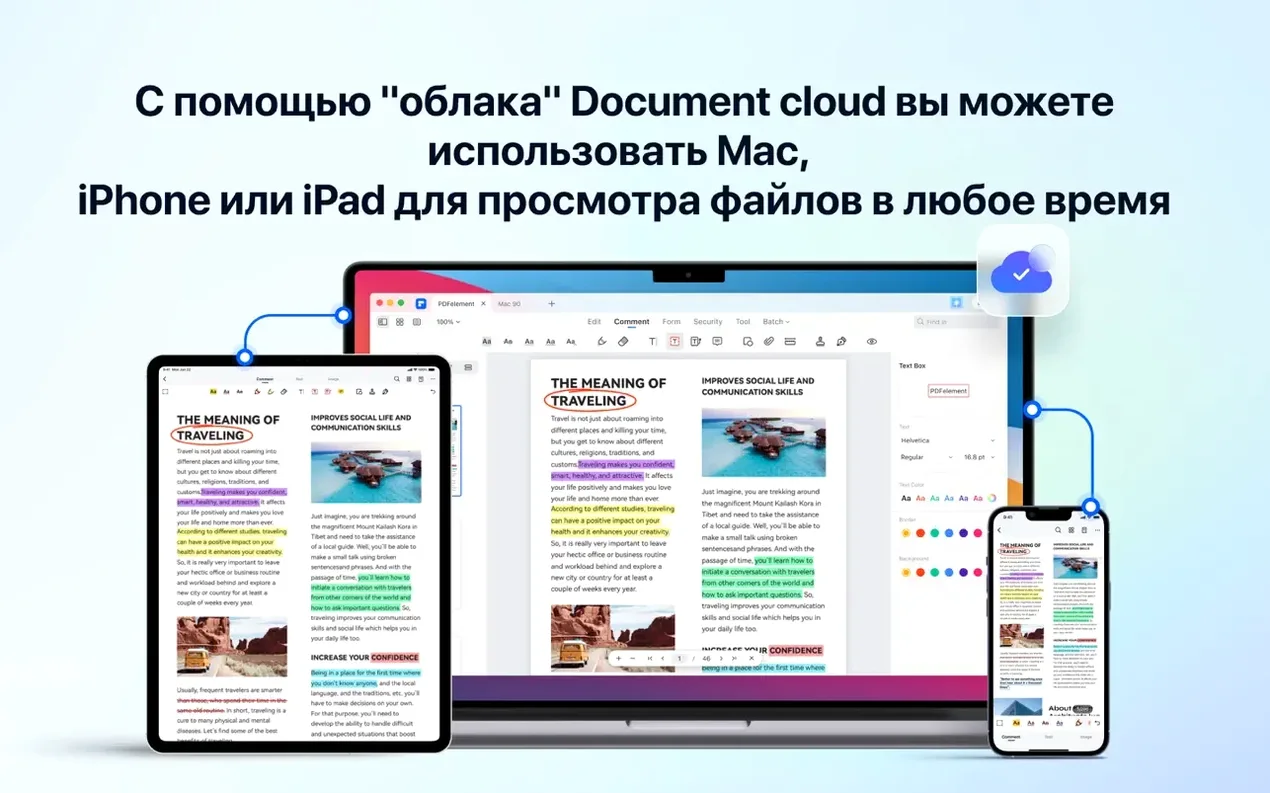
PDFelement registers as a PDF service provider system-wide. In Finder, right-click any PDF, choose Open With → PDFelement, and the document opens in its own tab. The same option appears in Apple Mail, so you can open an attachment directly into the editor without saving it first. In practice this means a contract that arrives as an email attachment can go through OCR, receive a signature, and export to the same folder without touching the desktop.
The app also installs a Print to PDFelement option in the standard macOS print dialogue. From Pages, Numbers, a browser, or any app that can print, select PDF in the lower-left corner of the print panel, and Send PDF to PDFelement appears as a destination. The file lands in a new tab ready for annotation or conversion. This is the fastest route for turning a web page or a spreadsheet into an editable PDF without an intermediate save step.
Drag and drop works both ways. You can pull a scanned image from Photos directly onto the PDFelement window, and the app prompts to run OCR on it. Conversely, dragging a page thumbnail out of the sidebar onto a Finder window exports that single page as its own PDF file—faster than using the Extract Pages dialogue when you only need one slip sheet.
For people who use Quick Look heavily, it pays to know that PDFelement files saved with live editing layers open in Quick Look as flattened previews only. The mark‑up and form fields are there in the PDF data, but macOS does not render them in the preview. You see the underlying document, not the editable overlay. Always open the file inside the app when reviewing annotations.
It won’t hijack Preview or Adobe Reader by default
Will it conflict with Preview or Adobe Reader? No. PDFelement installs as a standalone application and does not hijack the default PDF handler unless you set it yourself in Finder's Get Info panel. All three apps coexist on the same machine. The only point of overlap is the Print-to-PDF service, which adds an entry to a menu—it does not remove or alter existing entries.
Does the OCR work on handwriting? The recognition engine targets machine-printed text for its 29 supported languages. Cursive handwriting and block capitals on scanned forms often produce garbled results, particularly when letter spacing is tight. The feature is designed for typed documents, not for notebook pages.
Can I edit a PDF that was created from a CAD export? Yes, but with a caveat. Technical drawings with vector line work open and display correctly. However, if the original CAD package embedded labels as shapes rather than text objects, those labels will not become selectable or editable—they remain part of the drawing layer. The same applies to PDFs from GIS software.
How well does the AI translation handle technical vocabulary? The sidebar translation works at the paragraph level and handles general business prose well. Highly specialised terminology—medical trial language, engineering specs with compound nouns, legal phrasing with defined terms—can produce awkward renderings. The summarisation tool is more reliable across domains because it works within the document's own vocabulary rather than crossing language boundaries.
Quietly, some users look for terms like pdfelement mac crack or wondershare pdfelement torrent before installing, and there is a reason this particular build arrives with a Gatekeeper-friendly disk image and a Terminal bypass step. The activation path is already handled. No separate patcher or offline routine is needed beyond the instructions included in the download.
Switch Excel conversion to table structure for clean financial exports
The Conversion → Excel preference is set to Create table based on text layout by default. Change it to Create table based on table structure before exporting financial PDFs. The layout‑based mode treats every line as a row and often splits multi‑column tables into a single messy column. The structure‑based mode reads cell boundaries and preserves the grid, which matters if you plan to work with the exported data rather than just look at it.
In Preferences → OCR, the default recognition language is English. If your workflow includes bilingual documents—say, a contract with clauses in both English and Russian—add the second language here. The OCR engine processes each page against the full language list, and skipping this step means non‑English pages return as gibberish that cannot be fixed without re‑running recognition.
Under Preferences → General → File Size, the Save optimisation slider defaults to balanced. If you work with image‑heavy scanned PDFs and file size is not a concern, slide it toward Quality. The standard compression can soften small text on 200‑dpi scans. Conversely, if you need lightweight files for email, the Minimum Size setting drops embedded image resolution noticeably—useful for draft review rounds where the text matters and the image fidelity does not.
- OCR module — now included in the 12.1.28 build
- macOS 11 or later
- Intel processor (x86 64-bit build)
Sign in · Create an account to add a field note.
No field notes yet. A measurement, a version, a machine — they appear after moderation.