Office
Notebooks 4.0.0
OfficeUpdated
| Requirement | On file |
|---|---|
| macOS | OS X 10.11 or later |
| CPU | Apple Silicon, Intel 64-bit |
| Download | 19 MB |
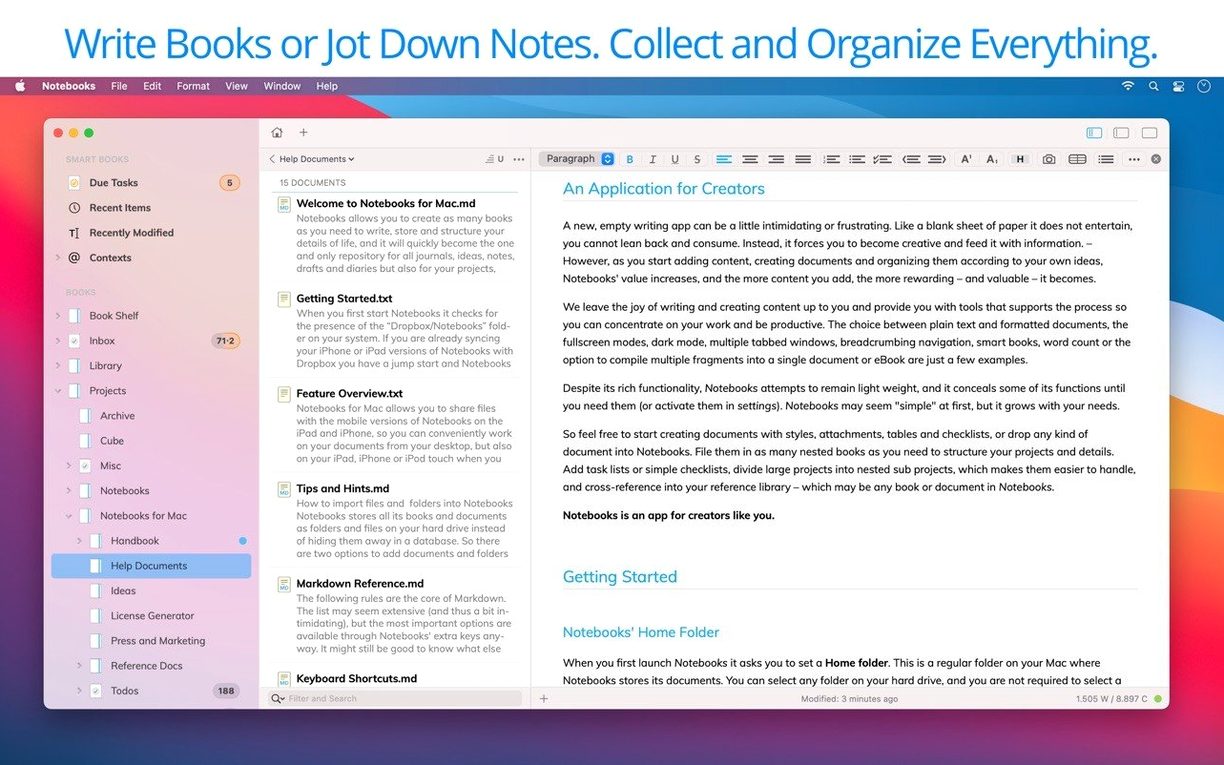
Notebooks is a Mac application that treats every note, task list, and imported file as a plain document on your drive, turning your existing folder structure into a personal Wiki and Zettelkasten.
- Documents stay as regular files and folders in Finder, so other tools can read them without import or export steps.
- Task lists live inside your notes; extracted to-dos appear in a central view without leaving the document they came from.
- PDFs, images, and Office files sit alongside written pages, all searchable when Spotlight indexing is enabled on the drive.
- Syncs across Mac, iPad, and iPhone via Dropbox or a WebDAV server, keeping the same file structure on every device.
- The interface switches between English and German, matching the system language or a manual override.
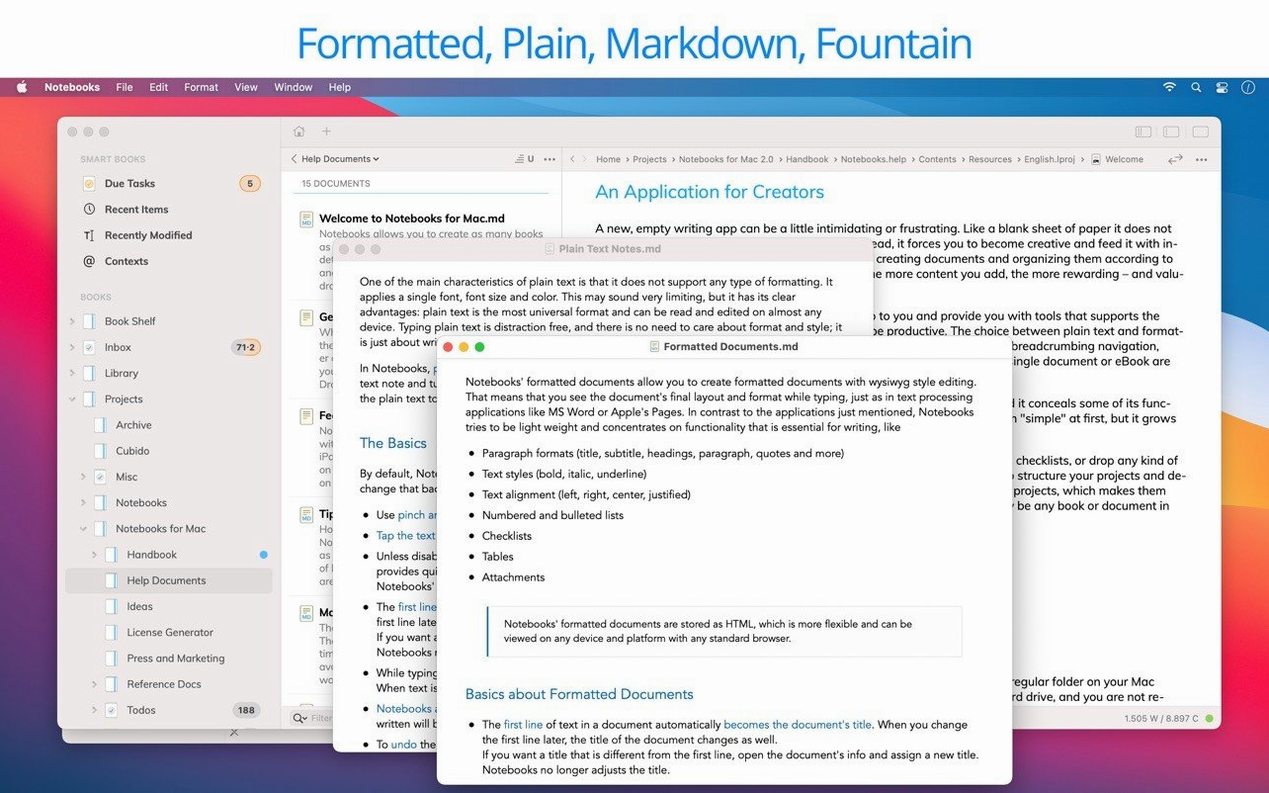
Because Notebooks works directly with the file system, it fits next to text editors, PDF readers, and cloud sync tools you already use. The app does not lock content inside a database, so a Markdown file edited in Notebooks is still a valid Markdown file for another editor. Enable Spotlight on the drive that holds your documents to get full-text search results inside the app.
Set the Default Document Extension to .md Before Your First Note
Out of the box, Notebooks makes a few assumptions that may not suit everyone. Three settings are worth adjusting before you write the first note.
Open Preferences > General and set the Default Document Extension to md if you plan to use Markdown, or txt if plain text is enough. The default rtf works for rich text but trips up command-line tools and some sync workflows. On the same tab, check Treat First Line as Title — this feeds the book list and outline views without manual naming.
Under Preferences > Editing, disable Smart Quotes and Smart Dashes if you write code, Markdown, or anything destined for the web. Smart punctuation breaks syntax hilighting and produces garbage when pasted into a terminal. While there, set the Default Font to a monospaced face like SF Mono if your days involve code blocks or plain-text tables.
Finally, visit Preferences > Sync and confirm that the sync target — be it a Dropbox folder or a WebDAV address — points to a location Spotlight indexes. Without indexing, Notebooks can only search filenames. With it, full-text search across PDFs, Word docs, and notes works as expected.
A 45-Minute Writing Flow Across Books, Notes, and Tasks
A typical morning session shows how the pieces fit together. Here is how 45 minutes with Notebooks plays out.
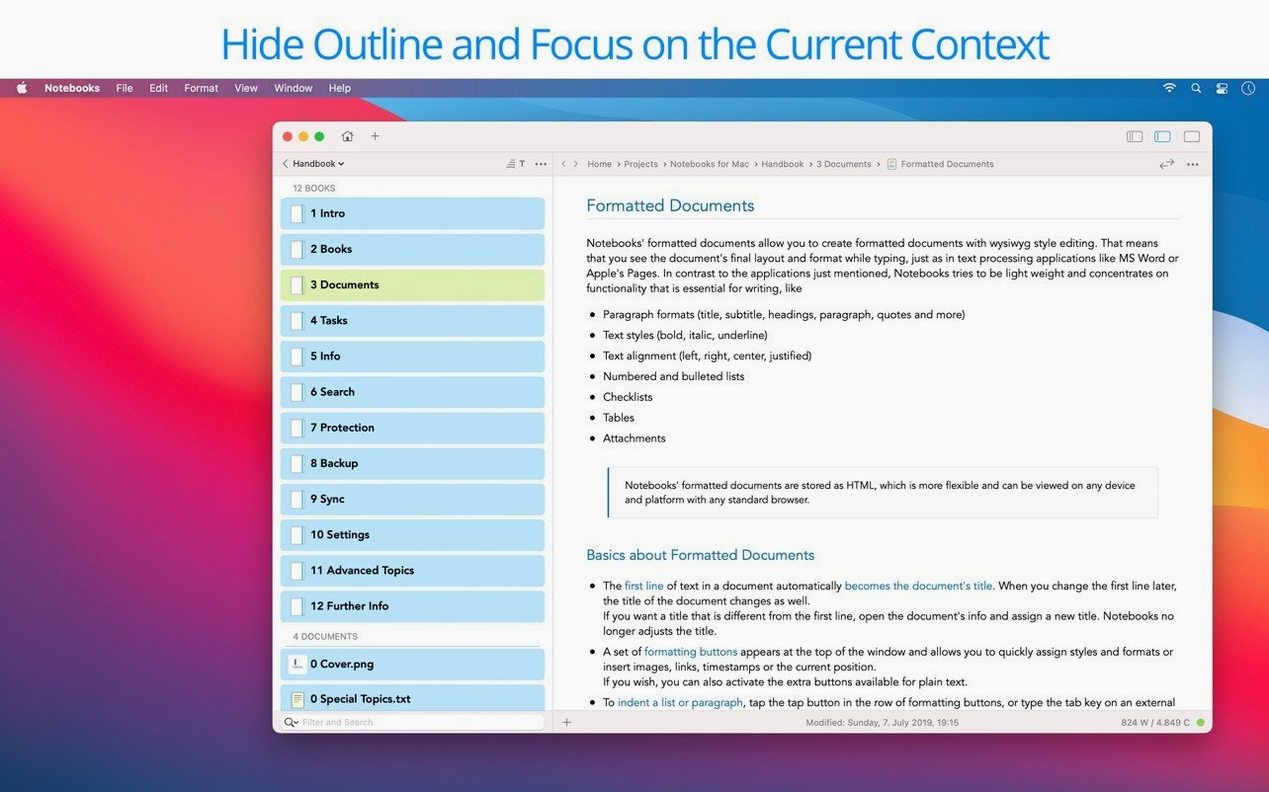
- Open the book. Launch Notebooks. The left sidebar shows the Books list, which is just a tree of Finder folders inside your chosen document root. Select Projects, then the subfolder Documentation. The document list fills with Markdown files and a few imported PDFs.
- Create a note. Press
Cmd-N. A blank document opens in the editor pane, named after the first line. TypeCLI build notes for the next release. The title appears in the document list immediately. - Write and structure. Switch to Markdown view if plain text is showing. Type sections with
##headings. Drop a code block with triple backticks. The syntax hilighting kicks in without any toggle. - Extract tasks. Midway through the note, write
- [ ] Check ARM buildon its own line. Switch to the Task tab at the bottom of the sidebar. The task appears alongside any other open items across all books, grouped by document. Tick it off in the task view, and the source line updates to- [x]. - Drag in a file. Grab a PDF from Finder and drop it onto the Documentation book in the sidebar. Notebooks copies the file into the corresponding Finder folder. Click it in the document list, and the built-in viewer renders the PDF without launching Preview.
- Search across everything. Hit
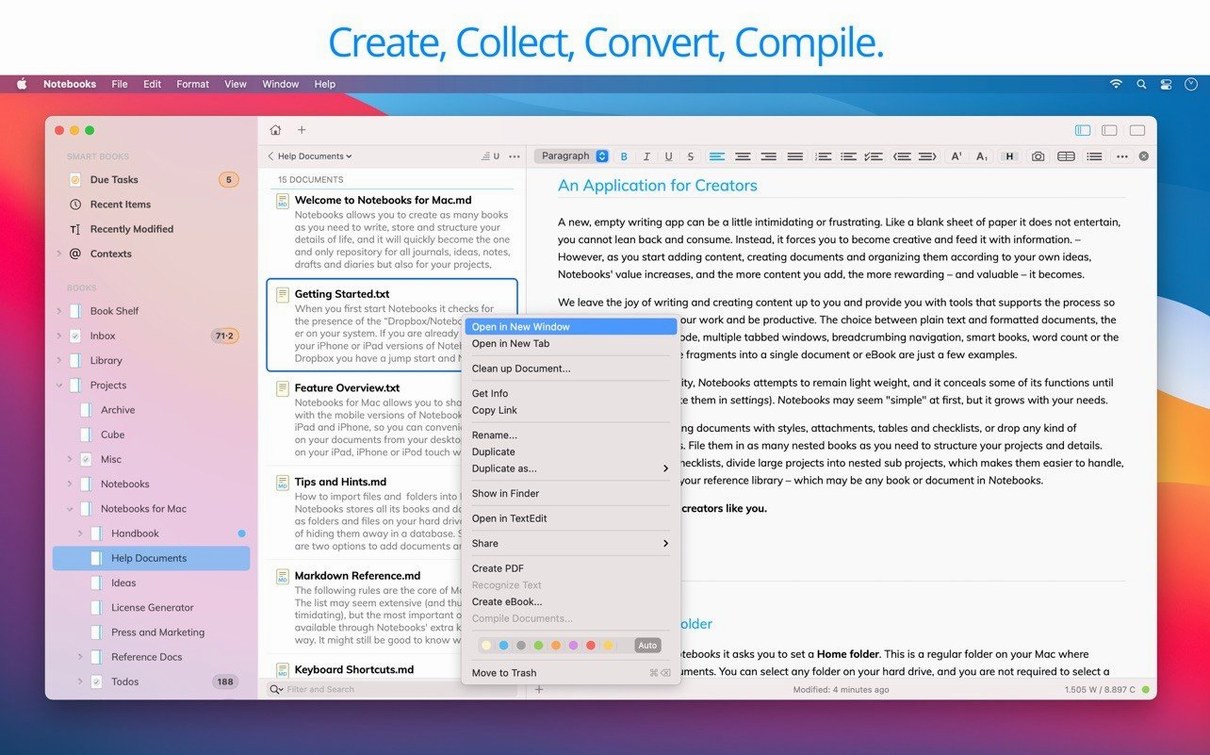
Cmd-Shift-Fand typebuild. Results span Markdown notes, PDF contents, and Word docs inside the book. Spotlight makes this fast — if the drive is indexed, the results appear as you type. - Jump between contexts. The contextual menu on any document offers Reveal in Finder. Open the file in another editor, make a change, save it, and switch back to Notebooks. The change is already there — no sync delay, no import step.
By the end of the session, the Documentation book holds a draft note with embedded tasks, a freshly imported PDF, and a Finder folder that mirrors everything. The iPad version, synced via Dropbox, already shows the same structure.
How Notebooks Fits With Other Apps
The file-system-first design means Notebooks does not need to integrate with other apps — it just shares the same files. A few combinations prove particularly useful.
- Text editors and IDEs. Open a Markdown file in BBEdit, VS Code, or Nova, and Notebooks picks up the changes the moment you save. Use a heavyweight editor for complex search-and-replace or multi-file refactoring, then switch back to Notebooks for the writing context and task management.
- PDF tools. Annotate a PDF in Preview or Skim and the annotations appear in Notebooks' PDF viewer on the next open. No round-tripping through an import dialog.
- Automator and Shortcuts. Because the documents are plain files, Automator workflows and shell scripts can create, rename, or move them freely. A cron job that dumps daily logs into a Journal book works without touching the app.
- macOS Spotlight. With indexing enabled on the document drive, Spotlight finds note contents from the menu bar. Launch the note from the Spotlight result, and Notebooks opens it directly.
- Versions and Time Machine. Mac's built-in version history covers every file Notebooks touches. Browse previous versions of a note from Finder without exporting or snapshotting inside the app.
- notebooks mac full version and notebooks macos setups benefit from this openness when the document root lives on a file provider that other sandboxed apps can also reach — something database-backed note apps rarely allow.
Version 4.0 — refinements, reliability, and visual consistency.
Editing — everyday editing and typing performance improved.
Task extraction — works more consistently across documents.
Outline and document list — refined to behave more predictably.
PDFs — working with PDFs is more convenient.
Liquid Glass — enhanced support.
App icon — new icon introduced.
Interface — inconsistencies resolved.
- macOS 10.11 or later
- Intel and Apple Silicon Macs
- Spotlight should be enabled on the drive holding your documents for the best search experience
Sign in · Create an account to add a field note.
No field notes yet. A measurement, a version, a machine — they appear after moderation.