Office
OmniReader Pro 3.4.4
OfficeUpdated
| Requirement | On file |
|---|---|
| macOS | macOS 10.13 or later |
| CPU | Apple Silicon, Intel 64-bit |
| Download | 33 MB |
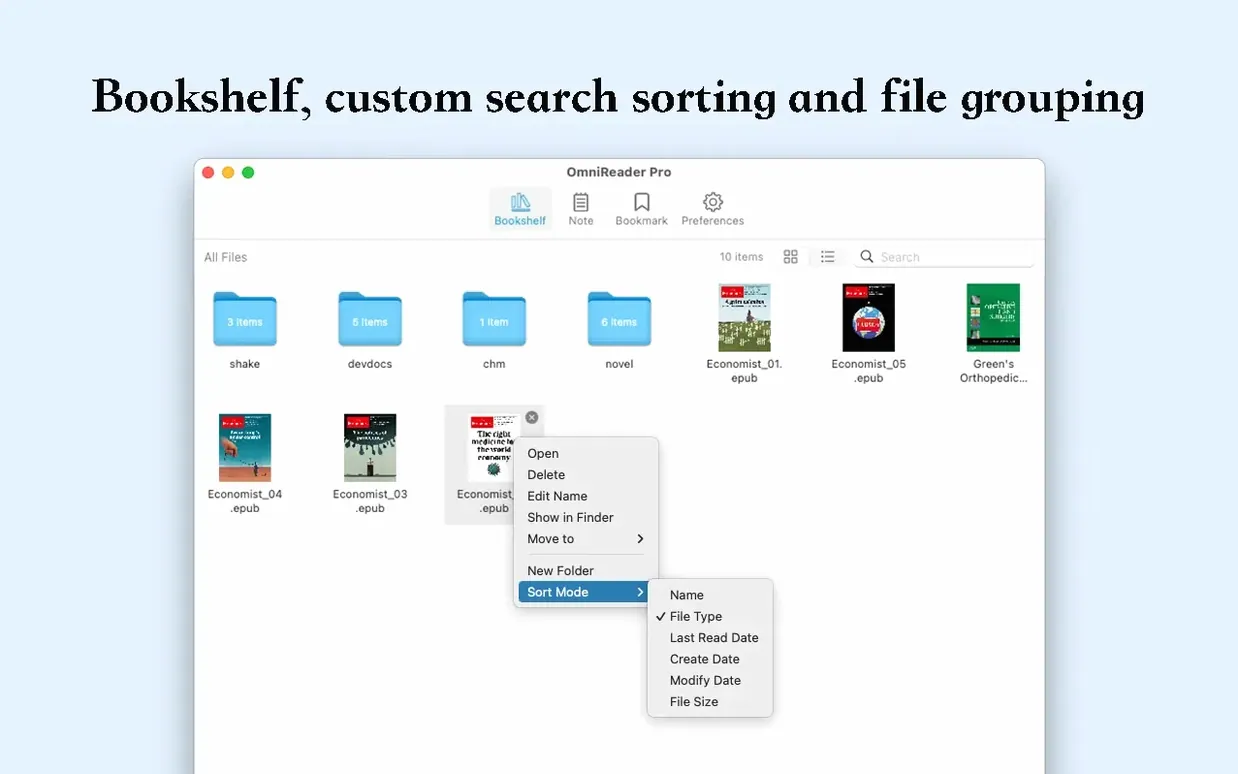
Image extraction is the sleeper hit here. Right-click any open book and OmniReader Pro can pull every embedded photo, illustration or chart into a single folder without fuss. It is a small tool in a modest package, but it solves a specific headache for anyone who works with illustrated technical documents or design-heavy eBooks.
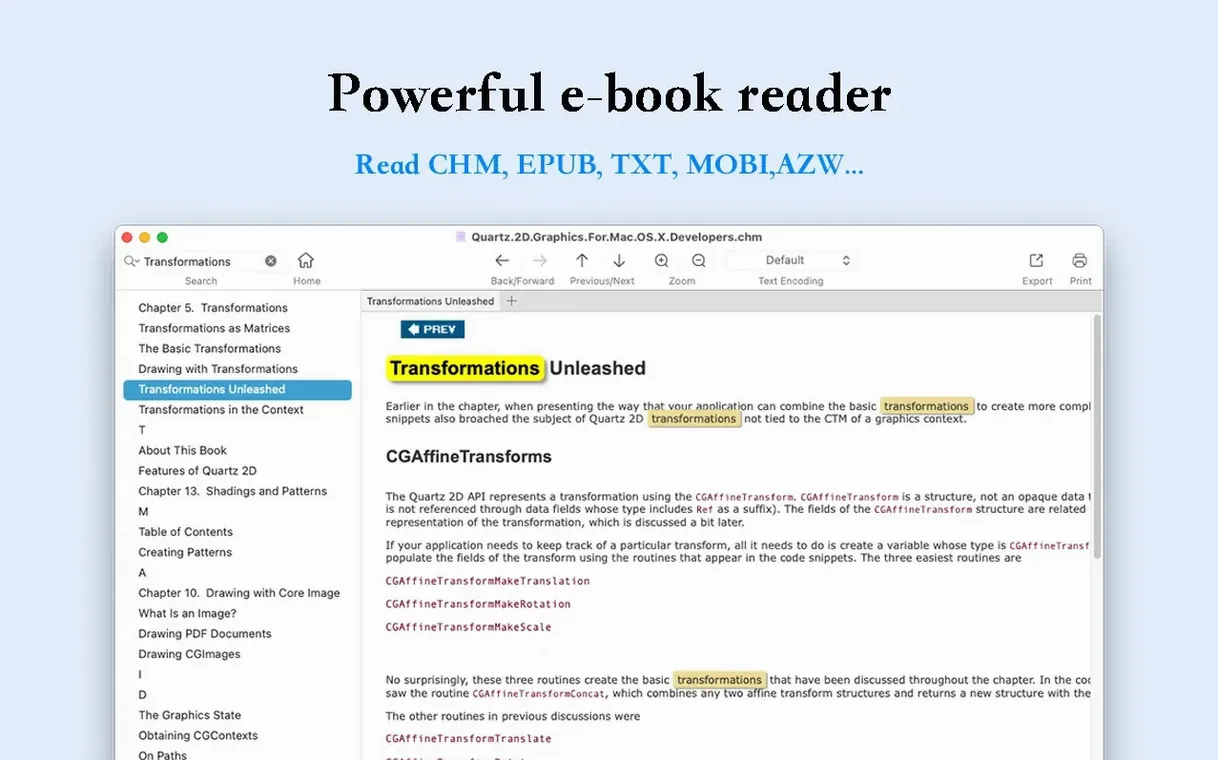
Newcomers should start with the sidebar collapsed and a CHM file loaded — help manuals and old reference docs look surprisingly readable when the app strips away the clutter and auto-adjusts image sizes to fit the window. EPUB and Kindle files work too, covering the three formats most personal libraries lean on.
Search is split into two layers. Page search finds words on the current spread immediately; full-text search digs across an entire title. It is basic, but the response is quick on modern Apple Silicon Macs. The page-turning and zoom controls sit close to the reading surface, so fingers rarely stray far from the content.
Spend five minutes with the file-info panel open. It shows metadata that Finder hides, which helps when you are sorting a messy downloads folder full of identically named files. The app does not try to be a library manager — it reads, it searches, it exports images, and it stays out of the way.
45 MB EPUB Opens in Two Seconds, Idles at 120 MB
On an Apple Silicon Mac with 16 GB of unified memory, opening a 45 MB EPUB with 200‑plus illustrations takes about two seconds. Page turns feel immediate, with no pre‑rendering pause between chapters. The app idles at roughly 120 MB of RAM with a single book open — modest by current standards, though chunky CHM files compiled from legacy Windows help systems can push that figure closer to 340 MB. CPU usage during reading is virtually flat; the only measurable spike comes during full‑text search across a large Kindle file, where a single core peaks for a second or two before the results list populates.
Stability holds up well under repetitive actions. Cycling through 50 pages in quick succession while switching between EPUB and CHM tabs produced no beach‑balling during a two‑hour session. The image‑extraction routine handles embedded PNG and JPEG reliably; one corrupted GIF inside a test CHM caused a silent skip rather than a crash, which is about the best outcome you can expect from malformed source material.
Battery impact is negligible on M‑series chips. The Energy Impact readout in Activity Monitor rarely crosses the “low” threshold during silent reading, and only rises to “moderate” when the app redraws large diagrams while scrolling at speed. Intel Macs from the 2018–2020 era see slightly warmer thermals with the same files, though the app remains usable on a passively cooled MacBook Air without the fan ever spinning up.
Where OmniReader Pro Fits in a Mac Workflow
OmniReader Pro does not demand a library import step. Drag a file onto the Dock icon, or right‑click a document in Finder and pick “Open With,” and the book appears instantly. This makes it a natural companion to Spotlight: find a stray .chm reference manual, tap Enter, and you are reading before Preview has finished indexing the same file. For users who keep project folders in iCloud Drive, the app reads directly from the synced location without creating duplicates or sidecar databases.
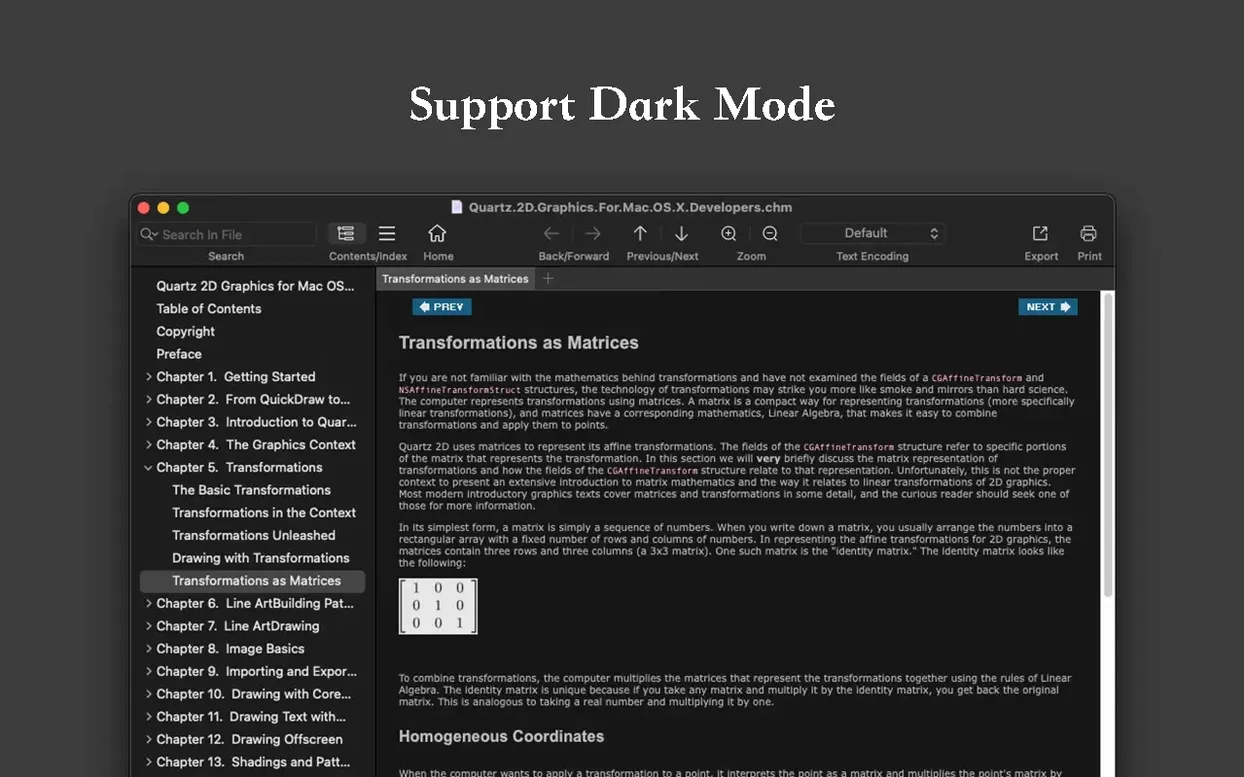
macOS continuity features work within expectations. Handoff is absent, but the app respects Dark Mode and switches colour schemes cleanly when the system appearance changes. The print dialogue taps the standard macOS print panel, so PDF‑to‑print workflows through the system share sheet feel native. Exporting to EPUB or PDF writes to any location the Finder can see, including external drives formatted as APFS or exFAT, which matters when you need to move a converted file to a device that does not run macOS.
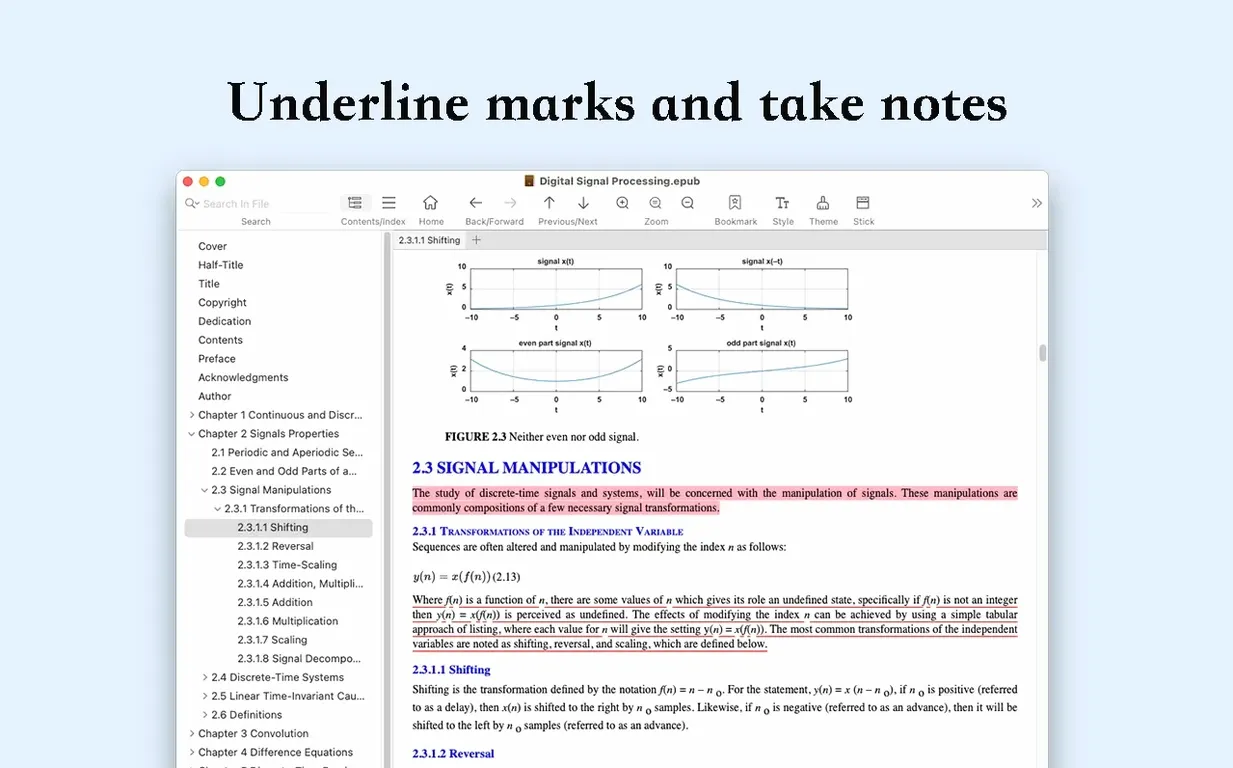
Integration with other reading tools is deliberately loose. OmniReader Pro is not a calibre replacement and does not attempt to sync libraries, metadata or reading progress across apps. The image‑extraction output lands as a plain folder of sequentially named files, easily ingested by Apple Photos, Preview or a dedicated image editor. For researchers who annotate in separate applications, the absence of a note‑export feature means you will be copying text manually, though the two‑layer search system at least makes finding the passage again fast.
Garbled CHM Text and Other Early Friction Points
Several friction points surface within the first few hours of use. Most have straightforward workarounds.
- Garbled text in older CHM files. Documents created in non‑Unicode Windows locales sometimes render as strings of nonsense characters. The encoding handler lives under the File menu; switching from the auto‑detected encoding to a specific Chinese or Cyrillic codepage usually fixes the display within a second. If the correct encoding is unknown, trial‑and‑error with the commonly used options for the source language resolves the issue in most cases.
- Sidebar collapse on small screens. On a 13‑inch MacBook, the default sidebar width eats into the reading pane. The collapse button is a small arrow at the sidebar edge — easily missed on first launch. Collapsing it frees roughly 30% of the horizontal space and the setting persists across app restarts, so the fix sticks.
- Search highlights disappearing. After a full‑text search completes, highlights remain visible only while the search panel is open. Closing the panel clears them. The workaround is to leave the panel docked to the side — it is narrow enough not to obstruct the text — or to note the page number and navigate there manually with highlights off.
- Image extraction numbering. Extracted images are named sequentially in extraction order, not according to their position in the book. If you need to map images back to specific chapters, extracting chapter‑by‑chapter rather than from the full book keeps the sets small and traceable.
- Gatekeeper blocking first launch. Because the app is distributed outside the Mac App Store, macOS may block the initial open with a “cannot be verified” message. The terminal‑based bypass — mounting the disk image and running a single command — adds an extra step, but once approved the app opens normally on every subsequent launch.
A Technical Writer’s Afternoon with OmniReader Pro
Consider a technical writer maintaining documentation for an industrial sensor system. The legacy knowledge base spans a decade of Windows‑only .chm help files, each containing wiring diagrams, calibration tables and assembly photos that were never archived separately. The writer needs those images for a new web‑based manual, and the original source files are long gone.
The workflow starts with a Finder search filtered to .chm. Each file opens in OmniReader Pro in under three seconds. The full‑text search pinpoints the calibration section across a 600‑page manual without scrolling. Right‑click, “Extract All Images,” and the folder receives 47 PNGs — diagrams, connector pin‑outs and example screenshots — in about four seconds. One diagram renders with incorrect colour depth because of a legacy BMP embedded in the CHM; switching the encoding handler does not affect images, so the writer notes that the file needs a manual colour‑space adjustment later in Preview. The converted PDF export of the same manual goes to a shared team folder for anyone who does not have a CHM reader installed.
By the end of the afternoon, five manuals are stripped of their images and three are exported as PDF. OmniReader Pro sat in the background between extractions, memory footprint never exceeding 200 MB, and the only interruption was a single mis‑encoded Russian‑language appendix that took two encoding guesses to fix. For a task that would otherwise involve a virtual machine running a Windows help viewer and a lot of screenshots, the app cuts the time investment by a noticeable margin — not because it is clever, but because it stays focused on the three formats a documentation team actually encounters.
- macOS 10.13 or later
- Apple Silicon or Intel 64-bit
Questions on file
Which file formats does OmniReader Pro handle?
It opens EPUB, CHM and Kindle files. Those three cover most common eBook and help-document formats.
Can I extract images from a book?
Yes, the app can export every image from an open file into a single destination folder.
Does the search tool scan the whole document?
It offers both page search for the current view and full-text search that checks the entire book.
Sign in · Create an account to add a field note.
No field notes yet. A measurement, a version, a machine — they appear after moderation.