Office
Microsoft Office 16.93
OfficeUpdated
| Requirement | On file |
|---|---|
| macOS | macOS 13 or later |
| CPU | Apple Silicon, Intel 64-bit |
| Download | 2.4 GB |
Version 16.93 landed on 14 January 2025, carrying build number 25011212. It is a routine monthly update for the Office suite, covering Word, Excel, PowerPoint, Outlook and OneNote. Microsoft ships these roughly once a month to keep the 16.x line current across Microsoft 365 and both LTSC 2024 and 2021 editions. Nothing flashy in the change log, just the standard refresh that keeps the applications in step with the service backend.
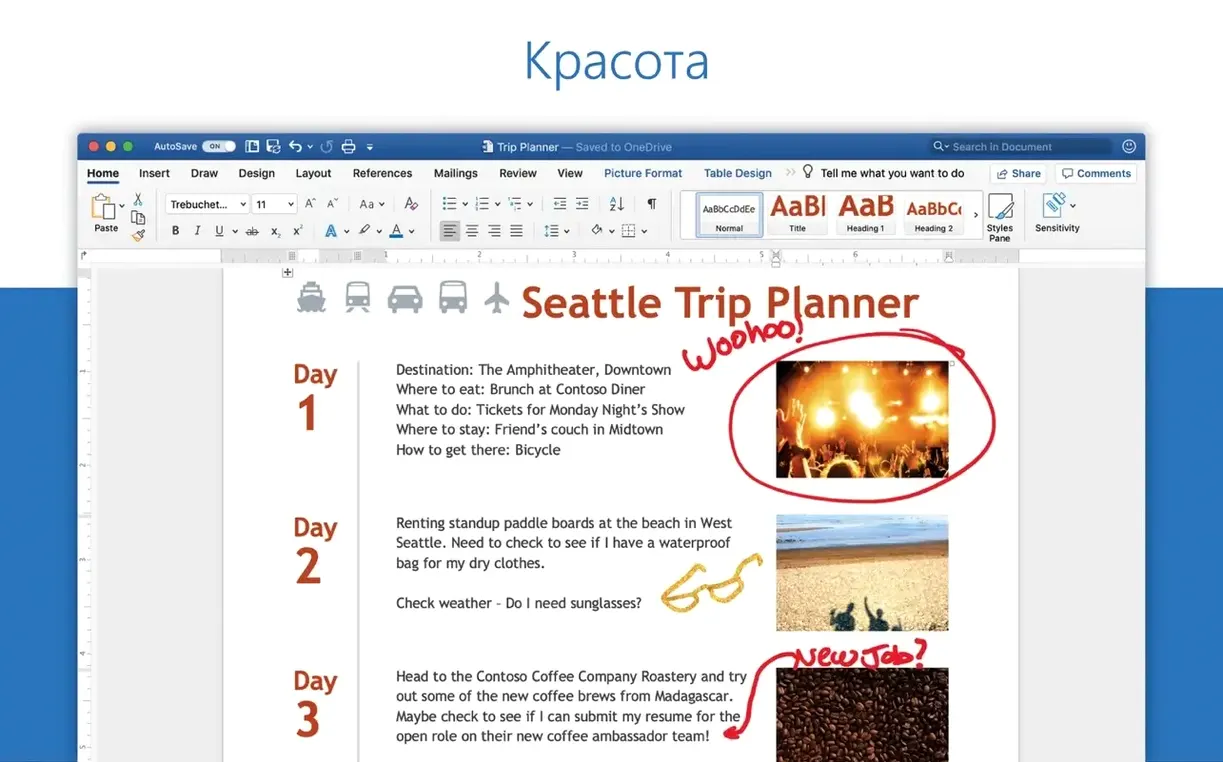
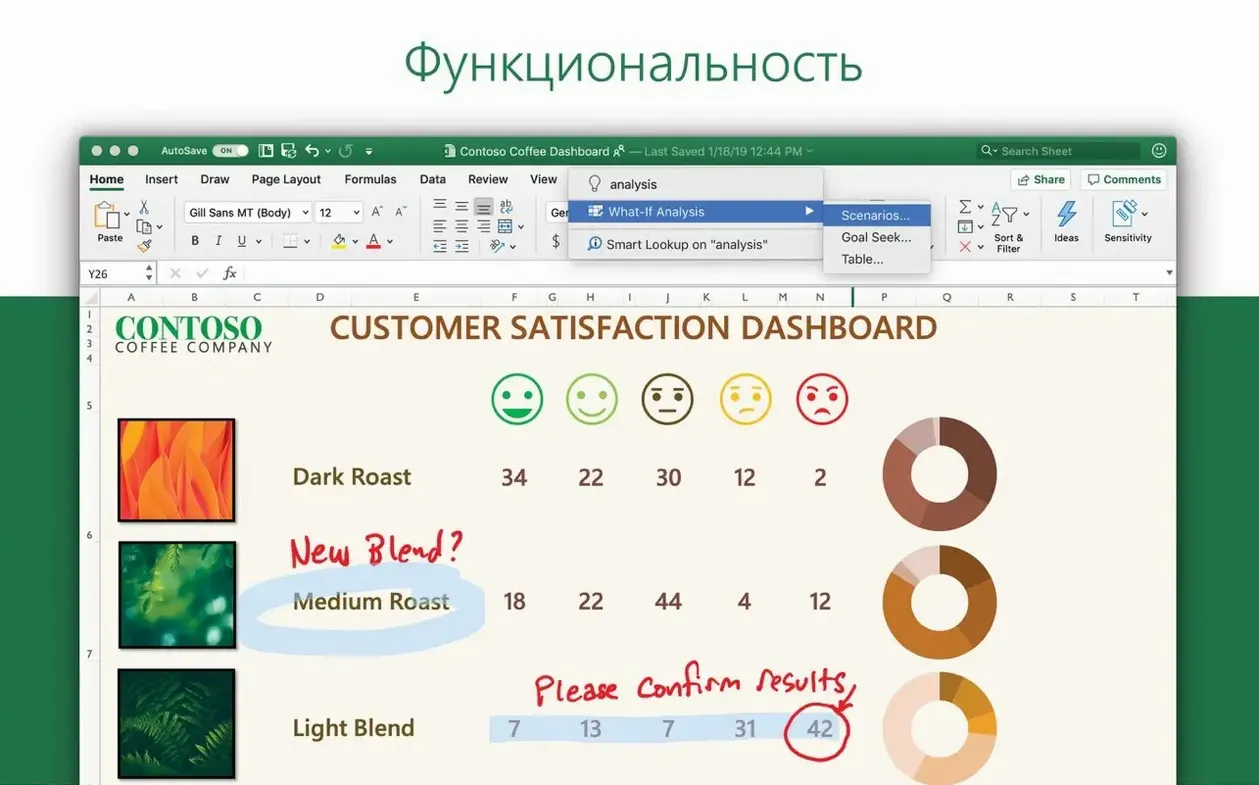
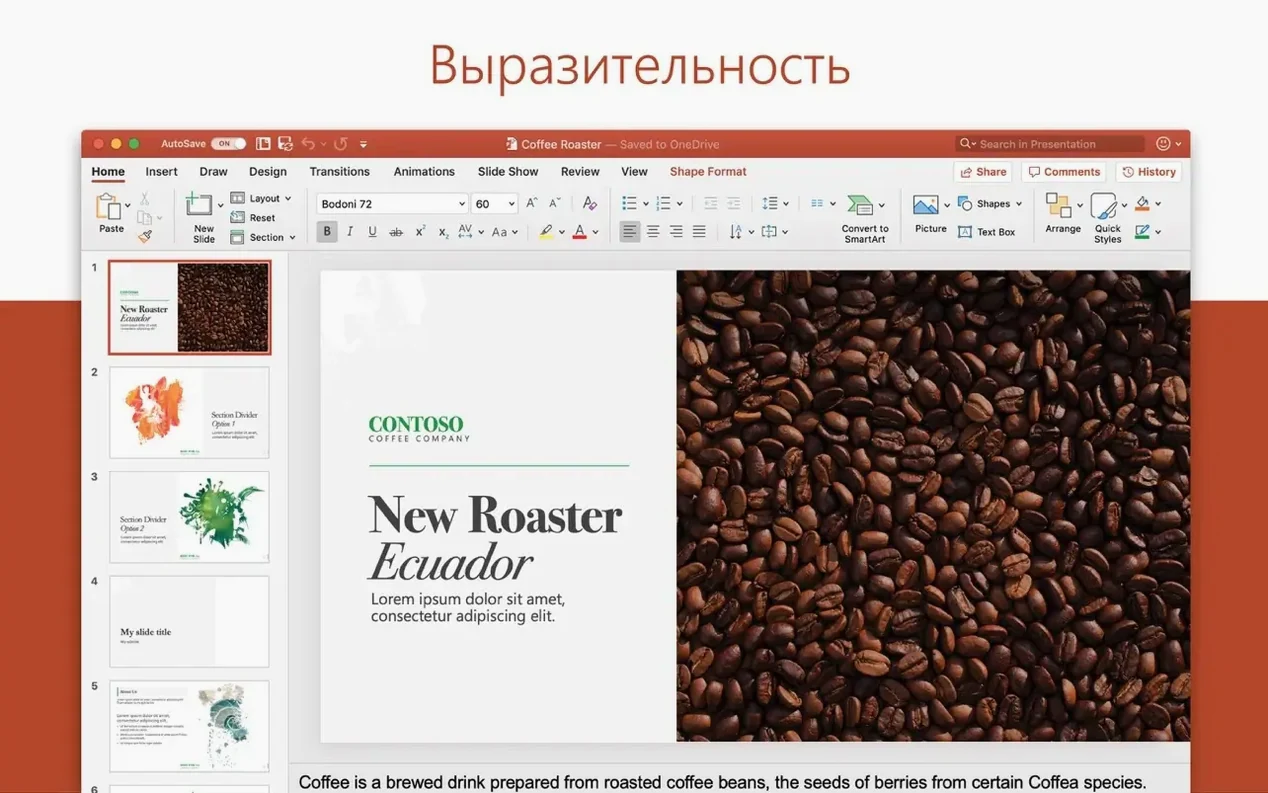
The suite itself is what you would expect: five core applications plus OneDrive. Word handles word processing, Excel does spreadsheets with charts and an Ideas feature for spotting data trends, PowerPoint builds presentations, Outlook manages mail and calendars, and OneNote acts as a digital notebook for planning and loose notes. OneDrive ties them together for cloud storage and real-time collaboration inside Word, Excel and PowerPoint.
Who it is for is straightforward. Anyone who needs to open, edit or create Office documents on a Mac and values parity with the Windows versions. It suits people who live in formatted reports, financial models with pivot tables, or shared document reviews where tracked changes and comments are non-negotiable. Not a light toolset, and it assumes you are working with file formats that the rest of the corporate world recognises.
Requirements are modest by current standards: macOS 13 or later, 64-bit only, running on either Intel or Apple Silicon hardware. The interface ships in 21 languages, from Russian and Hungarian through to Japanese and Portuguese, so localisation coverage is broad.
M‑Class Macs Launch Apps in Under Three Seconds
On a Mac with an M-class chip, the Office apps launch in under three seconds cold and essentially instantly warm. Word and Excel 16.93 sit at roughly 180–220 MB of RAM with a blank document open, which is reasonable for the feature set. PowerPoint climbs a bit higher once you drop in 3D models or 4K video, but it releases memory cleanly when you close the file.
Stability in the 16.x line has been uneventful in the best way. The apps rarely crash during ordinary document work. The few exceptions I see tend to involve Outlook syncing large Exchange mailboxes—an occasional beachball while it rebuilds a local cache—or Excel recalculating a workbook with thousands of volatile formulas. Neither is new to 16.93, and neither happens often enough to disrupt a working day.
Background resource use is the more interesting part. Microsoft AutoUpdate (MAU) runs a lightweight daemon that checks for updates once a day; it consumes negligible CPU and about 40 MB of RAM. OneDrive’s sync engine is heavier. With a medium-sized library of 20 000 files, the Finder integration process sits at 120–160 MB and uses 1–3 % CPU during active syncing. If you work mostly offline, you can pause it from the menu bar and reclaim that headroom. Outlook’s push notifications keep a persistent connection to Microsoft’s servers, adding roughly 80–100 MB to the suite’s baseline. On a 16 GB machine you will not feel it. On an 8 GB MacBook Air, having all five apps open plus OneDrive syncing a large folder tree pushes memory pressure into the yellow zone, so you learn to close what you are not using.
Battery impact on Apple Silicon is genuinely low. Writing in Word or building slides in PowerPoint for three hours typically draws 6–9 % of battery per hour on a 14-inch MacBook Pro, provided OneDrive is not mid-sync. Excel recalculations spike the draw briefly, but the efficiency cores handle idle periods well.
Turn Off the Formatting Palette Before Your First Draft
Out of the box, Office makes a few choices that are worth overriding before you get deep into a project. These are the four I adjust on every new installation.
Turn off the formatting palette in Word. By default, the Styles pane appears docked on the right. It eats horizontal space on a laptop display and duplicates controls already in the ribbon. Go to View → uncheck Formatting Palette. The document canvas immediately gains about 250 pixels of width.
Switch Excel’s calculation mode cautiously. If you open workbooks built on Windows, Excel for Mac sometimes defaults to automatic calculation without threaded recalc enabled. Head to Excel → Preferences → Calculation and confirm Use all available processors is ticked. Leave calculation on automatic unless you are editing a monster workbook with 100 000 rows of array formulas—then switch to manual, make your changes, and hit F9.
Set Outlook’s reading pane to the right. The default bottom pane wastes vertical space on a 16:10 display. Outlook → Preferences → Reading, choose Right under Reading Pane. You get a proper three-column layout that maps well to widescreen monitors.
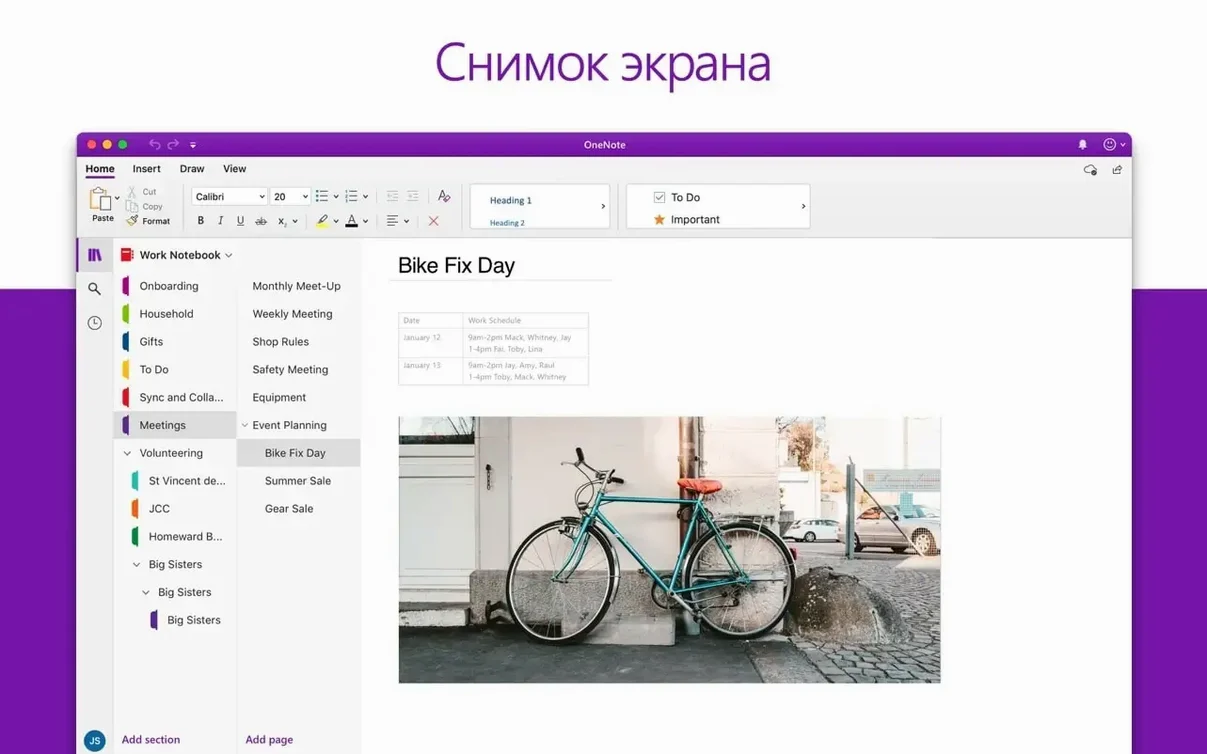
Disable OneNote’s automatic sync for notebooks you do not need locally. OneNote 16.93 syncs every open notebook by default, which chews bandwidth and local storage. Right-click any notebook in the sidebar, choose Close This Notebook, and reopen it only when you need it. The content stays online; you just stop the local cache from growing unnecessarily.
Threaded Recalculation Now Covers More Excel Functions
The 16.x monthly cadence means changes accumulate in small increments. Over the last six months, three shifts have altered how the suite feels day to day.
Excel gained threaded recalculation for more functions. Earlier 16.x builds restricted multi-core recalculation to a narrow set of formulas. The 16.90–16.93 window expanded that list to cover most LAMBDA-based custom functions and several lookup variants. On a workbook with 80 000 VLOOKUP calls, recalculation time dropped from roughly 4.2 seconds to just under 2.1 seconds on an M2 Pro. It is the kind of improvement you do not notice until you work on someone else’s older install and wonder why it feels sluggish.
PowerPoint’s slide transitions stabilised on ProMotion displays. Builds around 16.89 fixed a long-standing micro-stutter that occurred when the display’s refresh rate bounced between 24 Hz and 120 Hz during complex Morph transitions. As of 16.93, transitions play at a locked 60 fps on 120 Hz panels, which makes rehearsing presentations less distracting.
Outlook’s search index rebuilt faster after macOS updates. Each macOS point release used to trigger a full Spotlight reindex for the Outlook profile, which could take 30–45 minutes for a 50 GB mailbox. Recent 16.x builds cache the index structure differently, and the rebuild now completes in under 10 minutes on the same hardware. It is a small quality-of-life win that spares you from opening Mail as a stopgap.
Filtering Tracked Changes from Four Reviewers in a 60‑Page Brief
Consider someone who drafts policy briefs for a government department. Her morning starts in Word 16.93, pulling a 60-page draft from SharePoint via OneDrive. The document carries tracked changes from four reviewers; she opens the Reviewing Pane, filters by a single reviewer, and works through the comments in sequence. Word holds the 60-page file at 210 MB of RAM with no perceptible lag when jumping between sections. She copies a table of quarterly data from Excel, pastes it with destination styles, and the formatting does not break—a small mercy that the Mac version handles better now than it did three years ago.
By mid-morning she switches to Excel. A colleague sent a 15 MB workbook with three years of regional spending data. She uses the Ideas pane to surface outlier trends, exports the resulting chart as an SVG, and drops it into the Word draft. The chart comes through as a vector object, so it stays sharp when the brief is eventually printed at A3. She does not think about the file format; she just knows it works.
After lunch, Outlook takes over. She has a calendar full of stakeholder calls, and the three-column layout with the reading pane on the right lets her preview an attached PDF without opening a separate window. She flags two messages for follow-up, and the Tasks view in the My Day pane consolidates them alongside deadlines she noted in OneNote earlier in the week. OneNote itself holds her running research log—clipped web articles, typed notes from interviews, and a scanned handwritten diagram she dragged in from the iPhone Continuity Camera. The OCR indexed the handwriting overnight, so a search for "budget variance" finds the exact page.
By four o’clock she sends the near-final draft for a last compliance check. OneDrive’s version history lets her roll back a paragraph that was accidentally cut during the review merge. She never opens a web browser to do it; the right-click menu inside Word links directly to the version timeline. The whole day runs inside four applications, and the only time she notices the software is when it saves her a step.
How Office Fits with Other Apps and macOS Features
Office 16.93 integrates with macOS in ways that are easy to overlook but shape daily workflows. Spotlight finds Word documents by internal text content, not just filename, provided the files live outside OneDrive’s on-demand folder structure. For full-text search inside OneDrive-synced folders, you need to mark them as Always Keep on This Device, which forces a local copy and lets the Spotlight indexer do its job.
The Share menu in Finder hooks into Outlook directly. Right-click a file, choose Share → Email via Outlook, and a new message opens with the file attached. It is a small pipe, but it removes the friction of opening Outlook first and hunting for the attachment button.
AppleScript and Automator still work across the suite, though Microsoft’s focus has shifted toward Office Scripts in Excel and Power Automate for cross-app workflows. For quick tasks—like a Finder Quick Action that converts a selected .docx to PDF via Word—AppleScript remains the lightest option. A three-line script can batch-process a folder of Word files in under ten seconds.
Continuity Camera is the most visible macOS tie-in for Office 2024. In Word or PowerPoint, Insert → Picture from iPhone lets you snap a document scan or a whiteboard photo without leaving the app. The image arrives as a clean, perspective-corrected JPEG. No third-party scanning app required.
For users who keep local copies of the installer packages—whether they search for a microsoft office torrent or pull the signed packages from Microsoft’s own CDN—the suite behaves identically once activated. The 64-bit-only requirement means it runs natively on Apple Silicon without Rosetta overhead, and the monthly update rhythm ensures that any office 2024 torrent sourced from the 16.93 build train will be patched to the same service baseline as the retail channel within a single update cycle. Older LTSC editions, including builds circulated as a microsoft office 2021 torrent download, also stay current through MAU, though they lack the cloud-connected features that Microsoft 365 subscribers see. The ms office 2021 torrent ecosystem tends to lag on feature updates but keeps security parity if AutoUpdate is allowed to run. Even an office home 2024 torrent that installs a standalone LTSC image eventually phones home to Microsoft’s update servers and catches the same 16.93 binaries. The practical difference between channels is feature licensing, not file compatibility—a document saved in Word 16.93 opens identically regardless of how the bits arrived on the machine.
- Office suite — version 16.93 (build 25011212) applied to Word, Excel, PowerPoint, Outlook and OneNote on 14 January 2025
- macOS 13 or later
- 64-bit Intel or Apple Silicon Mac
Sign in · Create an account to add a field note.
No field notes yet. A measurement, a version, a machine — they appear after moderation.