Office
Microsoft PowerPoint 16.93
OfficeUpdated
| Requirement | On file |
|---|---|
| macOS | macOS 13 or later |
| CPU | Apple Silicon, Intel 64-bit |
| Download | 2.4 GB |
When a slide deck needs to go from rough notes to a polished presentation without fighting the tool itself, PowerPoint is the default starting point for many. Before committing to a download, the first question is whether it will actually launch on your current Mac.
Runs natively on Apple silicon and Intel Macs from Ventura onward
PowerPoint 16.93 requires macOS 13 Ventura or later. It runs natively on both Apple silicon (M1, M2, M3, M4) and Intel 64-bit Macs, so there is no Rosetta 2 translation penalty on newer hardware. The app is part of Microsoft Office 2024 for Mac, sitting alongside Word, Excel, Outlook and OneNote. Interface localisation covers 21 languages including Russian, German, Japanese and French.
Full desktop app with offline transitions and animations
This is the full desktop PowerPoint — not a stripped viewer or web-only shell. It handles creating, editing and viewing presentations locally, with the full set of transitions and animations; design suggestions need a connection. Files also open on iOS, Android and the web when you sign in, though the desktop app is where the heaviest formatting work happens. As a component of the Office suite, it shares the same activation and update mechanism via Microsoft AutoUpdate, receiving patches through the standard MAU channel.
Start from a recent file or themed blank presentation
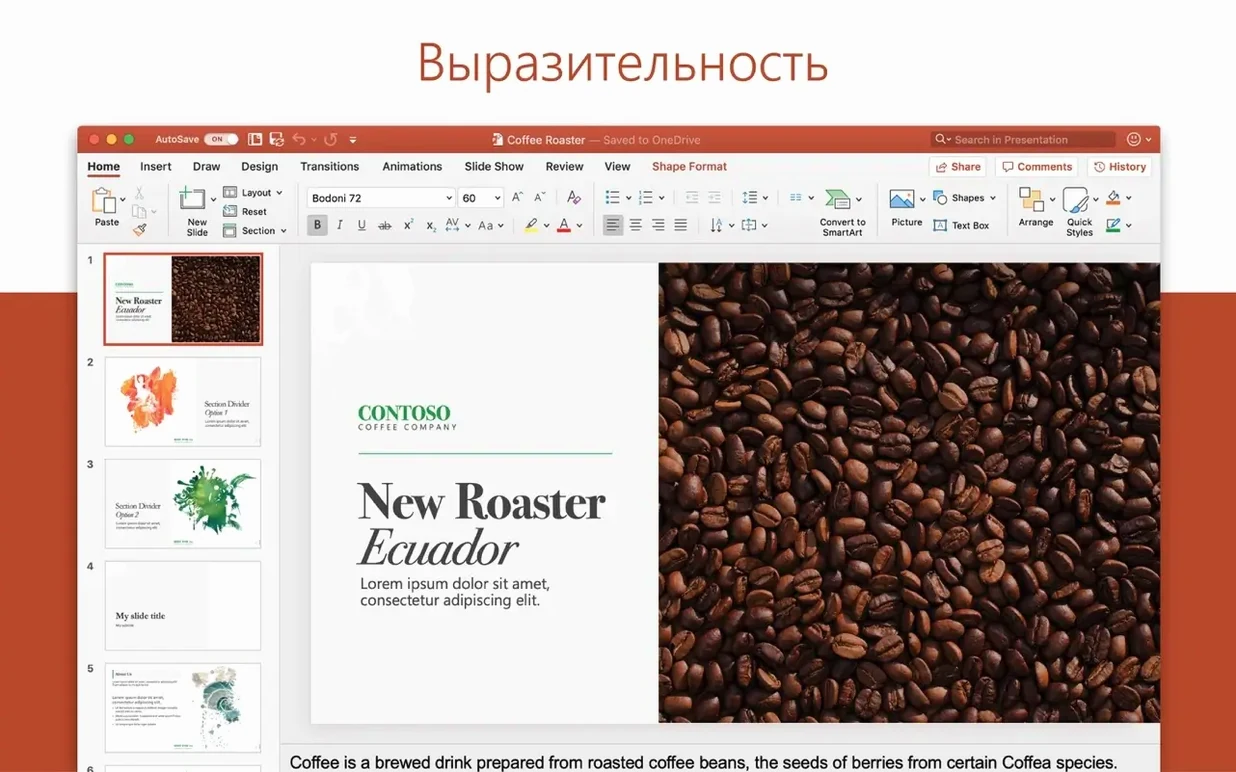
You open PowerPoint and land on the Home screen — a gallery of recent files on the left, template thumbnails on the right. Start with a blank presentation, or pick one of the built-in themes. A theme is not just colours; it sets the default fonts, background styles and placeholder layouts across every slide you add.
Slide one is already waiting, a title layout with two placeholder boxes. Click into the top one, type the talk title. Tap Tab to jump to the subtitle box. That alone saves a reach for the mouse.
Hit ⌘⇧N for slide two. The default layout is usually Title and Content. Type a section heading in the top box. In the body box, PowerPoint expects bulleted text — just start typing and press Return for each new bullet. To indent a bullet into a sub-point, press Tab; to bring it back out, ⇧Tab.
Halfway through, you realise the slide needs a chart. Press ⌃F6 to jump into the ribbon, arrow across to Insert, and drop down to Chart. Pick a clustered column chart. A mini Excel sheet opens in a floating pane. Paste your quarterly figures, close the pane, and the chart sits on the slide, already styled to match the theme colours.
Formatting a chart element follows the same pattern as the rest of Office: double-click any bar, and the Format Pane slides in from the right, exposing fill, border and effect controls. This pane stays open as you click around, so you can tweak several elements in quick succession without reopening it.
By slide seven you need a transition. Select the slide thumbnail in the left rail, then press ⌘⌥T to open the Transitions tab. Pick Morph — it works across two slides that share an object, animating position, size and rotation changes between them. The effect previews immediately in the canvas.
Half an hour in, you save once with ⌘S. After that, AutoSave keeps the file current as long as it lives in a OneDrive folder. You close the lid and move on; the work is already up to date.
A real-world scenario: rolling quarterly business review
A finance manager at a mid-sized logistics firm needs to present Q2 results to the executive team every quarter. The deck always follows the same structure: executive summary, regional breakdowns, three KPI deep-dives, and a forward outlook slide. Before the meeting, she pulls up last quarter's file and uses Slide > Duplicate Selected Slides to clone the whole deck. The old numbers still sit in tables and charts.
She swaps the data in the Excel-linked charts first — right-click, Edit Data, paste the new quarter's export. The chart colours and layout hold. For the KPI slides, she uses the Designer pane: select a slide with three bullet points, click the Designer button on the Home tab, and PowerPoint suggests several layouts with icons and timeline graphics. She picks one that turns the bullets into a horizontal process diagram. The text stays the same; the visual form changes in one click.
An analyst sent her a 3D map model exported from some mapping tool. She drags the GLB file straight onto a slide. PowerPoint imports it as a native 3D model — she can rotate it with the centre handle, add a Morph transition so the globe spins between slides, and even apply a built-in turntable animation via the Animations tab. No plug-in required.
The final touch: on the outlook slide, she inserts a stock icon from the Insert > Icons library — a simple upward-trending arrow — and recolours it to the firm's brand green with one click in the Graphics Format tab. The file goes out as a PDF for the board pack, exported through File > Export > Create PDF. The whole refresh takes under forty minutes.
Name and reorder every slide object in the Selection Pane
A few things hide just below the surface. The Selection Pane (⌥F10) lists every object on the current slide by name. When a slide grows crowded — overlapping text boxes, a logo behind a chart, a transparent shape used as a click target — clicking an item in the pane selects it directly, and the eye icon toggles its visibility without deleting anything.
Quick Access Toolbar sits in the title bar by default, holding Save, Undo and Redo. Right-click any ribbon command — say, Align Center or Insert Text Box — and choose Add to Quick Access Toolbar. From then on, that command is available with ⌥ plus a number key, shown in a tooltip when you hover. A presenter who aligns shapes constantly can have Align tools on ⌥1 through ⌥4 and never open a tab again.
The Eyedropper tool, hidden inside the font colour or shape fill dropdowns, samples any colour visible on screen — even outside the PowerPoint window. Match a shape to a hex code in a browser swatch without copying values manually.
When building complex animations, the Animation Pane (⌘4) shows a timeline-style list of every effect on the slide. Drag entries to reorder them; right-click to change start triggers. The small downward arrow next to an effect reveals Effect Options, where you can set a sound, dim an object after animation, or make text appear word by word rather than paragraph by paragraph.
A hidden efficiency: ⌘D duplicates any selected object and offsets it slightly. Press it again, and the new copy inherits the same offset. Shape a perfect grid of icons in seconds by duplicating once, dragging the copy to the desired spacing, then hitting ⌘D repeatedly — the offset between the last two objects is preserved.
Three macOS presentation alternatives, each with a different angle
Three alternatives come up regularly in presentation workflows on macOS, each with a different angle.
Apple Keynote
Keynote ships free with every Mac and leans heavily on smooth graphics rendering. Its default themes feel cleaner out of the box, and the Magic Move transition — the inspiration for PowerPoint's Morph — still handles image-heavy slides with slightly less processing overhead. Object alignment guides in Keynote are more aggressive: they snap and show distance values as you drag. Where PowerPoint pulls ahead is cross-platform compatibility and charting depth. A deck built in Keynote exports to PPTX, but complex grouped objects and certain text effects often shift position on the other side. For a presenter who never leaves Apple hardware and values visual polish over data tools, Keynote is a strong native option. For anyone who shares editable slides with Windows colleagues or needs embedded Excel charts that survive round-trip edits, PowerPoint remains the safer common ground.
Google Slides
Google Slides runs entirely in a browser. Its collaboration model is the lightest-weight of the three — multiple people edit the same slide simultaneously, with each cursor visible in real time and a detailed version history that lets you walk back to any saved state. Offline editing requires a Chrome extension and advance setup. The feature set is narrower: no 3D model support, a limited selection of transitions, and charting that depends on Google Sheets rather than a full spreadsheet engine. Animation paths are absent; the animation pane offers only entrance, emphasis and exit effects without motion trajectories. For quick, collaborative decks that never need cinematic transitions or intricate vector work, Google Slides does the job with zero local installation. For anything heading to a large-screen presentation or a print-ready board pack, the desktop power of a PowerPoint install — with its full typography controls, master slide editing and native export formats — makes the difference clear.
Canva (desktop web app)
Canva approaches presentations from a design-template direction. Its Mac experience is a browser or Electron wrapper around a web service, and it prioritises drag-and-drop assembly from a vast stock library. Templates are the starting point, and the editing model treats every slide as a freeform canvas — no rigid placeholder logic, fewer constraints, but also less structure when scaling to a 60-slide deck. Canva's collaboration is real time, and its brand kit feature lets teams lock colours and fonts across projects. Where it falls short is data-driven content: charts are basic, there is no equation editor, and exporting to an editable PPTX often flattens text into shapes or breaks custom fonts. For a social media manager creating a five-slide pitch deck with heavy imagery, Canva is quick and visually striking. For an analyst who needs to update linked charts quarterly and maintain strict master-slide consistency, a dedicated PowerPoint install on the Mac remains the tool built for that job from the ground up.
Larger default font scale and softer colours in the new blank theme
The Office 2024 release cycle, including PowerPoint 16.93, brought a handful of changes that affect daily work rather than adding headline features. The default theme shifted — the new blank presentation starts with a slightly larger font scale, softer colour defaults and a refreshed accent palette. Existing templates still open unchanged, but new decks feel a touch more modern before any manual formatting starts.
Accessibility checking is now more prominent. The Review tab houses an Check Accessibility button that scans for missing alt text, poor reading order and low-contrast text. When it finds an issue, a pane opens with a list of problems, each linked to the offending slide object. For teams that must meet accessibility standards, this bakes compliance checking into the save routine rather than leaving it as a separate post-production step.
The stock media library inside Insert > Icons and Insert > 3D Models has grown without a version bump — Microsoft adds assets on the server side, so the available icons, cutout people and 3D objects expand over time. A search for "warehouse" in Icons now returns more variations than it did six months ago, all licensable for commercial use without attribution.
Under the hood, Apple silicon support matured. Early native builds had occasional rendering glitches with legacy WMF vector files and certain third-party add-ins. The current architecture — native ARM for M-series chips, with Intel builds still maintained — now handles those edge cases cleanly. The practical result: opening a ten-year-old PPT file with embedded metafile graphics no longer throws visual artefacts on an M3 MacBook Air.
- macOS: 13 Ventura or later
- Architecture: Apple silicon (native), Intel 64-bit (native)
- Other: Part of Microsoft Office 2024 for Mac
Questions on file
Does PowerPoint for Mac run on Apple silicon?
Yes, version 16.93 runs natively on Apple silicon and Intel 64-bit Macs.
Sign in · Create an account to add a field note.
No field notes yet. A measurement, a version, a machine — they appear after moderation.