Office
Microsoft Outlook 16.93
OfficeUpdated
| Requirement | On file |
|---|---|
| macOS | macOS 13 or later |
| CPU | Apple Silicon, Intel 64-bit |
| Download | 2.4 GB |
macOS 13+ on Apple Silicon and Intel
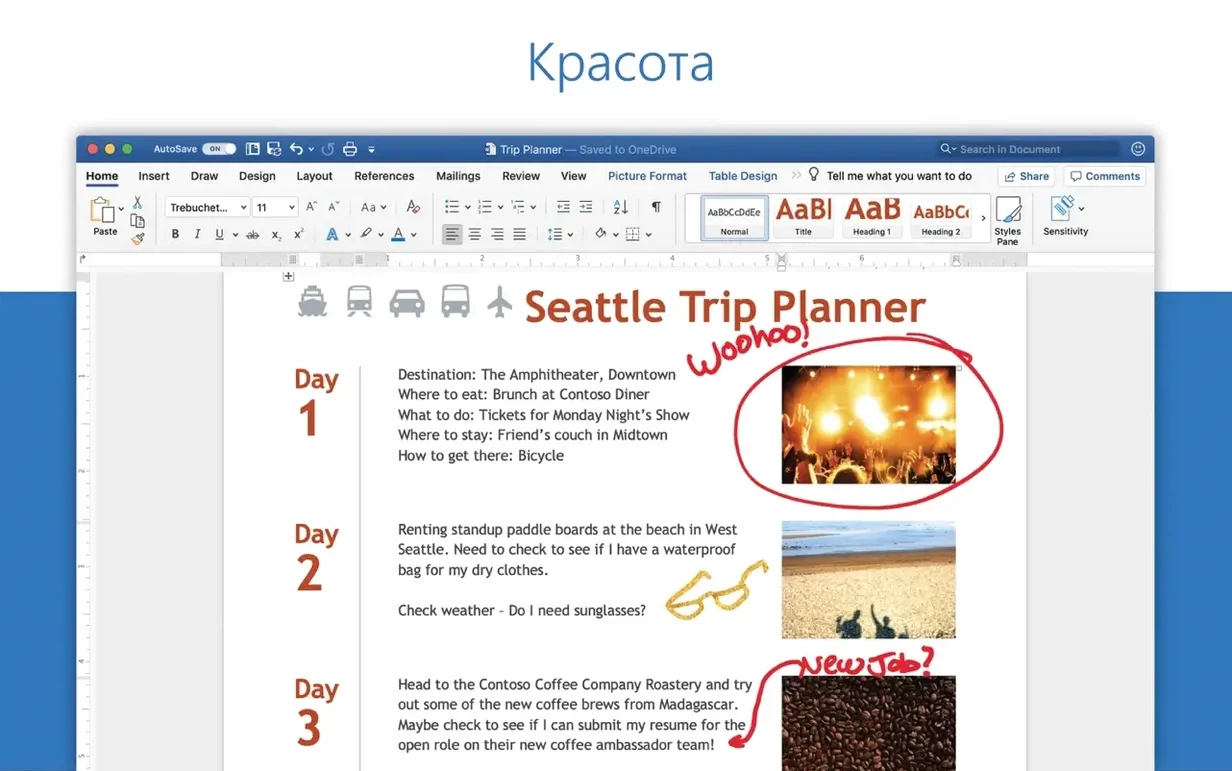
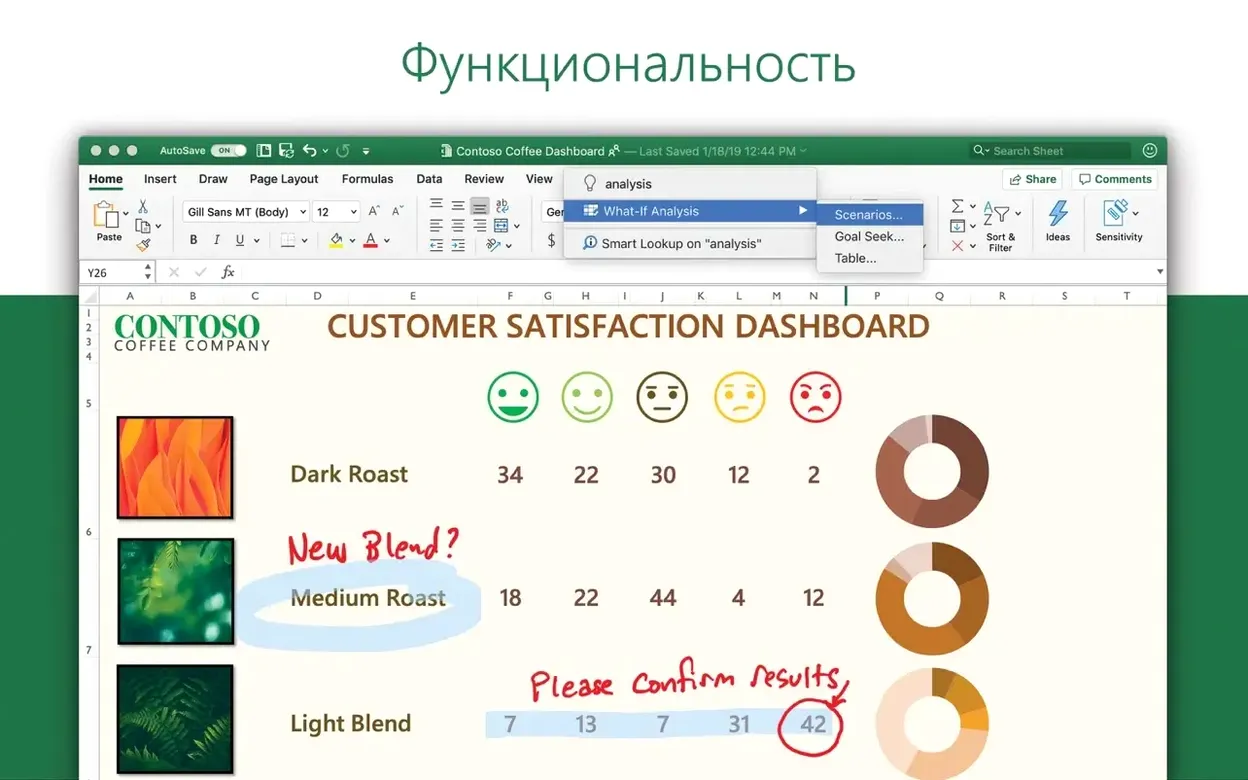
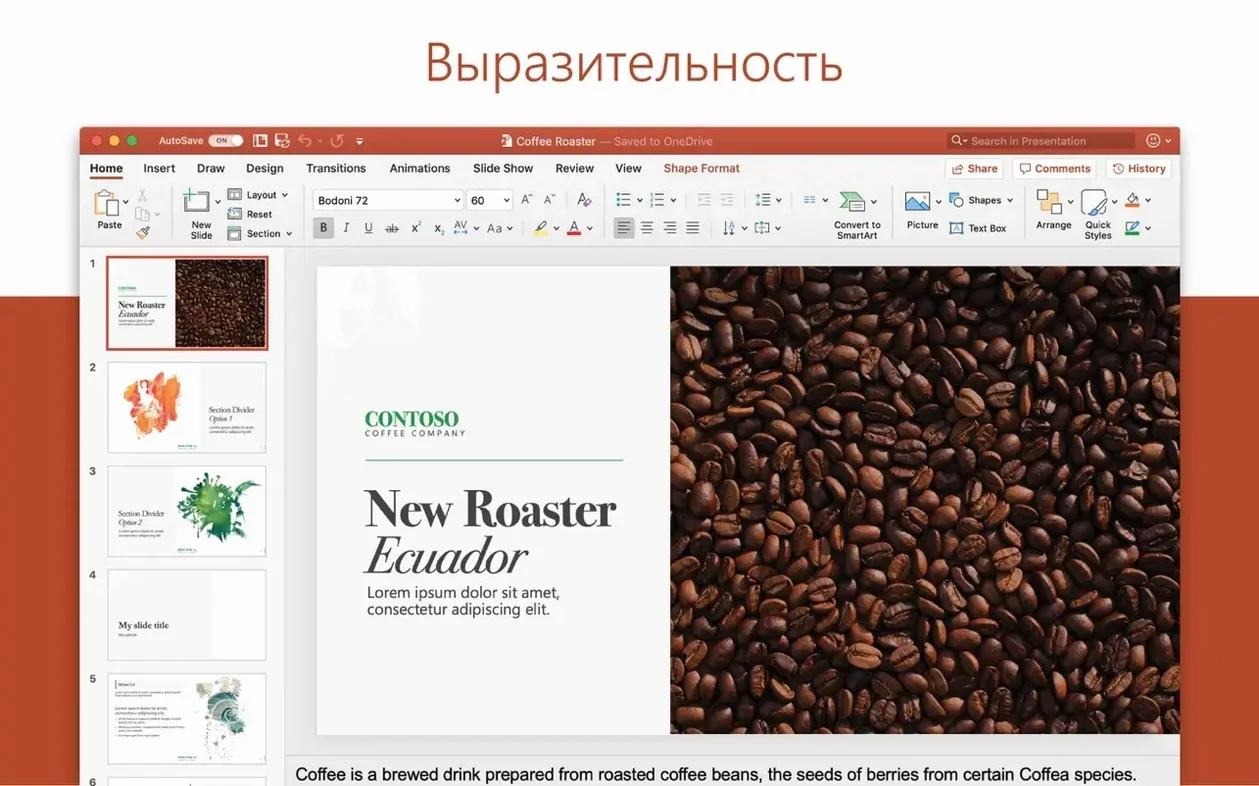
Outlook for Mac runs on Apple Silicon and 64-bit Intel hardware. The current version 16.93 asks for macOS 13 or later. It ships as part of Office LTSC Standard for Mac 2024, alongside Word, Excel, PowerPoint, OneNote and OneDrive.
Auto‑detect account setup in one step
- Add your primary account. Open Outlook and enter an Outlook.com or Microsoft 365 address. The auto‑detection sets up mail, calendar and contacts in one step. If you use multiple accounts, add them right after — Outlook keeps each inbox separate but shows a unified calendar overlay when you need it.
- Create a profile. Outlook supports macOS Profiles. Go to Outlook > Settings > Profiles and build a work profile that silences notifications outside business hours, or a weekend profile with only personal accounts visible. Switching profiles takes two clicks from the menu bar.
- Pin the combined view. The left navigation lets you toggle between Mail, Calendar, People and Tasks. Drag the divider to keep mail and your daily schedule visible side by side — handy for dragging an email onto the calendar to create an appointment.
- Schedule a message. Write a reply, click the arrow next to Send and pick Schedule Send. The message sits in the Outbox until the time you set. Useful when catching up on email late but wanting it delivered during working hours.
Once the basics are in place, install Microsoft AutoUpdate to receive patches. The January 2025 update fixed a sharing issue where documents from other Office apps failed to attach to Outlook messages, so keeping current avoids friction when sending files from Word or Excel.
Skipping profiles and the unified inbox trap
New users often treat Outlook for Mac like a browser-based inbox and miss the structural tools sitting one click away. The most common misstep is leaving every account in a single unified inbox without setting up profiles. A work account that pings at 9pm and a personal Gmail account that mixes in booking confirmations turn the unified view into noise. Profiles exist specifically to prevent this. Taking five minutes to build a work profile with notifications disabled after 6pm changes the daily experience more than any other single setting.
Another frequent error is ignoring the calendar overlay toggle. Users add a Google Calendar and an Exchange calendar, see conflicting stripes in week view, and assume Outlook handles scheduling poorly. In practice, clicking one calendar name hides it instantly, and the overlay mode stacks them transparently. Beginners also drag emails to the calendar to create meetings but forget to check which calendar is active — the appointment lands on the first calendar in the list, which might be a shared team calendar rather than a personal one.
Email rules cause their own class of trouble. A user sets a rule to move newsletters to a folder, selects "all messages," and later wonders why client replies vanish. The client-side rule engine processes mail as it arrives, and broad criteria applied without testing against existing messages produce silent misfiling. Building a rule, then right-clicking a sample message and choosing Apply Rule to verify it, catches this before the rule runs on its own.
Lastly, people postpone installing Microsoft AutoUpdate. The January 2025 release fixed a document-sharing bug between Word and Outlook, and skipping updates leaves users with an attachment flow that fails intermittently. The updater lives in the menu bar and takes less than a minute to check.
Move the reading pane to the right
A handful of preferences shift Outlook from a default install to something tuned for daily work. The list below assumes version 16.93 on macOS 13 or later.
- Reading pane position. Go to Outlook > Settings > Reading and switch the pane to Bottom if you work on a laptop screen. The default right-side pane compresses message width on 13-inch displays, and bottom placement gives the message body full column width while keeping the message list visible above.
- Default calendar. In Calendar settings, set the calendar where new events land. Outlook defaults to the first account added, which may not be the calendar you actually use for appointments. Changing it once prevents the recurring frustration of creating events that colleagues cannot see.
- Notifications per account. Under Notifications, disable alerts for accounts that do not need immediate attention. Leaving everything on means every newsletter, shipping update and promotional mail fires a banner. A secondary IMAP account used for mailing lists needs no real-time interruption.
- Signature per account. Outlook lets you assign a different signature to each account in Signatures. A work reply carries your title and phone number; a personal reply carries just a name. The setting takes thirty seconds and removes the need to edit signatures manually when switching contexts.
- Dark mode scheduling. If you use Dark Mode, set it to System rather than forcing it permanently. Outlook follows the macOS appearance setting, so it switches alongside the rest of the system at sunrise and sunset without separate configuration.
Juggling multiple accounts and calendars
Outlook for Mac rewards users who live in a multi-account, multi-calendar reality. A freelance project manager juggling a client's Microsoft 365 account, a personal Outlook.com address and a legacy POP account from a web host gains the most, because the app unifies those channels in a single interface without flattening them into one undifferentiated stream. Each inbox remains distinct; the calendar overlay shows availability across accounts without duplicating events.
People inside a Microsoft 365 organisation benefit from the tight integration with Teams and SharePoint. Accepting a meeting invite auto-populates the calendar with a Teams link. Attaching a file from OneDrive sends a shared link rather than a copy, which matters when collaborating on a document that changes after the email is sent. These behaviours are not present when using the same accounts through Apple Mail or a browser.
Heavy schedulers — executive assistants, coordinators, anyone whose day is a chain of 25-minute blocks — lean on the scheduling assistant. Opening a new meeting, adding attendees and switching to Scheduling view shows free and busy slots pulled from each person's calendar, assuming they are on the same Exchange or Microsoft 365 tenant. The tool removes the back-and-forth of proposing times that get rejected.
Users who need offline access to all mail also extract value that web apps cannot match. Outlook caches messages locally, and with an IMAP or Exchange account configured, the entire mailbox is searchable without a connection. The scenario matters on flights, in buildings with poor reception, or when working from a mobile hotspot with a data cap.
Casual users with a single Gmail account and no calendar demands gain less. Apple Mail handles that use case with less complexity, and the additional features Outlook brings — profiles, scheduling assistant, rule engine — sit unused. The app makes more sense when the account count or scheduling load tips past what Apple's built-in tools manage comfortably.
Three‑second launch on Apple Silicon
On Apple Silicon hardware, Outlook launches in roughly three seconds with a warm cache and five accounts configured. Intel Macs from 2019 onward handle the same setup in about six to eight seconds. The difference is noticeable but not disruptive — once running, both architectures deliver smooth scrolling through inboxes with thousands of messages, and search returns results across all accounts in under two seconds for typical queries.
Memory use sits around 400–600 MB with a handful of accounts and a moderate mailbox size. The figure climbs toward 1 GB when a user opens large attachments, runs the calendar in overlay mode with four or more subscribed calendars, and leaves the app running for several days. That footprint is reasonable next to a browser with ten open tabs, though it sits higher than Apple Mail's typical 150–250 MB for the same accounts. Machines with 8 GB of RAM feel the difference when memory pressure is already high from other Office apps — Word and Excel add their own load — but on 16 GB or more, Outlook rarely causes swapping.
Stability in version 16.93 is uneventful in a positive sense. Crashes are rare during normal mail and calendar operations. The one reproducible edge case involves importing very large .pst files — archives over 10 GB can cause a momentary freeze during the import, after which the app recovers without data loss. Sync conflicts appear as a yellow banner rather than silently duplicating items, and the conflict resolution dialog offers a side-by-side comparison before overwriting.
Background sync toggles per account, and disabling push for a high-traffic account while keeping fetch at 15-minute intervals trims CPU wake-ups. The setting is worth adjusting on laptops where battery life matters. With five accounts set to push, Outlook generates a small but steady stream of network activity; switching secondary accounts to manual or hourly fetch cuts that without affecting the primary inbox.
- Office suite 16.93 — included Outlook alongside Word, Excel, PowerPoint and OneNote.
- Update 16.93.2 (28 January 2025) — included Outlook; fixed sharing documents and content from other Office apps to Outlook.
- Update 16.93.1 (21 January 2025) — included Outlook.
- macOS 13 or later
- Apple Silicon or 64-bit Intel processor
Questions on file
Which macOS versions does Outlook for Mac support?
Version 16.93 requires macOS 13 or later and runs natively on both Apple Silicon and 64-bit Intel Macs.
Can I use Outlook with a free Outlook.com account?
Yes, Outlook for Mac supports Outlook.com and Microsoft 365 accounts for mail, calendar and contacts.
Does Outlook replace the built-in Mail and Calendar apps?
It combines both functions in a single interface, so you can manage messages and plan schedules without switching between separate applications.
Sign in · Create an account to add a field note.
No field notes yet. A measurement, a version, a machine — they appear after moderation.