
Video
OmniPlayer: MKV Video Player Pro 2.1.22
VideoUpdated
| Requirement | On file |
|---|---|
| macOS | macOS 11 or later |
| CPU | Intel 64-bit |
| Download | 78 MB |
A 30 GB .mkv file playing smoothly after a bug fix in version 2.1.22 says more about a media player's priorities than any feature list. OmniPlayer handles that weight without choking, and the controls hide themselves when playback settles in so the frame is all you see.
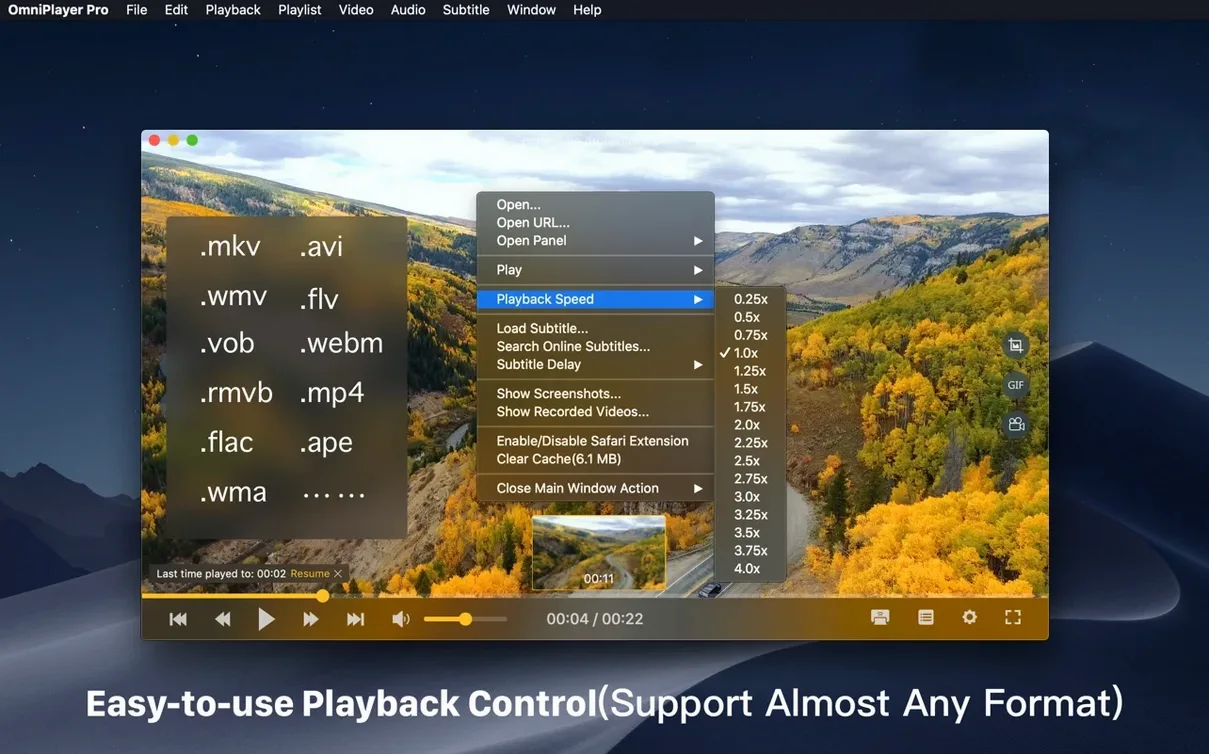
Plays MKV files and streams from SAMBA or FTP without codec hunts
- Playing .mkv and other formats without hunting for codecs — the app opens local files and remote media over SAMBA or FTP.
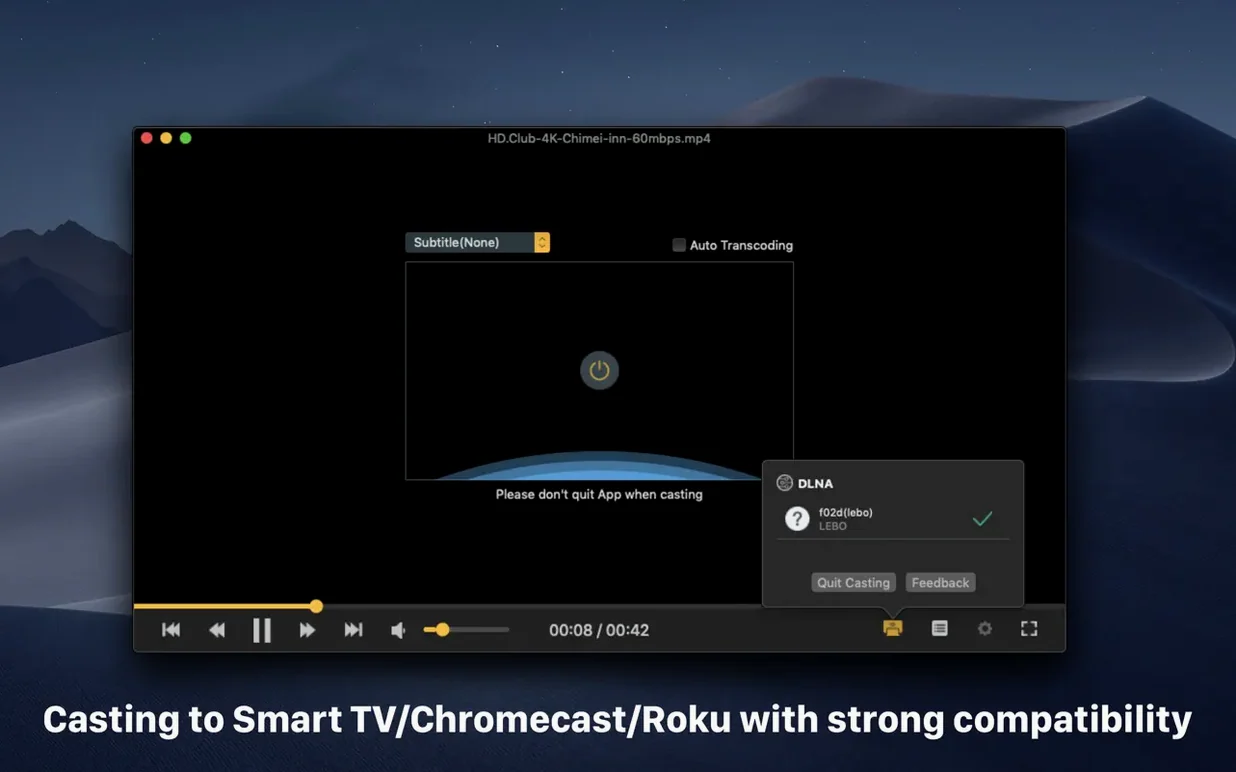
- Wireless casting to a bigger screen via DLNA, Chromecast or Roku when you need a quick second display.
- Dialling in subtitle sync and audio delay independently, with encoding options for different languages.
- Grabbing stills or short GIFs (up to 60 seconds) from a timeline, with screenshot format choices.
Runs on Intel Macs only — no native Apple Silicon build listed
- Version 2.1.22 runs on Intel Macs with macOS 11 or later — no native Apple Silicon binary is listed.
- Playlist building is present but basic; it queues files without the library smarts of a full media centre.
- Interface translations cover seven languages: English, German, Italian, Traditional and Simplified Chinese, French and Japanese.
Lighter than a workhorse but still competes with IINA
On a Mac, the media player landscape splits roughly three ways: the do-everything workhorses, the lean-and-fast minimalists, and the casting-first utilities. OmniPlayer sits in the workhorse camp but with a lighter footprint than you might expect.
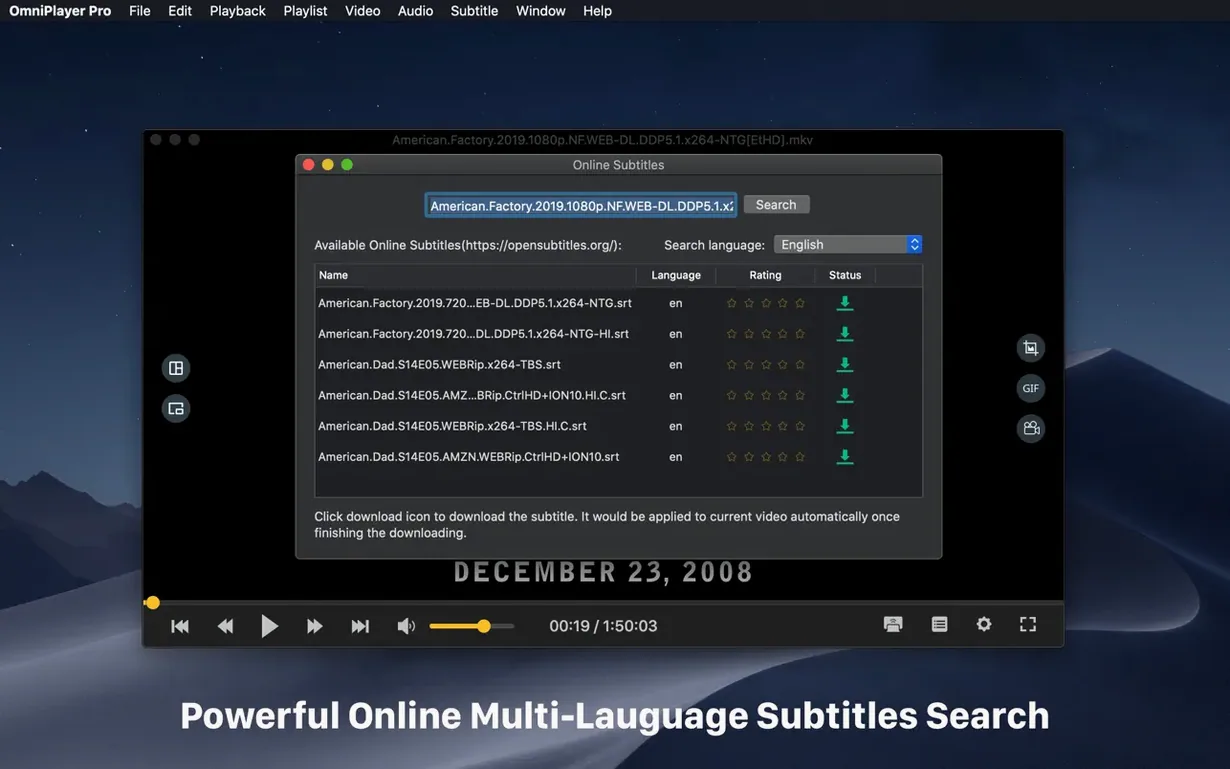
Compared to IINA — a player built on mpv and shaped by a modern Mac aesthetic — OmniPlayer offers more playback speed granularity. IINA tops out at 2x from its on-screen controls; OmniPlayer stretches from 0.25x to 4x. IINA's open-source foundation gives it broader codec support on paper, but the 30 GB MKV fix in OmniPlayer 2.1.22 suggests serious attention to large-file stability. Where IINA relies on community plug-ins for features like online subtitle search, OmniPlayer bakes that in: hash-based and title-based lookups happen without leaving the app. IINA wins on design coherence and trackpad gesture polish. OmniPlayer wins on the raw utility checklist — colour adjustments, GIF export, and DLNA/Chromecast/Roku casting built directly into the player rather than routed through a separate application.
VLC is the obvious reference point for any Mac media player. Its codec library is essentially the universal donor of the format world. OmniPlayer does not match VLC's format breadth — nothing does — but it handles the common offender, .mkv, with a cleaner subtitle workflow than VLC's multi-panel preferences. VLC's interface on macOS has improved but still carries the cross-platform stiffness of a project that runs on everything from Linux desktops to Android phones. OmniPlayer's control auto-hide, preview thumbnails on the progress bar, and real-time subtitle sizing feel more at home on a Mac. VLC remains the safety net for obscure formats. For someone whose library is predominantly MKV and MP4 with occasional remote streams, OmniPlayer covers the ground with less interface friction.
Elmedia Player is the third point of comparison. It shares OmniPlayer's casting ambitions — DLNA, Chromecast, AirPlay — and adds a dedicated audio equaliser. OmniPlayer counters with the GIF capture tool and a broader subtitle download pipeline. Elmedia Player's playlist management is slightly more developed, with saveable playlist files and a media library view. OmniPlayer's playlist clears on exit by design, which suits a watch-and-move-on habit but frustrates anyone building a queue to return to. The two apps weigh roughly the same on disk, but OmniPlayer's single-window focus and video adjustment sliders (brightness, contrast, saturation) give it an edge for on-the-fly tweaking during playback.
A session with OmniPlayer, step by step
You launch the app and land on a dark, quiet window — no splash screen, no library scanning. The player waits for input.
You drag a folder of mixed files onto it: three .mkv episodes, an .mp4 screencast, and a .flac audio track someone sent you. The playlist populates instantly, all five items in order. You double-click the first episode. Playback starts within a second. The controls appear briefly — playhead, speed indicator, audio track selector — then slide away as the video fills the frame. Auto-hide is on by default.
Ten minutes in, you notice the dialogue drifting ahead of the picture. You nudge the cursor to the top of the screen, the controls slide back, and you tap the audio delay control. A few negative milliseconds dialled in, and the lip sync snaps back. No menus, no preferences panel — the adjustment sits right on the playback overlay.
The episode's embedded subtitles are in a language you don't read. You open the subtitle menu, choose "Search online," and the app queries by file hash. Three results appear. You pick the top match, and the text renders immediately in white with a thin outline. The font size slider moves in real time as you drag it, so you settle on something readable without pausing the video.
Halfway through, you want a still of a particular frame. You hit the screenshot shortcut, pick PNG from the format dropdown, and the file lands on your desktop with a timestamp in the filename. Later, you capture a 15-second reaction shot as a GIF — the dialog asks for start point, end point, and frame rate, then processes the clip in a few seconds.
When the episode ends, the playlist moves to the next item automatically. You stop there, close the app, and the playlist clears. Next time you open OmniPlayer, the window is blank again, ready for a fresh batch.
A casting workflow: local file to living room screen
You have a 1080p .mkv file on your Mac and a Chromecast plugged into the TV in the next room. You open the file in OmniPlayer and let it run for a moment to confirm the audio track and subtitle selection are correct.
From the playback controls, you open the casting menu. The app scans the local network and lists available devices — one Chromecast, one Roku stick, and a DLNA-capable smart TV. You select the Chromecast. The video pauses on the Mac, and within three or four seconds it appears on the TV, picking up from the same position. The Mac screen goes dark except for a small status indicator showing the connected device name and a volume slider.
Playback controls remain available on the Mac — you can pause, scrub, or switch audio tracks without touching the TV remote. The subtitle stream carries over with the video, rendered at the size and colour you set earlier. When the file finishes, the casting session ends and the Mac screen lights back up with the OmniPlayer window.
Set screenshot format and destination before you grab a single frame
- Pick your screenshot format and destination. The default output folder is the desktop; you can change it in preferences. Set the format (PNG, JPG, or TIFF) once so every grab lands the way you want it.
- Dial in subtitle defaults. Before you need them mid-playback, open a file with embedded subtitles and set your preferred font size, colour, and encoding. The settings persist across sessions, so you won't have to adjust them again unless you switch languages or screen sizes.
- Test the network streaming early. If you plan to play files from a NAS or FTP server, connect once from the File menu and save the server address. OmniPlayer remembers recent connections, but a quick test confirms your credentials and folder paths work before you settle in for a long watch.
- Learn the auto-stop behaviour. The app saves the last playback position when it stops automatically — at the end of a file or playlist. If you tend to close windows mid-playback, position saving won't trigger. Get used to pausing or letting a file finish if you want to resume later.
- Experiment with the 4x speed ceiling. Audio pitch is preserved at most speeds, but above 2x some tracks get choppy. Knowing where your ears give out helps when you're scanning long recordings or lectures for a specific section.
- MKV playback — fixed a bug when loading a 30 GB file.
- Stability — fixed some bugs.
- macOS 11 or later
- Intel 64-bit processor
Questions on file
Does OmniPlayer handle large .mkv files?
Yes — version 2.1.22 specifically fixed a bug that occurred when loading a 30 GB MKV file.
Can I stream from OmniPlayer to a TV?
It supports DLNA, Chromecast and Roku for wireless display, and can play remote media over SAMBA or FTP connections.
What subtitle controls does it offer?
You can change subtitle encoding for different languages and adjust audio delay independently for lip-sync correction.
Sign in · Create an account to add a field note.
No field notes yet. A measurement, a version, a machine — they appear after moderation.