AI Tools
AI Transcription 2.16
AI ToolsUpdated
| Requirement | On file |
|---|---|
| macOS | macOS 14.6 or later |
| CPU | Apple Silicon, Intel 64-bit |
| Download | 5.1 GB |
A recorded interview sits on the desktop, an hour of conversation trapped inside a large WAV file. Sending it to a cloud service means waiting on upload speeds and trusting someone else's server. For anyone who handles sensitive material, works offline regularly, or simply prefers local processing, a dedicated desktop transcription tool removes those dependencies.
One realistic task: meeting recording to timestamped text
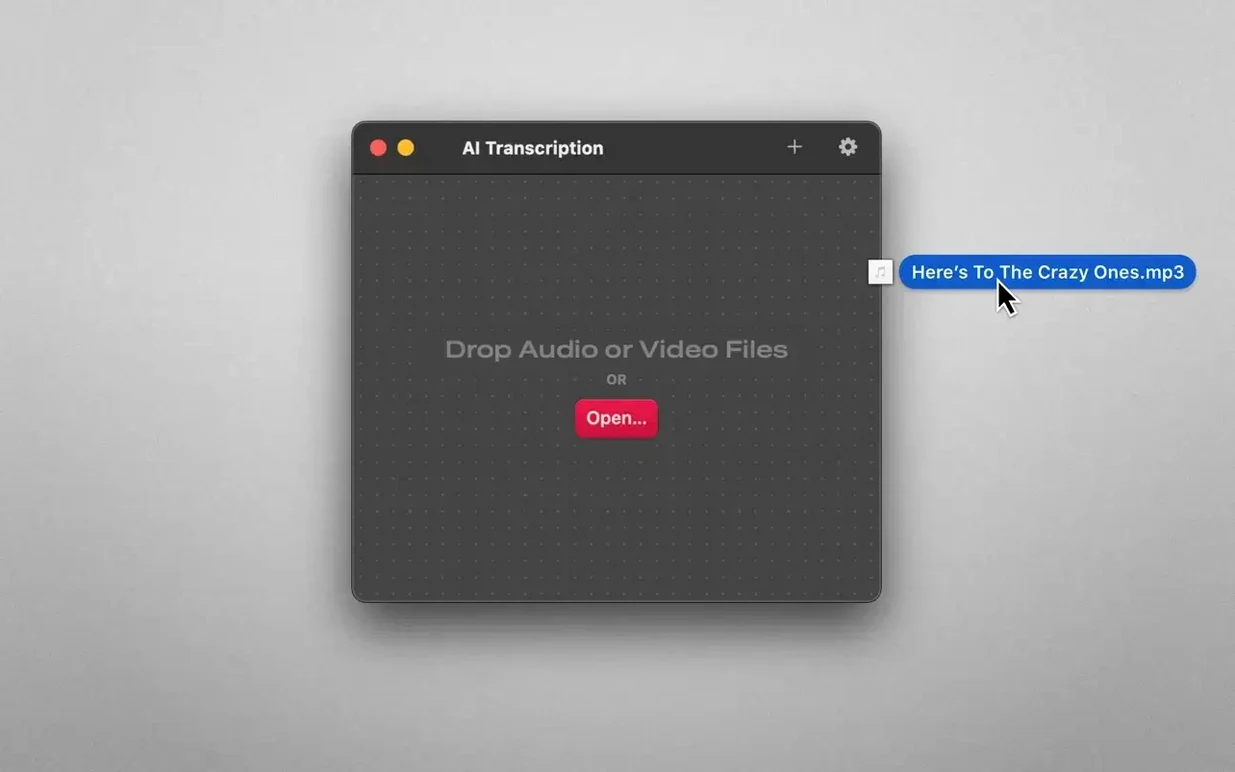
- Drop a .m4a or .mp3 file onto the window. The app reads the audio track without fuss.
- Pick the transcription engine — OpenAI Whisper for accuracy on accented speech, or Apple Speech Recognition when you want near-instant results without touching the GPU.
- Set the split mode to 'Sentences' for readability, then click the transcribe button. The Mac's processor handles everything locally; no data leaves the machine.
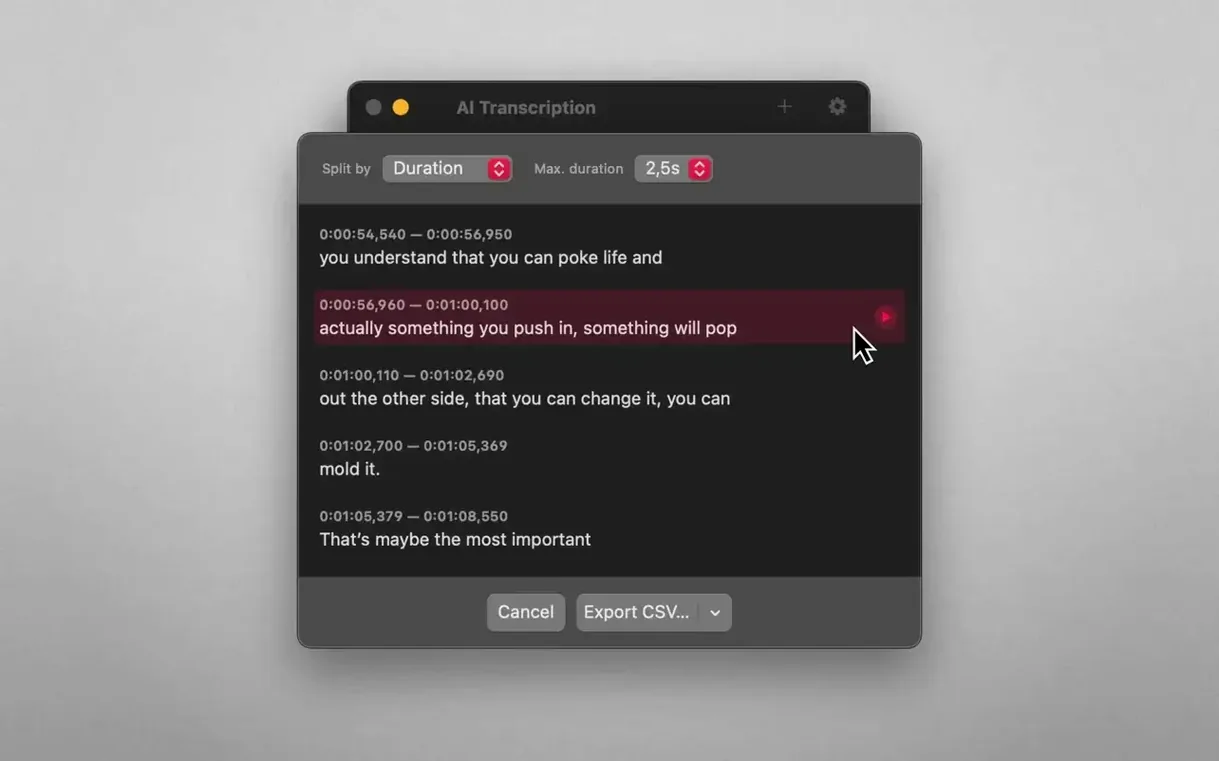
- Scroll through the output. Click any segment to play back the matching audio. Correct a misheard technical term directly in the text panel.
- Export the transcript as a clean text file or copy it into a document. Timestamps remain intact if you chose duration-based splits.
What makes the process reliable
Running on both Apple Silicon and Intel Macs, the app needs macOS 14.6 or later. It leans on two distinct recognition engines that you switch between depending on the job. Whisper handles heavy accents and noisy recordings well, while Apple's on-device engine delivers lower latency. Splitting by word, sentence, or duration gives you control over how the final text reads. The interface keeps things straightforward: a single window with a file list, a playback panel, and an editing area. Nine interface languages are available, including German, Japanese, and Korean, so the workspace can match the user's preference. Because the entire pipeline stays on the Mac, there is no file-size cap imposed by a web service and no recurring cost per minute of audio.
Set a default export format once to skip the save dialog
The default configuration works for quick tests, but a few adjustments make repeated use noticeably smoother.
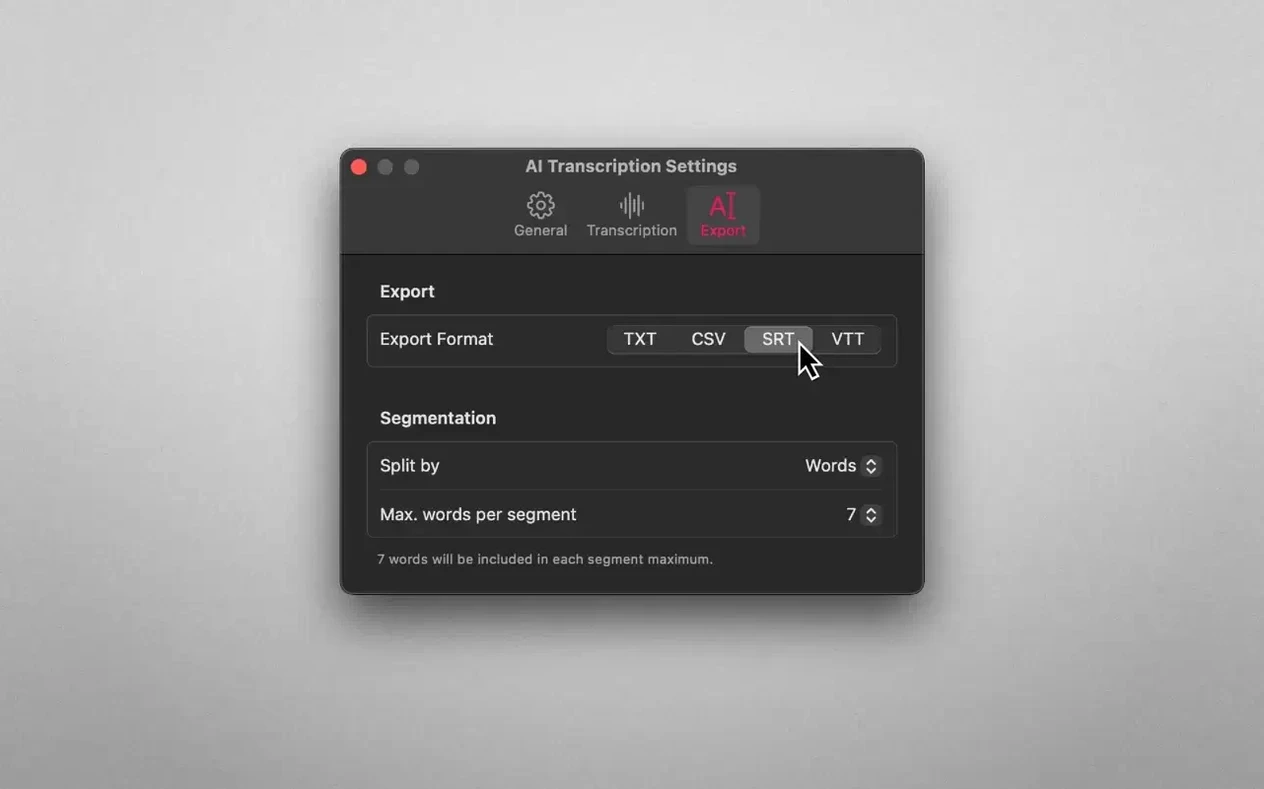
- Default export format. The app remembers your last choice, yet setting a preferred format in advance saves an extra click every time. If most transcripts end up as SRT for subtitles or plain text for notes, pick that once in the export dialogue and it sticks.
- Engine selection per file type. Whisper is not always the right hammer. For clean, single-speaker dictation, Apple Speech Recognition finishes in a fraction of the time. Consider reserving Whisper for multi-speaker recordings, heavy accents, or files with background noise, and keep Apple's engine as the default for everyday voice memos.
- Split mode tied to purpose. 'Sentences' reads naturally for reports and articles. 'Duration' with a 10-second interval produces subtitle-ready chunks. 'Words' is useful only when you need granular timestamps for alignment work. Lock in the mode that matches your typical output before processing a batch.
- Playback behaviour. The click-to-seek linkage between transcript lines and the audio waveform is on by default. If you tend to edit while listening, leave it alone. If accidental clicks keep interrupting playback, consider toggling it off in the preferences pane so editing and listening stay independent.
Whisper integration tightened and interface languages expanded
Version 2.16 tightened the Whisper integration and widened language support in the interface, but the practical shifts accumulated across several updates. Users who have kept the app current since late 2.12 builds will notice a handful of changes that alter the rhythm of a transcription session.
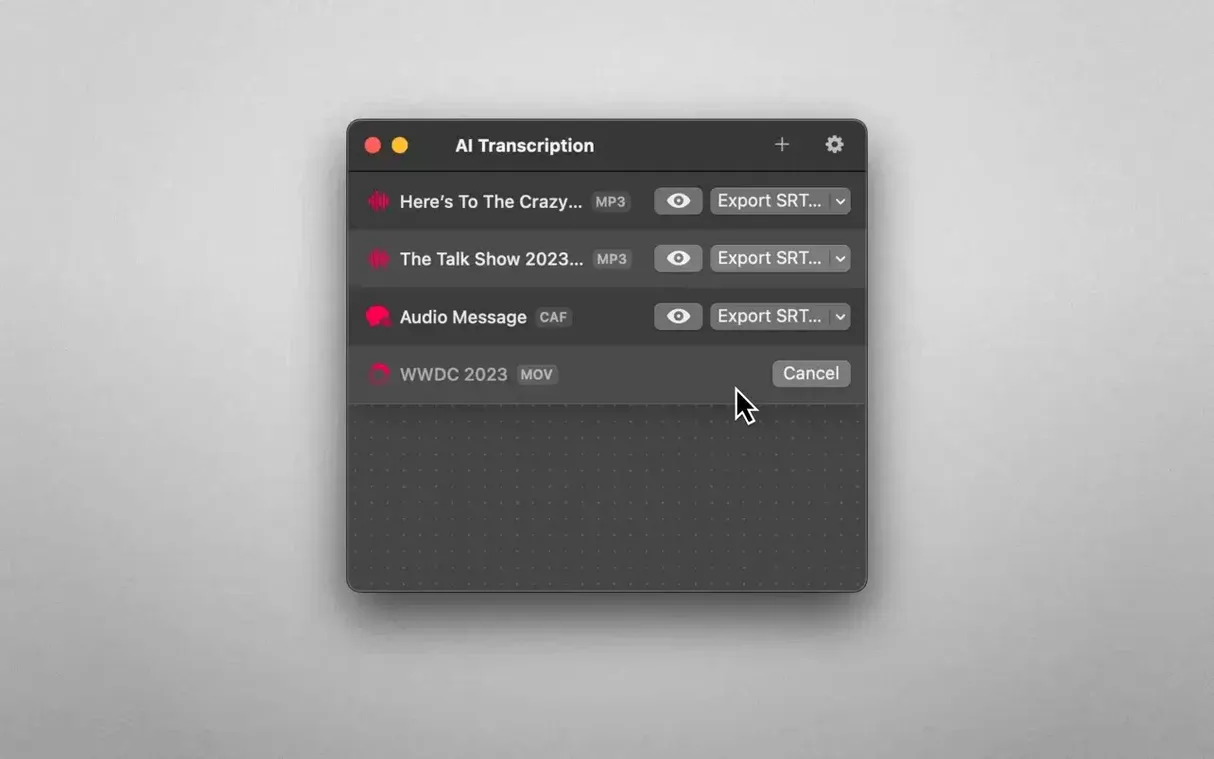
The move from ai transcription 2.12 to ai transcription 2.13 brought a reworked file queue. Earlier versions processed files strictly one at a time and blocked the interface during transcription. With 2.13, you could line up multiple files and let the app work through them while you switched to other tasks. The queue panel shows progress per file, and completed transcripts remain editable while the next recording processes in the background.
ai transcription v2.12 had also introduced the split-by-duration option, but the interval controls were coarse — 30-second blocks minimum. By ai transcription 2.15, the granularity dropped to 1-second increments, which matters for anyone producing WEBVTT captions where shorter segments improve sync. The same update refined how Whisper handles silence detection, reducing the number of blank segments that appeared in the output when a recording had long pauses between phrases.
The jump to ai transcription 2.15 also added the Apple Speech Recognition engine as a selectable option, not a fallback. Before that, the app used Apple's engine only when Whisper models were not downloaded. Now the engine choice is explicit in the toolbar, making it faster to switch strategies mid-session without digging into preferences. The current 2.16 build keeps that layout and extends interface translations to nine languages, so the menus, labels, and export dialogues follow the system language for a larger set of users.
Everything runs locally after a one-time model download
Does the app need an internet connection at all? No. The initial download of the Whisper model happens inside the app once, after which everything runs locally. If you already have a compatible model file from another tool, the app can use that too, but network access is never required for transcription. People working in air-gapped environments or on flights can process files without interruption.
How large are the Whisper models, and which one should I pick? The app offers several model sizes, from tiny to large. The tiny model is under 200 MB and works for quick drafts; the large model exceeds 2 GB and delivers the best accuracy on difficult audio. Most users land on the medium model, roughly 1.5 GB, as a balance between accuracy and disk footprint. You can switch models anytime without losing existing transcripts.
Will it handle a two-hour recording without crashing? The app streams audio in segments rather than loading the entire file into memory at once. Long recordings place a steady load on the CPU or GPU, but the memory usage stays flat. An Intel Mac with 8 GB of RAM handles hour-long files; Apple Silicon machines chew through them faster thanks to the Neural Engine acceleration that Whisper taps into.
Can I edit the transcript before exporting? Yes. The built-in editor supports inline corrections, so you can fix a misheard product name or technical term without leaving the app. Corrections stay with the project file, and exports reflect the edited text, not the raw recognition output. Timestamps adjust automatically when you merge or split segments in the editor.
- macOS 14.6 or newer
- Apple Silicon and Intel 64-bit Macs
Sign in · Create an account to add a field note.
No field notes yet. A measurement, a version, a machine — they appear after moderation.