AI Tools
Macxvideo AI 3.16.0
AI ToolsUpdated
| Requirement | On file |
|---|---|
| macOS | macOS 10.15 or later |
| CPU | Apple Silicon, Intel 64-bit |
| Download | 250 MB |
You've just pulled a dimly lit 1080i clip from an old camcorder and the file needs to exist as a clean 4K MP4 on your iPhone 18 Pro before a family event tonight. MacX Video AI sits in your Applications folder, promising AI upscaling, format conversion, and compression in one tool. Before you commit the disk space and start a batch, here are the concrete, spec-level questions people tend to ask.
- What does the AI actually process? The AI models target noise reduction and de-blurring while preserving fine detail in both video and still images. It is not a generative fill or object-removal engine.
- Does it run natively on Apple Silicon? Yes. Version 3.16.0 supports ARM Macs and 64-bit Intel machines, requiring macOS 10.15 or later, including compatibility with macOS 27.
- Can I queue multiple files in different formats? Batch conversion accepts video, audio, and entire folders. GPU acceleration handles the encoding pipeline for the queue.
- Which device presets are available? The 3.16 update added ready-to-use conversion options for iPhone 18 Pro, iPhone 18 Pro Max, and iPhone Duo.
- What languages does the interface support? Nine: English, German, Spanish, Italian, Traditional Chinese, Simplified Chinese, Korean, French, and Japanese.
Those are the hardware and feature facts. The app bundles AI enhancement, conversion, compression, recording, and basic editing into a single window, which matters if you prefer a unified tool over a chain of separate utilities. The underlying engine evolved from MacX Video Converter Pro, so the format-handling core has years of development behind it.
Keep Original Colors Toggle for AI Upscaling
Version 3.15 introduced a small but genuinely useful toggle: Keep Original Colors inside the AI Super Resolution module. Before that, the upscaling pipeline could shift colour temperature slightly on certain footage, especially older PAL camcorder clips with a warm cast. With the option enabled, the colour profile stays closer to the source while the AI still works on noise and sharpness—fewer trips back to the colour wheels afterwards.
The 3.16 update moved the Python environment to 3.11, which is an under-the-hood change you won't see in the interface but should notice in stability. Earlier builds occasionally stalled during long batch runs when Python dependencies fell out of sync with macOS security policies. The newer runtime sits more comfortably inside Gatekeeper's sandbox expectations.
On the preset side, the iPhone 18 Pro, iPhone 18 Pro Max, and iPhone Duo profiles added in 3.16 mean you no longer need to guess at bitrate ceilings or pixel dimensions for the latest hardware. Select the device, and the encoder writes a file that avoids the "this video is not optimised" prompt in the Photos app.
Verify Hardware-Accelerated HEVC Encoding
- Confirm the GPU path. Open a small test file—something under two minutes—and run a basic HEVC conversion. Watch the progress bar for the hardware-accelerated indicator. If the app falls back to software encoding, check that no other application is holding the video decoder exclusively, particularly screen recorders or browser sessions with active WebGL content.
- Build a preset for your most common output. If you regularly deliver 4K MP4 for YouTube, set the resolution, codec, and bitrate once, then save the configuration. Batch operations respect saved presets, and switching between them mid-queue is quicker than adjusting sliders per file.
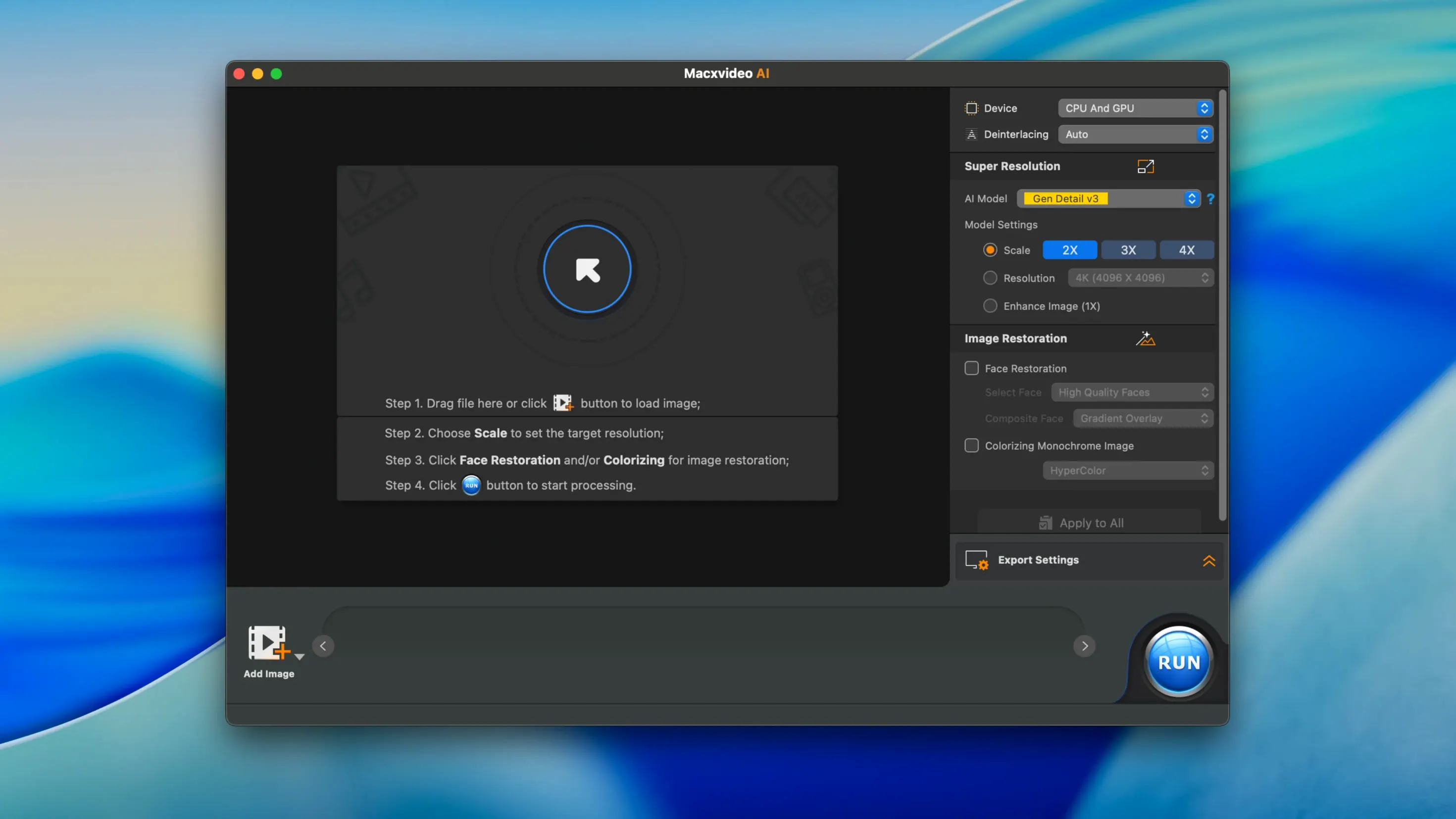
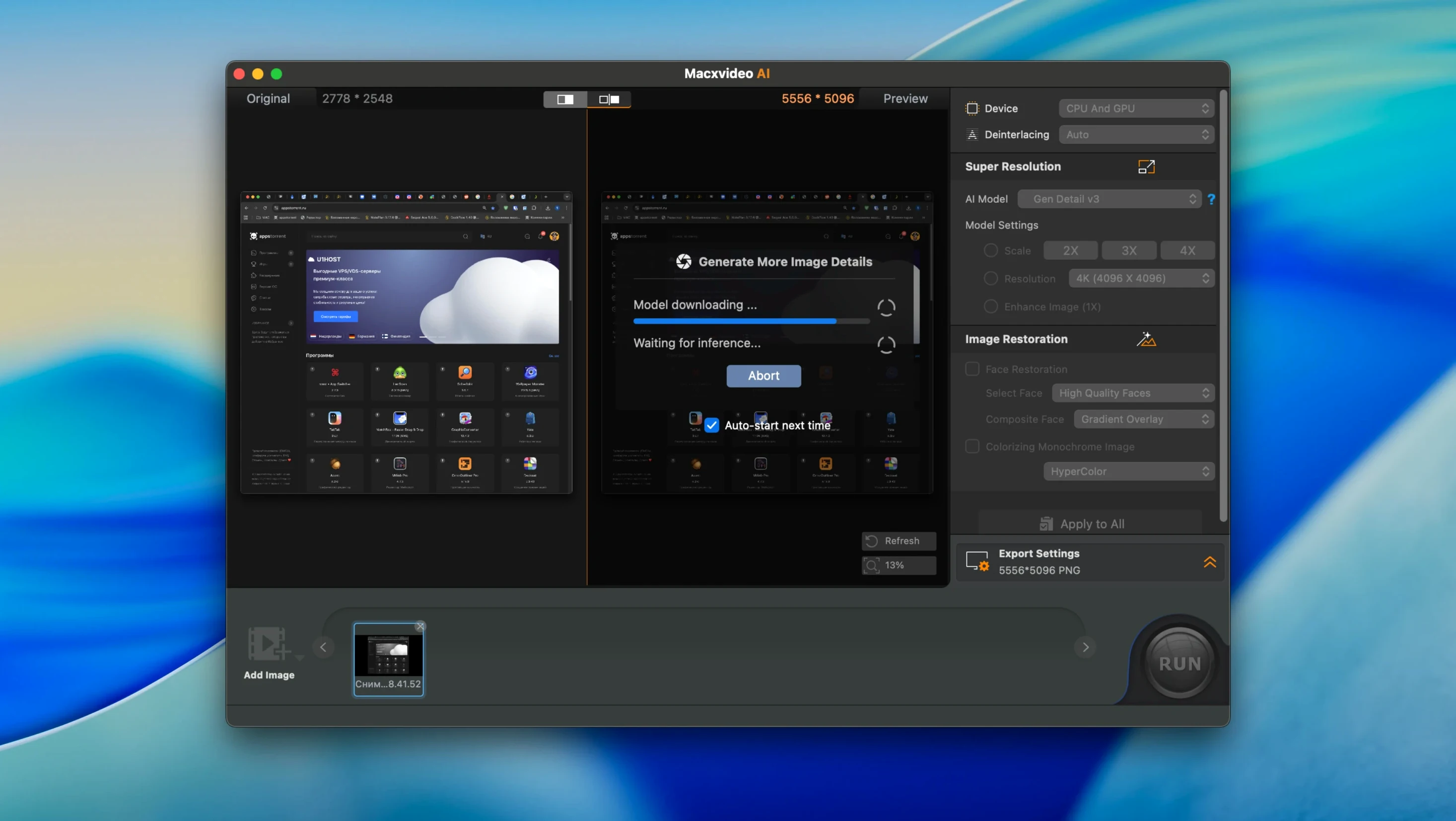
- Test the AI Super Resolution on a still image first. Drop in a 12-megapixel photo with visible noise, upscale it to 10K, and inspect the result at 100%. This gives you a benchmark for the noise-reduction model's behaviour before you commit to a 90-minute video upscale.
- Map your recording settings. The 4K screen recorder defaults to the system audio device. If you need microphone input, select it before your first capture; the setting does not prompt on every recording session.
Bypass Gatekeeper Quarantine on First Launch
Gatekeeper blocks launch even after installation. The app ships outside the App Store, so macOS may quarantine it on first run. The documented workaround is to mount the disk image, right-click the .app file, and select Open. If the system still refuses, a Terminal command with the quarantine flag clears it—hold Enter when prompted to bypass Gatekeeper, then drag the app to the Applications folder and launch normally.
The YouTube Analysis Engine fails to update. This was a known issue fixed in 3.15. If you encounter it on a clean install of 3.16.0, the likely culprit is a firewall rule blocking the update endpoint. Temporarily allow outbound connections for the app, let the engine fetch its definitions, then reapply any network restrictions.
Multi-track MKV loses an audio stream during conversion. The default profile sometimes selects only the first audio track. Before converting, expand the audio track list in the output settings and tick every stream you want preserved. The app writes them into the container correctly once selected; it simply does not auto-select all tracks.
Frame interpolation looks smeary on interlaced sources. AI frame interpolation assumes progressive input. Deinterlace the clip first—either in-camera or through a quick pass in the conversion module set to progressive output—then run interpolation on the clean file. Skipping this step produces ghosted motion artefacts that the AI model cannot correct.
- System — Added compatibility with macOS 27.
- Device presets — Added ready-to-use conversion options for iPhone 18 Pro, iPhone 18 Pro Max, and iPhone Duo.
- Under the hood — Moved the Python environment to 3.11.
- macOS 10.15 or later, including macOS 27
- Apple Silicon or 64-bit Intel processor
Questions on file
Can MacX Video AI improve old, grainy footage?
Its AI models are designed to reduce noise and blur while retaining fine detail, which can visibly clean up older or low-bitrate source material.
Does the app replace a dedicated video editor?
No. It offers trimming, cropping, and other basic edits, but its primary function is AI enhancement, conversion, and compression, not multi-track timeline editing.
Sign in · Create an account to add a field note.
No field notes yet. A measurement, a version, a machine — they appear after moderation.