AI Tools
VideoProc Converter AI 8.13
AI ToolsUpdated
| Requirement | On file |
|---|---|
| macOS | macOS 10.15 or later |
| CPU | Apple Silicon, Intel 64-bit |
| Download | 254 MB |
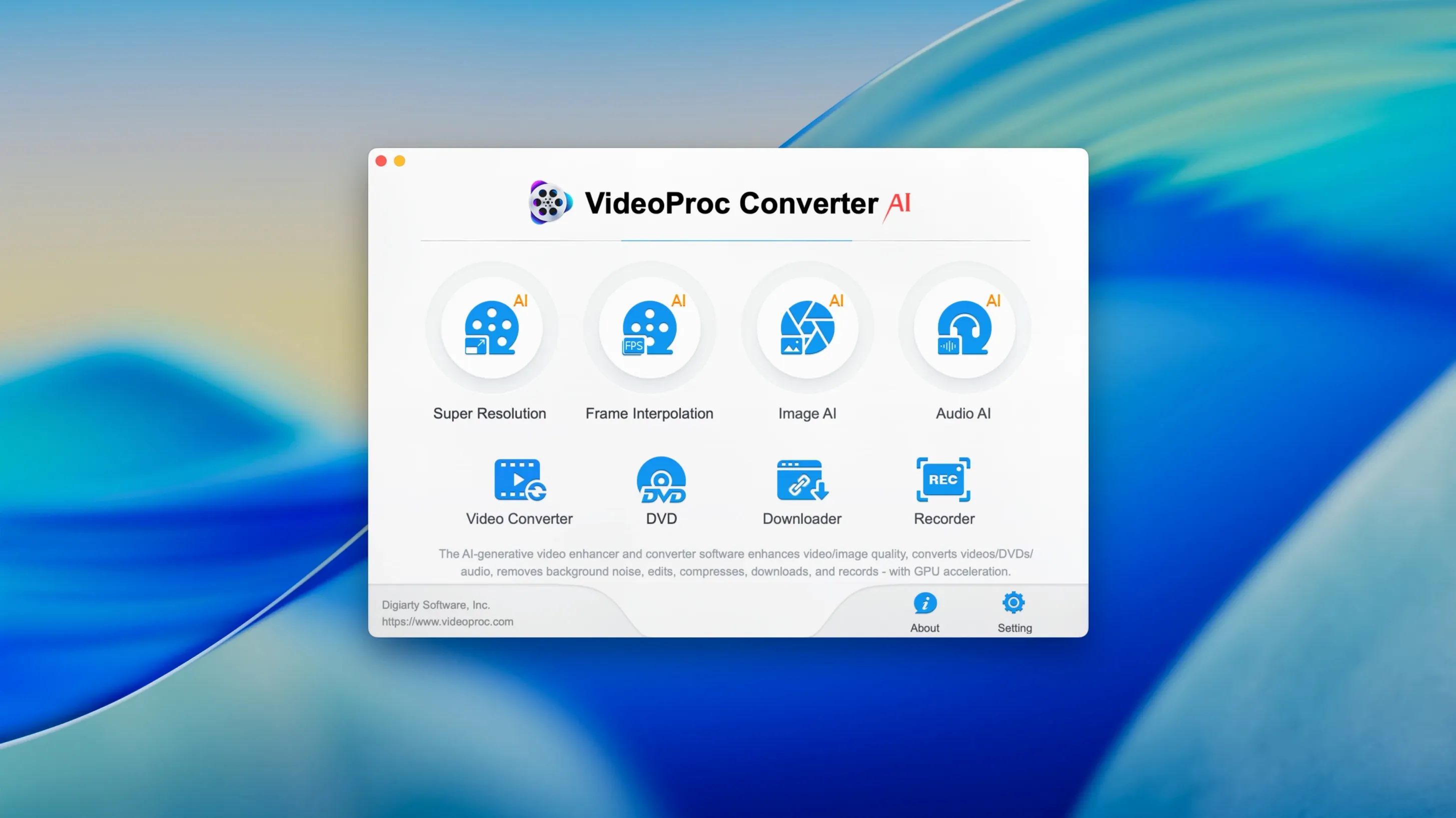
If you’ve ever relied on HandBrake for precise, no-nonsense transcoding, you’ll find a familiar logic here—just extended into a much larger toolset. VideoProc Converter AI handles the same deep format control across MP4, MOV, MKV, HEVC, ProRes and AVI, but it layers hardware-accelerated AI processing directly into the pipeline. The build runs natively on Apple silicon and Intel, and hardware acceleration takes the heavy lifting off the CPU during batch work.
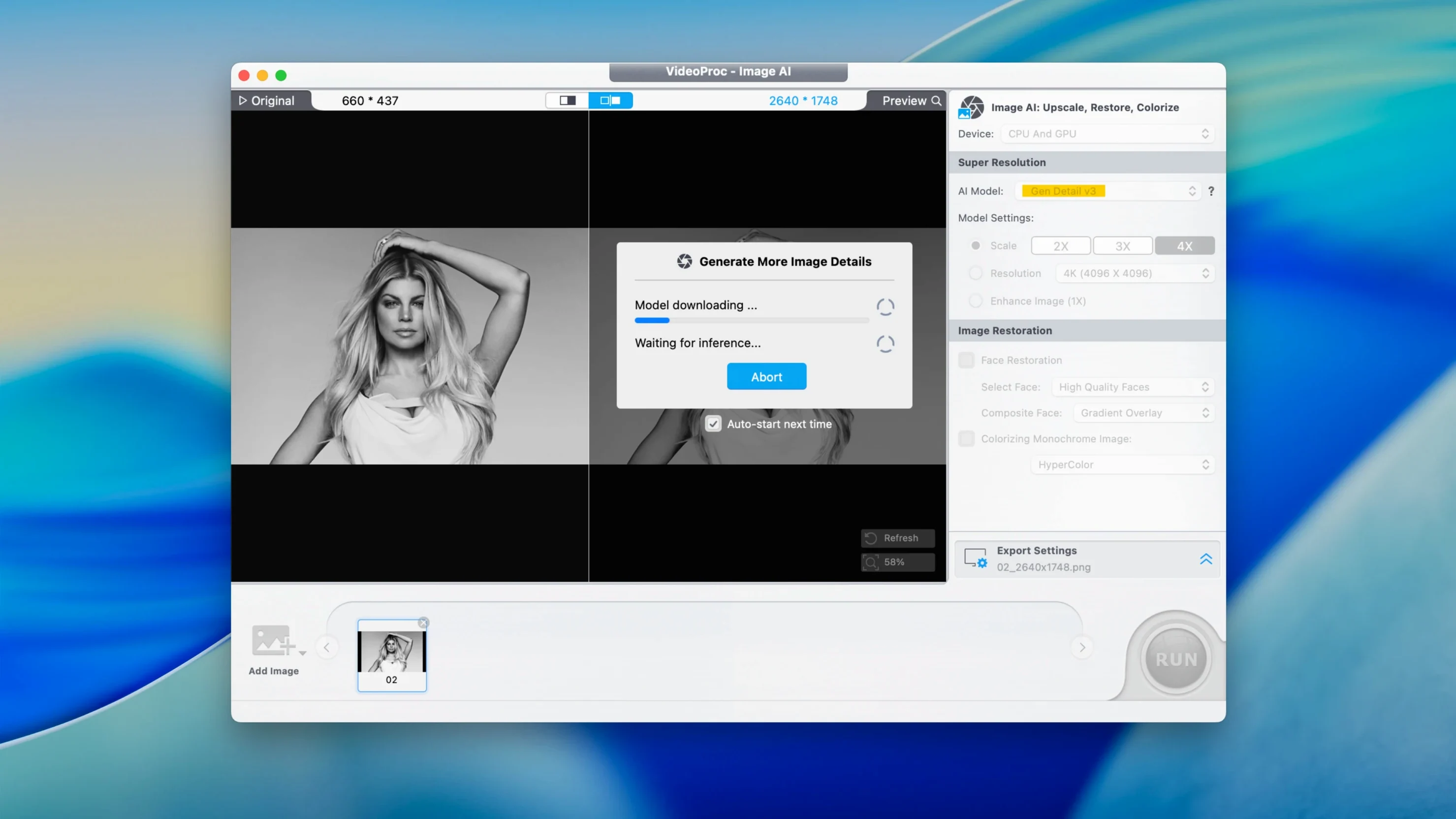
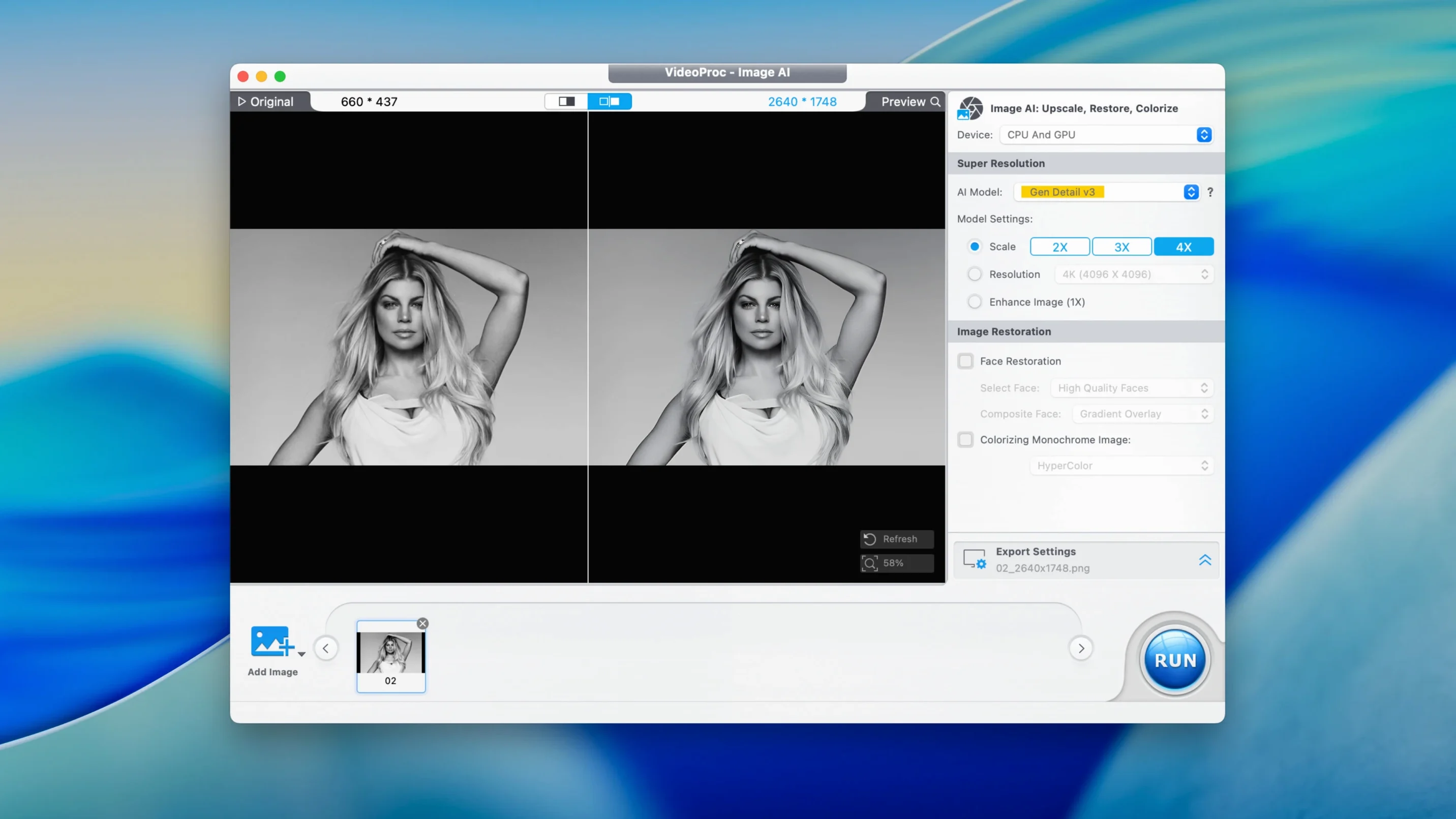
The AI Super Resolution module is the obvious draw. Feed it a DV tape capture or an old VHS digitisation at 480i, and it reconstructs a clean 4K or even 8K output with noticeably fewer compression artefacts. The same engine stabilises handheld footage and interpolates frame rate, which matters if you’re rescuing material shot at 15 fps. For compression, the app claims up to 90% file-size reduction while holding HEVC and HDR metadata intact—useful when you’re archiving ProRes masters and need a lightweight proxy for preview or cloud upload.
Version 8.12 also speaks to the utility side of the app. The downloader now pulls 4K and 8K streams from a wider range of sources, and a screen-and-webcam recorder captures the Mac desktop with voice-over commentary. The recording path supports external webcams, which pairs well with the preset output profiles for YouTube, TikTok and Instagram—each profile locks frame size, bitrate and colour space to the platform’s current spec.
Where VideoProc Converter AI Sits in a Mac Workflow
A tool this broad touches several parts of the system at once, and it is worth mapping how those parts talk to each other. The app exposes its conversion engine to Finder via a Share extension, so a right‑click on any media file in a Finder window offers an “Encode with VideoProc” option. That is a small touch, but it saves the step of opening the full interface when all you want is a quick HEVC transcode of a single clip. Quick Look integration works the other way: after processing, you can select an output file in the app’s file list and press Space to preview it without leaving the window.
The recording module ties into the system audio stack cleanly. On macOS 15 and later, the app can capture system audio without a third‑party kernel extension—it uses the same ScreenCaptureKit audio‑capture path that QuickTime Player does. This is relevant if you record tutorial videos with voice‑over, because you can grab application audio, microphone input, or both, and route them to separate tracks in the output container. The webcam path supports any UVC‑compliant camera, including external DSLRs connected via HDMI capture dongles, and hands the feed straight into the built‑in editing timeline for trimming before export.
For users who move material between DaVinci Resolve, Final Cut Pro, or Premiere, the ProRes 422 and 4444 export profiles preserve the metadata those NLEs expect—timecode track, colour primaries, and transfer function. HEVC exports include HDR10 static metadata when the source provides it, and the app writes the colr atom correctly, so QuickTime Player and Apple’s Video Toolbox decoder chain read the colour space without manual overrides.
Smaller Installer, Same Editor: 8.12’s Day-to-Day Impact
The point updates in 8.12 are modest on paper but shift the feel of the app in practice. Reduced installer size is not glamorous, yet it matters on a 256 GB MacBook Air where every gigabyte counts. The download lands faster, and the unpacked bundle occupies less space in /Applications than the previous build. The improved Downloader performance is noticeable when pulling long‑form video: 4K streams that previously required two or three retries on congested Wi‑Fi now complete in a single pass more often, and the progress bar updates at a steadier clip rather than pausing mid‑fetch.
iPhone 18 support adds preset profiles for the newest Apple hardware, which means the app writes files with the exact bitrate caps and colour‑space tags that the device expects for direct playback via AirDrop or USB transfer. The macOS 27 compatibility line in the changelog signals that the codebase runs forward‑compatible on developer builds Apple has not yet shipped to the public. For anyone on a beta OS, that removes a common point of friction—an app that refuses to launch after a system update.
These are incremental gains, not a redesign, and the interface remains the same dense toolbar‑and‑panel layout it has been for several releases. The benefit is that muscle memory carries forward; the cost is that a user upgrading from a much older version will find no modernised welcome screen or onboarding flow. The app assumes you know what you want to do and presents all levers at once.
Metal Encode Keeps the CPU Quiet on Apple Silicon
On an Apple silicon Mac, the Metal‑backed encode path keeps the CPU quiet. A 10‑minute 4K HEVC‑to‑H.264 transcode saturates the media engine on an M‑series chip while the performance cores hover around 15–20% utilisation, leaving the machine responsive for other work. Intel Macs with a discrete AMD GPU show a similar offload pattern, though the fan curve is steeper on older 15‑inch models. The app does not peg the GPU at maximum draw indefinitely; it pulses the load in 2‑ to 3‑second chunks, which helps thermals on fanless machines.
AI Super Resolution is the exception. That module relies on the Neural Engine and, on Intel hardware, the GPU compute units. Processing a 10‑minute 480p clip to 4K can take 18–25 minutes on an M2 and closer to 40 minutes on a 2019 i9 MacBook Pro. During that time, the app becomes the dominant power consumer, and battery drain is steep—expect roughly 35% battery loss for that task on an M2 MacBook Air. The trade‑off is that the result genuinely resolves detail that bicubic upscaling smears, especially on faces and text in old footage.
Crashes are rare in the encode and download modules; the areas where instability occasionally appears are the AI‑assisted stabilisation and the multi‑stream download queue. If you queue more than six 4K downloads and run an AI stabilisation job simultaneously, the app sometimes drops one download without warning. The workaround is to split sessions: batch‑download first, then run AI tasks on the local files. Memory pressure stays manageable—the app rarely exceeds 2.2 GB of RAM even during 8K Super Resolution passes, which leaves headroom for other applications on 8 GB machines.
Set the Output Folder Before Your First Batch
A few configuration steps early on prevent friction later. First, open the Preferences pane and set the output folder to a location with generous free space, because the default ~/Movies/VideoProc folder can fill quickly when you batch‑convert ProRes files. An external SSD formatted as APFS works well and keeps the system volume clean.
Second, check the hardware acceleration panel. On Apple silicon, the app should list both Video Toolbox and the Neural Engine as active. If only one appears, a permissions prompt may have been dismissed—granting the app access to the GPU in System Settings under Privacy & Security resolves that. Intel users should verify that their discrete GPU appears and that the “Prefer discrete GPU” checkbox is ticked if the machine has both integrated and dedicated graphics.
Third, build a small preset library before tackling a large project. The app ships with dozens of device profiles, but the sweet spot for daily use is three or four custom presets: one for social‑media delivery at 1080p H.264 at 12 Mbps, one for archival HEVC at 4K with HDR pass‑through, and one for ProRes 422 LT at the source resolution. Naming them clearly saves repeated trips to the format dropdown. The preset editor exposes every parameter—framerate, bit depth, colour primaries, audio codec, sample rate—so it repays time spent upfront.
Finally, test the downloader with a short clip before queuing a long playlist. Paste a single URL, let the app parse it, and confirm the resolution and format it detects match your expectations. The module sometimes defaults to 720p when a 4K stream is available, and switching to the higher resolution requires a manual selection in the format picker. Once the preference sticks, subsequent URLs in the same session remember the choice.
- macOS 10.15 (Catalina) or later
- Apple Silicon or Intel 64-bit processor
Sign in · Create an account to add a field note.
No field notes yet. A measurement, a version, a machine — they appear after moderation.