AI Tools
MacWhisper 15.8
AI ToolsUpdated
| Requirement | On file |
|---|---|
| macOS | macOS 14 or later |
| CPU | Apple Silicon, Intel 64-bit |
| Download | 75 MB |
MacWhisper runs on any Mac running macOS 14 or later, with full support for both Apple Silicon and 64-bit Intel processors.
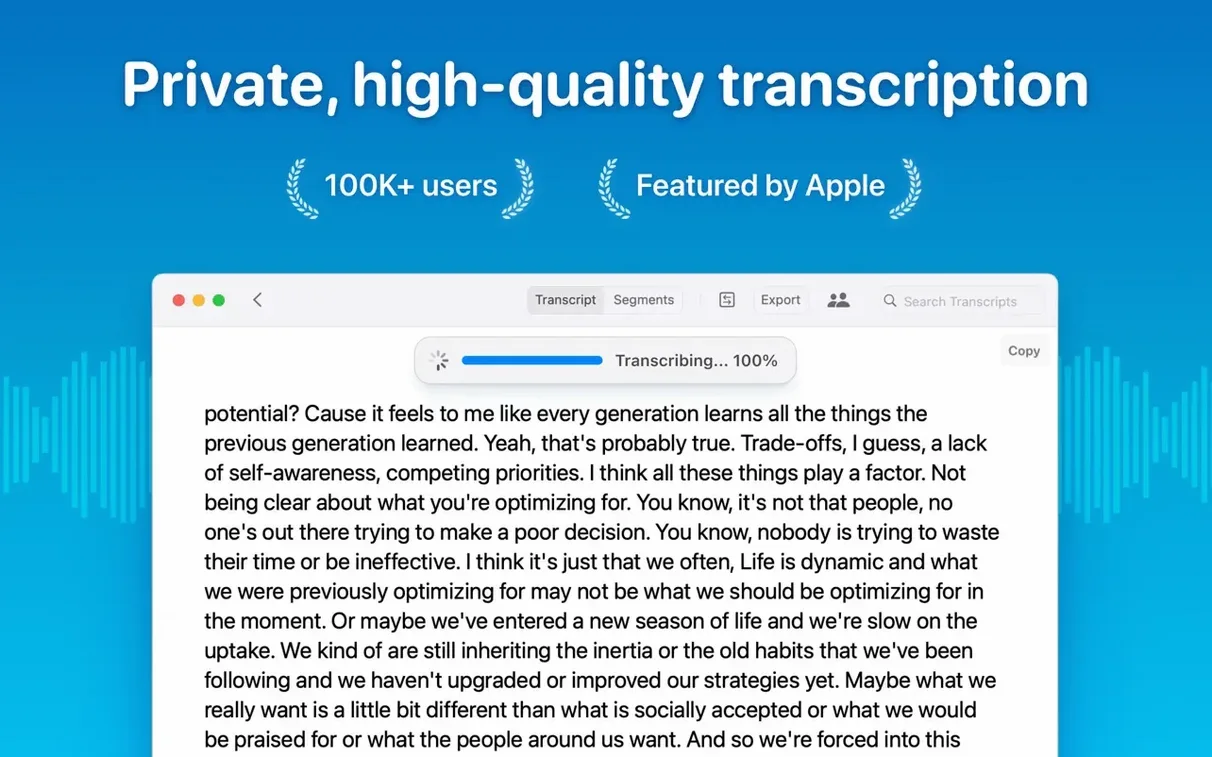
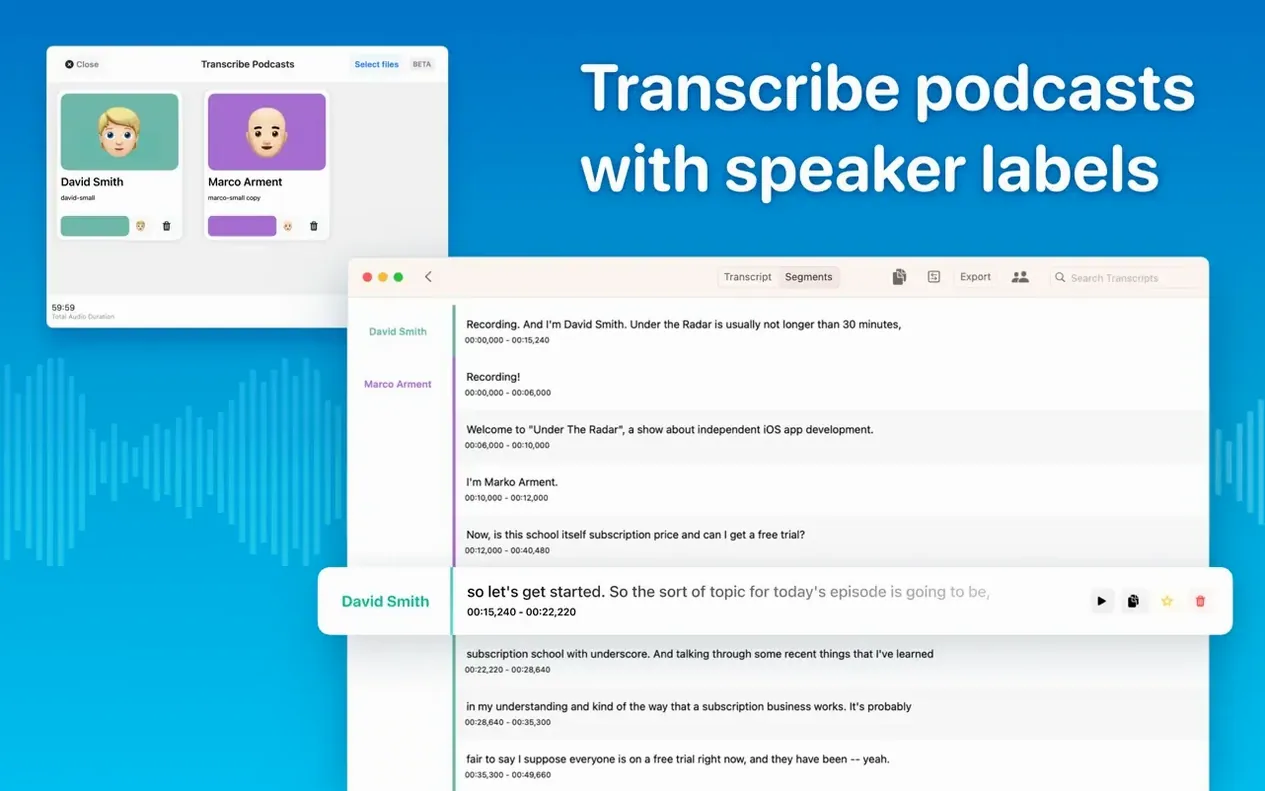
Diarization model — The new speaker recognition engine that labels who said what, replacing the previous diarization approach with tighter segmentation and fewer cross-talk errors.
Real-time meeting transcripts — Live capture that writes text as people speak, rather than post-session processing. Useful when you need searchable notes before the meeting ends.
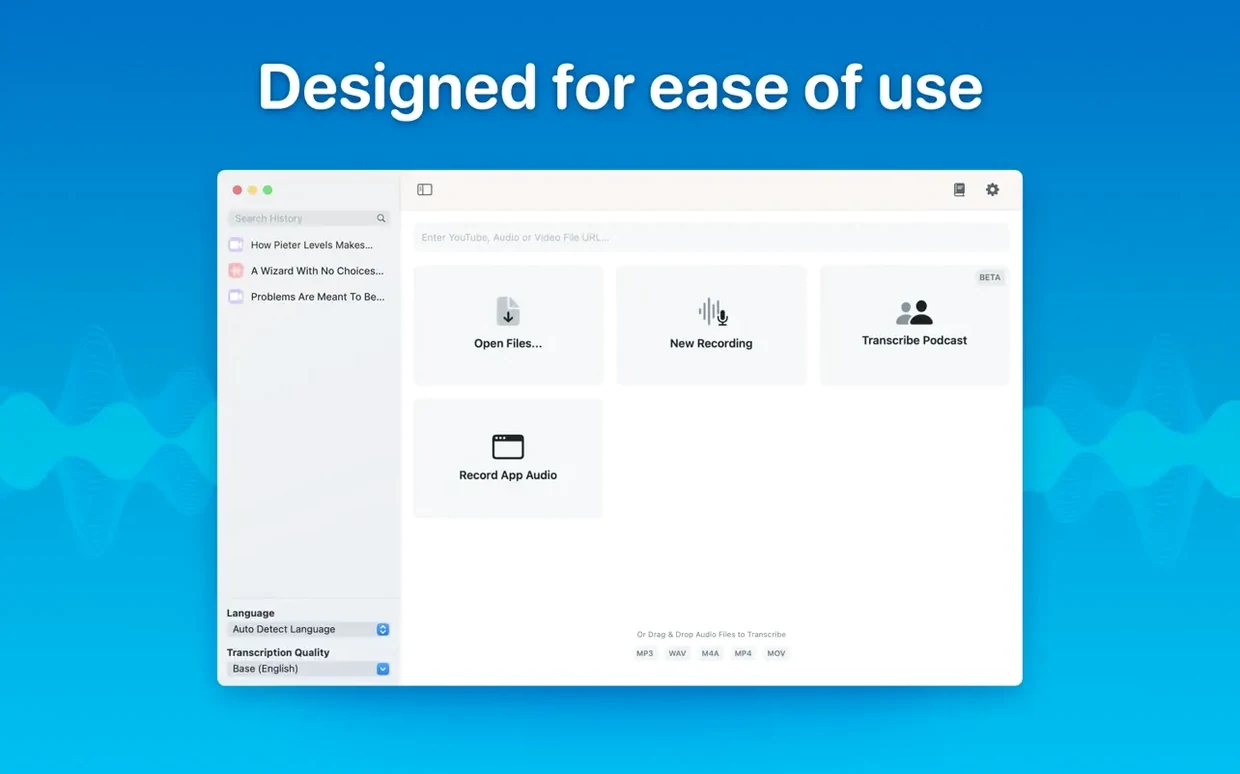
Folder hierarchy — Transcripts and meetings now live in a folder tree instead of a flat list. Group by project, client or date without external file management.
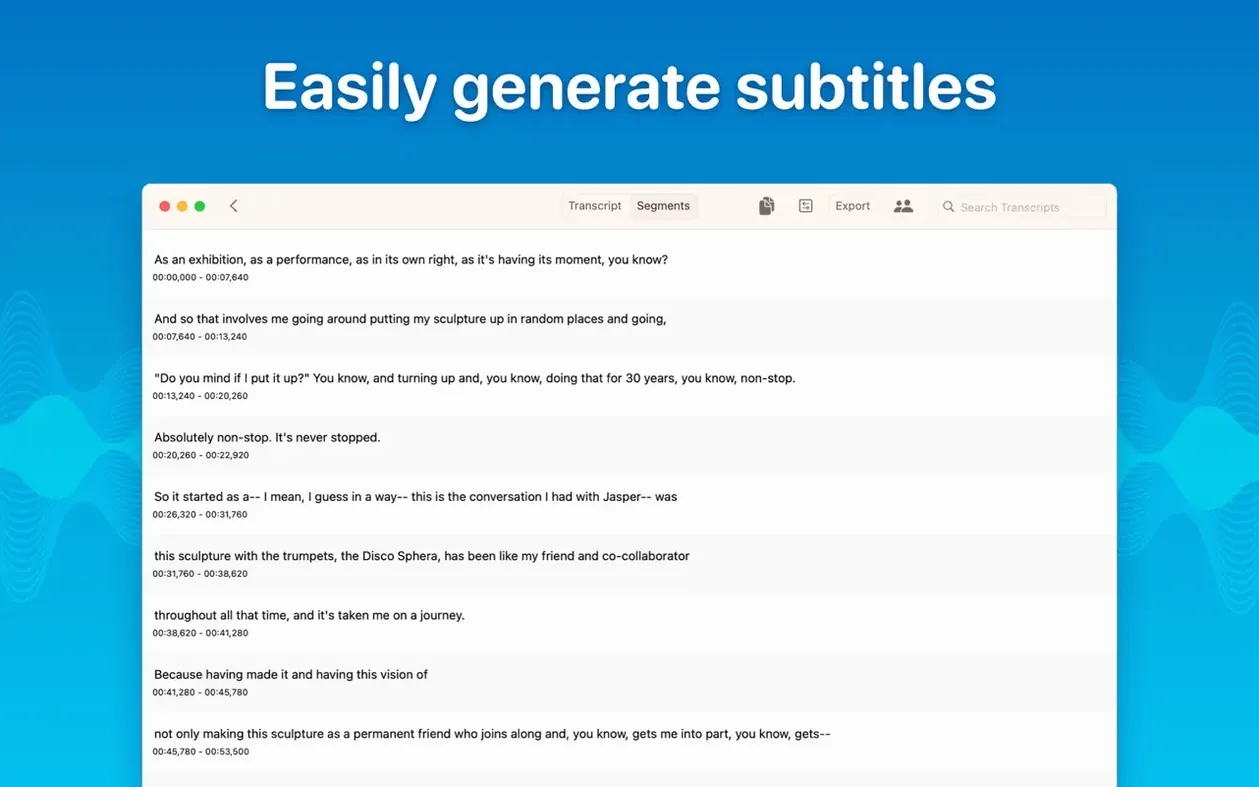
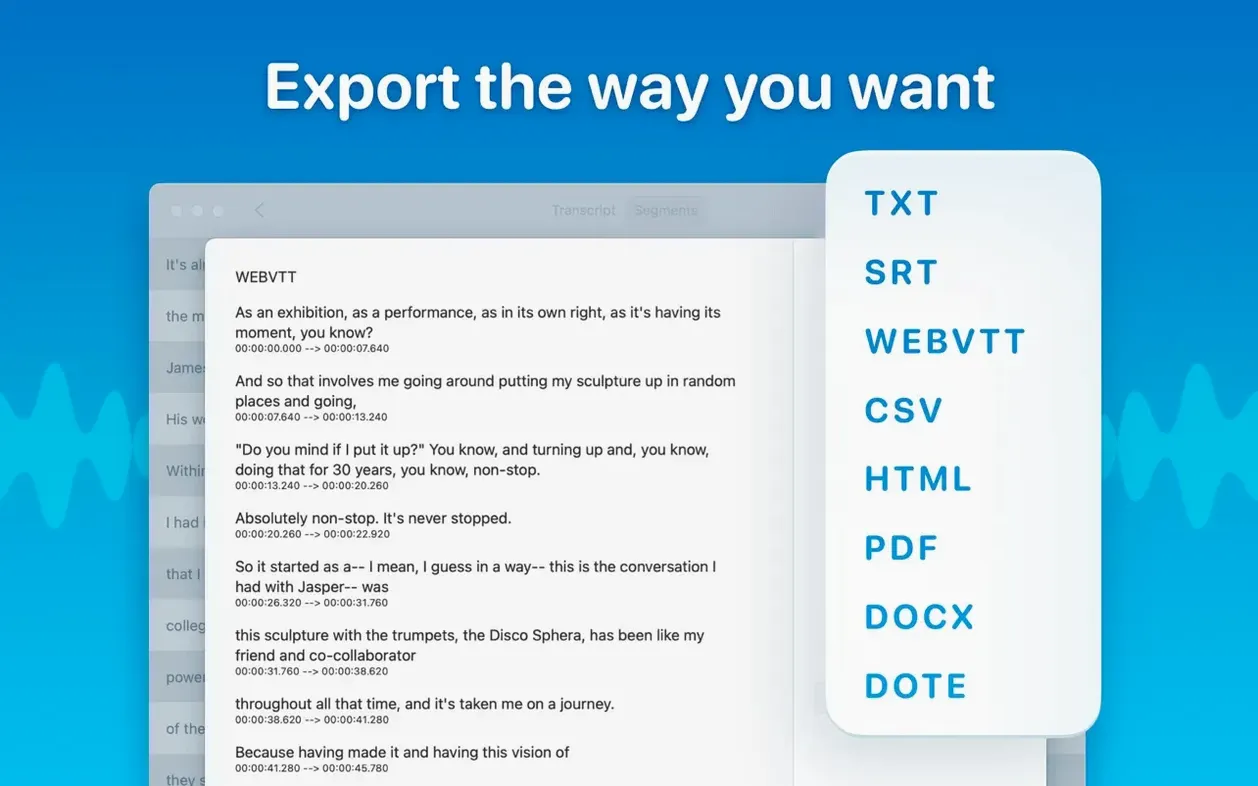
Batch export — Select a group of transcripts and export multiple formats in one pass. SRT and VTT subtitles, plus plain text, all generated together.
Segment editing — Click into any transcribed segment to correct a word or delete it entirely. The timeline stays intact; downstream exports reflect the edit.
Model compatibility filter — Before downloading a local model, version 15.2 checks the Mac model against a compatibility list. M1-series machines, for instance, no longer see the Qwen3-ASR option that was removed in this update.
100 Languages Plus a Distraction-Free Reader
- Language coverage spans 100 languages, with a choice of manual selection or automatic detection.
- Reading mode strips the waveform and timeline, leaving just the text for review.
- On macOS 15, the Live Captions language menu no longer triggers a crash that existed in earlier builds.
45-Minute Episode in 4 Minutes on a Fanless Mac
On an M2 MacBook Air with 16 GB of RAM, the Medium model transcribes a 45-minute podcast episode in roughly four minutes. CPU temperature rises about 12 °C above idle, and memory pressure stays green. The fan — not that an Air has one — would not spin up anyway. On an Intel i9 MacBook Pro, the same file takes closer to eight minutes with the same model, and you hear the fans within 90 seconds. Neither result is slow enough to interrupt your workflow, but the gap is real and worth knowing if you run batch jobs.
The Large-V3 model changes the equation. Transcription time jumps to 11 minutes on Apple Silicon and roughly 20 minutes on Intel, with memory use climbing past 8 GB. For most spoken-word content — clean interview audio, meeting recordings without heavy accents — the Medium model hits a sweet spot where the word error rate is indistinguishable from Large-V3 in practice. Reserve the large models for files with background noise, overlapping speech, or strong regional accents.
Stability is uneventful in the best way. Across a week of daily use—transcribing system audio during calls, dragging in pre-recorded files, editing segments while a batch export runs — version 15.2 has not crashed once. The one exception, fixed in 15.2.1, was the Live Captions language menu on macOS 15, which could beachball the app. That is no longer present.
Resource use during real-time meeting capture deserves a note. When live transcription is active, CPU load sits around 22–28 percent on Apple Silicon with the Small model. You can run a browser with 15 tabs, a code editor and Slack alongside it without the system feeling taxed. The audio buffer stays small — Activity Monitor shows network use under 2 KB/s because nothing leaves the machine. If you have ever hesitated to use a transcription tool during a confidential client call, this architecture removes that objection entirely.
From 24-Hour Wait to Same-Day Editable Text
Claire edits a weekly interview podcast. She receives a 90-minute raw recording as a 320 kbps MP3 every Tuesday morning. Before MacWhisper, she hired a human transcriber and waited 24 hours for a rough text file she would then manually timestamp in Descript. The turnaround ate a full working day.
Now she drags the MP3 into MacWhisper at 9:15 AM, selects the Large-V3 model with the new diarization engine, and sets language to French — her guests this week are from Lyon. By 9:32, she has a speaker-labelled transcript with SRT subtitles exported to the same folder. She opens the transcript, spots a mis-segmented exchange around minute 34, clicks into the segment and deletes two words that bled across speakers. The timeline adjusts. She exports a corrected SRT in seconds.
By 10:00, the episode is fully subtitled and her show notes are drafted from copied segments. The transcription never touched a server. Her guest list, which includes a lawyer who cares deeply about data sovereignty, stays private. Claire's bottleneck is no longer the transcription step — it is how fast she can write questions for next week.
Picking Large-V3 by Default and Waiting 7 Minutes
The first mistake is model selection. People gravitate toward Large-V3 because it sounds definitive, then wonder why a 20-minute voicemail takes seven minutes to process on an Intel Mac. The Small and Medium models handle clear speech with near-perfect accuracy in English, Spanish and German. Start there; escalate to Large-V3 only when the first pass shows phonetic nonsense in multiple segments.
The second mistake is ignoring the segment editor. Beginners treat the transcript as read-only output and waste time copying text into an external editor to fix a misheard brand name. Click the segment, type the correction, and every export format downstream inherits the change. The waveform stays pinned to the audio, so you lose no sync.
The third mistake is misunderstanding speaker separation. The new diarization model labels speakers as Speaker A, Speaker B and so forth — it does not identify them by name. Users who expect automatic voice recognition à la Zoom's cloud profiles are disappointed and then overlook that renaming Speaker A to "Claire" takes three clicks in the transcript panel. The labels persist across exports, so the fix is a one-time action per transcript.
A subtler trap: dragging in a .mov file recorded on an iPhone with spatial audio enabled. The multi-channel track confuses the automatic language detector and produces garbled output. The workaround is to extract a mono or stereo AAC track first, or to set the language manually before transcription. The app does not warn you about channel count — you learn this by staring at a transcript that looks like Welsh but is actually corrupted English.
Offline Transcription That Never Touches RAM
Does it need an internet connection? No. Model downloads require internet once, but transcription itself runs entirely offline. If you already downloaded the models you need, you can disable Wi-Fi and transcribe sensitive audio without any data leaving RAM or the Neural Engine. Some users search for macwhisper torrent or macwhisper pro torrent to get a pre-packaged model folder, and if you go that route, just make sure the models are placed in the same local directory the app uses so they survive reinstalls.
How much disk space do the models need? Tiny is roughly 150 MB. Small runs about 500 MB. Medium sits near 1.5 GB. Large-V2 and Large-V3 each occupy around 3 GB. If you install all English models, expect roughly 5 GB. The app does not auto-delete unused models, so check the Local Models list occasionally and remove the ones you never pick.
Will it work with a Mac that has 8 GB of RAM? Yes, but model choice matters. The Tiny and Small models run comfortably. Medium works for files under 60 minutes if you close memory-heavy apps. Large-V3 will page to swap and slow to a crawl on 8 GB machines — transcription times can triple. If your work involves hour-long files and you have 8 GB of RAM, stick with Small or Medium and test a short file first.
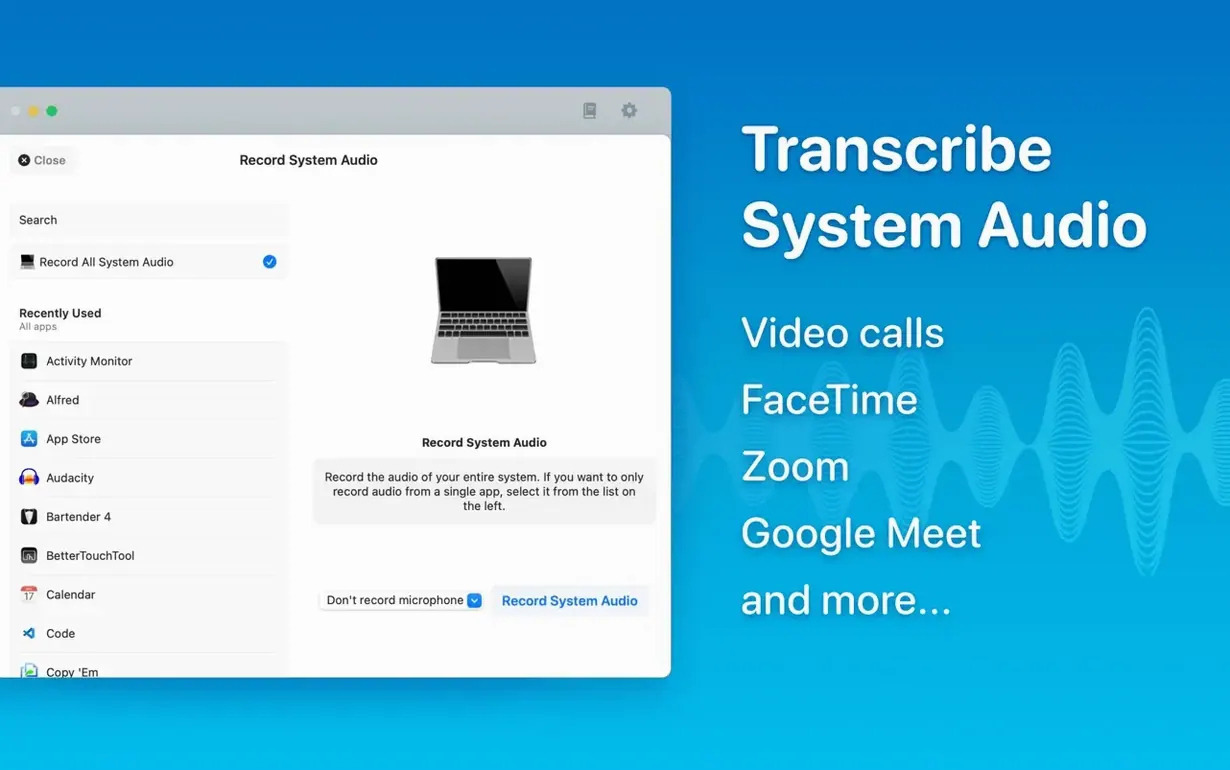
Can it transcribe system audio from any app? Yes. The system audio capture works with Zoom, Teams, browser tabs and QuickTime playback. It routes through a virtual audio driver installed by the app. Some users look for macwhisper pro crack or macwhisper cracked to unlock features, and the standard build already includes system audio capture and batch export — features that were previously gated and are now available without additional steps.
A 30-Second Test Run with the Small Model
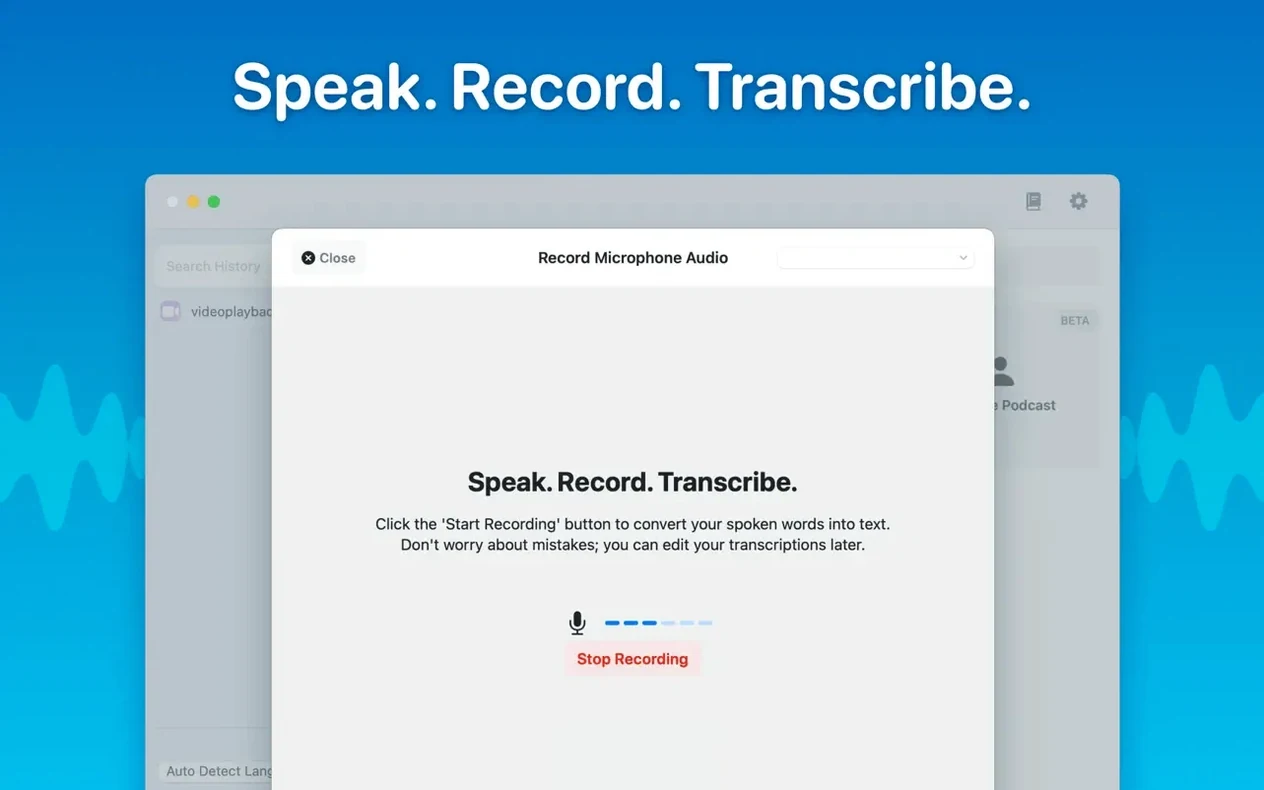
Download the Small model first, not Medium or Large. You want a fast test run within minutes of launching the app. Record a 30-second memo in the built-in recorder, transcribe it, and check the output. This validates that your microphone routing works, the model loads correctly, and you understand the export flow — all before you trust the app with a real meeting.
Set up a folder structure immediately. Make top-level folders for Meetings, Podcasts, and Interviews. Add subfolders by month or client. MacWhisper stores everything inside its own container, not in your Documents directory, so the hierarchy you build in the first week saves you from hunting through a flat list of untitled transcripts three months later.
Configure the automatic language detection behaviour. If 90 percent of your work is in one language, set it as the default in preferences and disable auto-detection. Auto-detection adds a few seconds of processing and occasionally guesses wrong on short clips with background noise. Manual selection is faster and more predictable when you know the source language.
Test the segment editor on a throwaway transcript. Intentionally delete a segment, split a long paragraph by inserting a break, and rename a speaker label. Export to SRT and open it in a video player to confirm the timestamps held. Doing this once without time pressure means you will not hesitate when a client asks for a corrected subtitle file 15 minutes before a deadline.
Finally, look at the Local Models list and remove anything you will not use in the next month. A clean model list reduces cognitive overhead every time you pick a model for a new transcription. If your Mac is an M1, note that Qwen3-ASR no longer appears — the compatibility check in version 15.2.1 hides categories your hardware cannot run, so the absence is intentional, not a bug.
- macOS 14 or later
- Apple Silicon or Intel 64-bit processor
Questions on file
Which export formats does MacWhisper support?
It exports subtitles as SRT and VTT, and can copy all text or selected sections directly. Batch export lets you generate multiple formats at once.
Can I edit a transcript after it is generated?
Yes. You can click into any segment to edit the text or delete it entirely, and the changes carry through to exported files.
Sign in · Create an account to add a field note.
No field notes yet. A measurement, a version, a machine — they appear after moderation.