Mac Apps
Astro Gold 6.2.1
Mac AppsUpdated
| Requirement | On file |
|---|---|
| macOS | macOS 10.13 or later |
| CPU | Apple Silicon, Intel 64-bit |
| Download | 58 MB |
Astro Gold runs on any Mac that can handle macOS 10.13 High Sierra or newer, and the binary is universal — it loads natively on both Apple Silicon (ARM) and 64-bit Intel hardware. No emulation layer, no architecture guesswork. If your machine is from the last decade and kept reasonably up to date, the app will launch without a fuss.
| Detail | Spec |
|---|---|
| Developer | Cosmic Apps Pty Ltd |
| Current version | 6.2.1 |
| Architecture | ARM + x86 64-bit |
| Minimum OS | macOS 10.13 |
| Interface | English |
| Zodiac systems | Tropical, Sidereal |
People searching for an astro gold for mac setup often ask what they actually get in the base install. The chart library covers the essentials that most users reach for daily: natal charts with round or square styling, transit overlays, solar and lunar returns, plus Saturn and other planetary returns. For relationship work there is synastry (two-chart comparison), composite charts, and Davison relationship charts. If you are scouting a move, the relocation module recalculates the chart for a new place of residence. A fixed-star catalog is built in, and you can fine-tune orbs, aspects, and planet filters to match the way you read. Both tropical and sidereal zodiacs are supported, so the software adapts to Western or Vedic approaches without extra modules.
From blank workspace to “Ada’s” chart in one data-entry panel
Open Astro Gold and the first thing you see is a blank workspace with a toolbar across the top. Click File → New Chart or press ⌘N. A data entry panel slides open. Type the name — say, "Ada". Tab to the birth date field. The app accepts typed dates or a small calendar picker; I tend to type because the parser handles 7 Nov 1967 or 1967-11-07 without complaint. Enter the time as 13:45, pick the time zone from a searchable dropdown (CET, in this case), and drop in the place name. Astro Gold queries its internal atlas as you type — "Copenhagen" resolves in three keystrokes and fills latitude, longitude, and country automatically.
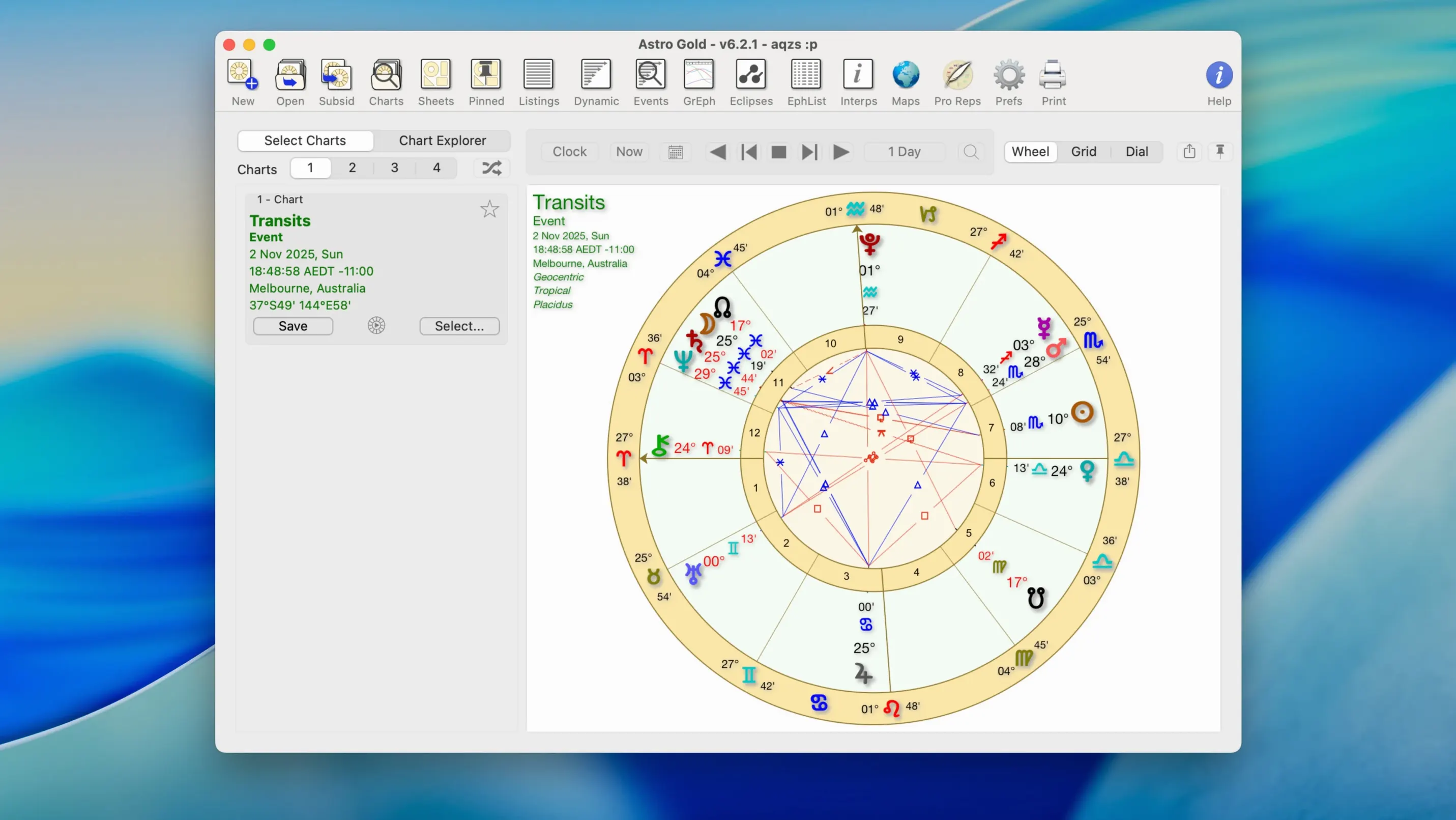
Hit Save. The screen fills with a round natal chart, planets colour-coded, aspect lines drawn in red and blue. The default is a modern wheel with degree markings on the outer rim, but I switch to a square chart immediately: Chart → Chart Style → Square. Square charts suit traditional work — whole-sign houses sit as neat rectangles, and mutual receptions jump out faster than they do on a wheel.
Now add a transit layer. Chart → Transits opens a date picker; leave it on today and click OK. The outer wheel populates with current planetary positions. I want to check the upcoming Saturn return, so I adjust the date to three months ahead. The chart redraws in under a second. Right-click any aspect line and a tooltip shows the orb down to arc-minutes. I make a mental note: the Saturn–Saturn conjunction is exact in 94 days.
Before closing, I save the chart to the manager. File → Save Chart drops it into the sidebar list. The manager is a flat list with a search field at the top — no folders, no tags, but you can prefix names ("Client – Ada", "Event – Eclipse 2025") to group them visually. Double-click any entry to reload it instantly. The session ends with an exported PDF via File → Export PDF; the file lands on the desktop, aspect tables and legend included, ready to attach to an email.
Reading planet-in-sign meanings from the collapsible sidebar
Once a chart is on screen, most of the real work happens through the Interpretations panel (View → Show Interpretations). It sits in a collapsible right-hand sidebar and reads out planet-in-sign, planet-in-house, and aspect meanings from a built-in text library. The text is short — two or three sentences per placement — but it is editable. You can rewrite any interpretation and the app remembers your edits next time that placement appears. Astrologers who write their own delineations treat this as a lightweight note-taking layer rather than a report generator.
Switching between charts is fast if you use the Chart Manager keyboard shortcut: ⌘⇧M. From there, arrow keys navigate the list and Enter loads the selected chart. No mouse needed. Another shortcut worth knowing: ⌘⌥T toggles the transit layer on and off, so you can compare a natal chart with and without transits without reopening menus.
Middle-click to recenter and Option-drag for custom aspect orbs
Several details are easy to overlook during the first week and become muscle memory by the second.
- Middle-click anywhere on the chart to recenter the view. Useful after panning around a large bi-wheel.
- Hold Option while dragging a chart to pan instead of selecting. The cursor changes to a hand icon.
- Double-click a planet glyph in the chart to jump to its ephemeris entry for the current month. A small table opens showing daily positions.
- Ctrl+scroll zooms the chart in and out. The zoom level sticks between sessions.
- Right-click an aspect line and choose "Exclude Aspect" to hide that specific aspect from the current chart only — handy when the screen gets cluttered during synastry work and you want to focus on the tightest contacts.
- The ephemeris search field (Window → Ephemeris, then the magnifying-glass icon) accepts planet names in short form: "Ve" for Venus, "Ju" for Jupiter. Typing "Sa 2026" jumps to Saturn's positions for that year.
- Chart notes field at the bottom of the data entry panel holds plain text. It is searchable from the Chart Manager, so you can find every chart tagged "rectification" or "out-of-sign" in one pass.
A subtle design choice: the aspect grid in the lower-left corner of the main window is interactive. Click any cell — say, Sun square Mars — and the corresponding aspect line in the chart highlights and pulses once. It is a small visual cue, but it saves tracing lines by eye when the chart is dense.
Astro Gold next to similar Mac apps
Three other applications tend to come up when people look for an astro gold mac alternative. Each has a different shape.
Time Nomad is a free Mac and iOS app with a cleaner, more contemporary interface. It does natal charts, transits, and synastry without charging, and its widget system pushes transit alerts to Notification Center. But it stops short of the advanced techniques Astro Gold carries: no solar arc directions, no relocation charts, no composite or Davison charts, and no fixed-star catalog. Time Nomad suits daily transit checking; Astro Gold covers full consulting workflows.
AstroConnexions (formerly AstroApp) is a web-based platform with a Mac-like feel. It handles a huge range of techniques — heliocentric charts, harmonic charts, Arabic parts, and a larger asteroid list than Astro Gold. The downside is that it lives in a browser. Offline work requires a stable connection, chart rendering is slightly slower, and keyboard shortcuts are inconsistent because the browser intercepts some of them. Astro Gold, as a native Cocoa app, feels more immediate: chart redraws happen on the GPU, and the interface obeys standard Mac text-editing conventions (Emacs-style keybindings in text fields, system spell check, Services menu support).
Solar Fire is the heavyweight on Windows and runs on Mac only through emulation or a virtual machine. It outpaces Astro Gold in sheer volume of techniques — rectification tools, research modules, graph generation, and a larger chart-style library. But running it on a Mac means either Parallels or CrossOver, which adds friction. Astro Gold loads in two seconds from a cold start and uses native macOS windows, scrolling, and printing. For someone who lives entirely on a Mac and does not want to maintain a Windows environment, the convenience gap is real.
Leaving the time zone set to the default after entering the place first
A few patterns repeat in forum threads and user groups.
Leaving the time zone set to the default. When you create a chart, Astro Gold pre-fills the time zone from the place you select. If you enter the place first and then adjust the date, the zone updates correctly. But if you type the date and time before choosing a location, the zone stays on whatever it was last set to — often "UT" from a previous session. A chart cast with the wrong zone can shift the Ascendant by several degrees. Always confirm the zone field after picking the place.
Overloading the chart with objects. The asteroid menu is generous: Chiron, Proserpina, and several others are one checkbox away. Beginners sometimes enable every available body at once, and the chart becomes unreadable — glyphs overlap, aspect lines crisscross into a solid mesh. Start with the traditional seven planets plus outer planets. Add one asteroid at a time and check the aspect grid after each addition. You can save object sets as defaults under Chart → Default Chart Settings so you do not have to prune the list every session.
Confusing the synastry and composite modules. Synastry overlays two natal charts and draws aspects between them — it is planet-to-planet comparison. Composite charts average the two sets of positions into a single chart that represents the relationship itself. New users sometimes generate a composite, stare at a Venus–Mars conjunction, and interpret it as attraction between the individuals. That conjunction describes the relationship's own energy, not the dynamic between person A's Venus and person B's Mars. Run the synastry bi-wheel first, then look at the composite for context.
Ignoring the orb filter for transits. The transit module defaults to showing all aspects within a wide orb, and the outer wheel can look noisy. Under Chart → Aspect Settings, reduce the transit orb to 1–2 degrees for conjunctions and 0.5–1 degree for sextiles and trines. The chart tightens up immediately, and the aspects that remain are the ones worth tracking for event timing.
- macOS 10.13 or later
- Apple Silicon (ARM) or 64-bit Intel Mac
Sign in · Create an account to add a field note.
No field notes yet. A measurement, a version, a machine — they appear after moderation.