Mac Apps
attn LED 1.0
Mac AppsUpdated
| Requirement | On file |
|---|---|
| macOS | macOS 12 or later |
| CPU | Apple Silicon, Intel 64-bit |
| Download | 5 MB |
If you use macOS Focus modes to silence on-screen banners, attn LED works as the physical side of that same idea. It turns the green camera indicator into a notification light you can see without looking at the screen.
Camera LED — the small green light next to the MacBook camera. attn LED repurposes it as a visual alert blinker.
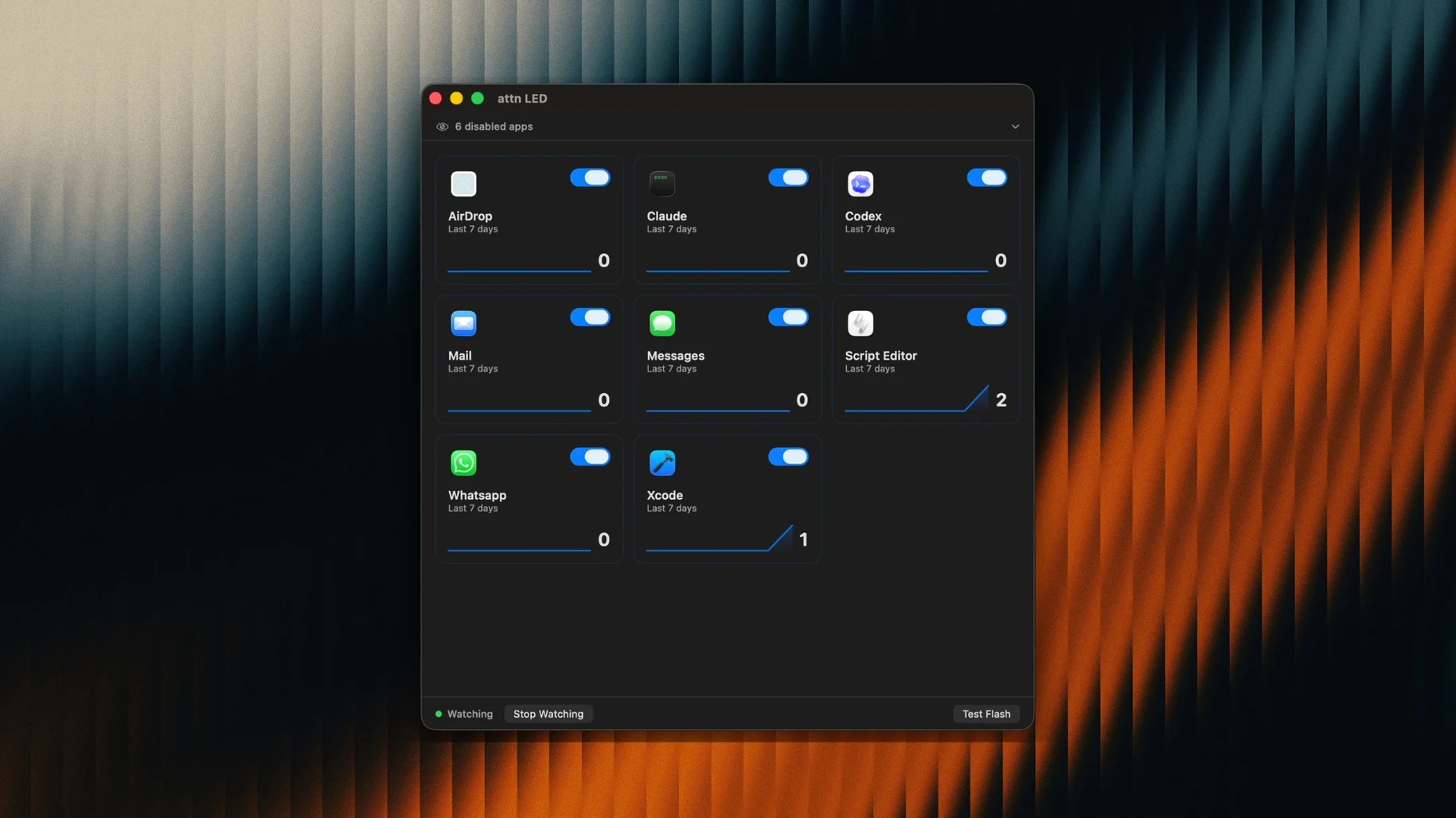
Per‑app filtering — limit LED activation to specific apps. Slack, Mail, Messages, Discord, Teams and Telegram are directly selectable; the app can also auto‑detect other programs that produce notifications.
Persistence — the LED blinks until the notifying app is brought to the front. You can glance from anywhere in the room and know something is waiting.
Architecture — a universal binary supporting both Apple Silicon and Intel 64‑bit Macs. macOS 12 or later required.
Ditch the notification‑spam blink before your first coffee
After dragging attn LED to Applications and launching it, the menu bar icon is the only interface you get. The app starts with all notification‑producing apps active by default, which can make the LED blink more often than you might want. A few early adjustments make it useful rather than distracting.
Trim the app list to three or four sources. Open the menu bar dropdown, find the app selector, and uncheck everything except the tools where a delayed reply actually matters. For many people that means Slack, Messages and Telegram. Mail can wait; Discord server pings usually can too. The LED loses its weight if it fires for every background update.
Test the auto‑detect behaviour. attn LED 1.0 watches the macOS notifications database and will offer to add apps it has not seen before. On first run, send a test message from an app you left unchecked and watch whether the LED blinks. If it does not, the app was correctly excluded. If it does, the auto‑detection caught it and you can remove it from the list. Knowing which apps trigger auto‑detection avoids surprises later.
Check Focus mode overlap. The app’s FSEvents‑based monitoring means it can signal notifications that Focus would normally suppress. That is the whole point, but it also means you may get a blink for something your current Focus mode is supposed to hide. Spend five minutes with a custom Focus active and note whether the LED fires for low‑priority apps. If it does, disable those apps in attn LED’s list. The control is per‑app, not per‑Focus, so the list is your only filter.
Verify the FaceTime pause. Start a short FaceTime call or open QuickTime Player with the camera active. The LED should stay solid green (the camera‑in‑use indicator) and not blink, even if a notification arrives. If you use Zoom, Teams or Webex, confirm the same behaviour — attn LED detects the camera being claimed, not specific apps.
Why that green dot won’t always obey (and what you can do)
Most problems trace back to how macOS handles the camera indicator. The green LED is a hardware‑level signal; apps cannot truly control it, only request camera access and trigger the system behaviour that lights it. That constraint creates a few predictable rough edges.
LED does not blink at all. The most common cause is that another app is already holding the camera. Photo Booth, FaceTime, Zoom, a browser tab with camera permission — any of these will keep the LED solid and block blinking. Quit anything that might use the camera, wait two seconds, and send a test notification from a listed app. If the LED still stays dark, open System Settings → Privacy & Security → Camera and confirm attn LED appears in the list. If it does not, a reinstall usually fixes the permission registration.
Blinking continues after opening the app. attn LED stops blinking when the notifying app becomes the frontmost window. If the app is open but minimised, behind another window, or on a different Space, the LED keeps going. Bring the app fully to the foreground — click its Dock icon or use Command‑Tab — and the blink stops within a second.
LED blinks during video calls. The automatic pause logic watches for camera contention. In rare cases, a conferencing app grabs the camera in an unusual way and the pause does not engage. If you notice the LED pulsing during a call, open attn LED’s menu and toggle it off manually. The menu bar icon changes colour when the app is disabled. Remember to turn it back on afterwards.
Battery impact on Intel Macs. The camera LED itself draws negligible power, but keeping the camera subsystem awake does increase idle drain slightly. On Apple Silicon machines the difference is barely measurable. On older Intel MacBooks running on battery, you may notice 2–3 % more drain over a four‑hour stretch. If you are on battery and do not need the visual alert, disable attn LED from the menu bar until you are back on mains power.
Three apps, zero banners, and a silent LED nudge at 8:30
You sit down at your MacBook around 8:30, coffee to the left, Slack and a code editor open. macOS Focus is set to Work — no banners, no sounds. attn LED is running with three apps selected: Slack, Messages and Telegram.
At 9:12 the green LED starts blinking. You were reading a spec sheet and did not notice the Slack badge counter. You glance up, see the blink, switch to Slack and find a direct message from the QA lead about a test build. You reply, the LED stops. No sound interrupted your reading, no banner pulled your eyes to the top‑right corner.
An hour later, you join a design review over Zoom. As soon as Zoom activates the camera, the LED goes solid green — camera in use. A Telegram message arrives mid‑call; attn LED detects the camera contention and suppresses the blink. After the call ends and Zoom releases the camera, the LED goes dark. The unread Telegram message is waiting, but the LED does not blink retroactively for it. Only new notifications trigger the blink.
Around lunch you switch Focus to Personal. Messages is still in attn LED’s list, so a text from your partner makes the LED blink. You see it from across the room while grabbing a book, walk back to the desk and open Messages. Blink stops. You leave the MacBook idle; attn LED stays quiet because no new notifications arrive.
The session ends when you close the lid. attn LED has no background process that survives sleep — it stops when the Mac sleeps and resumes when it wakes. Next morning, the cycle repeats.
Four desks where a hardware blink beats a software banner
The app makes sense for a narrower slice of people than most notification tools. It solves a specific sensory trade‑off, and four groups tend to feel that trade‑off most acutely.
People who keep Focus modes active for most of the day. If you run Work or Do Not Disturb from morning to evening, you have already accepted that banners and sounds are not welcome. The question becomes how to notice time‑sensitive messages without breaking the Focus contract. attn LED answers that with a signal that is physically impossible to miss but carries no content — just “something needs your attention.” It fits the Focus philosophy better than allowing banner exceptions for one or two apps.
Open‑plan office workers and hot‑deskers. In a shared space, notification sounds annoy everyone within earshot. Banners on a laptop screen are invisible when you have stepped away. The camera LED is visible from several metres away and silent. You can return to your desk with a coffee, see the blink and know to check Slack before diving back into work. No one else heard a thing.
People with auditory processing preferences or hearing difficulty. Audio alerts are useless if you work with headphones off, have hearing loss, or simply find notification sounds jarring. A visual blink that persists until acknowledged removes the dependency on sound entirely. It also works when the MacBook is muted, which is easy to forget after a meeting.
Developers and writers who guard deep‑work blocks. If you time‑block two‑hour stretches with no Slack, no email and no banners, you still need to know if something genuinely urgent lands. attn LED lets you keep the block intact — no on‑screen interruptions — while the LED acts as a side‑channel pager. You decide when to break focus, not the notification.
Users who rely heavily on Apple Watch notification mirroring, or who prefer to process everything through Notification Centre summaries, will
- macOS 12 or later
- Apple Silicon or Intel Mac with a built‑in camera LED
Questions on file
Does attn LED work when Do Not Disturb is on?
Yes. It operates independently of the on‑screen notification delivery, so the camera LED blinks even when banners and alerts are suppressed by a Focus mode.
Sign in · Create an account to add a field note.
No field notes yet. A measurement, a version, a machine — they appear after moderation.