
Mac Apps
BatFi 3.0.5
Mac AppsUpdated
| Requirement | On file |
|---|---|
| macOS | macOS 13 or later |
| CPU | Apple Silicon, Intel 64-bit |
| Download | 6 MB |
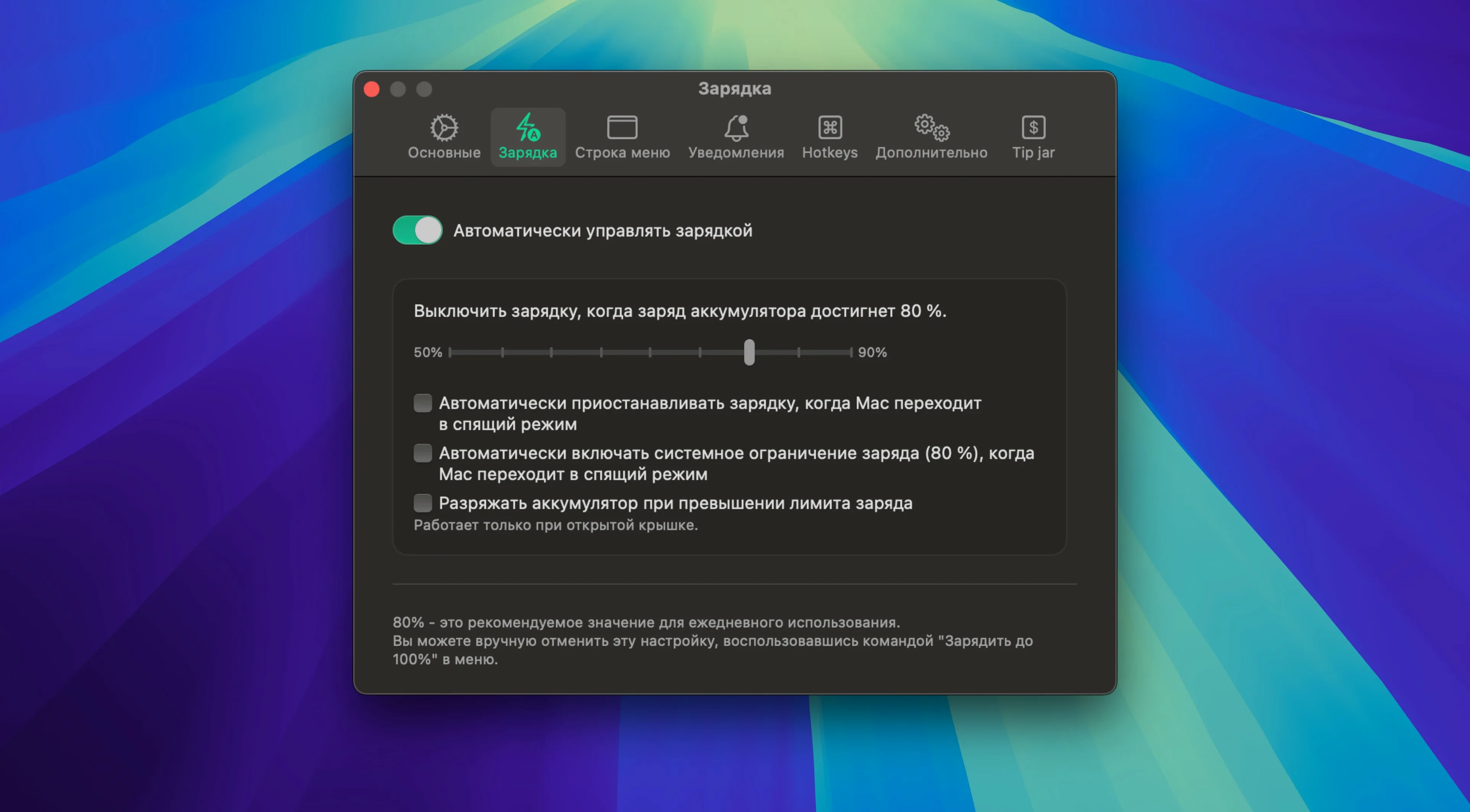
BatFi is a menu bar utility that gives you manual control over when your MacBook stops charging, regardless of what macOS decides on its own. Instead of waiting for the system’s adaptive charging to learn your routine, you set a percentage ceiling once and BatFi holds it until you say otherwise.
The app lives in the menu bar with an icon you can customise. Click it and you see the current charge state, your set limit, and a command to charge to 100% immediately. That last part matters if you are heading into a long meeting or a flight and want a full battery on demand — one click overrides the limit for that session, then the cap resumes afterwards.
Once the battery hits your chosen threshold on AC power, BatFi blocks further charging automatically. A notification tells you the state has changed, so you are not left guessing. The behaviour is deterministic: 80% means 80%, every time. No machine learning, no waiting weeks for a pattern to emerge.
BatFi runs on Apple Silicon and Intel Macs and needs macOS 13 Ventura or later. It speaks eleven interface languages including English, German, Japanese, and Simplified Chinese. If you want a charge policy you set yourself rather than one macOS estimates for you, this is the tool that does it.
Control-click the menu bar icon to skip straight to preferences
The menu bar icon is more than a static indicator. Control-click it to jump straight to the preferences window without unfolding the full menu first. If you prefer a minimal look, the icon can be swapped to a simple percentage readout — no battery glyph at all, just a number sitting in your bar.
BatFi's notification system splits charge events into two distinct alerts: one when the limit is reached and charging stops, another when the charger is disconnected and the battery begins to drain. You can silence either independently in preferences. A quiet checkbox labelled Notify on discharge lets you keep the ceiling alert while skipping the unplug notice if it feels redundant.
The battery detail panel updates in real time. Temperature reads in Celsius by default, but a toggle in the Advanced tab switches it to Fahrenheit. Cycle count and health percentage come straight from the SMC, so they match what Apple System Information reports — useful for cross-checking without opening another tool.
If you have used the "Charge to 100%" command and forgot to re-enable the limit afterward, BatFi shows a small arrow icon beside the percentage in the menu. That arrow means the cap is temporarily lifted. Clicking it restores your saved threshold immediately.
Plug in a new Mac, set a hard 80% ceiling before it hits full
You unbox a replacement MacBook Pro, set it up on your desk, and plug in the charger. The Mac will head toward 100% by default. Before it gets there, you launch BatFi for the first time. The app asks for a charge limit. You pick 75% — your desk is where this machine lives most weekdays, and you want the battery to stay in a gentler voltage band.
The menu bar icon appears. Over the next hour, the percentage climbs. At 75%, charging stops. A notification slides in from the right: Charge limit reached. The MagSafe light switches from amber to green. The Mac stays at 75% for the rest of the afternoon, running off AC while the battery sits idle.
Midweek, you have a client workshop across town. You open the BatFi menu, select Charge to 100%, and pack the laptop. An hour later the battery is full. You unplug and head out. During the workshop — three hours of screen sharing and note-taking — the battery drains to 42%. Back at your desk, you plug in. BatFi remembers your 75% limit and enforces it again once the charge climbs back up from 42%.
That cycle repeats indefinitely. No recalibration, no schedule to program. The only interaction is a single menu command on days you need a full tank.
Side-by-side with Optimised Charging: one delays, the other caps
Does this conflict with macOS Optimised Battery Charging? It can run alongside it, but the two systems have different goals. Optimised Charging delays the final 20% based on predicted usage. BatFi imposes a hard ceiling regardless of predictions. If both are active, BatFi's limit takes practical precedence — the Mac cannot charge past your set threshold even if macOS would otherwise allow it. Some users switch off Optimised Charging in System Settings to avoid overlapping logic; others leave it on as a fallback for days they temporarily remove the cap.
What happens if I close the app? The charge limit is enforced only while BatFi is running. Quit the app and macOS resumes its default charging behaviour. The helper that monitors the battery level lives inside the app process, so there is no background daemon lingering after you quit.
Will this wear out the charging circuit? BatFi does not toggle the charger hardware rapidly. It issues a single software command to stop charging when the threshold is crossed, then idles until the charge level drops below the limit again. The Mac's power management handles the physical handoff, the same way it does when the battery reaches 100% naturally.
Can I set different limits for different locations? Not natively. BatFi holds one limit at a time. Users who switch between desk and travel often pair it with a quick mental habit: 75% for docked days, Charge to 100% before unplugging. The menu command makes the toggle fast enough that per-location profiles are rarely missed.
- macOS 13 Ventura or later
- Apple Silicon or Intel Mac
Sign in · Create an account to add a field note.
No field notes yet. A measurement, a version, a machine — they appear after moderation.