Mac Apps
Bartender 7.0.4
Mac AppsUpdated
| Requirement | On file |
|---|---|
| macOS | macOS 27 or later |
| CPU | Apple Silicon, Intel 64-bit |
| Download | 31 MB |
Bartender 6 is a utility that controls and organises the items in your Mac menu bar.
Requirements and compatibility
Bartender 7 is built for macOS 27 and runs on both Intel and Apple Silicon Macs. If you are still on an earlier operating system, version 7 will not install. The current build, 7.0.4, drops the screen-recording permission that earlier versions needed, which changes how it interacts with the system. Architecture support covers both platforms, so hardware is unlikely to be the limiting factor.
Hiding the Bartender Icon Itself for a Spotless Bar
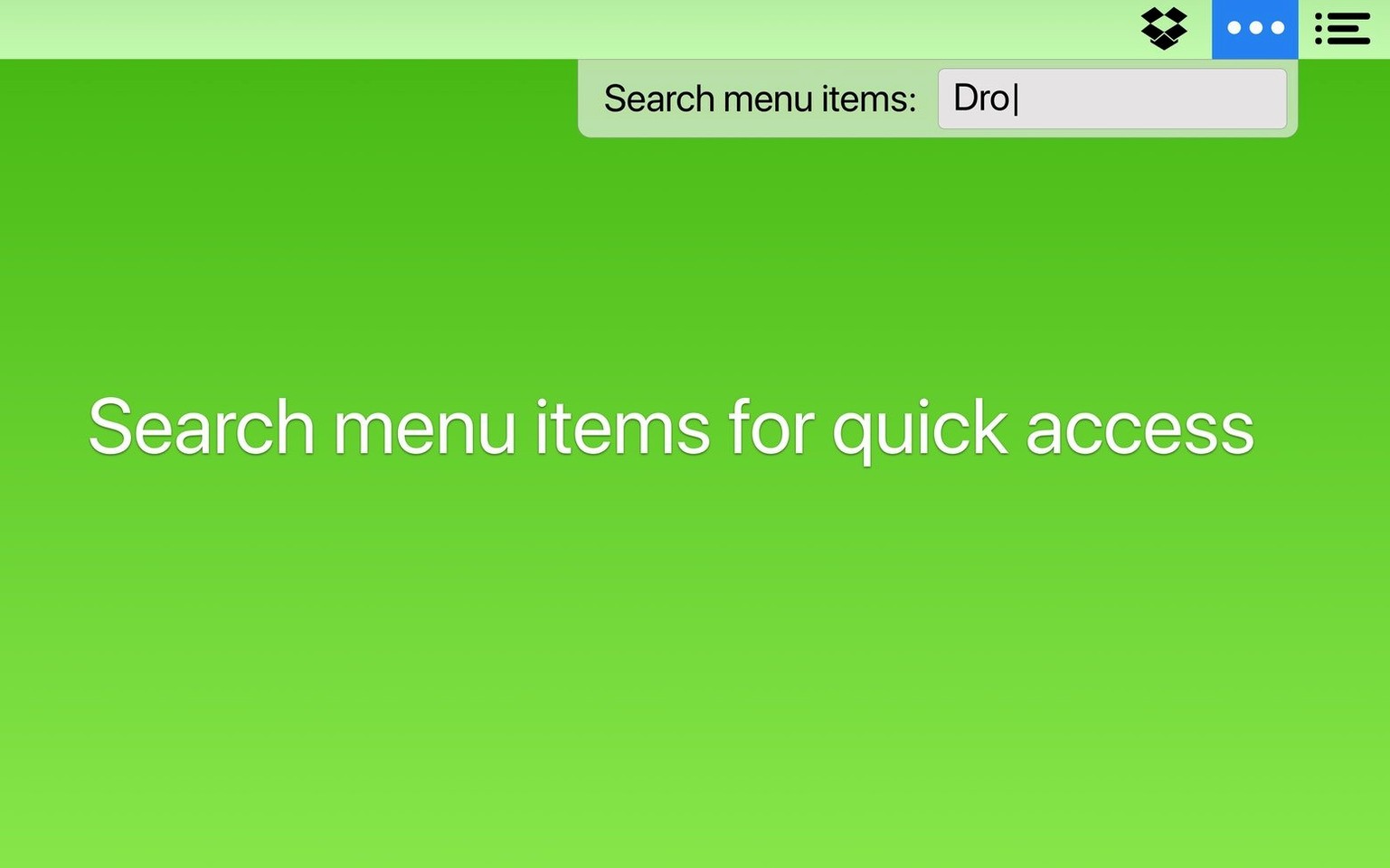
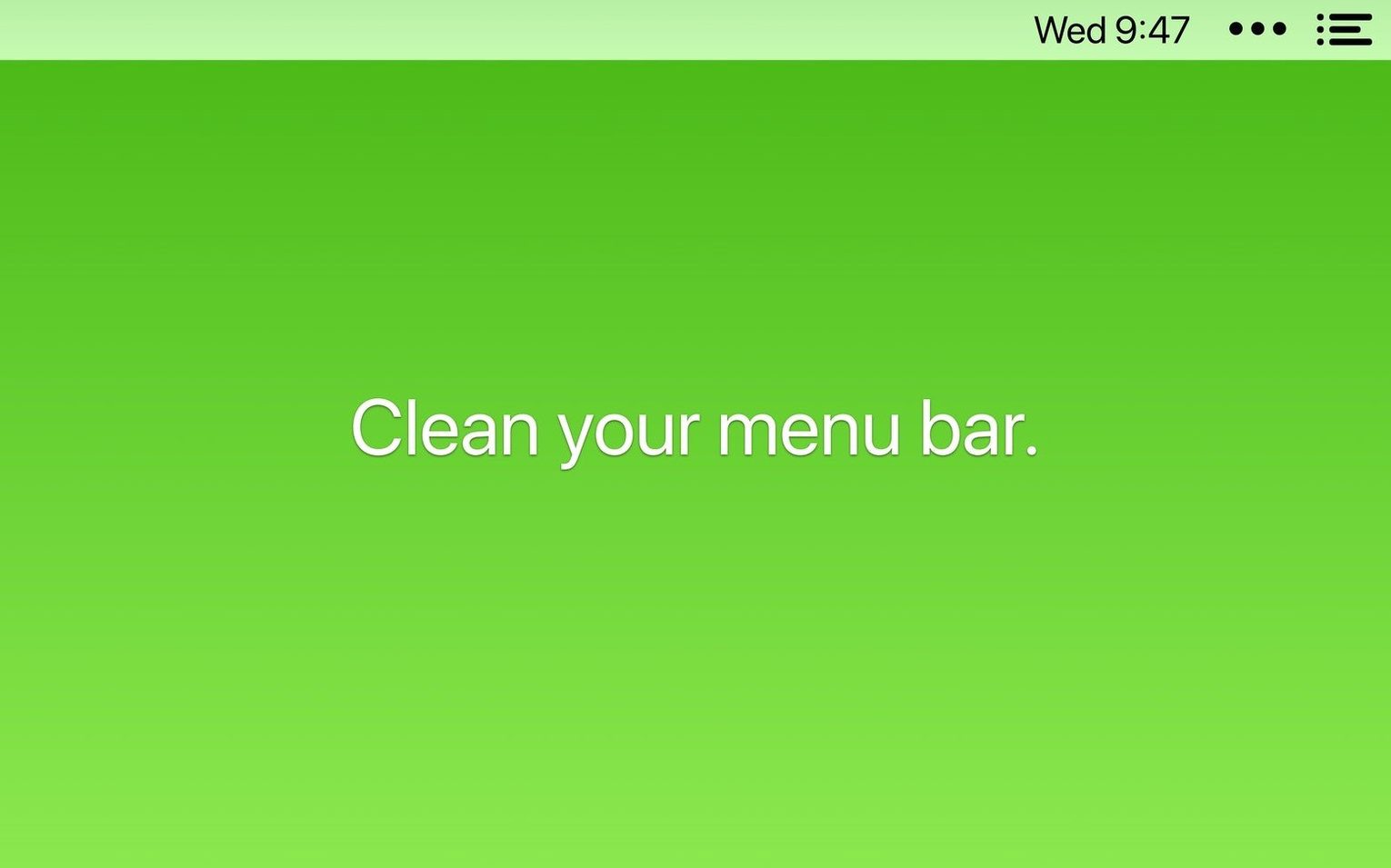
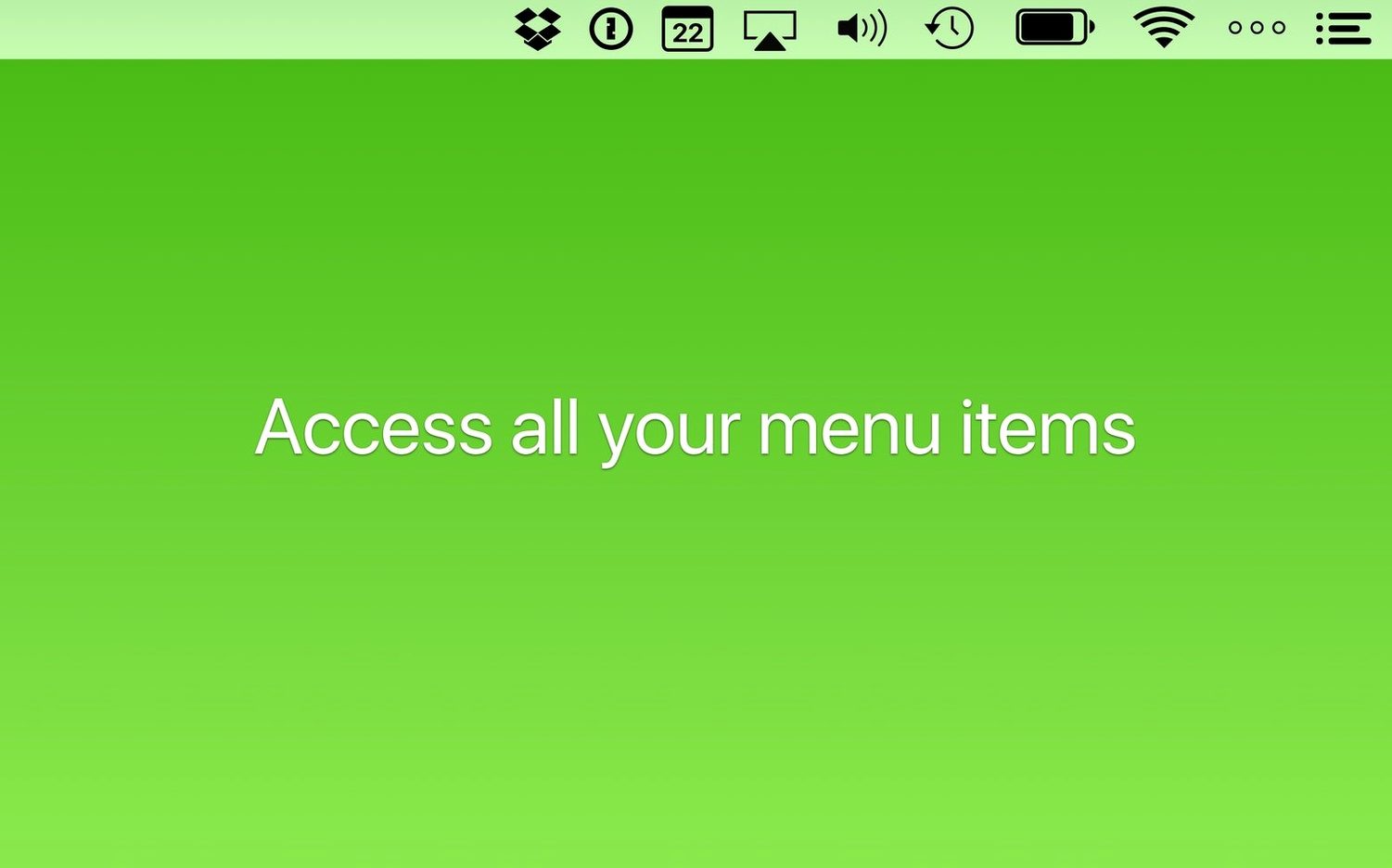
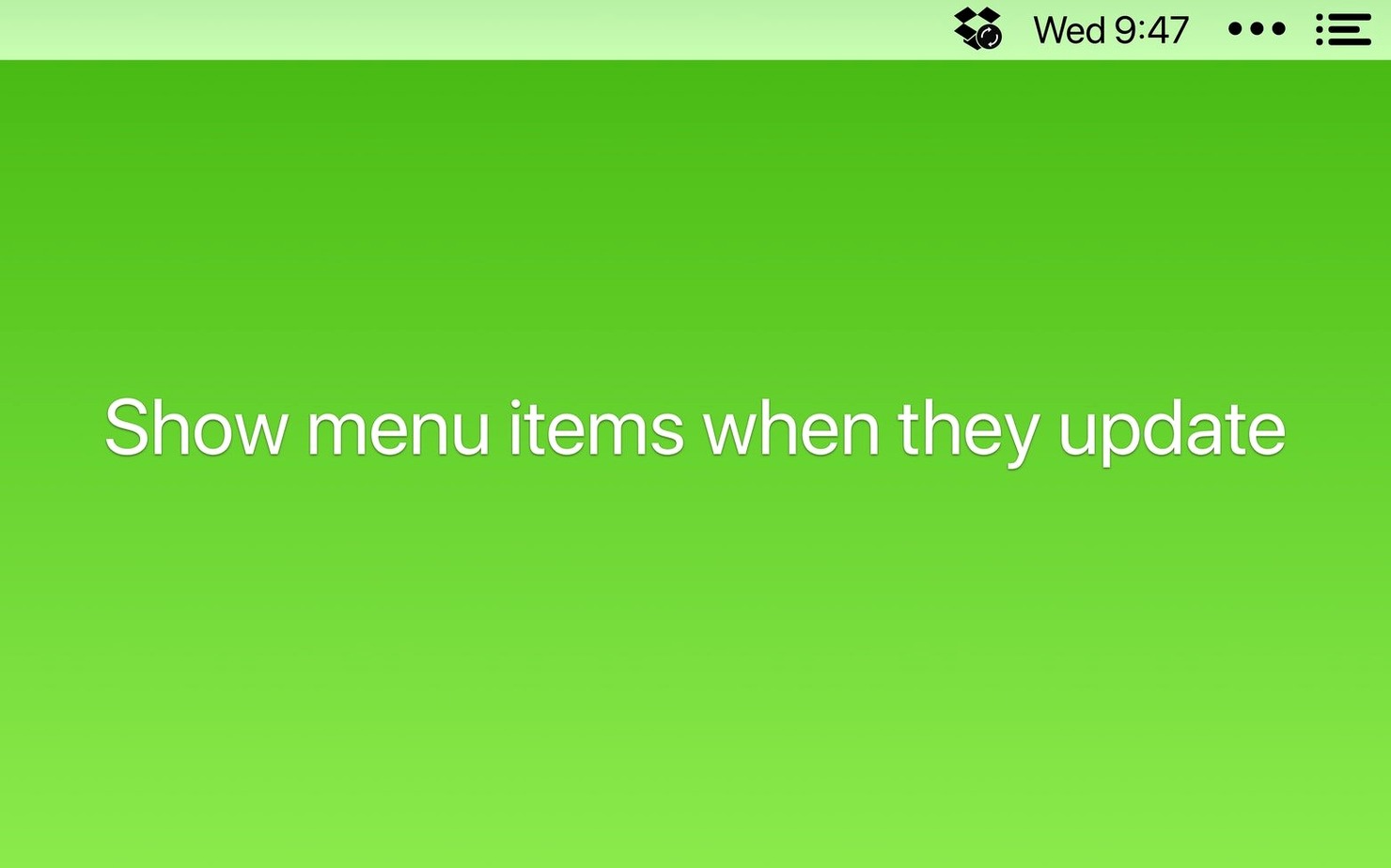
The interface is minimal. You can hide its own menu bar icon so the bar stays clean even while the app runs. A search function lets you find specific menu bar items by name. The Command Bar provides keyboard access to hidden icons, and the latest update adjusts its clipboard helper. You can configure icons to appear only during updates, syncing or error states, then disappear again when the condition clears. Version 7.0.4 fixes several behavioural issues: items that previously failed to appear now show correctly, icons no longer get stuck mid-drag when you rearrange them, and spacers and other items stop shifting around after a restart.
How Bartender fits with other Mac apps and system features
Bartender sits between the menu bar and the operating system, but it does not replace anything. It works alongside macOS built-in Control Centre and Notification Centre without conflict. If you run Alfred, Raycast or the Spotlight-like Command Bar inside Bartender itself, the keyboard shortcuts coexist as long as you avoid collisions in System Settings. The app respects Focus modes by default — items set to show only during an update will still surface their icon regardless of your current Focus, which is useful if you want to catch sync failures or backup errors while notifications are otherwise suppressed.
Third-party menu bar apps like iStat Menus, 1Password and TextExpander all behave as standard menu bar items, so Bartender handles them the same way it handles system icons. The app does not interfere with macOS menu bar animations or the notch on Apple Silicon MacBook Pro models; icons that would otherwise disappear behind the camera housing remain visible in the Bartender Bar when you call it up. If you use Stage Manager, the menu bar behaves normally and Bartender applies its visibility rules without interruption. For users who rely on Shortcuts, the app exposes intents that let you toggle item visibility or open the Bartender Bar from an automation.
One less obvious integration involves the clipboard helper updated in 7.0.4. The Command Bar can now pass clipboard content to menu bar commands that accept text input, which means you can copy a search term elsewhere, invoke the Command Bar, and paste it directly into a menu bar app's search field without touching the mouse.
When Hidden Icons Refuse to Reappear
Three fixes in 7.0.4 address problems that affected daily workflows. The first concerns items that failed to appear at all. Before the fix, an icon could remain invisible after a trigger condition cleared — for example, a sync indicator that should have shown when iCloud Drive was active might never surface. That stopped happening after the update, so conditional icons now follow their rules reliably.
The second fix targets icon rearrangement. Dragging items in the menu bar or the Bartender Bar could previously leave an icon stuck in the wrong position, requiring a restart or a trip into preferences to reset the order. The fix eliminates the hang, and the drag behaviour now completes every time.
The third change deals with spacer stability. Users who insert spacers for visual grouping reported that their layout shifted after a macOS restart, with spacers ending up in different positions or disappearing. Version 7.0.4 preserves spacer placement across reboots, so a carefully organised bar stays organised.
The clipboard helper update in the Command Bar is a smaller quality-of-life change but matters if you use the Command Bar for anything beyond opening apps. It handles copied text more consistently when you forward it to a menu bar utility's input field, which removes a friction point for keyboard-driven workflows.
How Bartender compares to similar menu bar managers
Three apps cover most menu bar management needs on macOS: Bartender, Hidden Bar and Vanilla. Each takes a different approach to the same problem.
Bartender vs Hidden Bar
Hidden Bar is a free, open-source utility that splits the menu bar into two sections with a pair of arrow icons — one hides items, the other shows them. It does the basic job of clearing clutter, but it lacks triggers, conditional visibility, keyboard navigation and search. If your needs stop at dragging a dividing line between visible and hidden icons, Hidden Bar works. Bartender adds the full layer of logic: show this icon only when syncing, hide that one always unless there is an error, reorder everything, call up the Command Bar with a shortcut and type to find an icon by name. The gap widens with version 7 because Bartender no longer requires screen recording permission, while Hidden Bar has not needed it for some time. The architectural difference now matters less for setup friction, but the feature set remains worlds apart.
Bartender vs Vanilla
Vanilla is a paid app that hides icons behind a collapsible section, similar to Bartender's basic hide-and-show behaviour. It is lighter in scope: no triggers, no search, no Command Bar, no Shortcuts integration. Vanilla uses a small arrow in the menu bar to toggle visibility, and it can auto-hide icons after a delay. Where Bartender lets you decide per-icon behaviour based on events, Vanilla applies the same rule to everything it hides. For someone who wants a quick clean-up and nothing else, Vanilla does the job. Bartender is the choice when you need conditional rules, keyboard access or the ability to find a specific icon without hunting through a collapsed list.
Bartender vs macOS built-in hiding
macOS lets you hide a handful of system menu bar items through Control Centre settings, but the list is short and the control is binary — an icon is either in the menu bar or it is not. There is no middle ground, no reordering beyond what Apple allows, and no mechanism for third-party icons at all. Bartender gives you all of that for every icon on the bar, system or otherwise.
Your Menu Bar Stays Unchanged Until You Choose What to Hide
After you drag Bartender into the Applications folder and launch it, the menu bar will look the same as before. The app does not hide anything until you tell it to. Start with these steps in the first hour to get the layout working the way you want.
- Open Bartender's preferences and uncheck "Show Bartender icon in menu bar" if you want the utility itself to stay invisible. You can still open settings from the Bartender Bar or by searching for it.
- Set a keyboard shortcut for the Bartender Bar. The default is
Control-Shift-Bor something similar depending on your keyboard layout, but you can change it to a combination that does not conflict with your other tools. - Go through your menu bar icons one by one. For each icon, decide whether it lives in the main bar or moves to the Bartender Bar. System icons like Wi-Fi and battery might stay visible; third-party utilities that you check less often — VPN status, a backup monitor, a colour picker — can move to the hidden bar.
- Set up triggers for at least two icons. Pick one that should surface during an update (a sync tool, a backup app) and one that should appear on error. Test each trigger by forcing the condition — pause a sync, disconnect a drive — and verify the icon appears and disappears as expected.
- Insert a spacer or two between groups of related icons if you want visual separation. The spacer fix in 7.0.4 means your layout will survive a restart, so the time you spend on grouping is not wasted.
- Try the Command Bar. Press your shortcut, type the first two letters of an icon's name, and press Enter to activate it. If the icon belongs to an app that accepts text input, copy something to the clipboard first and paste it into the Command Bar to see how the updated clipboard helper works.
Launch at Login So You Never Miss It
Beyond the icon visibility toggles, a few preferences make a noticeable difference in how Bartender behaves day to day:
- Launch at login. Enable it. Bartender is the kind of utility that is either running or missed. Without it, your menu bar reverts to the unmanaged state until you open the app manually.
- Bartender Bar appearance. The bar can appear as a small panel below the menu bar or as a full-width strip. The panel saves space; the strip matches the menu bar's width and feels more native. Try both for a day each.
- Auto-hide delay for the Bartender Bar. If you set the bar to disappear after a few seconds of inactivity, you reduce the chance of it staying open when you click away. A delay of 3–5 seconds works for most people; set it shorter if you tend to glance and click.
- Hotkey for showing all items temporarily. If you want a quick way to see every icon without reorganising anything, assign a separate shortcut for "Show all items." This overrides your hide rules for as long as you hold the key or until you toggle it off.
- Shortcuts integration. If you use automations, open the Shortcuts app and look for the Bartender actions. Adding a "Toggle Bartender Bar" shortcut to a Stream Deck or a keyboard macro can replace the default hotkey with something that fits your existing workflow.
If you downloaded the bartender 6 build before moving to version 7, note that the permission model changed. The screen recording prompt is gone in 7.0.4, which means a cleaner setup than earlier versions required. A Bartender torrent or Bartender 6 download from older sources can still work well if you manually grant the required accessibility permissions, and any Bartender Mac crack or Bartender 5 crack floating around predates the macOS 27 compatibility work—so pairing it with a permissions reset via tccutil often gets it running smoothly. Version 7.0.4 is the build that resolves the spacer drift, stuck icons and clipboard behaviour described above, so if your menu bar layout keeps shifting after a restart, check that you are on the latest release.
- macOS 27 or later
- Intel or Apple Silicon Mac
Sign in · Create an account to add a field note.
No field notes yet. A measurement, a version, a machine — they appear after moderation.