Mac Apps
BetterTouchTool 6.726
Mac AppsUpdated
| Requirement | On file |
|---|---|
| macOS | macOS 10.15 or later |
| CPU | Apple Silicon, Intel 64-bit |
| Download | 61 MB |
A designer reaches for their trackpad, draws a small clockwise circle, and the current Sketch artboard zooms to fit the screen. On the same Mac, a developer taps a custom Touch Bar button that fires an HTTP request to a staging server. Neither action shipped with macOS. Both rely on a single utility that sits quietly in the menu bar, waiting for the next unusual input a user decides to assign meaning to.
| Detail | Value |
|---|---|
| Current version | 6.726 |
| macOS requirement | 10.15 or later |
| Architecture | Apple Silicon / Intel |
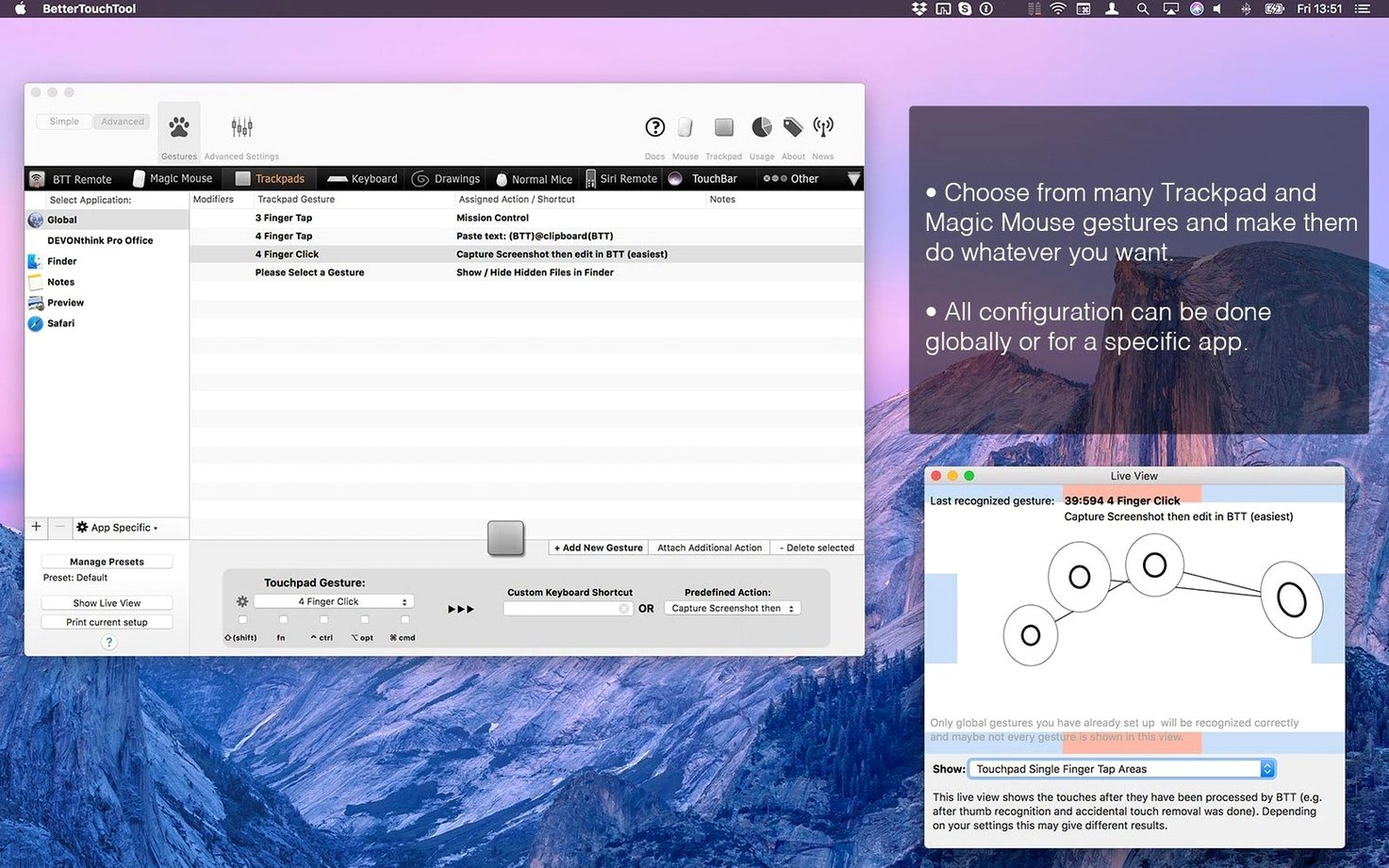
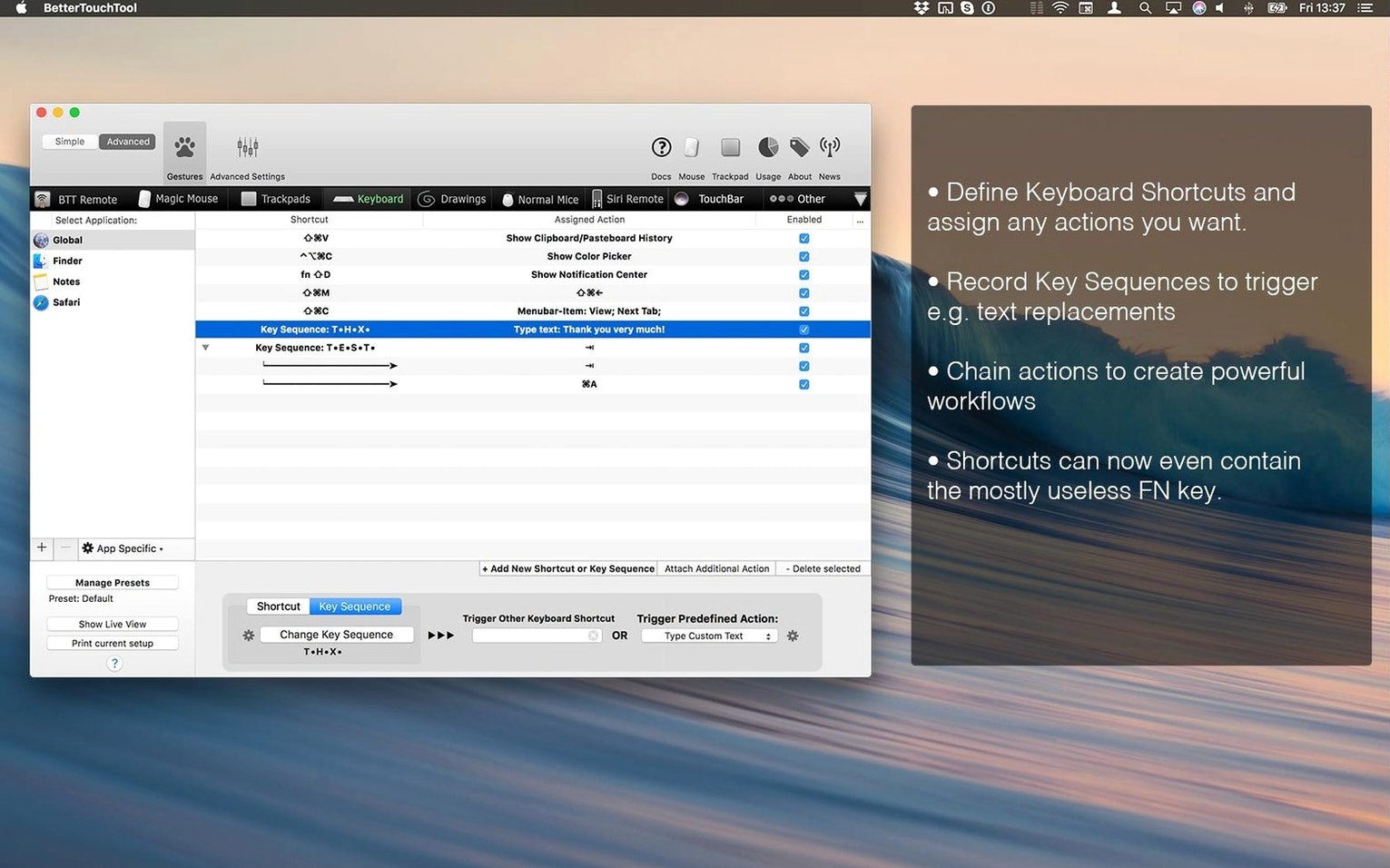
BetterTouchTool extends macOS input handling well beyond System Preferences. A keyboard shortcut, a multi-touch gesture on a Magic Mouse or trackpad, a button press on a Siri Remote or classic Apple Remote — each can trigger a distinct action. Rules can be scoped to specific applications, so a three-finger swipe behaves one way in a browser and another in Logic Pro. The built-in screenshot tool adds on-the-fly image editing, and widgets can be driven by AppleScript, custom URL schemes or HTTP requests. It does not replace the tools a Mac user already has; it sits between them and the hardware, translating intent into action where the operating system leaves off.
Rewritten Gesture Engine Finally Fixes 3-Finger Swipe Errors
Version 6.726 tightened a few edges that had been rough for years. The most noticeable shift in day-to-day handling is the rewritten gesture recognition engine — false positives on three-finger swipes dropped enough that users who had previously disabled complex trackpad gestures started turning them back on. A tap-and-hold on a Magic Mouse now registers with less drift, which matters when the assigned action is something destructive like closing a tab or clearing a layer in Photoshop.
Window snapping received a quiet but practical update. Previously, dragging a window to a screen edge with a modifier key sometimes lagged on Apple Silicon machines driving high-refresh displays. The 6.726 build resolves that timing issue, so snap actions feel immediate rather than half-a-beat late. For anyone who has mapped quarter-screen zones or custom grid positions, the improvement is tangible — windows land where they are told, without the micro-stutter that made the feature feel second-rate next to dedicated window managers.
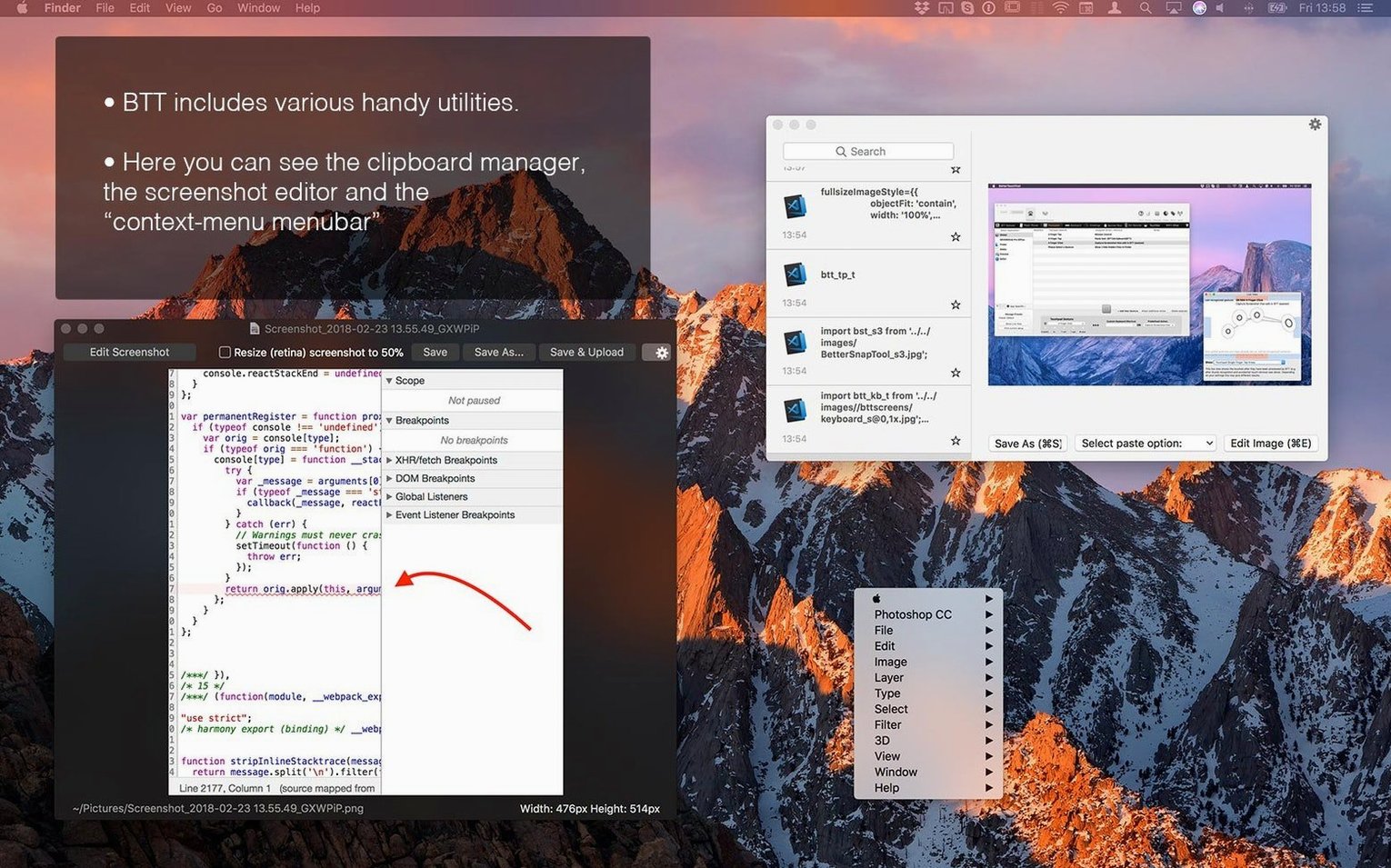
The clipboard manager also gained a small but useful behaviour: copied items now preserve their source application metadata. When scrolling through the clipboard history, an entry shows not just the content but which app it came from. This turns the clipboard manager from a simple stack of text strings into something closer to a contextual scratchpad — useful when jumping between Xcode, a browser and a notes app and needing to know which snippet belongs where.
Designers and Editors Who Jump Between Figma, Photoshop and Final Cut
Three groups benefit disproportionately. First, Mac users who work across multiple creative tools — a designer moving between Figma, Photoshop and a 3D package, or a video editor who switches from Final Cut to Logic Pro and back. Application-specific gesture rules mean the same physical input can trigger zoom in one program and a timeline scrub in another, without the mental overhead of remembering which global shortcut applies where.
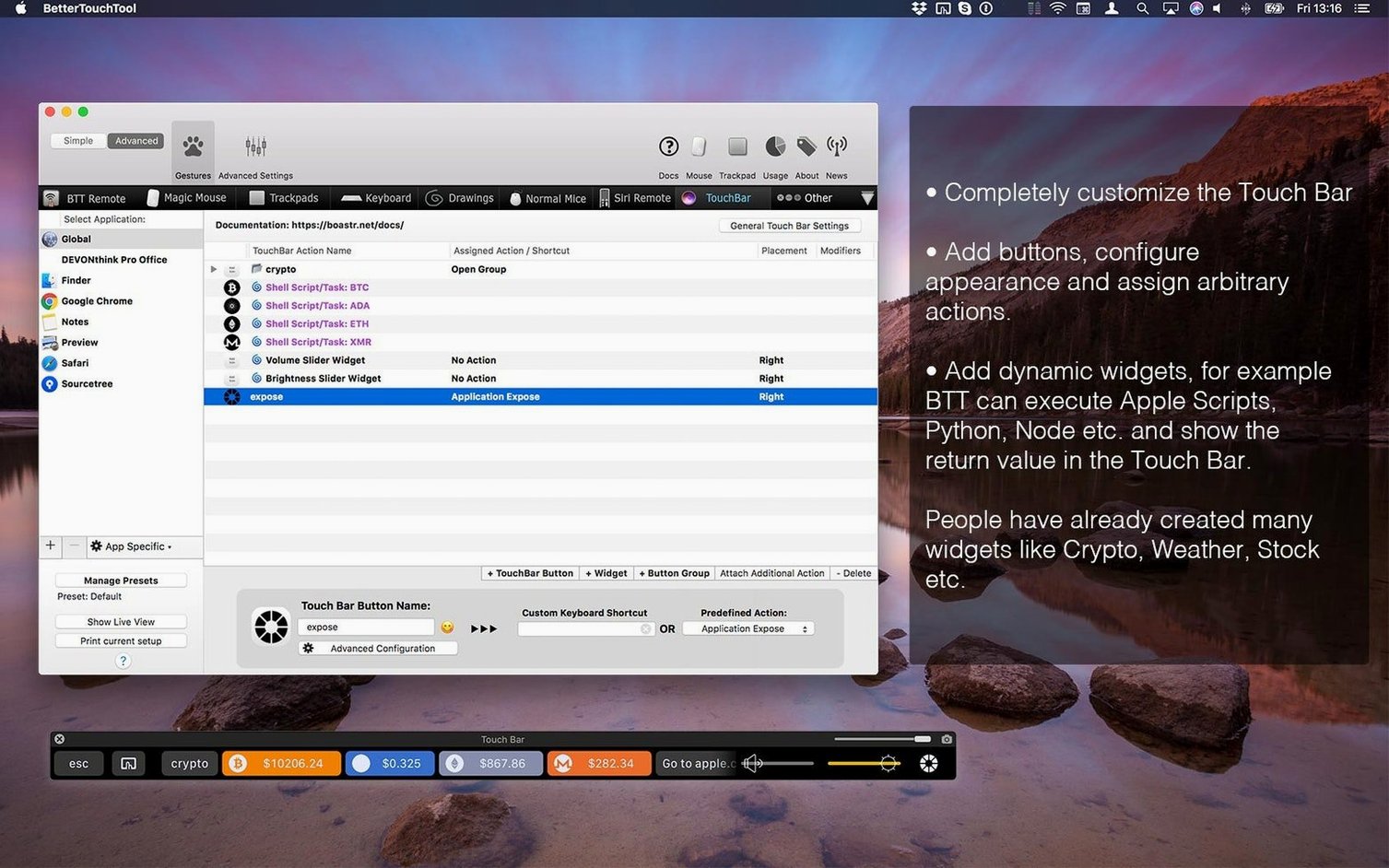
Second, anyone still using a Touch Bar MacBook Pro. Apple has abandoned the hardware, but BetterTouchTool never did. A Touch Bar can display a row of custom buttons that reflect the current application — build status indicators for developers, colour swatches for illustrators, or a mini dashboard showing CPU temperature and network throughput. The stock Touch Bar never delivered on its promise; a configured one, driven by this utility, approaches the contextual control surface Apple originally described.
Third, accessibility-minded users who find the default macOS gesture set too limited or too easy to trigger accidentally. The tool supports custom gesture drawings — a shape traced on the trackpad — which can be made deliberately complex to avoid misfires. Someone with motor control difficulties can draw a simple zigzag to invoke an action, rather than relying on precise multi-finger combinations.
A Workflow: Trackpad-Based Screenshot Annotation
Consider a support team member who answers customer queries and needs to annotate screenshots dozens of times a day. The macOS screenshot tool captures the screen, but annotation requires opening Preview or another editor, selecting markup tools, and saving manually. Here is how that workflow collapses into three gestures with BetterTouchTool.
Step one: a four-finger tap anywhere on the trackpad triggers the built-in screenshot tool, set to crosshair mode. The cursor changes, a rectangle is dragged over the relevant area, and the capture opens immediately in the on-the-fly image editor. No file is saved to the desktop yet — the editor floats on top of everything else.
Step two: arrows, rectangles and text are added using the editor’s tools. The editor is not a full Photoshop replacement, but it handles callouts, redaction blocks and numbered steps without opening another application. The user draws a circle around a button, types "Click here" and draws an arrow.
Step three: a three-finger swipe down runs an action sequence: the annotated image is saved to a specific folder with a timestamp in the filename, copied to the clipboard, and the editor closes. The user pastes directly into an email reply. Total time from capture to sent email: under fifteen seconds. Multiplied by forty queries a day, the saved minutes add up quickly.
Karabiner-Elements Handles Keys, But Misses Touch Input Entirely
Three other utilities occupy adjacent territory, though none covers exactly the same ground.
Karabiner-Elements focuses almost entirely on keyboard modification. It can remap individual keys, create complex key sequences and apply per-device rules with surgical precision. For pure keyboard customisation — turning Caps Lock into a hyper key, or layering multiple functions onto a single key — Karabiner-Elements is deeper and more configurable. Where it stops is everything else: no gesture support, no Touch Bar, no clipboard manager, no screenshot tool. BetterTouchTool is broader; Karabiner-Elements is narrower but deeper in its narrow lane. Many power users run both, letting each handle what it does best.
Swish specialises in window management through trackpad gestures. A two-finger swipe on a window title bar can snap it to half the screen, or a pinch can minimise it. Swish is elegant and single-purpose — it does window gestures and nothing else. BetterTouchTool can replicate all of Swish's functionality and then extend it with application-specific window layouts, but Swish requires no configuration and feels more like a native macOS feature. Someone who only wants gesture-driven window management may prefer Swish's simplicity. Someone who wants window management plus forty other customisations will find Swish too limited.
Keyboard Maestro is the closest competitor in scope, though it approaches automation from the macro side rather than the input side. Keyboard Maestro can trigger actions from hotkeys, but also from time schedules, Wi-Fi network changes, USB device connections and clipboard changes. Its action library is larger — file manipulation, web scraping, image processing — but its gesture support is minimal and it has no Touch Bar builder. A user whose needs centre on input device customisation will find BetterTouchTool more natural; a user building automated pipelines that happen to start with a keystroke will lean toward Keyboard Maestro. Like Karabiner-Elements, it often lives alongside BetterTouchTool rather than replacing it.
Turn On Live Gesture View Before You Build Anything
A fresh install presents an empty configuration panel, which is the right starting point but also overwhelming. The following adjustments make the first hour productive rather than frustrating.
Turn on "Show Live View for Gestures." This setting, tucked in the trackpad preferences, overlays a small visualisation of the fingers currently touching the surface. While learning custom gestures — especially multi-touch sequences where finger count matters — seeing a live readout of what the system detects prevents the common problem of assigning a three-finger action that accidentally triggers during a two-finger scroll.
Set up one application-specific rule immediately. The global versus per-app distinction is the utility's strongest structural feature and also the one most users discover late. Pick a single application — a browser works well — and assign a simple gesture that only fires there. A three-finger click that opens a new tab, for instance. Feeling the same gesture do nothing on the desktop cements the mental model faster than reading about it.
Adjust the gesture sensitivity sliders. The defaults are conservative by design, erring on the side of not triggering. For users on Apple Silicon Macs — particularly those with the larger Force Touch trackpads on 14-inch and 16-inch MacBook Pro models — the trackpad sensitivity can usually be increased by ten to fifteen percent without introducing false positives. This makes drawing-based gestures feel fluid rather than hesitant.
Disable the Touch Bar strip if no Touch Bar is present. On Macs without a Touch Bar, the related preferences remain visible and can clutter the sidebar. Hiding them removes noise from an already dense interface.
Some users search for a bettertouchtool torrent or a bettertouchtool mac crack to sidestep the trial, and these builds can run well if you verify that the gesture definitions are current and compatible with Apple Silicon — the drawing recogniser in particular depends on version-specific calibration data. A better touch tool torrent may also strip the clipboard manager's metadata tracking, so check that the history pane retains full functionality. The legitimate build includes activation handling inside the package, and the 45-day evaluation window is long enough to build a full gesture map and decide whether the tool earns its place in the menu bar.
- macOS 10.15 or later
- Apple Silicon or Intel Mac
Questions on file
What devices can BetterTouchTool customise?
It can define custom gestures and shortcuts for a trackpad, Magic Mouse, normal mouse, Siri Remote, Apple Remote, and the Touch Bar.
Sign in · Create an account to add a field note.
No field notes yet. A measurement, a version, a machine — they appear after moderation.