Mac Apps
Goodbye Greenscreen 2 2.3.45
Mac AppsUpdated
| Requirement | On file |
|---|---|
| macOS | See the sheet |
| Download | 2 MB |
Goodbye Greenscreen 2 runs on Apple Silicon and Intel Macs under macOS. It is compatible with After Effects 2023 through 2026 and Premiere Pro 2022 through 2024.
Drop It on Locked-Off Footage, Skip the Keying Entirely
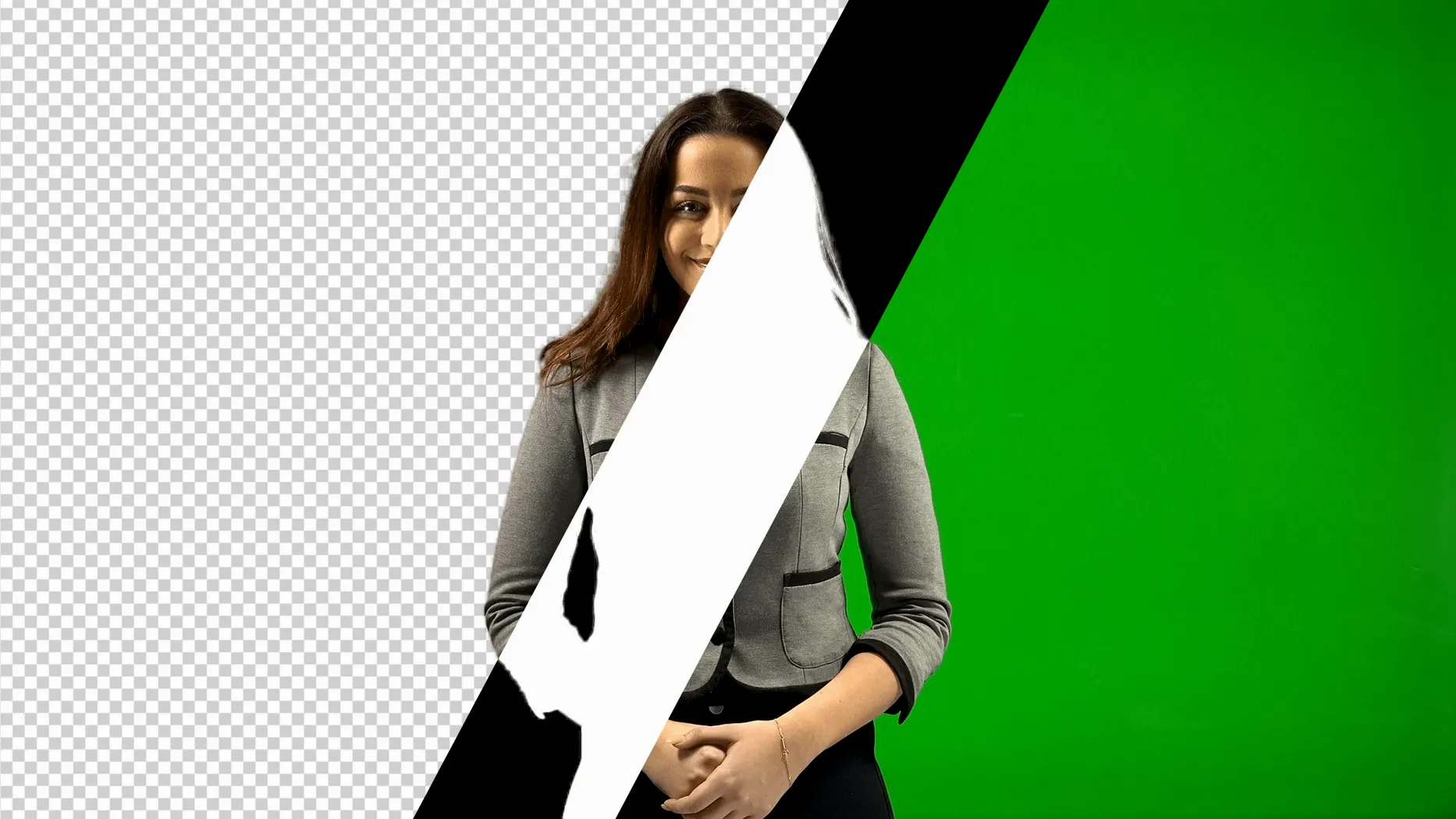
A typical compositing project starts with footage on a locked-off timeline. You drop Goodbye Greenscreen 2 onto the clip and it generates a matte for the human subject — no keying, no garbage masks. The plugin sits as an effect on the source track. For a dialogue scene, you might apply it to a single video layer, then stack a background plate underneath. On a busier timeline with multiple angles, each clip gets its own instance, and the mattes update when you trim or ripple edits. In Premiere Pro, the effect works inline on the cut, so round-tripping to After Effects is optional for quick-turnaround jobs.
Typical jobs and limits
The BiRefNet model handles full-body and portrait shots. A music video with a dancer against green screen is a standard use: the plugin isolates the performer, and the clean matting workflow composites the result against a new background. Interview setups with a single seated subject also fall within its comfort zone. Things to know: the automatic masking targets human figures only — prop isolation is not part of the feature set. The 2.3.45 release moved to a new AI backend and accelerates rendering above 4K on CUDA hardware, though the macOS version does not benefit from CUDA Memory Sharing.
Three Mac Matte Plugins in the Same Conversation
Three other Mac-compatible matting plugins sit in the same conversation: Fixel AI Matte, Composite Brush, and the built-in Keylight effect in After Effects.
Keylight is free and ships with After Effects. It works on well-lit green screens and gives you spill suppression and screen gain controls. The trade-off is time — Keylight requires manual sampling, tweaking of clip black/white points, and often a separate garbage matte for uneven backdrops. Goodbye Greenscreen 2 replaces that manual loop with a single effect drop. On a clean studio shot, both will deliver; on a wrinkled backdrop or moving shadows, the AI path saves twenty minutes of fiddling per clip.
Fixel AI Matte takes a similar AI approach but focuses on stills and video in Photoshop and After Effects. It offers edge-aware refinement sliders and a dedicated hair pass. Goodbye Greenscreen 2 matches that with BiRefNet's segmentation, but adds the clean matting composite step and the AI colour key as separate built-in stages — Fixel leaves compositing assembly to other effects. The goodbye greenscreen 2 mac full version package feels more self-contained if you want a one-effect matte-to-composite chain.
Composite Brush is a manual rotoscoping aid with some machine-learning smarts for edge snapping. It suits shots where the subject leaves the frame or interacts with props. Goodbye Greenscreen 2 does not handle prop isolation, so Composite Brush wins on complex foregrounds. For human-only matting, however, the automatic pass is faster.
Workflow: replacing a studio backdrop in Premiere Pro
Start with a locked-off clip of a presenter on green screen, already cut into a Premiere Pro timeline. Drag Goodbye Greenscreen 2 from the Effects panel onto the clip. Open the Effect Controls panel. Set the mode to Clean Matte and choose Portrait — the plugin runs inference locally and generates the matte within a few seconds on an M2 chip.
Place your replacement background on the track below. The matte composites automatically; no blend mode changes needed. If the subject's hair shows green spill, open the spill suppression slider and move it to around 12–18%. Fringes often clear up without touching the matte edge controls.
For a full-body shot with a glossy floor reflection, switch the mode to AI Color Key instead. Sample the green with the eyedropper and let the model separate the subject. Add a subtle edge blur of 0.5–1.0 px to soften the transition between shoes and the new ground plate. Export a test render of four seconds to confirm motion blur frames hold the matte correctly — the effect recalculates per frame, so quick pans don't break the edge.
Option-Drag Spill Suppression for Granular Control
- Matte preview toggling with the View Matte checkbox gives you a black-and-white output without switching effects off — useful for spotting holes in the segmentation before you commit to a background.
- Holding Option while dragging the spill suppression slider bypasses the default 0–100 range, letting you push values into negative territory for an aggressive despill on strongly tinted clips.
- Ripple edits in Premiere Pro do not invalidate the matte. The effect recalculates only on the new frames, so trimming the head of a clip leaves the rest of the matte untouched.
- The effect name in the Effect Controls panel shows a small green dot when the AI model is loaded and idle. If the dot flickers red, the model is reloading — usually after a GPU context switch or waking from sleep.
- AI backend — switched to a new machine-learning backend with BiRefNet integration.
- CUDA rendering — large resolutions above 4K render faster via CUDA Memory Sharing.
- macOS on Intel or Apple Silicon
- Adobe After Effects 2026, 2025, 2024, 2023
- Adobe Premiere Pro 2024, 2023, 2022
Sign in · Create an account to add a field note.
No field notes yet. A measurement, a version, a machine — they appear after moderation.