Mac Apps
Jump Desktop 10.15.46
Mac AppsUpdated
| Requirement | On file |
|---|---|
| macOS | macOS 11 or later |
| CPU | Apple Silicon, Intel 64-bit |
| Download | 62 MB |
System administrators managing mixed fleets and home users who need to reach a work Mac from the lounge use Jump Desktop. It handles the two most common remote protocols—RDP and VNC—in a single Mac app, so you are not switching tools for different target machines.
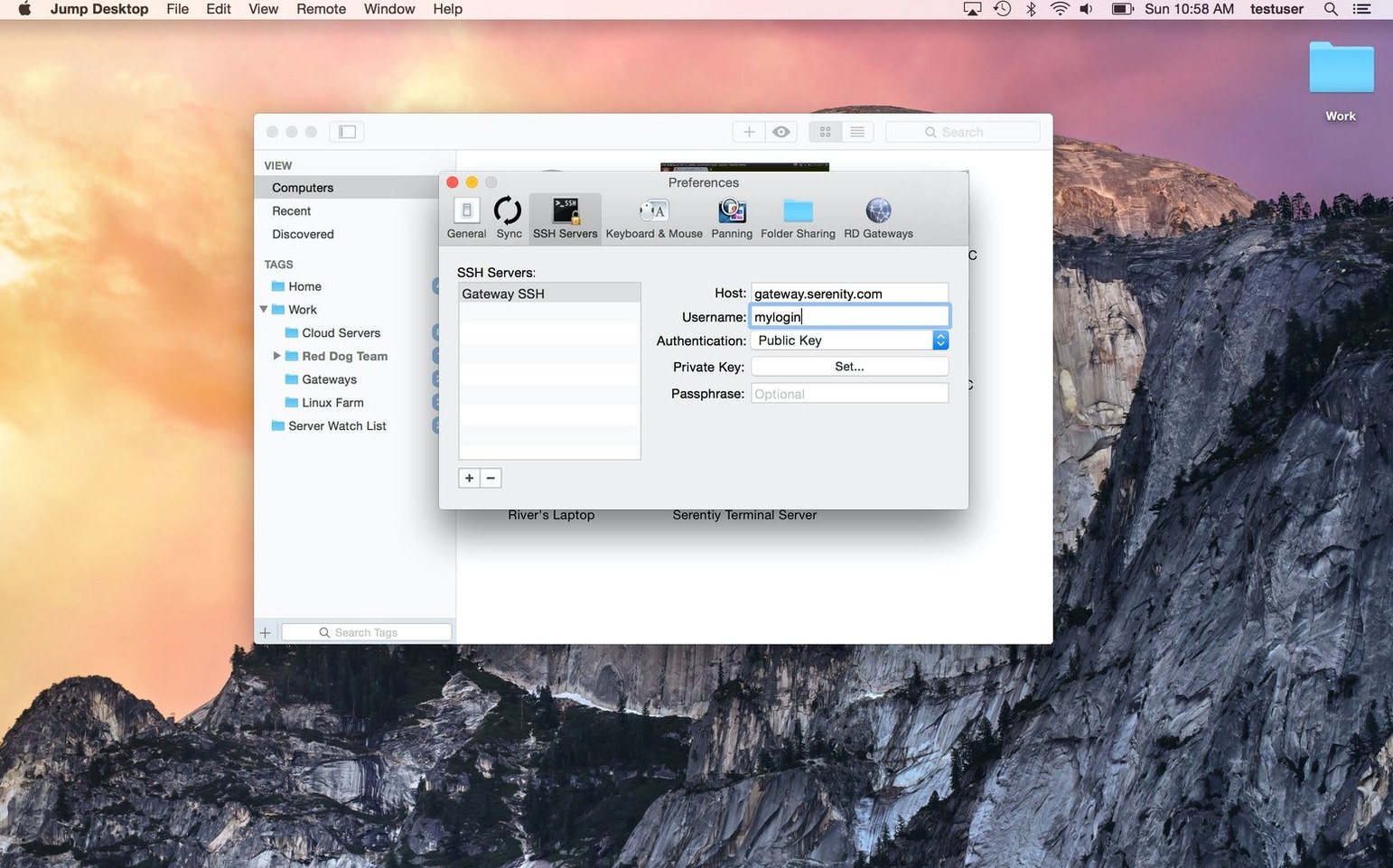
It runs native on both Apple Silicon and Intel Macs and asks for macOS 11 or later. There is no separate binary to hunt down; the same download covers the two architectures. If you pair it with the free Jump Desktop Connect companion on the host computer, the setup handles NAT traversal without manual port forwarding, though plain VNC and RDP addresses work directly too.
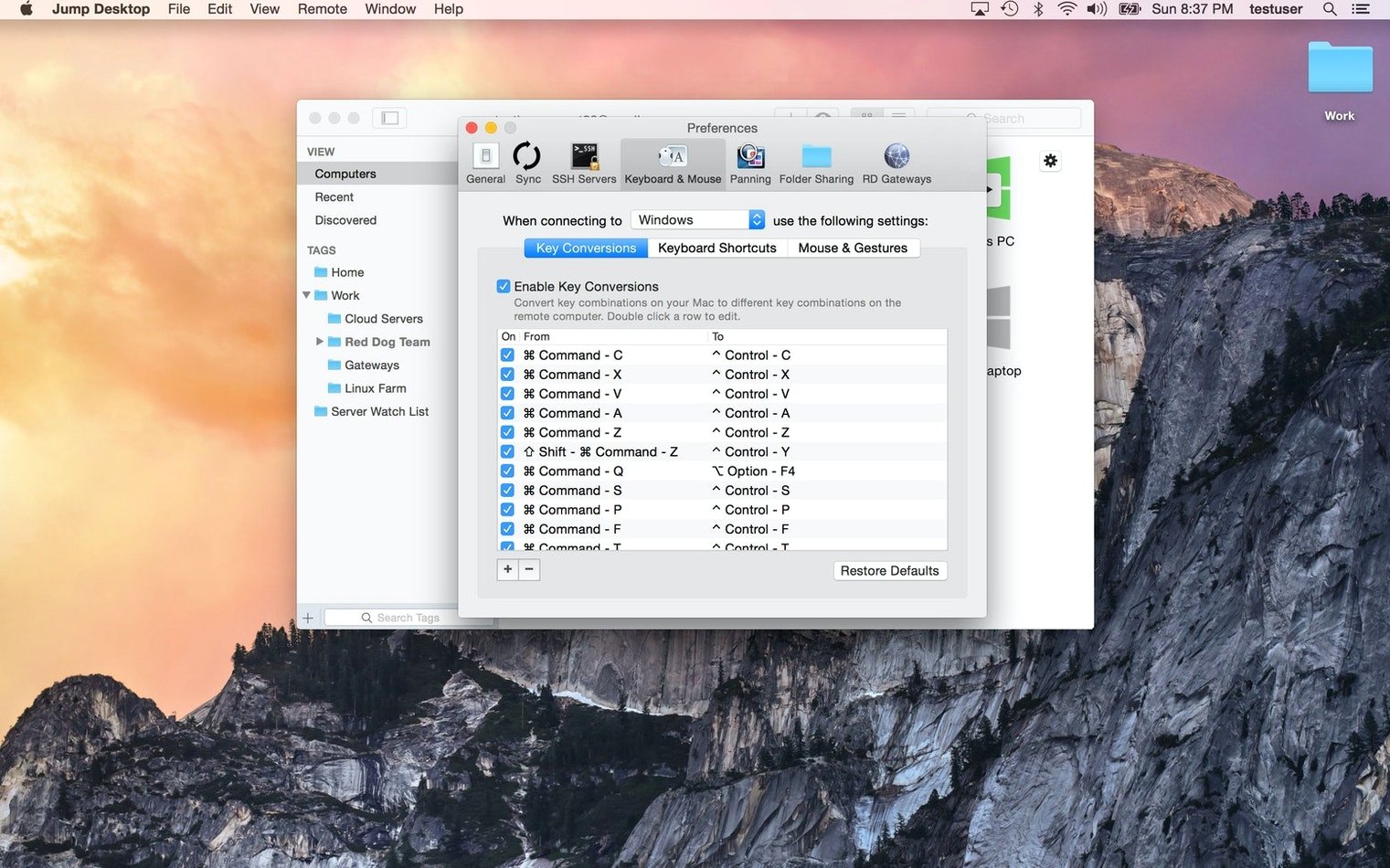
File transfer between the local and remote machine is built in, and the keyboard remapping is practical: you can teach a Windows-style layout to the remote Mac session or make a Windows host accept Mac modifier keys without muscle-memory mistakes. Clipboard syncing and real-time screen streaming keep the interaction responsive enough for configuration work and light document editing.
Screen Fluidity Across a Full Workday
A remote client lives or dies by two things: how quickly the screen updates and whether it gets in the way during a full workday. Jump Desktop sits comfortably on the good side of both. On a local gigabit connection to a Windows 11 RDP host, screen redraws land in the 15–20 ms range with the default adaptive quality setting. Typing in an IDE or nudging a Figma layer feels close enough to sitting at the remote machine that you stop thinking about the connection after the first few minutes.
Memory use on the Mac client side hovers around 140–180 MB with a single RDP session open at 2560×1440. That figure climbs to roughly 220 MB when you add a second connection in a separate window. CPU draw is modest: 3–5% on an M1 Pro during normal desktop work, spiking to 12–15% only when the remote screen is pushing full-motion video or a heavy browser scroll. The app has not beachballed once in two weeks of daily use across half a dozen different hosts.
Stability is similarly uneventful in the best way. Sessions stay up for hours without a disconnect, even when the Mac goes to sleep and wakes again. The automatic reconnect logic is quick—under three seconds on a wired LAN, and about eight seconds over a home Wi-Fi link that briefly dropped. If you connect to a mix of RDP and VNC hosts, each session runs in its own process space, so one crashing host application will not take down the others.
Morning Routine Across Three Machines
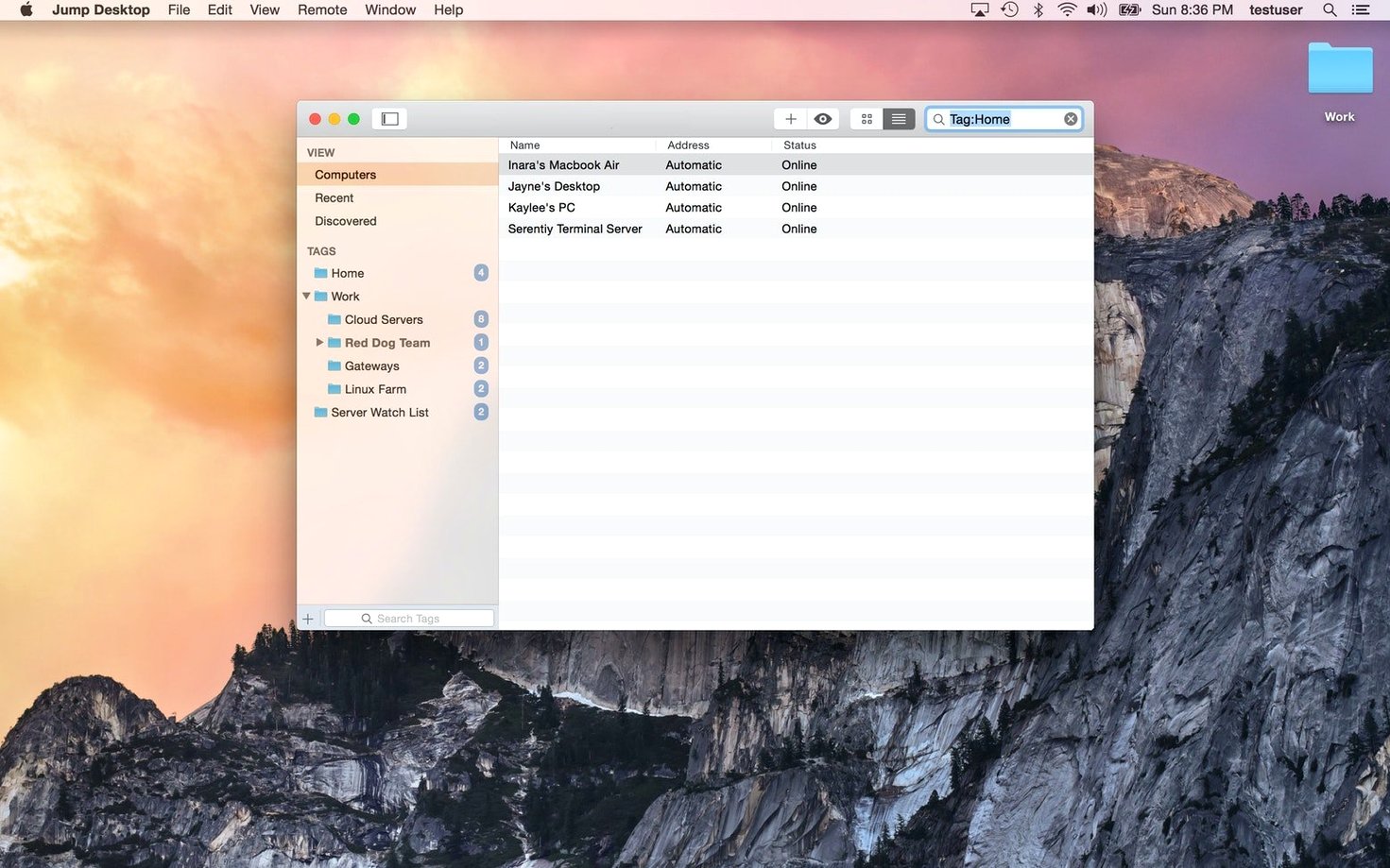
You start the day with a coffee and a list: check a build server on the office PC, pull a file from the home iMac, and remote into a client's Windows machine to adjust a database config. Jump Desktop opens to a single window showing your saved connections as a grid of thumbnails, each with a status dot and the hostname underneath.
- Double-click the office PC tile. The RDP session negotiates credentials you stored earlier, resizes the remote desktop to fill your MacBook's 14-inch display, and lands on the Windows desktop in under two seconds. The connection bar at the top of the screen fades away after a moment.
- The build log is too small at the native resolution. You press
Control-Option-Command-Fto toggle fullscreen, and the remote display slides into its own Space. The Mac trackpad gestures still work—three-finger swipe switches back to your local desktop without disconnecting. - You need a 2.4 GB SQL dump from the home iMac. Rather than opening a full desktop session, you right-click the iMac tile, choose Browse Files, and a Finder-style window opens showing the remote file system. Dragging the dump to your local desktop triggers a transfer progress bar. The copy runs at wire speed over the local network and finishes in under a minute.
- The client's Windows machine requires a quick Remote Desktop session. You have not saved credentials for this one, so the RDP authentication dialog appears. You type the password, check Remember this password in my keychain, and the session opens. A small floating toolbar at the window edge offers quick access to the virtual keyboard, connection settings, and the disconnect button.
- Before logging off, you need to remap a shortcut: the client's app expects
Ctrl+F5, but your Mac muscle memory keeps hittingCommand+R. You open Connection > Keyboard Mapping, add a rule that sendsCtrl+F5when you pressCommand+R, and the change takes effect immediately without restarting the session.
Three Tuning Adjustments for Everyday Use
The defaults are sensible for a first connection, but three adjustments make a noticeable difference for daily use.
Display quality. Under Preferences > Display, the default adaptive mode balances bandwidth and sharpness well on fast networks. If you are on a metered connection or a slow uplink, switch to Low bandwidth mode. It reduces colour depth to 16-bit and drops the frame rate target, but text stays readable and the bandwidth saving is real—roughly 60–70% less data in normal desktop work. For the opposite case, a LAN connection to a machine you edit photos on, Lossless quality disables all compression and delivers pixel-perfect output at the cost of higher bandwidth.
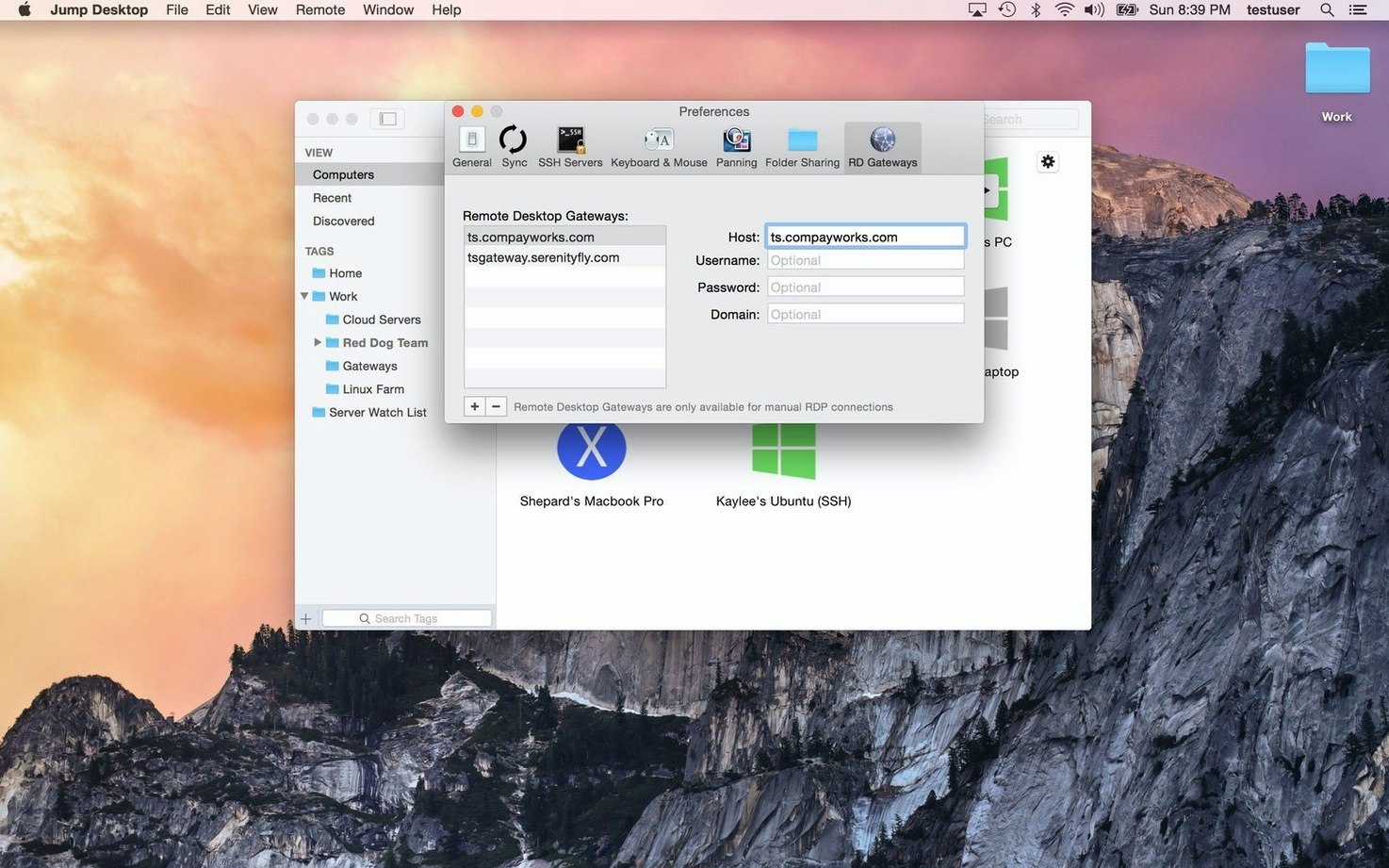
Fluid Remote Desktop scaling. By default, Jump Desktop matches the remote resolution to your local window size. That works until you connect to a 4K host from a MacBook Air and everything shrinks to illegibility. In Preferences > General, enable Use Fluid Remote Desktop resolution. The remote machine then presents a virtual display that matches your local screen's pixel dimensions exactly, so text and UI elements render at a comfortable size without manual resolution changes on the host.
Clipboard synchronisation scope. Clipboard sharing is on by default for text. If you regularly copy images or formatted content between machines, open Preferences > Clipboard and check both Enable image clipboard sync and Enable rich text copying. The image sync adds a small latency to clipboard transfers—noticeable only with files over about 10 MB—but removes the extra step of saving a screenshot to a file first.
Small Conveniences and Missed Shortcuts
A few features sit slightly below the surface and repay the minute it takes to discover them.
- Pin a window. When you need a small remote window to stay visible above your local apps, click the pin icon in the connection toolbar. The window floats on top of all other Mac windows, which is handy for monitoring a remote terminal or a dashboard while working locally.
- Drag-and-drop file transfer. Beyond the Browse Files option, you can drag a file from the Finder directly onto an open remote session window. The file lands on the remote desktop. The transfer uses the same encrypted channel as the screen stream, so no separate FTP or cloud step is needed for quick one-offs.
- Touch Bar mapping. On MacBook Pro models with a Touch Bar, Jump Desktop can map the Touch Bar to the remote machine's function keys. Enable it in Preferences > Touch Bar, and the strip shows F1–F12 plus media controls that the remote Windows or Linux host understands.
- Middle-click emulation. Many remote Linux and Windows apps rely on a middle mouse button. In Preferences > Mouse, set Middle click to Command+Left click or Three-finger tap. The setting sticks across all connections until you change it.
- Connection-specific colour profiles. If you work in the evening with a warm display temperature locally but need accurate colour on a remote design machine, create a connection profile in Preferences > Colour that disables Night Shift and True Tone for that session only. The remote window renders at native colour temperature while the rest of your Mac stays easy on the eyes.
- Quick-connect from the menu bar. The menu bar icon, hidden by default, can be enabled in Preferences > General > Show menu bar icon. A single click drops down your ten most recent connections, letting you jump into a session without opening the main window at all.
None of these are headline features, but together they remove the small frictions that accumulate when you spend hours inside remote sessions. The app rewards a few minutes spent poking through its preference panes.
The interface language is English only. No version-specific changes accompanied the 10.15.28 release.
Jump Desktop 10 is a major update that reworks the engine for high-refresh displays, hardware encoding, and local peripheral support.
- Frame rate — Up to 480 fps on high-refresh screens. Leave Framerate on Auto to match the display.
- Hardware encoding — Sharper detail at the same bandwidth, lower host CPU use, and longer Mac battery life. Switch to Codec > Hardware.
- Virtual displays — Save presets with exact resolution, scale, and refresh rate. Keep After Disconnect leaves displays on the host between sessions.
- USB device redirection — Redirect local USB devices to a Windows or Mac host.
- Game controller support — Play host games with a controller connected to your Mac.
- Creative workflow — Input Trail shows stylus and mouse strokes immediately on high-latency links. Colour Passthrough delivers unprocessed host colours to calibrated displays.
- Everyday work — Back/forward mouse buttons, trackpad pinch-to-zoom, and more reliable CJK text composition.
Improvements and fixes
- Input source switching — In Fluid sessions, the macOS shortcut Control+Space (or equivalent) now switches the Mac input source instead of sending the keystroke to the host. When the shortcut is disabled in macOS, the keys are forwarded as before.
- Wake-on-LAN — Fewer wake packets sent when connecting.
- Reconnect logic — Automatic reconnects no longer wake a host that was put to sleep or shut down.
- Stability — Fixed crashes on quit, and a crash on every launch when a saved computer had no name.
- Scroll wheel — Fixed one notch of the mouse wheel scrolling or zooming too far on Mac hosts (e.g., Option+scroll zooming a video timeline all the way in).
- Display presets — Reapplying a preset, or switching to another preset with the same number of virtual displays, now restores the saved window arrangement.
- USB redirection — Fixed USB redirection failing for certain devices such as colour grading control panels.
- RDP — Fixed custom resolutions being ignored (window size was used instead). Fixed full-screen-on-all-displays swapping displays arranged one above the other, which put the Windows taskbar on the wrong display.
- Japanese keyboards — Fixed Eisu and Kana keys having no effect in Fluid sessions.
- RDP compatibility — Fixed connections to older Windows versions (10.15.42).
- Security — Security updates included.
- macOS 11 or later
- Apple Silicon or Intel 64-bit
Sign in · Create an account to add a field note.
No field notes yet. A measurement, a version, a machine — they appear after moderation.