Mac Apps
Keyboard Maestro 11.0.4
Mac AppsUpdated
| Requirement | On file |
|---|---|
| macOS | macOS 10.13 or later |
| CPU | Apple Silicon, Intel 64-bit |
| Download | 35 MB |
Your fingers keep typing the same chain of keystrokes, pasting the same boilerplate, opening the same five Finder folders every morning. Somewhere around the third time, you wonder why the machine isn't doing this for you. Keyboard Maestro 11.0.4 answers that question with a macro engine that watches for triggers—hotkeys, typed strings, times of day, Wi‑Fi network changes—and runs sequences you design.
Reshape Text Across Apps Without Touching the Clipboard
- Form fillers and data wranglers. Pull text from one app, reshape it, and feed it into a web form or spreadsheet without touching the clipboard.
- Application launchers and workspace builders. Open a specific document, start a group of apps, and arrange windows with one shortcut.
- Text converters. Clean up line endings, change case, strip tags, or pipe selected text through a script on command.
- Web page regulars. Visit frequently read pages on a schedule or with a keystroke.
- OCR spot-checks. The 11.0.4 update adds Apple Text Recognition to the OCR Condition, so a macro can read text from an image on screen and branch on the result.
- Report builders. Assemble data from multiple sources into a single document or email.
Complex Conditional Flows Reward Patient Study
- Requires macOS 10.13 or later; runs on Intel and Apple Silicon Macs.
- The macro editor is deep. A simple hotkey macro takes seconds; complex conditional flows with variables and Switch/Case branches reward study.
- Interface language is English only.
- Macros that simulate clicks rely on screen coordinates and may need adjustment if you rearrange windows or change displays.
The Clipboard History Switcher and Other Quiet Lifelines
The obvious features—hotkey triggers, text expansion, app launching—are what pull people in. What keeps them around are a dozen smaller details that sit just off the main path. The clipboard history switcher, for instance. Invoke it with a shortcut you assign, and a floating panel shows the last 200 entries. Tap a number to paste, or start typing to filter. You can also flag entries you want to keep across restarts, so your tax file number or a tricky regex only needs copying once.
The Macro Debugger window gained tooltips in 11.0.4, and they repay a few minutes of poking around. Hover over any action in a running macro and you see the values of variables at that exact point, without inserting temporary display actions. When a macro with nested if/else branches goes quiet, the debugger shows the execution path step by step, making misbehaving logic far quicker to trace than the trial-and-error approach most people fall into.
A handful of trigger types get overlooked regularly. The USB device trigger fires a macro when you plug in a specific keyboard, drive or headset—useful for switching audio output and launching a music player in one go. The wi‑fi network trigger can detect when you arrive at the office SSID and rearrange your workspace accordingly, then reverse the changes when you connect at home. The time-of-day trigger supports sunrise and sunset offsets, not just fixed clock times, so a macro that dims your screen can follow the seasons without weekly adjustments.
Typed-string triggers do more than you might guess. They can erase the abbreviation after expanding it, or leave it in place if you set a different behaviour. They can be case-sensitive, restricted to certain applications, or set to require a delimiter key like Space or Return before firing—stopping "addr" from expanding mid-word in "address".
When Click-at-Image Actions Break After a macOS Update
The most common support-thread frustration involves click-at-image actions that stop working overnight. The culprit is usually macOS accessibility permissions. After a system update, the tickbox for Keyboard Maestro under System Settings > Privacy & Security > Accessibility sometimes clears silently. If image clicks or window manipulation actions fail, checking that permission is the first move—followed by a restart of the Engine from the Keyboard Maestro menu bar icon.
Another regular snag: macros that run fine from the editor but never fire in real use. Nine times out of ten, the macro group they live in is restricted to an application that isn't frontmost, or the group itself is disabled. The left-hand group list in the editor shows a ticked checkbox for active groups. A dimmed group name means all its macros are dormant. The "Available in these applications" setting per group catches people who duplicate a macro into a group with different scope and then wonder why the trigger seems dead.
Clipboard history can balloon quickly, and the default 200-entry limit looks generous until you copy large images or rich text blocks from a web browser. Memory pressure climbs, and switching between clipboard entries develops a lag. Reducing the history depth to 30 or 50 entries fixes this for most workflows. You can also exclude specific applications from the history entirely—Password managers and anything dealing with sensitive data benefit from being added to the exclusion list under Clipboard preferences.
Variable scope trips up newcomers who move from simple one-shot macros to multi-step workflows. A variable set in one macro persists globally by default, which is powerful but means re-running a macro may inherit stale values from a previous run. Wrapping actions in a "Local" block or explicitly clearing variables at the start of a macro avoids the silent carryover that produces baffling results the second time through.
A scenario: the part-time accessibility consultant
Consider someone who audits university websites for accessibility compliance. Their morning routine involves opening the same twelve pages across four browsers, taking screenshots of form elements, running contrast checks, and pasting results into a spreadsheet template they recreate weekly.
A single macro, triggered by typing "a11yrpt" in their notes app, does the following: launches Safari, Firefox, Chrome and Edge; arranges them in quadrants on a 27-inch display; opens a saved set of tabs in each browser from a bookmark file; waits 10 seconds for rendering; then opens Numbers with a specific template. A second macro listens for the F9 key, grabs a screenshot of the frontmost window, runs OCR on it, and appends any recognised text that matches a colour contrast pattern into a running log file. By lunchtime they have the raw data for a report that used to take three hours of manual switching and typing.
The OCR Condition's new Apple Text Recognition support in 11.0.4 is what makes the second macro reliable. The old Tesseract-based engine struggled with the thin, low-contrast fonts common on university sites. Apple's engine handles them with fewer false negatives, so the macro branches correctly on whether a contrast warning text appears on screen rather than silently missing it.
Who mines the most value
The most intense users tend to fall into three camps. Technical writers and localisation specialists use text-manipulation macros heavily—regex search-and-replace chains that clean XML exports, strip formatting from CAT tool output, or convert between date formats across dozens of files. The built-in "Search and Replace" action supports ICU regular expressions with capture groups, and chaining six or seven of them inside a For Each loop over clipboard lines can reshape a document in ways that would take a shell script and half an hour of debugging.
System administrators and IT support staff lean on the remote-trigger capabilities. A macro can watch a Dropbox folder for a text file appearing, read its contents as a command, and run a corresponding action—restart a service, generate a report, send a status email—all without touching the machine. Combined with the "Execute Shell Script" action, which can run Python, Perl, Ruby or a compiled binary, the boundary between Keyboard Maestro and a full automation daemon gets thin.
Musicians and audio engineers form a quieter but devoted group. They use MIDI triggers—Keyboard Maestro can listen for MIDI notes and controller changes—to fire macros that switch Logic Pro tracks, load plugin presets, or adjust monitor routing. A single foot pedal sending a MIDI CC message can step through a live performance set, muting and unmuting tracks while updating a stage display with the current song title, all without the performer touching the computer.
Why Click-at-Coordinate Macros Shatter on Window Resize
The biggest early error is recording a sequence of mouse clicks and calling it done. Click-at-coordinate macros break the moment a window moves or a toolbar resizes. The Click at Found Image action is more resilient, but even that fails if the target button changes appearance. Keyboard Maestro's strength is in semantic actions—"Select Menu Item", "Press Button with Title", "Insert Text by Pasting"—that work regardless of pixel layout. New users who start with menu and button actions rather than raw coordinates spend far less time repairing macros later.
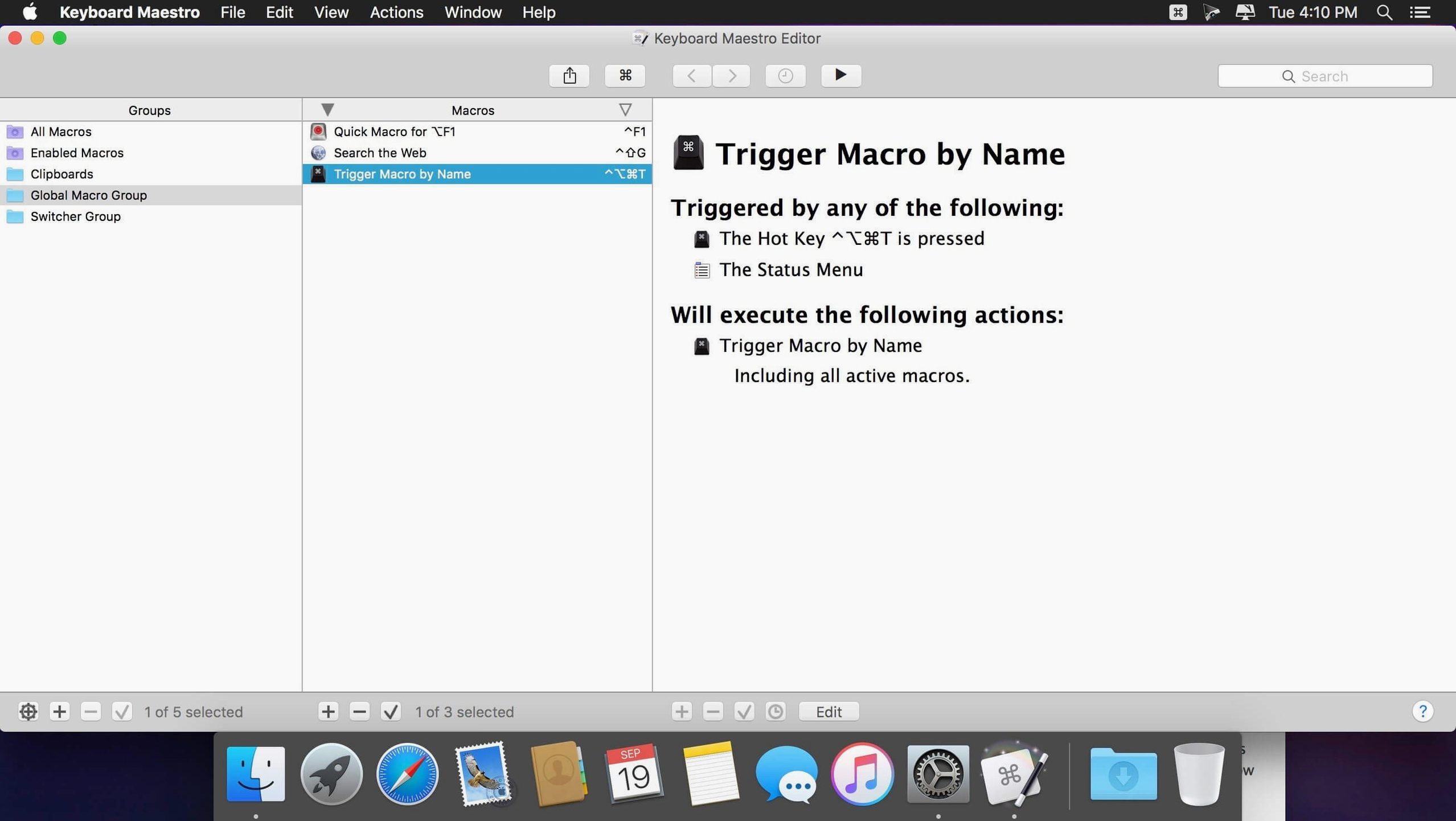
Another classic misstep: putting every macro in the "Global Macro Group" and then adding application-specific triggers without restricting scope. A hotkey meant to close a tab in Safari fires while they are in Photoshop and deletes a layer instead. Each macro group has an "Available in these applications" list. Setting it early, even for global macros that you deliberately want everywhere, makes the macro library legible six months later when you have forty entries.
Over-triggering typed strings is also common. People add abbreviations like "em" for their email address, then discover it expands inside words like "email" and "system". The solution is the "must be typed as a whole word" checkbox in the typed-string trigger editor, or switching to a rarer prefix like a semicolon—";em" won't clash with natural typing.
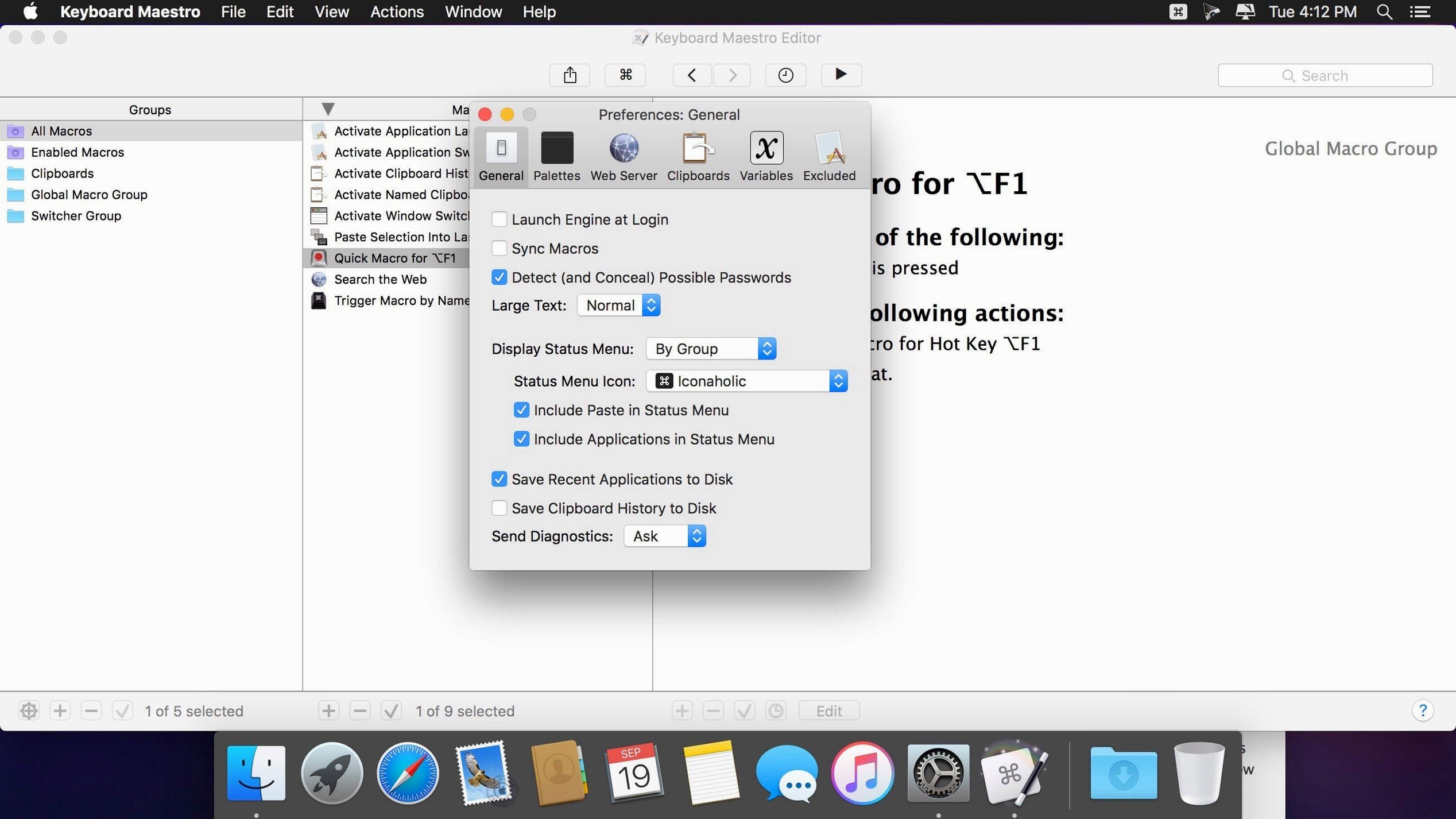
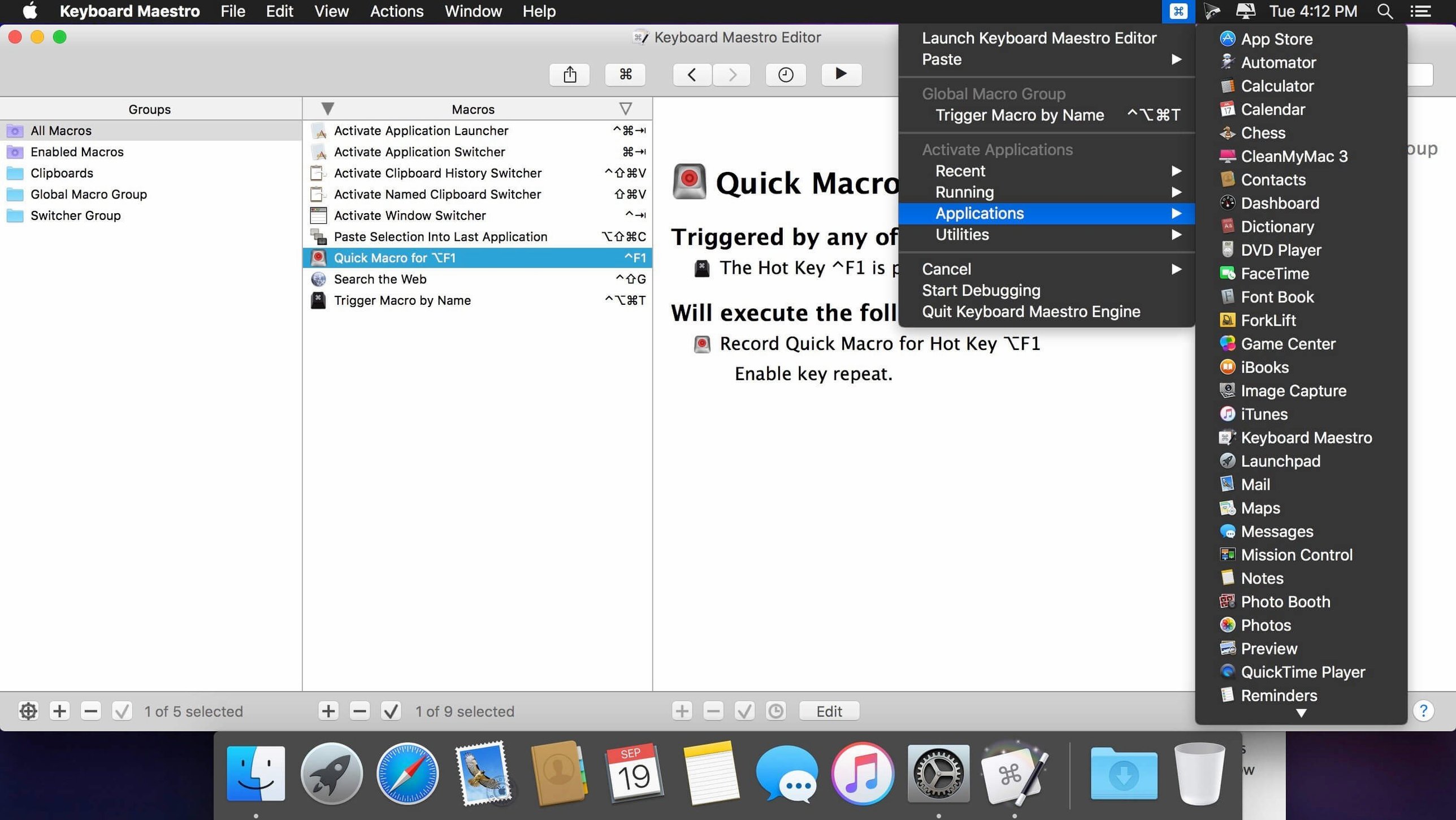
Finally, many beginners never enable the status menu in the menu bar, then cannot tell whether the engine is paused. Keyboard Maestro's menu bar icon shows a play or pause indicator, and clicking it gives quick access to the editor, the clipboard history, and an "Abort All Macros" command that is the escape hatch when a loop runs away. Turning it on takes five seconds in Preferences > General and prevents a lot of head-scratching.
- Switch/Case actions — display now shows which entries are currently true or would execute.
- OCR Condition — added support for Apple Text Recognition.
- Macro Debugger window — added tool tips for controls.
- Search highlighting triggers — fixed an issue that caused incorrect behaviour.
- macOS 10.13 or later
- Intel or Apple Silicon Mac
Questions on file
What can Keyboard Maestro automate?
It can automate applications or websites, manipulate text and images, fill web forms, perform OCR, launch apps, open documents, and create reports—triggered by hotkeys, typed strings, schedules, or system events.
Sign in · Create an account to add a field note.
No field notes yet. A measurement, a version, a machine — they appear after moderation.