Mac Apps
Klack 1.7.2
Mac AppsUpdated
| Requirement | On file |
|---|---|
| macOS | macOS 13.1 or later |
| CPU | Apple Silicon, Intel 64-bit |
| Download | 18 MB |
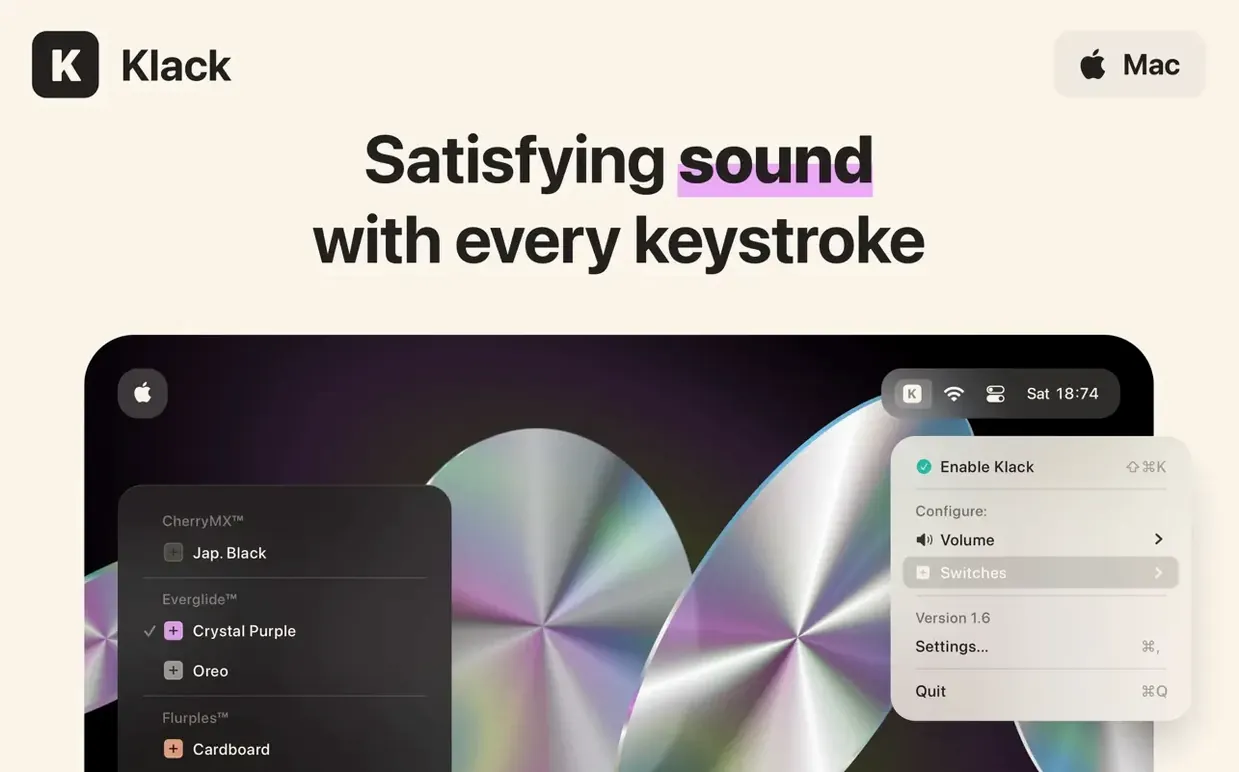
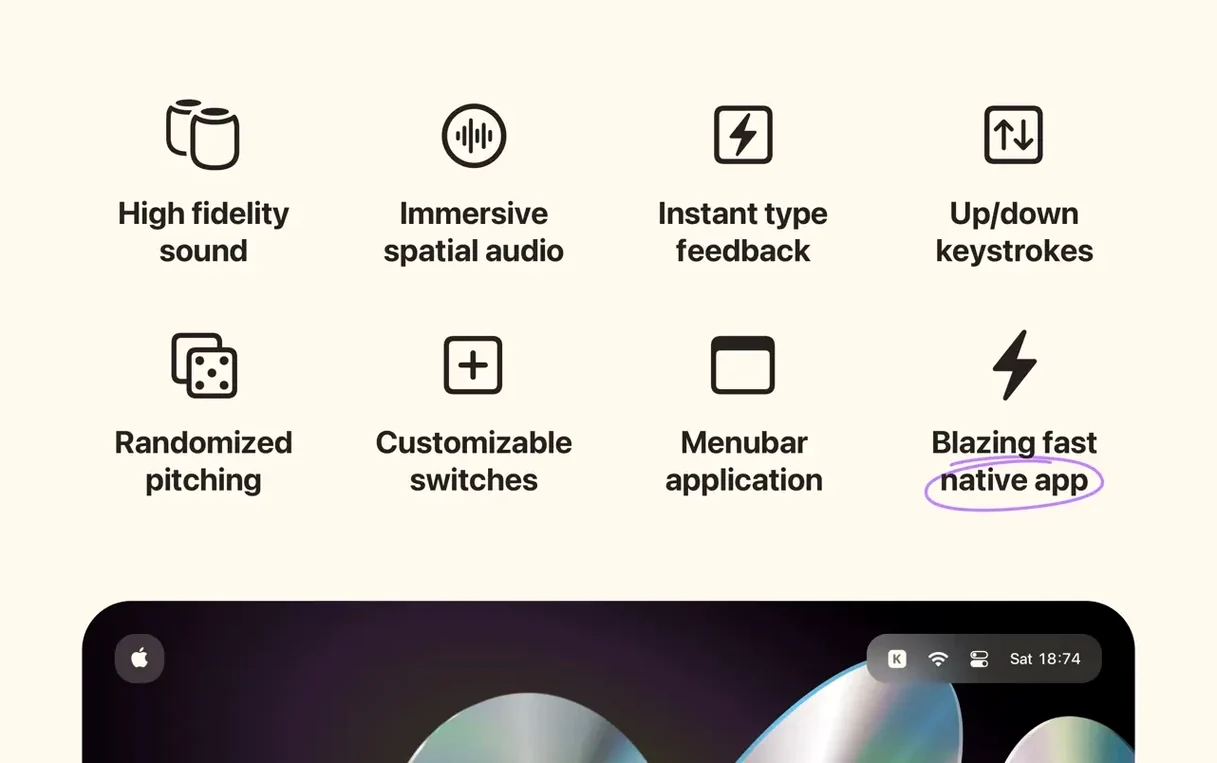
One-off randomisation keeps the sound profile from becoming a monotonous loop. The 1.7.2 build of Klack adds no new feature entries—the update focused on stability—so the core promise remains the same as previous releases: mechanical switch acoustics layered over whatever keyboard you physically own.
Does the sound cover both key press and release?
Yes. Klack triggers a distinct sample for key-down and a separate one for key-up, which stops the effect from feeling like a single percussive tap.
How does the app handle repetition?
It randomises playback parameters so fast double-taps or repeated letters get subtle variation instead of identical audio on every stroke.
Where does the audio come out?
Everything routes through the built-in Mac speakers or any active output device set in macOS. The sound is described as high fidelity with immersive spatial audio processing.
Setting Up a Switch Profile for Daily Writing
Most people open Klack, pick a switch, and leave it. A few minutes of tuning changes how it feels to type for hours.
Open the menu bar app and select Switch Settings. The default profile is usually a linear switch — clean, consistent, no pre-travel bump. Start there if you type fast and bottom out hard. If you rest fingers on keys and want a tactile cue before actuation, switch to a tactile profile. The difference in sound timing is small but noticeable: tactile samples emphasise the bump slightly before the bottom-out thud.
Next, adjust Volume Offset. The default sits at 0 dB, which can overwhelm quiet system audio. Drop it to -4 dB or -6 dB if you keep music or a call running underneath. Raise it to +2 dB if you want the keyboard to cut through everything else.
Randomisation Depth is the setting most people miss. At minimum, Klack reuses a tight pool of samples and repeats become audible after a few hundred words. Push the slider to 70–80%. At that level, rapid typing on a paragraph like this one produces enough pitch and timbre variation that no two keystrokes sound cloned. Past 90%, the effect gets loose — some hits land noticeably softer — but for creative writing that slight chaos can feel organic.
If you use an external display with built-in speakers, check the audio output routing. Klack follows the system output device, not a fixed one. Plugging in a USB-C monitor can silently redirect typing sounds to tinny display speakers. Lock it by setting the Mac’s output to Internal Speakers or your preferred interface before launching Klack. The app respects whatever was active at launch and holds it for the session.
One last tweak: Spatial Audio Intensity. The default mid-point spreads key sounds across a narrow stereo field. For headphone users, push it higher — the widened image mimics a keyboard sitting in front of you. For laptop speakers, drop it to about 30%; stereo separation on a 14-inch MacBook Pro is already narrow, and over-processing makes the effect phasey.
Workflow: Typing Notes During a Call Without Mic Bleed
A common scenario: you are on a video call, taking notes, and you want the mechanical feedback without the sound leaking into the microphone. Here is a step-by-step workflow that works reliably in Klack 1.7.2.
- Before the call, open Audio MIDI Setup (in
/Applications/Utilities). Create a Multi-Output Device that includes your headphones and, separately, a virtual sink like BlackHole or Loopback if you have one installed. This step is optional — the core trick works without it. - In Klack’s menu bar dropdown, set the volume offset to -10 dB. This keeps the sound present but low enough that it does not overpower speech.
- During the call, route your conferencing app’s speaker output to your headphones. Klack follows the system output, so typing sounds play through the same headphones. Because the mic is positioned away from the headphone drivers — and because Klack’s spatial audio creates a forward image — the physical bleed into a desk mic or headset boom is negligible at moderate volumes.
- If your call app supports noise suppression (Zoom, Teams and Discord all do), enable it at the low or medium setting. Klack’s high-frequency switch samples — particularly the clicky profiles — can occasionally trip aggressive filters. Low suppression removes room tone without cutting the transient of a key press.
- After the call, reset the volume offset to your usual level. The app does not save per-scene presets, so this is a manual step.
People who use a klack free download mac setup often discover this workflow by accident — the app is light enough that leaving it running through a full workday becomes the default, and the call scenario is where the audio routing friction shows up first.
Common Snags and Fixes
Sound cuts out after sleep
macOS sometimes re-enumerates audio devices on wake, and Klack can lose its output handle. The fix is quick: click the menu bar icon, toggle Enable Sounds off, wait two seconds, toggle it back on. If that does not work, quit Klack and relaunch. The 1.7.2 update specifically addressed a related crash on wake-from-sleep, but the output routing quirk remains.
Double-triggering on fast typists
At speeds above roughly 110 words per minute, some users report a flam effect — two samples overlapping on a single keystroke. This is not a bug in Klack; it is a timing mismatch between the key-down event and the key-up sample firing too early. Reduce Key-Up Delay in Switch Settings by 10–15 ms. The default works for most, but fast typists need a tighter window.
App ignores volume offset on first launch after boot
A known quirk: the volume offset slider reads correctly, but the actual output level is unity until you nudge the slider by one tick. After that, it respects the setting for the rest of the session. The developer has not patched this in 1.7.2, so it is worth nudging the slider on first use each day.
Clicky switch profile sounds distorted on MacBook speakers
The MacBook’s built-in drivers emphasise 2–5 kHz, exactly where clicky switch samples peak. The result is harsh, almost brittle. Switch to a linear profile for internal speakers, or apply a subtle
- macOS 13.1 or later
- Apple Silicon and Intel Macs
Questions on file
Does Klack collect any data while I type?
The developer states the app collects no data or personal information at all.
Is there a way to control Klack outside of the app window?
A menu bar app provides quick access to settings without opening the main interface.
Sign in · Create an account to add a field note.
No field notes yet. A measurement, a version, a machine — they appear after moderation.