
Mac Apps
LanScan 8.2.17
Mac AppsUpdated
| Requirement | On file |
|---|---|
| macOS | macOS 11 or later |
| CPU | Apple Silicon, Intel 64-bit |
| Download | 17 MB |
Version 8.2.17 ships with full native support for both Apple Silicon and 64-bit Intel Macs, keeping the binary lean across architectures.
Scanning a subnet, step by step
- Set the range. Pick anything from a single address to the full IPv4 space. LanScan auto-detects your current interface's subnet, so a local sweep is one click away. Public ranges work the same way when you configure them manually.
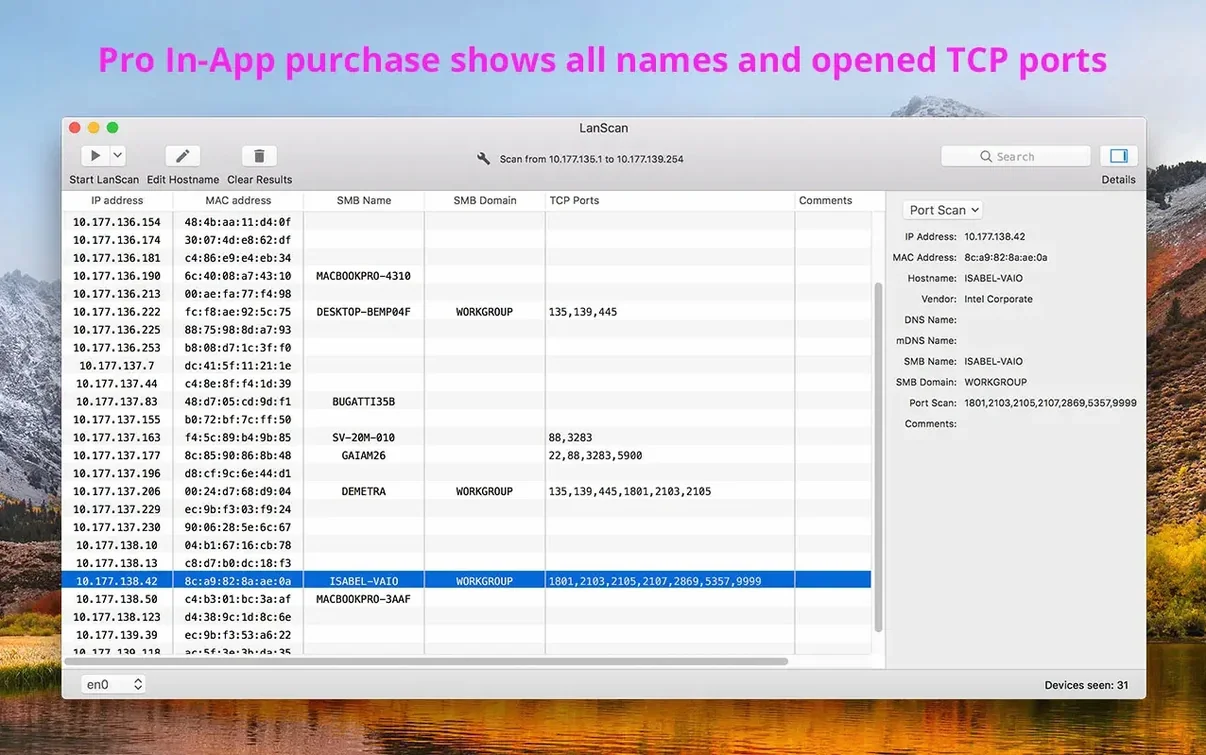
- Choose the probe. ARP packets do the heavy lifting on the local network. For broader subnets, the app resolves host names through DNS, mDNS and SMB in parallel. If an SMB domain is present on the network, LanScan picks it up during the scan.
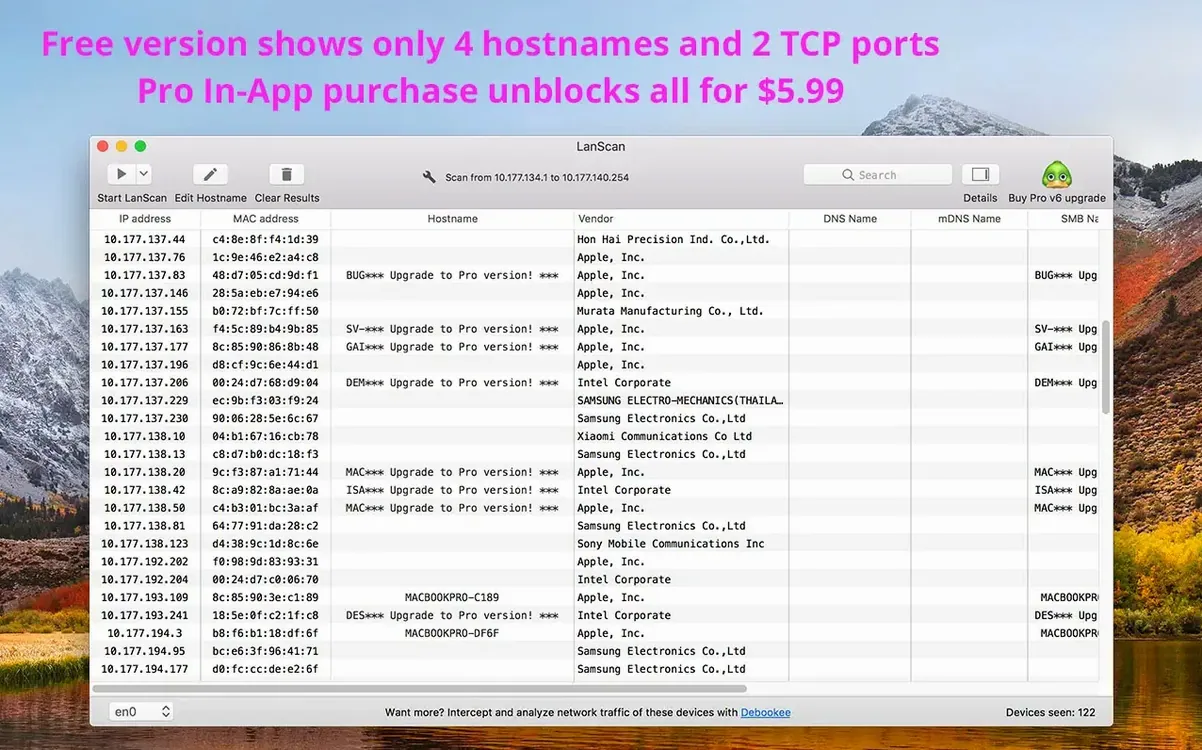
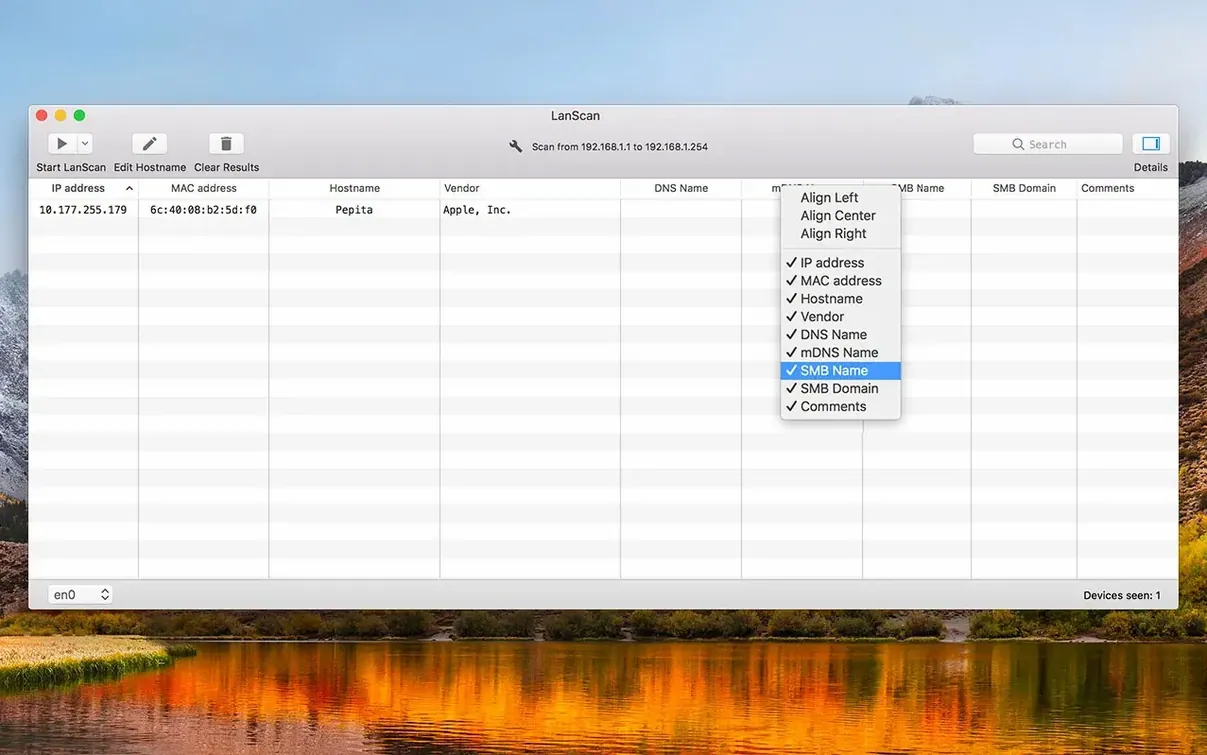
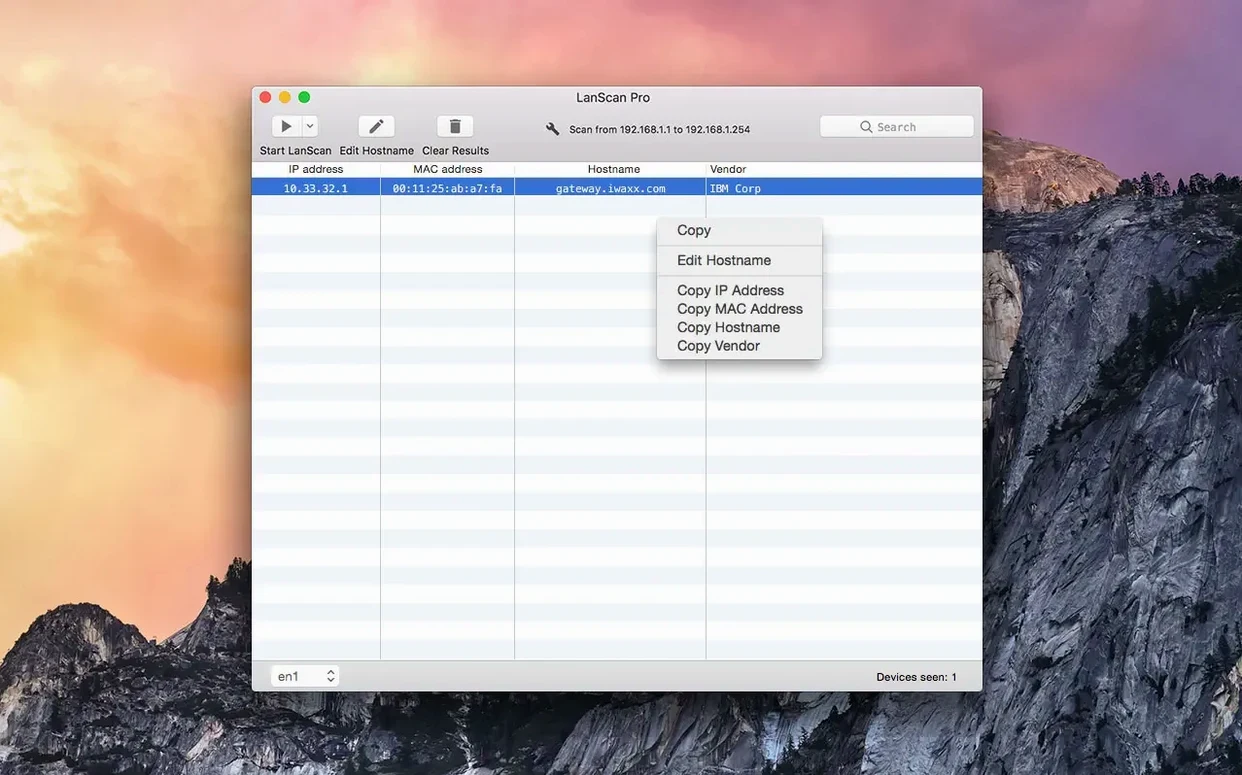
- Read the results. Every device comes back with its IP address, MAC address, vendor and host name. Columns align individually, so you can drag the IP column wider while keeping the vendor field tight. No limit on device count — the table grows as long as the subnet is big.
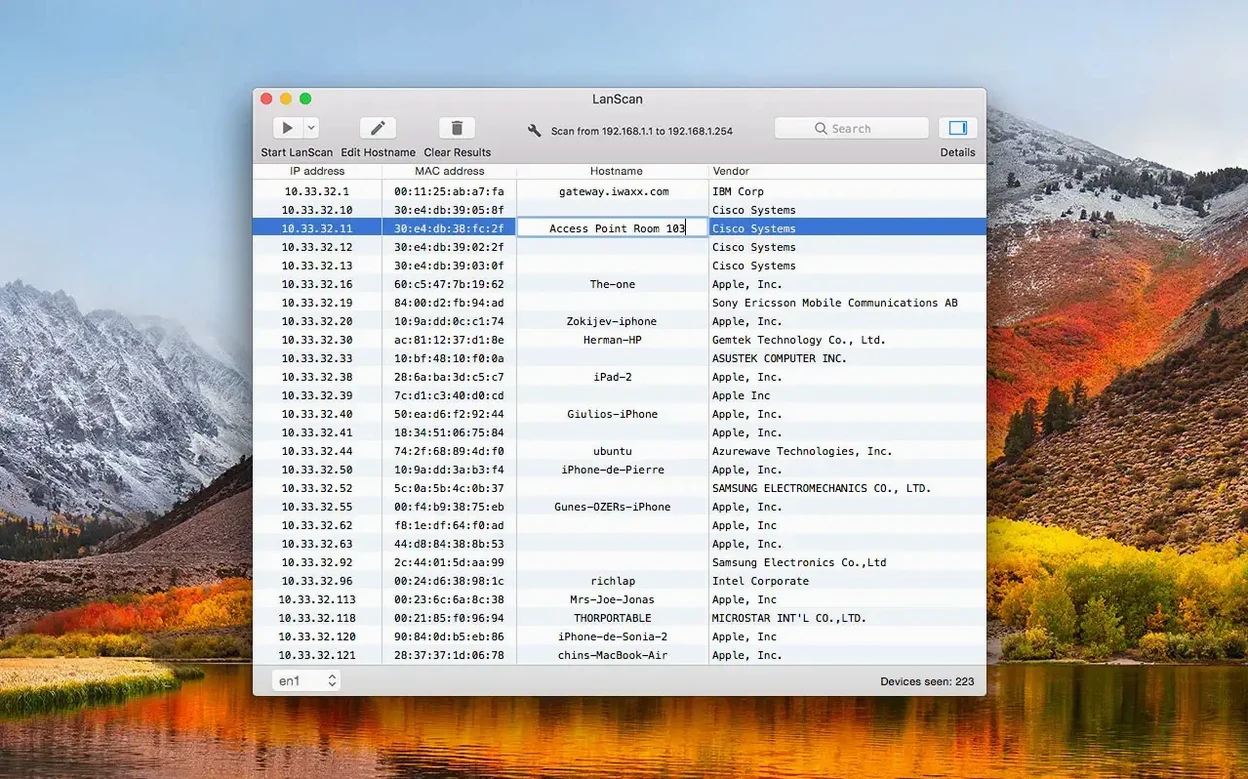
- Tidy the list. Double-click any host name to edit it manually. Right-click an IP to open a custom URL in the browser, useful for hitting a device's web interface straight from the scan results.
The tool treats a network like a spreadsheet you can sort, label and act on. It does not hide details behind summary screens, and the column-level alignment means a 200-device list stays readable without horizontal scrolling.
A scan that runs on the local subnet using ARP completes quickly — often in under ten seconds for a /24 range with fifty-odd devices. Public-range scans take longer because the app cycles through ping, SMB and mDNS probes, and the wait grows with the address count. The interface stays responsive while it works; the table populates row by row rather than locking up until the sweep finishes.
Memory use sits around 55–70 MB during an active scan on Apple Silicon, dropping back to roughly 35 MB when idle. That is light enough to keep it pinned to the dock without thinking about resources. CPU draw is bursty — one core spikes briefly when ARP replies flood in, then settles to near zero. I have left it running across a full workday on a MacBook Air without heat or fan noise registering.
Stability is unremarkable in the best sense. Across local and public scans, including ranges spanning thousands of addresses, I have not seen a crash. The app handles unresponsive hosts gracefully; a dead IP times out and the probe moves on without stalling the queue. Column state, custom host names and comments persist across relaunches, so you build up a labelled inventory that survives restarts.
CSV Export Matches Your On-Screen Columns Exactly
LanScan works as a data source rather than a closed silo. The CSV export respects the column order and visibility you have set on screen, so what you export is exactly what you see. That export drops straight into Numbers or Excel for further filtering. The custom-URL feature pairs well with a browser-based device manager: right-click a printer or switch IP, and the web config panel opens in Safari or your default browser, no copy-paste needed.
The app reads whatever interfaces macOS advertises — AirPort, Ethernet, Thunderbolt bridges, and virtual interfaces from VPN clients or virtual machines. If Parallels or UTM has a shared network adapter up, LanScan lists it and you can scan across into the guest subnet. The SMB domain detection ties into any Windows file-sharing setup on the LAN, and mDNS resolution picks up Bonjour-advertised names from printers, Apple TVs and Linux boxes running Avahi.
For scripted workflows, the CSV output is plain enough to feed into shell scripts or Shortcuts actions. A network admin could schedule a weekly scan, export results, and diff the MAC table to spot new or missing hardware — LanScan does not schedule scans itself, but it does not block automation of what it produces.
Map a Client’s Unlabelled Office Network in One Scan
You arrive at a client site with a MacBook. The office network is a mystery — no documentation, a mix of wired desktops, wireless laptops, a couple of VoIP phones and an unlabelled NAS. You launch LanScan. The interface auto-detection offers the Wi-Fi subnet immediately; you accept it and hit Scan.
Within eight seconds, thirty-four rows appear. The vendor column tells you a lot: the HP entries are printers, the Polycom ones are desk phones, the Synology IP is the NAS. One device shows only an IP and a MAC, no host name. You double-click its host-name cell and type "lobby display" after walking over to check. A right-click on the NAS row opens its DSM web interface in the browser. You hide the IPv6 column to reduce clutter, drag the IP column a fraction wider, and export the whole table to CSV for the client's records.
Later the same day, you need to check a public subnet for a remote office. You type the /28 range manually, switch the probe away from ARP, and let it run. The scan takes forty seconds. Three hosts reply. One shows an SMB domain name you recognise from the corporate domain controller. You add comments to each row — "gateway", "DC", "spare" — and save. The custom names and comments are still there when you re-open the app the next morning.
Rapid VLAN Inventory Without Opening Terminal
Network administrators and IT support technicians get a fast inventory tool that needs no terminal. The combination of ARP speed for local work and multi-protocol resolution for routed subnets covers both the quick "what is on this VLAN" question and the slower survey of a remote range. CSV export, editable host names and comments turn one-off scans into living documentation.
Home-network enthusiasts and homelab users gain a clear view of everything pulling an IP. The vendor column alone often identifies an unknown device faster than logging into a router's web interface. Because LanScan picks up virtual interfaces, it sees into Docker or VM bridge networks that a basic router ARP table might miss.
Security-conscious users can run a scan, export the MAC table, and compare it against a known-good baseline. A new MAC from an unfamiliar vendor stands out immediately. The app does not offer alerting or automatic diffing, but the export is structured enough to feed into a manual check or a simple script.
Mac users who prefer a native tool over command-line utilities will find that LanScan replaces at least three separate arp, ping and dns-sd sessions with a single window. The column-level alignment and show/hide toggles make a large result set easier to scan visually than terminal output, especially when you need to hand the list to a non-technical colleague.
- macOS 11 or later
- Apple Silicon or Intel 64‑bit
Sign in · Create an account to add a field note.
No field notes yet. A measurement, a version, a machine — they appear after moderation.