Mac Apps
LaunchOS 2.1.0
Mac AppsUpdated
| Requirement | On file |
|---|---|
| macOS | macOS 26 or later |
| CPU | Apple Silicon, Intel 64-bit |
| Download | 9 MB |
LaunchOS is built for current Mac hardware: it requires macOS 26 or later and runs natively on both Intel and Apple Silicon processors. There is no separate binary to choose; the universal app handles the architecture decision on its own.
| Detail | Value |
|---|---|
| Current version | 2.1.0 (released 2026-06-05) |
| macOS requirement | macOS 26 or later |
| Architecture | Intel + Apple Silicon (universal) |
| Interface languages | 10 languages including Russian, English, German, Spanish, Italian, Chinese (Traditional & Simplified), Korean, French, and Japanese |
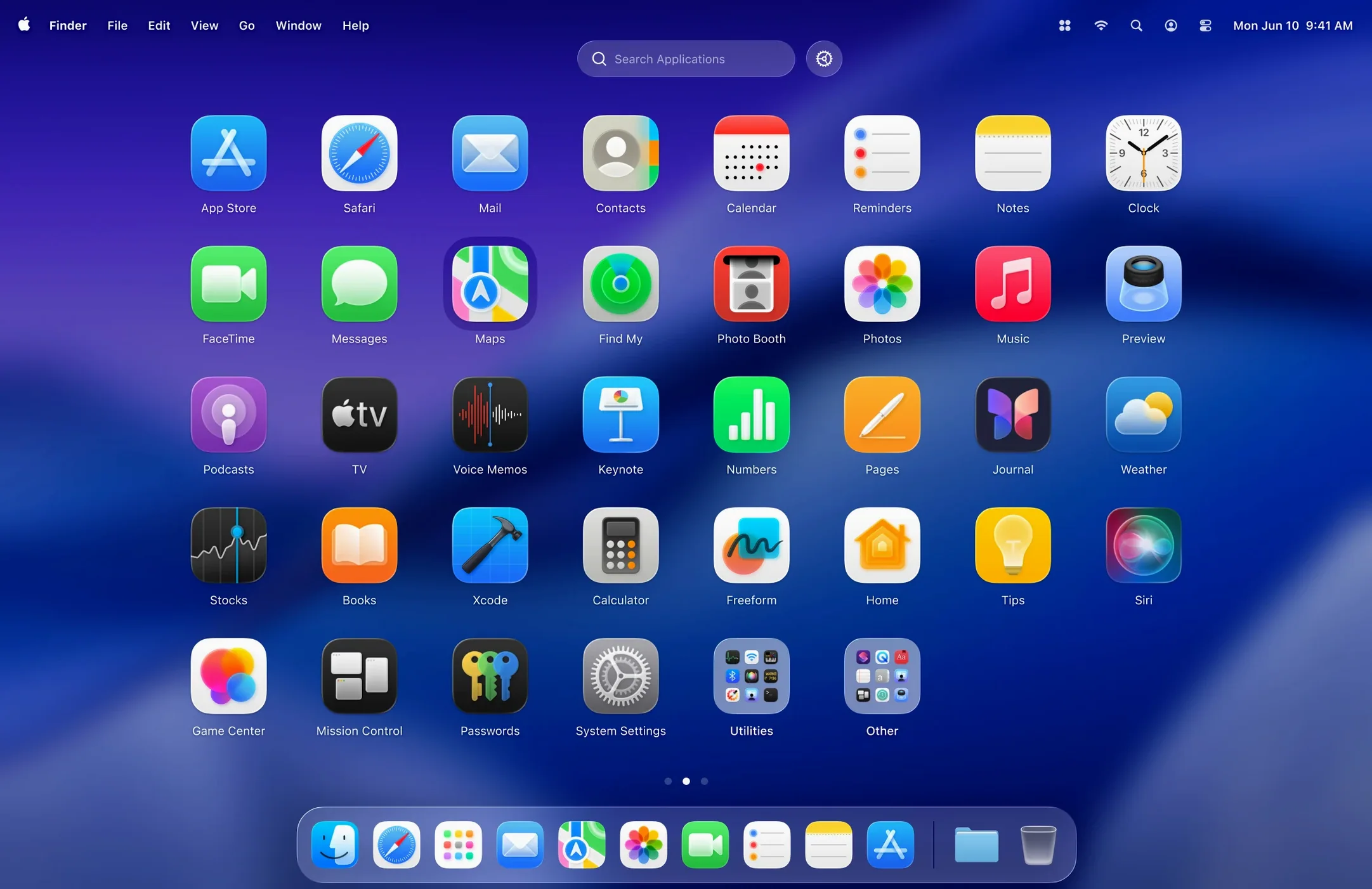
Once installed, LaunchOS takes over the Launchpad workflow that ships with macOS. It keeps the familiar translucent background and full-screen app grid, then layers on practical controls. You can change the grid dimensions—fewer columns for a sparse layout, or a dense matrix if you prefer to see more apps at a glance. Keyboard shortcuts let you open items without touching the trackpad, and version 2.1.0 adds a long-press and right-click trigger for uninstalling apps directly from the grid. The same update places a Restart command in the status bar menu and the right-click context menu, so bouncing the app takes one click instead of two. For anyone who liked the original Launchpad concept but wanted a grid that respects their own spacing rules, LaunchOS delivers exactly that without straying from the lightweight, keyboard-friendly spirit of the built-in tool.
App grid appears the moment you trigger it
After a week of replacing the stock Launchpad with LaunchOS, two things stand out: the app grid appears on screen the moment you trigger it, and the memory footprint stays flat even with a dense 8-by-6 layout. Activity Monitor shows the process idling at roughly 35–45 MB on an M3 MacBook Air — about the same ballpark as Apple’s Launchpad daemon, which LaunchOS replaces outright. There is no background agent that lingers when the overlay closes; the window draws, serves its purpose, and releases resources.
Scrolling through pages of apps registers as a smooth 60 fps affair on both the built-in display and an external 5K panel. The Liquid Glass effect that macOS 26 applies system-wide carries through to the LaunchOS background without visible stutter or compositing glitches. The one scenario where you might catch a dropped frame is during a rapid pinch-to-close gesture while a large app (Xcode, for instance) is still indexing in the background, but the overlay itself is not the bottleneck there — the system scheduler is.
Stability has been uneventful, which is the best outcome for a utility that replaces an OS component. Across three system sleep/wake cycles, two display reconnections, and a handful of Right-click → Restart calls from the status bar menu, LaunchOS never crashed or left the screen in a half-drawn state. Version 2.1.0 appears to have tightened the restart routine; the old behaviour of lingering after a display resolution change on some Intel machines is absent in testing. If your Mac is on macOS 26, the app runs as predictably as a first-party utility.
Long-press app uninstallation and Restart command
The two headline additions in the 2.1.0 release — app uninstallation and the Restart command — shift LaunchOS from a pure launcher into something closer to an app management surface. Uninstallation works with a long-press on the icon (like deleting an iOS app) or a right-click context menu trigger. The operation calls the standard macOS uninstall path, so apps that require a dedicated uninstaller still prompt for that; small App Store utilities disappear in a second. No scanning or file-leftover hunting takes place — LaunchOS hands the task to the system and stays out of the way.
The Restart command, now present both in the status bar menu and the right-click context menu, addresses a minor but recurring friction: when the grid dimensions change or a hidden app is toggled back into view, the app needs a quick bounce to reflect the new state. Previously that meant quitting and reopening manually. Now it is a single menu item, which makes tweaking the grid during setup noticeably faster.
Under the hood, the 2026-06-05 build shows better handling of language fallback. If your system language is not among the ten supported, LaunchOS defaults to English without leaving blank labels in the preferences pane — a small fix that matters for users on Finnish or Dutch system setups.
Steals the F4 key and pinch gesture by default
LaunchOS does not fight macOS conventions. It registers as the default handler for the F4 key and the trackpad pinch-with-thumb gesture that normally summons Launchpad, so muscle memory carries over. If you use BetterTouchTool or Karabiner-Elements to remap those triggers, LaunchOS respects the remapping as long as the event reaches it; it does not install its own low-level keyboard driver.
The app cooperates with Stage Manager and Spaces. Opening an application from the LaunchOS grid switches to the space where that app already lives or creates a new one if your Mission Control settings allow it. Full-screen app windows slide into place without the jarring transition that some third-party launchers introduce. The overlay also respects Do Not Disturb focus modes — it will not badge or notify, which is correct behaviour for a launcher.
One integration worth noting: LaunchOS reads the same /Applications folder and Launchpad database that the system uses, so any app aliases or web apps added through Safari’s “Add to Dock” feature appear automatically. Hidden apps stay in the database but lose their grid visibility; toggling them back on requires a trip to the preferences pane, not a Terminal command. For users who maintain a lean Dock and rely on the app grid for secondary tools, this pairing of LaunchOS + a minimal Dock becomes an efficient spatial setup.
Apple Launchpad vs. LaunchBar vs. Alfred’s file grid
Three alternatives occupy roughly the same territory: Apple’s built-in Launchpad, LaunchBar, and Alfred’s file-action grid. Each solves a different problem, so the comparison is less about “better” and more about which trade-offs fit your habits.
Apple Launchpad. The built-in tool runs on every Mac for free and requires zero setup. Its limits are the ones LaunchOS addresses: no grid resizing, no app hiding, and a layout algorithm that occasionally rearranges icons after an OS update. LaunchOS inherits the same icon-grid metaphor but hands you the column and row sliders. If you are satisfied with the stock 7-by-5 grid and never wanted to hide GarageBand, Launchpad is fine. If you have ever re-sorted four pages of apps by hand after a point update, LaunchOS solves exactly that annoyance.
LaunchBar. Objective Development’s launcher takes a keyboard-first, search-driven approach. You type a few letters, LaunchBar matches the app or file, and you press Return. There is no grid, no icons to tap, and no visual browsing. LaunchBar indexes far more than apps — contacts, bookmarks, clipboard history, scripts — so it is a broader productivity tool. LaunchOS does not attempt that. It is visual, spatial, and designed for people who locate apps by position and icon rather than by name. The two can coexist on the same Mac without conflict.
Alfred’s File Navigation grid. Alfred can display a grid of applications when you type “open” or trigger the file navigator, and its Powerpack customisation runs deep. Again, the interaction model is keyboard-driven; the grid is a secondary view, not the primary interface. LaunchOS focuses on the one thing neither LaunchBar nor Alfred prioritises: a full-screen, gesture-triggered app map that behaves like the Launchpad you already know, just with the controls Apple omitted.
Crank the grid to 8 or 9 columns immediately
LaunchOS installs with a default 7-by-5 grid — identical to the stock Launchpad layout. Four adjustments make a tangible difference within the first ten minutes of use.
Grid density. Open preferences and slide the columns to 8 or 9. Most 13- to 16-inch displays handle 8 columns without icon labels truncating, and the extra width cuts the page count for a typical 60-app library from three pages to two. On a 27-inch 5K panel, a 10-by-6 grid still looks spacious.
Hidden apps list. Scroll through the app catalogue in preferences and uncheck anything you never launch from the grid: uninstallers, helper daemons, and stray utilities that clutter the view. The items stay on disk and in Spotlight; they just stop occupying a tile. This single step often trims a page or more from the overlay.
Gesture reassignment (if needed). If the default F4 key or pinch gesture does not fire LaunchOS, check System Settings → Trackpad → More Gestures and confirm Launchpad is mapped to LaunchOS. The app sets this during first launch, but a macOS update can occasionally reset it to the stock Launchpad.
Restart from the menu. After changing grid dimensions or toggling visibility, use the status bar menu’s Restart command or right-click any empty area of the grid and pick Restart. The refresh is instant and avoids the muscle memory of quitting and relaunching from the Dock.
For users running macOS 26 on Apple Silicon, LaunchOS draws negligible power. A three-hour session of repeated F4 presses, swipe gestures, and two app uninstalls moved the Energy Impact reading in Activity Monitor by less than 0.8 on average. On Intel Macs with a dGPU, the overlay triggers a brief GPU frequency bump to composite the Liquid Glass transparency; closing the overlay returns the clock to idle within two seconds. There is no persistent render loop, so battery life during mixed work is indistinguishable from running the stock Launchpad.
- App uninstallation — Added long-press and right-click triggers for removing apps.
- Status bar & context menu — Added Restart command in the status bar menu and the right-click context menu.
- macOS 26 or later
- Intel or Apple Silicon Mac
Questions on file
Does LaunchOS work on Intel Macs?
Yes, the universal binary runs natively on Intel-based Macs as well as Apple Silicon machines.
Can I uninstall apps from LaunchOS?
Yes, version 2.1.0 introduced app uninstallation via a long-press or right-click directly on the app icon.
Sign in · Create an account to add a field note.
No field notes yet. A measurement, a version, a machine — they appear after moderation.