
Mac Apps
Little Snitch 6.5
Mac AppsUpdated
| Requirement | On file |
|---|---|
| macOS | macOS 14 or later |
| CPU | Apple Silicon, Intel 64-bit |
| Download | 39 MB |
Little Snitch is a host-based application firewall that reports every outbound connection an app attempts and lets you allow or deny it before data leaves the Mac.
What does the alert flow look like?
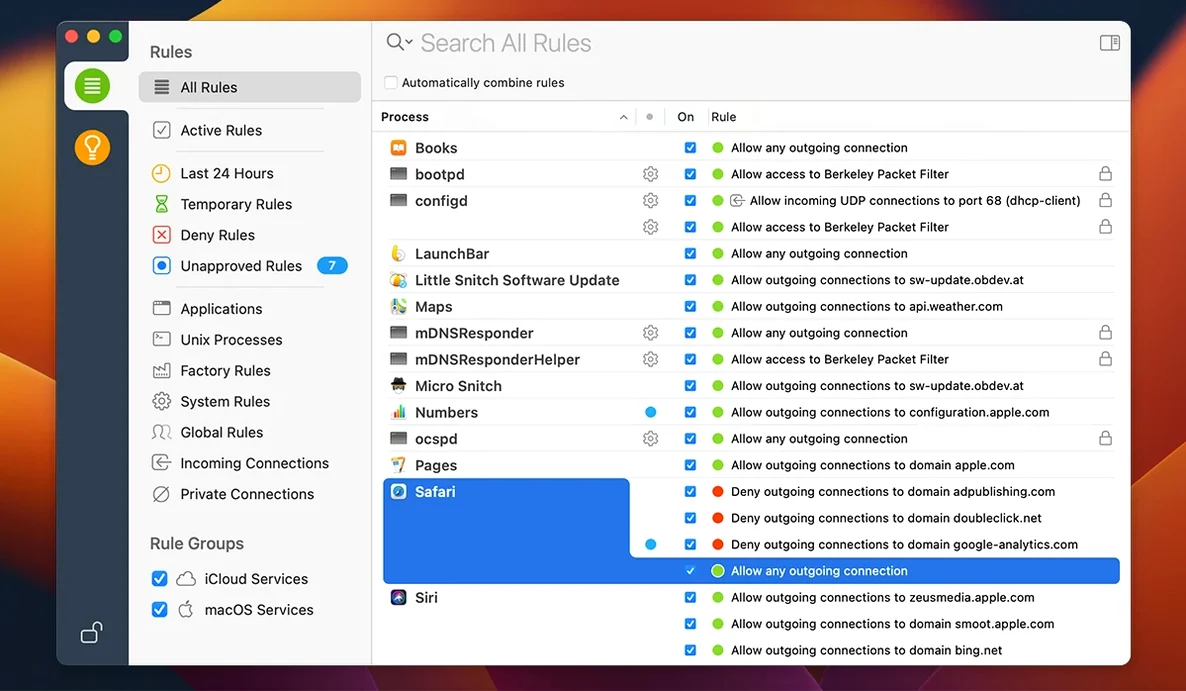
When an app tries to reach a server on the Internet, Little Snitch shows a connection alert with the app name, target server and port. You decide once, or create a rule that applies every time.
How do you review what is already happening?
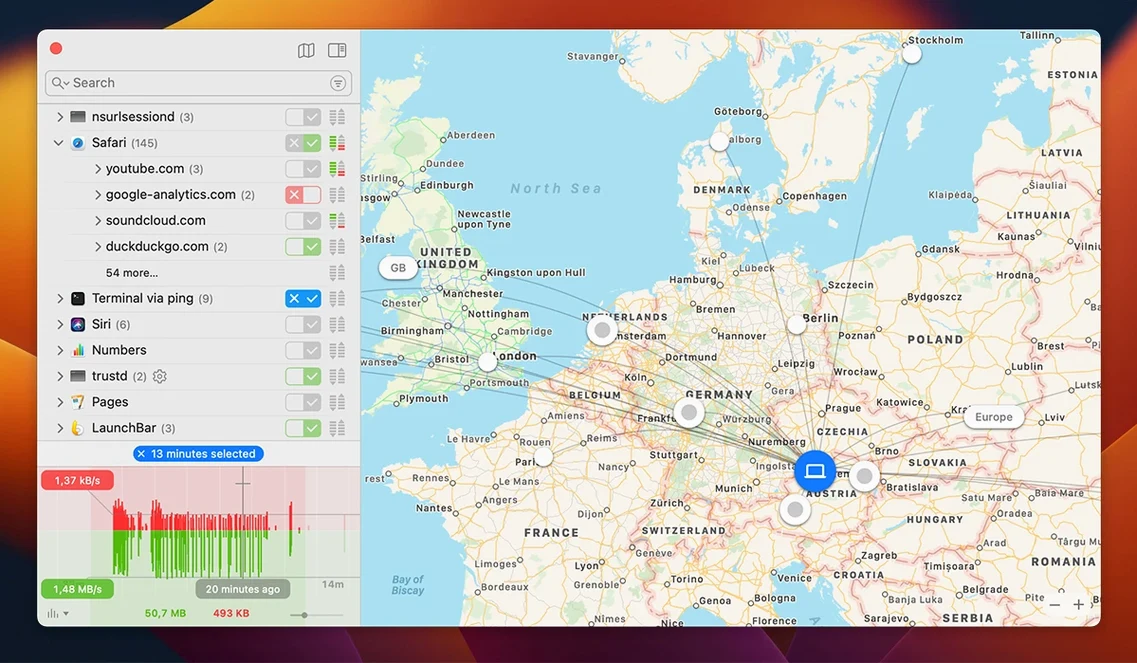
The Network Monitor breaks activity down as an app and server list, a world connection map, and an hourly traffic history. Quiet Mode postpones notifications and decisions if you need uninterrupted work.
Visibility Into Hidden App Connections and CLI Rule Automation
Anyone who wants visibility into background connections from apps, updaters and helper tools. It also supports script-based use through a command-line tool for automated rule handling.
New Filtering Engine Replaces Kernel Extension
Version 6.5 replaces the older kernel-extension filtering approach with a newer filtering engine, adds app bundle integrity monitoring while an app is running, and improves encrypted DNS handling.
Keyboard Modifiers That Change What Allow or Deny Does
After a few weeks of alerts, most people settle into a rhythm—clicking Allow or Deny without looking at the detail. A handful of keyboard modifiers change what that click actually does, and they are not labelled anywhere obvious in the alert window.
- Option-click any button to create a rule that applies only to that exact port, not to any port the app might try later. The button text does not change, but the rule editor that follows will show the restricted scope.
- Hold Control while clicking Allow and the rule is created as a temporary rule that expires at the end of the session. Useful for apps you do not fully trust yet but need to let through right now.
- Command-Shift-A while the alert has focus approves the connection for the process and every related sub-process in its hierarchy. A small thing, but it cuts down the three-alert chain that Electron apps and browser helpers often trigger.
The Network Monitor has its own set of hidden moves. Double-clicking a server row while holding Command opens the rule that governs that connection in the Rules window. Right-clicking a process and choosing Filter by Process temporarily hides everything else—faster than scrolling through the sidebar when you are chasing one noisy helper daemon. The world map itself is not just decorative; dragging a box around a region selects all connections to servers geolocated there, and you can apply a bulk rule immediately.
Preferences That Dial Back the Alert Flood After Day One
Out of the box, Little Snitch is alert-forward and safety-oriented. That is the right default, but a few preferences make it less intrusive on day two.
Silent Mode vs. Alert Mode
The default is Alert Mode: every unruled connection stops and waits. Switch to Silent Mode with connection approval for the first afternoon, and the firewall will log everything without interrupting you. Later, you can audit the log and build rules from history instead of reacting in real time. The setting lives under Little Snitch > Settings > General > Alert Mode.
Research Assistant Behaviour
When an alert appears, the Research Assistant panel on the right tries to show domain ownership and reputation data. It phones home to Objective Development to do that. If you prefer the firewall not to leak query traffic, disable Send DNS queries to Research Assistant server under Settings > Research Assistant. The panel will still show what is cached locally, just without live lookups.
Temporary Rule Expiry
Temporary rules created during a session are kept for one hour after the app quits by default. The timer is adjustable: under Settings > Rules > Temporary Rules, you can set expiry anywhere from 15 minutes to 24 hours, or choose Until next login. Setting it shorter reduces rule clutter; setting it longer helps when you are testing an app over several work blocks.
Profile Switching
Profiles are named sets of rules plus a default policy. The built-in profiles include Local Network Only, Internet Access Blocked, and Custom. What is easy to miss: you can bind a profile to a specific Wi-Fi network name. When the Mac joins that SSID, the profile activates automatically. Configure this under Settings > Profiles by selecting a profile and checking Activate for specific networks. Travelling users often set a restrictive profile for public Wi-Fi and a relaxed one for home.
How Little Snitch Compares with Similar Mac Apps
Three other apps occupy overlapping territory: Radio Silence, Lulu, and Murus. They differ in how much they expose to the user and how they enforce policy.
Radio Silence
Radio Silence is the blunt instrument. You drag an app into its window and it blocks all network access from that app, full stop. No per-server rules, no port-level decisions, no alerts. It uses the same Network Extension framework but strips the interface down to a single list of blocked processes. For a person who wants three or four apps permanently air-gapped and never wants to see a popup, Radio Silence is the simpler tool. Little Snitch covers that use case too—just set a deny-all rule for an app—but it invites granularity that Radio Silence deliberately avoids.
Lulu
Lulu is the open-source alternative, maintained by Patrick Wardle under the Objective-See foundation. It provides outbound firewall alerts and a rule list in a similar shape to Little Snitch, but without the Network Monitor map, traffic history, or encrypted DNS handling. Rule editing is coarser: Lulu lets you allow or block on a per-process basis, with optional per-endpoint rules, but the interface for editing those endpoint rules is less visual. Lulu also lacks profile switching tied to network SSIDs and the Research Assistant domain reputation data. For users who want the core alert-and-rule loop without any analytics or geolocation views, Lulu is a capable, lighter-weight option.
Murus
Murus is an interface layer on top of the built-in PF (packet filter) subsystem in macOS. It is not an outbound application firewall in the Little Snitch sense; it works at the packet and port level, not per-process. You can build very precise network-wide rules—rate limiting, NAT, port forwarding—but you cannot say "block App X from reaching server Y" without also understanding which IP addresses and ports App X uses. Murus appeals to network engineers who think in terms of interfaces and subnets. Little Snitch appeals to people who think in terms of apps and domains. Both can coexist, though the overlapping rule layers need care.
Taming the First-Hour Connection Storm From Background Processes
If you install Little Snitch on a Mac that has been running for years, the first hour throws dozens of connection alerts from background processes you did not know existed. That is normal. How you handle the first wave determines whether the tool feels like a guardian or a nuisance.
- Start in Silent Mode with connection logging enabled. Let the Mac run for a full workday: check email, browse, use your usual apps, let Time Machine run, let iCloud sync. By evening, the Network Monitor will contain a realistic picture of what your Mac actually talks to.
- Review the log by traffic volume, not by process count. In Network Monitor, sort by Traffic Volume descending. The top five entries will likely be your browser, your email client, and a couple of system services. Build rules for those first, because they account for 90% of the noise.
- Use the Suggestions pane. Under Rules > Suggestions, Little Snitch groups temporary rules that have expired and patterns it has detected. Approving or denying suggestions in batches is faster than reacting to individual alerts.
- Group related processes. An app like Google Chrome will spawn separate network processes for the browser, the updater, the crash reporter, and the GPU helper. Instead of four rules, create a single process-group rule. In the Rules window, select the processes, right-click, and choose Create Group Rule. One decision handles them all.
- Export your ruleset early. Once you have a clean set of rules that match your workflow, export it via File > Export Rules. If you ever need to reset Little Snitch or move to a fresh Mac, re-importing that file saves the whole training period.
- Check for bundle integrity drift. Version 6.5 monitors app bundle integrity while the app is running. If Little Snitch flags that an app's code signature or bundle hash changed mid-execution, take it seriously. It can indicate an in-memory compromise or a rogue update mechanism. The alert text will look different from a standard connection alert—do not dismiss it reflexively.
Switching Networks as a Developer Without Leaking Data
Clara develops a macOS utility that synchronises files to S3-compatible storage. She works from a co-working space three days a week and from home the rest of the time. She installed Little Snitch the day after a peer mentioned that their build pipeline was phoning home to analytics servers they had never configured.
On Monday morning, Clara connects to the co-working Wi-Fi. Little Snitch detects the SSID change from her home network and switches to her Public Wi-Fi profile. That profile blocks all outbound connections except HTTP/HTTPS on ports 80 and 443 from Safari, her VPN client, and the terminal. Her file-sync app launches and attempts a connection to an S3 endpoint; the alert appears, and she allows it with a temporary rule that expires when she leaves the network. She does not want that rule persisting onto her home profile where the network context is different.
Midday, her Rust build toolchain tries to reach crates.io. The alert shows a server she recognises, but on a high port she did not expect. She holds Option, clicks Allow, and the resulting rule restricts access to that specific port. Five minutes later she catches a second alert from the same process trying a different port—blocked, because the rule she just created does not cover it. She investigates and finds a misconfigured environment variable. Without Little Snitch, that second connection would have succeeded silently.
Back home in the evening, she opens the Network Monitor and switches to the hourly traffic history view. A spike at 14:30 corresponds to an iCloud sync burst triggered by a large file she dropped into Pages without thinking about it. The traffic map shows connections to Apple data centres in Oregon and Denmark. Nothing unexpected, but the visibility means she does not have to trust—she can verify.
Before shutting down, she runs the command-line tool to dump all rules tagged temporary and reviews them for anything she should convert to permanent before they expire overnight. Two rules from the afternoon session get promoted; the rest she lets lapse. The whole audit takes under two minutes.
- Compatibility — adds support for macOS 27 Golden Gate.
- Integrity monitoring — monitors app bundle integrity while the app is running.
- NAT64 — includes an experimental NAT64 implementation.
- DNS handling — improves encrypted DNS handling.
- macOS 14 or later
- Apple Silicon and Intel Macs
- Interface languages: English, German
Questions on file
Does Little Snitch only block outgoing connections?
Little Snitch primarily alerts on outbound connections. Version 6.5 no longer uses hostnames for inbound connections, which affects how inbound traffic is displayed in rules and monitoring.
Sign in · Create an account to add a field note.
No field notes yet. A measurement, a version, a machine — they appear after moderation.