Mac Apps
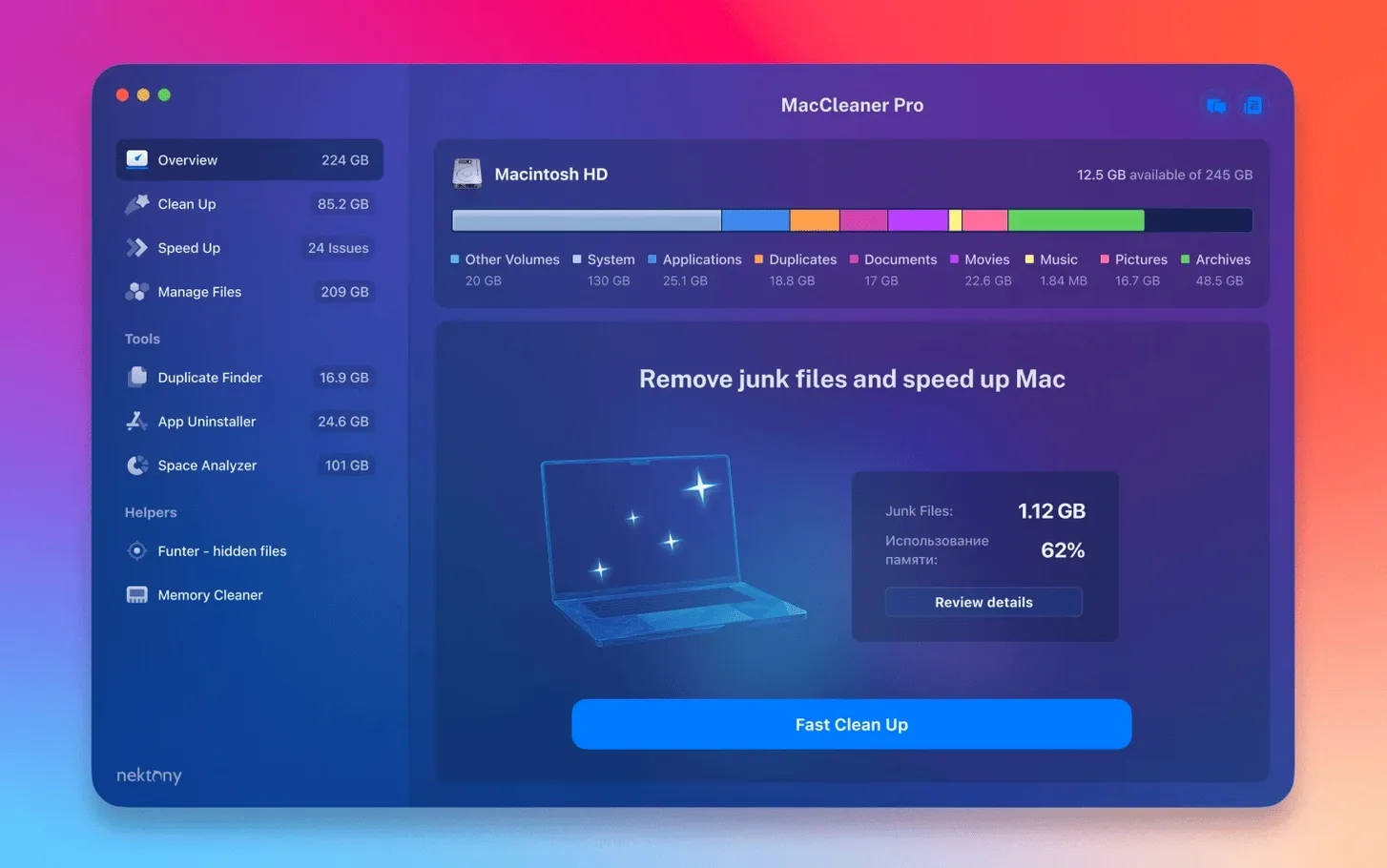
MacCleaner Pro 4.0.4
Mac AppsUpdated
| Requirement | On file |
|---|---|
| macOS | macOS 10.13 or later |
| CPU | Apple Silicon, Intel 64-bit |
| Download | 132 MB |
- Run Duplicate File Finder PRO once. It scans file names and content, then groups matches by folder. The merge-folder view helps when you have scattered project assets.
- Open Disk Space Analyzer PRO next. It renders a treemap of your drive—coloured blocks sized by file footprint. Click into any block to reveal subfolders; a 30 GB block shrinks to specific cache directories in two clicks.
- Use App Cleaner & Uninstaller PRO when a drag-to-Trash removal leaves behind LaunchAgents or container folders. The app lists leftovers the standard uninstaller misses and lets you manage login items and system extensions from one panel.
- Toggle on Funter if you need to surface hidden files. It adds a menu-bar item that shows invisible items in Finder and lets you toggle visibility without terminal commands.
The bundle adds four utilities beyond the core cleanup engine. That matters when you already rely on macOS storage management and Activity Monitor: Apple’s tools give you an overview, while MacCleaner Pro lets you act on specific file clusters, old extensions and duplicate sets that the system doesn’t flag. It runs on macOS 10.13 and later, native on both Apple Silicon and Intel 64-bit Macs.
A Real Workflow: Clearing Space Before a Large Export
Say you need to free 40 GB for a video export, and the usual suspects—Downloads, Trash, Desktop—are already clean. Here is how the bundle earns its keep in under fifteen minutes.
- Map the drive with Disk Space Analyzer PRO. Launch it and let the treemap render. Sort by size descending; the largest blocks surface immediately. In my case, a 62 GB
Users/Name/Libraryblock dominated the map. Clicking through revealed an old iOS backup inMobileSyncweighing 18 GB, plus Adobe Media Cache files at 11 GB. Neither showed up in macOS Storage Management as separate line items—they were buried in the grey “System Data” bar. - Delete directly from the treemap. Right-click the iOS backup folder and choose Move to Trash. The treemap redraws in seconds, confirming the reclaimed space. No need to launch Finder separately; the analyser is the file browser here.
- Hunt duplicates in the scratch folder. Open Duplicate File Finder PRO and point it at
~/Documents/Exports—a scratch directory where I had rendered test clips for weeks. Set the scan mode to Content (not just name) so it catches files renamed during export presets. The scan returned 23 duplicate sets, mostly ProRes 422 clips with different filenames but identical byte-for-byte content. The Merge Folders view grouped them by original location, so I could delete the ones in subfolders while keeping the master copies. - Strip leftover app fragments. App Cleaner & Uninstaller PRO listed a video utility I had dragged to Trash months ago; its LaunchAgent and two container folders remained in
~/Library. Selecting the app in the left panel and clicking Uninstall pulled all three orphans at once, including a 1.2 GB kext cache. - Clear inactive RAM before export. Open Memory Cleaner—its menu-bar indicator sat at 87% with 6 GB of that as inactive memory held by closed apps. Click Clean Memory. The inactive pool drops to under 300 MB, and available RAM jumps by nearly 5 GB. For memory-hungry encoders, that is the difference between swap thrashing and a steady render.
Total reclaimed: 31 GB from the backup and caches, 8 GB from duplicate footage, 1.5 GB from app leftovers. The export ran without the startup disk warning.
A Forty-Minute Rescue for a Sluggish Mac
Wednesday morning. The Mac feels sluggish, and a backup reminder nags about insufficient space. Here is how a forty-minute cleanup session unfolds with the full suite.
09:10 — Start with the menu bar. Memory Cleaner shows 14.2 GB used out of 16 GB, with 4.1 GB marked inactive. Chrome closed twenty minutes ago, but its memory pages still sit in RAM. Clicking Clean Memory drops the used figure to 9.8 GB. The Dock stops lagging on magnification.
09:15 — Audit what is eating the SSD. Disk Space Analyzer PRO opens to a 512 GB drive with 34 GB free. The treemap paints a clear picture: ~/Movies at 187 GB, ~/Library at 78 GB, ~/Documents at 54 GB. Drilling into Library shows Application Support holding 41 GB, and inside that, three folders named for apps I had not opened in two years. Each gets a right-click Move to Trash.
09:25 — Duplicate pass on the media folders. Duplicate File Finder PRO targets ~/Movies with a minimum file size filter of 100 MB. I enable the Similar Folders detection mode. The scan takes six minutes on a 187 GB folder and returns 31 duplicate groups. The interface marks the oldest copies in each group; I batch-select those and delete them. One folder pair—RawFootage_Oct and RawFootage_Oct_backup—are identical at 22 GB. Merging them reclaims space without losing a single clip.
09:40 — Extension and login item cleanup. App Cleaner & Uninstaller PRO does more than app removal. Switching to its Extensions tab reveals three Quick Look generators for file formats I no longer use, a Spotlight importer from a deleted app, and two login items that launched without my consent. Disabling them from this panel is faster than digging through System Settings > General > Login Items.
09:47 — Surface hidden files with Funter. I remember a large .pkg installer I had downloaded and lost track of. Funter’s menu-bar toggle makes invisible files visible in Finder; a quick sort by size in the ~/Downloads folder surfaces a 4.7 GB Xcode installer sitting in a hidden .Trashes subfolder that Spotlight ignores. Dragging it to Trash via Funter’s Finder integration removes it cleanly.
09:50 — Final check. Disk Space Analyzer refreshes: 82 GB free. macOS System Settings confirms the number. The backup proceeds without interruption.
When Disk Space Analyzer Disagrees with Finder
No cleaner bundle is frictionless. These are the rough edges users report most often, and the workarounds that resolve them.
Disk Space Analyzer shows wildly different numbers from Finder. Finder calculates size by reading the file catalog; the analyser walks the directory tree and sums actual block usage. The discrepancy often comes from hard-linked files, APFS snapshots, or Time Machine local backups that Finder counts once but the analyser counts per link. The fix: wait for the analyser to finish its full scan—the treemap updates its tally at the end. If the gap persists, check for APFS snapshots with tmutil listlocalsnapshots in Terminal and delete stale ones.
Duplicate File Finder flags files you need to keep. The content-scan mode compares byte streams, so two files with identical data but different purposes—say, a config file copied to multiple project folders—will both appear as duplicates. Use the Merge Folders view to see the folder context for each copy before deleting. If you are unsure, move suspected duplicates to a holding folder rather than deleting outright; the app offers a Move to Folder option alongside Trash.
App Cleaner & Uninstaller reports leftover items after an app has already been deleted. This happens when an app was dragged to Trash manually before the bundle was installed. The uninstaller reads a database of known app components and cross-references it with what is on disk. The listed leftovers are real files; selecting the app name and clicking Uninstall removes them. If the app name appears greyed out, the executable is gone but the support files remain—the uninstaller can still clean those.
Memory Cleaner triggers a brief system freeze after cleaning. When inactive memory is large and wired memory is high, macOS must page active data back from compression before releasing the pool. The freeze lasts two to five seconds and is normal. Reducing the auto-clean threshold in Memory Cleaner’s preferences (set it to 80% instead of the default) prevents cleaning during heavy I/O.
Funter’s hidden-file toggle does not stick after a restart. Finder resets hidden-file visibility on reboot by default. Funter re-applies the toggle at login if you enable Launch at Login in its preferences. Without that, you must toggle it on manually after each restart.
Video Editors Buried in Render Caches
The bundle is not for everyone. Its value concentrates in a few specific user profiles where disk pressure and app clutter are recurring pains.
Video editors and motion designers. Render caches, project backups, LUT packs, and plug-in installers pile up in ways that macOS storage tools do not itemise. Disk Space Analyzer’s treemap turns a single System Data blob into named folders you can act on. Duplicate File Finder catches cloned footage that editors copy between projects, often saving tens of gigabytes on a single pass.
Developers who juggle SDKs and simulators. Xcode alone can consume 30 GB across device support files, simulator images, and derived data. App Cleaner & Uninstaller PRO finds leftover components when SDK versions are uninstalled. Funter surfaces hidden .git and .bundle directories that accumulate in project folders and can safely be purged when archiving old work.
People running Macs with 128 GB or 256 GB internal storage. On small drives, the margin between “plenty of space” and “Startup Disk Full” is narrow. The bundle’s four disk-focused tools—analyser, duplicate finder, app uninstaller, and hidden-file manager—give you targeted ways to reclaim 10–30 GB without deleting personal files or relying on the opaque “Optimise Storage” checkbox.
Users who frequently install and test software. Every drag-to-Trash uninstall leaves a trail: LaunchAgents, caches in ~/Library/Caches, preferences in ~/Library/Preferences, and container folders in ~/Library/Containers. Over six months of testing apps, these leftovers can quietly consume 5–15 GB. App Cleaner & Uninstaller PRO catches them in bulk.
If you mostly use a browser, a mail client, and a word processor, the bundle offers less daily utility. macOS’s built-in storage management handles that kind of usage competently enough. The tools earn their keep when you are pushing against disk limits or managing large, duplicated media sets.
Stop Scanning Every External Drive on Launch
The defaults are sensible, but a few tweaks make the suite faster and less intrusive from day one.
Disk Space Analyzer PRO: disable “Scan external drives on launch.” By default, the app scans every connected volume. If you work with a 12 TB RAID or a Time Machine disk, this adds minutes to every launch. Uncheck the option in Preferences > General and scan external drives manually when you need them.
Duplicate File Finder PRO: set a minimum file size. Scanning tens of thousands of tiny preference files or caches for duplicates wastes time and returns negligible space savings. Set the size filter to 10 MB or higher—most space-wasting duplicates are media files, disk images, and large documents, not small plists. You can adjust it per scan from the filter bar at the top of the window.
Memory Cleaner: switch to manual-only mode. The automatic clean trigger can fire during renders or large compiles, causing a momentary pause. In Preferences, set Auto clean when free memory is below to the minimum value or disable it entirely. Manually triggering a clean from the menu bar before resource-heavy tasks gives you control over when the pause happens.
App Cleaner & Uninstaller PRO: enable “Scan for leftovers on launch.” This is off by default. Turning it on under Preferences > General means the app cross-references its database against the current file system every time you open it, catching recently deleted apps without a separate scan step. The check takes a few seconds and is worth the wait.
Funter: pin the toggle to the menu bar. The default Finder integration is useful, but the
- macOS 10.13 or later
- Apple Silicon or Intel 64-bit processor
Questions on file
Which tools does MacCleaner Pro include beyond basic cleanup?
It bundles Disk Space Analyzer PRO for treemap-based usage analysis, Duplicate File Finder PRO for content-matched duplicates, App Cleaner & Uninstaller PRO for thorough app removal with extension management, and Funter for hidden-file visibility.
Does MacCleaner Pro 4.0.2 run on Apple Silicon Macs?
Yes, version 4.0.2 supports Apple Silicon and Intel 64-bit Macs running macOS 10.13 or later.
Sign in · Create an account to add a field note.
No field notes yet. A measurement, a version, a machine — they appear after moderation.