Mac Apps
Magic Battery 11.0.0
Mac AppsUpdated

| Requirement | On file |
|---|---|
| macOS | macOS 15.6 or later |
| CPU | Apple Silicon, Intel 64-bit |
| Download | 9 MB |
With macOS 15.6 or later, the app supports both ARM and x86 64-bit architectures and detects connected or disconnected Bluetooth devices automatically, adjusting the menu bar view without manual refreshes.
Set a low-battery notification for a Magic Mouse 2
Once the mouse is paired, Magic Battery lists it among detected devices. Open the app preferences from the menu bar and enable the alert threshold — the only preset is 20%. The app sends a standard macOS notification when the mouse drops to that charge, so you swap batteries or plug in before it dies mid-task.
Switch to icon-only mode for a cleaner menu bar
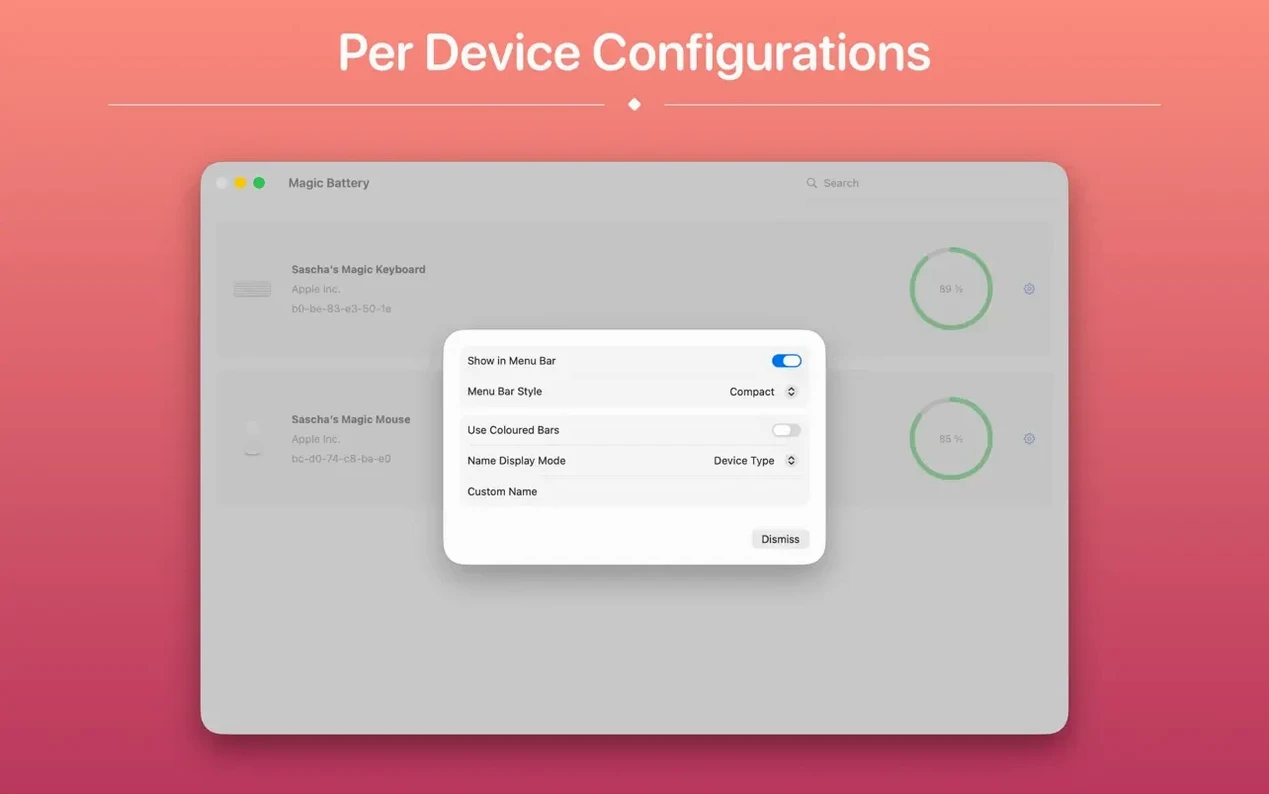
Right-click the battery icon and choose the icon-only display mode from the menu. The text and percentage disappear, leaving a small glyph that still conveys charge level at a glance. If you later need exact figures for the Magic Trackpad 2 or internal battery, switch back to detailed or compact mode the same way.
Check all devices in the drop-down window
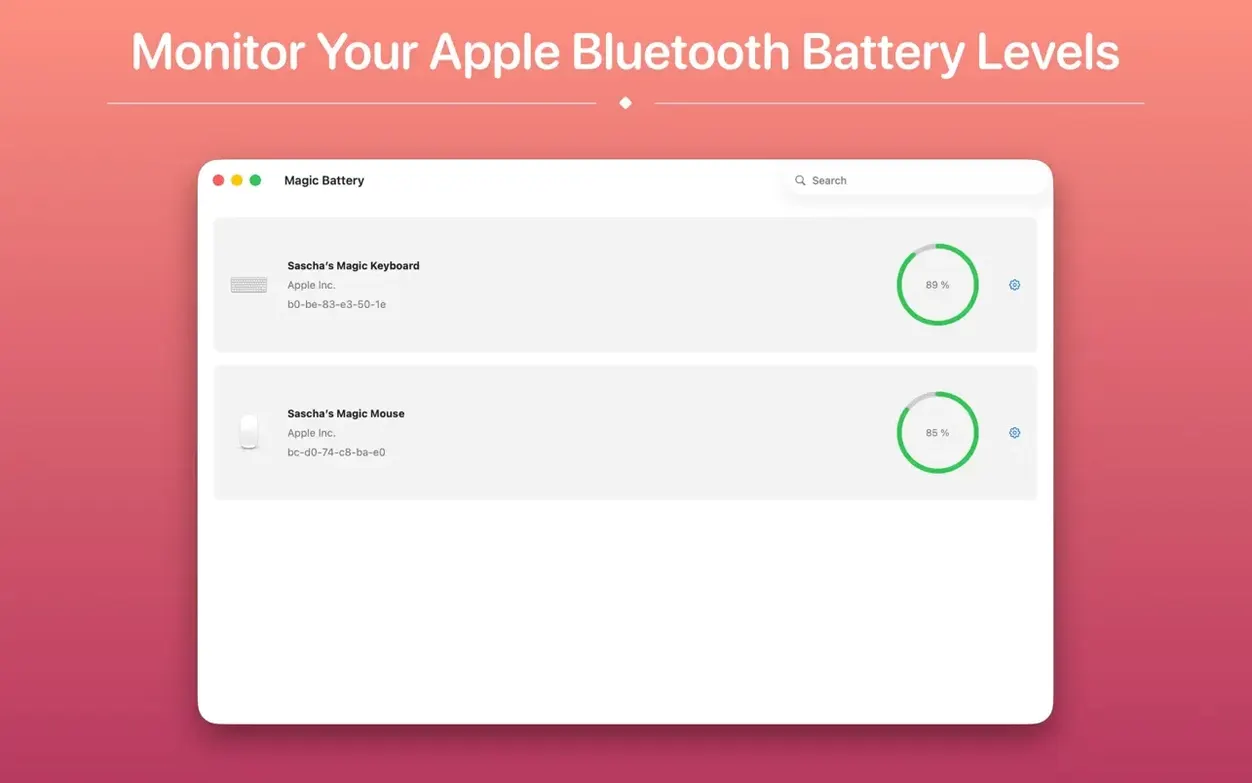
Click the menu bar item once — a window opens directly below it showing every supported device and its current charge. The list includes the Apple Wireless Trackpad, Magic Trackpad 2, Magic Mouse 2 and any internal batteries. Connected and disconnected devices appear side by side, so you see the status of a keyboard stored in a drawer as easily as the one on your desk.
Workflow: Log battery levels before a full workday
Start the workday by clicking the menu bar item — the drop-down window lists every connected and remembered device with its current charge. Hover over the internal battery entry to see the runtime estimate, then scan the Bluetooth peripherals: a Magic Trackpad 2 at 87%, a Logitech MX Anywhere 3 at 64%, and Apple Wireless Keyboard at 41%.
Note the keyboard figure. Open the app preferences and check that the 20% notification is active. With the keyboard already below half charge, you know it will likely hit the threshold by late afternoon. Swap in a spare set of rechargeables now, before a video call at 10:00 makes the interruption inconvenient. The app updates the keyboard percentage within seconds of the fresh batteries connecting. Close the drop-down window and keep the menu bar in compact mode — the slim bar shows just enough to confirm all devices are alive without pulling focus.
Scenario: A graphic designer with three Logitech devices
A designer runs a MacBook Pro with an external monitor, a Logitech K780 keyboard, an MX Anywhere 3 mouse, and a Logitech Pebble as a travel backup. All three sit in a desk drawer when not in use. Before a client presentation, they click the Magic Battery menu bar item and see the K780 at 55%, the MX Anywhere 3 at 18%, and the Pebble — disconnected but still listed — at 90%.
The 18% mouse triggers the notification threshold. They grab the Pebble from the drawer, wake it with a click, and watch the menu bar update within three seconds to show the Pebble as active at 89%. The MX Anywhere 3 stays visible in the list as a disconnected device, so they know to charge it via USB-C after the meeting. No System Settings trip needed, no Bluetooth menu guessing. The internal battery of the MacBook Pro sits at 72% with an estimated 4 hours 10 minutes remaining — enough for the presentation and the Q&A that follows.
Compared with similar menu bar battery apps
Magic Battery vs. Battery Monitor
Battery Monitor covers internal batteries well, with cycle counts and health percentages for MacBooks. It stops there. Magic Battery adds the Bluetooth input device layer that Battery Monitor omits entirely — a Magic Mouse 2, a Logitech K series board, or a wireless trackpad simply do not appear in Battery Monitor. For a desk with three peripherals, that gap is decisive.
Magic Battery vs. AirBuddy
AirBuddy focuses on AirPods, Beats, and other W1/H1-chip headphones, with a polished proximity-aware pop-up that mimics the iOS battery card. Magic Battery takes the opposite approach: input devices first, headphones as a secondary category. A user with a Magic Trackpad 2 and a Logitech MX Anywhere 3 gets more relevant data from Magic Battery. AirBuddy shows those devices only in a plain Bluetooth list without the same display-mode flexibility or low-battery notifications for peripherals.
Magic Battery vs. iStat Menus
iStat Menus is a full system monitor — CPU, memory, network, sensors, and battery in one menubar suite. Its battery module shows internal charge and health, plus a generic Bluetooth device list pulled from the system. Magic Battery does one thing and does it with narrower focus: graphical per-device icons, three display modes tuned for input devices, and automatic detection that refreshes the view when a keyboard wakes or a mouse disconnects. Where iStat Menus treats Bluetooth batteries as a footnote, Magic Battery builds the whole interface around them. The trade-off is that iStat Menus covers internal battery health metrics in more depth, while Magic Battery keeps the view clean for a quick peripheral scan before work starts.
- Help system — built-in help now covers common questions about devices, the menu bar and settings.
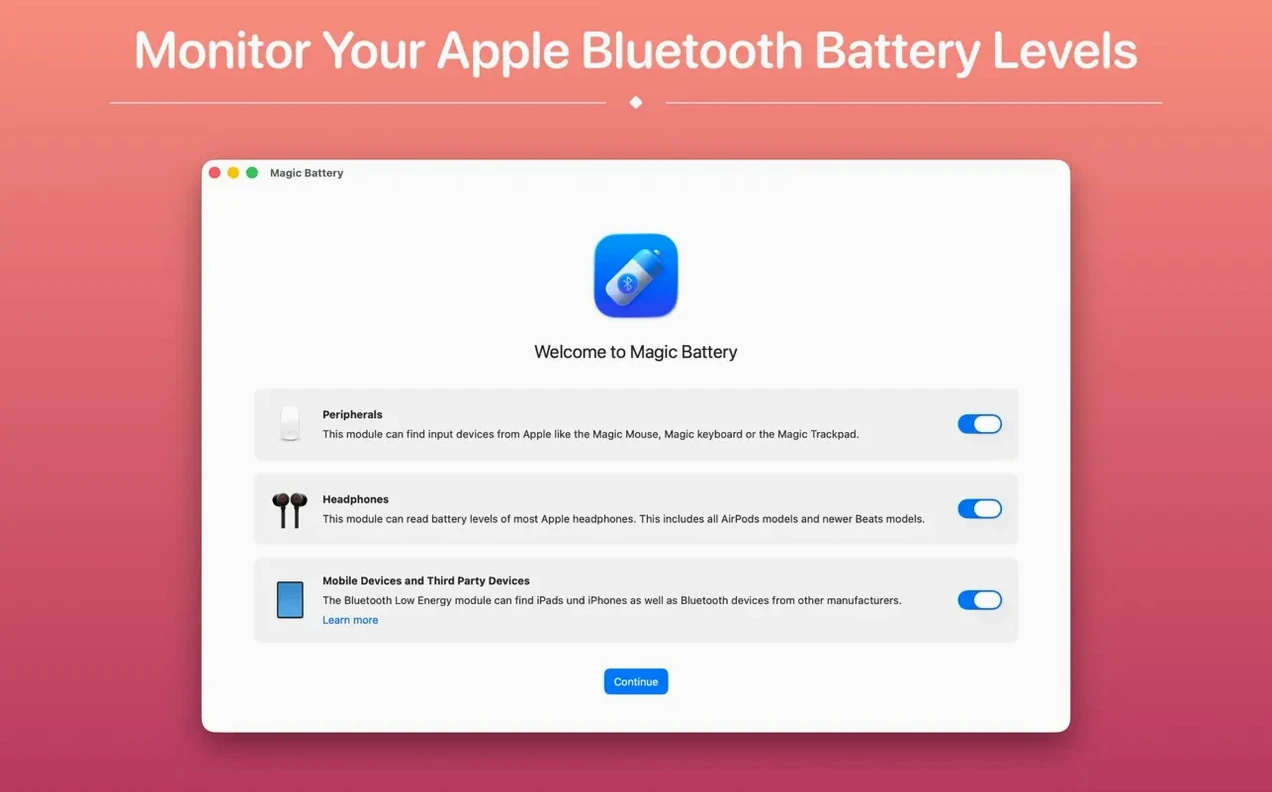
- First-run setup — on initial launch, Magic Battery asks for your preferred menu bar style and whether to enable low-battery alerts.
- Missing devices — when a device does not appear, the app now explains possible reasons.
- Full charge estimate — "Full around" is now accurate while a device charges, instead of showing a date months too late.
- Batteries plugin update — the update can now stop the running plugin first, so the new version installs cleanly.
- Main window — can no longer be shrunk until its content disappears.
- Help menu — no longer lists the contact form twice.
- Architecture — now requires a Mac with Apple silicon. Intel Macs can keep using the previous version.
- macOS 15.6 or later
- Apple Silicon or Intel 64-bit
Questions on file
Which Apple input devices does Magic Battery support?
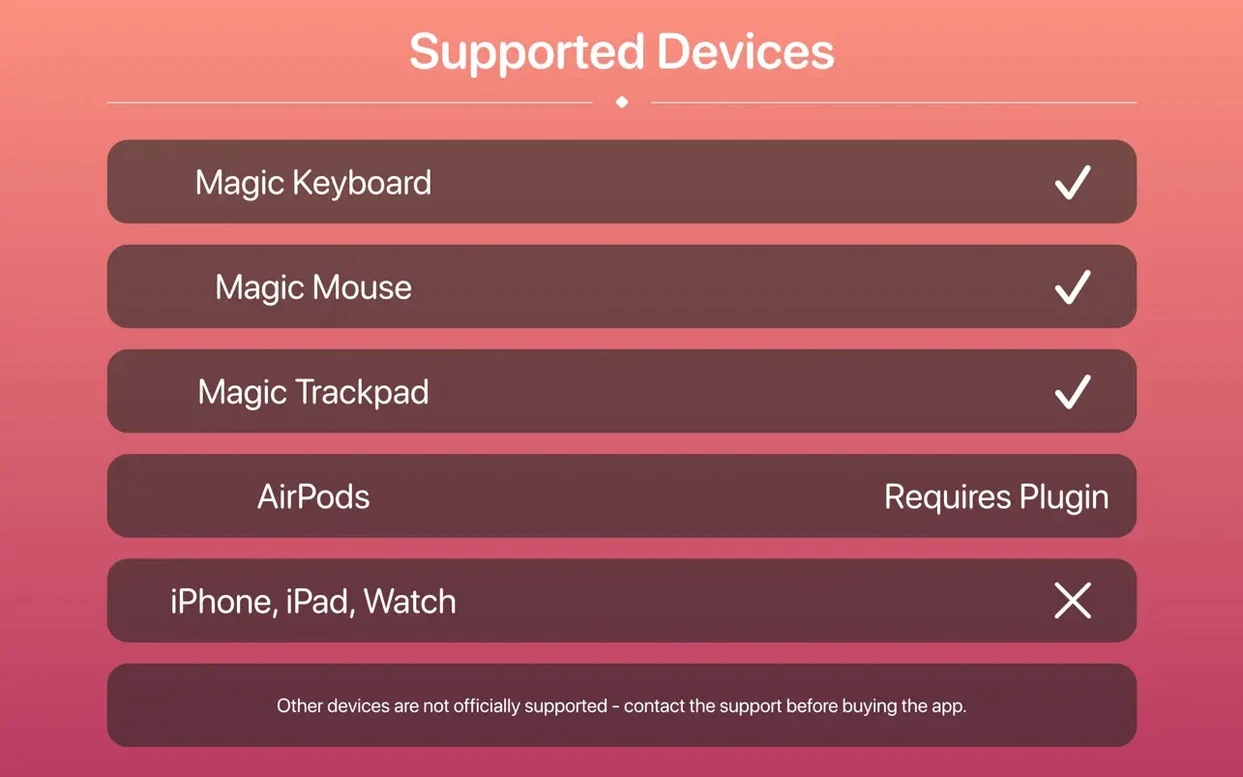
It supports the Apple Magic Trackpad 2, Apple Wireless Trackpad and Apple Magic Mouse 2, along with other Bluetooth input devices and headphones.
Can Magic Battery monitor my MacBook’s internal battery?
Yes, the app supports internal batteries and displays their charge level in the same menu bar interface as external devices.
Does the app need manual refreshing when I disconnect a device?
No, Magic Battery detects connected and disconnected devices automatically and adjusts the menu bar view without any manual steps.
Sign in · Create an account to add a field note.
No field notes yet. A measurement, a version, a machine — they appear after moderation.