Mac Apps
Magnet 3.0.7
Mac AppsUpdated
| Requirement | On file |
|---|---|
| macOS | macOS 13 or later |
| CPU | Apple Silicon, Intel 64-bit |
| Download | 6 MB |
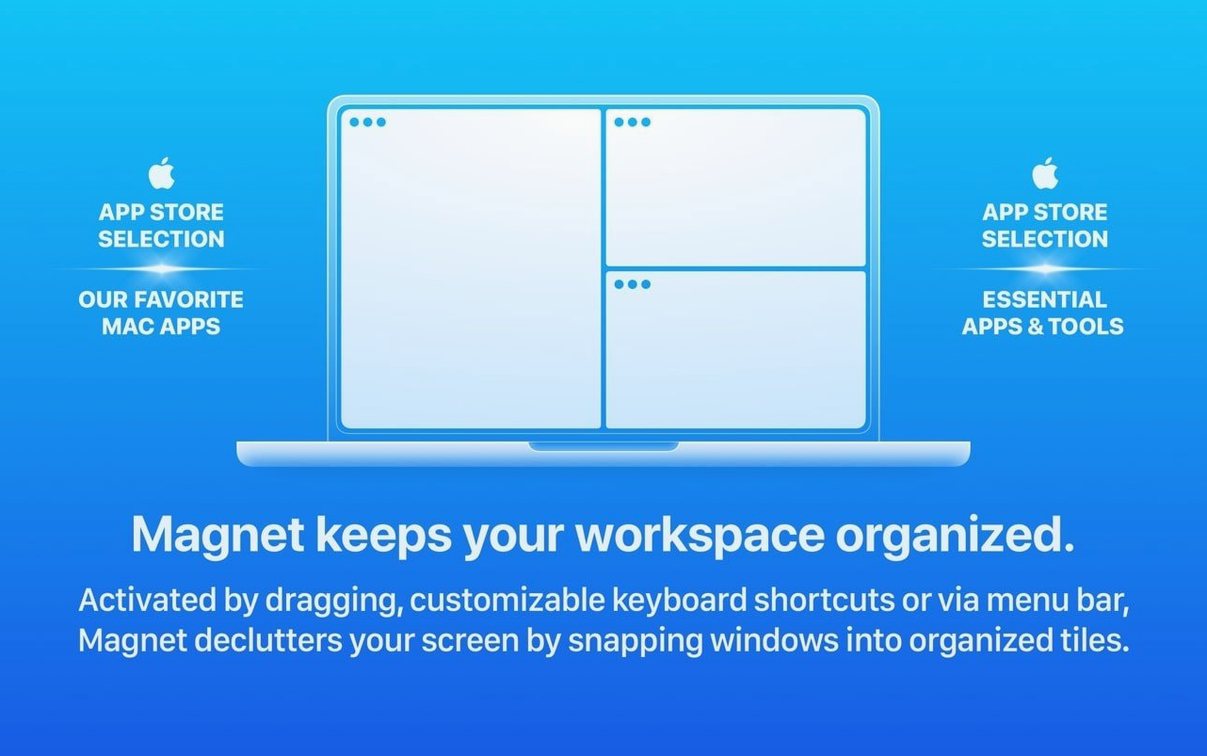
If you habitually press Option while hovering over the green traffic-light button to access a window’s zoom options, Magnet extends that muscle memory across every corner of the desktop. It is a window manager that replaces manual resizing with quick keyboard commands and drag-to-edge snapping, slotting neatly beside Apple’s built-in split-view behaviour.
How does Magnet fit alongside macOS split view?
Apple’s split view pins two windows full-height, side by side, inside a dedicated space. Magnet layers on top of that — it works in the current space, so you can quarter a screen without leaving the desktop or hide the Dock area with a single shortcut.
What layouts can you actually call up?
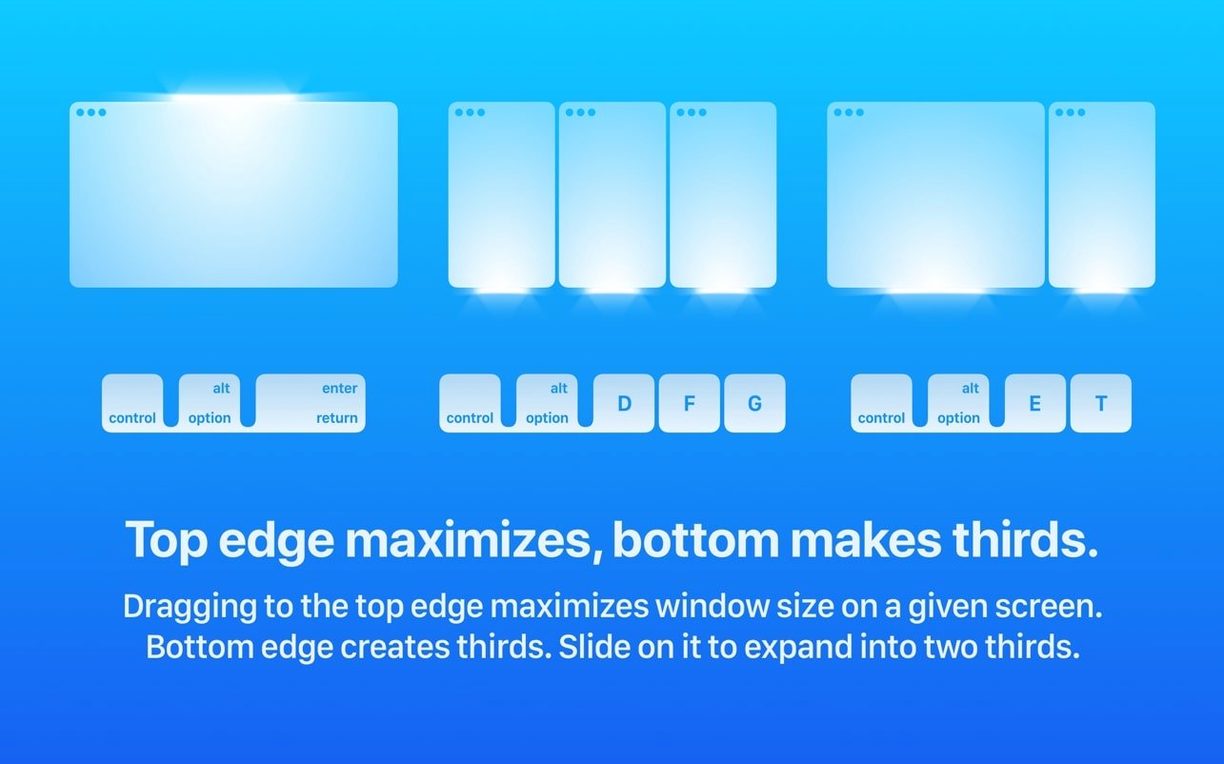
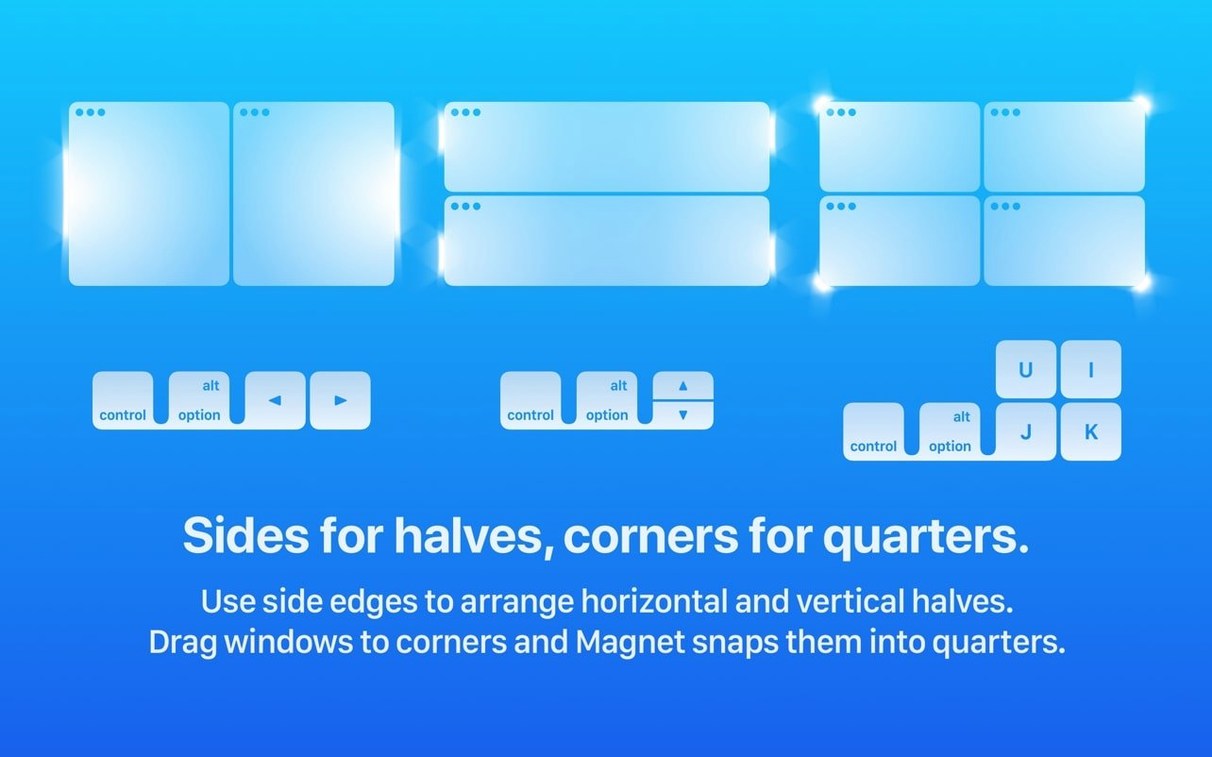
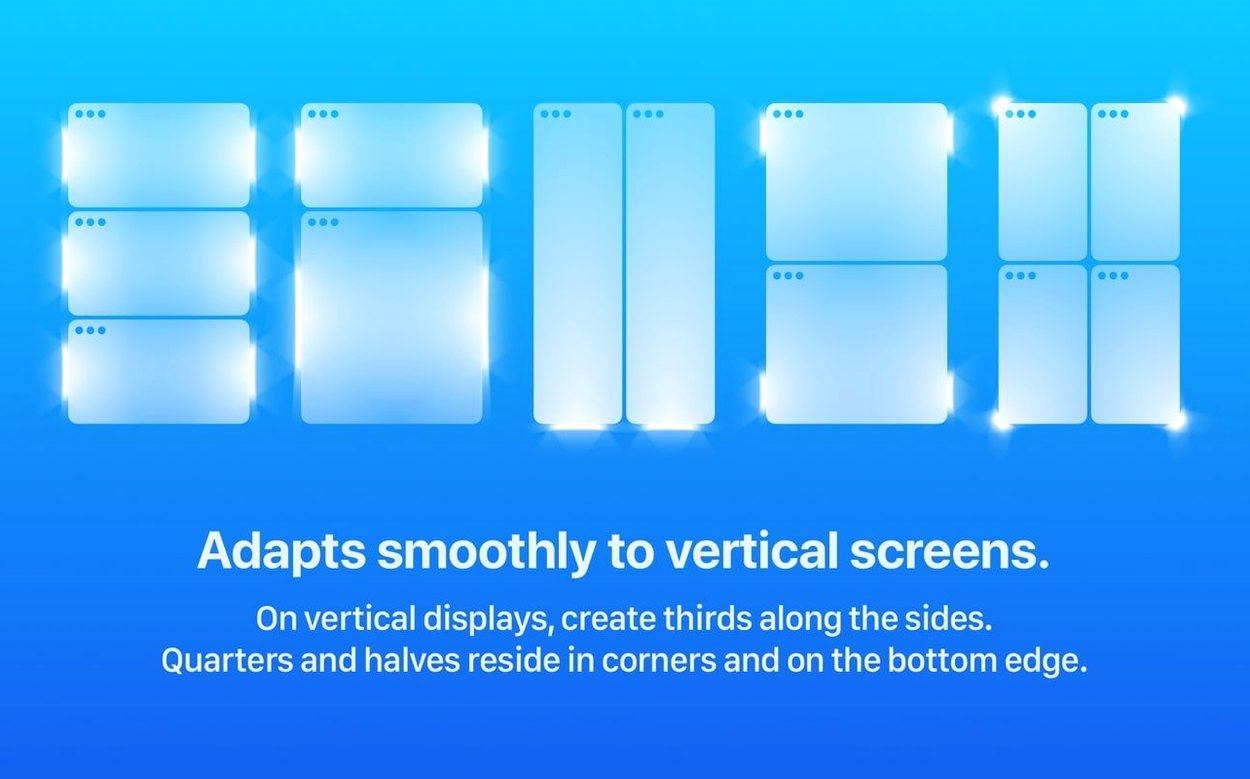
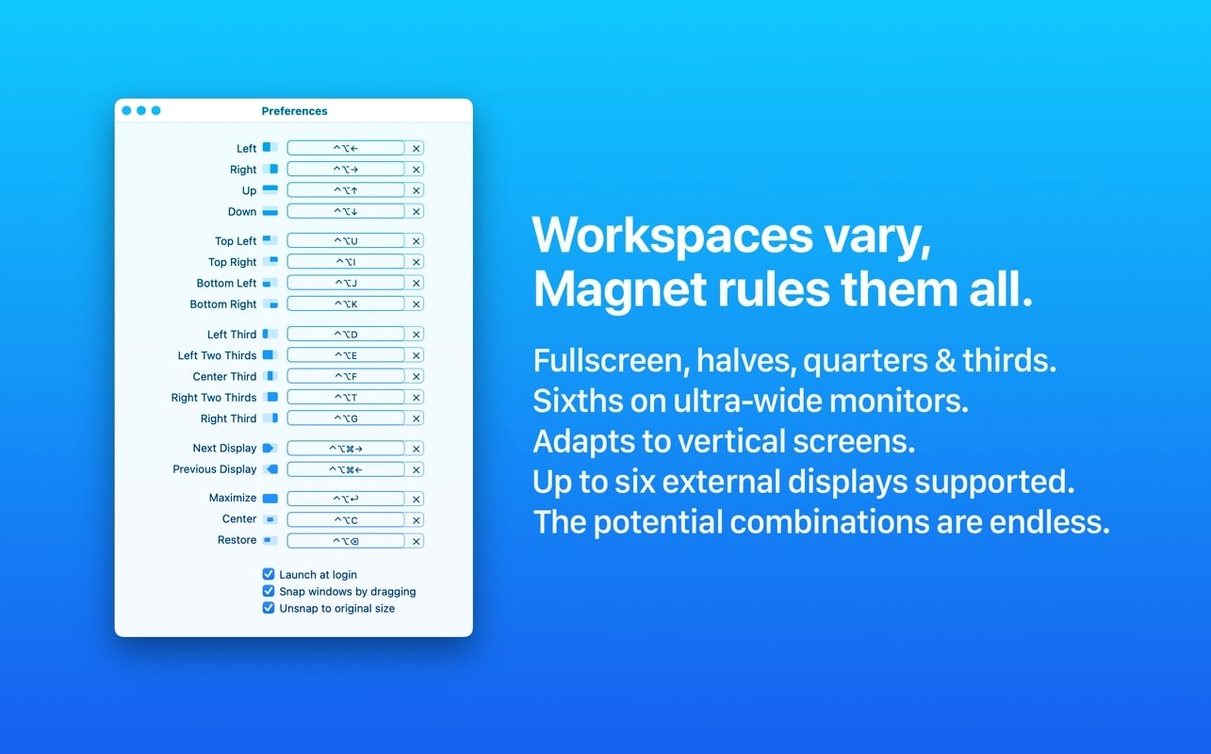
Every command maps to a specific slice of the display: full-screen, left or right half, top or bottom half, and each of the four corners for quarter-screen placement. Dragging a window to an edge triggers the same snap, which feels like the native iPad behaviour brought to the Mac.
Does it keep up with multiple monitors?
Yes — the app tracks up to six external displays independently. A shortcut that sends a window to the right half always targets the display the window currently sits on, which removes the guesswork when you run a laptop plus two or three screens.
What does the setup look like?
Once placed in Applications, Magnet runs from the menu bar. The preferences let you assign custom keyboard shortcuts to each layout action and toggle whether the app launches at login, keeping its footprint minimal until you trigger a snap.
How Magnet Stacks Up Against Other Mac Window Managers
Window managers on macOS fall into two broad camps: those that imitate a tiling window manager by automatically arranging every new window, and those that act only when you ask. Magnet belongs firmly to the second group, which shapes how it compares with Rectangle, Moom, and BetterSnapTool.
Rectangle shares the most DNA with Magnet. Both are freeform snap-to-edge tools that offer keyboard shortcuts for halves, thirds, and quarters. Rectangle adds a few extra resize commands — like "almost maximise" and centre-without-resize — and exposes them through a menu bar drop-down. Magnet counters with drag-to-edge snapping that feels more polished in its animation timing and less likely to misfire on a fast flick. If you want the absolute most shortcut actions without paying, Rectangle edges ahead. If you want the drag mechanic to work as reliably as it does on an iPad, Magnet is the cleaner implementation.
Moom takes a different approach: it overlays a grid or a pop-up palette when you hover over the green button, letting you draw out a custom zone with the mouse. That gives you precise pixel control over window size and position — something Magnet deliberately avoids. Moom also saves window layouts as snapshots you can restore later. The trade-off is friction. Moom requires more clicks or hover time per arrangement, whereas Magnet's keyboard-first design means you tap Control-Option-Right Arrow and the window is already in place before Moom's palette would have finished fading in.
BetterSnapTool is the closest analogue to Magnet's drag-to-edge behaviour. It also lets you customise snap areas and assign shortcuts. Where they diverge is in the settings panel: BetterSnapTool exposes granular controls over snap sensitivity, delay, and exclusion lists, which can be useful if you have a specific app that misbehaves. Magnet keeps those decisions made for you, which means less time in preferences and more predictable results across different Macs.
One Screen, Four Corners: Why Laptop Users Rely on Magnet
Users with a single laptop display benefit from Magnet just as much as those running multiple monitors, but for different reasons. On a 13- or 14-inch screen, quarter-snapping a Finder window, a terminal, a browser, and a notes app into the four corners turns a cramped canvas into a functional dashboard. The key is that Magnet does not require you to enter a special tiling mode — the windows stay where you put them until you move them again, so you can mix snapped and free-floating windows in the same space.
Developers and technical writers who keep reference material open beside their working window tend to gravitate toward the left/right half shortcuts. The difference between manually dragging a window to fill the left 50% of a 27-inch display versus tapping Control-Option-Left is roughly four seconds per arrangement. Over a working day of fifty or sixty window moves, that compounds.
People who present from their Mac also find Magnet useful in a narrow scenario: when mirroring a display at a non-native resolution, macOS sometimes refuses to let windows snap to the visible edges. Magnet's keyboard shortcuts bypass that entirely because they do not rely on the drag gesture — the app calculates the target frame from the display's reported bounds and places the window directly.
If you already use a tiling window manager like yabai or Amethyst, Magnet will feel underpowered because it never rearranges windows automatically. Its audience is people who want predictable, on-demand snapping without changing how macOS manages windows by default.
How Magnet Fits Into a Broader Mac Workflow
Magnet works alongside Stage Manager without conflict. Stage Manager groups windows into sets on the left edge of the screen; Magnet still snaps individual windows within the active stage. The two features address different problems — Stage Manager organises which windows are visible, Magnet organises where they sit.
With Spotlight or Alfred, Magnet becomes part of a keyboard-driven workflow. You launch an app via Spotlight, then immediately snap it with a Magnet shortcut, never touching the trackpad. The sequence is fast enough that you stop thinking about window placement as a separate step — it folds into the act of opening the app.
Shortcuts integration is indirect but real. You can wrap a Magnet keyboard shortcut inside a Shortcuts automation by recording the keystroke as part of a larger sequence, such as opening a project folder, snapping it left, opening a browser, and snapping it right. Magnet itself has no Shortcuts actions, but its global hotkeys are visible to the system's input recording.
For users who rely on Mission Control heavily, Magnet reduces the need to create extra Spaces just to see two windows side by side. You can keep everything in one Space and use half- or quarter-snaps to build the layout, which cuts down on the mental overhead of remembering which Space holds which pair of apps.
Check the Default Shortcuts Before You Rebind
Not checking the default shortcuts before reassigning them. Magnet ships with a set of hotkeys that use Control-Option plus arrow keys and the numpad. Beginners often dive straight into the preferences and reassign shortcuts to combinations that conflict with other tools — Xcode's Scheme switcher, Figma's zoom shortcuts, or even system-level text navigation keys. Before changing anything, spend a day with the defaults and note which combos clash with your actual workflow.
Assuming drag-to-edge replaces the keyboard. Dragging to the top edge triggers full-screen, left edge triggers left half, and so on — but dragging to a corner only works if you aim for the exact corner zone, roughly the outer 10% of the screen edge. Beginners frequently miss the corner and get a half-snap instead, then assume the feature is broken. The keyboard shortcut for quarter-snapping (Control-Option-U for top-left, for example) is more reliable.
Forgetting that Magnet does not remember layouts. If you quit an app and relaunch it, the window opens wherever macOS decides, not where Magnet last placed it. This catches users who come from Moom or a tiling environment. Magnet is stateless by design — it moves the window you give it right now and does not track it afterward.
Ignoring the menu bar icon's secondary functions. Clicking the menu bar icon reveals a list of snap commands with their current shortcuts. Beginners often treat this as read-only reference, but every entry is clickable — you can snap a window directly from the menu if you ever forget a shortcut mid-task.
Running Magnet alongside another window manager. If Rectangle, BetterSnapTool, or a similar tool is active at the same time, both apps will try to interpret the same drag gesture or hotkey, producing unpredictable results. Pick one and quit the others before relying on drag-to-edge snapping.
- macOS 13 or later
- Apple Silicon or Intel 64-bit processor
Questions on file
Which macOS versions does Magnet require?
Magnet 3.0.7 runs on macOS 13 Ventura and later, with native support for both Apple Silicon and Intel (x86-64) Macs.
Sign in · Create an account to add a field note.
No field notes yet. A measurement, a version, a machine — they appear after moderation.