
Mac Apps
Magic Disk Cleaner 6.0.0
Mac AppsUpdated
| Requirement | On file |
|---|---|
| macOS | macOS 15.6 or later |
| CPU | Apple Silicon, Intel 64-bit |
| Download | 7 MB |
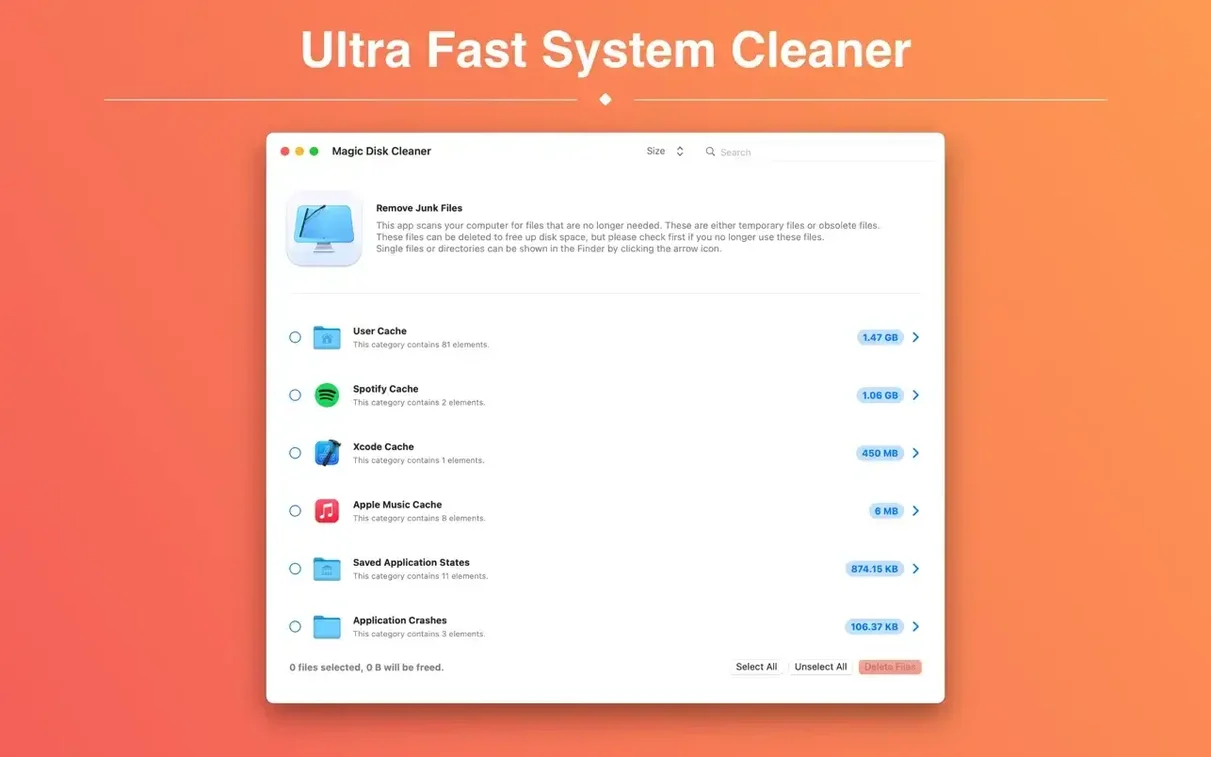
Magic Disk Cleaner is a utility that scans a Mac for temporary files and removes them on command. It starts searching the moment it opens, targeting caches, logs, and other disposable data that applications leave behind. The scan runs without configuration, and nothing is deleted unless a user explicitly approves the action. This direct approach keeps the tool simple: there are no schedulers, no background daemons, and no heuristics that guess what you might want to keep.
- Immediate scan on launch. The search begins as soon as the app appears, so results are ready in seconds without pressing a start button.
- Explicit deletion only. Files are never removed automatically. Every item requires a manual confirmation, preventing accidental data loss.
- Broad temporary-file detection. The scan covers system caches, application logs, and other transient data that standard cleanup routines often miss.
- No persistent background activity. The app runs only when open. It installs no daemons or login items that consume resources while idle.
Because the interface avoids checkboxes, filters, and scheduling panels, the workflow stays linear: open, review, delete, quit. That makes it a practical tool for reclaiming storage space with a predictable, single-purpose routine.
Scans Only Regenerable Caches, Never Your Documents
One of the first concerns is whether Magic Disk Cleaner might delete something important. The scan targets only temporary files — caches, logs, and similar disposable data that applications regenerate when needed. It never touches documents, photos, or user-created content. And because deletion requires an explicit click, nothing vanishes without a decision. If you are unsure about a particular file, you simply leave it alone.
Another common question is about how much space to expect. The figure varies enormously between machines. A Mac that has run for months without clearing caches might free several gigabytes in the first scan. A freshly set up system often yields a few hundred megabytes. The app does not guess or pad the number; the total shown is what the scan actually found on that specific drive at that moment.
People also ask whether the app conflicts with other cleanup tools. Because it has no background component, no daemon, and no automatic triggers, it coexists without interference. You can run it alongside built-in macOS storage management or other utilities. The scan reads temporary locations that the operating system already marks as disposable; it simply gives you a faster way to review and act on them.
On the security side, the app does not transmit data anywhere. It works entirely offline, with no analytics, no network calls, and no external servers. The temporary-file scan is a local read operation, and deletion is a standard file-system command. Gatekeeper may flag the initial launch because the app is distributed outside the App Store, but the workaround is a one-time Terminal confirmation, as covered in the installation steps.
When Final Cut Pro Renders Eat Every Last Gigabyte
Consider someone cutting a documentary project in Final Cut Pro. After a week of rendering, generating proxy media, and testing colour grades, the system drive drops to single-digit gigabytes of free space. The editor knows Final Cut maintains its own cache management, but the storage pressure persists even after clearing render files inside the application.
Opening Magic Disk Cleaner takes under three seconds. The scan completes almost instantly and surfaces a set of temporary items the editor had not considered: Quick Look thumbnail caches from reviewing raw footage in Finder, Adobe After Effects disk caches from motion-graphics tests, and a large GPU driver cache that had grown across multiple export sessions. The total sits at 22.4 GB. The editor reviews the list — item names reference folders from known applications — and clicks the single delete button. Two minutes later, the Mac has breathing room again, and the project drive is back to a workable 80 GB free. No restart required. No preference pane to configure. The editor quits the app and resumes cutting.
Run One Scan Right Away to See Your Baseline
Run the first scan immediately after installing. The initial result gives a baseline of how much temporary data has accumulated, and seeing the file list builds familiarity with what the app considers disposable. On most Macs, the scan finishes in under ten seconds, so there is little reason to postpone it.
After a heavy work session — exporting video, compiling code, batch-processing photos — open the app again. Applications often generate the largest temporary caches during intensive tasks, and catching them right after the fact maximises the recovery. A scan run on Tuesday morning might show 400 MB; the same scan run on Tuesday evening after an afternoon of 3D rendering could show 15 GB.
If a particular application behaves oddly after a cleanup — missing thumbnails, slower first launch — do not panic. The files removed were caches that the application rebuilds on next use. A photo library might regenerate previews the first time you scroll through it. A browser might load pages slightly slower on first revisit. These are one-time costs, and the behaviour returns to normal as the caches repopulate. The tip is simply to expect a brief warm-up period for some apps after a large deletion, and to avoid running the tool right before a time-sensitive task where every second of application launch time matters.
Use the review step deliberately. The scan groups detected files by location or type, and reading the folder names gives context about what created them. If a cache belongs to an application you are actively troubleshooting, skip it. There is no select-all mandate, and partial deletion is perfectly fine. The app treats every scan as a fresh snapshot, so leaving items behind has no effect on future runs.
Scope Clash with OnyX and CleanMyMac
Alongside Magic Disk Cleaner, two utilities often come up in discussions about temporary-file removal on macOS: OnyX by Titanium Software and CleanMyMac by MacPaw. The three tools overlap in their ability to clear caches, but they differ sharply in scope, interface philosophy, and system footprint.
OnyX is a deep maintenance utility that reaches far beyond temporary files. It can rebuild Spotlight indexes, verify disk structures, adjust hidden system parameters, and clear a wide range of caches. The trade-off is complexity. Its interface organises functions across multiple tabs — Maintenance, Cleaning, Utilities, Automation — and many options require an administrator password and a restart. Users who want granular control over every cache type and system maintenance task will find OnyX powerful. Those who want a single-purpose scan face a steeper learning curve and a longer time to result. OnyX also ships as a full installer per major macOS version, while Magic Disk Cleaner works across recent releases without a version-specific build.
CleanMyMac bundles temporary-file cleaning inside a much larger suite that includes malware scanning, optimisation suggestions, and a menu-bar monitor. It runs a background agent that watches system health continuously, which means it consumes resources even when the main app is closed. The scan covers more categories — system junk, mail attachments, large and old files — and the deletion workflow uses checkboxes with colour-coded safety ratings. This design suits users who want an all-in-one dashboard, but the constant background presence and the broader feature set can feel heavy for someone who only needs to clear caches occasionally. Magic Disk Cleaner takes the opposite approach: no agent, no dashboard, no categories to tick. The scan is narrower in scope — temporary files only — and the interaction model is correspondingly quicker.
Where Magic Disk Cleaner stands apart is the zero-configuration workflow. OnyX requires choosing which caches to target from a list. CleanMyMac asks the user to review multiple junk categories. Magic Disk Cleaner shows one result list immediately, with no decisions required before seeing what was found. That immediacy makes it feel less like a maintenance chore and more like a quick check. For users who already understand what temporary files are and just want them surfaced and removable in under a minute, the app’s single-minded focus on this one job makes it a practical addition to the toolkit rather than a replacement for broader utilities.
Version 6.0.0 drops Intel support — Apple Silicon is now the minimum. Intel users can stay on the previous release without losing functionality.
- Architecture — Requires a Mac with Apple silicon. Intel-based Macs should remain on the earlier version.
- Localisation — The User Cache category now displays its correct German label.
- macOS 15.6 or later
- Apple Silicon or Intel 64-bit processor
Questions on file
Does Magic Disk Cleaner delete files without asking?
No. The app requires manual confirmation before removing any temporary files it finds.
What kind of files does Magic Disk Cleaner find?
It locates temporary files such as system caches, application logs, and other transient data stored on the Mac.
Sign in · Create an account to add a field note.
No field notes yet. A measurement, a version, a machine — they appear after moderation.