Mac Apps
MediaMate 3.8.4
Mac AppsUpdated
| Requirement | On file |
|---|---|
| macOS | macOS 13 or later |
| CPU | Apple Silicon, Intel 64-bit |
| Download | 7 MB |
MediaMate suits anyone who finds the default macOS volume or brightness bezel too large, too slow to fade, or simply in the way. It swaps those system overlays for a slim, fast HUD and adds a small now-playing indicator for the current track.
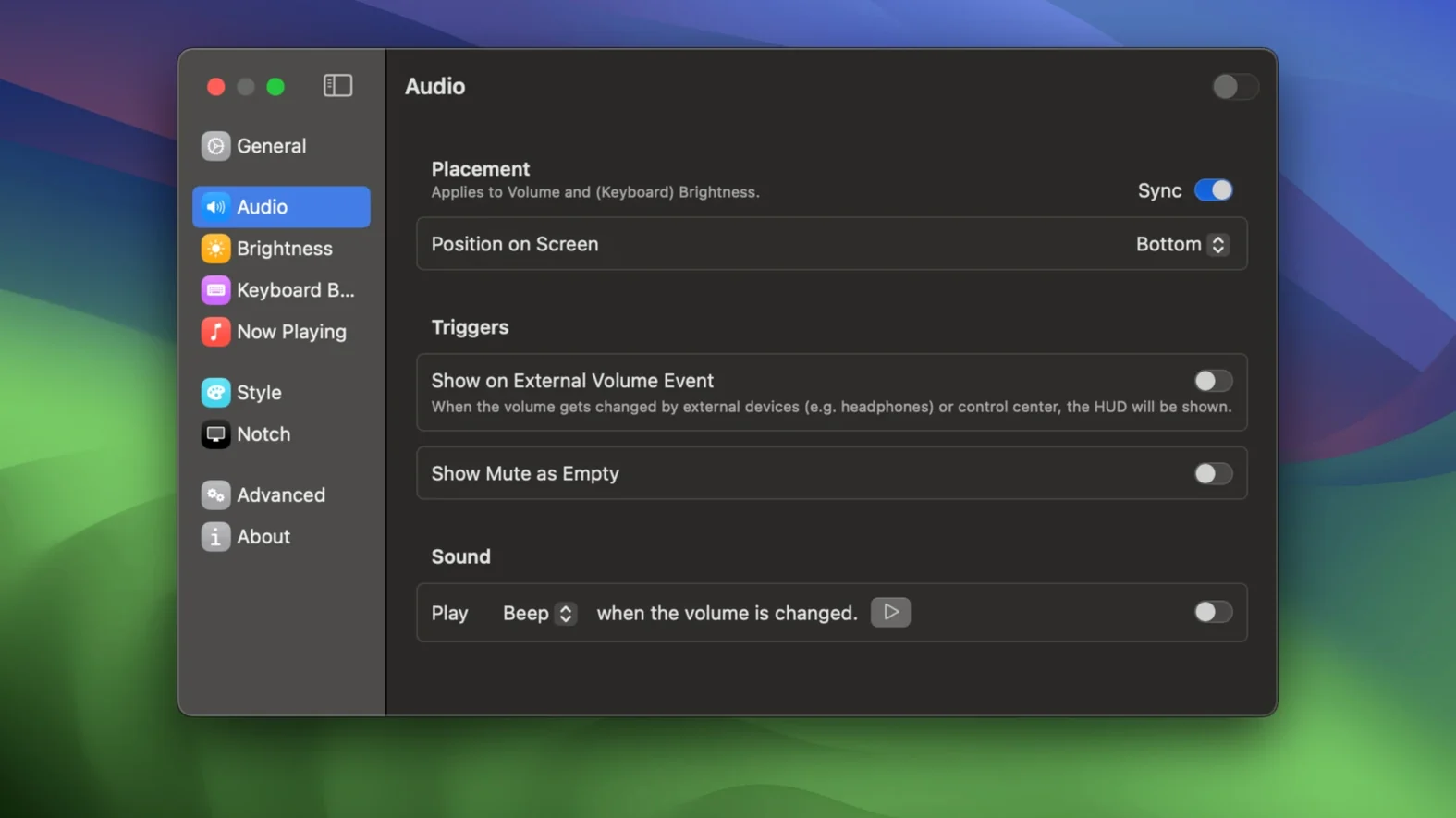
Volume HUD — a narrow bar that appears at your chosen screen edge when you adjust sound. It replaces the full-size macOS overlay.
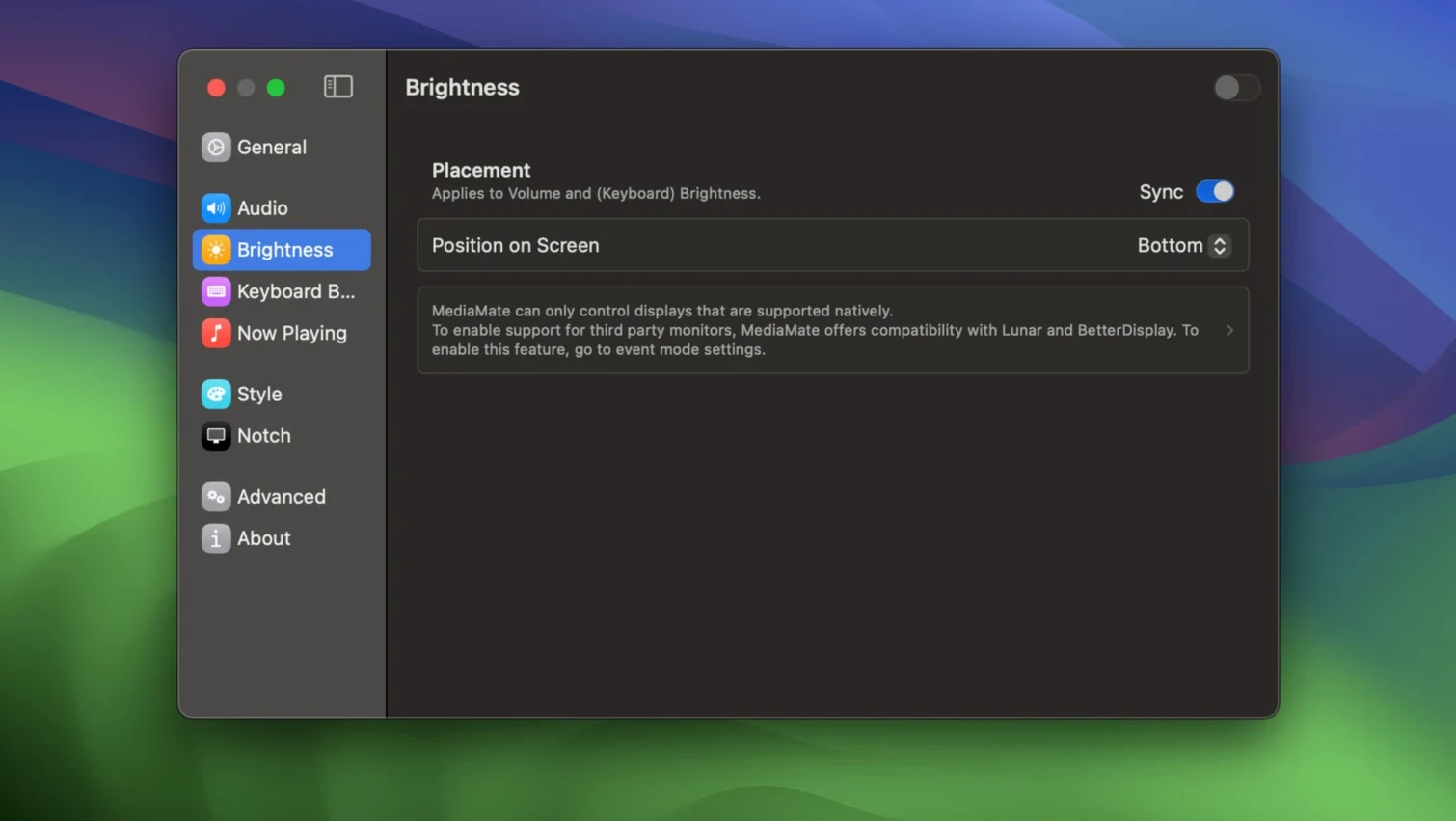
Brightness HUD — a matching compact bar for display brightness changes, replacing the standard bezel.
Now Playing — a tiny heads-up that shows the current artist and song title when a track changes.
Touch Bar mode — a separate setting for Macs with a Touch Bar, required because the HUD already lives in the Touch Bar on those models.
MediaMate works on all Macs running macOS 13 Ventura or later, on both Apple Silicon and Intel hardware. It sits quietly in the menu bar and intercepts system events; there is no persistent on-screen window and no configuration panel that gets in your way.
Three Groups Who Feel the Difference Within an Hour
MediaMate is not a one-size-fits-all utility. Three groups in particular notice the difference within the first hour.
Users who adjust volume or brightness dozens of times a day. Anyone switching between headphones and speakers, moving from a dark room to a bright one, or riding the volume keys during long playlist sessions sees the default bezel far too often. The compact HUD stays out of the centre of the screen, and its configurable fade time means it vanishes before it becomes a distraction.
People who work with full-screen apps. The standard macOS overlay demands visual attention — it parks itself dead centre and lingers. In a full-screen code editor, a video render preview, or a game, that interruption breaks focus. MediaMate pushes the indicator to an edge, where a quick glance suffices. The difference is especially pronounced on external displays, where the default bezel feels even larger.
MacBook Pro owners with a Touch Bar. The Touch Bar already shows a brightness and volume scrubber, so system overlays become redundant and intrusive. MediaMate’s separate Touch Bar mode strips the on-screen HUD for those controls and leaves only the now-playing indicator, which the Touch Bar does not surface. Keyboard backlight control through MediaMate also gives Touch Bar users a visual reference they otherwise lack.
From Speaker Swap to Brightness Fade in Seconds
Here is how a session unfolds once MediaMate is running.
1. You sit down at the MacBook Pro, plug in external speakers, and tap the volume-up key. A slim white bar slides in from the right edge, fills a few segments, and fades after 0.8 seconds. The centre of the screen remains clear.
2. Late afternoon, the room dims. You press the brightness-down key. A matching bar appears at the bottom edge, tracking the display level downward. No bezel blocks the document you are reading.
3. Spotify moves to the next track. A small rounded rectangle drops down from the menu bar — artist on the left, song title on the right, gone in four seconds. You do not need to open the app to check what is playing.
4. You switch from the external keyboard to the built-in one and adjust the keyboard backlight with the assigned shortcut. A brief flash of a third HUD style confirms the level. The Touch Bar itself does nothing; MediaMate handles it.
5. You launch a video call and share your screen. Because the HUD appears at the edge and disappears fast, it never draws a comment from the person on the other end.
By the end of the day you have seen the HUD perhaps forty times, and not once did it feel like an interruption. That is the core promise delivered.
Move the Volume HUD Away from Your Dock
MediaMate ships with sensible defaults, but three adjustments make an immediate difference.
HUD position. The default is the right edge. If your dock sits on the right, move it to the left or bottom. The position is per-HUD, so volume and brightness can live on different edges.
Fade duration. Out of the box, the HUD lingers for about a second. Dropping it to 0.5 seconds or lower makes it feel nearly invisible. Users who prefer a longer glance can push it to two seconds, but most will want it shorter.
Now-playing style. The indicator comes in two visual modes: a compact bar and a larger rounded panel. The compact style suits users who want minimal intrusion; the panel version shows more detail and works better on larger displays. Switching takes one click in the app’s menu bar dropdown.
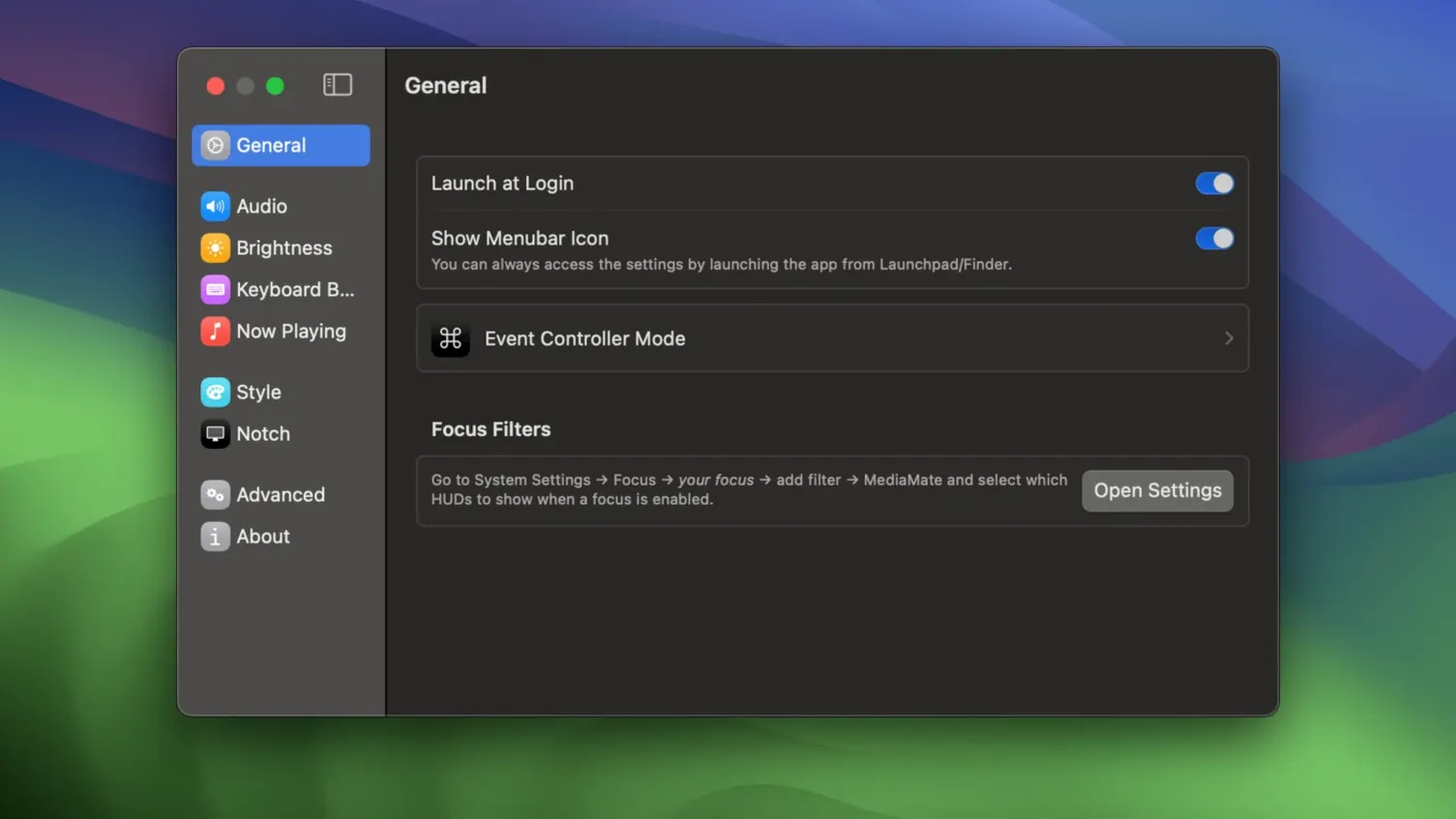
For Touch Bar Mac owners, enabling Touch Bar mode is not optional — without it, the brightness and volume HUDs still appear on-screen, defeating the purpose. The toggle lives under the General section of the preferences.
How MediaMate compares with similar Mac apps
Three other utilities occupy roughly the same space, and they differ in ways worth knowing before committing to one.
MediaMate vs. Bezel. Bezel is a single-purpose app that replaces the volume HUD with a floating pill-shaped indicator. It does one thing and does it well, but it stops there. MediaMate covers volume, brightness, keyboard backlight and now-playing info in one package. If all you want is a volume HUD replacement, Bezel is lighter. If you want the full set of system overlays rethought, MediaMate covers more ground. Bezel does not touch the brightness overlay at all.
MediaMate vs. HazeOver. HazeOver is less a HUD replacer and more a focus tool — it dims background windows. The comparison arises because both apps tweak the visual environment. HazeOver helps you ignore distractions; MediaMate helps system feedback become less distracting. They complement each other well and do not overlap in function.
MediaMate vs. BetterTouchTool. BetterTouchTool can replace the volume HUD with a custom widget, and it does far more besides — window snapping, trackpad gestures, Touch Bar customisation. MediaMate is narrower in scope and simpler to set up. A user who already runs BetterTouchTool and has configured its HUD replacement gains nothing from MediaMate. A user who wants a focused, install-and-forget overlay fix without the sprawling preference panes will find MediaMate the cleaner fit.
In short, MediaMate sits at the intersection of minimalism and breadth. It does not chase the single-feature purity of Bezel, nor the kitchen-sink power of BetterTouchTool. For the right user, that middle ground is exactly where a Mac utility should live.
- macOS 13 Ventura or later
- Apple Silicon or Intel Mac
Questions on file
Does MediaMate work on Macs with a Touch Bar?
Yes, but Touch Bar Macs need a dedicated mode enabled because the media and brightness controls are already shown on the Touch Bar strip.
Sign in · Create an account to add a field note.
No field notes yet. A measurement, a version, a machine — they appear after moderation.