Mac Apps
Mimestream 1.10.8
Mac AppsUpdated
| Requirement | On file |
|---|---|
| macOS | macOS 12 or later |
| CPU | Apple Silicon, Intel 64-bit |
| Download | 12 MB |
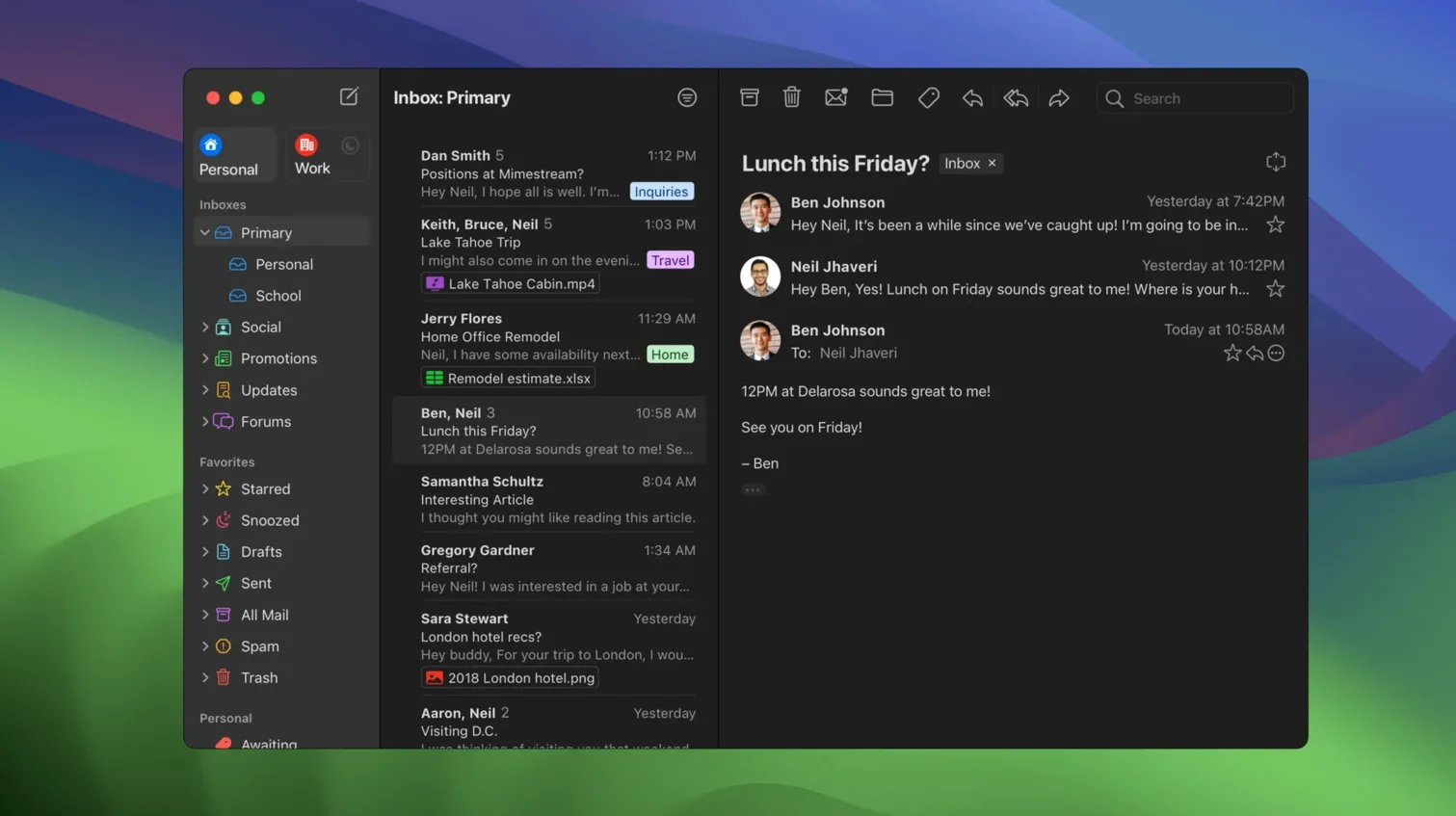
You switch on your Mac, a system notification slides in from the right, and you know a client has replied. You swipe it away with two fingers and get back to the document you were editing. That kind of quiet, quick triage is what Mimestream is tuned for.
Gmail-only by design, not a general IMAP client
- Is it a general email client? No. It is a desktop client built exclusively for Gmail. A Google account is required, and it uses the Gmail API rather than standard IMAP.
- Do I need to set up signatures and aliases again? No. Gmail signatures sync automatically, and aliases configured in your Google account appear without any manual setup.
- Does search work like it does in the browser? Yes. It supports Gmail search queries directly, so operators like
from:,has:attachment, andolder_than:all function as expected. - What about shortcuts I already know? It includes both Gmail and Apple Mail keyboard shortcut sets, so you can keep the muscle memory you have.
- Will it fill up my SSD? It uses minimal disk space, caching only recent messages rather than pulling down your entire mailbox history.
Privacy and handling
Mimestream blocks tracking pixels from more than 50 common tracking services by default. Swipe gestures for sorting and archiving feel native to macOS, and system notifications mean you do not need the window open to know what is arriving. Version 1.10.8 runs on macOS 12 Monterey or later, on both Intel and Apple Silicon Macs.
Managing four Gmail accounts without four browser tabs
Imagine someone who manages four Gmail accounts: a personal inbox, two client-facing addresses for different publications, and a shared team alias that receives manuscript submissions. Without Mimestream, this editor keeps four browser tabs pinned and re-enters credentials when a session expires. On a Thursday morning, a last-minute brief lands in the client account at 07:42. A notification appears in the Mac notification centre. She swipes right to archive a routine thread, types from:editorial has:attachment pdf into the unified search, and finds the brief without touching a browser. She replies, adds a label via a shortcut, and moves on. The shared alias shows a new submission at 08:03; she opens it, assigns a category label, and snoozes it until 10:00 — all with keyboard strokes she knows from Gmail on the web. No tabs reload, and no session times out. The app caches only recent threads, so the MacBook Air with 256 GB of storage never feels pinched.
First days with Mimestream
After dragging the app to the Applications folder and launching, the first few hours shape how comfortable the client feels long-term. These tips cover details that are easy to miss during the initial setup rush.
- Pick a shortcut set immediately. Open preferences and choose either the Gmail set or the Apple Mail set. Committing early builds fluency; switching later means retraining fingers for actions like archive, trash, and mark-as-read.
- Decide on a profile strategy. Version 1.10 introduced an optional All profile that merges inboxes into one view. Some users prefer it for triage; others keep accounts separate to avoid mixing personal and client threads. Try both for half a day each before settling.
- Review notification actions. The configurable notification actions added in 1.10 let you set what a right-click or long-press on a notification does — reply, archive, mark as read, or delete. Adjust these to match your triage habits before you build a reflex you later want to change.
- Verify tracking-pixel protection. The app blocks pixels from over 50 services by default, but check the privacy settings to confirm the behaviour matches your preference. Some users keep it on for all senders; others prefer to whitelist certain domains.
- Test offline search once. Disconnect from Wi‑Fi, run a few Gmail-style queries, and confirm cached messages return results. Knowing this works prevents anxiety the first time you need to find an address or attachment on a train without signal.
Private Push notifications now appear sender-blank by default
Version 1.10.8 is a stable point that consolidates several workflow shifts from the 1.10 series. The most visible change is Private Push notifications, now enabled by default on macOS 26 and later. In practice, this means the notification appears with sender and subject but without the message body preview showing on a locked screen. For someone who works in a shared office or presents slides from their Mac, that small difference removes the need to disable notifications entirely before meetings.
The configurable notification actions, also from 1.10, let you set what a swipe or long-press on a notification does. A common setup is to assign "Archive" to the primary action and "Reply" to the secondary. Another user might set "Mark as Read" as the primary for newsletters and "Delete" as the secondary. The change is minor in description but cuts down the number of clicks per message by one or two — noticeable when you process sixty emails before lunch.
The optional All profile, introduced in the same release, brings a unified inbox to a client that previously kept accounts strictly separate. For a user who monitors two accounts that both receive urgent threads, the All profile removes the need to switch between account views. Others find it noisy and stick with individual account profiles. Both approaches work; the key is that the choice now exists.
Addresses for unknown senders appeared in 1.10 as well. When an email arrives from a sender not in your contacts, the app shows the full address more prominently. That saves a click versus the web version, where you often hover or open the message details to verify the sender. For anyone who regularly receives invoices, pitches, or cold emails, this small display change helps spot impersonation attempts and misdirected messages faster.
Offline access and other dealbreaker questions answered
Beyond the feature list, a handful of practical concerns come up again in forums and user threads. Here are the answers, framed for someone who is still deciding whether to try it.
Can I use it without an internet connection? Yes, full offline access is supported. The client caches recent messages and attachments using minimal disk space. When the connection drops, you can read, search, and compose. Outgoing messages queue and send when connectivity returns. The offline search uses the same Gmail query syntax you use online, so label:invoices older_than:7d works from a plane seat as well as from a desk.
Does it work with Google Workspace accounts? Yes, personal Gmail and Google Workspace accounts both function. Aliases tied to either account type sync automatically. The distinction that matters is not account type but protocol: if the account supports the Gmail API, Mimestream works with it.
What happens if I also use Apple Mail for non-Gmail accounts? The two apps can coexist without conflict. Many people run Mimestream for Gmail accounts and keep Apple Mail for an iCloud or IMAP account. They use different notification settings and different dock icons, and the Mac handles both sets of notifications normally.
Is it heavy on battery? Because it is written in Swift and uses the Gmail API rather than polling IMAP folders, the client is generally light on resources. No formal benchmarks exist, but users report battery life comparable to Apple Mail under similar usage patterns, especially when push notifications are set to fetch only important messages.
How do I get it? A mimestream download mac search will point you to the developer's site, where the disk image is available. Once downloaded, open the image, drag the app to the Applications folder, and launch it. The app runs on both Intel and Apple Silicon Macs with macOS 12 Monterey or later.
- Notifications — Private Push notifications introduced in version 1.10
- Profiles — Optional All profile for viewing messages across accounts
- Sender details — Addresses now shown for unknown senders
- Notification actions — Actions on notifications are now configurable
- macOS 12 Monterey or later
- Intel or Apple Silicon Mac
- Google account required
Sign in · Create an account to add a field note.
No field notes yet. A measurement, a version, a machine — they appear after moderation.