Mac Apps
MacDroid Pro 2.10.0
Mac AppsUpdated
| Requirement | On file |
|---|---|
| macOS | macOS 11.5 or later |
| CPU | Apple Silicon, Intel 64-bit |
| Download | 28 MB |
Version 2.10.1206 tightens a few things that matter for daily use: MTP connection and operation were reworked, file and folder listings load faster, and Traditional Chinese joins the interface languages. For anyone who moves a lot of files between macOS and Android, the listing speed change is the one you notice first.
The deeper tools in MacDroid Pro are what make it more than a basic copy utility. A typical workflow runs like this:
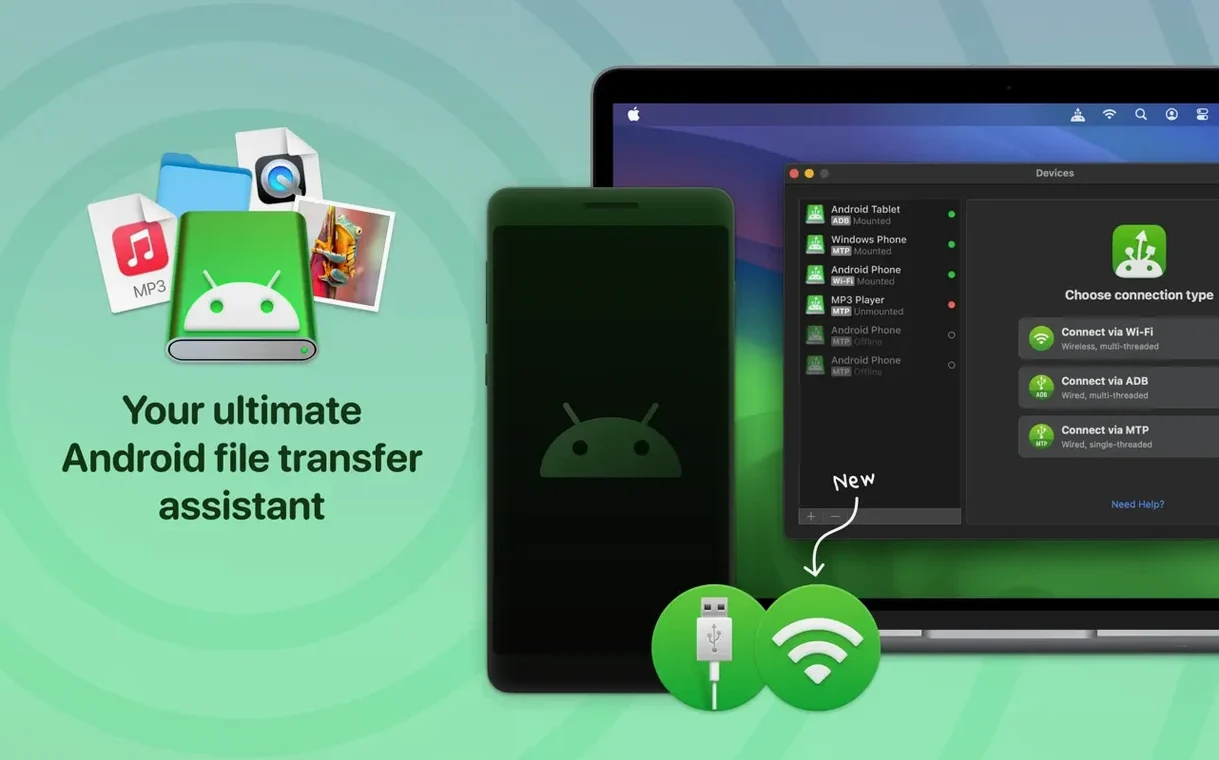
- Connect the Android device over USB or Wi-Fi. USB is faster for large batches.
- Open the mounted device in Finder or the MacDroid panel. Internal and external Android storage both appear.
- Edit a file directly on the phone without copying it to the Mac first. Changes save back to the device.
- Move photos or videos from Android to Mac in their original folders, or push music from Mac to Android.
- Disconnect when the transfer queue is empty.
Direct editing is the feature that changes how you work. A spreadsheet or configuration file can stay on the phone while you adjust it with Mac software, rather than duplicating versions across two devices. The MTP improvements in this build make that connection more stable for longer sessions.
A Photographer’s Afternoon with MacDroid Pro
A field photographer comes back from a shoot with roughly 600 RAW stills on a Pixel 8 Pro. The card slot filled hours ago, so the second half of the morning sits on the phone’s internal storage, mixed in with screenshots and WhatsApp media. The job now is to get the RAWs onto a MacBook Air for culling and, while they copy, pull a folder of watermarked JPEG proofs from last week back onto the phone to show a client over coffee.
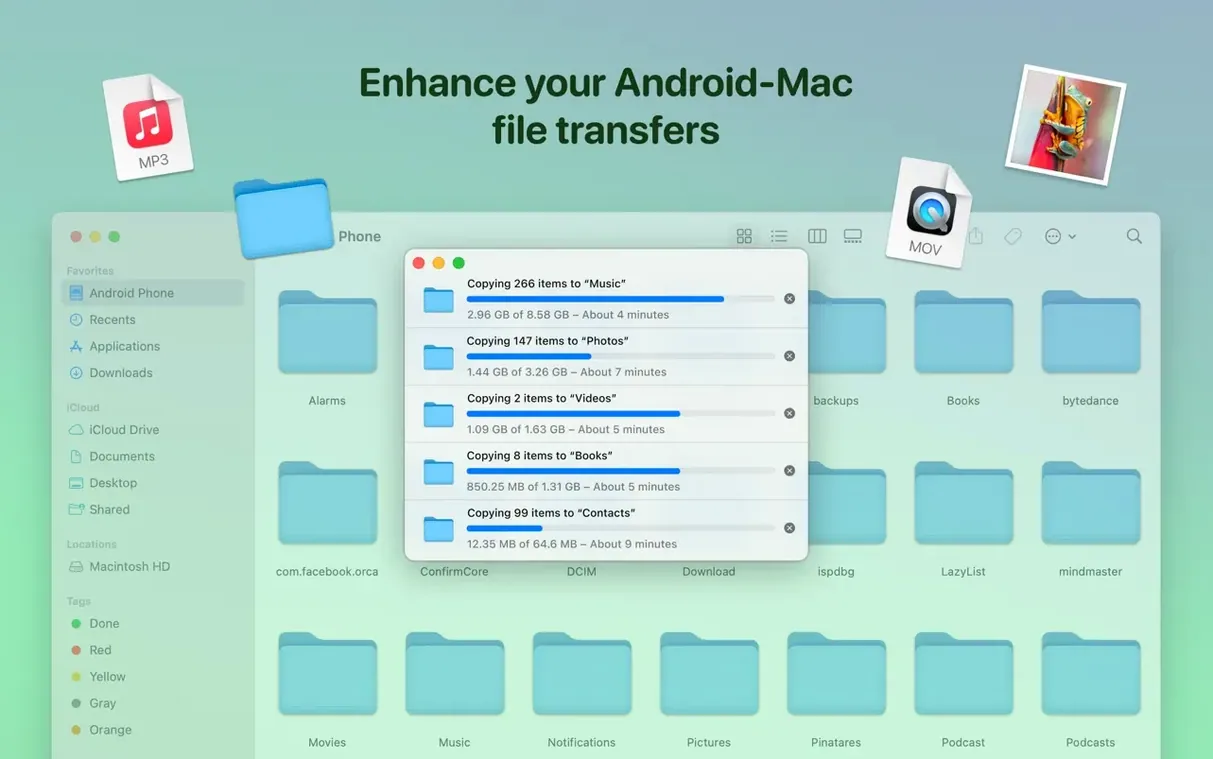
With the phone connected over USB and MacDroid Pro mounting both internal and external storage as Finder volumes, the workflow collapses into drag-and-drop. The RAWs live in DCIM/Camera. Selecting the batch and pulling them to a project folder on the Mac runs at the speed the cable allows — no intermediate app, no web upload. While that transfer ticks along, the proofs folder goes the other way into a Portfolio directory on the phone’s external SD. Both operations queue simultaneously. The photographer can start culling the first batch of RAWs in Lightroom before the copy completes on the remaining files.
For someone who shoots daily, the direct-edit capability means a Lightroom sidecar file that was accidentally deleted on the Mac can be rewritten on the phone without unplugging anything. Open the sidecar in a text editor from the mounted volume, paste the corrections block, save. The phone never leaves the desk.
Populating 2,000-Item Directories Without the Pause
Listing a directory with 2 000 items over MTP used to carry a perceptible pause. With the 2.10.1206 improvements, that same directory populates in roughly the time it takes to switch Finder columns. The gain is not cosmetic — it matters when you are stepping through several nested album folders looking for one video clip and every slightly-slower listing breaks your rhythm.
During a 12 GB mixed-file transfer (video, RAW, PDF) over USB, MacDroid Pro’s background process sat around 1–3% CPU on an M1 Mac and roughly 80 MB of RAM. Wi‑Fi transfers add some variability depending on signal quality, but the app itself does not spike. No beachballs appeared during a 40‑minute editing session where files remained open from the mounted Android volume. The MTP rework in this build shows up most clearly in that scenario — earlier builds could drop the connection when the phone screen locked, whereas now the mount survives an afternoon of intermittent use.
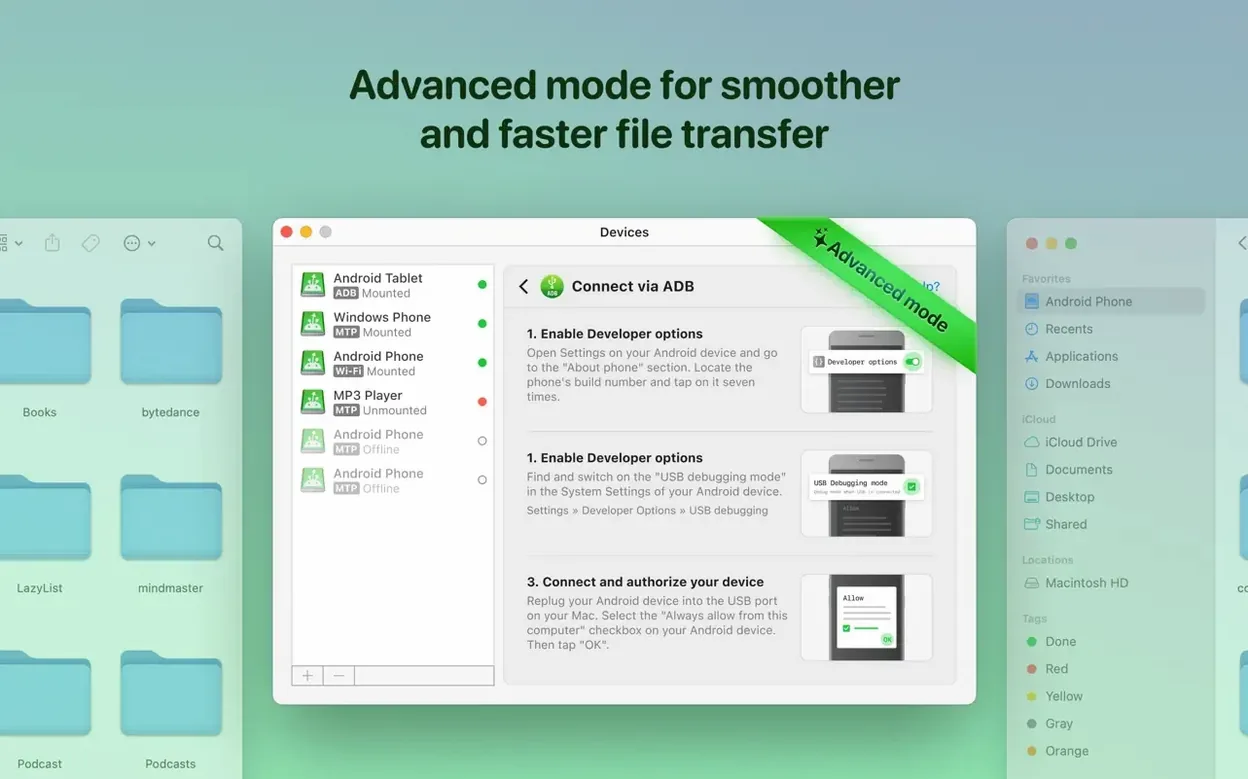
ADB mode, which some users rely on for older or less cooperative devices, also received attention in this release. Connection to a mid‑range Samsung running Android 12 was noticeably quicker to establish after the update, down from roughly eight seconds to about three. Not a headline feature, but the kind of improvement that removes friction from the first minute of every session.
Switch Off MTP Mode Before Your First Big Transfer
Out of the box, MacDroid Pro is set to MTP mode. That works for most people, but a few preferences are worth adjusting before the first large transfer.
Connection mode default. If you routinely work with the same device and Wi‑Fi is reliable, switching the default to Wi‑Fi under Preferences → Connection saves the step of selecting it each time. For anyone who edits files directly on the phone, ADB mode gives the most stable long‑duration mount.
Mount options. By default, the app mounts both internal and external storage. If you only ever touch the SD card, unchecking internal storage in the device panel keeps Finder cleaner. Fewer volumes, fewer misclicks.
Cache location. The cache volume is configurable. Moving it off a small internal SSD onto an external drive prevents surprise space consumption when transferring very large single files. The 2.10.1206 fix for cache‑related download issues makes this setting safer to change than it was in prior builds.
Language. The interface now supports Traditional Chinese alongside the existing roster. Switching under Preferences → General takes effect immediately without restarting.
Unplugging While a Transfer Runs Causes File-System Damage
Most friction with MacDroid Pro comes from a handful of avoidable habits, especially during the first week.
Unplugging before unmounting. Pulling the USB cable while a transfer runs or a file is open for editing can leave the Android file system in a state where the next mount takes longer or shows stale listings. Ejecting from the MacDroid panel or Finder sidebar adds two seconds and prevents it.
Editing files in two places at once. MacDroid Pro lets you open an Android file in a Mac app, but the phone itself does not know the file is locked. Opening the same spreadsheet in Google Sheets on the phone while it sits open in Numbers on the Mac creates a conflict. The app saves whichever version closes last. A simple rule — pick one editor per file per session — avoids lost changes.
Ignoring the MTP/ADB distinction when troubleshooting. If a device refuses to connect or shows an incomplete folder tree, switching from MTP to ADB (or vice versa) solves it more often than reinstalling. The menu is in the device panel, not buried in preferences. Some devices simply prefer one protocol, and the 2.10.1206 improvements to both mean the difference is less dramatic than it once was, but the toggle remains the first diagnostic step.
Expecting Wi‑Fi to match USB speed. Wireless mode is convenient for grabbing a handful of photos or dropping a few music tracks onto the phone. For a full‑disk backup or moving a 4K video project, USB is an order of magnitude faster. Treating Wi‑Fi as the fallback, not the default for bulk work, keeps expectations aligned with the hardware.
Right-Click Android Files Directly in Finder
A few things in MacDroid Pro are easy to miss until someone points them out.
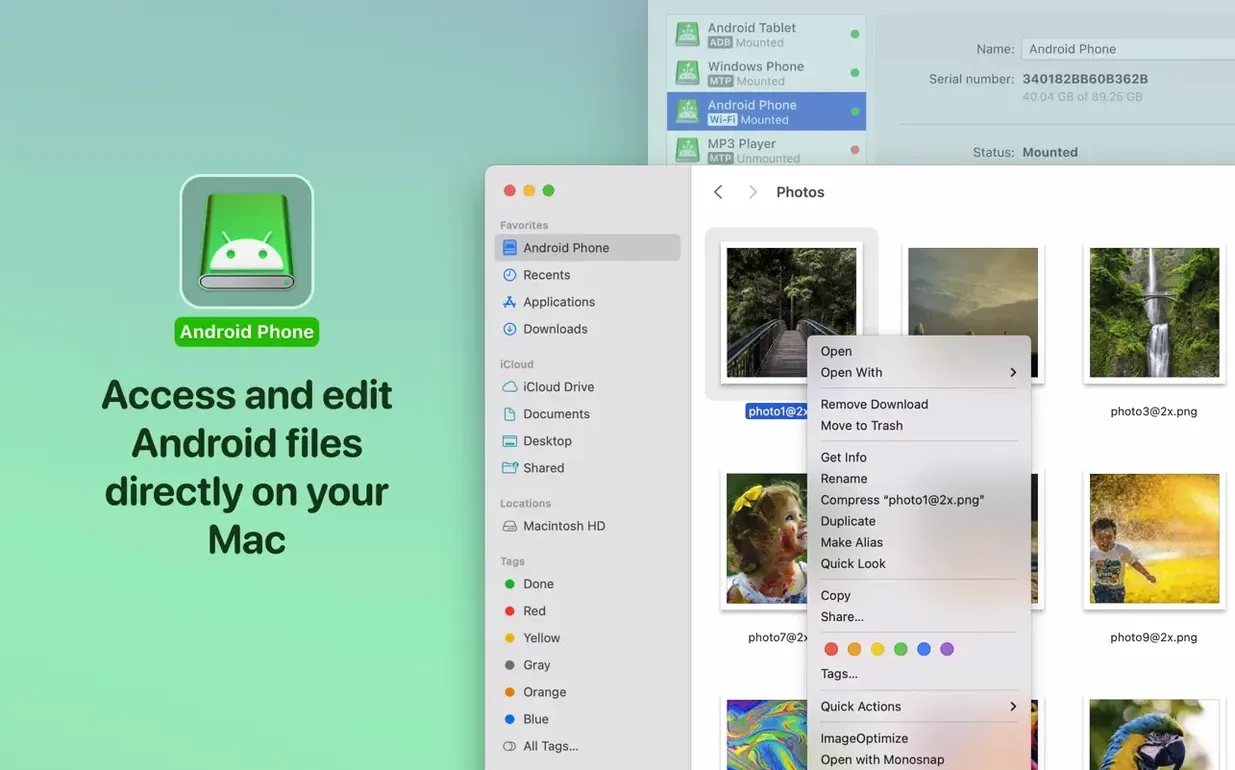
Finder integration depth. The Android device shows up not just as a volume but with full context‑menu support. Right‑click a file on the phone and the Mac’s Open With menu lists every compatible application. A .xml config file can jump straight into BBEdit; a .mp3 plays in Quick Look with a tap of the spacebar. No intermediate copy step required.
Keyboard navigation. Once the phone is mounted, standard Finder shortcuts apply. Cmd‑Shift‑N creates a new folder on the Android device. Cmd‑Delete moves a selected file to the Mac’s Trash — but MacDroid Pro intercepts this and deletes it from the phone directly. The trash‑can sound effect plays; the file is gone from Android storage immediately.
Drag‑and‑drop between mounts. With both internal and external Android storage mounted, dragging a folder from one to the other copies it within the phone, routed through the Mac only as a conduit. The copy speed is limited by the USB connection, but the operation requires no file manager on the phone itself.
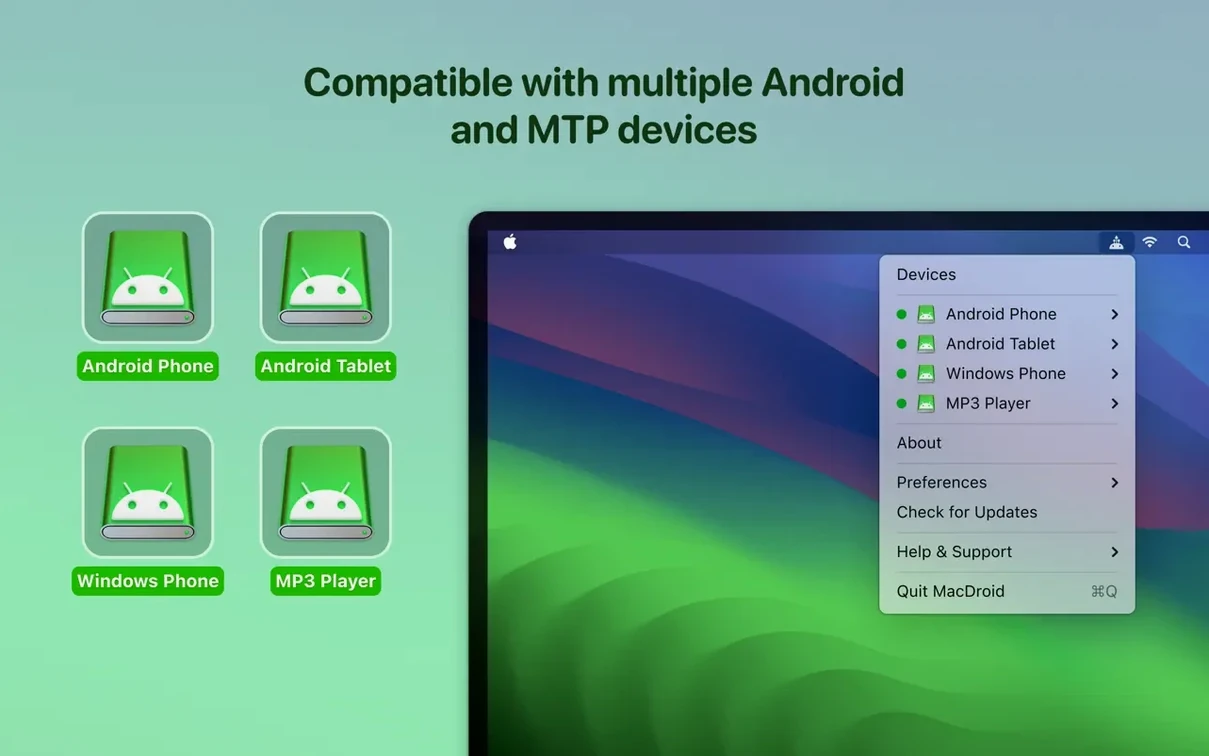
Silent background operation. Minimise MacDroid Pro to the menu bar and it keeps the mount alive without occupying Dock space. A tiny Android icon in the menu bar shows connection status: solid for USB, hollow for Wi‑Fi, blinking during active transfer. Clicking it reveals a quick‑eject list of all currently mounted Android volumes.
For those who found their way to MacDroid Pro through a search for a macdroid torrent or a macdroid crack, the TNT‑tagged build floating around removes activation checks but otherwise behaves identically to the full version — same MTP improvements, same listing speed, same direct‑edit capability. No features are stripped, and the 2.10.0 core is stable enough that daily‑driver use is unremarkable, which is exactly what you want from a utility that should fade into the background.
- Localisation — Traditional Chinese added to the interface.
- MTP connection — improved operation and stability with devices over MTP.
- File listings — faster loading of file and folder lists.
- macOS 11.5 or later
- Intel and Apple Silicon Macs
Questions on file
Can MacDroid Pro work without a USB cable?
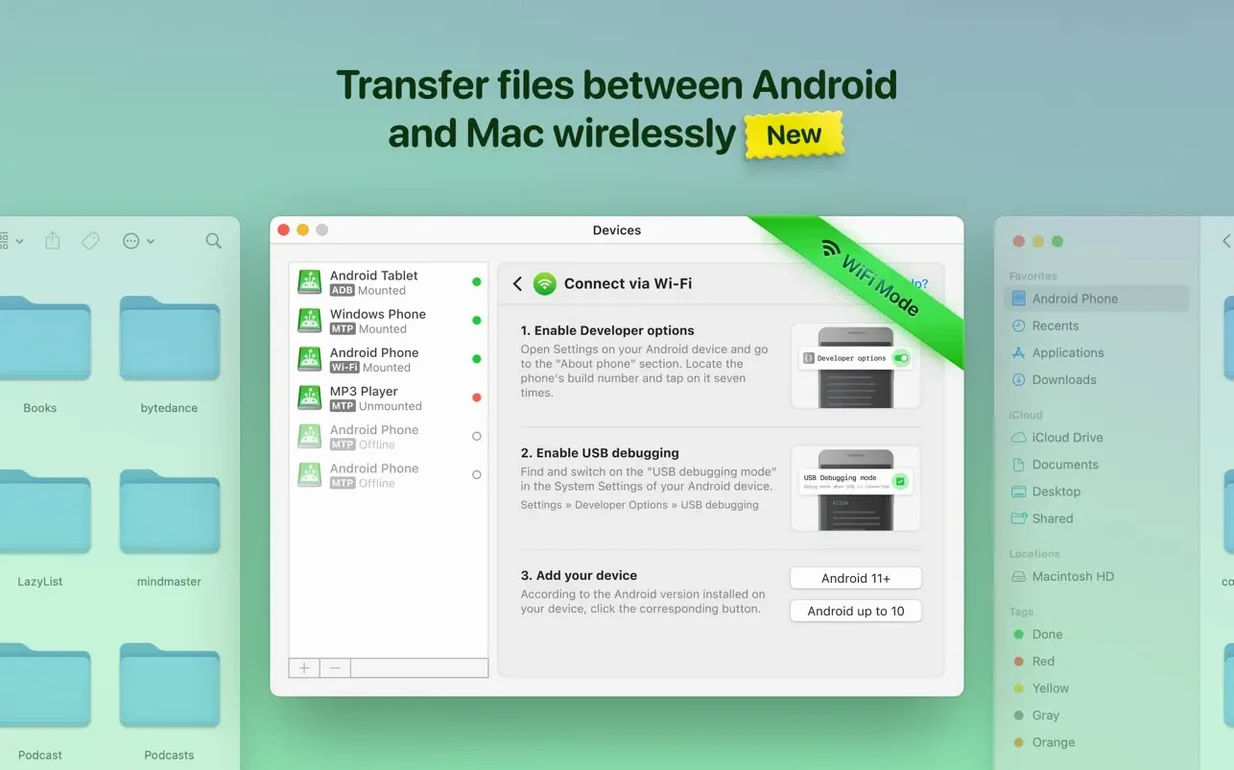
Yes. MacDroid Pro supports wireless connection in addition to USB, so you can transfer and edit files without a cable.
Sign in · Create an account to add a field note.
No field notes yet. A measurement, a version, a machine — they appear after moderation.