Mac Apps
Lungo 2.8.3
Mac AppsUpdated
| Requirement | On file |
|---|---|
| macOS | macOS 26 or later |
| CPU | Apple Silicon, Intel 64-bit |
| Download | 7 MB |
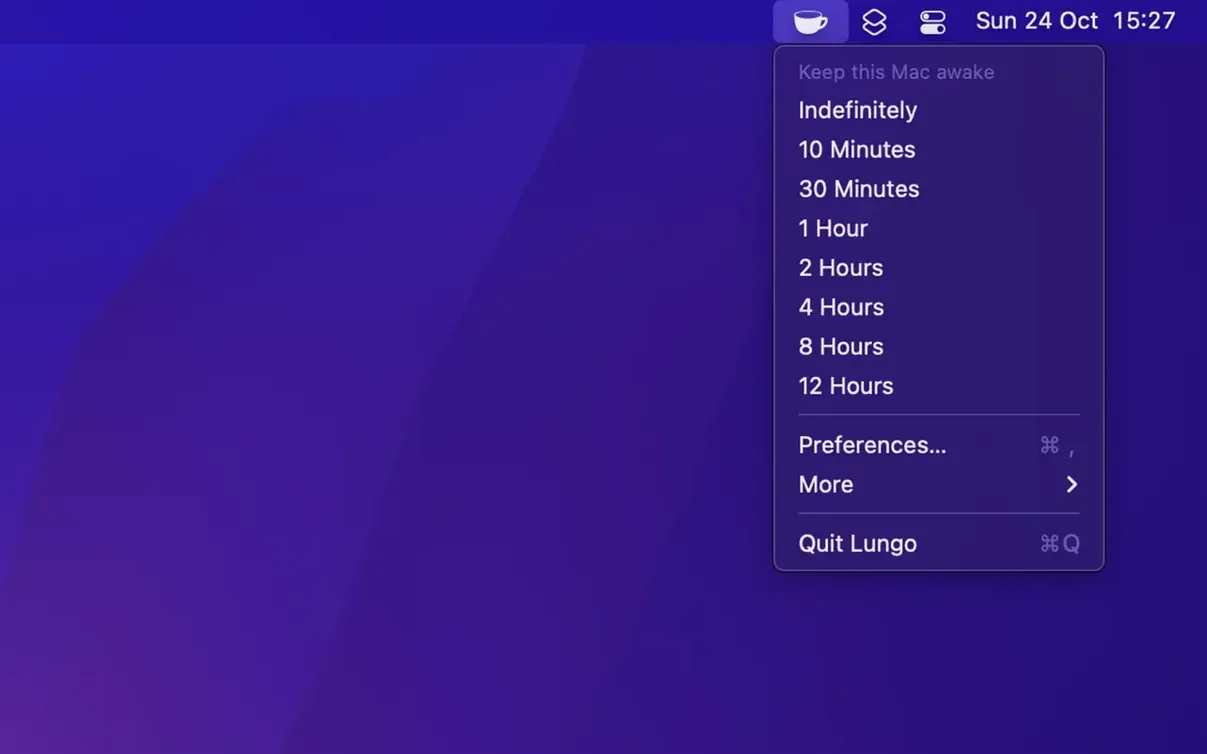
Lungo is a menu bar utility that prevents your Mac from sleeping and stops the screen from dimming.
One Click to Freeze Your Screen Forever
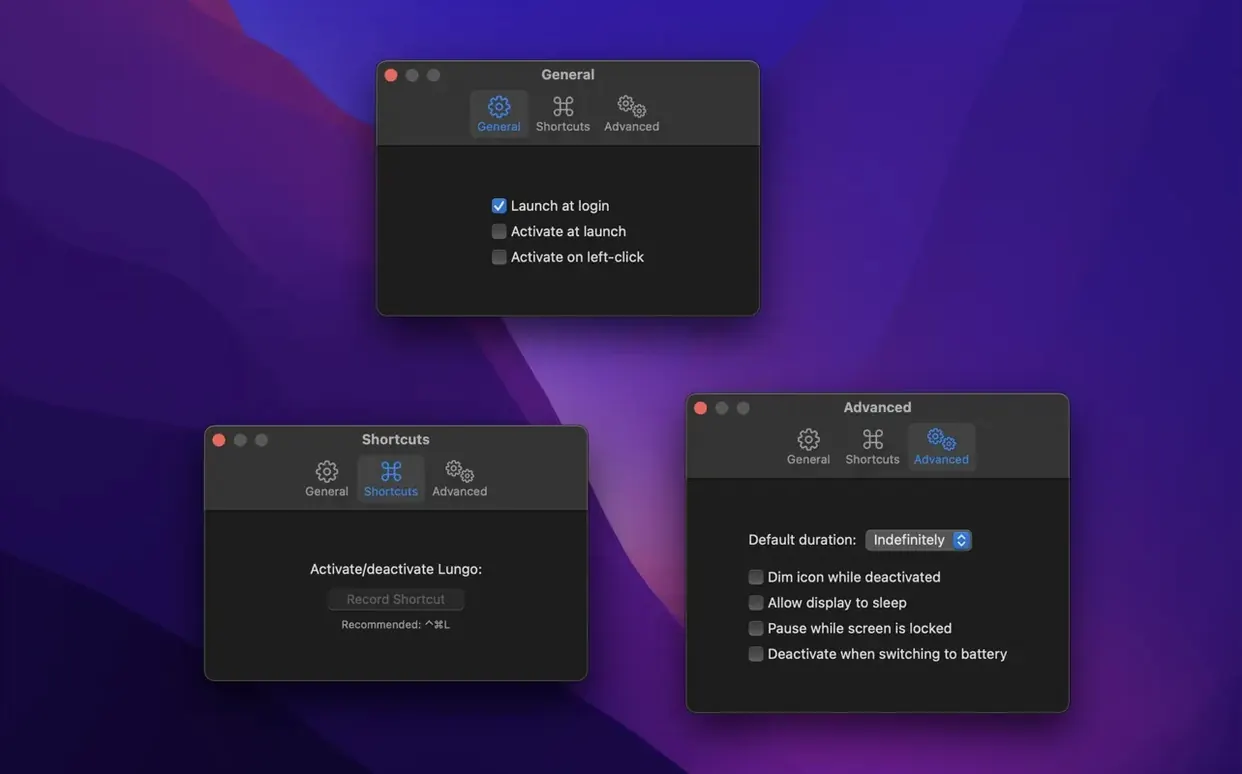
Click its icon and your Mac stays awake indefinitely. The screen won't dim, the system won't nap. This is handy when you're reading a long document, watching a video, or presenting slides. It also works for mundane tasks — keeping a receipt open on screen while you dig through a bag for your wallet. The app is deliberately narrow in scope. It doesn't schedule sleep times or manage energy profiles. It does one thing: it tells macOS to stay awake until you say otherwise. When you're done, click again or turn it off from the menu. You can also set it to launch automatically at login.
Are there any catches?
Lungo requires macOS 26 or later, so older Macs are out. The interface is English-only. Version 2.8.3 is a maintenance release with bug fixes. The timer can be cancelled instantly — you won't need to wait for a countdown to expire before your Mac can sleep again. That's the whole feature set. No settings panel to configure, no schedules to manage.
The Status Glance You’ll Learn to Trust
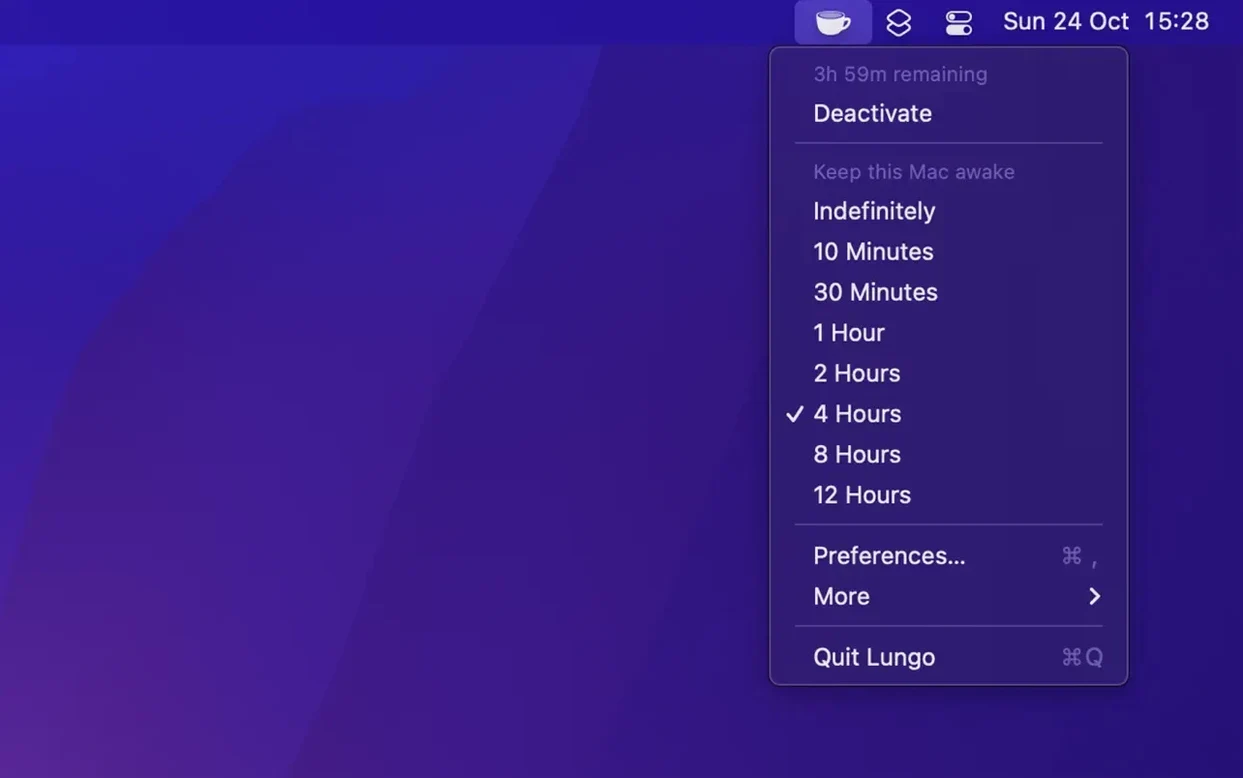
The menu bar icon works as a visual status indicator. When Lungo is active, the icon fills in — on a light menu bar it turns dark, on a dark menu bar it turns light. A glance tells you whether your Mac is locked awake. No need to click or open a panel.
Holding the Option key while clicking the menu bar icon reveals a hidden menu. From there you can pick a timed duration — 10 minutes, 30 minutes, 1 hour, or 2 hours — without ever opening preferences. The default click behaviour (indefinite activation) stays untouched. This is useful when you know you only need 30 minutes for a lunchtime video and don't want to forget and leave the Mac awake all afternoon.
If you prefer keyboard control, Lungo registers a global shortcut you can assign in System Settings. Once set, the same keypress toggles activation on and off. The shortcut works even when Lungo is not the frontmost app, which means you can keep a Keynote presentation in full screen and toggle sleep prevention without reaching for the trackpad.
The app also respects the Turn off after time preference you set in its tiny preferences window. That setting applies to indefinite activations — the ones you trigger with a plain click. So if you normally want indefinite awake time but occasionally worry about walking away from your desk, set a 4‑hour safety net and forget about it. The timer cancellation remains instant if you return earlier.
Stability Patches After Long Sleep Wake-Ups
Version 2.8.3, labelled MAS, is a bug‑fix release. No new features were added. The developer addressed stability issues that some users encountered when waking from prolonged sleep sessions. Earlier point releases in the 2.8 line quietly improved how Lungo interacts with macOS 26's rewritten display‑sleep logic, ensuring the screen‑dimming override holds reliably even when external monitors are connected and disconnected during an active session.
For everyday use, the practical effect is subtle. You are less likely to see the screen dim momentarily when plugging in a USB‑C display while Lungo is active. The fix also resolved a rare condition where the menu bar icon would show the wrong state after a fast user switch. These are not headline changes, but they remove small friction points that accumulate over weeks of daily use.
No Sleep-Conflict Fights With Other Utilities
Does Lungo interfere with other apps that manage sleep? No. It uses the standard macOS sleep‑assertion API. Other utilities — Amphetamine, caffeinate, the built‑in pmset — work with the same mechanism. If two apps both assert a no‑sleep condition, macOS stays awake until both release their assertions. When Lungo is off, it holds no assertion at all. There is no conflict, just an additive effect.
Will my MacBook battery drain if I forget it on? Yes, because the display stays lit and the system prevents idle sleep. That is the trade‑off. The timed‑duration shortcuts and the optional auto‑off timeout exist precisely to reduce the chance of an overnight drain. If you leave Lungo active on battery with the screen at full brightness, expect a depleted battery within a few hours depending on your model and workload.
Does it work with closed‑display (clamshell) mode? Lungo prevents sleep, including the sleep that normally occurs when you close a MacBook lid while on battery. If you close the lid with Lungo active and no external power connected, the Mac stays awake and continues running whatever was open. The screen itself turns off because the lid is closed, but the system does not sleep. On AC power with an external display, closing the lid works as expected — the external display stays on and the Mac remains awake.
Is the app notarised for Gatekeeper? The distributed disk image is prepared to be Gatekeeper‑friendly. The install steps include a Terminal bypass for users who encounter a block, which is a standard procedure for apps distributed outside the App Store. No system integrity protections are disabled.
A Half-Day Workshop Without a Single Screen Dim
Consider someone running a half‑day workshop from a MacBook Pro connected to a projector. They have three presentation files open in Keynote, a browser with twenty tabs of live dashboards, and a PDF of speaker notes they want visible on the Mac's internal display while the projector shows slides. The room setup takes fifteen minutes, and during that pause the default macOS energy settings would dim the screen after two minutes and sleep the machine after ten. Without Lungo, the speaker either babysits the trackpad or digs into System Settings twice — once before the workshop and once after.
With Lungo, they click the menu bar icon when they arrive. The Mac stays awake through setup, through the full three‑hour session, and through the Q&A that follows. The screen never dims mid‑sentence. When the last attendee leaves, they Option‑click and pick Turn off from the hidden menu. The Mac resumes its normal sleep schedule immediately. Nothing was reconfigured, no system preferences were touched. The speaker's battery dropped from 100% to 62% over four hours with the display at 70% brightness — expected behaviour, and a fair trade for an uninterrupted presentation.
- macOS 26 or later
- Apple Silicon and Intel 64-bit
Sign in · Create an account to add a field note.
No field notes yet. A measurement, a version, a machine — they appear after moderation.