
Mac Apps
Linguist 3.4
Mac AppsUpdated

| Requirement | On file |
|---|---|
| macOS | OS X 10.10 or later |
| CPU | Apple Silicon, Intel 64-bit |
| Download | 6 MB |
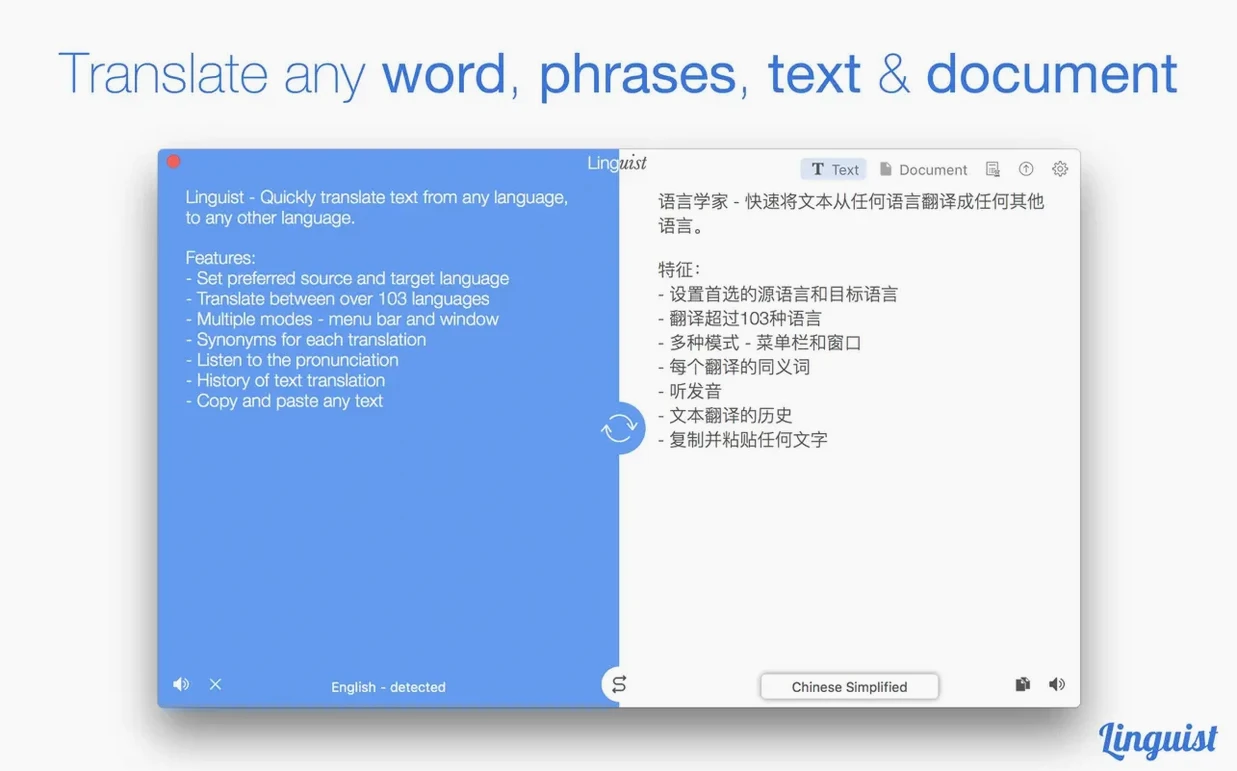
Linguist runs on Apple Silicon and Intel Macs, requiring macOS 10.11 or later and an active internet connection. The app translates words, phrases, and documents between more than 103 languages, with tools accessible from both a dedicated window and the menu bar.
Text and document translation
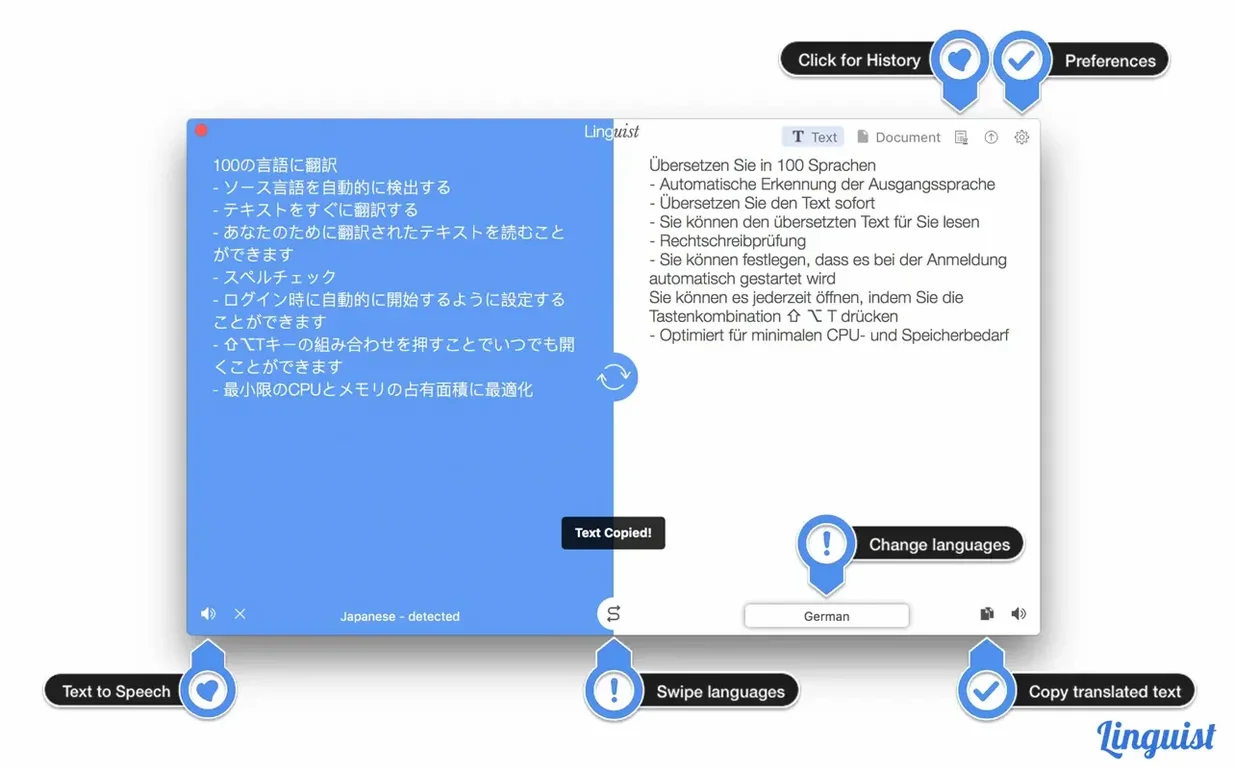
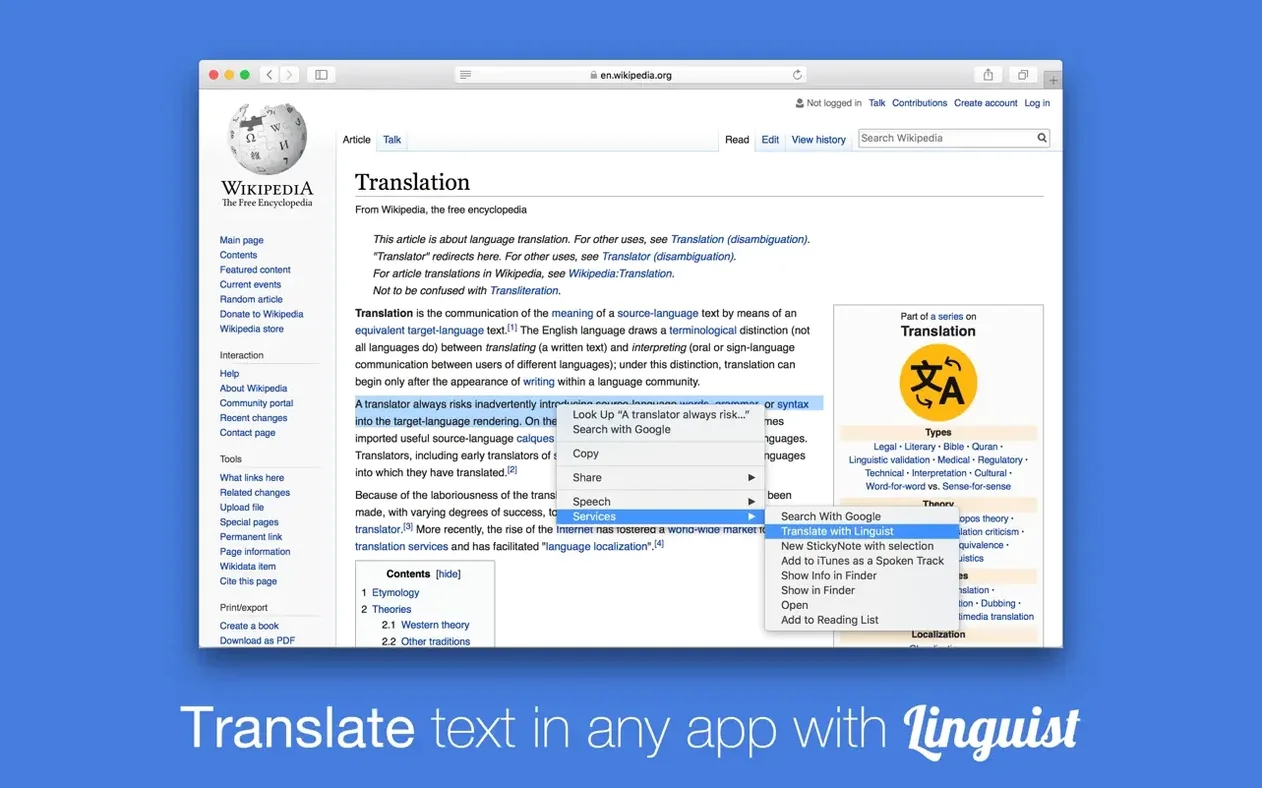
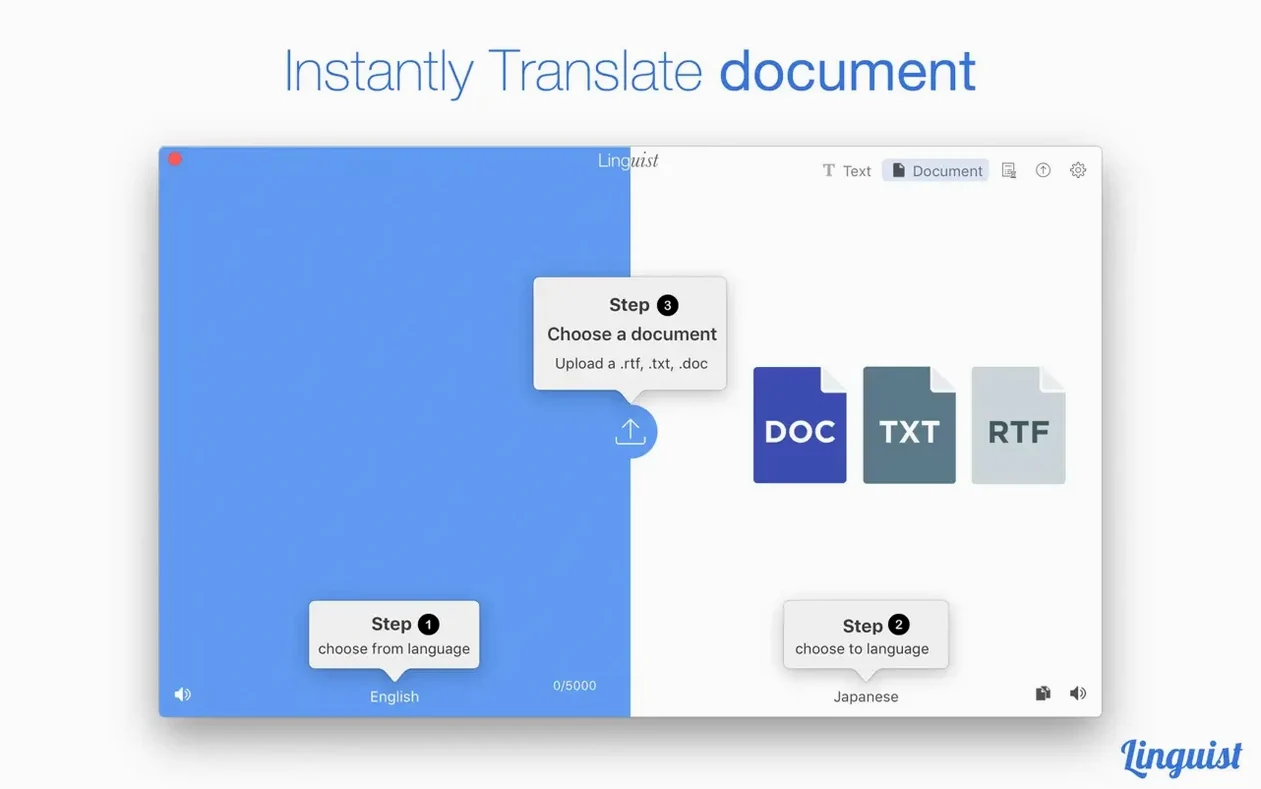
Input arrives through copy and paste, or by selecting text in another app and triggering a translation with a click or a configurable hotkey. Each result comes with a pronunciation playback option and a list of synonyms, which helps when you need a more specific word rather than a direct equivalent. The document side handles file-based translation, though the speed depends on the connection and the size of the material.
Menu bar access for 103 languages
The menu bar integration makes Linguist useful for quick lookups during reading or correspondence without switching windows. The 103-language range covers most common pairs, and the synonym display adds a layer of precision that plain translators skip. It is a practical tool for writers, researchers, or anyone who regularly reads material in a non-native language and wants a fast, localised translation workflow on a Mac.
Day-to-day performance
In practical use on both Apple Silicon and older Intel hardware, Linguist 3.4 opens without a splash screen delay. The windowed interface renders translation results well under a second on a stable broadband connection, while the menu bar mode feels even lighter — select text, hit the hotkey, and the translation pops over without pulling you out of the active app. Memory usage typically hovers around 60–80 MB during text translations, climbing briefly toward 110 MB when processing a 20-page DOC file, then dropping back once the result is displayed. That is modest alongside a browser with a dozen tabs open.
Stability is consistent across macOS versions back to 10.11. During a full morning of back-and-forth translations — web pages, mail snippets, a 15-page PDF — the app did not beachball or drop the connection once. Internet dependency is the obvious bottleneck. On a patchy mobile hotspot, a document translation that normally finishes in four seconds can stretch to eight or nine, and the app shows a spinning progress indicator rather than a partial result. Linguist does not cache translations locally, so repeated identical lookups always hit the network. On a wired or strong Wi‑Fi link this is invisible; on a train it is something to plan around.
Synonym panel refreshes across target languages
Version 3.4 brought two practical shifts. The synonym panel now updates in real time as you switch between target languages, where earlier builds required a fresh translation to refresh the suggestions. That saves a click per language swap when you are comparing how a term lands in, say, German versus Dutch. The hotkey engine was rebuilt to respect per-app focus: you can set one shortcut for Safari and another for Mail, and the app remembers both without a helper daemon eating CPU in the background.
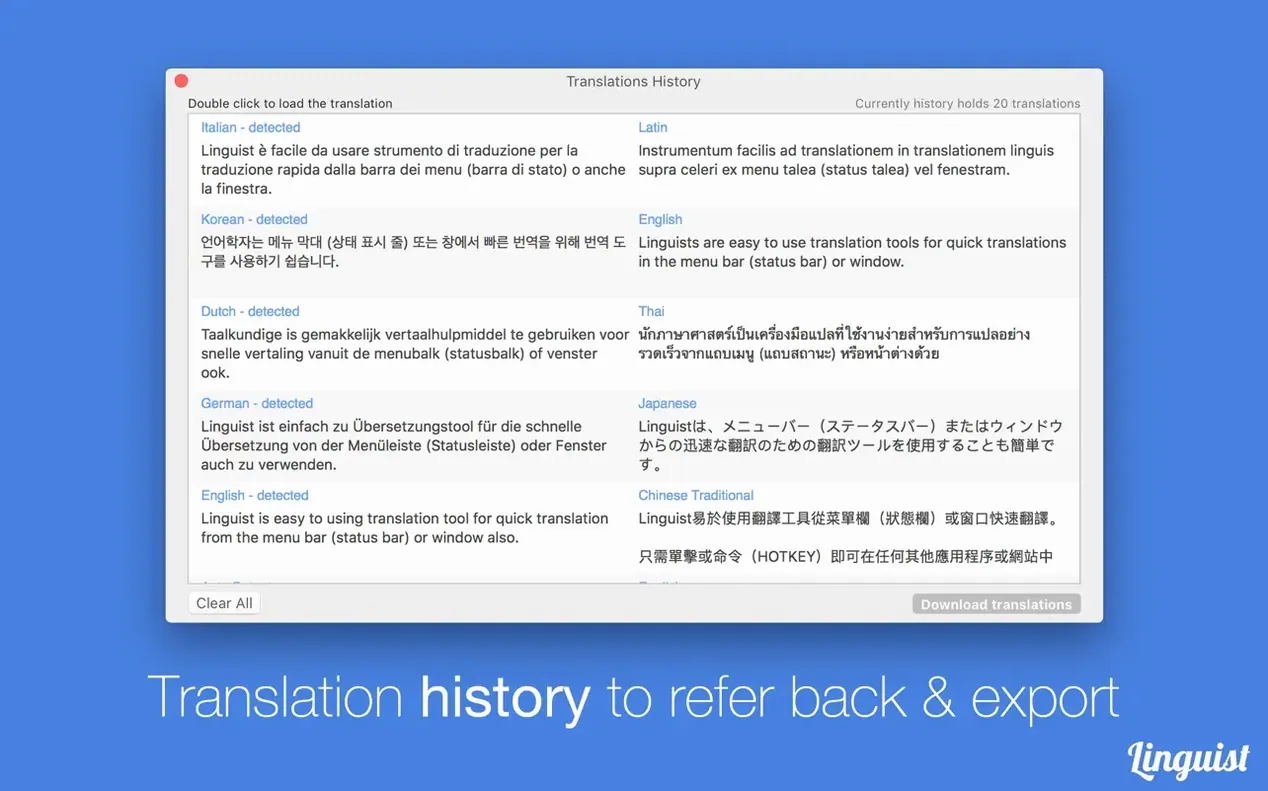
Earlier 3.x updates tightened document format handling. RTF files that previously lost paragraph spacing on import now preserve line breaks, and TXT files with mixed encodings — UTF-8 documents with occasional Windows-1252 characters — no longer produce garbled blocks. PDF translation still works best with text-based pages; scanned image-only PDFs remain outside the app's scope. The history export to .txt now includes source and target language tags per entry, making it easier to sort a long session log by language pair later.
Single-click window instead of two
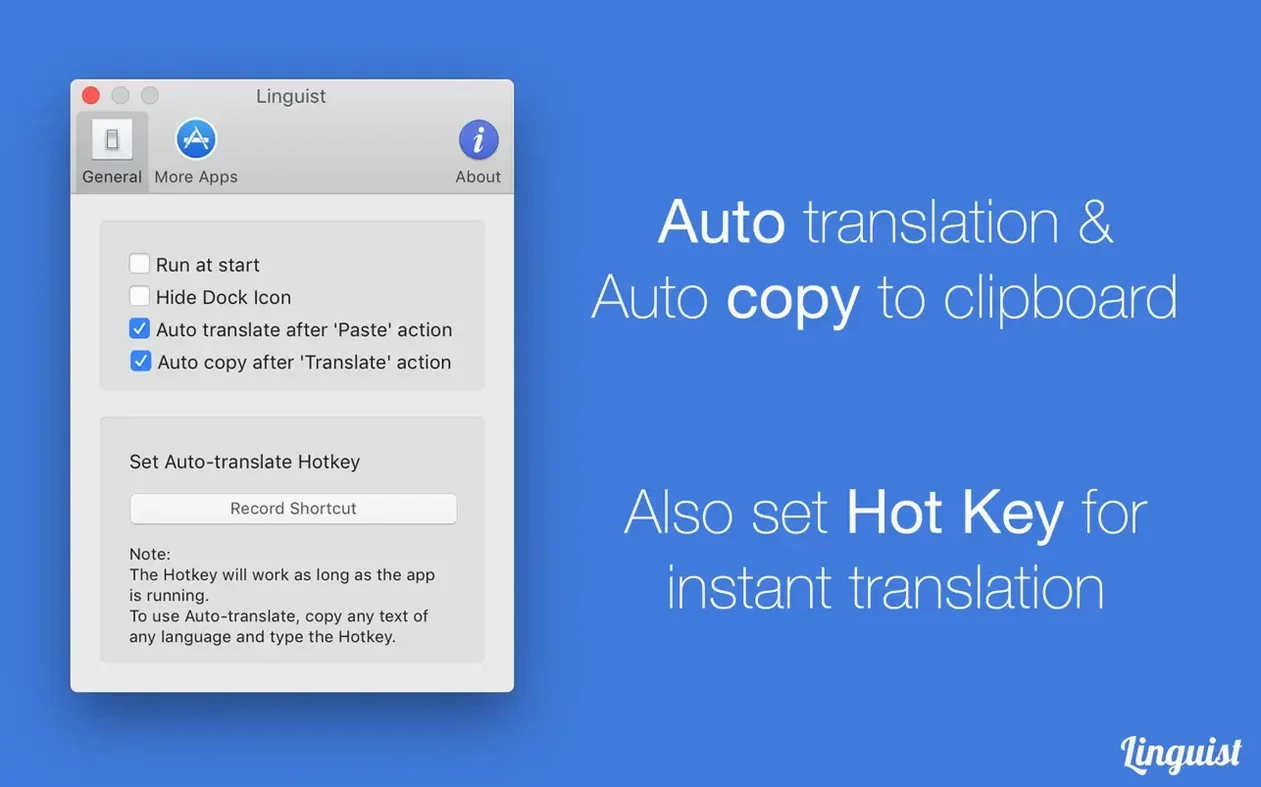
Out of the box, Linguist places a menu bar icon that requires two clicks to reach the translation field. Switching the preference to Show translation window on menu bar click cuts that to a single click and opens the input box immediately. The default hotkey is ⌃⌥⌘T, which conflicts with nothing on a standard macOS install, but anyone using terminal multiplexers or clipboard managers may want to remap it under the Shortcuts tab. Set the source language to Auto-detect and pick your most-used target language as the default — the app then skips the language selector for quick one-shot lookups.
If you frequently translate between the same three or four language pairs, pin them in the Favourites list. The menu bar dropdown then shows direct pair buttons, reducing a three-step selection to one. For document work, raise the font size in the results pane to 14 pt; the default 12 pt is readable but tight when scanning long paragraphs. Lastly, enable Play pronunciation automatically only if you work with headphone audio — the spoken output is loud enough to startle in a quiet room and the preference is off by default for good reason.
- OS X 10.10 or later
- Apple Silicon or Intel 64-bit processor
Questions on file
Does Linguist work offline?
No, translations require an internet connection.
Can I hear how a translated word is pronounced?
Yes, Linguist includes pronunciation playback for translated text.
How many languages does Linguist support?
It supports translation between more than 103 languages.
Sign in · Create an account to add a field note.
No field notes yet. A measurement, a version, a machine — they appear after moderation.