
Mac Apps
MacBooster 8.3.0
Mac AppsUpdated
| Requirement | On file |
|---|---|
| macOS | macOS 11.5 or later |
| CPU | Apple Silicon, Intel 64-bit |
| Download | 38 MB |
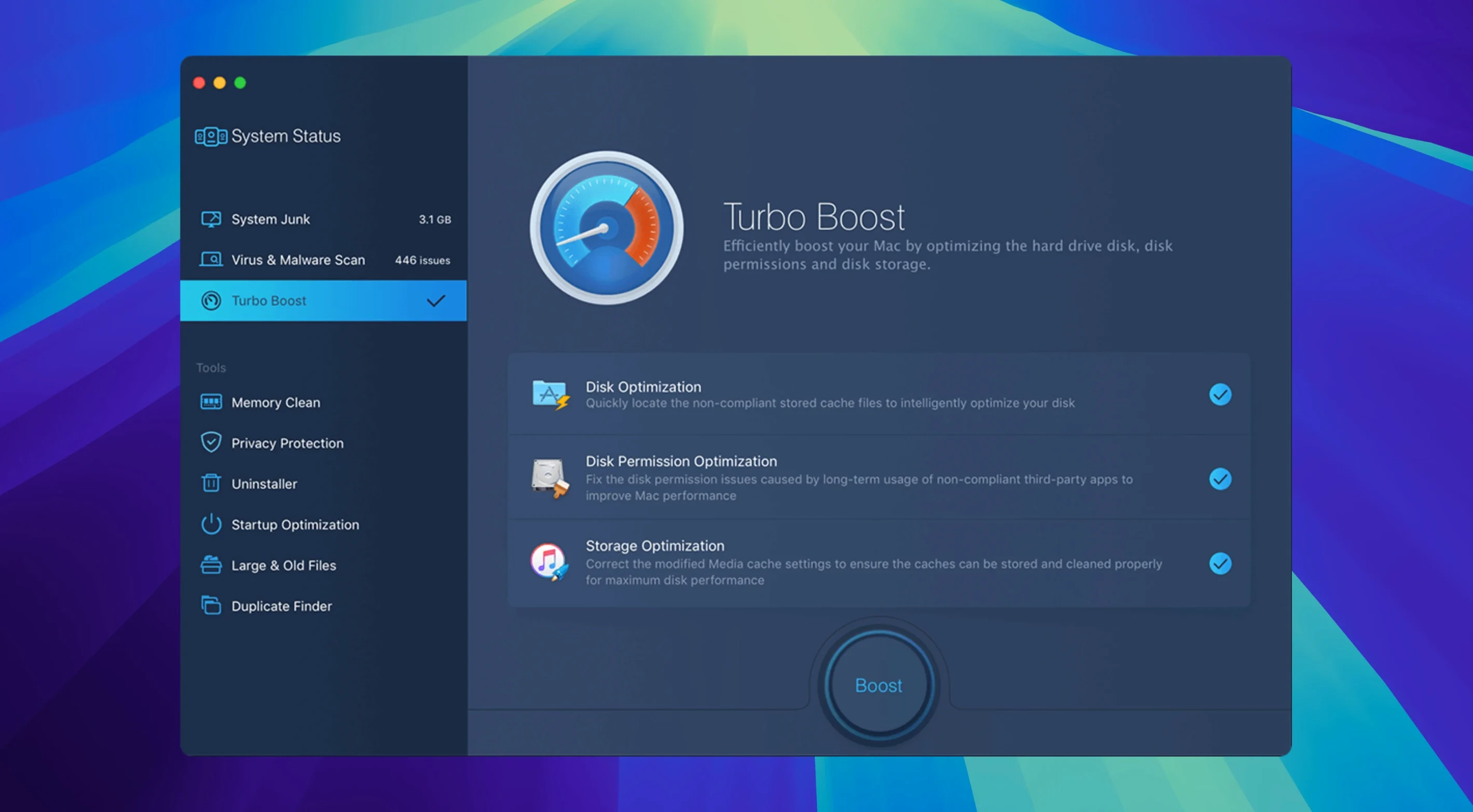
MacBooster 8.3.0 is a general-purpose maintenance utility that packs seven cleanup and security tools into a single interface, targeting junk files, malware, memory pressure and disk clutter in one pass.
Junk and duplicate cleanup
It scans for 20 types of junk files—caches, logs, language packs and leftovers from uninstalled apps—alongside large and duplicate files. The duplicate scan checks photos and documents by content, not just filename, so you can reclaim space you did not know was wasted.
Memory and disk optimisation
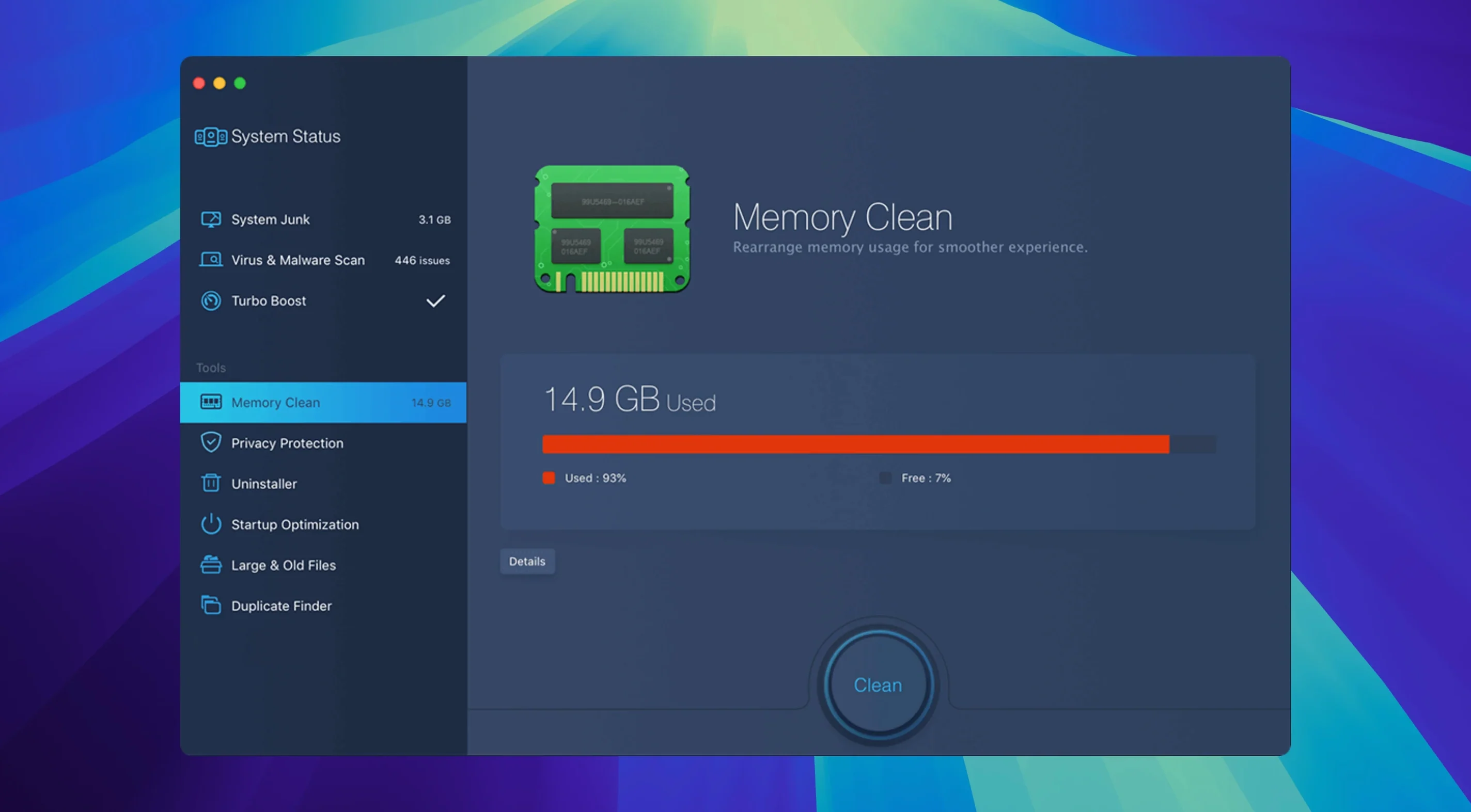
A one-click memory clean frees up RAM that background processes are holding, while the disk optimisation routines defragment and repair permissions on the system volume. Together they address slowdowns that the built-in macOS tools do not always catch automatically.
Privacy and malware removal
The privacy module clears browser histories, recent-items lists and chat logs across the main browsers. Its malware scanner works alongside whatever dedicated antivirus you may already run—targeting adware, browser hijackers and crypto-miners that a general virus scanner might overlook.
A freelancer’s Saturday morning cleanup
A freelance illustrator wrapping up a week of commissions notices her MacBook Air feels sluggish—Photoshop scratch files, half-a-dozen client DMG installers and a month of browser cache have piled up. She launches MacBooster, runs the full System Status scan, and within the four-minute sweep it flags 11.2 GB of junk, three duplicate PSD sets and a browser hijacker she picked up from a font-site redirect. One click later the machine is back to its Monday-morning responsiveness, and she can send invoices without the beachball.
Building a full System Status scan before your first deep clean
Right after installing, take ten minutes to set things up so the utility works with your habits, not against them.
- Run a full scan first, not a quick clean. The System Status scan builds an inventory of what is actually on your disk. Subsequent targeted scans will be faster once that baseline exists.
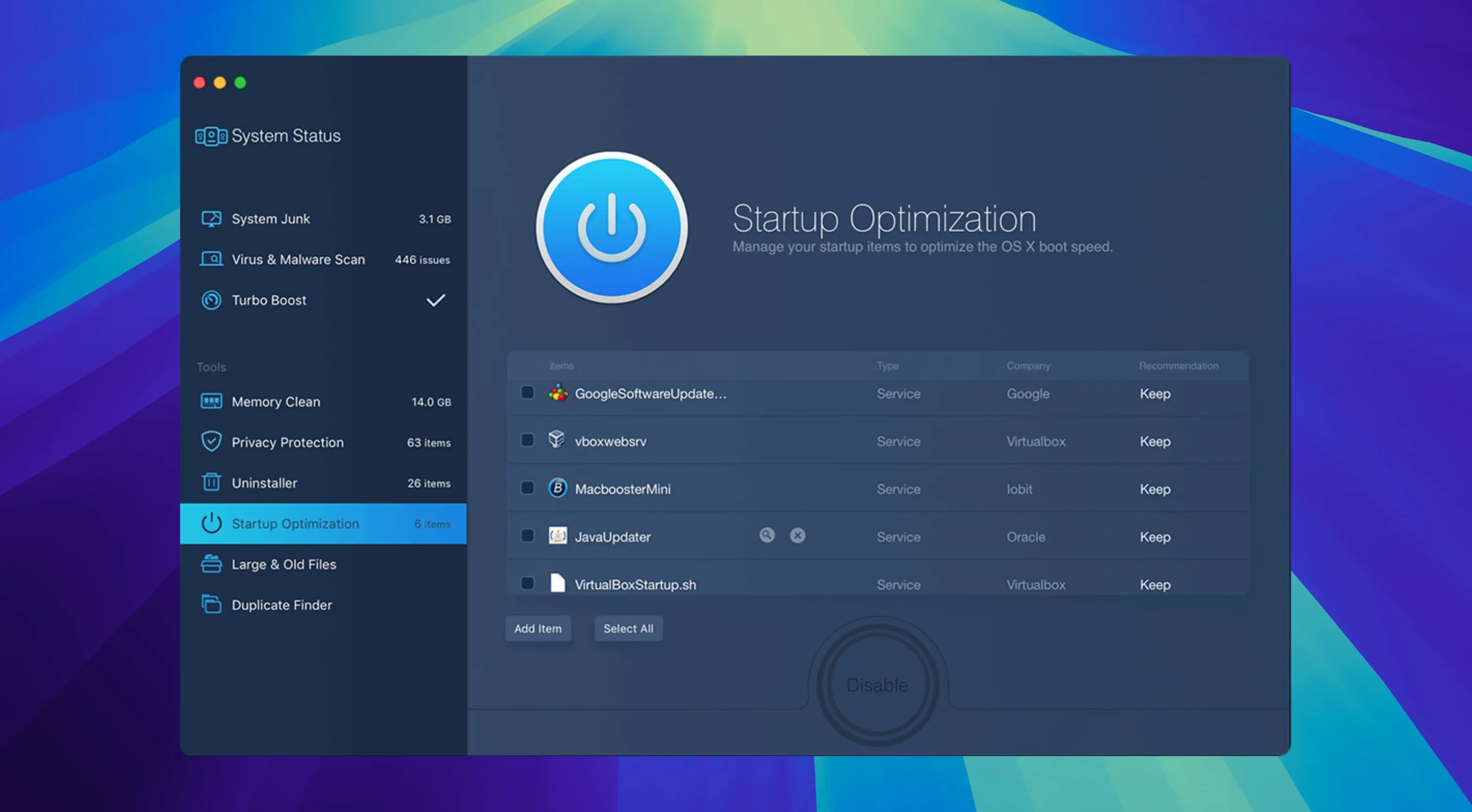
- Check the Startup Items list before you clean anything. MacBooster will show you every launch agent and login item. Toggle off the ones you recognise as unnecessary, but leave anything with a cryptic label until you have searched its name—disabling a helper daemon for a Wacom tablet or a software licence manager can cause puzzling errors later.
- Set the duplicate scan threshold to 10 MB. The default catches every tiny preference plist clone. Raising the floor to 10 MB surfaces the photo sets, zip archives and video exports that actually matter for disk space.
- Exclude your active project folders. Add them in Preferences before the Large Files scan runs. You do not want a half-finished Logic Pro project bundle or a Final Cut library showing up in a cleanup list by mistake.
Beginner pitfalls worth avoiding
Most trouble with MacBooster comes from acting before reading what is on screen.
- Blindly clicking “Fix All” after the first scan. The junk-file list often includes browser session data and recent-document lists that you may want to keep. Review each category before confirming deletion—recovering a wiped cookie that kept you logged into a tax portal is tedious.
- Removing language packs for apps you still use. MacBooster can strip every non-English localisation from installed software, which reclaims several hundred megabytes. But some apps, particularly Adobe Creative Cloud tools, will refuse to update until you reinstall them if you remove their language resources. If you regularly switch system languages, skip this one entirely.
- Running the memory clean while rendering or exporting. The tool flushes inactive memory aggressively. Doing this during a HandBrake encode or an Xcode build can force the system to reload assets from disk mid-task, adding minutes to the job instead of saving them.
- Treating the malware scanner as a replacement for a real-time antivirus. It is an on-demand scanner that checks for known adware signatures and common miner patterns. It does not watch file-system events or scan incoming downloads automatically. Keep a separate real-time guard if your workflow involves untrusted attachments or public WiFi.
Clearing the Chrome weight after a week of Flare and captures
A technical writer sits down at an M1 Mac mini with 16 GB of RAM after a week of building documentation in MadCap Flare and recording screen captures. Chrome has been open with twenty-plus tabs since Tuesday. Here is how the next twenty minutes play out.
09:04 — Launch and status check. She opens MacBooster. The dashboard shows a red warning on memory pressure and an orange flag on junk files. The malware indicator sits green. She clicks “Scan” on the System Status tile and goes to refill her water glass.
09:08 — Scan results. The scan reports 8.7 GB of junk (mostly ScreenFlow temporary recordings and Flare output caches), 1.2 GB of duplicate TIFF screenshots, and 47 Safari tracking cookies. Memory is 89% utilised. No malware found.
09:10 — Review and deselect. She unticks the Browser History category—she needs yesterday’s visited URLs for a documentation ticket. She also unticks two large MP4 files in the duplicates list because they are source recordings, not copies, just identically named.
09:11 — First cleanup pass. She clicks “Fix.” The junk removal finishes in under a minute. The duplicates take slightly longer because MacBooster verifies file hashes before deleting. Disk space reclaimed: 9.4 GB.
09:15 — Memory clean. She switches to the Memory Clean tool and taps “Clean.” The used-RAM figure drops from 14.2 GB to 6.1 GB as inactive pages get flushed. Chrome tabs remain open but will lazy-reload when she returns to them—a fair trade-off for the snappier Exposé animation she gets immediately.
09:19 — Permissions repair. Out of habit, she runs the Disk Permissions repair on the system volume. It finds four minor ACL inconsistencies on a Homebrew-installed font directory and corrects them. This is the kind of housekeeping macOS does not perform unless you boot into Recovery, and here it takes seconds.
09:22 — One privacy sweep. She runs the privacy cleaner on Chrome and Safari, clearing the tracking cookies the earlier scan flagged. The chat-log wipe catches a month of accumulated Slack preview data—not sensitive, just pointless to keep.
09:24 — Done. She closes MacBooster. The mini’s fan, which had been idling at 3200 rpm throughout the Flare-heavy week, has dropped to 1800 rpm. Finder windows open without hesitation. The machine feels like it did after a restart, but no restart was needed.
- macOS 11.5 or later
- Intel or Apple Silicon Mac
- 70 MB or more of free disk space
Questions on file
Does MacBooster 8 replace my existing antivirus software?
Not completely. Its malware scanner targets adware, browser hijackers and crypto-miners, but it is designed to work alongside a dedicated antivirus tool rather than replace one.
What macOS versions does the current release support?
MacBooster 8.3.0 requires macOS 11.5 or later and runs natively on both Intel and Apple Silicon Macs.
Sign in · Create an account to add a field note.
No field notes yet. A measurement, a version, a machine — they appear after moderation.