
Mac Apps
Unite Pro 1.8
Mac AppsUpdated
| Requirement | On file |
|---|---|
| macOS | macOS 15 or later |
| CPU | Apple Silicon, Intel 64-bit |
| Download | 27 MB |
Default email routing for mailto links
This update brings a default email client mode into play for supported services. When you click a mailto link inside an app you’ve built, Unite Pro now routes it to a pre-filled compose page in the right webmail interface. The download location prompts have also been tightened up—the file picker remembers the last folder you chose instead of resetting every session.
An expert workflow for app creation
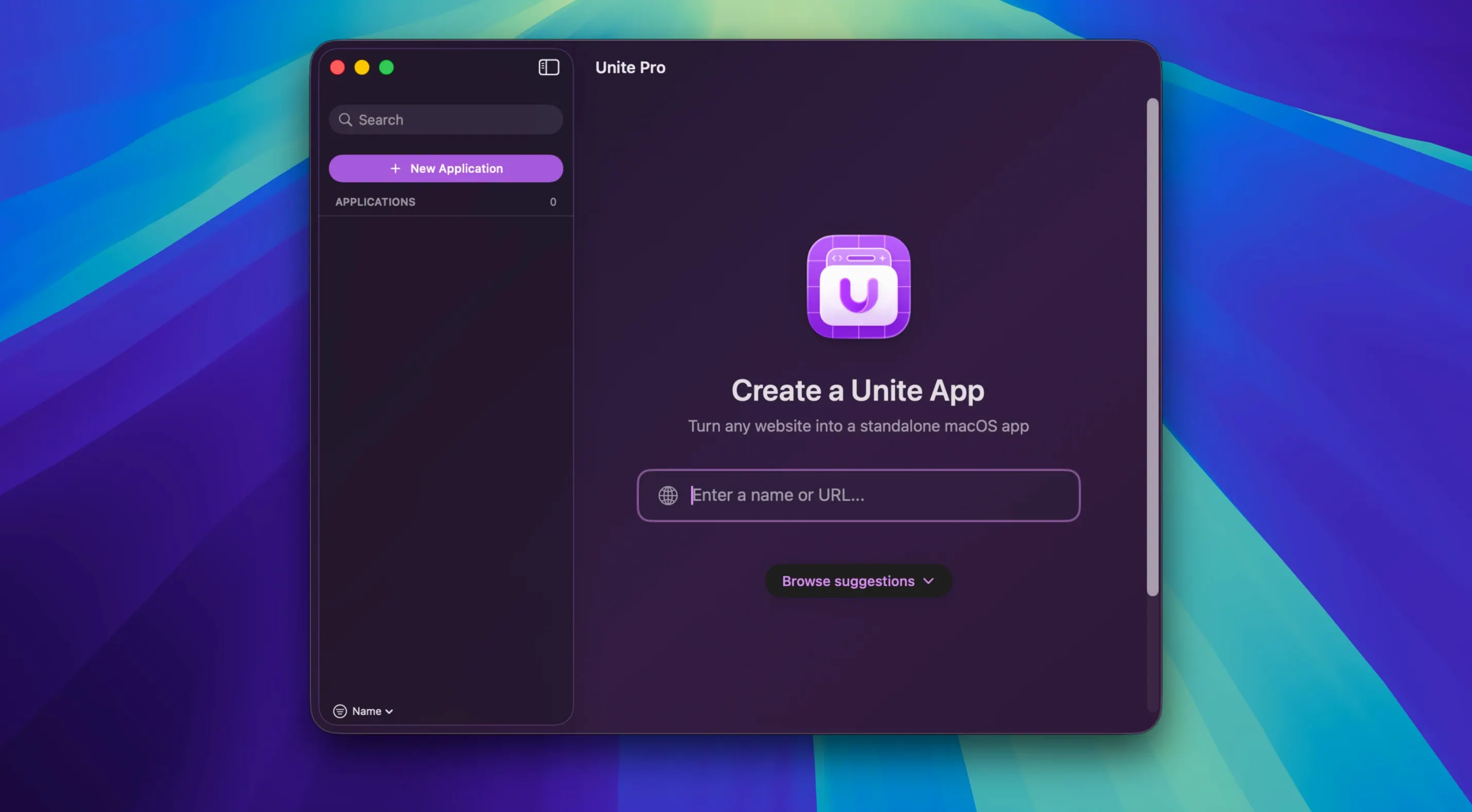
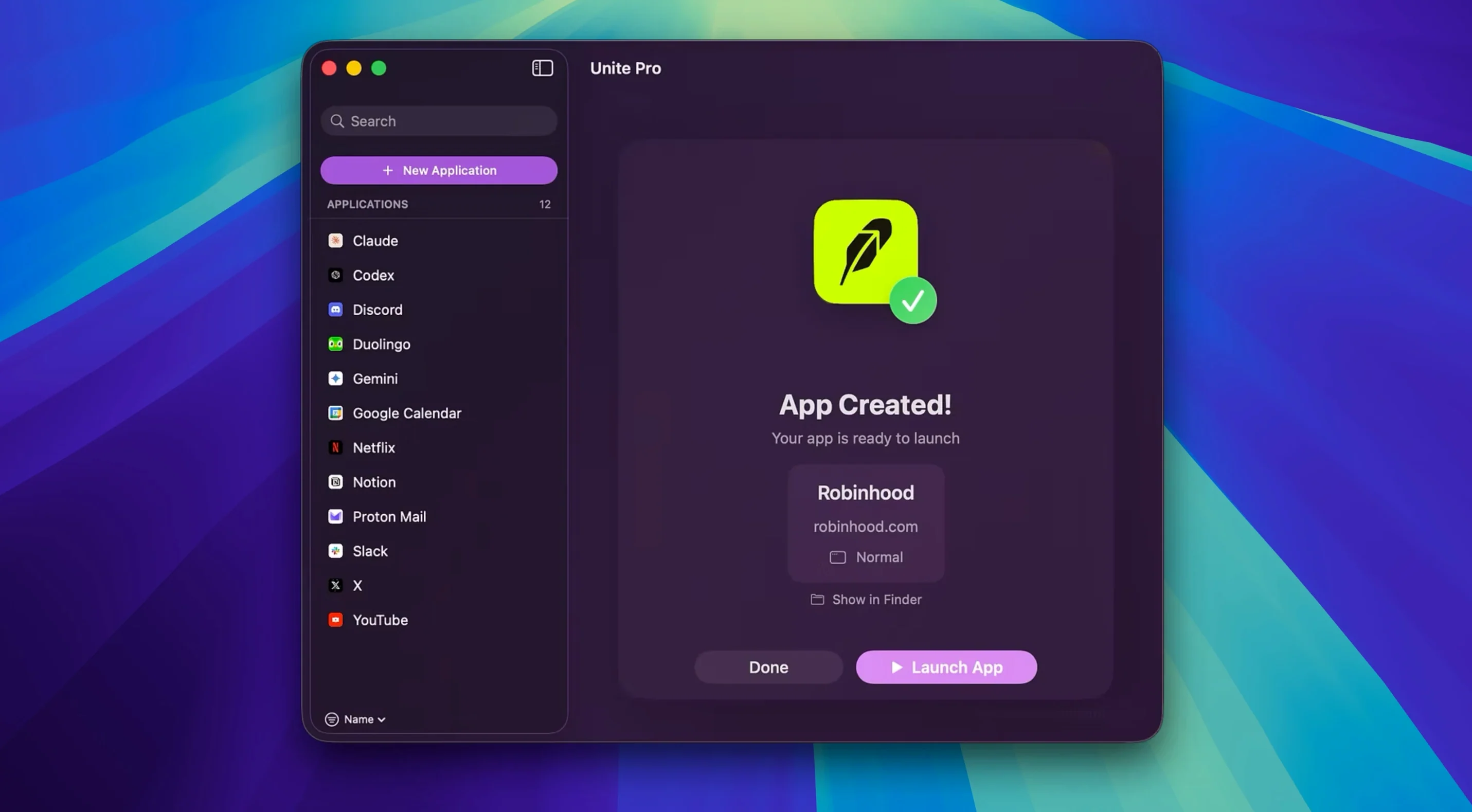
For users who live in the details, the app-building process in Unite Pro rewards a methodical approach.
- Define the container. Enter the URL and give the app a name. At this stage, decide on the rendering engine and choose whether it should appear as a standard desktop window or a compact menu bar utility.
- Isolate the session. A critical step for anyone juggling multiple accounts. Each app you create maintains separate cookies and local storage, so you can run several instances of the same service without signing in and out.
- Inject user scripts and styles. Before finalising the build, head to the app’s settings panel. Here you can paste custom CSS and JavaScript that Unite Pro loads on every launch—useful for hiding distracting elements or adding keyboard shortcuts the original site lacks.
- Wire up the app-level preferences. Set a custom user agent if the service is picky, adjust the Touch Bar layout for MacBook Pro models, and configure notification behaviour. macOS system notifications fire through the native centre, not as in-browser pop-ups.
This separation of settings means you can fine-tune each standalone app for a single purpose without affecting another. The build runs natively on both Apple Silicon and Intel Macs, with the interface itself available in six languages.
Global shortcut for the last active app window
Several shortcuts sit just below the surface in Unite Pro, and they change how quickly you move between web apps. The most useful is the global shortcut for the last active app window. In the preferences for any created app, you can assign a system-wide hotkey that brings it to the front, no matter which desktop space you are on. This works even when the app is hidden or minimised.
Another overlooked detail is the drag-and-drop URL import. If you highlight a URL in another browser or a text file and drag it onto Unite Pro's main window, it pre-fills the creation dialogue instantly. No copying and pasting required. The same gesture works with a selected block of text that contains a URL—Unite Pro parses the first valid address it finds.
Right-clicking any app in the Unite Pro library reveals a contextual menu with a "Reveal in Finder" command. Each app you build is a self-contained .app bundle that lives in your Applications folder (or a subfolder you specify). Knowing this lets you back up individual web apps by copying the bundle, or delete one by dragging it to the trash without opening the Unite Pro interface.
For services that rely on file uploads, the download location memory introduced in version 1.8 extends to upload dialogues too. Once you pick a folder during an upload, the next file picker opens to the same location. This consistency across downloads and uploads eliminates a small but persistent friction point that earlier versions had.
Notifications carry more granularity than the initial setup suggests. Inside each app's settings, the notification badge toggle controls whether the Dock icon shows an unread count dot. For services like Slack or WhatsApp Web, turning this on gives you a visual cue without needing the notification centre open. The badge updates when the web app's favicon changes, which is how most services signal unread activity.
First settings worth adjusting
Fresh out of the box, three settings benefit from immediate attention. They shape how every app you create will behave.
User agent override. Under the global preferences, set a default user agent string that all new apps inherit. Services like Google Meet or Microsoft Teams often serve a richer desktop experience when they believe they are running in Chrome for macOS. The dropdown includes presets for the latest Chrome, Firefox and Safari versions on both desktop and mobile, and a custom field lets you paste any string you need.
Default icon source. Unite Pro automatically fetches a site's favicon or apple-touch-icon during app creation, but the resolution varies wildly. In the global preferences, you can instruct it to prefer high-resolution sources first. Check "Attempt to get highest-quality icon" and the engine tries multiple paths—apple-touch-icon-180x180.png, the site's Open Graph image, and a few other standard locations—before falling back to the favicon. This single checkbox improves the look of your Dock and Launchpad substantially.
App storage location. By default, created apps land in ~/Applications/ if that folder exists, otherwise /Applications/. Setting a dedicated folder like ~/Web Apps/ keeps them grouped separately from your installed native software. Unite Pro remembers this choice, and the library view continues to list every app regardless of where the bundle physically resides.
How Unite Pro compares with similar tools
The macOS ecosystem has no shortage of site-to-app converters, but three names come up most often alongside Unite Pro: Fluid, Coherence X, and WebCatalog. They share the same broad goal, yet the implementation details push them toward different audiences.
Fluid is the most minimal of the three. It creates single-site browsers from a URL and supports user scripts and styles, but it runs on a shared WebKit instance. That means all your Fluid apps share cookies and storage unless you manually create separate profiles. For someone who needs true session isolation—multiple Gmail accounts open side by side, each with its own logged-in state—Fluid falls short. Unite Pro's per-app browser instance solves this outright. Fluid also lacks menu bar app mode and Touch Bar support, two features that Unite Pro treats as first-class options during app creation.
Coherence X matches Unite Pro on session isolation and adds a few power-user features like tabbed app containers and Chrome extension support. Where it diverges is in the interface. Coherence X leans heavily on a wizard-style builder with more steps and options, which some users appreciate but others find slower for quick app generation. Unite Pro's creation flow—URL, name, engine, window type, finish—stays compact. Coherence X also ties its notification system to a companion helper app that runs in the background, while Unite Pro bakes notifications directly into each standalone app bundle. The practical difference: a Unite Pro app you share with someone else works immediately; a Coherence X app might require the recipient to install the helper.
WebCatalog positions itself as a curated app store for web services. It comes with a catalogue of pre-configured site apps and prioritises discovery over customisation. User scripts and user styles are absent from WebCatalog's feature set. If your workflow involves tweaking CSS to hide sidebars or injecting JavaScript for keyboard shortcuts, WebCatalog gives you no path to do it. Unite Pro's script and style injection panels remain its strongest differentiator for detail-oriented users. WebCatalog also lacks the default email client mode that Unite Pro 1.8 introduced—the mailto-link routing alone can justify the choice for anyone who lives in webmail.
Multi-account managers who resent browser chrome
The user profile that extracts maximum value from Unite Pro is the person who already treats web apps as their primary tools but resents the browser chrome that surrounds them. Three groups stand out.
Multi-account managers. Anyone who runs several Google Workspace or Microsoft 365 identities—contractors moving between client tenants, support staff monitoring shared inboxes, developers testing apps under different user roles—benefits directly from per-app cookie isolation. Five Gmail apps in the Dock, each signed into a different account, with no profile-switching or incognito windows. Unite Pro's architecture makes this trivial where a browser would fight you at every step.
Menu bar minimalists. Services you check for a few seconds at a time—a translation tool, a system status dashboard, a short-link generator—waste screen space as full windows. Pinning them to the menu bar through Unite Pro's compact mode shrinks them to a dropdown panel that appears on click and disappears when you click elsewhere. The Touch Bar integration further appeals to MacBook Pro users who want glanceable web content without leaving the keyboard row.
CSS and script tinkerers. The injection panels attract users who have hit the limits of what a website's own settings allow. Removing a chat widget from a documentation site, adding a dark mode that the service does not natively support, binding a global shortcut to a button that only exists in the DOM—these are all achievable with a few lines pasted into Unite Pro's per-app settings. The changes persist across app restarts and survive the site's own updates, because they run at the container level, not inside the page's own lifecycle.
- Default email client — Adds a mode for supported webmail services where mailto links open a pre-filled compose page in the chosen app.
- Download prompts — The file chooser now remembers the last folder you selected, streamlining repeated saves to a project directory.
- macOS 15 or later
- Built for Apple Silicon and Intel Macs
- Designed for macOS 26 Tahoe
Questions on file
Can I run multiple copies of the same website as separate apps?
Yes. Each app you create with Unite Pro handles its own cookies and settings independently, so you can stay logged into several accounts for the same service simultaneously.
How do user scripts work in Unite Pro?
You can add custom CSS and JavaScript in the app’s settings. Unite Pro loads these scripts automatically each time the app launches, letting you modify the site’s appearance or behaviour persistently.
Does Unite Pro support native macOS notifications?
It does. Notifications from your web apps are routed through the native macOS notification centre rather than appearing as in-browser alerts.
Sign in · Create an account to add a field note.
No field notes yet. A measurement, a version, a machine — they appear after moderation.