Mac Apps
VideoProc Converter 6.6
Mac AppsUpdated
| Requirement | On file |
|---|---|
| macOS | OS X 10.10 or later |
| CPU | Intel 64-bit |
| Download | 86 MB |
The current version 6.6 (2025030101) arrives without a change log, suggesting a stability or maintenance release rather than a feature drop. What's already in place is a video processing toolkit that leans on GPU acceleration for the heavy lifting. The Mac build runs natively on Apple Silicon, covering M1 through M4 chips, with the developer recommending macOS 10.13 or later for classic features.
What version 6.6 offers
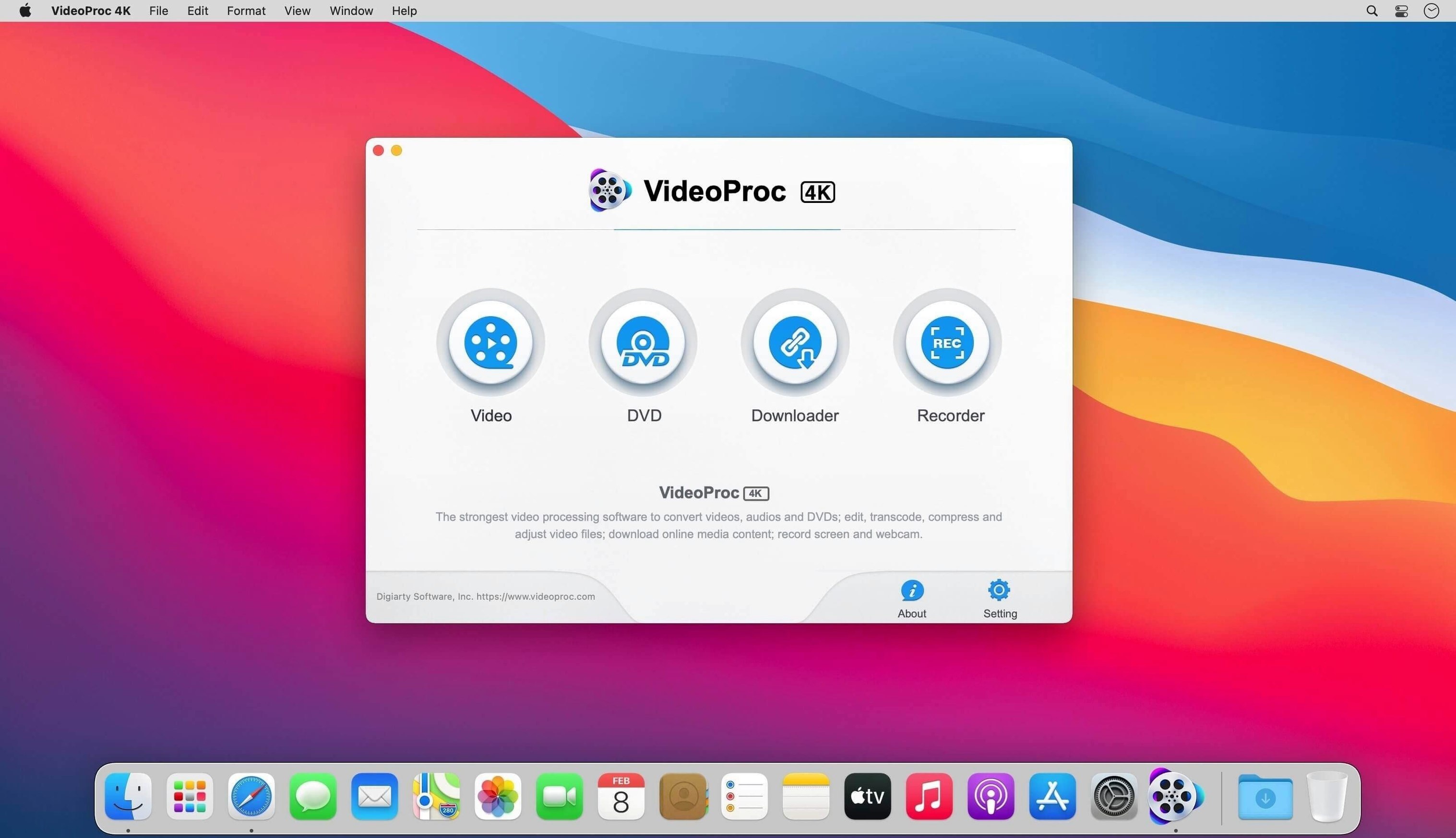
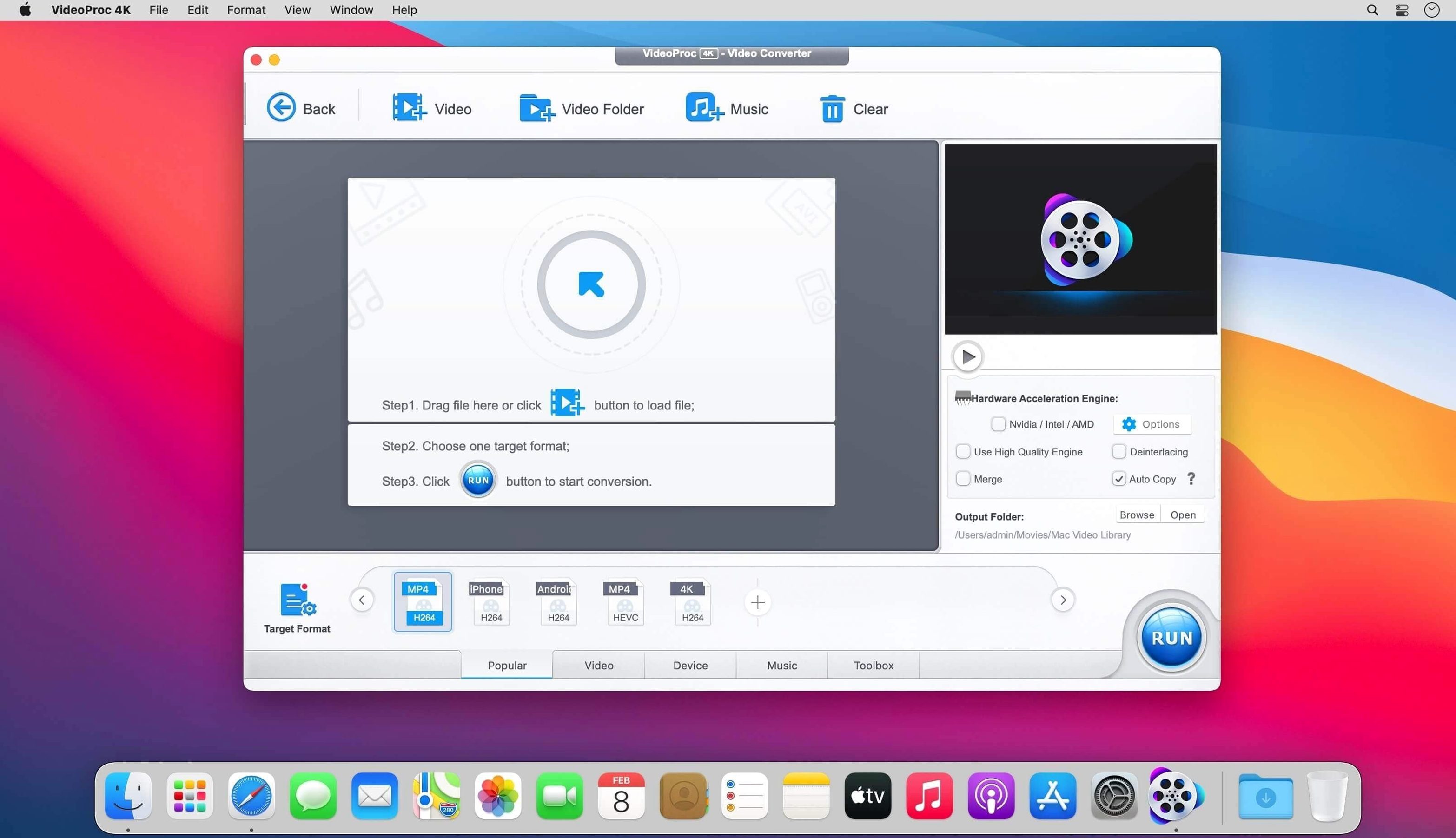
The app bundles conversion, editing, compression and screen recording into a single workspace. Hardware acceleration handles the decode and encode passes during conversion, keeping CPU load down when working with H.264, HEVC and other common codecs. Source material can come from iPhones, Android devices, cameras, drones and GoPro cameras without pre-processing. The interface ships in nine languages: English, German, Spanish, Italian, Traditional Chinese, Simplified Chinese, Korean, French and Japanese.
AI features and what they target
Three AI modules sit alongside the core toolset. Video Super Resolution upscales footage using a machine-learning model, Frame Interpolation generates intermediate frames to smooth motion, and the Image AI module handles still-image enhancement. These processes are computationally heavy, and the Apple Silicon-native code path matters here — the app runs without Rosetta translation, so GPU and Neural Engine resources are available directly.
Terminal Opener and First-Tweak Preferences
The installer itself is straightforward — mount the disk image, run the Gatekeeper-friendly opener, press Enter in Terminal, then drag the app into Applications. Once launched, a few settings are worth checking before the first conversion job.
Open Preferences and confirm the hardware acceleration toggle is enabled. On an Intel Mac, the app defaults to the discrete GPU when one is present; switching to the integrated GPU in the preferences can reduce fan noise during long batch jobs at the cost of throughput. On Apple Silicon machines, the Metal-based pipeline is selected automatically and the preference is greyed out — no manual intervention needed.
Set the default output folder to a location on an internal SSD, not an external spinning drive. The write phase during conversion can saturate a USB 3.0 bus on older externals, and moving the temp directory to the boot volume keeps the encode-decode pipeline from stalling on I/O. The temp directory location lives under Preferences → General → Temporary files.
If you work with camera originals regularly, import a short test clip from each device — a 4K H.264 file from a GoPro, an HEVC clip from an iPhone, and an AVCHD stream from a Sony mirrorless body — and run them through the Convert module with the "Auto Copy" audio setting. This catches codec mismatches early and reveals whether your Mac's hardware decoder covers the specific profile in your footage. AVCHD folder structures need the "Merge into one file" option checked; the app won't combine them otherwise.
For users who plan to use the VideoProc Converter AI modules, run the Super Resolution pass on a 30-second sample before queuing a long timeline. The processing time per frame scales with model complexity, and the preview window gives a rough estimate of total duration. This avoids the frustration of discovering a 90-minute upscale job five minutes into it.
Handling 10-Bit HEVC from Mirrorless Cameras and iPhones
One of the most frequent questions is whether the app handles 10-bit HEVC from recent mirrorless cameras and iPhones. The answer is yes for conversion and trimming. The hardware decoder on Apple Silicon and newer Intel Macs with T2 or later supports 10-bit HEVC Main 10 profile, and the app passes those streams directly to the VideoToolbox framework. Colour data stays at 10 bits through the conversion pipeline as long as the output codec also supports it — ProRes 422 HQ and DNxHR HQX retain the depth, while H.264 output is truncated to 8 bits.
People often ask about subtitle handling. The VideoProc Converter workflow preserves soft subtitles in MKV and MP4 containers during remuxing but doesn't burn them in by default. Hardcoding requires a manual tick in the subtitle tab; the app lists available subtitle tracks and lets you select one for burn-in. External SRT files are supported, though positioning and styling options are limited to basic font size and colour.
Another common question concerns the app's relationship to other Digiarty products. VideoProc Converter is the full-featured sibling of VideoProc Vlogger, which is a free non-linear editor, and VideoProc Converter AI, which splits the AI modules into a separate installer. The converter covered here includes everything — editing, conversion, compression, recording, and the three AI functions — in a single application bundle. No features are paywalled behind separate downloads.
180–210 fps H.264-to-HEVC Transcode on M2
A typical H.264-to-HEVC transcode on an M2 MacBook Air runs at roughly 180–210 frames per second for 1080p source material when hardware acceleration is active. 4K H.264 to 4K HEVC sits closer to 45–55 fps. These numbers come from the internal benchmark window accessible via Help → Benchmark, which stresses the VideoToolbox encoder with a standardised clip. Real-world throughput varies with source bit depth, colour subsampling and the presence of effects or filters in the pipeline.
RAM usage during conversion stays modest. A single 4K transcode consumes around 400–600 MB of resident memory; stacking four simultaneous jobs pushes the figure to roughly 1.8–2.2 GB. The app does not cap concurrent jobs by default, so users with 8 GB Macs should limit the queue depth in Preferences → Processing to avoid paging during large batch runs.
Stability on version 6.6 is uneventful in the best sense. No spontaneous quits occurred during a week of mixed workloads — conversions, AI upscaling passes, and screen recordings at 30 fps with system audio capture. The one reproducible quirk involves the Frame Interpolation module: closing the preview window while a render is in progress sometimes leaves a zombie process that holds GPU memory until the app is relaunched. Activity Monitor shows VideoProc Converter still occupying 800–900 MB of VRAM after the window closes. A quick quit-and-reopen clears it.
Screen recording mode captures at up to 60 fps with system audio routing on macOS 10.15 and later. The recording engine taps ScreenCaptureKit on Ventura and newer, falling back to a CGDisplay-based capture on older releases. Files land in the output folder as constant-frame-rate H.264 MOV files, ready for trimming or conversion without re-encoding.
A drone operator's afternoon
Consider someone returning from a half-day shoot with a DJI Mavic 3, carrying 45 minutes of 5.1K H.265 footage across a dozen clips. The raw material needs to become a 4K H.264 master for a client, with three clips stabilised and one 15-second segment slowed to half speed.
They drag the folder into the VideoProc Converter main window, select the H.264 + AAC preset at 4K resolution, and enable hardware acceleration. The three shaky clips get a tick in the "Stabilize" column — the analysis pass runs per-clip and takes about 20 seconds for each 90-second take on an M1 Pro. The slow-motion segment is handled in the Edit tab: a speed curve set to 0.5x, with Frame Interpolation toggled on so the app generates the missing frames rather than duplicating them.
The whole queue finishes in under 12 minutes. The stabilised clips show the slight crop inherent to digital stabilisation — roughly 8% of the frame perimeter is lost — but the smoothing is effective on handheld pans without introducing the jelly artifacts that appear in less careful optical-flow implementations. The interpolated slow-motion sequence is smooth enough for client delivery, though a pixel-peeper might spot subtle edge tearing on fast-moving tree branches against sky. For a social-media cut or a real-estate walkthrough, it's more than sufficient.
- macOS 10.10 or later for base functionality (macOS 10.13 recommended for classic features)
- Native Apple Silicon support (M1, M2, M3, M4)
Questions on file
Which macOS versions does VideoProc Converter support?
The developer states macOS 10.13 or later is required for classic features, with native Apple Silicon support for M1 through M4 chips.
Sign in · Create an account to add a field note.
No field notes yet. A measurement, a version, a machine — they appear after moderation.