Mac Apps
WhatCable Pro 1.4.0 by EDISO
Mac AppsUpdated
| Requirement | On file |
|---|---|
| macOS | macOS 14 or later |
| CPU | Apple Silicon, Intel 64-bit |
| Download | 9 MB |
WhatCable Pro runs on any Apple Silicon or Intel 64-bit Mac with macOS 14 or later. It connects to the system’s USB-C reporting channels and presents the raw negotiation data a cable sends to the host—no intermediate drivers or hardware bridges needed.
Pro Screens for Diagnostics and Negotiation
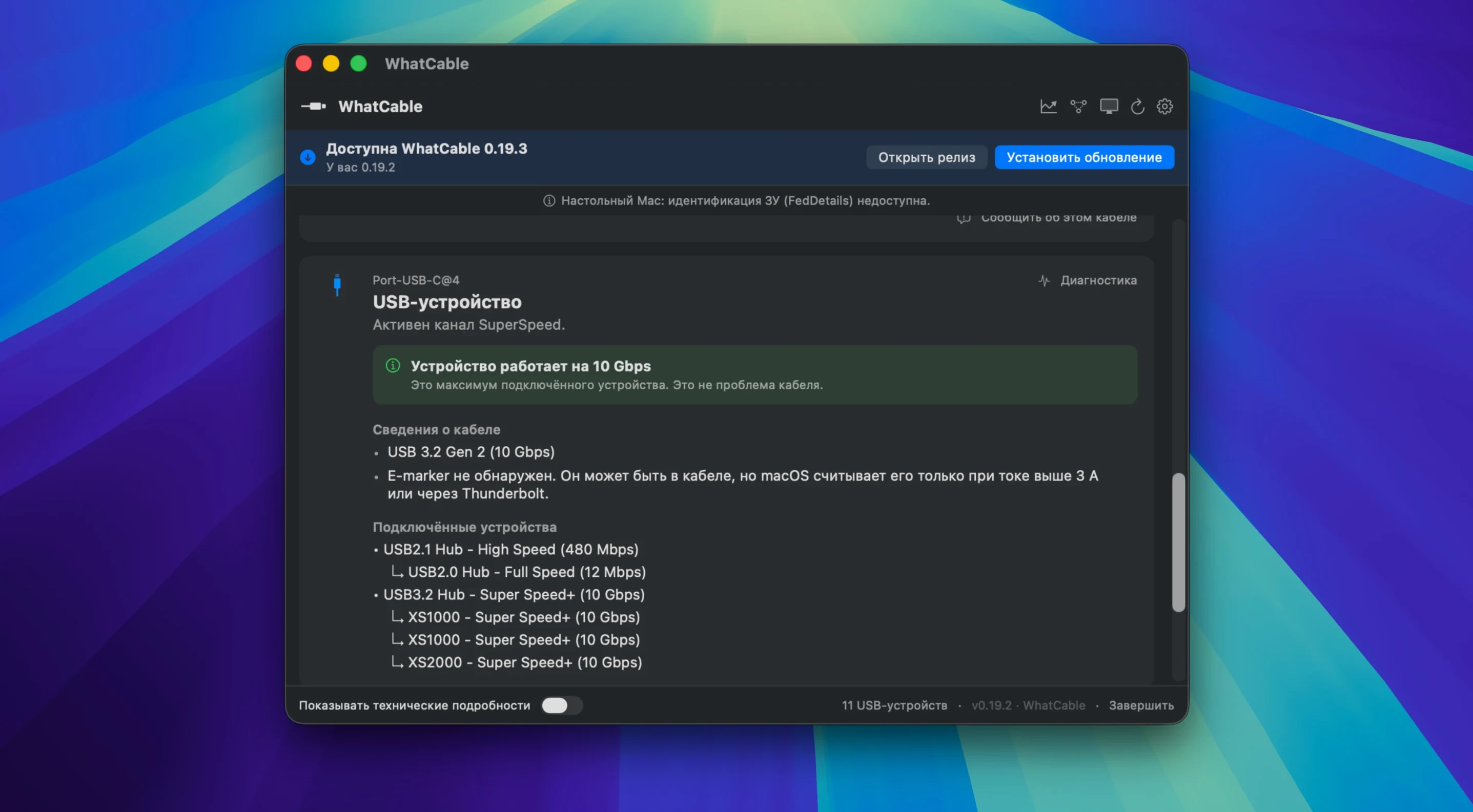
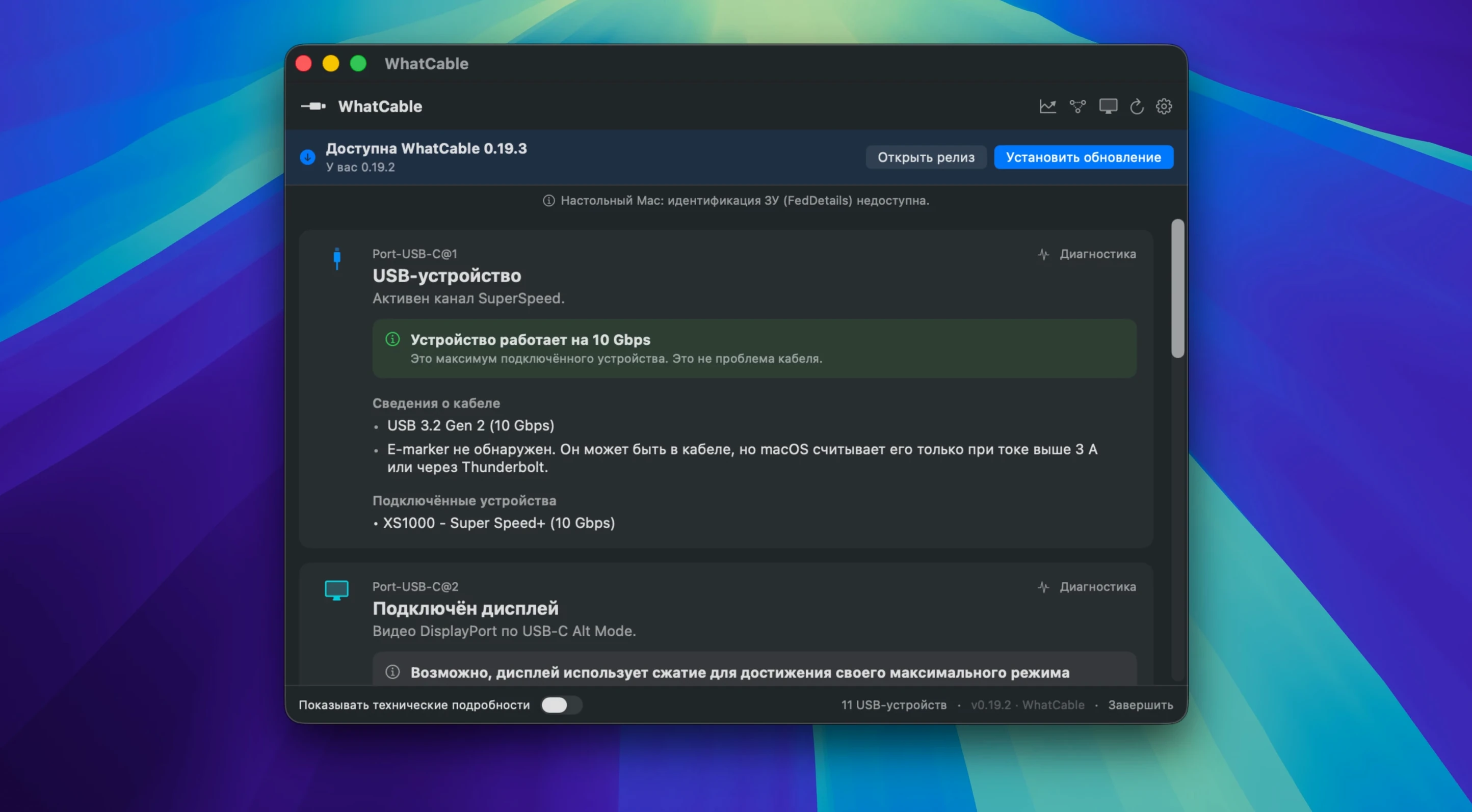
The Pro tier adds four views that an experienced user will lean on immediately. Power Monitor tracks which component in the chain—cable, charger, or Mac—caps the current, and logs charging speed and video signal support in real time. Negotiation Diagnostics exposes raw VDO data and checks e-marker fields against USB-IF specifications, flagging mismatches in current ratings or vendor IDs. Display Diagnostics goes beyond a simple pass/fail; it validates DP Alt Mode lanes, reads the sink’s EDID block, and reports the operating speed at which each device attaches to its port. The fourth screen, Saved Cables, archives the full diagnostic set per cable so you can compare a batch of C-to-C leads side by side.
Port Health and a Command-Line Interface
Port health counters track resets, protocol errors, and FET failures on a per-port basis—useful data when chasing intermittent disconnects on a Thunderbolt dock. For automation or integration into a test bench, the built-in CLI can output any diagnostic report as structured JSON. The interface supports 15 languages, but the JSON schema stays the same regardless of locale.
WhatCable Pro Next to Other USB-C Diagnostic Tools
The Mac ecosystem offers a handful of utilities that read USB-C e-marker data, but they split into two camps: lightweight freeware that dumps raw VDO fields to a text pane, and hardware-based testers that cost as much as a decent monitor. WhatCable Pro sits between them—software-only, yet with enough interpretation logic to make the raw numbers actionable.
Compared with ChargerLab Power-Z desktop software, which leans heavily on its own inline meter hardware, WhatCable Pro needs no dongle. You lose the sub-milliohm resistance measurements a physical breakout board can capture, but gain a live PD contract inspector that flags mismatches between the Mac's request and the cable's advertised PDO. The Power-Z route gives you a standalone readout; WhatCable Pro gives you a macOS-native record that ties each test to a specific port and cable profile.
CoconutBattery overlaps on one dimension: it reports charge rate in watts and flags whether the Mac is drawing from AC or battery. It does not decode e-marker chips, show which device caps the negotiation, or validate DP Alt Mode. Users who currently keep CoconutBattery open for charge-rate logging often add WhatCable Pro once they need to know why the rate is capped—the cable, the brick, or the port controller.
Open-source tool usb-c-explorer reads e-marker data in a macOS-friendly way, but its presentation is raw register dumps. A user who knows how to parse USB PD 3.1 specification tables can extract the same information; everyone else gets a hex view and a few decoded fields. WhatCable Pro does the decoding upfront, labels suspicious values, and lets you save a cable's full fingerprint without retyping a vendor ID by hand.
When a Working Cable Shows “No E-Marker Present”
A few friction points surface when people first run the app. The most frequent: a cable shows "no e-marker present" in the UI even though it is a fully functional charging lead. That is correct behaviour—passive USB 2.0 C-to-C cables often skip the e-marker chip because they stay within the 3 A safe ceiling. The app is not failing to read the cable; the cable has nothing to read.
On Apple Silicon Macs, the first launch can trigger a system permission prompt for USB device access. If you dismiss it or macOS blocks it silently, the port list stays empty. The fix is straightforward: open System Settings > Privacy & Security > USB and toggle WhatCable Pro to allowed, then reconnect the cable. No restart needed.
When the Power Monitor reports a 7.5 W ceiling on a charger rated for 60 W, the culprit is nearly always a USB 2.0 charge cable that cannot negotiate PD. Swapping to a cable with an e-marker chip immediately lifts the ceiling, and the Negotiation Diagnostics screen will confirm the PDO list the new cable advertises. The same screen catches counterfeit "100 W" cables that report a believable-looking 20 V PDO but cap current at 1.5 A—the mismatch flag turns red next to the suspect entry.
Display Diagnostics sometimes reports zero DP Alt Mode lanes despite a working external screen. This happens when the monitor is connected through a Thunderbolt hub that handles DisplayPort tunnelling instead of raw DP Alt Mode. The app reads what the Mac and cable negotiate; if the hub abstracts the display path, the DP lanes drop to zero by design. Connecting the cable directly to the monitor restores the full lane report.
Field Techs, IT Staff, and USB-C Hoarders
Three groups of Mac users run into the app's feature set naturally.
Field technicians and IT support staff who manage fleets of MacBooks and USB-C docks. They keep a small pile of known-good cables in the kit and use the Saved Cables screen to fingerprint each one. When a user complains that a desk setup drops to 30 Hz, the tech plugs in the suspect cable, compares the e-marker data against the reference, and spots the speed downgrade in seconds. The CLI's JSON output lets them pipe results into a ticketing system with zero retyping.
Video engineers and multi-monitor users who push high refresh rates over USB-C. A cable that works fine at 4K 60 Hz can fail edge cases at 4K 144 Hz with HDR, and the failure is often invisible—the display just refuses to sync. The Display Diagnostics screen confirms how many DP Alt Mode lanes are active and whether the EDID block of the sink reports the expected timing. Those two data points narrow the problem to the cable, the dock, or the display firmware before any hardware gets swapped.
Anyone troubleshooting a charger investment—whether a GaN brick, a multi-port desktop charger, or a power bank. The PD contract inspector lists every PDO the charger advertises, the active voltage and current, and any mismatch against the cable's capability. A charger may claim a 20 V 5 A profile, but if the cable is only rated to 3 A, the Power Monitor flags the cable as the bottleneck. That single data point saves a lot of guesswork when every component in the chain has convincing specs printed on the box.
- macOS 14 or later
- Apple Silicon or Intel 64-bit Mac
Questions on file
What raw data can WhatCable Pro extract from a USB-C cable?
It reads the cable’s e-marker VDO fields—vendor ID, current rating, USB spec revision, and alt mode support—and checks them against USB-IF specifications, flagging any values that fall outside the expected ranges.
Sign in · Create an account to add a field note.
No field notes yet. A measurement, a version, a machine — they appear after moderation.