Mac Apps
Winclone Pro 10.5
Mac AppsUpdated
| Requirement | On file |
|---|---|
| macOS | macOS 10.15 or later |
| CPU | Intel 64-bit |
| Download | 21 MB |
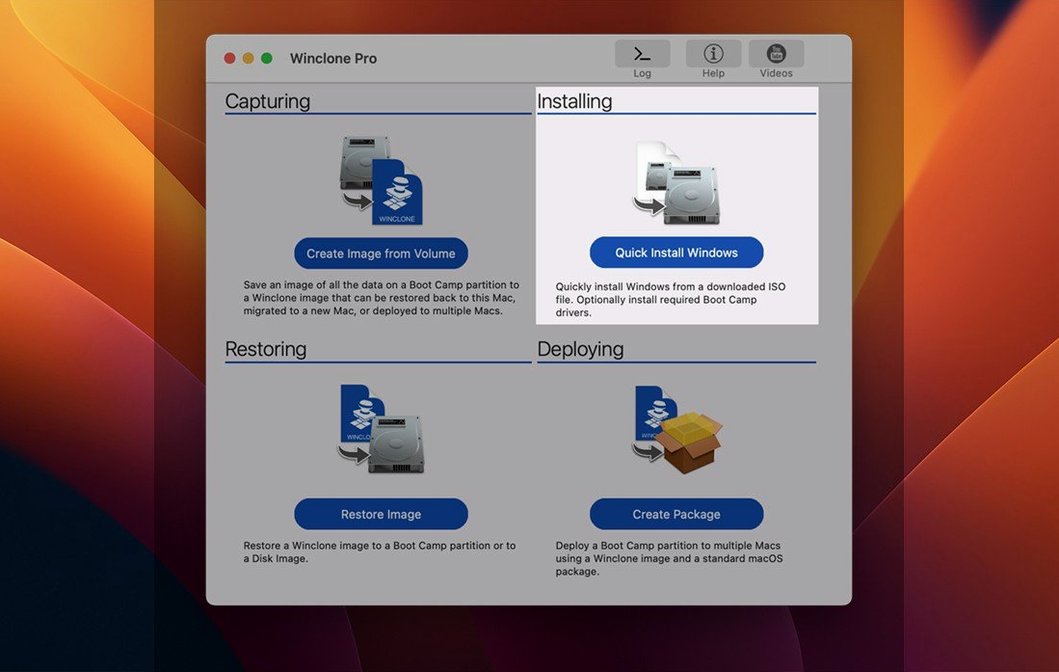
IT administrators and support techs in schools and businesses reach for Twocanoes Software’s Winclone Pro when they need to move or back up a Boot Camp Windows installation without rebuilding it from scratch. Version 10.5 runs on Intel Macs and keeps the focus on reliable imaging, local migration, and deployment packages.
Sidestepping the GPT/MBR mismatch that stops generic cloners
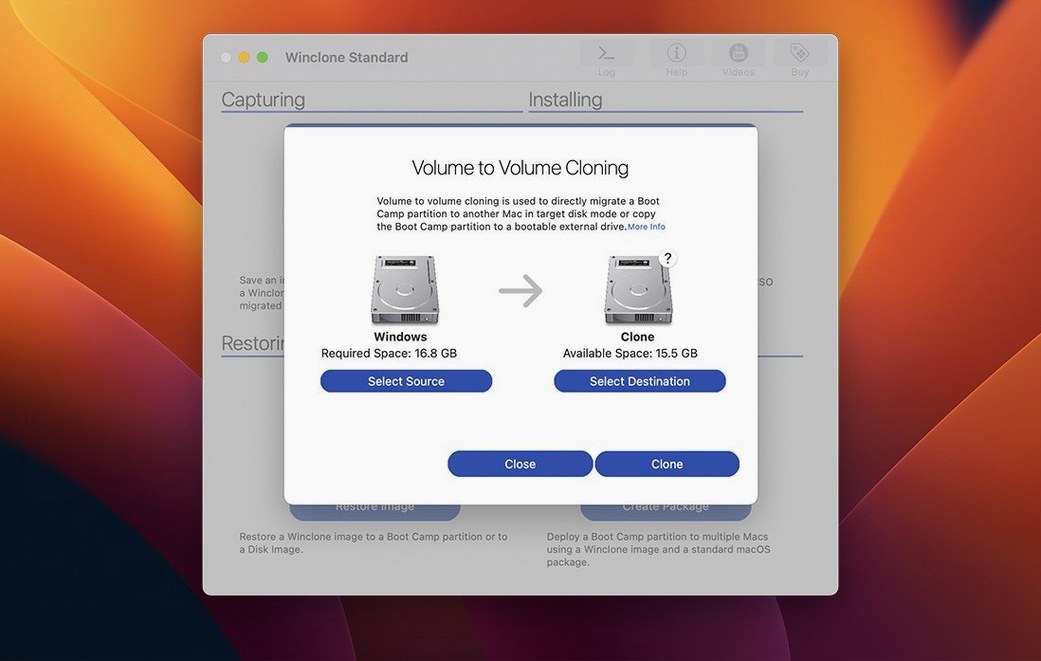
Winclone Pro fills the gap that generic disk utilities leave around Boot Camp’s hybrid partition scheme. Where a standard cloner might stumble on the GPT and MBR mismatch, Winclone 10 detects and reports inconsistent boot records, then lets you clone the Windows volume to an external drive or migrate it directly to another Mac’s internal disk.
Can it build a ready-to-deploy Windows image?
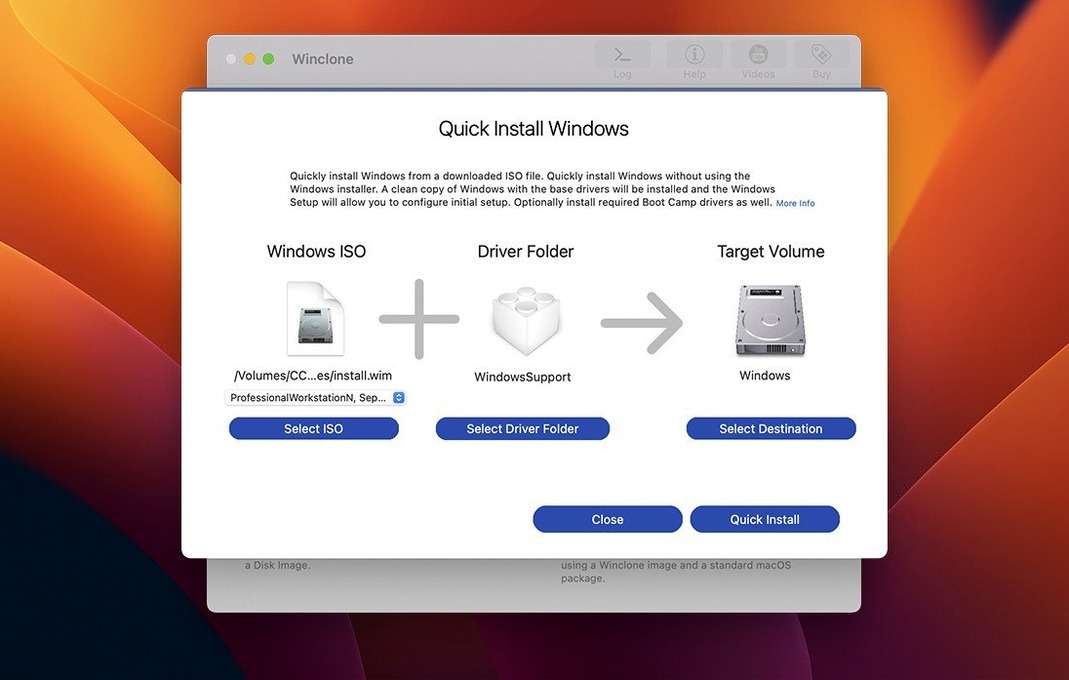
Yes. You can create a package installer that carves out a fresh Boot Camp partition and restores a Winclone image into it, which suits labs that image dozens of identical machines. The app also integrates with MDT and SCCM workflows for organisations that already manage Windows deployment through Microsoft’s toolchain.
What does it let you change during a restore?
Winclone 10 can shrink or expand the Boot Camp file system on the fly, so you are not locked to the original partition size. It also supports restoring images to attached volumes — useful for pulling data from a backup — and can produce both legacy and EFI-bootable installations for Windows 7 and later.
Skipping SIP and hitting the Boot Camp access wall
Most early stumbles come from skipping the SIP step. Winclone Pro needs System Integrity Protection disabled before installation, and a fresh Mac user who rushes through the setup notes will hit a wall when the app cannot access the Boot Camp partition directly. The Terminal prompt that appears after mounting the disk image is not cosmetic — pressing Enter there tells Gatekeeper to stand aside, and without it the app never launches cleanly.
Another common slip is assuming the source Boot Camp volume is ready to clone. If the Windows installation has Fast Startup enabled, the NTFS filesystem may be left in a hibernated state that Winclone cannot read cleanly. Boot into Windows, disable Fast Startup in Power Options, then shut down fully rather than restarting into macOS. A dirty filesystem flag on the source volume produces images that fail verification and waste time.
Beginners also misread the progress estimate. The percentage shown during a clone operation tracks the current phase, not the whole job from start to finish, so a jump from 90% back to 40% is normal when the tool moves from reading the source to writing the image. Cancelling at that point out of impatience leaves a half-written file that cannot be restored.
Finally, some new users try to restore a Winclone image directly onto a Mac's internal drive using Disk Utility first, wiping the hybrid MBR in the process. Winclone Pro manages the partition layout itself during a restore; pre-partitioning the destination breaks the boot record chain and produces an unbootable Windows volume.
How Winclone Pro compares with similar Mac apps
Winclone Pro vs Carbon Copy Cloner
Carbon Copy Cloner handles APFS and HFS+ volumes with surgical precision, but it does not speak Boot Camp's hybrid partition language. CCC can back up the files on a Windows NTFS volume if you have a driver like Paragon or Tuxera installed, yet it cannot rebuild the boot sector chain or produce a package installer that creates a Boot Camp partition from scratch. Winclone Pro owns that entire pipeline — partition layout, MBR repair, and image deployment — which makes it the specialist tool where CCC is the generalist.
Winclone Pro vs SuperDuper
SuperDuper produces bootable macOS clones quickly and stays out of the Windows business entirely. If your shop only needs to back up the Mac side, SuperDuper is leaner and simpler. The moment Boot Camp enters the picture, Winclone Pro becomes the necessary tool. There is no overlap: one handles macOS volumes, the other handles Windows-on-Mac imaging.
Winclone Pro vs Microsoft's own deployment tools
Organisations running MDT and SCCM already have Windows deployment pipelines, and Winclone Pro slots into those as a Mac-side image factory. Where a pure-Microsoft workflow requires a Windows technician to capture and deploy images, Winclone Pro lets a Mac administrator build the package natively. The difference is about who runs the process and which machine prepares the image, not about image format fidelity — both produce valid Windows installations.
How Winclone Pro fits with other apps and macOS features
A typical setup pairs Winclone Pro with a fast external SSD connected over Thunderbolt. The external drive holds the Winclone images, and macOS's built-in Time Machine backs up the Mac side independently. This keeps Windows images off the Time Machine volume, which would balloon backup sizes and slow down hourly snapshots.
Winclone images compress well, so combining the app with a cloud sync folder — Dropbox, OneDrive, or a network share mounted via SMB — gives off-site copies without extra steps. The incremental imaging feature means only changed blocks travel over the network, which matters on slow school uplinks.
For labs that use Jamf or another MDM to manage Macs, a Winclone Pro package installer can be pushed alongside macOS configuration profiles. A lab machine gets its macOS image, its Boot Camp partition, and its Windows environment all in one imaging pass, with the Winclone package handling the Windows side silently.
Cloning ten identical data-science Boot Camp iMacs
Imagine a technician in a university IT office preparing ten identical iMacs for a data-science lab. Each machine needs the same Windows 11 Boot Camp environment with Python, R, and a handful of proprietary analysis tools pre-installed.
- On a reference iMac, the technician boots into Windows, disables Fast Startup, runs a final Windows Update pass, and shuts down cleanly from the Start menu.
- Booting back into macOS, SIP is already off — it was disabled during the initial setup weeks earlier. The tech launches Winclone Pro 10.5 and selects the Boot Camp volume as the source.
- The destination is set as a writeable image file saved to a Thunderbolt SSD named
DeployImages. The technician ticks Incremental off for this first capture, names the imageDS_Lab_Fall2025, and clicks the clone button. - Winclone reads the NTFS volume block by block, showing progress as it moves through the 64 GB of used space. The sound notification chimes after 14 minutes, and the image file sits at 38 GB after compression.
- The technician plugs the Thunderbolt SSD into the next iMac, opens Winclone Pro, and selects Restore Image. The app detects the target disk's free space and offers to expand the Boot Camp partition to fill half the internal SSD. The tech accepts, and Winclone carves the partition, writes the image, and sets up EFI booting in one operation.
- The restored machine boots into Windows, the tech runs a quick hostname change and joins the domain, and the iMac is rack-ready. The remaining eight machines follow the same restore step, each taking roughly the same time.
- The SSD goes back on a shelf. Next month, when a Python library updates, the tech can create an incremental image from the reference machine — capturing only the changed blocks — without re-imaging the whole lab from scratch.
OS requirements — updated.
Tahoe compatibility — verified.
- macOS 10.15 or later
- Intel Mac
Questions on file
Does Winclone 10 work on Apple Silicon Macs?
No. The current version requires an Intel Mac because Apple Silicon models do not support Boot Camp.
Can I restore a Winclone image to a different Mac?
Yes, hardware and Windows version permitting. Winclone Pro supports local disk-to-disk migration and restoring images to attached volumes.
What Windows versions can Winclone Pro make bootable?
You can create a legacy bootable installation or an EFI-bootable setup for Windows 7 and later.
Sign in · Create an account to add a field note.
No field notes yet. A measurement, a version, a machine — they appear after moderation.