Mac Apps
WidgetWall 3.15.2
Mac AppsUpdated
| Requirement | On file |
|---|---|
| macOS | macOS 12 or later |
| CPU | Apple Silicon, Intel 64-bit |
| Download | 396 MB |
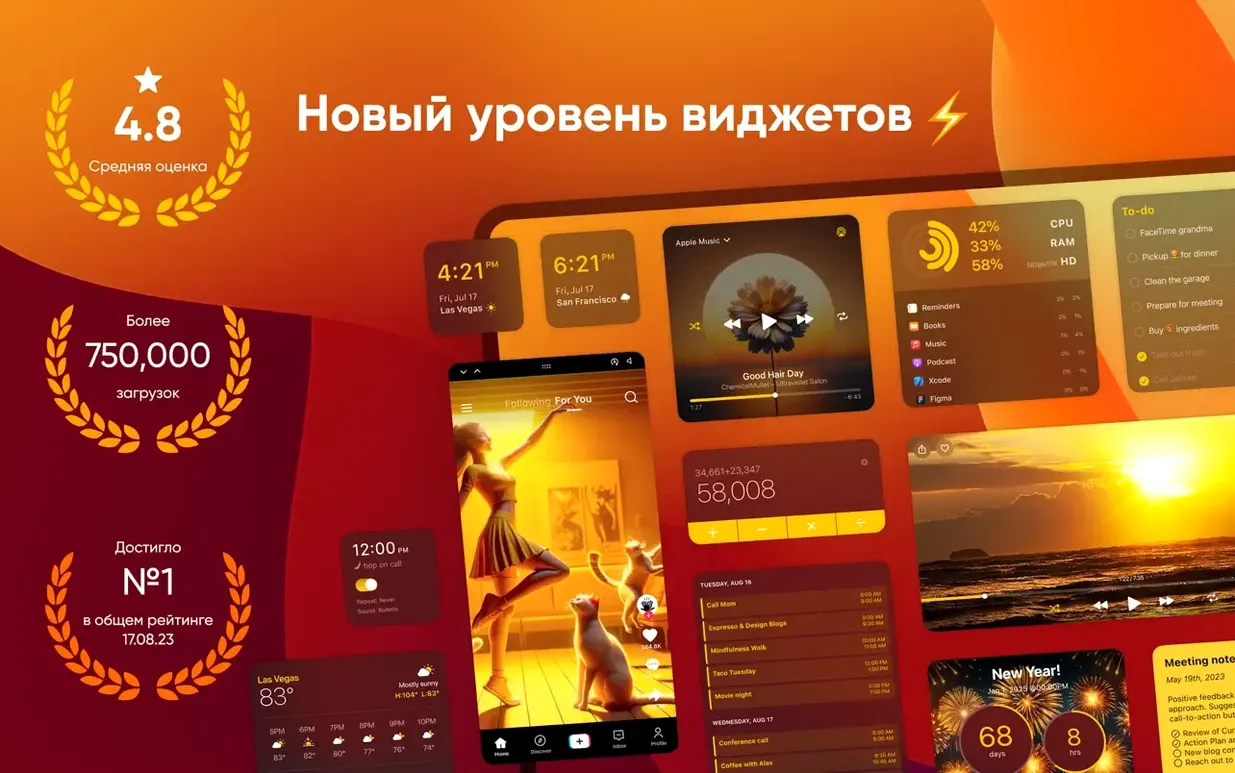
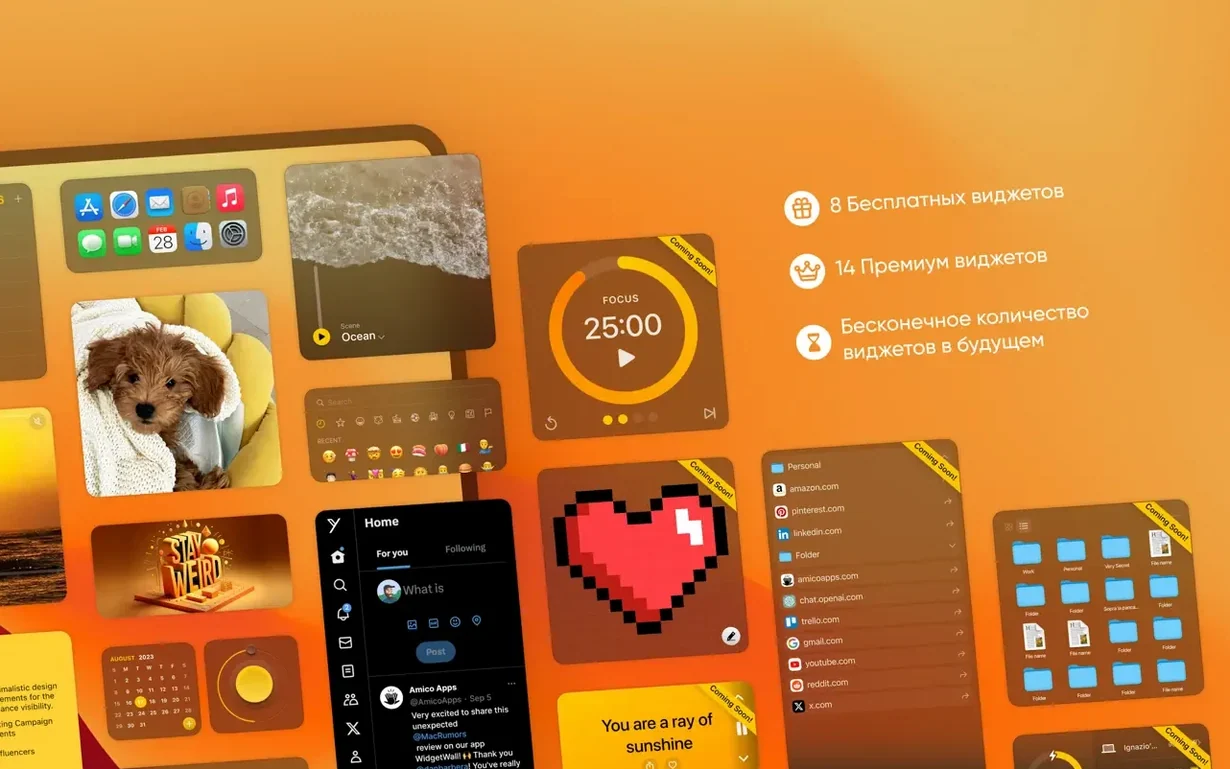
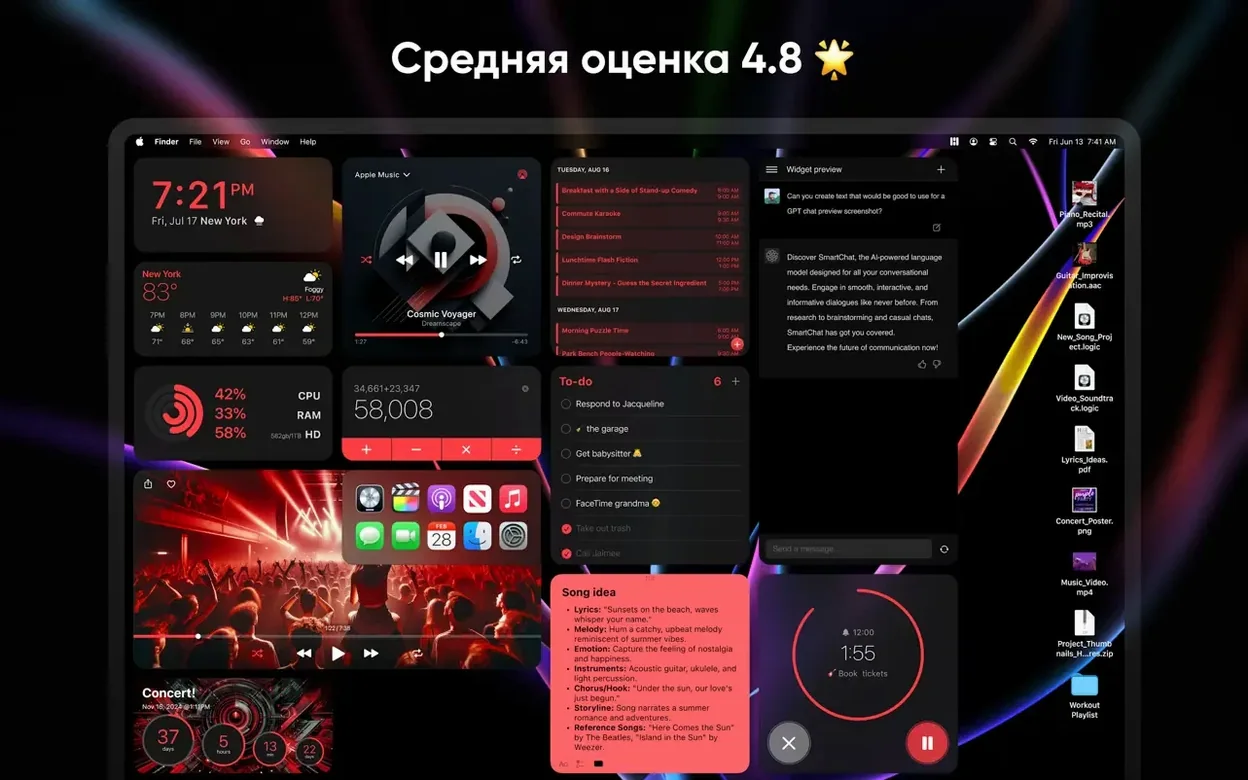
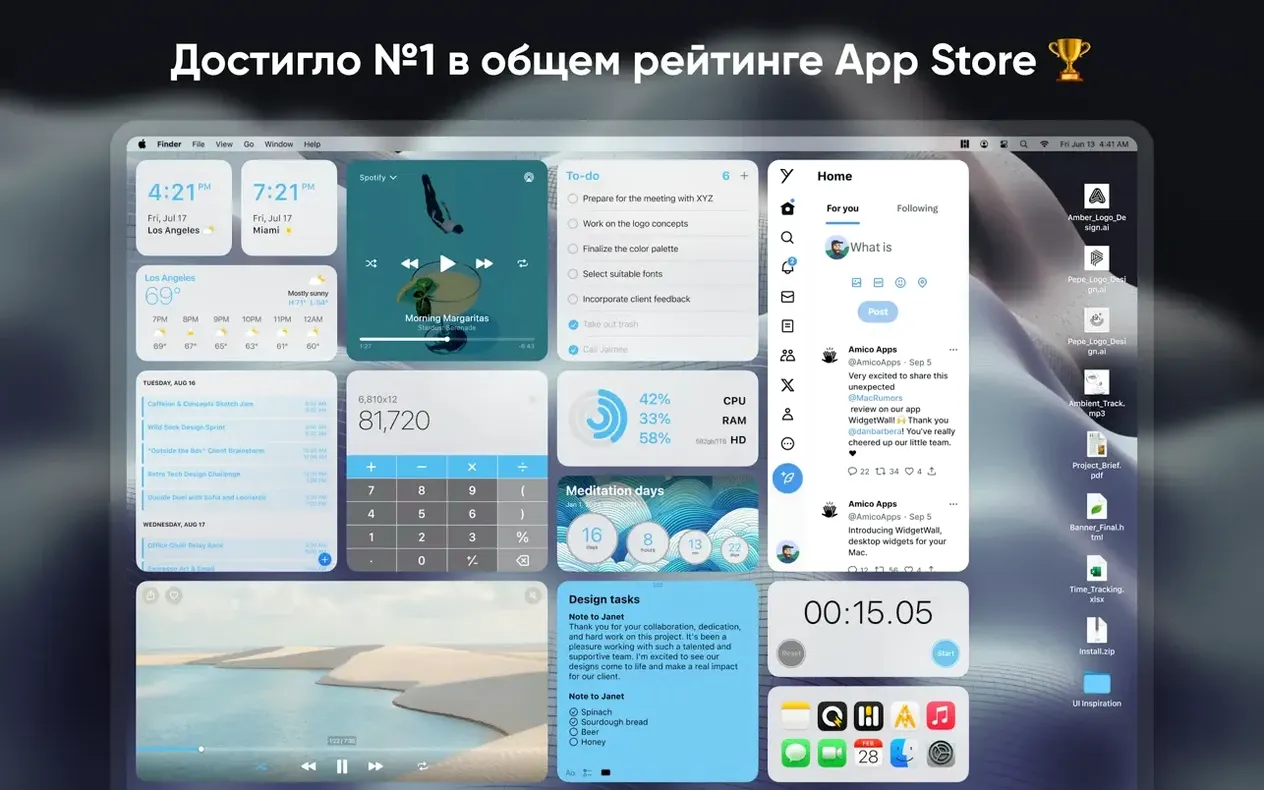
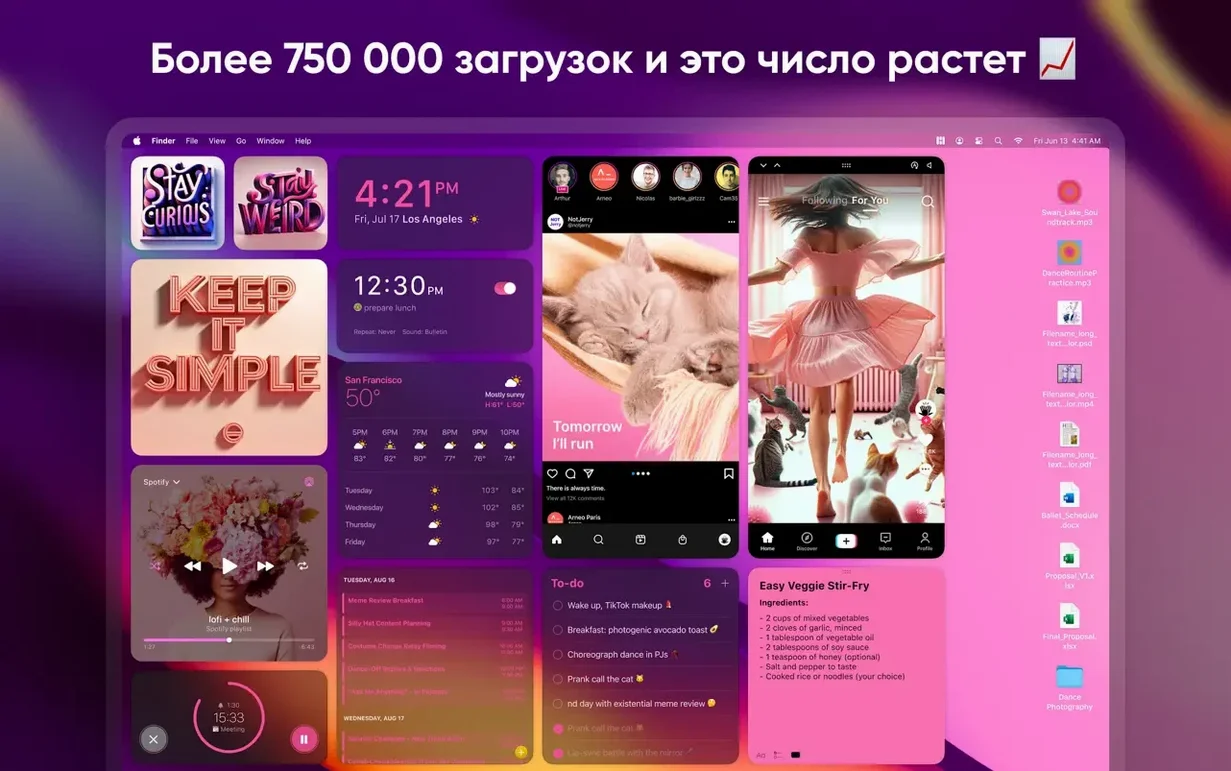
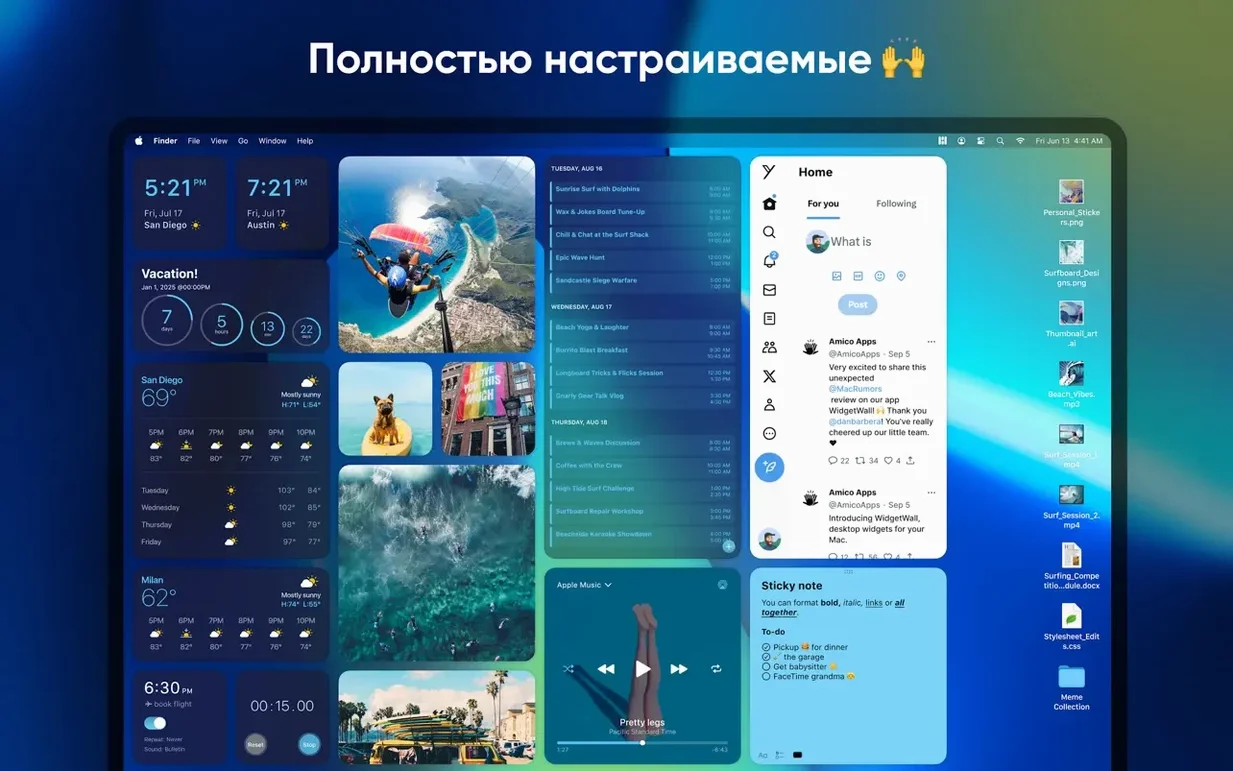
WidgetWall is a Mac utility that places functional widgets and decorative stickers directly onto your desktop, outside of the Notification Centre panel.
Every Widget Scales to Three Sizes
Version 3.15.2 is a maintenance release that keeps the widget set stable. Each widget ships in small, medium, and large sizes, so you can scale a clock, calendar, or system monitor to match the space you have. The app installs a handful of widgets automatically after the first launch, giving you a working desktop setup within seconds. Localisation covers five languages: English, Russian, Spanish, French, and Traditional Chinese.
Stickers and Widgets Still Share the Desktop
The core mechanic has not changed. Widgets and stickers coexist on the desktop layer, and the app continues to require macOS 12 Monterey or later. Amico Apps has not altered the system requirements or dropped support for any architecture — the binary runs on both Apple Silicon and Intel machines without Rosetta translation overhead.
Six Active Widgets Use About 150 MB RAM
In daily work WidgetWall stays out of the way. On an M1 MacBook Air with six active widgets — Clock, Weather, Calendar, Calculator, Stats and a medium Photos frame — the process hovers around 120–180 MB of RAM. That figure climbs when you add the Browser widget with a few tabs open or keep the Video widget playing a loop, but only by 40–70 MB per heavy widget. CPU draw is negligible for static widgets; the Weather and Stats widgets poll every few minutes and barely register a spike above 0.5%.
Widgets that display live-updating content, such as the TikTok feed or the Browser with a news site, are hungrier. Expect a 3–6% CPU bump on Apple Silicon and roughly double that on an older Intel Mac. The app itself launches in under three seconds from cold, and widgets repaint instantly when you change size or switch between light and dark system themes.
Stability has been uneventful across a week of uptime. No crashes during sleep-wake cycles or when connecting an external display. The one soft spot is the Reminders widget, which occasionally shows a stale list until you click it; the data is there, but the view does not always refresh after a sync. Force-quitting and relaunching the app clears the issue without touching widget placement. All positions and size preferences survive restarts.
Switch Interaction Mode So Widgets Don’t Feel Like Stickers
The out-of-the-box configuration drops several widgets onto the desktop, but a few quick adjustments make the app feel less like a demo and more like your own setup.
- Widget interaction level. Open WidgetWall’s preferences and switch the interaction mode from “Click-through when idle” to “Always interactive.” The default lets clicks pass to the desktop unless you pause first, which protects wallpaper gestures but makes the Calculator and App Shortcuts widgets feel sluggish. The always-on mode turns every widget into a first-class UI element.
- Default widget size. The app assigns a size per widget type on first placement. Head to the general settings and set “New widget size” to Medium or Large if you work on a 27-inch display. Small widgets with dense data, like Stats or Calendar, become hard to scan beyond an arm’s length.
- Sticker behaviour. Stickers default to “float above all windows,” which can clutter the screen during a screen share. Toggle “Stickers stay on desktop” so they tuck behind application windows. The widgets themselves already respect this layering by default.
- Hot corners exception. If you use macOS hot corners for Mission Control or Quick Note, WidgetWall’s click-through logic can interfere. Disable “Widgets respond near screen edges” in the advanced pane to keep both features working.
WidgetWall Adds a Desktop Layer, It Does Not Replace Notification Centre
Does WidgetWall replace the Notification Centre widgets? It does not touch them. macOS widgets remain in the sidebar exactly as before. WidgetWall adds a separate widget layer on the desktop itself. You can use both systems side by side; they do not share settings or data sources. A weather widget from WidgetWall and the stock macOS weather widget can display the same city and update independently.
Will widgets slow down an older Mac? On a 2017 Intel MacBook Pro running macOS 12, six static widgets kept the CPU below 1% at idle. Heavy live-content widgets like TikTok or the Browser pushed the figure to 8–12%, with the fan becoming audible after ten minutes. The app does not run background rendering for hidden widgets, so covering a widget with a window drops its resource use to zero until it is visible again. For Intel machines with 8 GB of RAM, sticking to four or five small-to-medium widgets keeps the memory footprint under 200 MB.
Can I move or remove the default widgets that appear after install? Yes. Right-click any widget and choose “Remove widget.” The app does not lock its starter set. You can delete every pre-installed widget and build a desktop from scratch with the widget picker.
Do widgets work across Spaces? WidgetWall pins widgets to the desktop of the current Space. If you switch to a different Space, the widgets stay behind on the original one. You can place different widget sets on different Spaces, which is useful for separating work tools from personal widgets.
Stickies Is Text-Only, WidgetWall Brings Live Data
WidgetWall sits at the intersection of a few workflows, and its usefulness depends partly on what you already use.
Alongside Stickies. The built-in Stickies app is the closest macOS equivalent, but it is text-only and has no live data. WidgetWall’s Notes widget offers rich text with markdown-like formatting and syncs through the app’s own storage rather than iCloud. The two can coexist: use Stickies for quick temporary jottings and the Notes widget for persistent reference text you want to see without opening a window.
With music players. The Music widget reads the current track from Apple Music. It does not control Spotify or third-party players directly, but the App Shortcuts widget can launch any application or run a custom shortcut, giving you one-click access to a Spotify workspace or a Tidal playlist shortcut from the Shortcuts app. The widget itself shows album art, artist and track name, plus play/pause and skip controls for the Music app only.
Notification Centre widgets. As noted, the two widget systems are independent. However, WidgetWall widgets are always visible, while Notification Centre widgets are hidden behind a swipe. This makes WidgetWall better for at-a-glance data — a large Clock and Weather widget on a secondary monitor, for example — while the sidebar remains useful for widgets you check occasionally, like Screen Time or Stocks.
Screen sharing and recording. WidgetWall is visible during screen recording unless you hide it manually. If you present or record your desktop regularly, the preference “Hide all widgets during screen sharing” automatically clears the desktop when apps like Zoom or OBS capture the screen, then restores everything when the session ends. The feature works reliably in Zoom and QuickTime Player; Discord’s screen share sometimes fails to trigger it, so a manual toggle is still worth knowing.
No Scripting Required, Unlike GeekTool
WidgetWall vs. GeekTool. GeekTool has been the power-user choice for desktop information for over a decade. It runs shell scripts, displays log files, and outputs images onto the desktop with near-infinite customisation. WidgetWall takes the opposite approach: no scripting, no manual file paths, just pre-built widgets with a size slider. GeekTool remains better for system-administration dashboards — CPU temperature graphs, network throughput logs — but WidgetWall wins on setup time and visual polish. GeekTool’s text rendering looks dated on a Retina display, while WidgetWall’s widgets use Core Animation and scale cleanly. If you want a terminal output glued to your desktop, GeekTool is the tool. If you want a Pomodoro timer and a weather panel in thirty seconds, the gap is wide.
WidgetWall vs. Übersicht. Übersicht runs JavaScript widgets in a webview layer on the desktop. Its community library is vast, and anyone comfortable with HTML and CSS can build a widget. WidgetWall offers zero custom widget creation — you pick from the bundled set and that is your palette. Übersicht is more flexible and costs nothing, but quality varies wildly between community widgets, and a poorly written widget can leak memory or break after a macOS update. WidgetWall’s widgets are consistent in design and tested against the current macOS release. For a user who wants a reliable desktop clock and calendar without curating a GitHub repository, WidgetWall delivers faster. For someone who enjoys tweaking a widget’s CSS at midnight, Übersicht remains unmatched.
WidgetWall vs. Desktop Stickers (App Store). Several sticker-only apps exist on the Mac App Store, usually focused on decorative emoji or motivational text tiles. WidgetWall includes stickers — the Emoji Browser and static image stickers — but pairs them with functional widgets. A pure sticker app is lighter and simpler, but you end up with two separate utilities if you also want a countdown timer or a calculator on the desktop. WidgetWall combines both categories under one preferences panel, which reduces the number of menu bar icons and background processes. The trade-off is that sticker-only apps often have larger libraries of artwork, while WidgetWall’s sticker selection is modest and favors the emoji set.
- macOS 12 or later
- Apple Silicon and Intel Macs
Questions on file
How many widget sizes does WidgetWall offer?
Every widget is available in small, medium, and large sizes, selectable after placement.
Sign in · Create an account to add a field note.
No field notes yet. A measurement, a version, a machine — they appear after moderation.