Mac Apps
Wirecast Pro 16.5.5
Mac AppsUpdated
| Requirement | On file |
|---|---|
| macOS | macOS 11 or later |
| CPU | Apple Silicon, Intel 64-bit |
| Download | 820 MB |
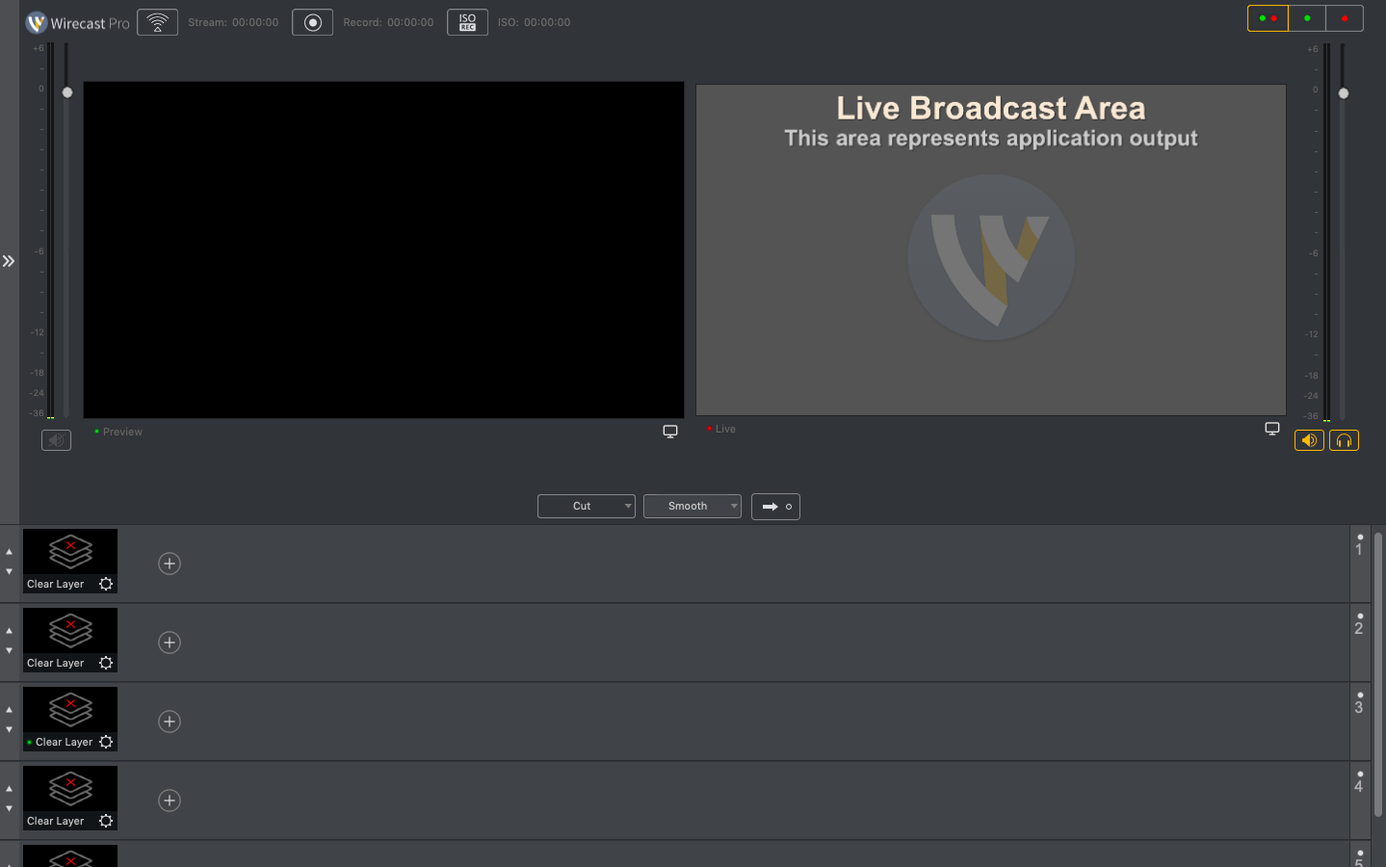
Small television studios and independent production teams rely on Wirecast to push a polished multi-camera mix to the web. It sits somewhere between a software vision mixer and a full master-control room, running on a single Mac.
Switching Feeds and Editing Graphics Live
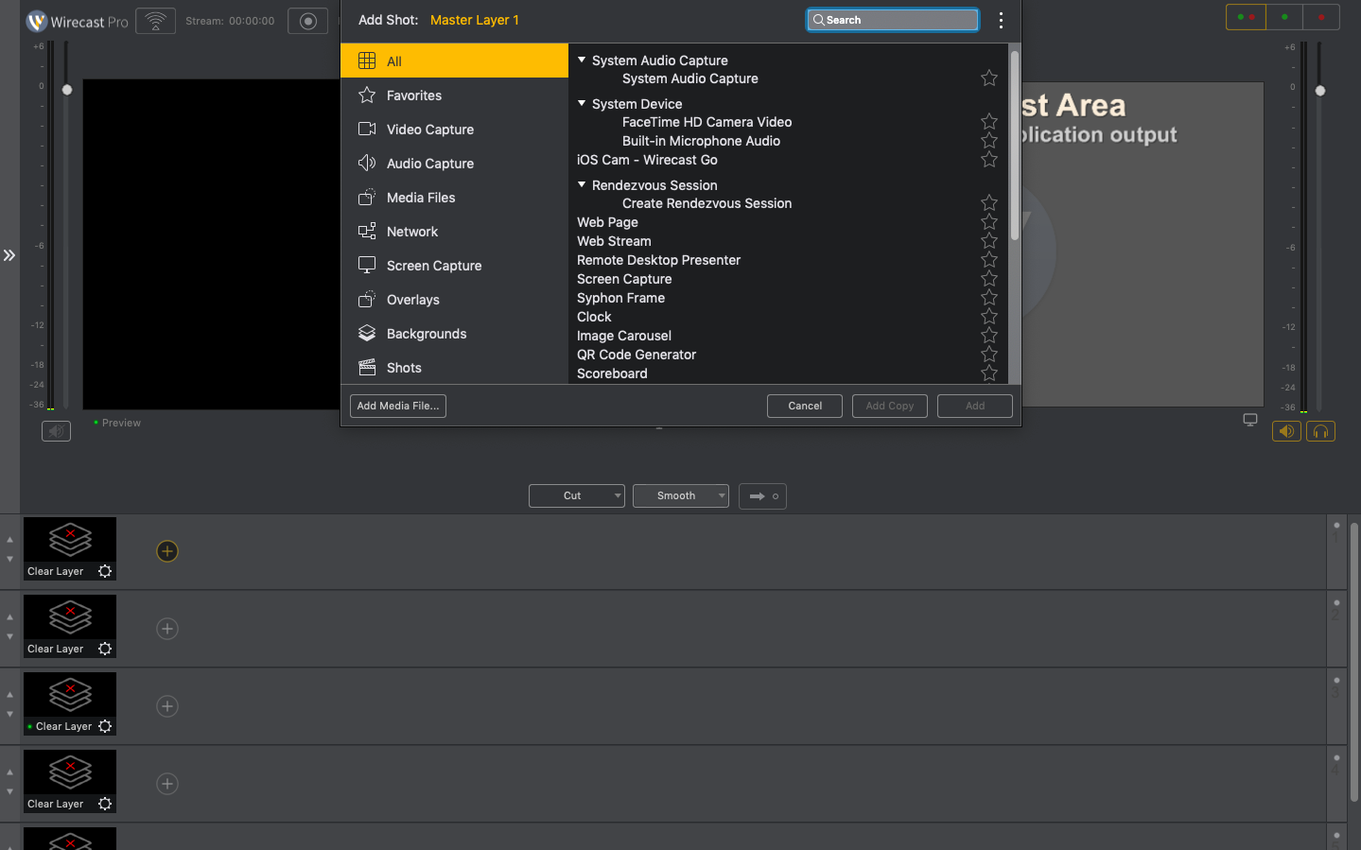
- Switching between multiple camera feeds, screen captures, and media files during a live event.
- Quick text changes on the fly—lower thirds and captions can be edited while the stream is live.
- Burning a station logo or bug into the outgoing signal without extra hardware.
- Productions that lean heavily on NDI sources and PTZ cameras for remote or automated setups.
30 Built-In Titles; Virtual Cam Blocked by IT Policies
- The built-in title library holds 30 styles—enough to get started, though heavy branding work still happens elsewhere.
- Corporate IT policies that block the virtual microphone driver will also stop the virtual camera from working, a limitation addressed in the 16.5.4 update rather than removed.
- Requires a 64-bit Mac running macOS 11 or later; older Intel Macs are still supported alongside Apple Silicon.
A newsroom setup in two hours
A university media department runs a weekly live news bulletin with three student-operated PTZ cameras and a laptop feeding package clips. The producer arrives 90 minutes before air and opens Wirecast on an M2 Pro MacBook Pro connected to the campus NDI network. Camera 1 locks in immediately—a wide shot of the desk. Camera 2, a close-up on the presenter position, takes a moment longer but appears once the source is refreshed in the NDI browser. Camera 3 refuses to show at all.
This is the exact scenario the 16.5.4 PTZ detection fix addresses. On earlier builds the same camera would need a full application restart or a manual IP re-entry. Now the operator opens Sources > Show Source Settings, reselects the NDI stream, and Camera 3 populates within seconds. With all three feeds active, the team drops a lower-third template onto the preview window, types the presenter’s name into the text field, and saves the shot as a multilayer preset. The whole setup—three cameras, one graphics layer, one video playlist—is ready 45 minutes before the bulletin starts.
Set Canvas Size and Frame Rate Before You Stream
Installing Wirecast means dragging the app to Applications after mounting the disk image and running the Gatekeeper-friendly command in Terminal. Once it launches, the default canvas size and frame rate may not match your intended output. Before doing anything else, open Wirecast > Preferences > Canvas Size and set the resolution to match your primary streaming destination: 1920×1080 for most platforms, 1280×720 if you are pushing to a lower-bandwidth endpoint.
Frame rate matters just as much. Wirecast defaults to the system’s main display refresh, which on a MacBook Pro with ProMotion could be 120 Hz—far higher than a typical stream needs. Lock it to 25 or 29.97 fps under Preferences > Advanced and leave the keyframe interval at twice the frame rate. This one change prevents encoder overload on machines that would otherwise try to process double the frames per second they actually need to send.
Next, save a blank template shot. Create a new shot, leave all layers empty, and save it as “Clean slate” via Shot > Save Shot As Template. When a live segment goes sideways—a source drops, a graphic freezes—you can load this template instantly and return to a known-clean state rather than hunting through layers while the stream is hot.
Three snags and their fixes
Virtual camera blocked by IT policy
The 16.5.4 update fixed the crash that occurred when the virtual microphone driver was blocked by corporate IT policy, which in turn stopped the virtual camera from functioning. If the virtual camera still does not appear in other applications after updating, check Output > Virtual Camera and confirm the toggle is on. Then open macOS System Settings, navigate to Privacy & Security > Camera, and ensure Wirecast appears in the list with the toggle enabled. The same check applies under Microphone permissions—the virtual camera and virtual microphone drivers are linked at the system level.
NDI sources with stop-start behaviour
A PTZ camera feed that drops for a frame and returns can cause Wirecast to treat the stream as a new source, resetting any colour correction or crop settings applied to that shot. The discontinuous-frame flag added in 16.5.4 tells Wirecast to treat brief NDI interruptions as gaps in the same stream rather than a new connection. If you are still seeing resets on older NDI hardware, toggle the source’s Buffering setting from “Auto” to “Low” in the source inspector—this forces Wirecast to re-sync faster without triggering a full source reload.
Audio drift after an hour of streaming
Long productions—conferences, all-day sports events—sometimes see the audio track drift ahead of video by a few frames after the 60-minute mark. The cause is usually a mismatch between the audio device’s sample rate and Wirecast’s project settings. Open Wirecast > Preferences > Audio and set the sample rate to 48 kHz explicitly rather than leaving it on “Match System.” Then restart the audio engine by toggling Audio > Mute All on and off. The drift does not return for the remainder of the session.
Shortcuts worth memorising
The keyboard mapping in Wirecast is sparse by default, and most operators never touch it. A few manual assignments change daily speed materially. Open Wirecast > Preferences > Keyboard Shortcuts and bind the number keys 1 through 6 to your first six shots. This turns the main row of the keyboard into a preview switcher, leaving the mouse free for graphics edits. Bind the spacebar to “Take” rather than “Auto Live”—pressing space once cuts the preview shot to program, which is faster than reaching for the on-screen button during a fast-moving panel discussion.
The shot list itself supports drag-to-reorder, but holding Option while dragging duplicates a shot with all its layers intact. This is the fastest way to build variations: duplicate a camera-and-graphics shot, swap the camera source, and you have a two-angle interview setup in under 30 seconds. The duplicate carries over all text fields, so edit the lower-third name immediately to avoid putting the wrong presenter title on air.
For sports productions using the built-in scoreboard template, the tab key jumps between the home score field, away score field, and period indicator. No clicking required. The score updates on the program output the moment you press Enter after typing a number.
PTZ NDI Fix and Discontinuous-Frame Flag Added
The 16.5.4 release is a focused maintenance update. The three documented changes—the PTZ NDI camera detection fix, the virtual camera behaviour when the microphone driver is blocked, and the new discontinuous-frame flag for NDI sources—address specific failure modes that affected a subset of users. None of them alter the interface or add new features, which means projects saved in earlier 16.x builds open without conversion.
Practically, the PTZ fix reduces the number of times an operator needs to restart Wirecast before a production. In setups with six or more NDI cameras—common in church broadcasts and e-sports productions—the detection improvement cuts pre-show troubleshooting by 10 to 15 minutes. The virtual camera fix means Wirecast now degrades cleanly when corporate policy blocks the microphone driver: the virtual camera still outputs video, rather than refusing to start entirely. The discontinuous-frame flag is invisible to the operator but prevents the source-reset behaviour described earlier, particularly on congested NDI networks where packet loss causes momentary dropouts.
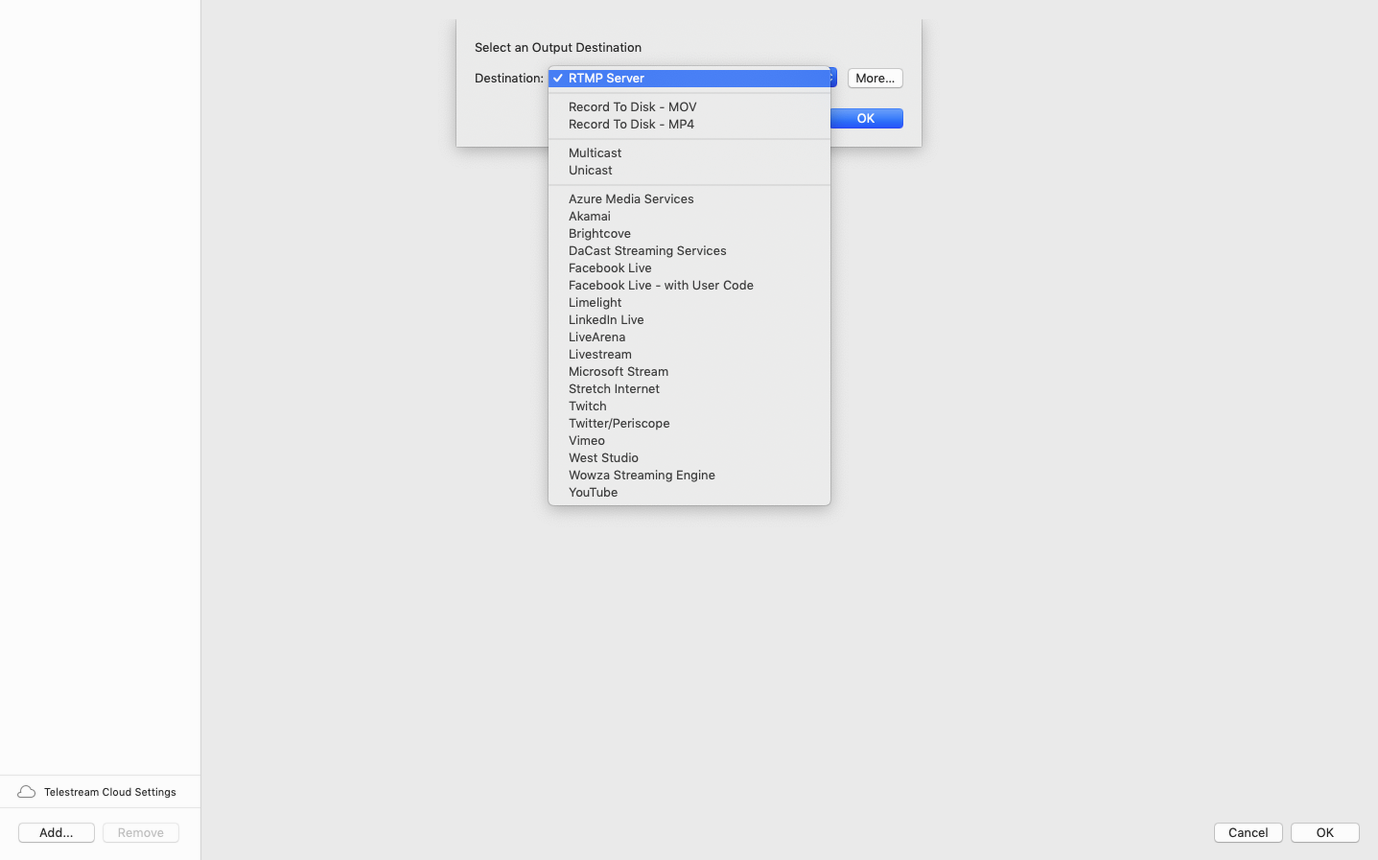
No changes were made to encoding presets, streaming destinations, or the graphics engine in this release. Users of wirecast pro download builds from the Telestream site can install 16.5.4 directly over 16.5.x without removing preferences or shot presets first.
- macOS 11 or later
- Apple Silicon or Intel 64-bit
Questions on file
Which macOS versions does Wirecast Pro 16.5.4 require?
It needs a 64-bit Mac with macOS 11 (Big Sur) or a later release, and runs on both Intel and Apple Silicon hardware.
What languages does the Wirecast interface support?
The interface is available in English, German, Spanish, Italian, Simplified Chinese, Korean, Dutch, Portuguese, French, Czech, Swedish, and Japanese.
Sign in · Create an account to add a field note.
No field notes yet. A measurement, a version, a machine — they appear after moderation.