Mac Apps
WiFi Explorer Pro 3 3.10.5
Mac AppsUpdated
| Requirement | On file |
|---|---|
| macOS | macOS 10.14.6 or later |
| CPU | Apple Silicon, Intel 64-bit |
| Download | 16 MB |
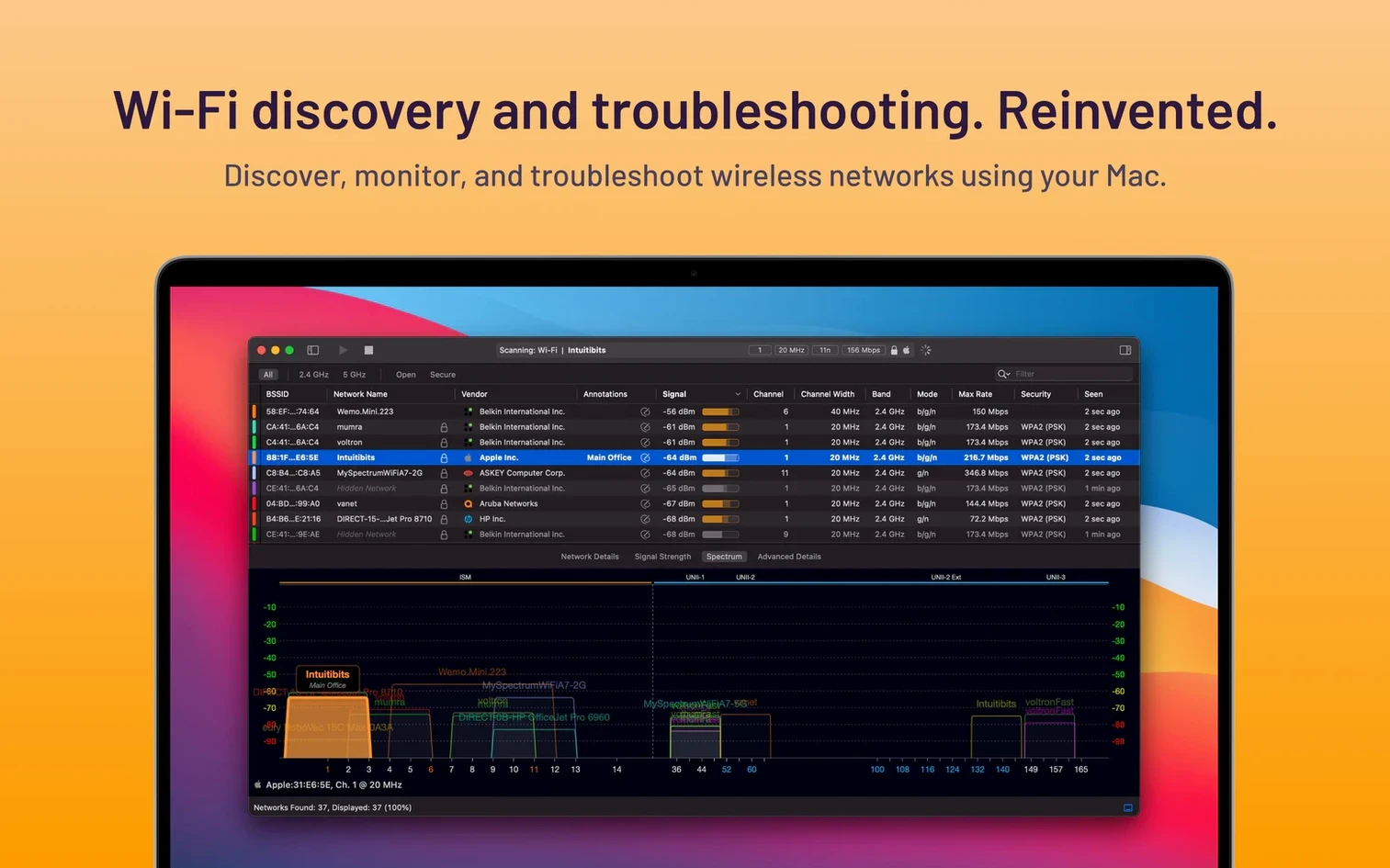
WiFi Explorer Pro 3 is a tool built for WLAN and IT professionals who need to diagnose, validate, and troubleshoot wireless networks on a Mac. If you have just launched version 3.10.5, a few deliberate first steps will get you oriented faster than clicking through every menu.
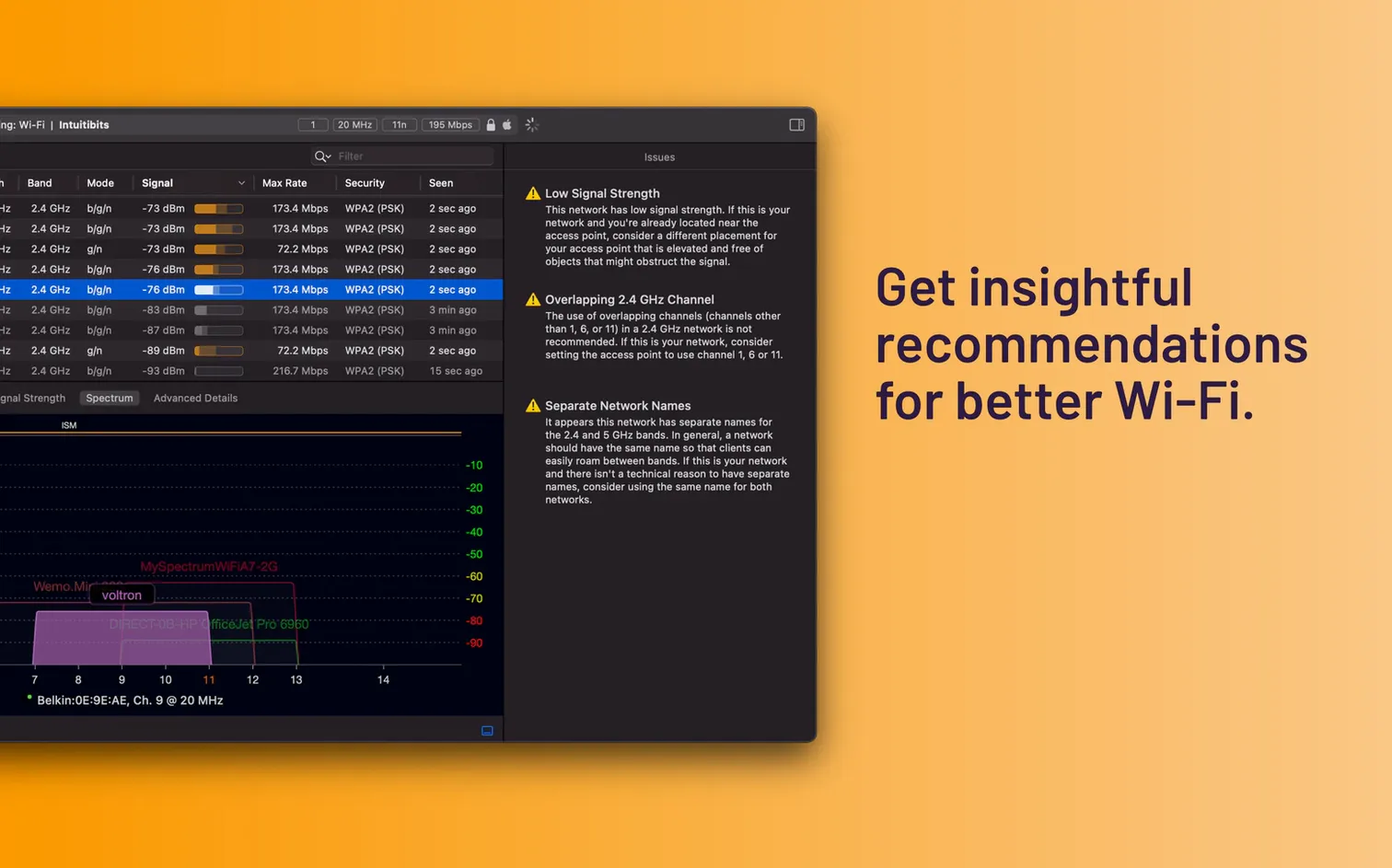
Colour-Coded Channel Overlap Detection
- Spotting co-channel interference at a glance. The default view colour-codes networks by channel, so you can immediately see which access points are overlapping on 2.4 GHz and 5 GHz bands.
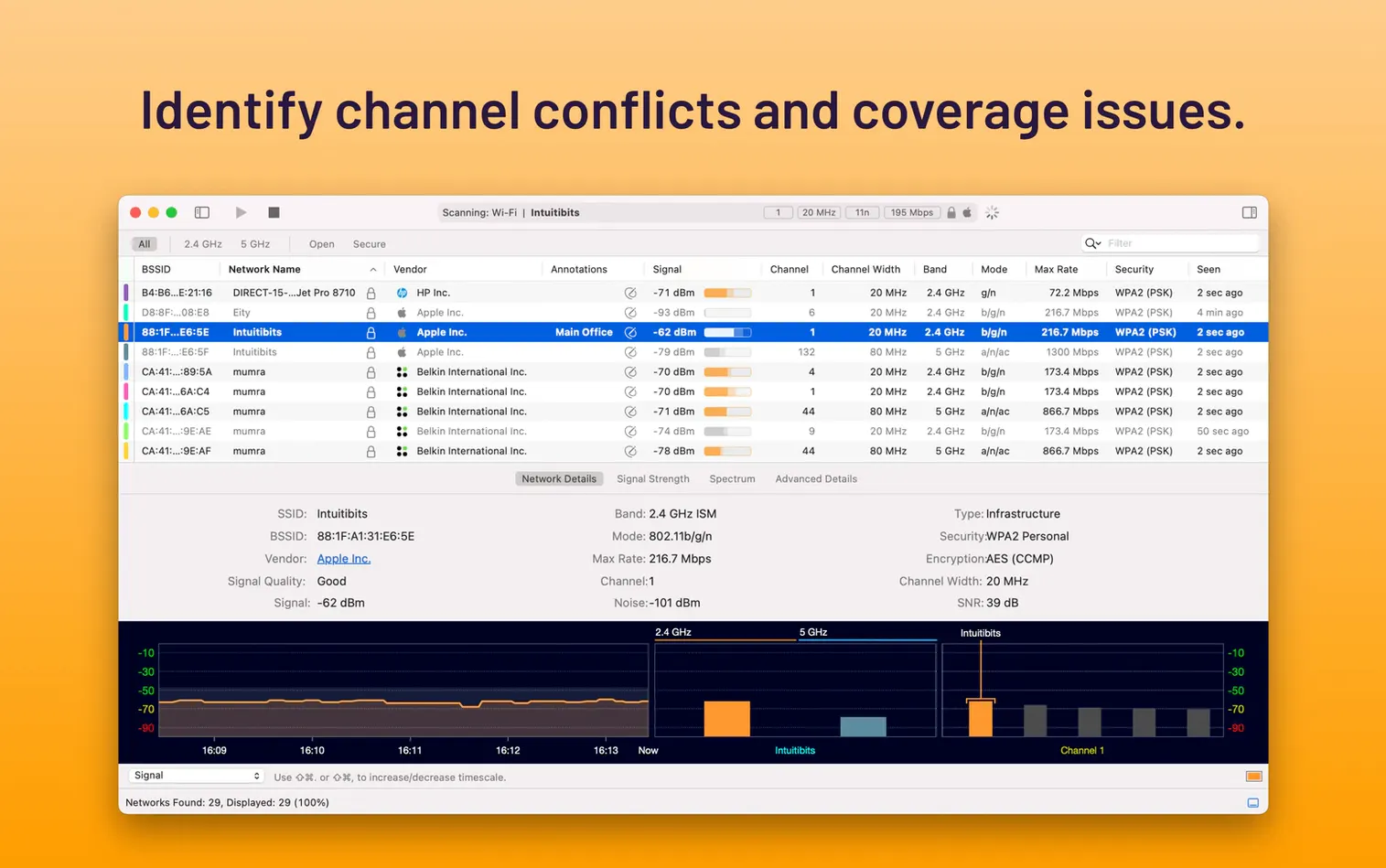
- Validating a fresh deployment. Sort by signal quality—calculated using signal-to-noise ratio—to confirm coverage across a floor plan.
- Customising the workspace. Right-click the column header bar to add or remove fields. A focused column set makes remote scanning results easier to compare.
- Running quick diagnostics. The built-in tools can surface common network issues without an external packet capture.
macOS 10.14.6 Minimum and Five Localisations
- It requires macOS 10.14.6 or later and runs on both Apple silicon and Intel Macs.
- The interface is localised into English, Spanish, Italian, Portuguese, and French.
- Version 3.10.5 corrects a bug where some non-Apple access points were misidentified as Apple hardware.
- Channel width reporting for 160 MHz and 80+80 MHz networks using Extended NSS BW signalling was also fixed.
Double-Click Any Row for Full IE Breakdown
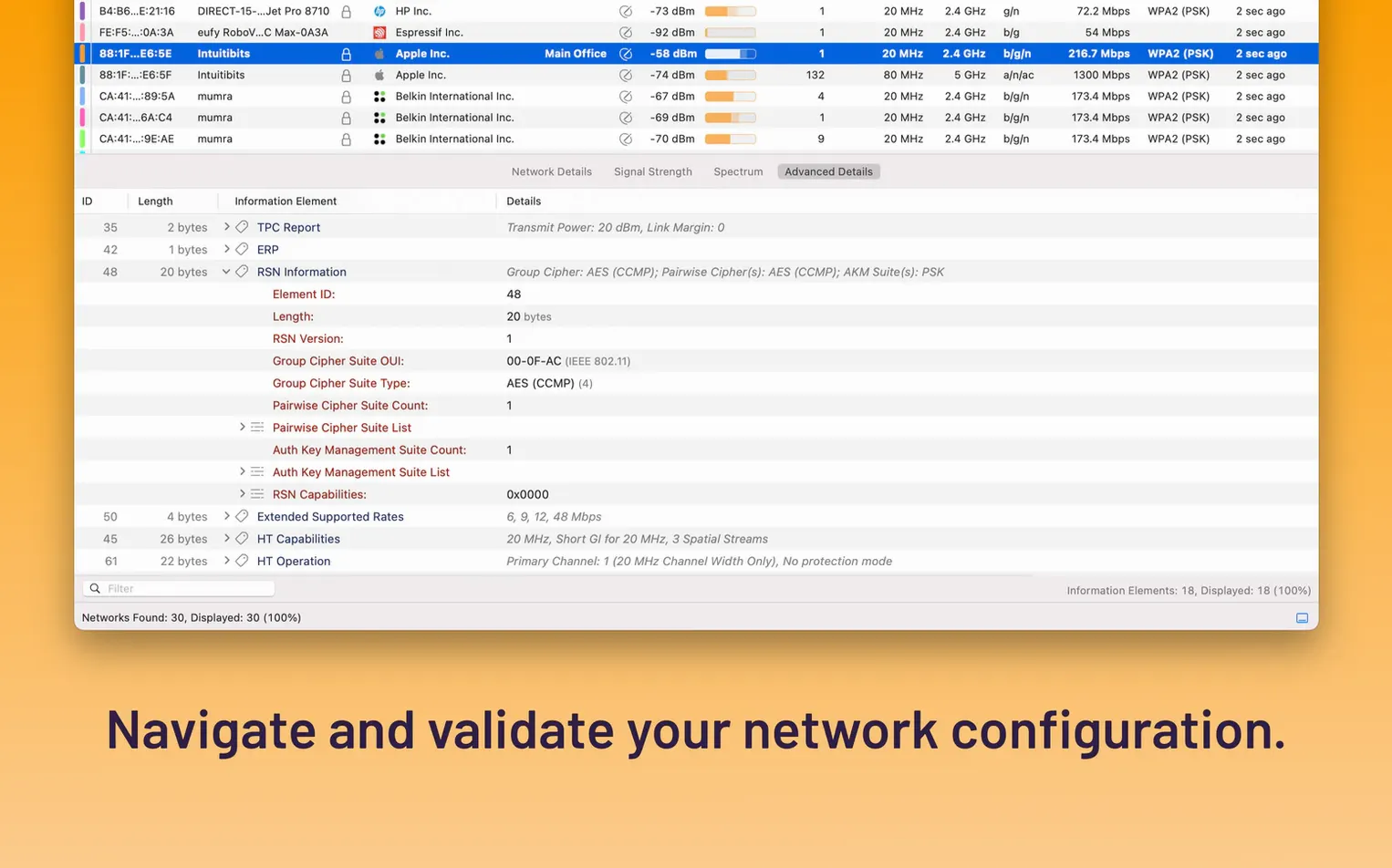
Several shortcuts sit just below the surface. Double-click any network row to open a detail panel that lays out the full information element breakdown—BSS load, HT capabilities, VHT operations, and the newly decoded Extended BSS Load element from version 3.10.5. The detail view is non-modal, so you can keep it pinned while scrolling the main list.
Hold Option while clicking a column header and the sort flips to a secondary criterion. Signal strength sorted by channel, for example, reveals whether a strong neighbour sits directly on your primary 20 MHz segment. The column customisation is persistent per window, not global—open a second window and you can run two entirely different column layouts side by side, one filtered to 2.4 GHz and another to 5 GHz.
A quiet feature worth knowing: the status bar at the bottom shows the last scan timestamp and the number of networks currently visible. Click that timestamp to pause scanning. When you are documenting a spectrum snapshot for a report, freezing the data prevents rows from shifting under your cursor.
Isolating Wing Drops with a Passive Adapter
You arrive at a site where staff report intermittent drops in a particular wing. Your MacBook Pro is already connected to the office SSID, but you launch WiFi Explorer Pro 3 and connect the external adapter you use for passive scanning. The main table populates within three seconds—42 networks across 2.4 GHz and 5 GHz.
Step one: you sort by channel. Three access points on channel 6 show signal strengths within 4 dBm of each other, two of them broadcasting the same SSID from different BSSIDs. You right-click the channel column, hide the vendor prefix column, and add the Max Rate field. One of those three APs caps at 54 Mbps while the other two negotiate 300 Mbps—likely a legacy 802.11g unit someone forgot to decommission.
Step two: you filter the list to that SSID alone using the search bar. The detail panel for each BSSID confirms differing supported rates. You note the MAC address of the slow AP and flag it for removal.
Step three: you switch to the 5 GHz tab and check channel widths. The 80 MHz networks look clean, but one 160 MHz AP shows a channel width misreport that version 3.10.5 now handles correctly—the Extended NSS BW signalling fix from the changelog doing its job. You export the scan as a CSV for the deployment report and close the lid.
Set Scan Interval to 2 Seconds for Walk Tests
Open Preferences before your first serious survey. Under Scanning, set the scan interval to 2 seconds if you are walking a floor plan with a live map; the default is fine for desk work but too slow for mobility. If you use a supported external adapter, switch the scan source from the built-in Wi-Fi interface to the adapter here—passive scanning reveals networks that suppress their SSID in beacons.
In the Display tab, enable Show decibel values as negative numbers if you find positive RSSI readings confusing. The signal-to-noise ratio threshold for the colour-coded quality indicator can be raised to 25 dB for stricter pass/fail criteria during validation walks. Lastly, check Announce new networks with a sound only if you are troubleshooting in an environment where rogue APs are a concern; otherwise, the constant pings become a distraction.
- Decoding — Adds support for the Extended BSS Load element.
- Bug fix — Corrects channel width shown for 160 MHz and 80+80 MHz networks that use Extended NSS BW signalling.
- Bug fix — Non-Apple access points no longer reported as Apple hardware.
- Localisation — Improves Spanish translation.
- Other — Minor fixes and improvements.
- macOS 10.14.6 or later
- Apple silicon or Intel Mac
Questions on file
Who is WiFi Explorer Pro 3 designed for?
It is built specifically for WLAN and IT professionals who perform advanced analysis, deployment validation, and remote scanning on macOS.
What wireless bands does it support?
It supports both 2.4 GHz and 5 GHz Wi-Fi networks.
Does it work on Apple silicon Macs?
Yes, it runs natively on Apple silicon as well as Intel-based Macs.
Sign in · Create an account to add a field note.
No field notes yet. A measurement, a version, a machine — they appear after moderation.