Mac Apps
WinZip Mac Pro 12.0.7282
Mac AppsUpdated
| Requirement | On file |
|---|---|
| macOS | macOS 10.15 or later |
| CPU | Apple Silicon, Intel 64-bit |
| Download | 36 MB |
WinZip Mac Pro runs on any Mac with an Intel or Apple Silicon (ARM) 64-bit processor and macOS 10.15 or later.
WinZip Mac Pro — the Mac edition of the WinZip compression tool, built for archiving, encrypting and cloud-connected file sharing.
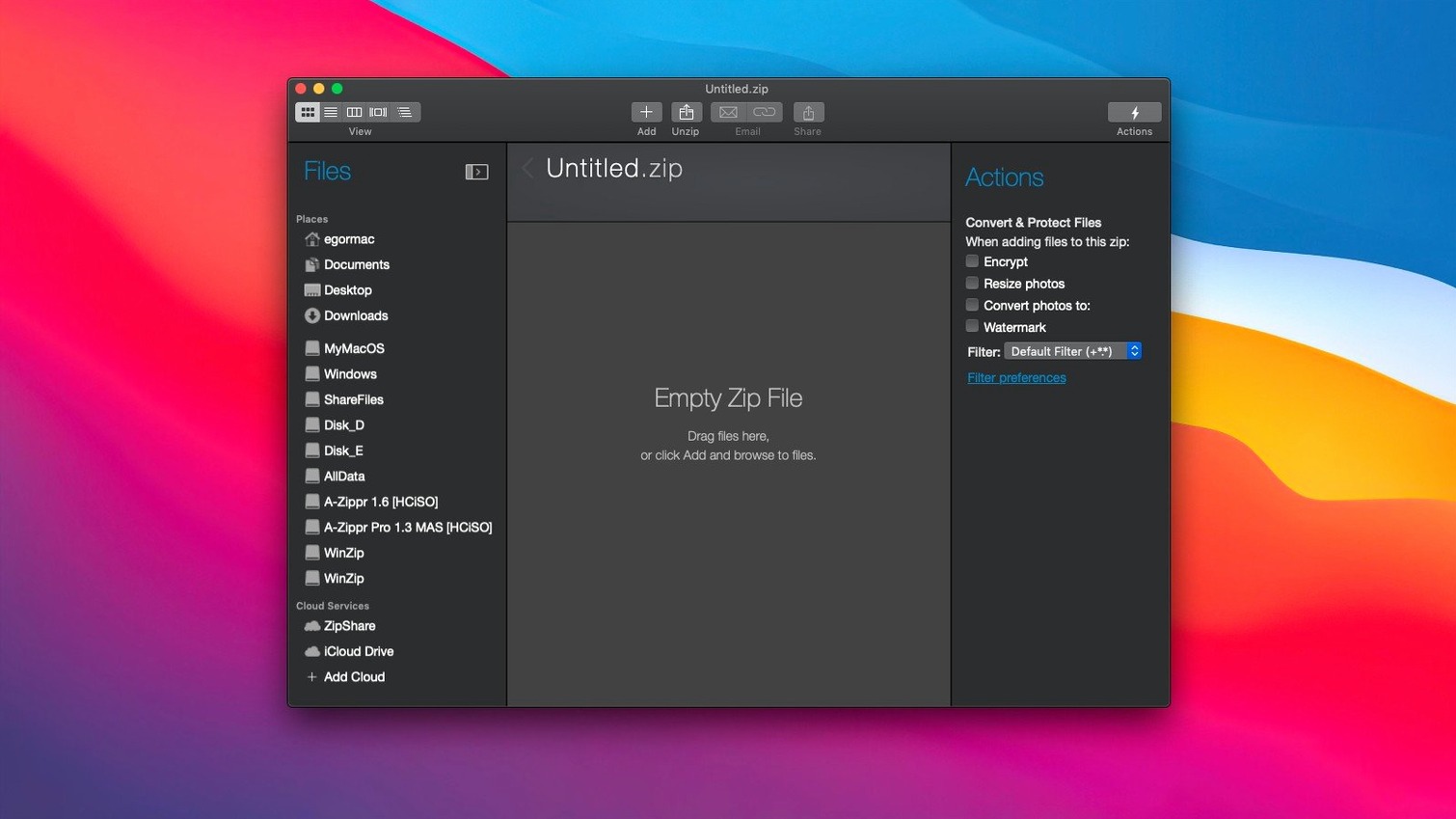
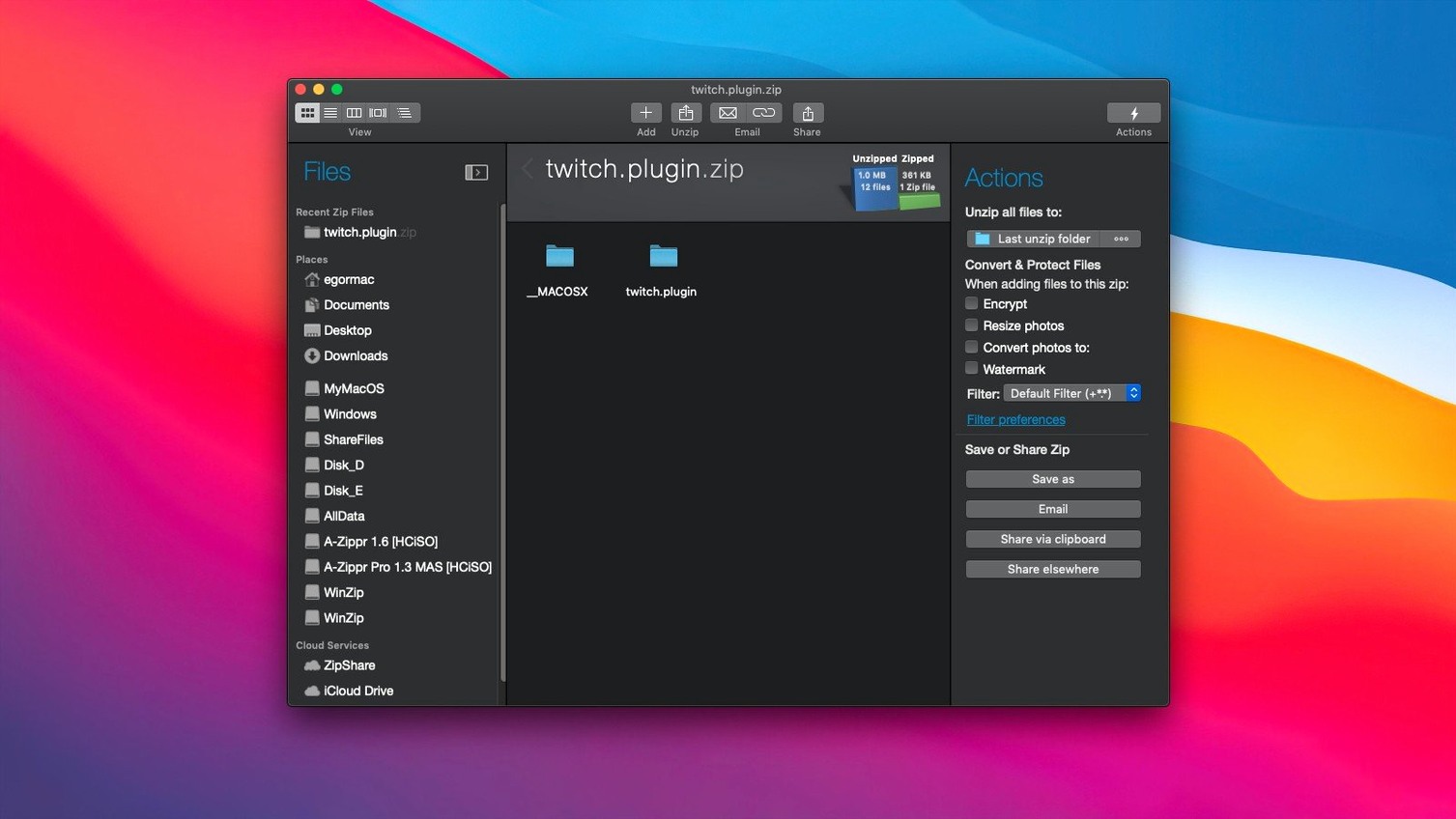
Compression engine — shrinks files into standard Zip and ZipX archives to free up disk space. It reads and instantly converts a long list of legacy and competing formats: LZH, LHA, RAR, 7Z, TAR, Z, GZ, TAZ, TGZ, BZ, XZ and Z into Zip or ZipX.
Cloud connections — links directly to iCloud Drive, Dropbox and Google Drive so you can zip and upload without switching windows.
Encryption — password-protects archives so only intended recipients can open them.
Duplicate detection — spots identical files before they waste space inside an archive.
Clipboard support — copy a file in Finder and paste it straight into a Zip or ZipX archive.
Archive Format Confusion and Cloud Re-Auth Loops
Even a straightforward archiving tool trips people up in predictable ways. Most of the friction comes from format expectations, cloud authentication, or macOS permissions dialogs that appear once and never again.
Archive format confusion. Someone sends you a RAR or 7Z file, you double-click it, and macOS shrugs. WinZip Mac Pro reads those formats, but Finder still does not know that unless you tell it. Right-click the archive, choose Open With → WinZip Mac Pro. Better yet, set it as the default for that file type once and move on.
Cloud drive disconnects. The direct links to iCloud Drive, Dropbox and Google Drive rely on macOS account integration. If you revoke access in System Settings → Privacy & Security → Files and Folders, or if your cloud session expires, the connection silently breaks. WinZip will show the drive name but refuse to browse it. Re-authenticating inside the app usually fixes it; if not, sign out of the cloud service entirely and sign back in through the app pane.
Encrypted archives and forgotten passwords. The encryption is AES-based and there is no back door. The app does not store or recover passwords. A sticky note with the password on the same desk as the Mac defeats the purpose, but a password manager entry does not. Create the entry before you send the archive.
Duplicate detection not triggering. The feature compares file hashes, not filenames. If you drag in a folder containing two copies of the same photo with different names, it flags them. If the files are visually identical but one has a metadata edit, their hashes differ and the tool stays silent. That is correct behaviour, not a bug.
Compression ratio disappointment. JPEGs, MP4s and already-compressed formats barely shrink further inside a Zip. A 4 GB folder of RAW photos and ProRes clips will compress; a folder of JPEGs and H.264 videos will not. The progress bar is honest — if it shows 2% saved, that is the reality of the source material.
macOS Gatekeeper blocking the installer. On first launch after installation, macOS may refuse to open the app because it came from outside the App Store. Go to System Settings → Privacy & Security, scroll to the bottom, and click Open Anyway. This is a one-time step per installation.
Professionals Exchanging Archives with Windows Teams
WinZip Mac Pro is not for everyone with a Mac. Three groups benefit disproportionately, and the reasons are specific.
Professionals who exchange archives with Windows-based teams. Zip is the only format both operating systems handle without extra software. When a Windows colleague sends a ZipX archive — a format macOS Finder cannot decompress — WinZip Mac Pro opens it cleanly. The reverse is true when you need to send large files to someone on Windows whose IT department blocks cloud links. A password-protected ZipX file over email works every time.
Users with sprawling local storage. People who keep years of project files, raw exports and duplicate folders on their Mac see the duplicate detection feature earn its keep quickly. Running it before archiving a 200 GB project folder can trim gigabytes of redundant data. The space reclaimed is real and permanent once the originals are deleted.
Anyone who archives directly to cloud storage. The iCloud Drive, Dropbox and Google Drive connections eliminate the step of creating a local Zip file, then dragging it to a cloud folder, then deleting the local copy. You set the destination to a cloud folder inside the app, and the archive lands there. For people who zip daily — accountants bundling receipts, photographers sending client galleries, researchers packaging datasets — that removed step matters.
Casual users who compress a folder twice a year will not feel the difference between this and Finder's built-in "Compress" command. The value scales with frequency and complexity.
LZH and RAR Intake Plus OneDrive Access Tokens
Version 12.0.7282 and the builds leading up to it shifted the app in two quiet but practical directions: broader format intake and tighter cloud integration.
Instant conversion expanded. The list of supported source formats grew to include LZH, LHA, RAR, 7Z, TAR, Z, GZ, TAZ, TGZ, BZ, XZ and Z. In practice, this means you drag almost any archive someone throws at you into WinZip Mac Pro and it converts to Zip or ZipX without an intermediate extraction step. For users who receive archives from Linux servers (TAR, GZ, BZ, XZ) or old Windows tools (LZH, LHA), this eliminates a separate decompression utility.
Cloud connections became first-class citizens. Earlier versions treated cloud drives as an afterthought — you could browse them, but the experience was clunky. The current build shows iCloud Drive, Dropbox and Google Drive in the same navigation pane as local drives. Saving directly to a cloud folder, with encryption applied, now happens in one dialogue.
Apple Silicon support went native. The app runs as a universal binary. On M1, M2 and M3 Macs, compression and decompression use the efficiency cores well, and the fan stays quiet during large archive operations. Rosetta is not involved.
Interface refresh. The current interface is cleaner than the pre-12.x versions, with fewer toolbar icons and a clearer separation between local and cloud locations. It still looks like a Mac utility, not a port of the Windows version — a deliberate choice that showed up around version 11 and solidified in 12.
Switch the Default Archive Format to ZipX
The defaults are sensible, but a few tweaks make the first week smoother.
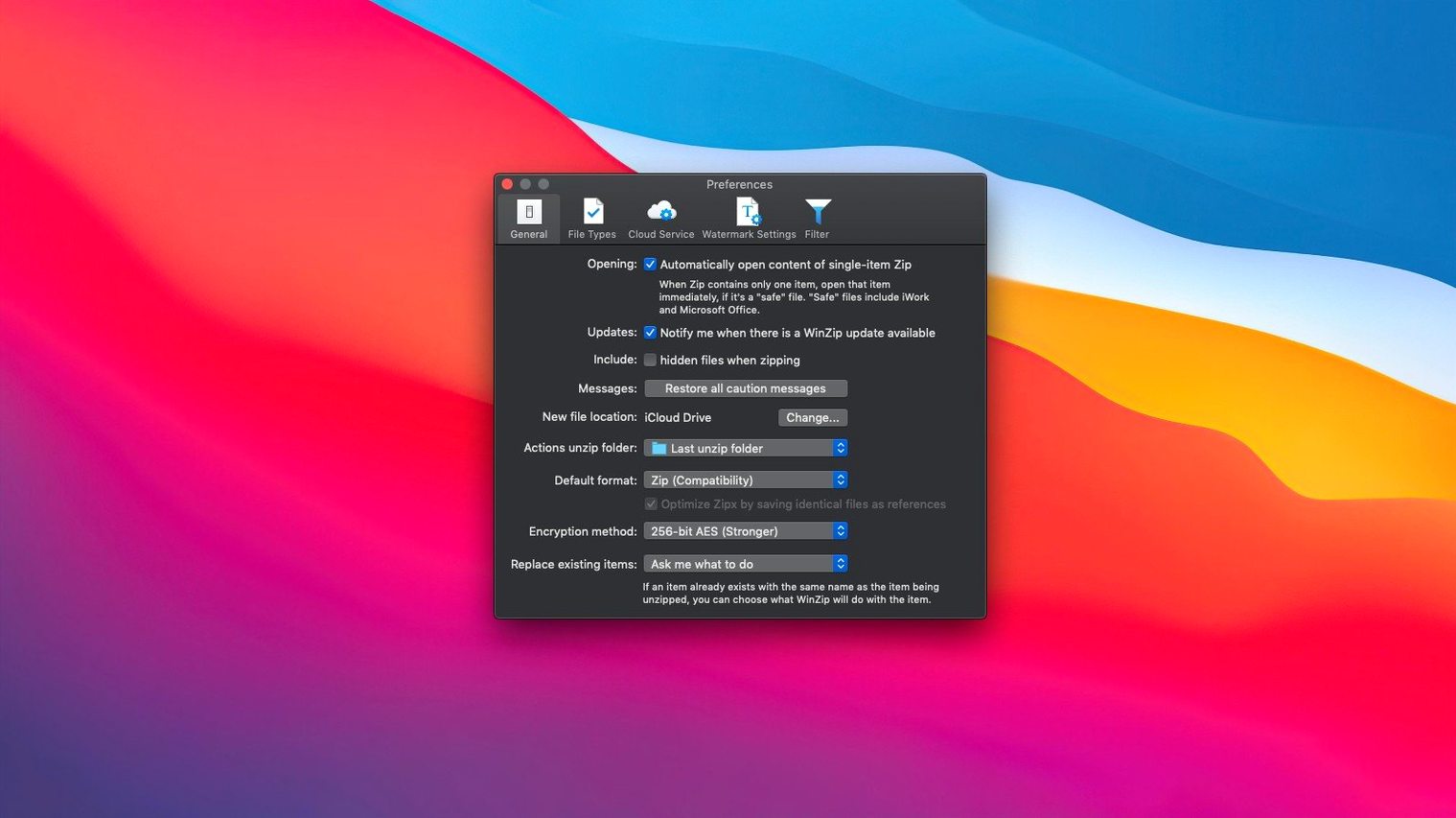
Default archive format. Out of the box, the app creates standard Zip files. Switch the default to ZipX if you regularly share archives with other WinZip users or need the better compression algorithm. Leave it on Zip if your recipients are on stock Windows or macOS without extra tools. The setting lives under Preferences → Compression.
Post-archive action. The app can optionally open the archive folder or do nothing after compression finishes. Set it to Show in Finder for the first week so you always know where your files landed. Later, switch to Do nothing to avoid window clutter.
Encryption method. The default is AES-128. Change it to AES-256 under Preferences → Encryption if your organisation requires it or if you are sending sensitive documents. The file size difference is negligible; the compatibility difference is not — some older Zip tools on Windows cannot handle AES-256 ZipX archives. Test with one recipient before making it the permanent default.
Cloud account linking. The app prompts you to connect cloud drives on first launch. Do it then, not later. If you skip it, the cloud pane stays empty and you will forget the feature exists. Connecting all three — iCloud Drive, Dropbox, Google Drive — takes under two minutes and makes the save dialogue genuinely useful.
Context menu integration. Enable the Finder extension in Preferences → General. It adds a "Zip with WinZip" option to the right-click menu. For users who live in Finder and never want to open the app just to compress a folder, this is the feature that keeps the app installed.
Lock Down File Associations Before macOS Grabs Them
Installation and activation instructions come inside the package. Once the app is running, a few deliberate moves in the first days prevent friction later.
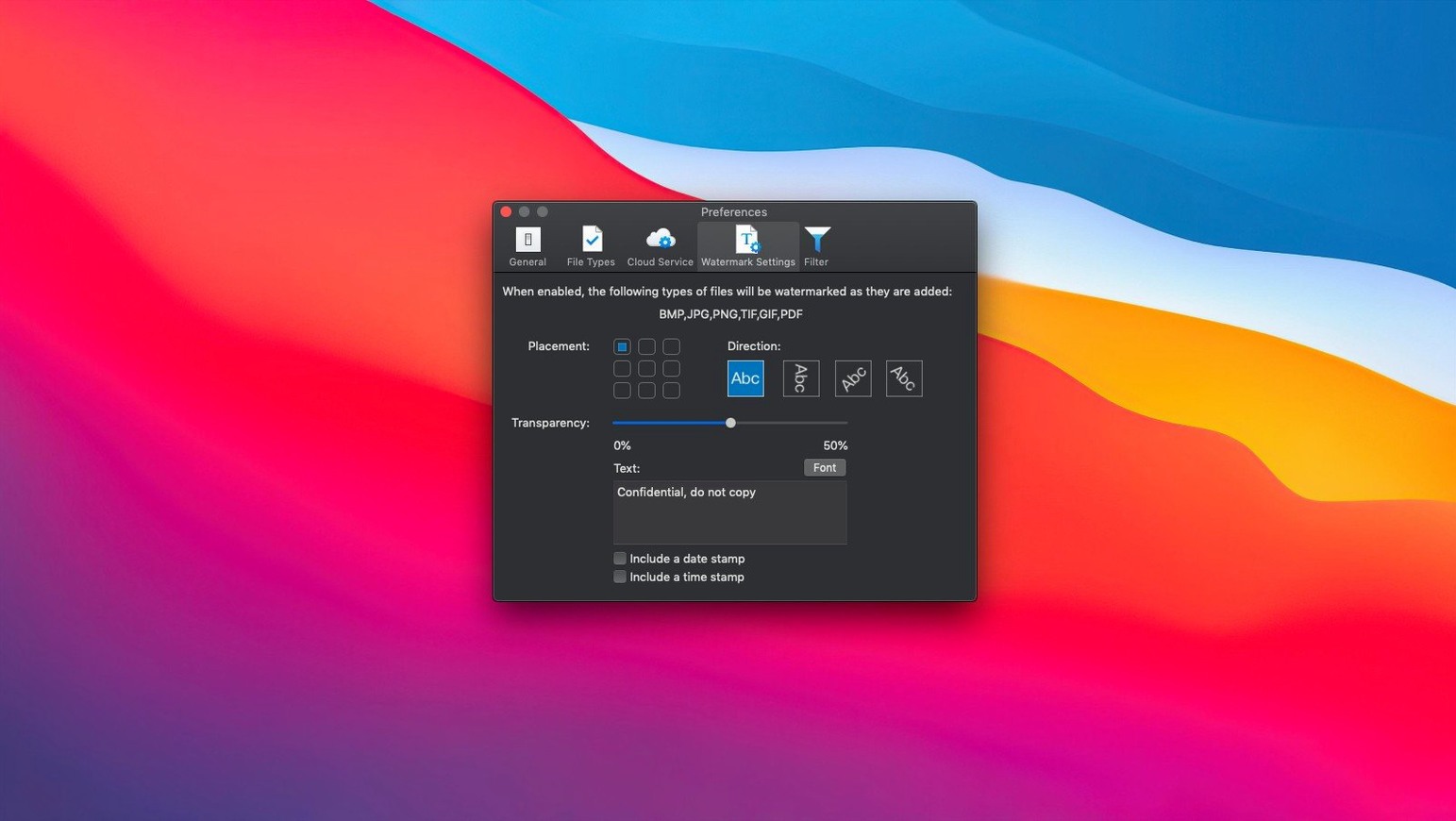
1. Set file associations immediately. Open WinZip Mac Pro, go to Preferences → File Types, and tick every format you want the app to handle. At minimum, select RAR, 7Z, TAR, GZ and BZ. macOS will then open those formats in WinZip instead of prompting you every time. If you leave this step undone, Finder will keep asking what to do with a .rar file, and you will keep answering.
2. Create a test archive with encryption. Compress a throwaway folder, apply a password, close the archive, then reopen it and enter the password. This confirms the encryption workflow works on your machine and that you understand the password prompt — which appears only when you try to extract or preview files, not when you double-click the archive.
3. Test cloud saving with a small file. Compress a single text file and save it directly to a Dropbox or Google Drive folder from inside the app. Open the cloud service in a browser or Finder to confirm the file arrived. This catches permission issues early, before you try to save a 5 GB client archive on a deadline.
4. Run duplicate detection on an old folder. Pick a folder you have not cleaned in a year — Downloads is a good candidate — and run the duplicate scan without creating an archive. The results often surprise people, and it teaches you how the tool behaves before you rely on it for a paid project.
5. Learn the clipboard paste behaviour. Copy a file in Finder, switch to WinZip Mac Pro, and press Cmd+V. The file drops into the open archive. This works even if the archive is empty and unsaved. It is faster than drag-and-drop when Finder windows are buried under other apps.
6. Check the "Convert and Open" option. When you drop a non-Zip archive onto the app, it offers to convert it. Tick Always convert to Zip in the dialogue that appears. This sets the preference for all future drops and stops the prompt from interrupting your flow.
The first three days are when habits form. If you spend them dragging archives to the Dock icon and saving straight to cloud folders, the app becomes muscle memory. If you spend them right-clicking files and hunting for "Compress" in Finder, you will drift back to the built-in macOS tool and forget you installed anything.
12.0.7282 — current release
- macOS 10.15 or later
- Intel 64-bit or Apple Silicon processor
Questions on file
Does WinZip Mac Pro work on Apple Silicon Macs?
Yes. Version 12.0.7282 supports both ARM (Apple Silicon) and x86 64-bit Intel architectures.
What file formats can WinZip Mac Pro convert to Zip?
It can instantly convert LZH, LHA, RAR, 7Z, TAR, Z, GZ, TAZ, TGZ, BZ, XZ and Z archives into Zip or ZipX files.
Sign in · Create an account to add a field note.
No field notes yet. A measurement, a version, a machine — they appear after moderation.