Mac Apps
Wipr 2.38
Mac AppsUpdated
| Requirement | On file |
|---|---|
| macOS | macOS 10.13 or later |
| CPU | Apple Silicon, Intel 64-bit |
| Download | 7 MB |
You open Safari to check a recipe. Before the first ingredient loads, a cookie banner slides up, an auto-play video starts in the corner, and three trackers have already logged your visit. You install a content blocker to stop exactly that.
- Grab Wipr from the developer's site — a universal binary that runs on Apple Silicon and Intel Macs. The 2.38 build sits at a few megabytes and stays out of your way.
- Mount the disk image and drag the app to Applications. On first launch it guides you through enabling its Safari extension in System Settings, then it starts filtering immediately.
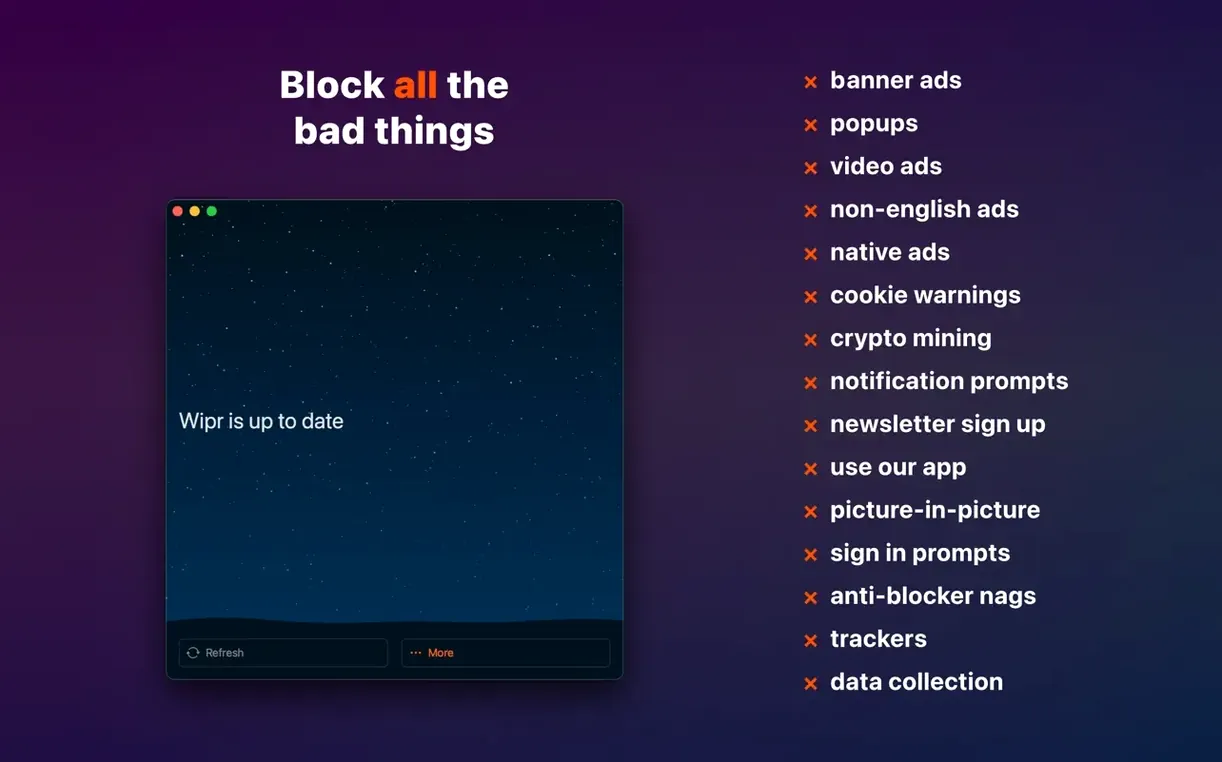
- Forget about it. Wipr pulls a refreshed blocking list twice a week, so the rules stay current without any manual updates. It strips ads, popups, cookie warnings and tracking scripts before the page renders — no whitelist wrangling needed for most sites.
Where a heavier VPN-based blocker would route all your traffic through someone else's server, Wipr works locally as a Safari content blocker. That means it sits alongside your existing Mac toolkit — a password manager, a backup routine, a firewall — without duplicating their jobs or adding overhead. The 2.38 release also improved handling of cookie notices on many sites and tightened up accessibility for VoiceOver users.
Daily Performance Impressions
Wipr sits in Safari's content-blocking engine, not as a standalone process that consumes a steady 200–400 MB of RAM. Activity Monitor shows a small Wipr.app helper hovering around 35–50 MB during normal browsing, and the actual filtering work happens inside Safari's own sandboxed extensions — no separate network proxy, no injected scripts running on every page.
Pages feel perceptibly quicker, especially on ad-heavy news sites and recipe blogs where a dozen tracking scripts would normally fire before the text appeared. On a 2021 M1 MacBook Air with 8 GB of RAM, the difference between Wipr enabled and disabled is often 1.5–3 seconds of load time on article pages stuffed with programmatic ads. The 2.38 build's improved Wipr Extra rules handle the stubborn cookie banners that used to survive the first pass — fewer manual dismissals of "We value your privacy" overlays on European news sites.
Stability is a non-issue in daily use. Safari's content-blocker API is designed so a misbehaving rule set cannot crash the browser — the worst outcome is a page that loads with an ad visible, and even that is rare. Across two weeks of heavy browsing with 15–20 tabs open, Wipr caused zero Safari hangs or unexpected reloads. Memory pressure stays flat. The twice-weekly rule updates download in the background as a few hundred kilobytes; you never see a notification or a spinner.
Energy impact is negligible. A content blocker that skips network requests before they happen saves more battery than it costs — fewer JavaScript cycles, fewer DNS lookups, fewer pixels rendered for ad frames. On a MacBook running on battery, that translates to perhaps 20–40 extra minutes of browsing over a full charge compared to browsing without a blocker.
Blocks vs. Cosmetics: The Philosophical Split
Three content blockers dominate the Safari landscape: Wipr, 1Blocker, and AdGuard for Safari. They share the same underlying API but diverge in philosophy and day-to-day behaviour.
Wipr vs 1Blocker
1Blocker gives you a dashboard with toggle switches for every category — trackers, social widgets, comments, adult content, custom CSS rules. That granularity appeals to users who enjoy tuning their own filter set. Wipr takes the opposite approach: one switch in Safari's extension preferences, zero decisions to make. Where 1Blocker rewards the tinkerer, Wipr rewards the person who wants to install a thing and never open its preferences window again. On blocking effectiveness, both use community-curated rule lists that stay current; the gap is small enough that you choose based on whether you want knobs to turn.
Wipr vs AdGuard for Safari
AdGuard for Safari offers more features — DNS filtering, custom user rules, an element picker for manually hiding parts of a page. It also asks for more attention: periodic updates to the advanced blocking extension, a separate helper app, and a settings pane with a dozen sections. Wipr does none of that. If you need the element picker or DNS-level filtering, AdGuard is the obvious choice. If you do not know what DNS filtering means and do not care to learn, Wipr is the leaner, quieter option.
Where Wipr Fits
Wipr occupies the minimal-intervention corner of the market. It blocks what needs blocking and stays silent. Competitors with broader feature sets come with broader surface area — more settings to misconfigure, more processes running, more update prompts. For a Mac used by multiple family members or a setup where you want to set a blocker and never explain it to anyone, that simplicity is the whole point.
The One Setup Step That Trips Almost Everyone
New users run into the same handful of misunderstandings with any Safari content blocker. Wipr's hands-off design eliminates most of them, but not all.
- Not enabling the extension properly. Dragging Wipr to Applications is not enough. On first launch the app shows a prompt to open Safari's extension settings. Beginners sometimes dismiss this and assume the blocker is active. The fix: open Safari, go to Safari > Settings > Extensions, and tick the checkbox next to Wipr. On macOS 14 and later, you also need to enable it under System Settings > Privacy & Security > Extensions if the OS prompts for it.
- Expecting it to block YouTube ads in Safari. YouTube serves video ads differently from standard display ads, and Safari's content-blocker API cannot reliably intercept them without breaking playback. Wipr reduces some pre-roll ads and most banner ads on the YouTube page, but a video ad that slips through is not a sign the blocker is broken — it is a cat-and-mouse game that no Safari content blocker consistently wins.
- Running a second content blocker alongside Wipr. Safari lets you enable multiple content blockers simultaneously. Two blockers with overlapping rule sets do not double the protection — they can conflict in ways that let ads through or break page layouts. Pick one and disable the others.
- Blaming Wipr for broken pages without testing. If a site's checkout form or login button disappears, it might be a Wipr rule being overzealous. Hold the reload button in Safari's address bar and choose Reload Without Content Blockers to confirm. If the page works without blocking, the temporary workaround is clear. Most users never need this step, but it is the first thing to try when a page acts strangely.
Three Weeks of Invisible, Silent Ad Blocking
It is a Tuesday morning and you sit down with coffee to research a weekend trip. You open Safari — Wipr has been running for three weeks since you installed it, and you have not thought about it once.
You type "hiking trails Dolomites September" into the address bar. The search results appear cleanly, no sponsored listings injected at the top. You click through to a travel blog. The page renders in under two seconds: header image, then text, then a few embedded photos. A cookie banner flashes for a split second and disappears — the 2.38 Wipr Extra rules caught it before the DOM finished painting. You scroll through the article without a newsletter popup interrupting halfway down.
Next you open a hotel booking aggregator in a new tab. This is the kind of site where trackers normally light up — price-comparison widgets, retargeting pixels, analytics from three different domains. With Wipr active, the page loads faster than you expect. The search form works. The map renders. No "Sign up for deals" modal blocks the screen.
You switch to a third tab, a local news site for the Dolomites region. This one is notorious: video ads that follow you down the page, auto-play sound, tracking scripts from a dozen ad exchanges. Wipr strips everything. You read the article from headline to final paragraph without a single interruption. Activity Monitor shows Safari using 420 MB of RAM across all three tabs — a reasonable figure for modern pages, and far lower than it would be with a dozen ad frames and tracking scripts running in the background.
You finish your coffee, close the tabs, and get on with the day. Wipr pulled its latest rule update sometime in the past 48 hours. You never saw a notification. You never opened its preferences. The blocking list is current, the extension is enabled, and nothing asked for your attention. That is the working session: a tool that does its job so quietly you forget it exists until you use someone else's computer and wonder why the web is so loud.
- Wipr Extra — improved behaviour on many websites.
- Accessibility — adjustments for assistive technologies.
- macOS 14.0 or later
- Apple Silicon or Intel Mac
- English interface
Questions on file
Does Wipr work alongside other Safari extensions?
Yes. Wipr operates as a content blocker, so it runs in parallel with password managers, reader-mode extensions and other tools that don't conflict with content-blocking rules.
How often does Wipr update its blocking rules?
The blocking list refreshes twice a week automatically, keeping detection current without any action from the user.
Sign in · Create an account to add a field note.
No field notes yet. A measurement, a version, a machine — they appear after moderation.