Mac Apps
Wondershare UniConverter 15.7.3.564
Mac AppsUpdated
| Requirement | On file |
|---|---|
| macOS | OS X 10.11 or later |
| CPU | Apple Silicon, Intel 64-bit |
| Download | 324 MB |
Wondershare UniConverter is a media processing utility that handles format conversion, DVD ripping, basic editing and device transfers from a single window. I recently needed to take a short MP4 screencast, trim the first eight seconds, extract its audio as an MP3, and get both files onto an iPad without reaching for a cable. UniConverter turned that into about four minutes of work, which is what makes the all-in-one pitch believable.
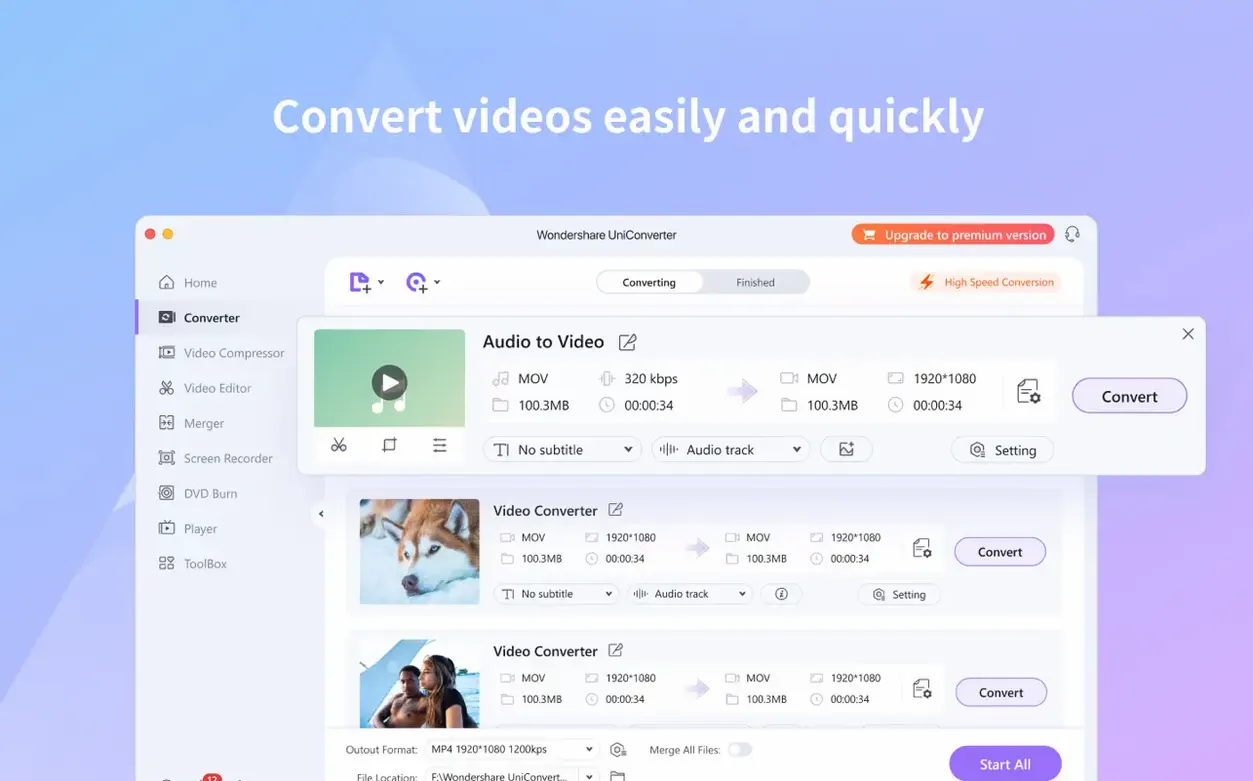
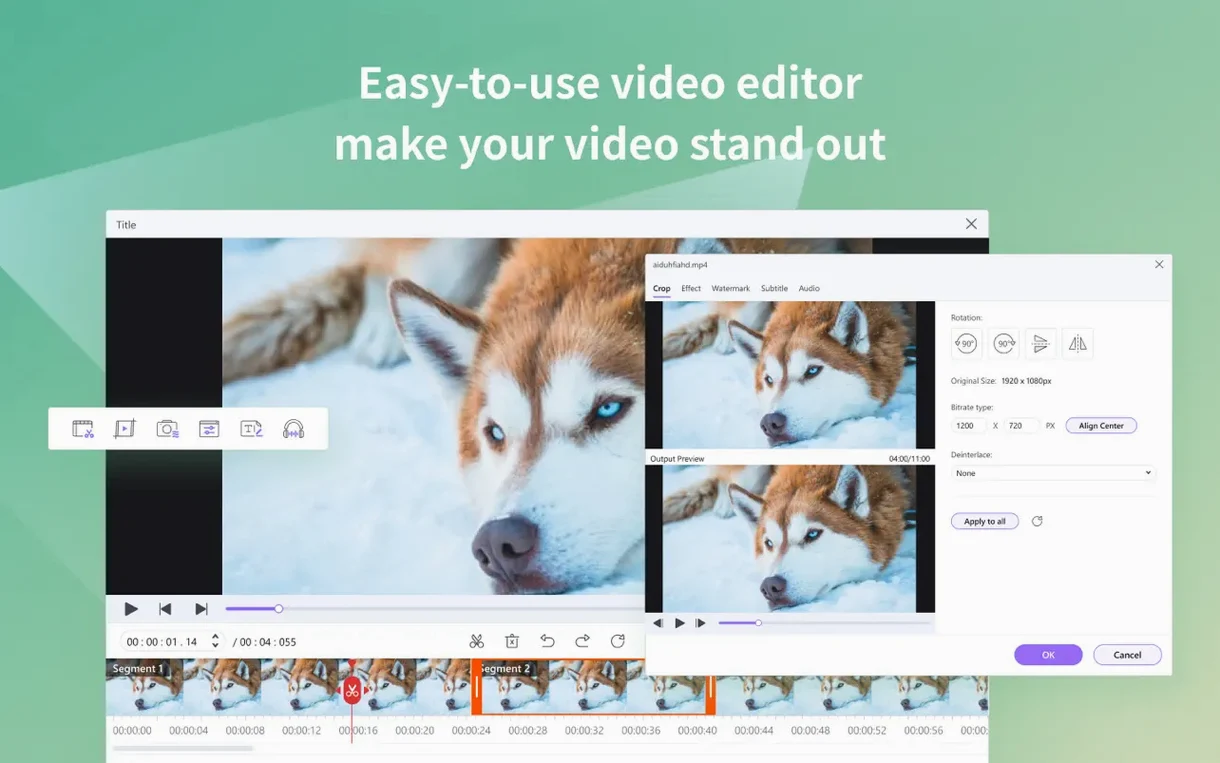
I dropped the source file into the Converter module and set MP4 with H.264 as the output. The built-in trim tool let me scrub to the exact frame where the intro ended and cut everything before it. While that job ran, I queued a second task on the same file: extract the audio track to MP3 at 320 kbps. Batch handling means you stack these jobs and let them run in sequence, which avoids babysitting progress bars.
With both files ready, I switched to the Transfer tab. UniConverter detected the iPad on the local network without any USB connection and pushed the trimmed video and the MP3 across in one go. If your target device is an iPhone or an older iPod, the same wireless flow works, and the app can optionally update an iTunes library with metadata during the transfer—useful if you still keep a local media library in order.
For a different use case, the DVD toolkit reads non-encrypted discs directly into MP4 or MOV, and the Burn tab can author video files back to DVD-Video discs with a few clicks. Not every module gets equal polish—the built-in player and screen recorder are functional rather than best-in-class—but the core conversion pipeline handles 159-plus formats and runs natively on both Intel and Apple Silicon Macs without complaint.
A wedding videographer working on a same-week delivery faces a predictable bottleneck: the client sends a mix of phone footage shot in HEVC, a few 4K clips from a mirrorless camera, and an audio note recorded as a WAV file. All of it has to land in a single edited timeline, and the editing suite refuses to touch the HEVC footage. UniConverter handles exactly this kind of format chaos without forcing a detour through three separate utilities.
The HEVC files from an iPhone are the first problem. Dropping them into the Converter module with H.264 selected as the output gives the editing suite something it can actually read, and the 4K resolution survives the trip if you keep the output profile at its original dimensions. The WAV file converts to AAC in the same batch, so the videographer is left with a folder of uniformly editable media before the first coffee goes cold.
Dragging a 4K HEVC Clip into the Converter Tab
To show how the pieces fit together, here is a typical working session built around a single source file.
- Launch UniConverter and go to the Converter tab. Drag a 4K HEVC clip from the Finder straight into the window.
- Set the output format to MP4 with H.264. Leave the resolution at Same as source unless a smaller file is needed.
- Add a second job for the same clip: choose MP3 as the target and set the bitrate to 320 kbps. Both jobs now sit in the queue.
- Open the trim controls on the video job and mark the section between frame 00:00:12 and 00:02:40. The preview pane shows the selected range in real time.
- Click Convert All. The two jobs run back to back, with the progress indicator showing file size and estimated time for each.
- Switch to the Transfer tab while the queue is still running. UniConverter lists the iPhone on the same Wi-Fi network; select it as the destination.
- When both jobs finish, drag the trimmed MP4 and the MP3 into the transfer list and send them across without a cable.
The entire sequence from source file to two converted outputs on a phone takes under ten minutes on an Apple Silicon Mac, and most of that time is the HEVC encode itself.
Common snags and workarounds
HEVC conversion on an older Intel Mac is the most frequent source of frustration. The same file that encodes in a few minutes on an M1 or M2 can take significantly longer on a 2017 MacBook Pro, and the fans will make themselves heard. The fix is not to change the output format but to lower the resolution to 1080p for jobs where 4K is not essential. That keeps the CPU load manageable without abandoning the batch.
Wireless transfers occasionally fail to discover a device on the first attempt. Toggling Wi-Fi on the phone, then refreshing the device list inside UniConverter, usually resolves it. If the target is an older iPod, a wired connection may simply be more reliable, but the wireless option works consistently with current iOS hardware.
The DVD module will not read commercially encrypted discs. That is a limitation of the built-in ripping pipeline rather than a defect, and it is worth knowing before you plan a weekend of converting an old TV series box set. Non-encrypted discs, including home-burned DVDs, read without issue.
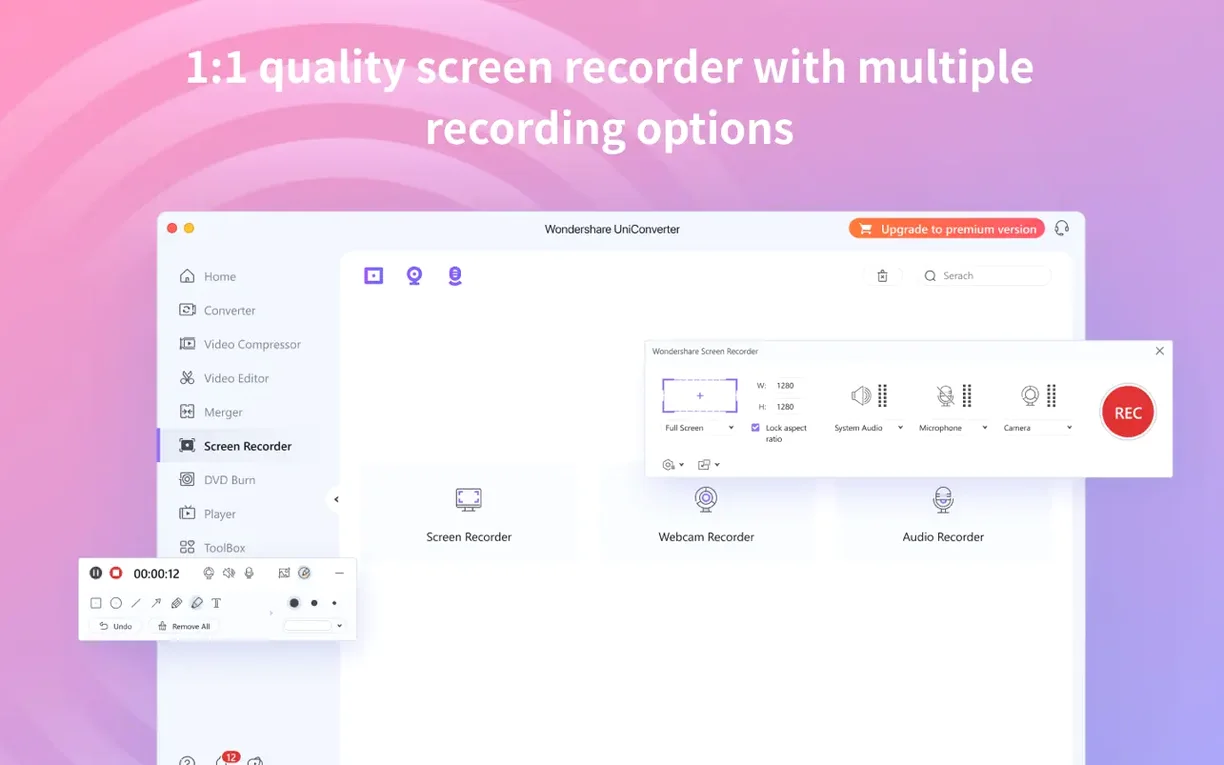
Some users report that the built-in screen recorder drops frames when capturing a full Retina display at high refresh rates. For smooth screen captures, reduce the recording area to a single window or lower the capture resolution in the recorder settings. The converter itself is far more dependable than the capture utility.
A Two-Minute 4K Clip in Three Minutes on M1
On an M1 MacBook Air with 16 GB of RAM, a two-minute 4K HEVC clip takes roughly three minutes to convert to 1080p H.264. The same job on a 2019 Intel MacBook Pro takes closer to eight. Hardware acceleration for Apple Silicon is present in this build, and it shows in the queue: multiple jobs run without the interface slowing down, though memory usage climbs past 1 GB during a heavy batch.
Stability is generally solid in the conversion and transfer modules. Crashes are rare, and when they happen, they tend to involve the screen recorder or the DVD burner rather than the core pipeline. The app saves the conversion queue between sessions, so a crash mid-batch does not mean lost work—the unfinished jobs reappear on the next launch.
Resource use is acceptable for a media toolkit. Idle memory sits around 400 MB, and CPU load returns to zero when the queue is empty. The only real annoyance is startup time: the app takes several seconds to initialise its codec library on first launch, which feels sluggish compared to lighter utilities but is a fair trade for the format coverage.
People hunting for a wondershare uniconverter for mac download usually want one tool that covers conversion, DVD work and device transfers. The build tested here delivers that, and the native Apple Silicon support means it does not feel like a ported Windows app.
Architecture — runs natively on ARM (Apple Silicon) and 64-bit Intel Macs.
- macOS 10.11 or later
- Apple Silicon or 64-bit Intel processor
Questions on file
Can Wondershare UniConverter extract audio from a DVD?
Yes, it can read non-encrypted DVD video and extract the audio track directly to formats such as MP3, AAC or WAV.
Sign in · Create an account to add a field note.
No field notes yet. A measurement, a version, a machine — they appear after moderation.