
Mac Apps
Wins 3.6.1
Mac AppsUpdated
| Requirement | On file |
|---|---|
| macOS | macOS 12 or later |
| CPU | Apple Silicon, Intel 64-bit |
| Download | 59 MB |
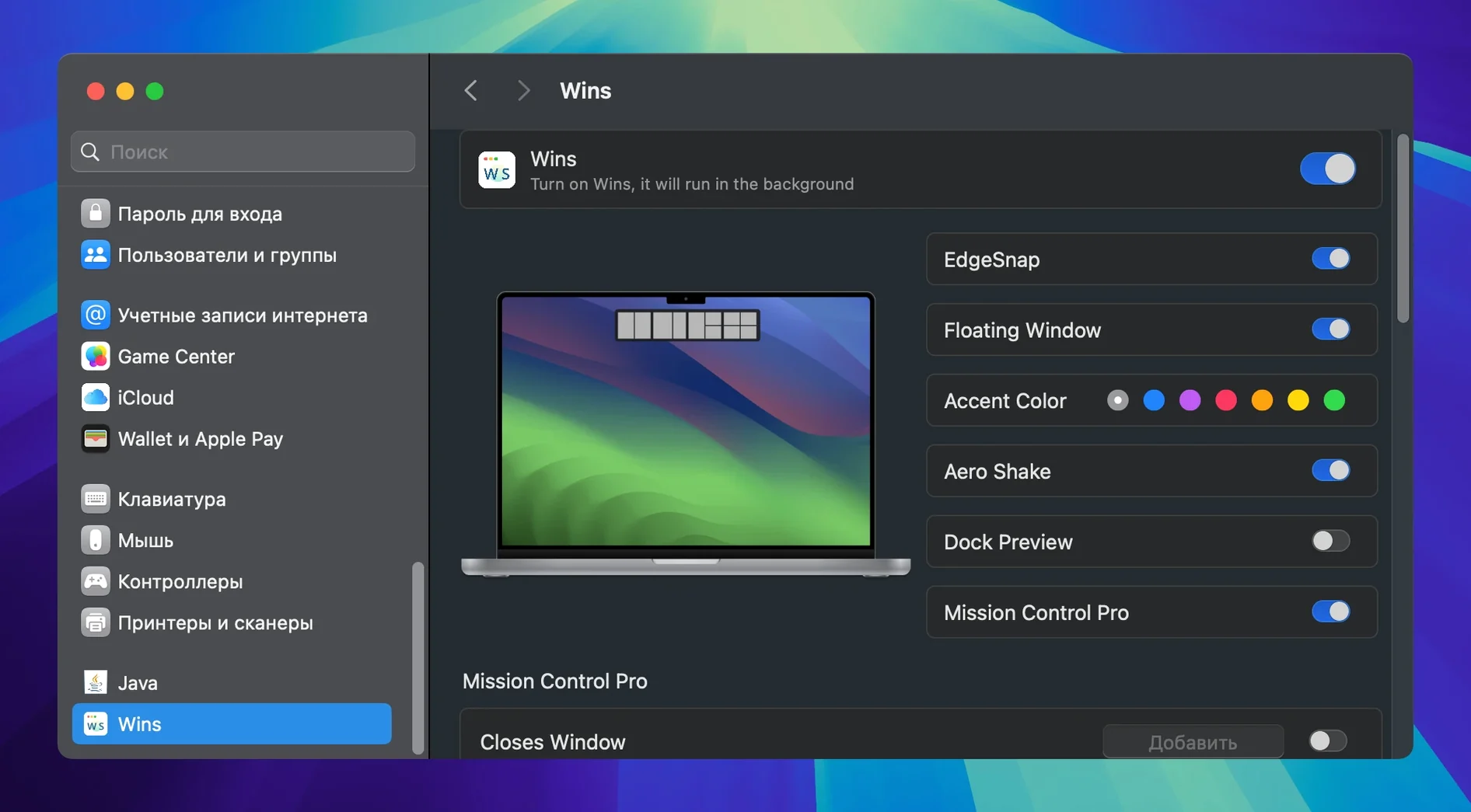
You grab a Finder window by its title bar and give it a quick shake. Every other open window on the desktop dissolves away, leaving only that Finder window in focus. This is the kind of direct, tactile control Wins brings to macOS window management — a way to clear visual noise without hunting through menus or memorising complex chord shortcuts.
Shake to hide all but the active window
- Quickly isolating a single window by shaking it, with all other windows hiding until you shake it again.
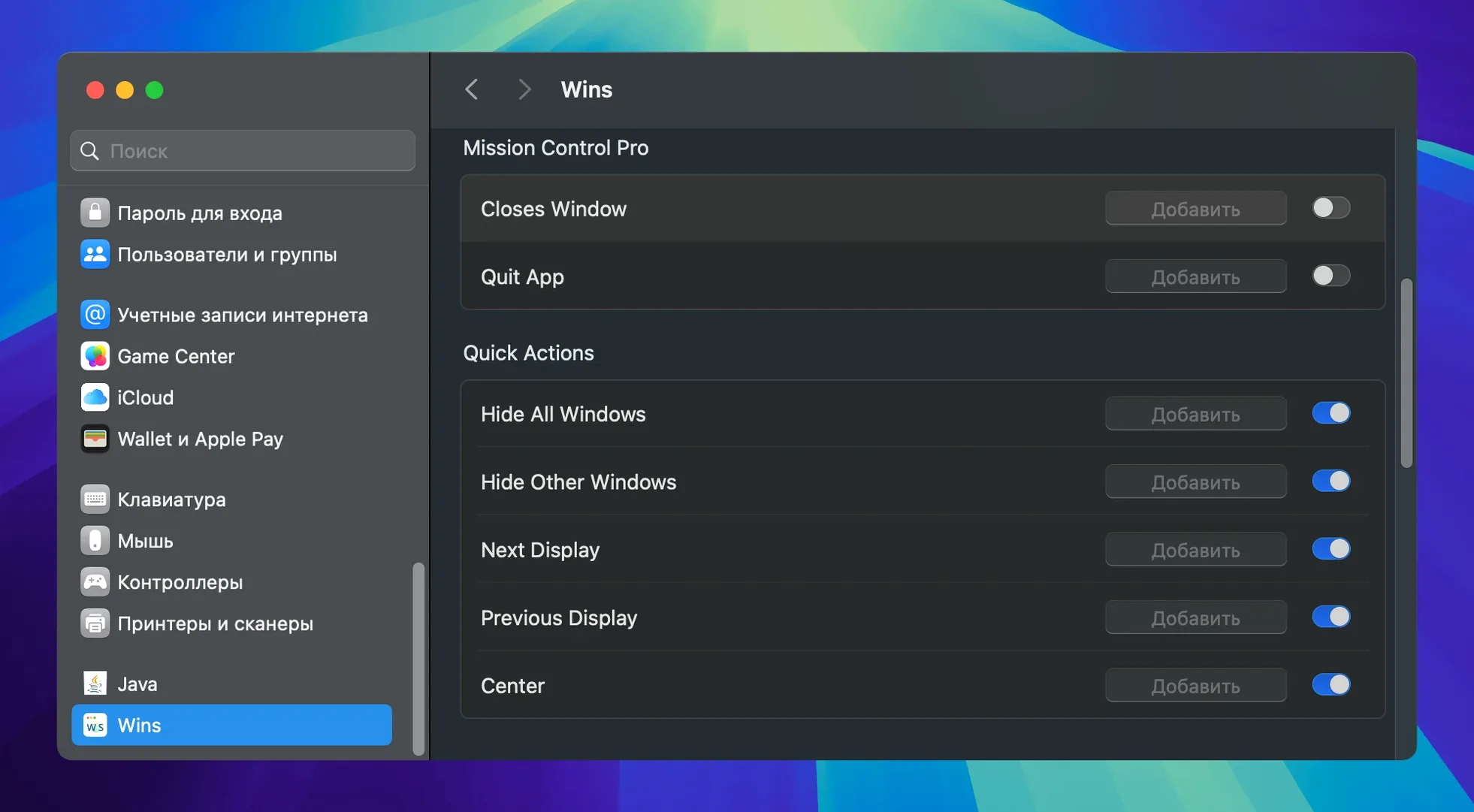
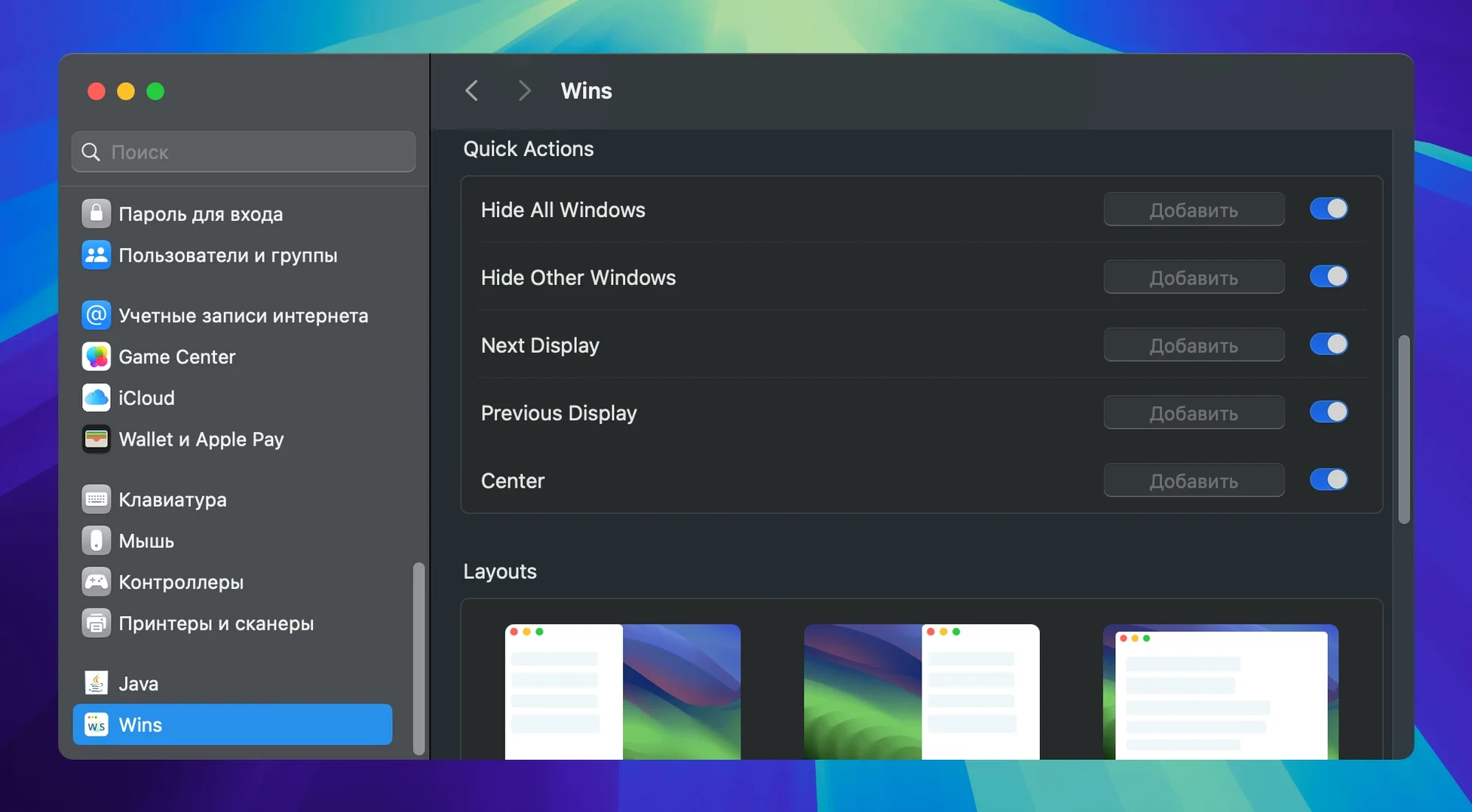
- Hiding every visible window at once via a single hotkey, useful before a screen share or recording.
- Extending Mission Control with the ability to close windows directly using ⌘+W.
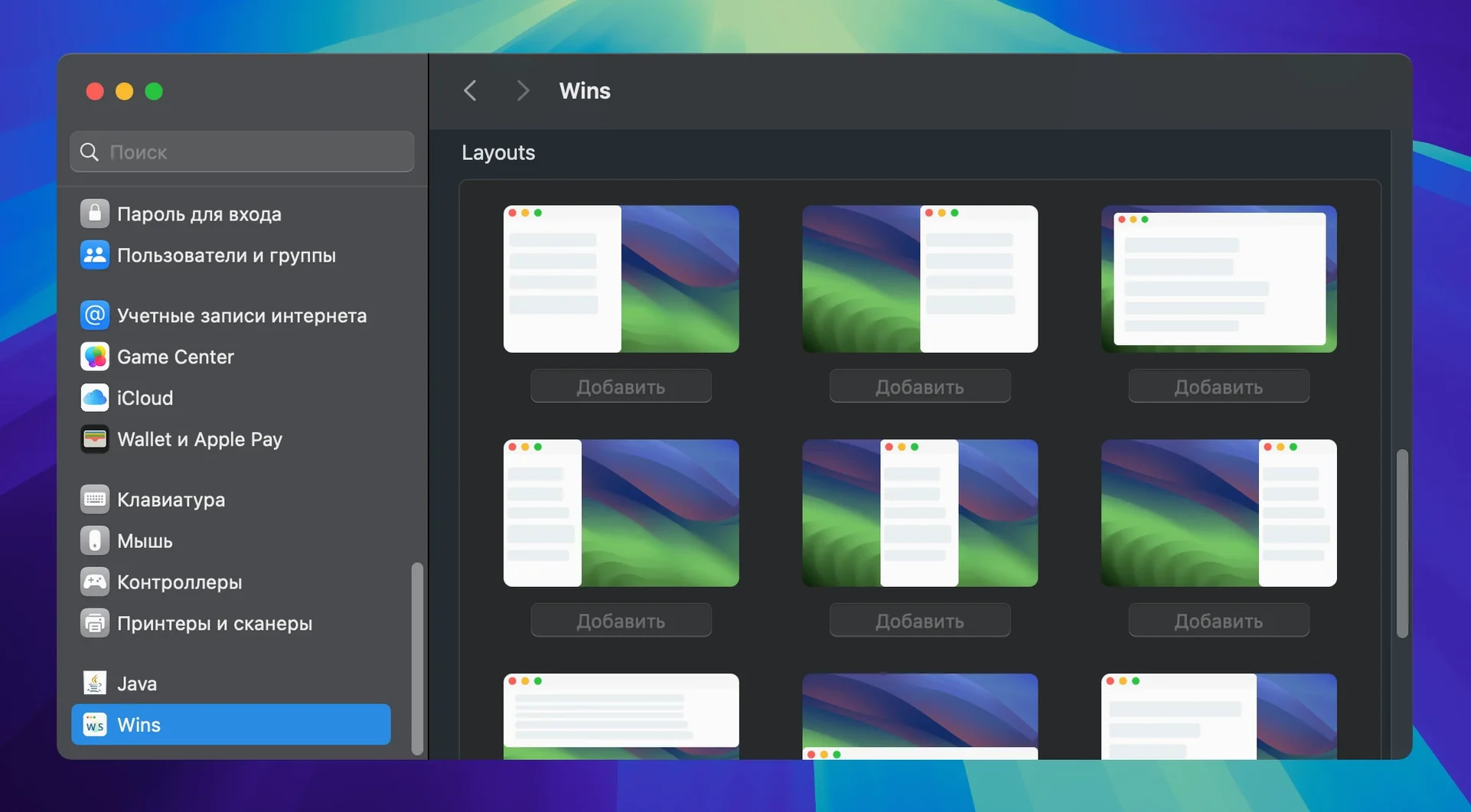
- Saving and restoring specific window layouts — for example, a text editor on the left two-thirds and a terminal on the right — so you can pick up where you left off.
- Seeing actual window previews when hovering over app icons in the Dock.
Settings live inside System Settings
- The app integrates into System Settings rather than running as a standalone configuration panel, so you will find its controls under macOS’s own settings structure.
- Mission Control Pro is a core component; its window-closing shortcut and process-locating behaviour are not available in the standard macOS Mission Control.
- CPU draw is stated as under 10% and typically sits around 0.1%, though this will vary slightly with the number of active windows.
A layout session, from scratch to saved
Imagine a technical writer preparing a documentation review. Three apps need to be visible at once: a browser showing the live software interface on the left half, a Markdown editor in the upper-right quadrant, and a PDF of the style guide in the lower-right corner. With Wins, this setup takes roughly four seconds. The writer drags the browser window to the left edge until Snap Island appears and selects the left-half split. The editor goes to the upper-right quarter via another snap, and the PDF fills the remaining space. Once arranged, the layout is saved with a custom name — “Doc review” — and recalled later with a single hotkey, even if all windows were closed in between. No manual resizing, no pixel-level nudging.
Small moves that add up
Several Wins behaviours sit just outside the main feature list but repay discovery. Shaking a window to hide others — the “shake to focus” gesture — works on any standard title bar, no modifier key needed. In Mission Control Pro, quitting an app with ⌘+Q works on the app’s grouped windows, not just on a single window preview, which saves a step when you are cleaning up a cluttered Space. The Dock Lock feature, new in version 3.6, pins the Dock to a specific display when the Dock is positioned at the bottom edge; useful if you regularly switch focus between a laptop screen and an external monitor and find the Dock migrating unpredictably.
Another subtle convenience: hovering over a Dock icon shows a live window preview without clicking. For apps with multiple open windows, the preview arranges them in a small grid, letting you pick the right one before you even raise it. And if you keep the same three‑app group open daily — say, Mail, Calendar, and Things — you can bind that group to a shortcut like ⌃⌥⌘1 and restore the whole set in one go, regardless of what else is on screen.
Things that sometimes trip people up
One recurring snag involves the shake-to-hide gesture on Macs with a loose hinge or an external trackball with high sensitivity. A light bump can trigger the hide behaviour unintentionally. The fix is to adjust the shake sensitivity slider inside the Wins preference pane in System Settings — dragging it toward “Firm” requires a more deliberate motion.
Another point of interest after a wins crack mac installation is when Mission Control Pro does not appear to work. The most common cause is that the user has not granted Accessibility permissions on the first launch. Without that permission, the ⌘+W and ⌘+Q shortcuts inside Mission Control simply do nothing. The remedy is to open System Settings → Privacy & Security → Accessibility and toggle the switch for Wins, then relaunch Mission Control.
Users on multi-display setups sometimes find that floating split windows snap to the wrong screen edge after a display wakes from sleep. This is usually a consequence of macOS re-enumerating displays, and the quickest workaround is to recall the saved layout via its hotkey rather than repositioning windows manually. Dock Lock, introduced in the 3.6 update, also helps here: locking the Dock to the primary display stops it from jumping to a secondary screen and interfering with edge‑snapping targets.
If you are using a wins mac app cracked build and notice the Dock previews lagging, check whether “Show window previews” is enabled inside the Wins settings — it is off by default on some clean installations. Enabling it adds a tiny memory overhead (the app’s total footprint stays under 30 MB, per the developer’s figures) but makes window selection from the Dock substantially faster.
Finally, when you download wins and find that saved layouts do not restore window positions exactly, verify that the displays are arranged the same way in System Settings → Displays as they were when the layout was saved. Wins ties layout coordinates to the display topology; swapping which monitor is on the left will mirror the layout, and changing resolution scaling can shift window edges by a few points.
- macOS 12 or later
- Apple Silicon or Intel 64-bit processor
Questions on file
How does the window-shaking feature work?
Shaking any window’s title bar hides all other open windows. Shaking it again restores them.
What does Mission Control Pro add?
It extends the built-in Mission Control by letting you close windows with ⌘+W and locates system processes more efficiently to reduce overhead.
Can I save my window arrangements?
Yes, Wins supports saving specific window layouts so you can restore them later without manually repositioning everything.
Sign in · Create an account to add a field note.
No field notes yet. A measurement, a version, a machine — they appear after moderation.