Mac Apps
WALTR PRO 4.0.122
Mac AppsUpdated
| Requirement | On file |
|---|---|
| macOS | macOS 10.13 or later |
| CPU | Intel 64-bit |
| Download | 29 MB |
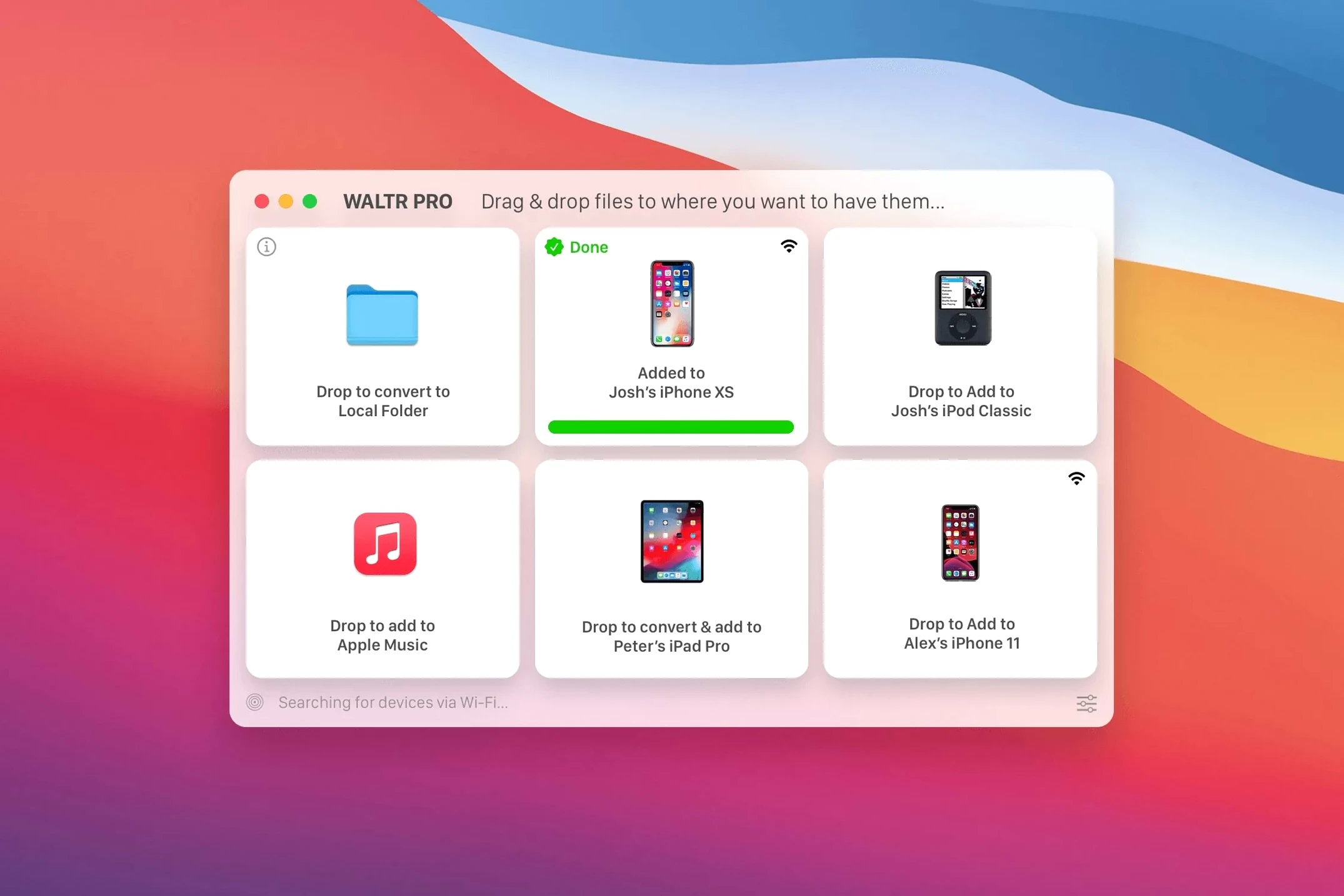
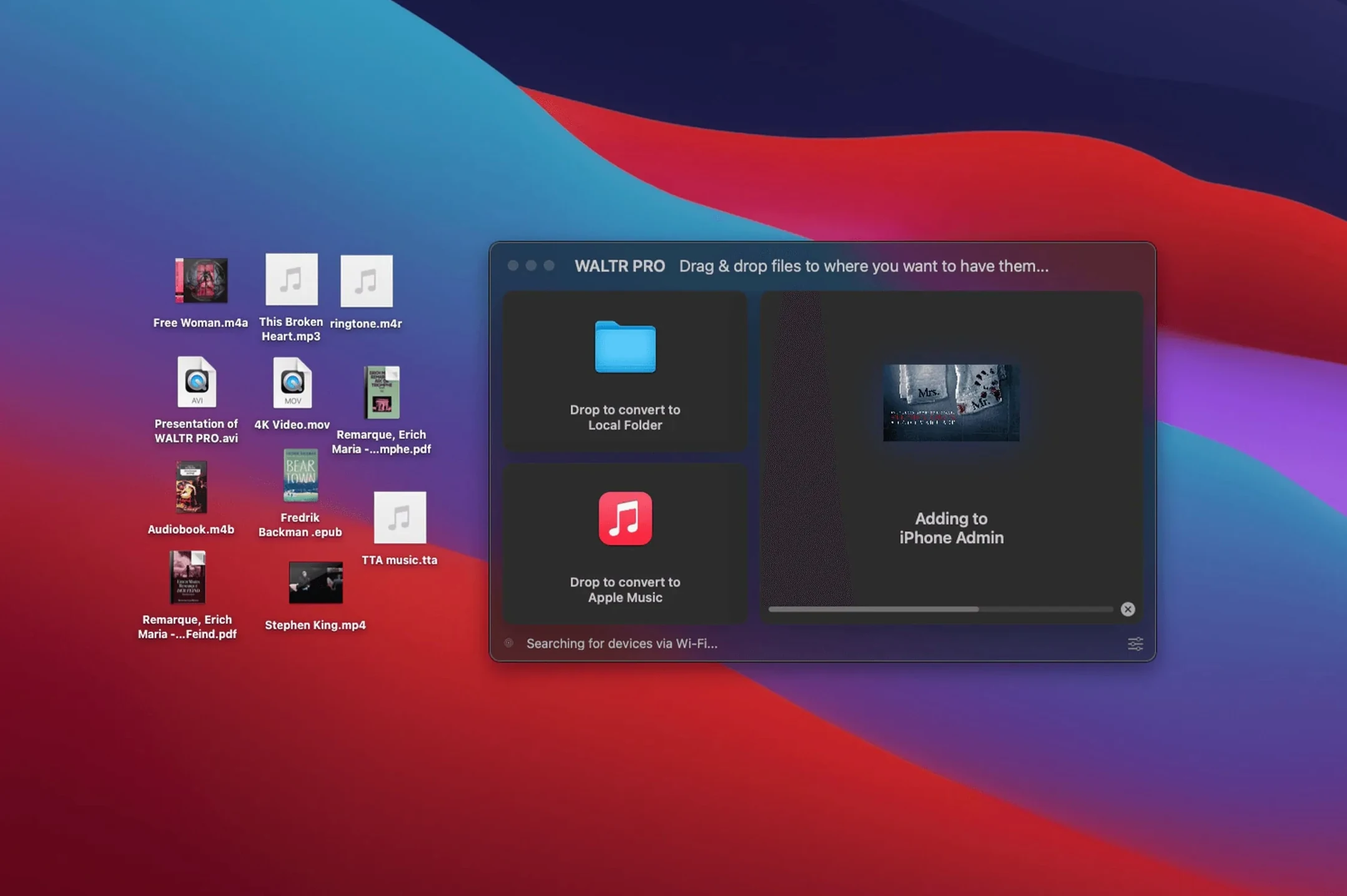
Version 4.0.122 arrives without fanfare or a changelog, but the core job is unchanged: Softorino's utility still takes media files that iOS refuses and gets them onto an iPhone or iPad. The angle here is a single evening transfer — a video in MKV, an album in FLAC, and a CUE sheet for a live bootleg.
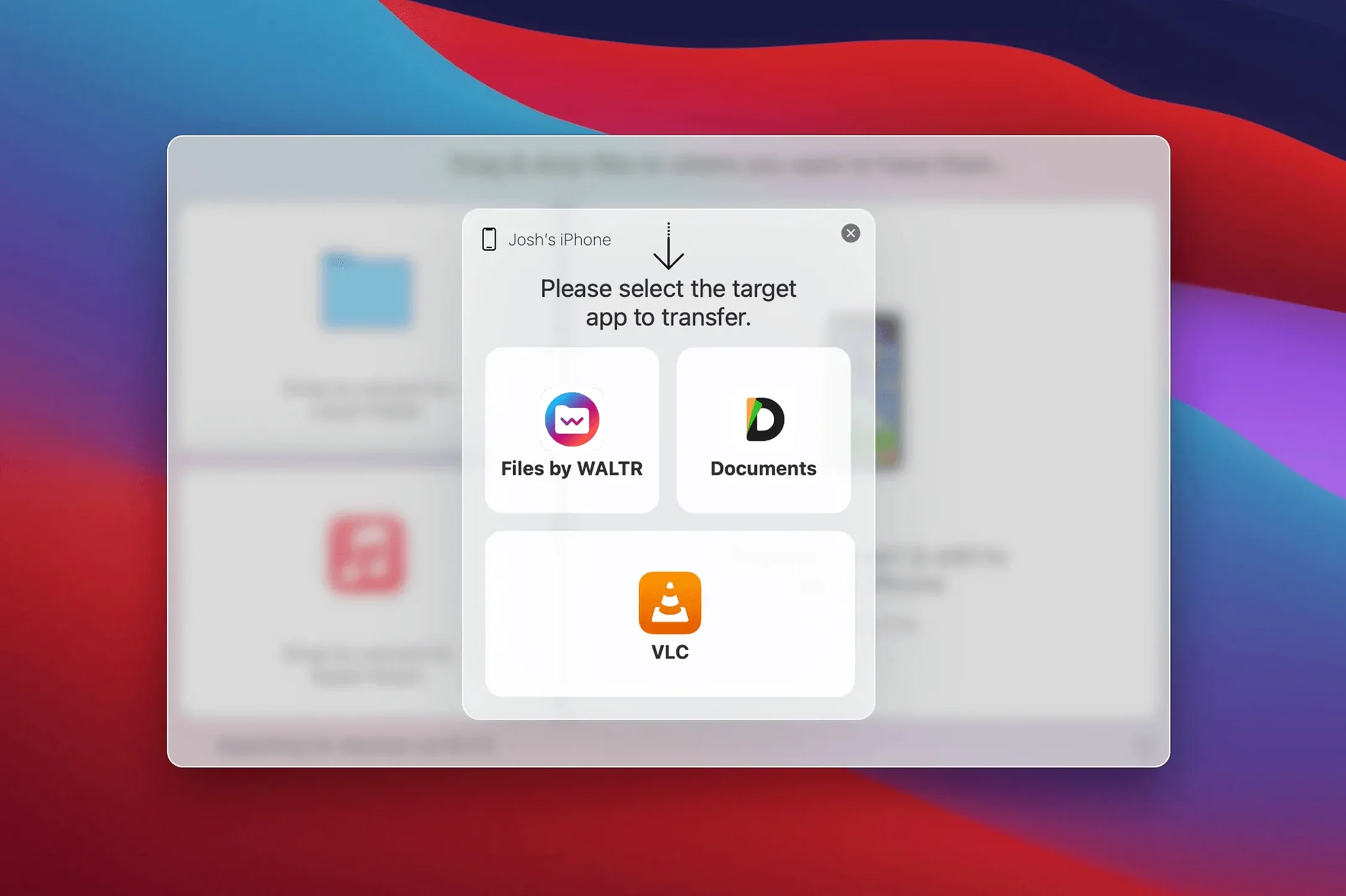
- Drop the MKV into WALTR PRO; the app converts it and places it in the Movies app.
- Add the FLAC album; each track lands in the Music app ready to play.
- Attach the CUE file so the bootleg keeps its track boundaries instead of becoming one long file.
- Send everything over Wi-Fi — no cable needed once the device is on the same network.
- Check the target apps on the iPhone; Movies holds the video, Music holds the audio.
Playback is handled by Apple's own apps, not a separate player, so the result feels native. The transfer itself runs quietly in the background while the conversion does most of the work.
Keeping a Local FLAC Library Alive on iPhone
WALTR PRO makes the most sense for a specific kind of Mac user: someone who already owns media rather than renting it. If you keep a local library of FLAC albums, have a folder of old AVI home videos, or download concert recordings that come with CUE sheets, the utility cuts out the manual conversion step that iOS normally forces on you. For these users, the time saved per file — maybe three to five minutes of transcoding and an iTunes sync juggle — adds up fast.
People who run older iPods alongside a modern iPhone also benefit. The support for the original iPod Classic means one drop handles both the device in your pocket and the one wired into the car. Musicians who receive M4R ringtones or short audio clips from collaborators can drop them straight onto an iPhone without opening GarageBand or Finder. It is less compelling if you stream everything: a Spotify subscriber with no local files will rarely open the app.
Grant Folder Access Before the First Drag-and-Drop
After installation, a handful of small choices make the utility easier to live with. These steps take about ten minutes and prevent common friction points.
- On first launch, grant the app permission to access removable volumes and the Movies folder in System Preferences. Skipping this leads to a silent failure later when the drop zone rejects a file.
- Open the Wi-Fi settings on each iOS device and confirm it stays on the same network as the Mac. A 2.4 GHz band works, but a 5 GHz connection shortens the wait for a 4 GB MKV noticeably — often by a third or more.
- Turn off Automatic Content Transfer in the app preferences if you want to control what lands where. Leaving it on means every supported file in a watched folder gets sent immediately, which can fill the Music app with unintended tracks.
- Set a default output quality for video. The Automatic setting is fine for most, but choosing Original avoids a second compression pass on files already encoded for mobile screens.
- Keep the iPhone or iPad unlocked during the first transfer. An auto-lock can interrupt the handshake, and the device drops off the list until you wake it again.
Dragging Straight to the Dock Icon Without Bringing the Window Forward
A few conveniences sit just below the surface and are easy to overlook even after weeks of use. The app accepts a drag onto its Dock icon — no need to bring the window forward. If the iOS device does not appear in the list, toggling Wi-Fi off and on from Control Centre on the device usually re-establishes the connection within seconds, faster than restarting the app.
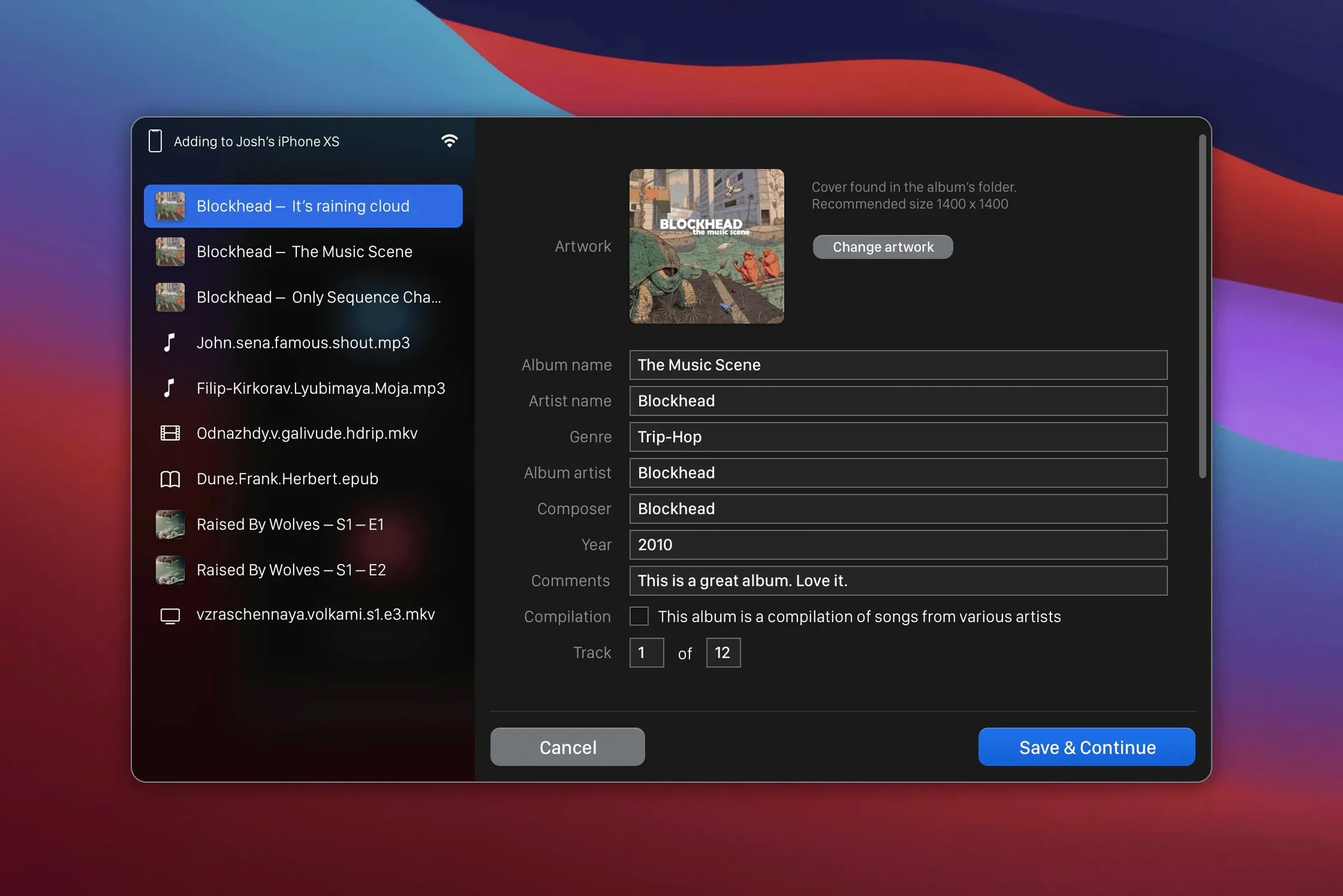
The CUE handler deserves attention. When you drop a CUE file alongside its matching audio, WALTR PRO splits the tracks and names them from the sheet metadata before placing them in the Music app. If you drop only the CUE file without the audio, nothing happens — the pair must be present together. Ringtone files dragged in as M4R land directly in the iPhone's Ringtones list, ready to assign to a contact without clipping anything in GarageBand.
Another overlooked detail: the app preserves embedded artwork. A FLAC album with cover art inside the tags shows that art in the Music app after transfer, which is not guaranteed with every conversion tool. For subtitled MKV files, soft subtitles survive the conversion only if they are embedded in the container; external .srt files need to be muxed into the MKV beforehand.
Sending a 2.7 GB MKV Concert Film While the iPhone Charges
It is late evening, and a user has just downloaded a 2.7 GB concert film in MKV and a FLAC vinyl rip with a CUE sheet. The Mac sits on a desk, the iPhone is charging nearby on the same Wi‑Fi network. Here is how the session unfolds.
First, the user opens WALTR PRO and checks the device list. The iPhone appears within a few seconds, its name and storage bar showing 14.3 GB free. No cable is plugged in — the connection is wireless. The app window sits to the right of a Finder window showing the two media files.
The user drags the FLAC file into the drop zone first. A progress ring appears, and the app shows a brief message: Converting to ALAC. Because Lossless is selected in preferences, the FLAC is repackaged as ALAC — no quality loss, and the Music app accepts it natively. The CUE file is dragged in next, dropped onto the same area while the conversion is still running. The app queues it, reads the track index, and within a minute the album appears in Music on the iPhone with all nine tracks individually listed, complete with titles and artist metadata pulled from the CUE.
Next comes the MKV. The user drags it over, pauses for a moment because the file is large, and watches the progress bar creep from 0 to 100 percent over roughly four minutes. The app sends the converted file — now an M4V — directly into the Movies app on the iPhone. During the transfer, the user picks up the phone, opens the Movies app, and sees the thumbnail appear as the file finishes writing. Tapping it starts playback immediately, with the scrubber responsive and audio in sync.
The whole session takes under eight minutes from first drag to playback. No Finder sync, no Music app on the Mac, no cable. The user closes the app, and the files stay on the iPhone until manually deleted from the relevant app.
- macOS 10.13 or later
- 64-bit Intel architecture
- Wi-Fi for wireless transfer to iOS devices
- Interface language: English
Questions on file
Does WALTR PRO work on Apple Silicon Macs?
The stated architecture requirement is 64-bit Intel, so Apple Silicon Macs would rely on Rosetta 2 for compatibility.
Sign in · Create an account to add a field note.
No field notes yet. A measurement, a version, a machine — they appear after moderation.