
Mac Apps
VMware Fusion Pro 26H1
Mac AppsUpdated
| Requirement | On file |
|---|---|
| macOS | macOS 13 or later |
| CPU | Apple Silicon, Intel 64-bit |
| Download | 479 MB |
vTPM-backed encryption for a new VM now happens with a single click. The 26H1 release of VMware Fusion Pro is a targeted update that sharpens a few areas without reworking the core. Here is what the terms mean in practice.
Hypervisor — the thin layer that lets a Mac run Windows, Linux, or FreeBSD alongside macOS without dual-booting. This build supports Apple Silicon and Intel 64-bit Macs.
Guest OS additions — fresh official support for six operating systems: Ubuntu 26.04 LTS, Fedora 43, Fedora 44, SUSE Linux Enterprise 16, openSUSE 16.0, and FreeBSD 15.0. That means recognised drivers and smoother screen resizing for those guests.
Remote ARM ESX — the ability to connect to an ARM-based ESX host from the Mac client. Previously a gap, now closed for engineers managing mixed-architecture fleets.
VM timestamps — two new metadata fields: creation date and last power-on time. Small change, practical for tracking lab VMs or audit logs.
Press a Key During Boot to Avoid the Black Screen
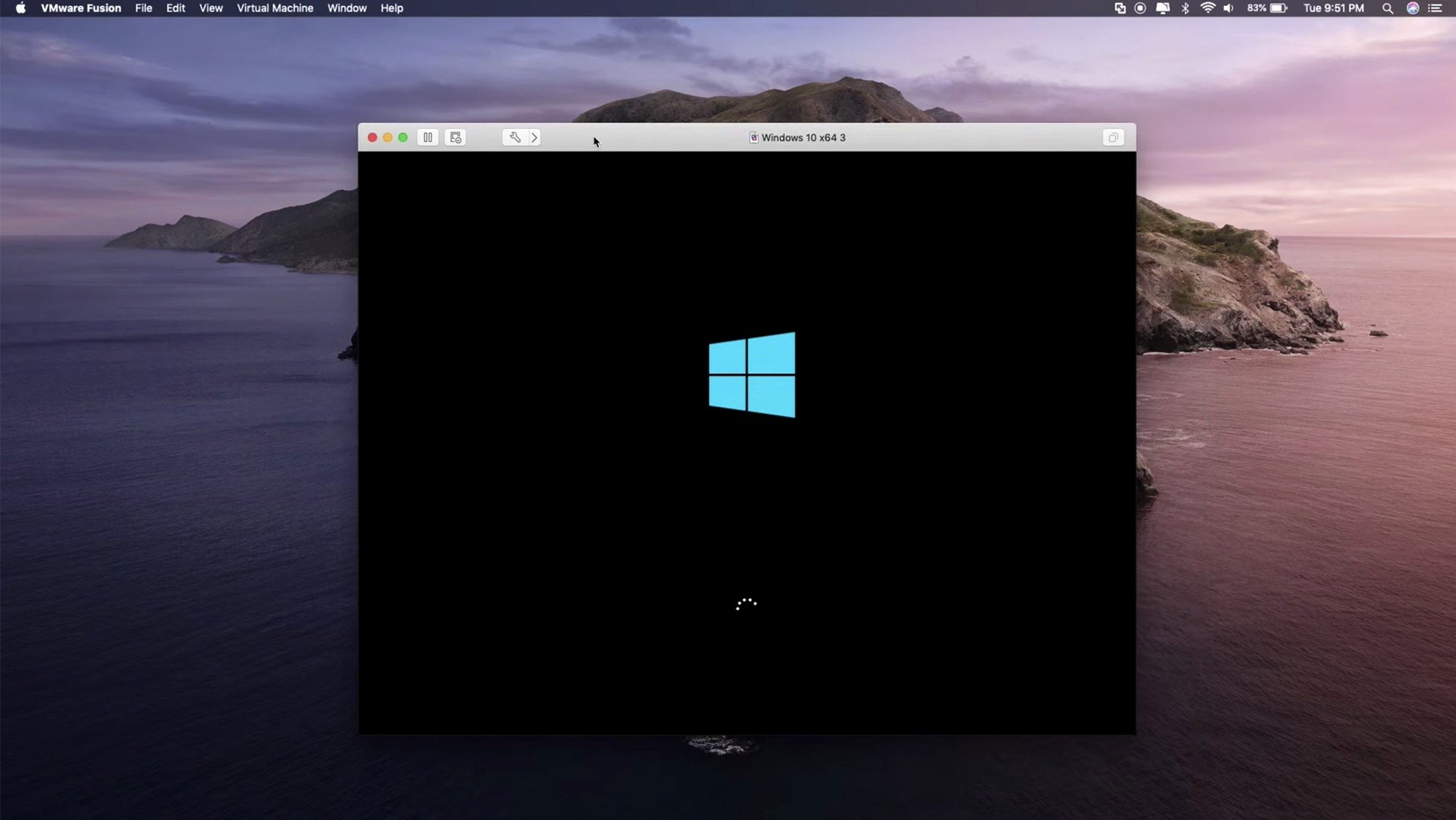
A fresh Windows 11 VM on an Apple Silicon Mac will boot to a black screen if you skip the step most newcomers overlook: you must press any key during the brief "Press any key to boot from CD/DVD" prompt when the installer ISO first loads. The window appears for roughly 5 seconds. Miss it, and the VM boots into the UEFI shell instead. Power off the VM and restart — no harm done, but it wastes ten minutes while you wonder what went wrong.
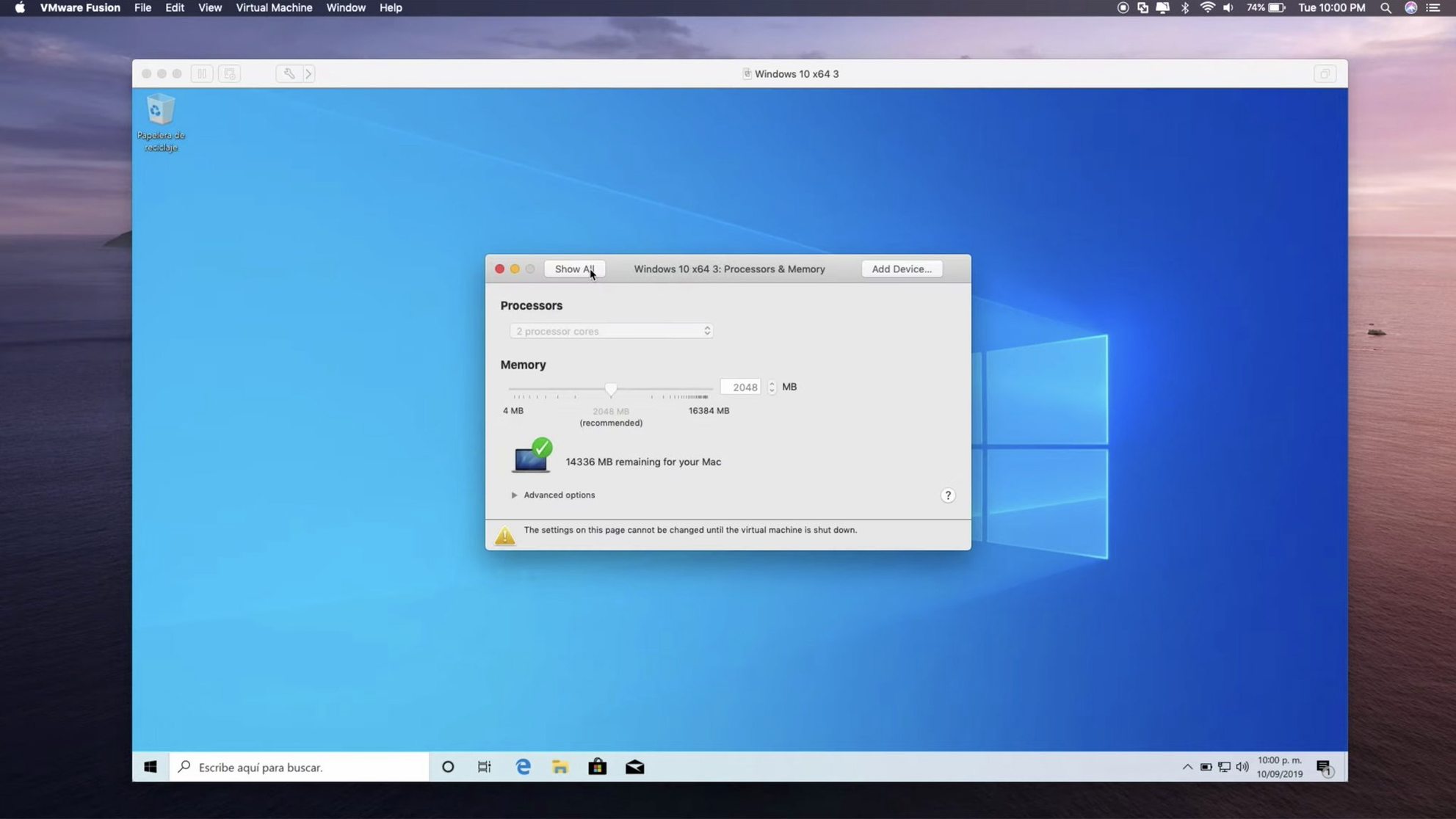
Another repeat offender is memory overcommit. A Mac with 16 GB of unified memory cannot safely hand 12 GB to a Windows VM and still expect macOS to stay responsive. Fusion Pro defaults to 4 GB for Windows 11 guests, and sticking close to that number — or 8 GB for heavier workloads — prevents the host from swapping itself into treacle. The same logic applies to processor cores: assigning all performance cores to one VM starves the Mac's own background tasks and can cause audio dropouts or stuttering in the guest.
Beginners also tend to install VMware Tools from a stale built-in ISO instead of letting Fusion Pro download the latest version from VMware's servers. The menu path Virtual Machine → Install VMware Tools checks for an updated package; mounting an old ISO from disk gives you working drivers but misses fixes for graphics, clipboard sync, and shared folders that matter on recent guest kernels.
A less obvious trap: enabling 3D acceleration on a Linux guest without installing the open-vm-tools-desktop package first. Without it, GNOME or KDE will either refuse to start a Wayland session or fall back to a software renderer that makes every window drag feel sluggish.
Relocate the Default VM Folder Before Expanding a Disk
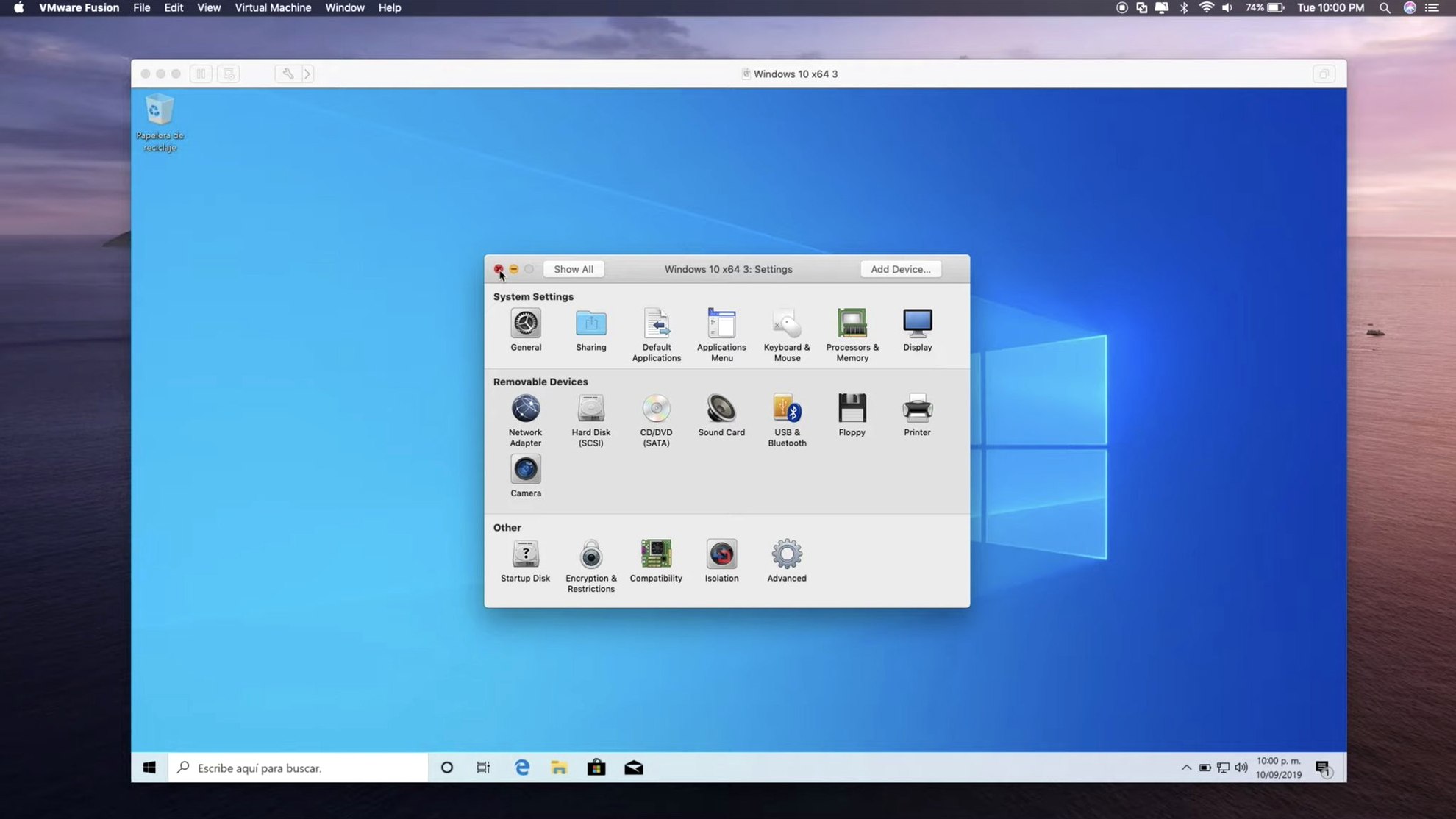
Open Fusion → Settings → General and switch the default virtual machine folder away from your home directory if you keep VMs on an external Thunderbolt drive. Fusion Pro respects the path, and relocating early avoids copying 60 GB disk images later.
Under Keyboard & Mouse, change the Shortcut for releasing input from the guest. The default is Ctrl+Option, which collides with macOS's own Ctrl+Option+Space for emoji. Many users set it to Ctrl+Cmd and never look back.
In the Display pane, tick Use full resolution for Retina display only if you genuinely need 2x pixel density inside the guest. On a 14-inch MacBook Pro, Windows at native Retina scaling pushes 3024-by-1964 logical pixels and can halve the frame rate of a DirectX 11 workload compared to the standard 1680-by-1050 scaled mode. For everyday Windows use, leaving Retina off and setting the guest to 1920-by-1200 gives a crisp-enough image without burning GPU bandwidth.
For Apple Silicon hosts, the Encryption checkbox in a VM's Settings → General now uses vTPM-backed encryption by default. Turn it on during VM creation rather than retroactively — encrypting an existing 80 GB disk requires a full block-by-block rewrite and can take 20 minutes on a fast SSD.
One setting that deserves a look but often stays untouched: Isolation options in VM Settings → Applications. Disabling drag-and-drop and shared clipboard can save you from accidentally leaking a password typed on the Mac side into a test VM. The toggle is per-VM, so you can keep it tight on a malware-analysis guest while leaving it open on your main Windows install.
What the 26H1 release changed in everyday use
The six added guest OS profiles — Ubuntu 26.04 LTS, Fedora 43, Fedora 44, SUSE Linux Enterprise 16, openSUSE 16.0, and FreeBSD 15.0 — mean Fusion Pro now recognises their kernel headers and selects the correct virtual hardware profile without manual tweaking. In practice, screen autoresize works out of the box on these guests where earlier releases required a manual systemctl restart open-vm-tools after first boot.
The ARM ESX remote connection support fills a gap for anyone running ESXi on Ampere-based hardware or Apple Silicon Macs in a datacenter context. Before 26H1, the Connect to Server dialog would error out when targeting an ARM host. Now the remote VM list populates and the console opens — no protocol change, just an architecture check that has been relaxed.
The two new timestamp fields — Created and Last power-on — appear in the Virtual Machine Library summary pane. A lab manager with 14 Windows sandboxes can now sort by last-used date without opening a logfile. The fields survive VM moves between hosts, since they live inside the .vmx configuration file rather than an external database.
One quieter change: the bundled VMware Tools ISO for Windows now ships with a WDDM 3.0 driver that reduces screen flicker on window resize when running Windows 11 24H2 guests. Previously, dragging a corner of the VM window could cause a half-second black flash as the display adapter reinitialised.
Toggle Bridged Networking to NAT and Back After Sleep
Snag: Bridged networking stops passing traffic after the Mac wakes from sleep.
Fix: In the VM's Network settings, toggle from Bridged to NAT and back. The bridge loses its DHCP lease during sleep, and the toggle forces a fresh request. If the problem repeats daily, switch the VM to Share with my Mac (NAT) permanently — it adds a slight latency penalty but survives sleep cycles without intervention.
Snag: A Windows VM bluescreens with KMODE_EXCEPTION_NOT_HANDLED on boot after a macOS update.
Fix: Power down the VM, open Settings → Processors & Memory, and toggle Enable hypervisor applications in this virtual machine off, boot once, then shut down and re‑enable it. macOS updates can change the Hypervisor framework version, and the toggle rebuilds the VM's internal hypervisor bindings.
Snag: Shared folders show as empty on a Linux guest despite being mounted.
Fix: Run sudo vmhgfs-fuse .host:/ /mnt/hgfs -o allow_other manually. The auto-mount often fails when the guest's kernel version is newer than the VMware Tools driver expects — a common sight on rolling-release distros. Adding the command to /etc/fstab with the noauto,x-systemd.automount flags makes it stick.
Snag: USB 3.1 devices disconnect when the VM window loses focus.
Fix: In VM Settings → USB & Bluetooth, change the USB Compatibility drop-down from USB 3.1 to USB 2.0 as a quick diagnostic. If the device stays connected, re‑plug it and switch back to 3.1 — Fusion Pro sometimes caches the wrong endpoint descriptor and the toggle clears it.
Snag: A local Kubernetes cluster created with kind inside an Ubuntu guest cannot pull images.
Fix: Check whether the VM's network adapter is set to Bridged. containerd inside the guest needs a routable IP to talk to registries; NAT mode with default port-forwarding rules does not forward the high ports that Docker registry operations use. Switch to Bridged or, if you need NAT, add a manual port-forward rule for port 5000 in Network → Advanced → Port Forwarding.
Workflow: standing up a Windows 11 ARM VM for a one-off test
- Open the Virtual Machine Library window and click Create a custom virtual machine.
- Select Windows 11 ARM64 from the operating system picker. Fusion Pro auto-populates the recommended 4 GB RAM and 64 GB disk. Leave both at defaults for a throwaway test.
- Check Encrypt this virtual machine and set a password. The vTPM-backed encryption takes roughly 90 seconds on an M2 Pro MacBook for a 64 GB sparse disk.
- Attach the Windows 11 ARM ISO (build 22631 or later) via the CD/DVD drop‑down. Tick Connect CD/DVD Drive before closing the settings window.
- Power on the VM and press a key immediately when prompted. Windows Setup loads; choose Custom: Install Windows only and point it at the unallocated space.
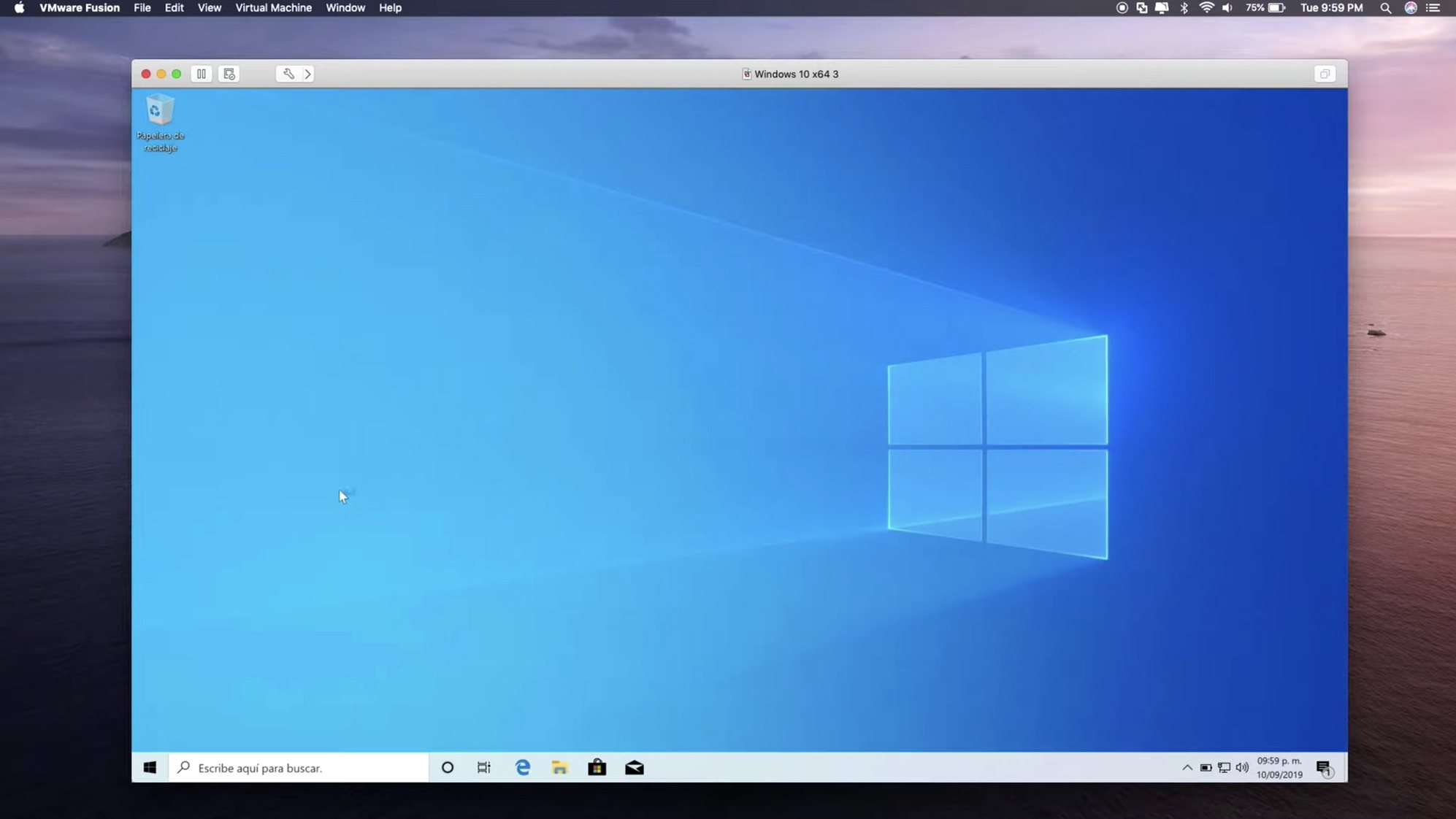
- Once the desktop appears, run Virtual Machine → Install VMware Tools. Let the wizard download the package from VMware's server rather than mounting a local ISO.
- After the Tools installer reboots the guest, open Settings → Display and set the resolution to 1920-by-1200. Disable Retina output unless you specifically need to test HiDPI behaviour.
- Open Edge, sign into a Microsoft account if the test requires Store apps, and install your test payload.
- When finished, shut down the VM and click Virtual Machine → Snapshots → Take Snapshot. Name it clean-install. You now have a rollback point that takes 2 seconds to restore.
- Delete the VM from the Library when the test is done. The sparse disk image reclaims unused blocks automatically, so your Mac's free space returns within seconds.
The whole process — from clicking Create to a working Windows desktop with network access — takes about 12 minutes on an Apple Silicon Mac with a Thunderbolt SSD, split roughly into 4 minutes for the Windows installer and 8 minutes for Tools plus updates. Skipping the snapshot step is fine for truly disposable VMs; adding it costs almost no disk space on a sparse image and saves a full reinstall if the test needs a second run.
- Guest OS support — Added Ubuntu 26.04 LTS, Fedora 43, Fedora 44, SUSE Linux Enterprise 16, openSUSE 16.0, and FreeBSD 15.0.
- Remote connectivity — Added support for connecting to ARM-based ESX hosts.
- VM metadata — Added timestamps for virtual machine creation and last power-on time.
- macOS 13 or later
- Apple Silicon or Intel 64-bit Mac
Questions on file
Can VMware Fusion Pro run local Kubernetes clusters?
Yes, it supports local Kubernetes clusters, along with OCI containers via a command-line interface, which suits development and CI testing workflows.
Sign in · Create an account to add a field note.
No field notes yet. A measurement, a version, a machine — they appear after moderation.