Audio
Swinsian 3.0.8
AudioUpdated
| Requirement | On file |
|---|---|
| macOS | macOS 10.13 or later |
| CPU | Apple Silicon, Intel 64-bit |
| Download | 24 MB |
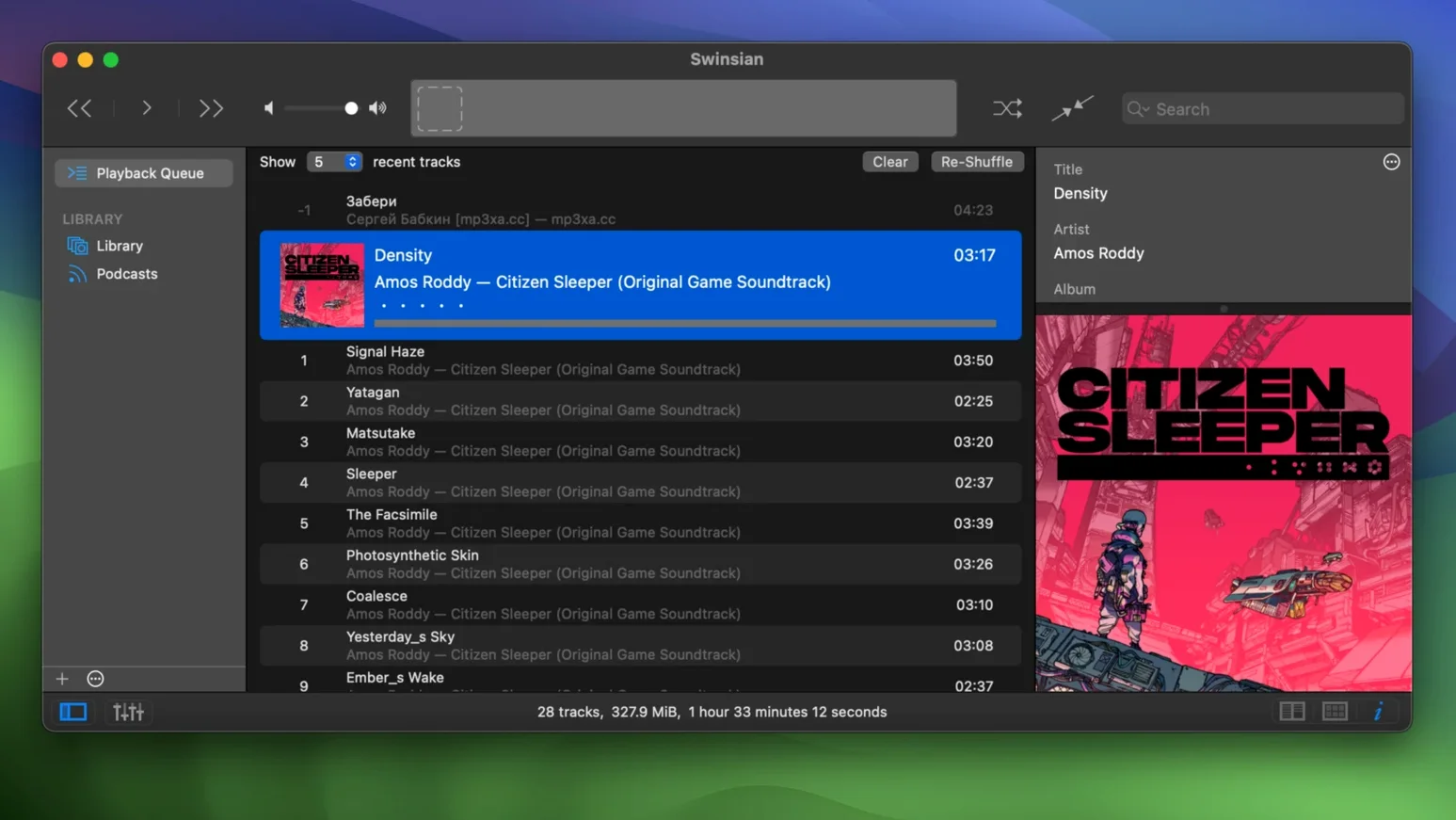
Complete Tags window opens, and the Disc 3 tracks finally snap into correct numerical order. That sorting fix in 3.0.8 matters when you are cleaning up a large box set. Swinsian does not stream, does not sync a subscription, and does not hide your files inside a database package. It watches folders you point it at and plays what it finds — FLAC, Opus, DSF, APE, the lot.
Plain-folder libraries and quadraphonic FLAC playback
- Libraries stored as plain folders of audio files, not database blobs
- Batch tag editing with a full-window editor that respects multi-disc sorting
- Format hoarders — FLAC, Opus, DSF, APE, MusePack and more, including quadraphonic FLAC (playback fixed in 3.0.8)
- Dark-mode workspaces with adjustable art grid labels and hidden options for larger interface text
- People who use AppleScript to wire playback into custom workflows
No streaming ties and the iPod playlist bug
- No streaming service integration — this is a local-library player
- iPod playlist removal had bugs until 3.0.8; older versions may stumble here
- Transcoding rule saves were unreliable before the current update
Custom three-tag column browser off the main toolbar
Several touches sit just off the main toolbar and repay a few minutes of poking around. The column browser (View → Column Browser) can be set to genre/artist/album or to any three-tag hierarchy you choose — right-click the column headers to reassign them. If you tag by Composer or Grouping, this changes how you navigate a classical library.
Global keyboard shortcuts live in Preferences → General. The defaults handle play/pause and track skipping, but you can bind star ratings, volume nudges, and a shortcut that pops the mini-player above other windows. The mini-player itself floats, resizes horizontally, and respects swinsian dark mode — useful when the full interface would be overkill.
Art grid labels gained extra customisation in 3.0.8. Right-click the art grid header and you can show or hide track count, duration, and year. The hidden larger-text option is not in the main preferences panel; it lives in a terminal command listed in the developer's release notes. Not everyone will need it, but on a 27-inch display at native resolution it makes the track list easier to scan.
A small detail that gets overlooked: holding Option while clicking the column browser selects only that item without adding it to a playlist or triggering playback. It is a quick way to isolate a single artist for tag inspection. And if you ever lose the artwork sidebar, View → Show Artwork toggles it back. It remembers its state per playlist, so a playlist you use for tag cleanup can hide artwork while a listening playlist shows it.
Bandcamp Friday drop lands in the watched folder
Tuesday evening. Twenty new albums landed in the watched folder from a Bandcamp Friday splurge — a mix of FLAC, a few WAVs, and one DSF album that was mis-tagged at purchase. Swinsian picks them up within seconds because the folder watcher polls the directory tree and adds new files without an explicit import step.
First, I sort the track list by Date Added, descending. The new arrivals cluster at the top. I select the DSF album, open the Track Editor (Command-I), and see the tags are a mess: album artist missing, track titles in all caps, genre blank. A quick trip to Edit → Find & Replace inside the editor fixes the caps — I search for [A-Z]{2,} with the regex option on and replace with title casing, track by track, because the find-and-replace tool supports regular expressions but applies per-field, not globally across all tags. It takes two minutes, not twenty.
Next, the WAV files have no embedded artwork. I select the album, right-click, choose Fetch Artwork, and Swinsian pulls four candidates from its online source. I pick the cleanest one. The art writes into the folder as a separate image file, not embedded in the WAV itself — Swinsian reads folder images automatically, so the album displays correctly in the art grid.
I then build a smart playlist: File → New Smart Playlist. Rule: Date Added is in the last three days, Genre is not Podcast, Kind is not WAV (I keep WAVs for archival rips and do not want them in casual rotation). The playlist populates instantly. I drag it to its own window (File → Open Playlist in New Window) and dock that window on a second display while I work. Playback is gapless, sample rate switches automatically to match the DSF files at 2.8 MHz, and the equaliser — set to a flat 31-band curve with a gentle 2 dB dip at 4 kHz to tame a bright pair of headphones — stays applied across format changes because the EQ is output-stage, not per-file.
Before closing for the night, I check Library → Statistics. The total track count, hours of playtime, and format breakdown confirm the DSF album added roughly 12 GB to the library. The duplicate-finding tool (Library → Find Duplicates) runs in under ten seconds on a 60 000-track library and flags nothing this time — same album, different mastering, no bit-identical files.
Set watched folders to the top level, not subfolders
- Point the watched folders at your top-level music directory, not subfolders. Swinsian recurses, and adding subfolders individually creates duplicate watch paths.
- Decide early whether artwork should embed in files or sit as folder images. Preferences → Library → Artwork controls this. Folder images keep your files byte-identical to their origin, which matters when you seed Swinsian torrent collections or verify checksums.
- If you use cue sheets, enable Preferences → Playback → Read cue files. Swinsian treats a cue sheet as a track list for the parent audio file and shows individual tracks in the browser without splitting the file. Embedded cue metadata works the same way — check the Track Editor for a Cue tab when it detects the data.
- Set sample rate switching to Automatic in Preferences → Playback → Output. On a DAC that supports it, this avoids Core Audio resampling and keeps bit-perfect output for hi-res files. The 3.0.8 update did not change this behaviour, but earlier builds had edge cases with quadraphonic FLAC that are now resolved.
- If you are migrating from iTunes, File → Import → Import iTunes Library brings over playlists, ratings, play counts, and date-added fields. The import reads the iTunes Library XML, not the Music.app database, so export that XML first if you are on a newer macOS version where Music.app hides it.
Stays local where Vox goes to the cloud
Compared with Vox, Swinsian takes the opposite approach to library management. Vox ties into a cloud account and streams your own uploads; Swinsian stays entirely local, never touches a remote server, and handles DSF and cue sheets natively — two areas where Vox falls short. Vox has a more polished look, but its tag editor is single-track and cannot run regex replacements across a selection. For someone managing a large offline library, swinsian 3 feels faster in daily use because it does not wait for network round-trips during browsing.
Compared with foobar2000 for Mac, Swinsian wins on visual integration and ease of setup. foobar2000 on macOS is a Windows port with a cross-platform UI toolkit; it supports an enormous range of formats, but configuring the layout takes time and its dark mode is inconsistent. Swinsian arrives with a native Mac interface, proper column browser, and artwork grid that respects the system appearance setting. foobar2000 counters with more powerful conversion presets and a DSP chain, but Swinsian covers the most common DSP need — the 31-band EQ and auto sample-rate switching — without configuration files.
Compared with the default Music.app, the difference is structural. Music.app packages files into a managed library unless you explicitly disable it, strips tags it does not understand from FLAC files (since it converts them on import), and offers no regex tag editing at all. Swinsian leaves your folder structure untouched, understands FLAC tags natively, and does not require an Apple ID. The trade-off is no iCloud sync, no Apple Music streaming, and no video playback. For a pure audio library stored as plain files, swinsian mac removes the friction that Music.app introduces. The 3.0.8 update quietly fixed transcoding rules and iPod playlist removal — two areas where Music.app's sync had long been the smoother path, and where Swinsian now closes the gap.
- macOS 10.13 or later
- Apple Silicon or Intel 64-bit processor
Questions on file
Does Swinsian work with an existing iTunes library?
Yes, it can import an iTunes library directly, pulling across playlists and metadata without re-importing audio files.
What audio formats does Swinsian 3 support?
It plays FLAC, MP3, AAC, ALAC, Ogg Vorbis, WMA, WAV, Opus, AC3, AIFF, MusePack, DSF, APE, and handles cue sheets with embedded metadata.
Can I control Swinsian with keyboard shortcuts?
Yes, global keyboard shortcuts are available, and the app also supports control through AppleScript.
Sign in · Create an account to add a field note.
No field notes yet. A measurement, a version, a machine — they appear after moderation.